Create a Knowledge Base with AI
Today, we'll learn to build a Knowledge Base with AI. We'll cover creating the Knowledge Base, adding your first document by pasting content, and then inspecting how Expedify automatically breaks that content into searchable chunks. This process is crucial for efficient AI retrieval.
Knowledge Base Demo
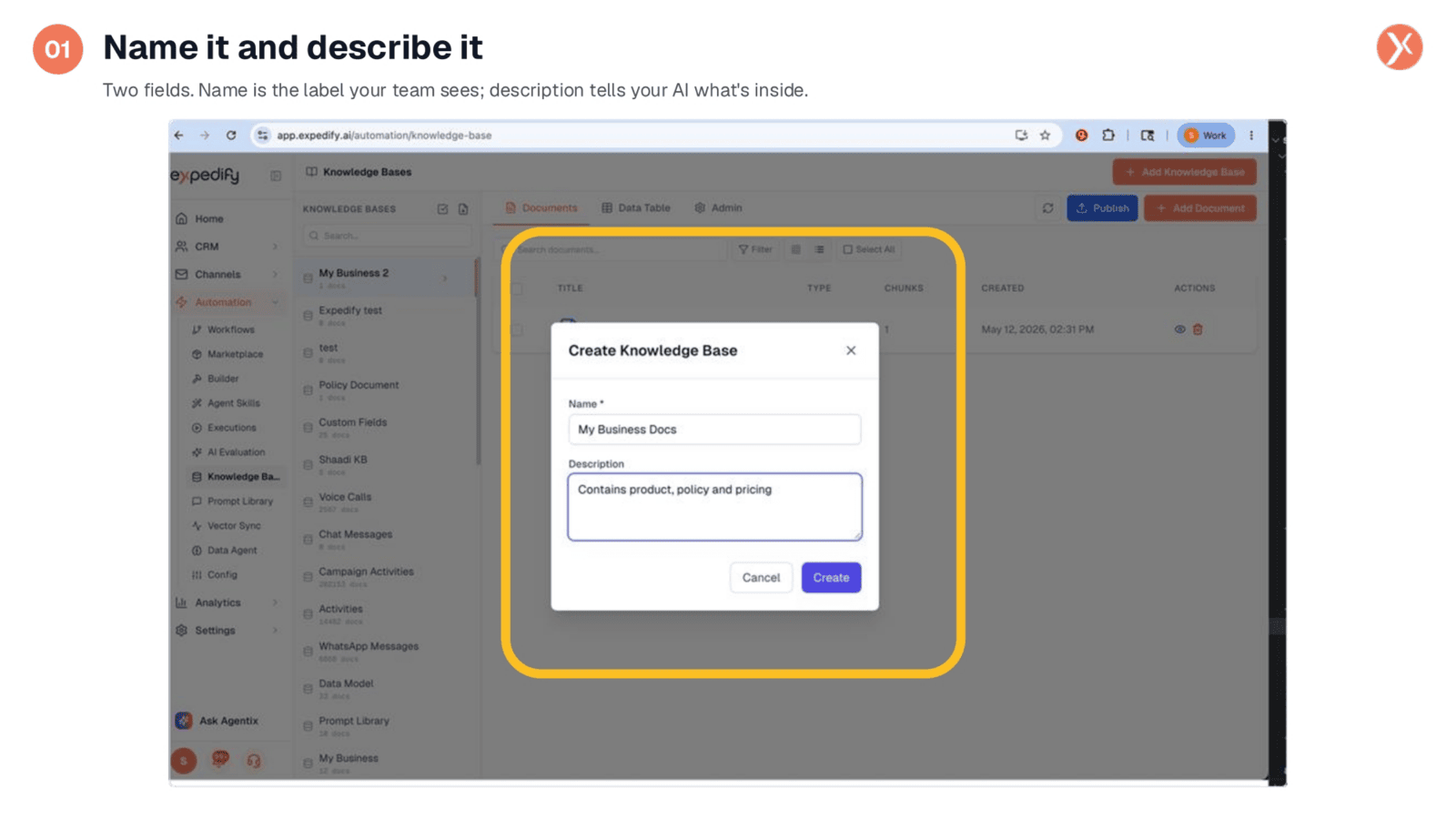
To begin, navigate to Automation and select Knowledge Base, then click "Add Knowledge Base." A modal will appear, requiring just two fields. The "Name," such as "My Business Docs," serves as a label for your team. The "Description" is vital, as your AI uses it to determine which Knowledge Base to query. Ensure it clearly describes the content, like "contains product, policy, and pricing," guiding the AI effectively.
Name it and describe it
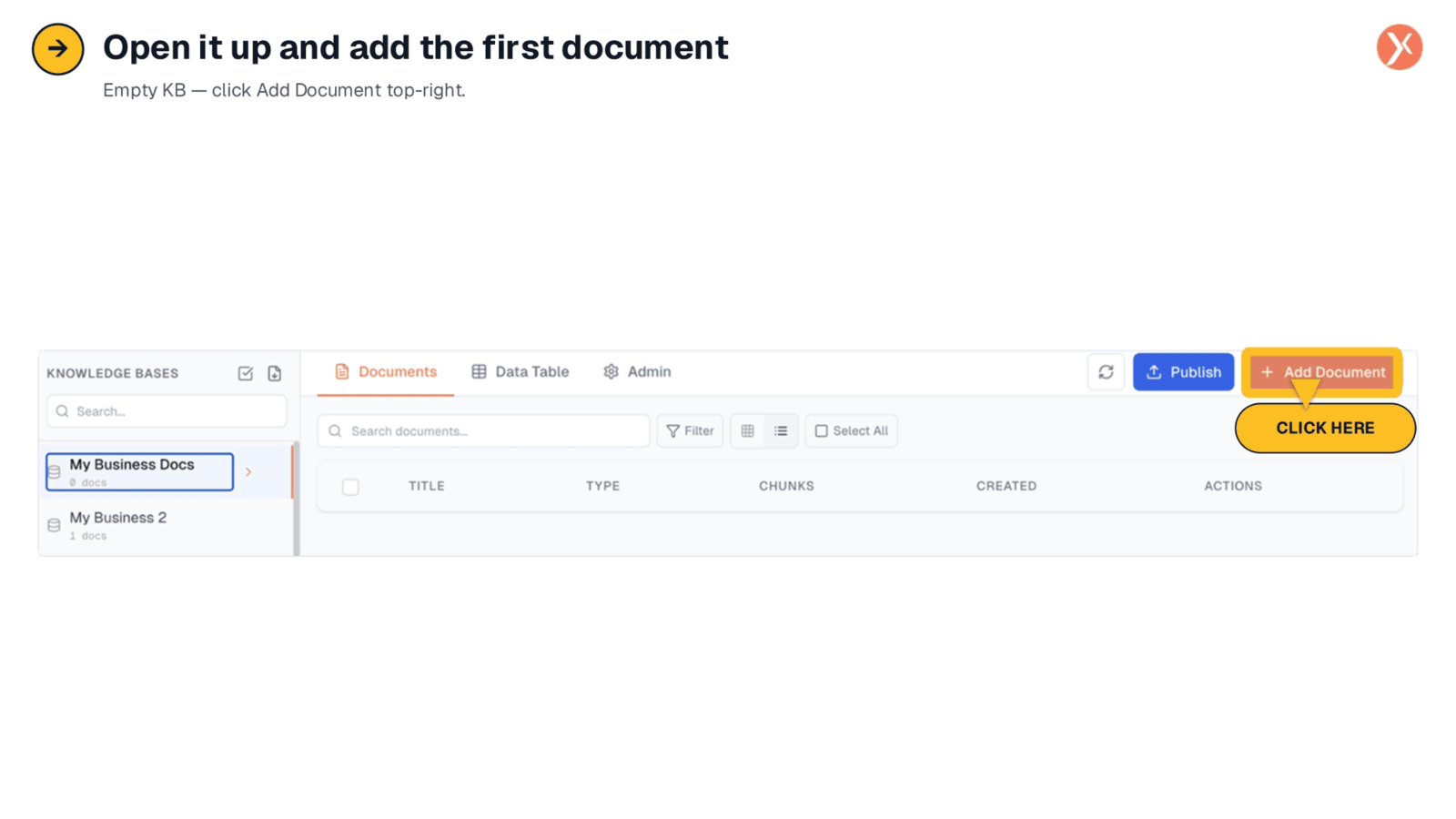
After creating your Knowledge Base, you'll see its main interface, initially empty. It features three key tabs: Documents, Data Table, and Admin. The Documents tab is where you'll manage your content, while the Data Table provides a detailed view of how your information is structured. The Admin tab allows for overall management. Our next step is to populate this new Knowledge Base with its first document.
Open it up and add the first document
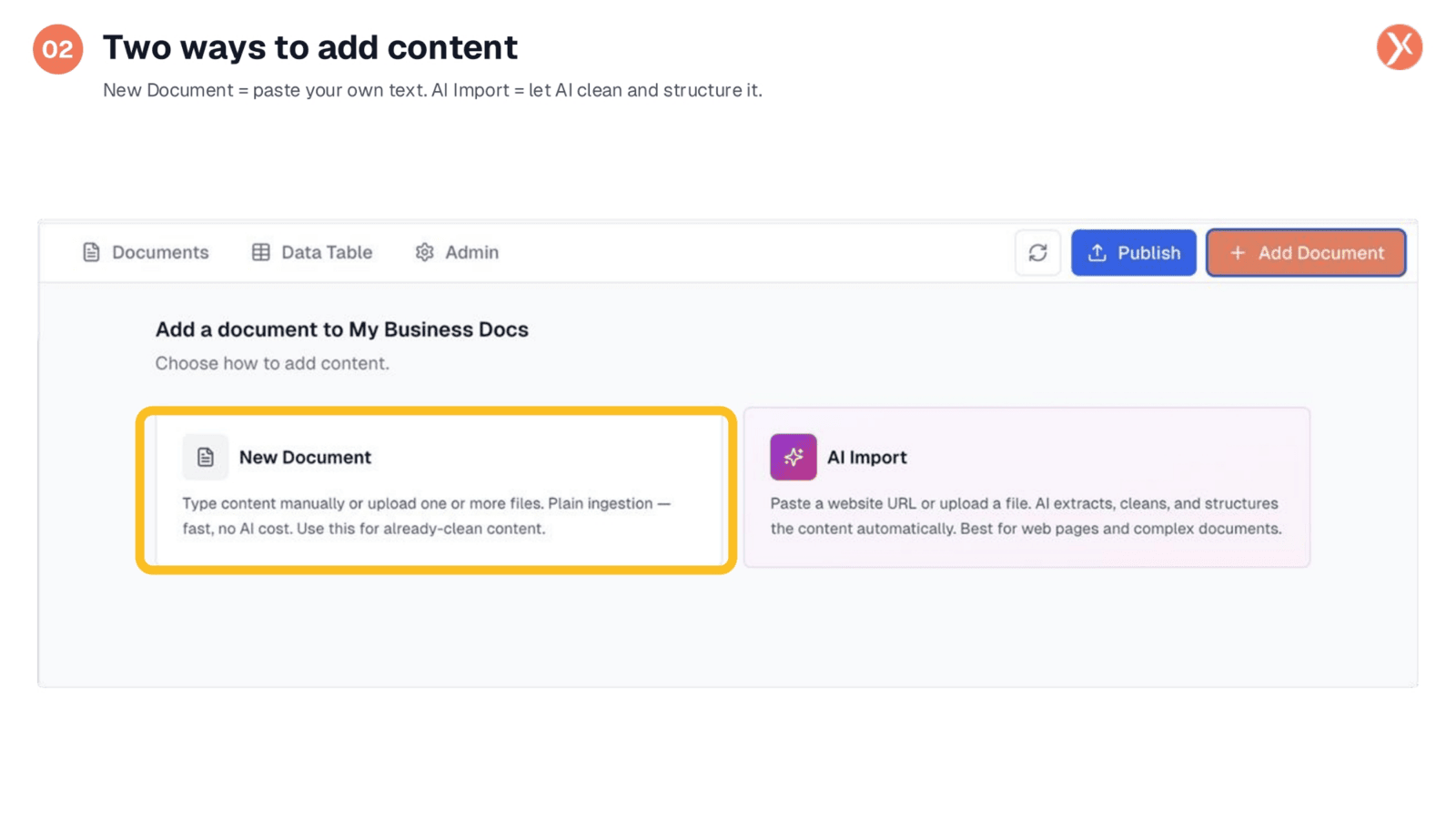
When adding content, you have two primary options. The "New Document" path is ideal for clean, pre-formatted text, such as product descriptions or FAQs. You can paste content directly or upload a file, and Expedify ingests it without additional AI processing, making it fast and cost-effective. For more complex or unstructured data, like web pages or PDFs with tables, the "AI Import" option is available, which we will explore in a future lesson.
Two ways to add content
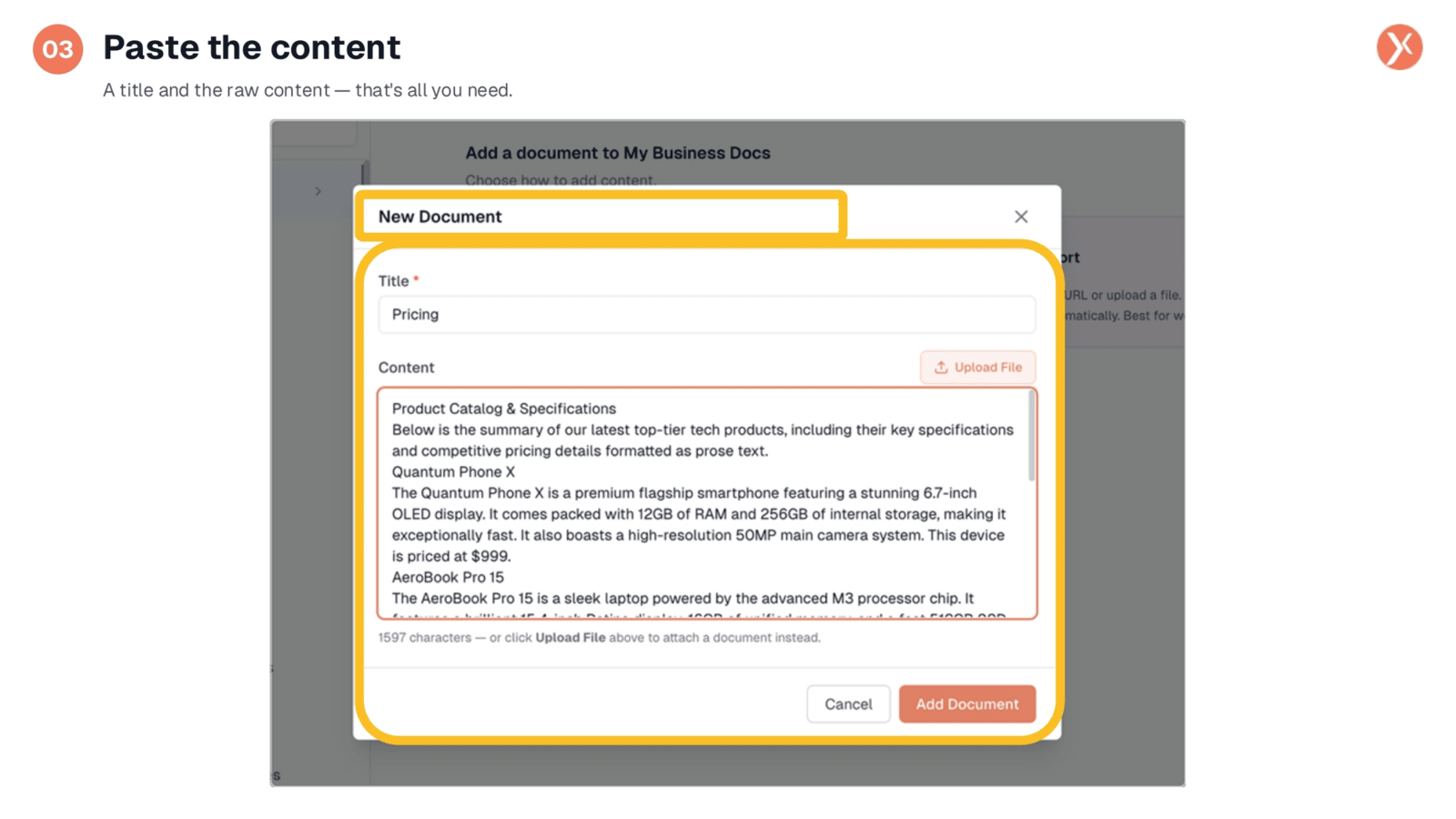
To add a new document, simply provide a title, such as "Pricing," and then paste your content into the designated box. This example includes product catalog text detailing our flagship phone, laptop, and headphones, complete with prices and specifications. Alternatively, if your content is already in a file, you can use the "Upload File" option. A character counter helps you monitor the length. Once ready, click "Add Document" to proceed.
Paste the content
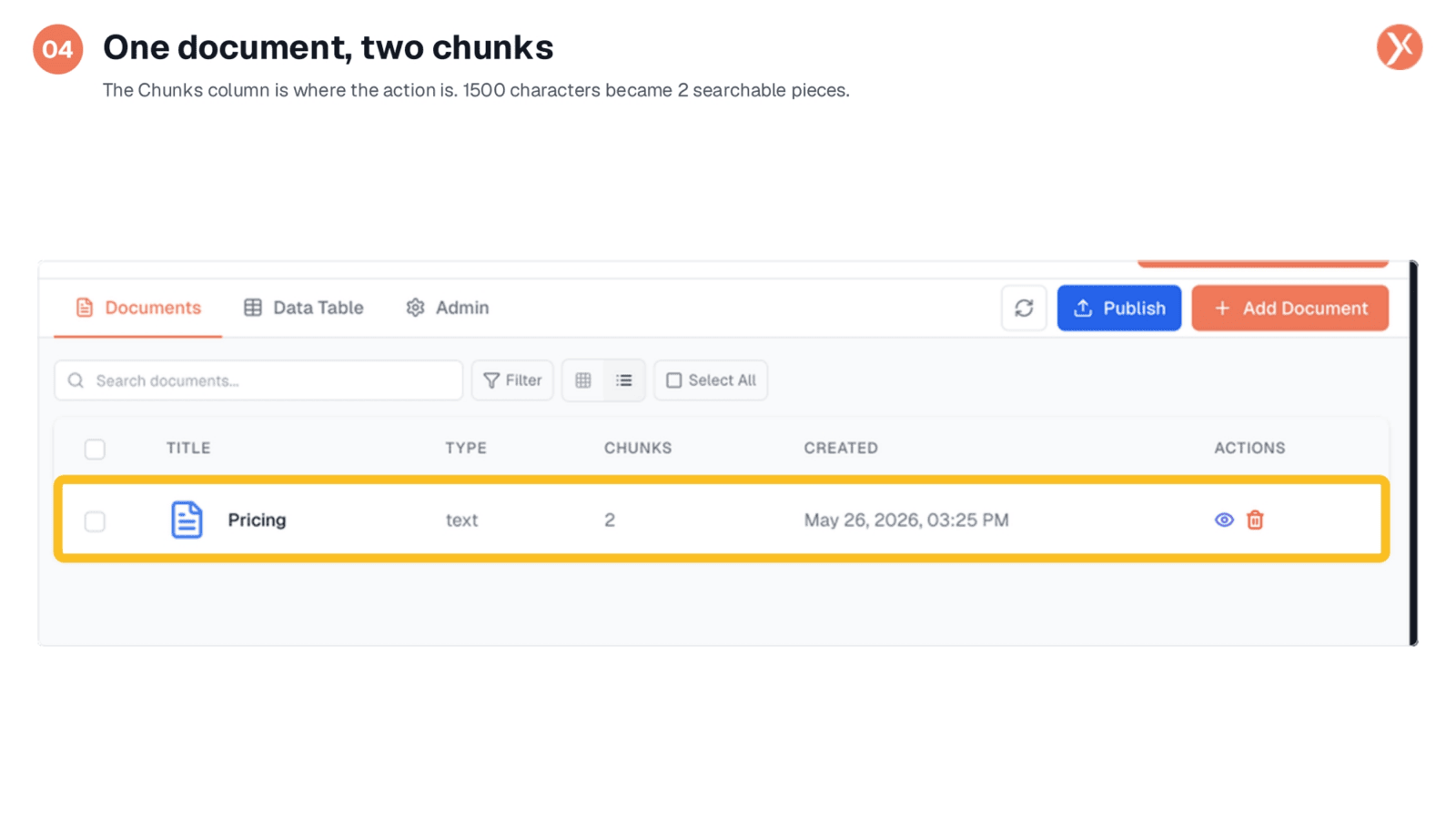
After adding your content, you'll see it listed as a document, in this case, "Pricing," identified as text with two chunks. The "chunks" count is crucial. Expedify automatically divides your pasted content into smaller, overlapping pieces, typically around a thousand characters each. This segmentation is vital because AI agents don't process entire documents for every query. Instead, they efficiently search for and retrieve only the most relevant chunks, ensuring faster and more precise answers.
One document, two chunks
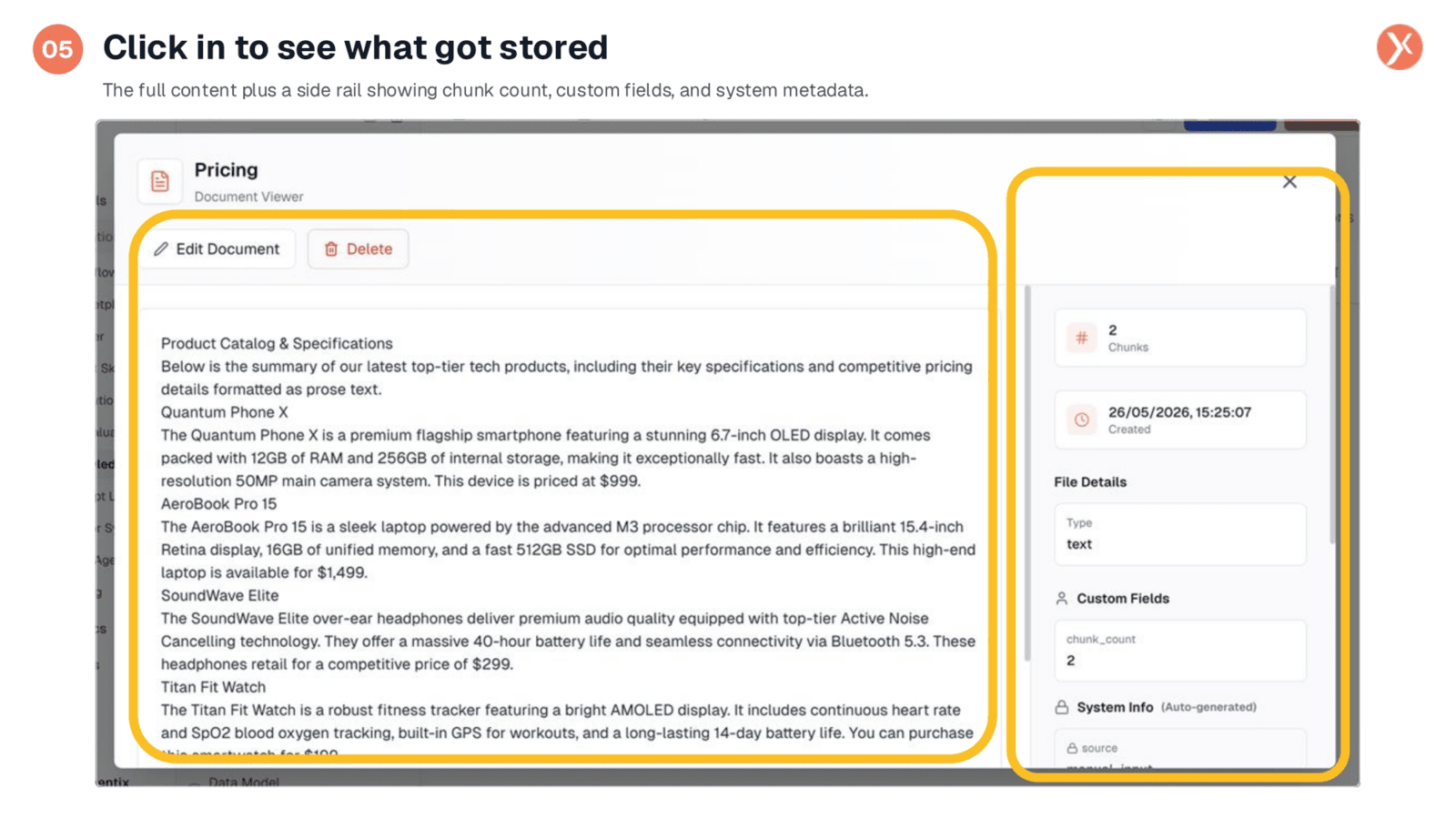
Clicking on a document row opens the Document Viewer. On the left, you'll see the original content exactly as it was pasted, confirming that Expedify stores plain text without alteration. The right-hand panel provides important details: the number of chunks, the creation timestamp, and the file type. Below this, "Custom Fields" allow you to add specific tags or categories, while "System Info" displays automatically generated metadata, which typically requires no manual intervention.
Click in to see what got stored
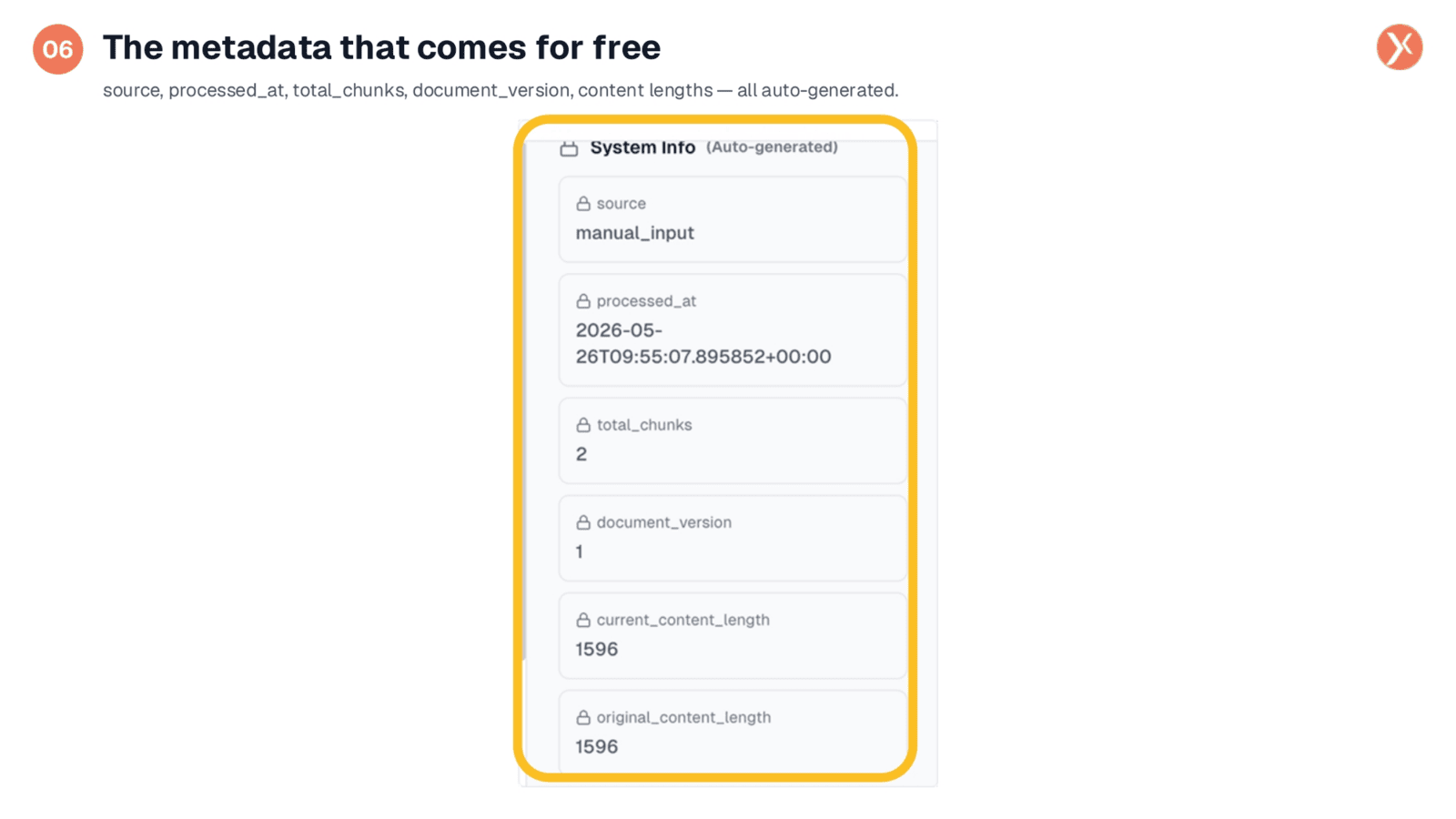
The System Info panel provides six automatically generated metadata fields. The "source" indicates "manual_input," confirming the content was pasted rather than uploaded from a PDF or web scrape. Other fields include "processed_at," "document_version" (which updates with edits), "total_chunks," and content length details. These fields are read-only, serving as a record of the document's origin and processing. While not directly editable, they are crucial for filtering AI queries, a feature we'll explore later.
The metadata that comes for free
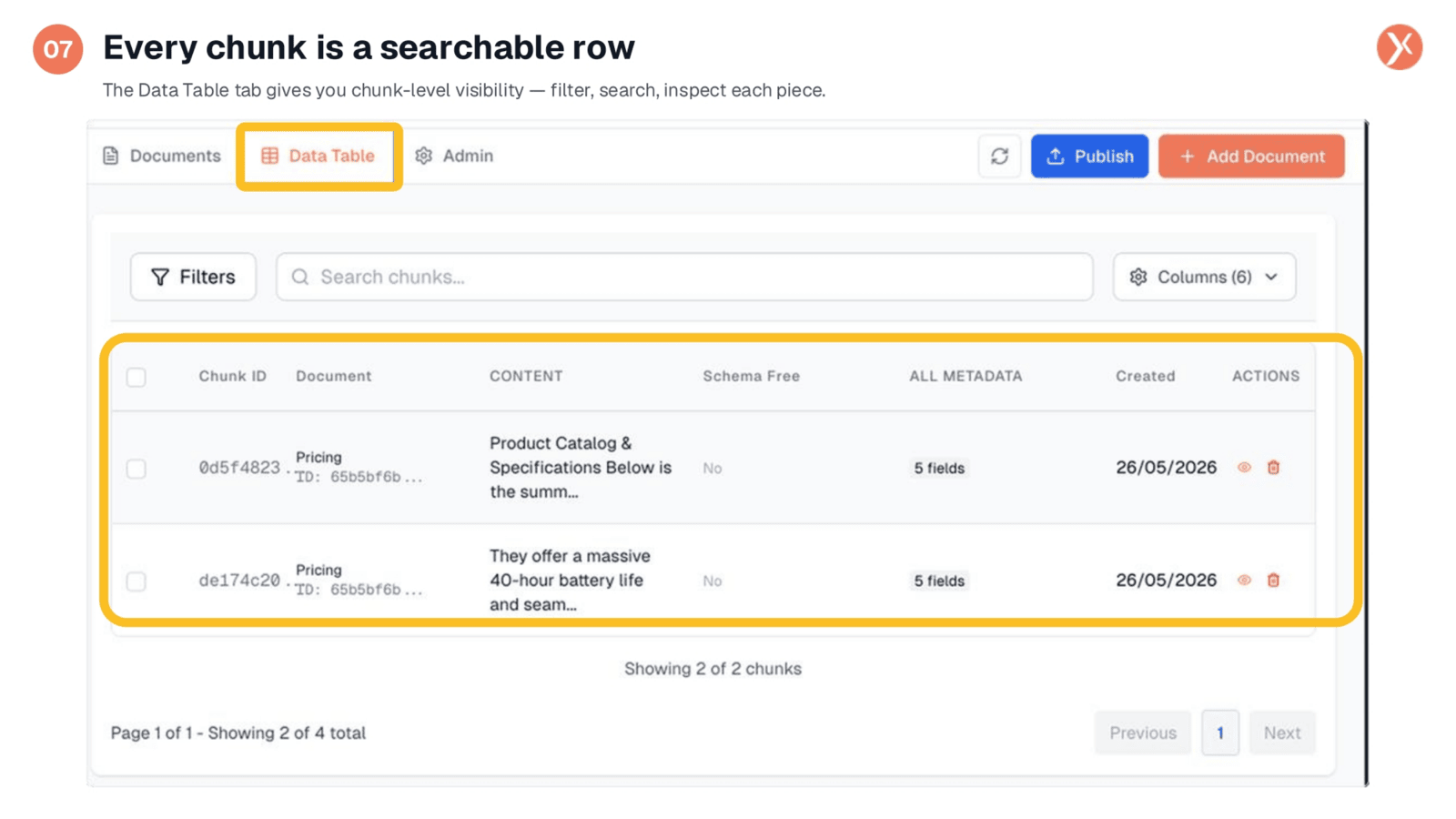
Navigating to the Data Table tab shifts your perspective from documents to individual chunks. Here, you'll find each chunk represented as a separate row, complete with its unique ID, a content preview, and the number of associated metadata fields. This granular view is particularly valuable for large Knowledge Bases, enabling you to filter chunks by source, search specific content, and precisely understand what information your AI will retrieve for a given query.
Every chunk is a searchable row
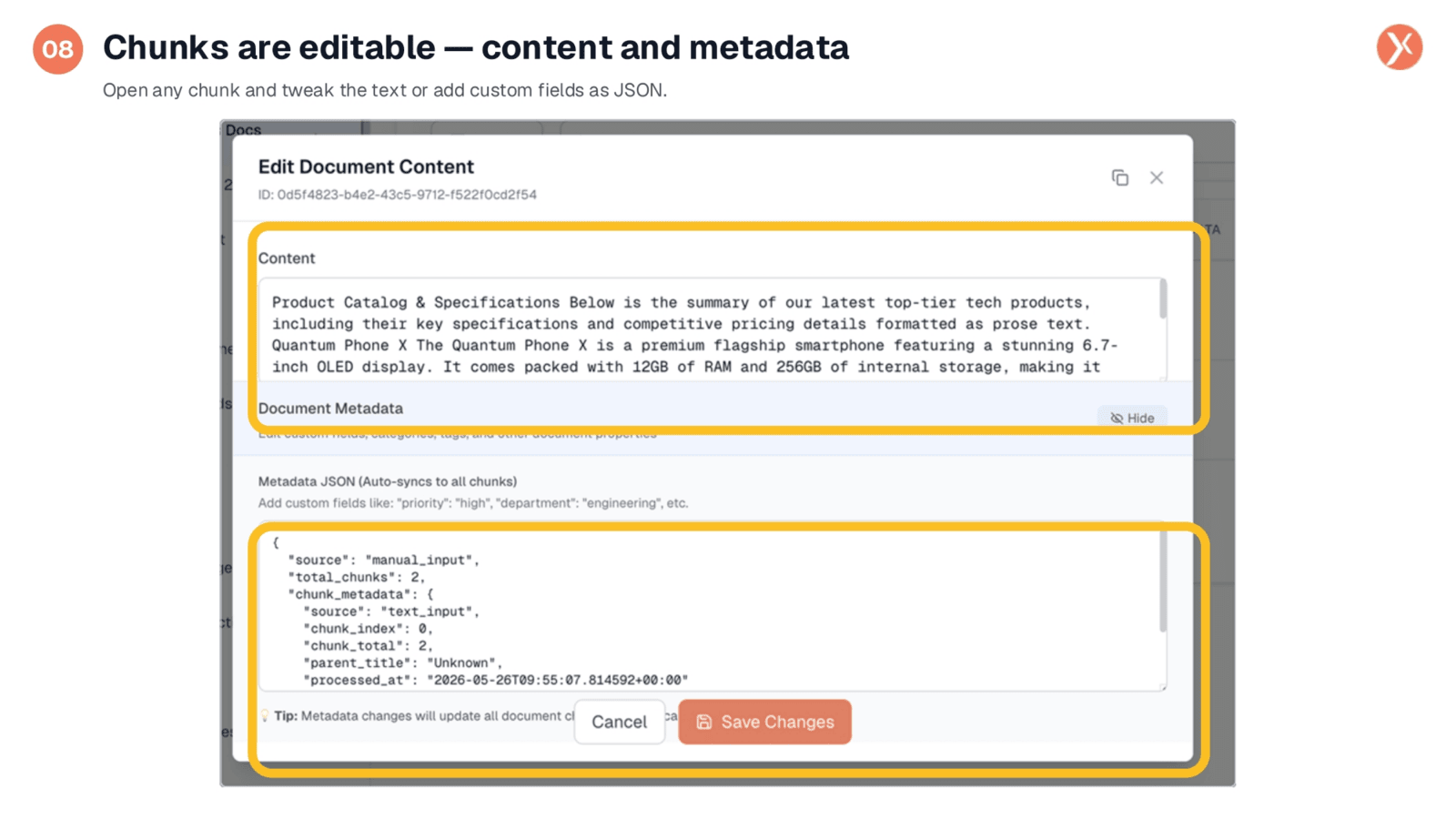
Expedify offers fine-grained control over your content. Clicking on any chunk opens an "Edit Document Content" modal. The top section allows you to freely edit the chunk's text. The bottom section, "Metadata JSON," enables you to add custom fields, such as "priority: high" or "department: sales." These custom fields can then be used by your AI as filters during searches, enhancing retrieval accuracy. After making any adjustments, saving changes instantly re-indexes the chunk.
Chunks are editable - content and metadata
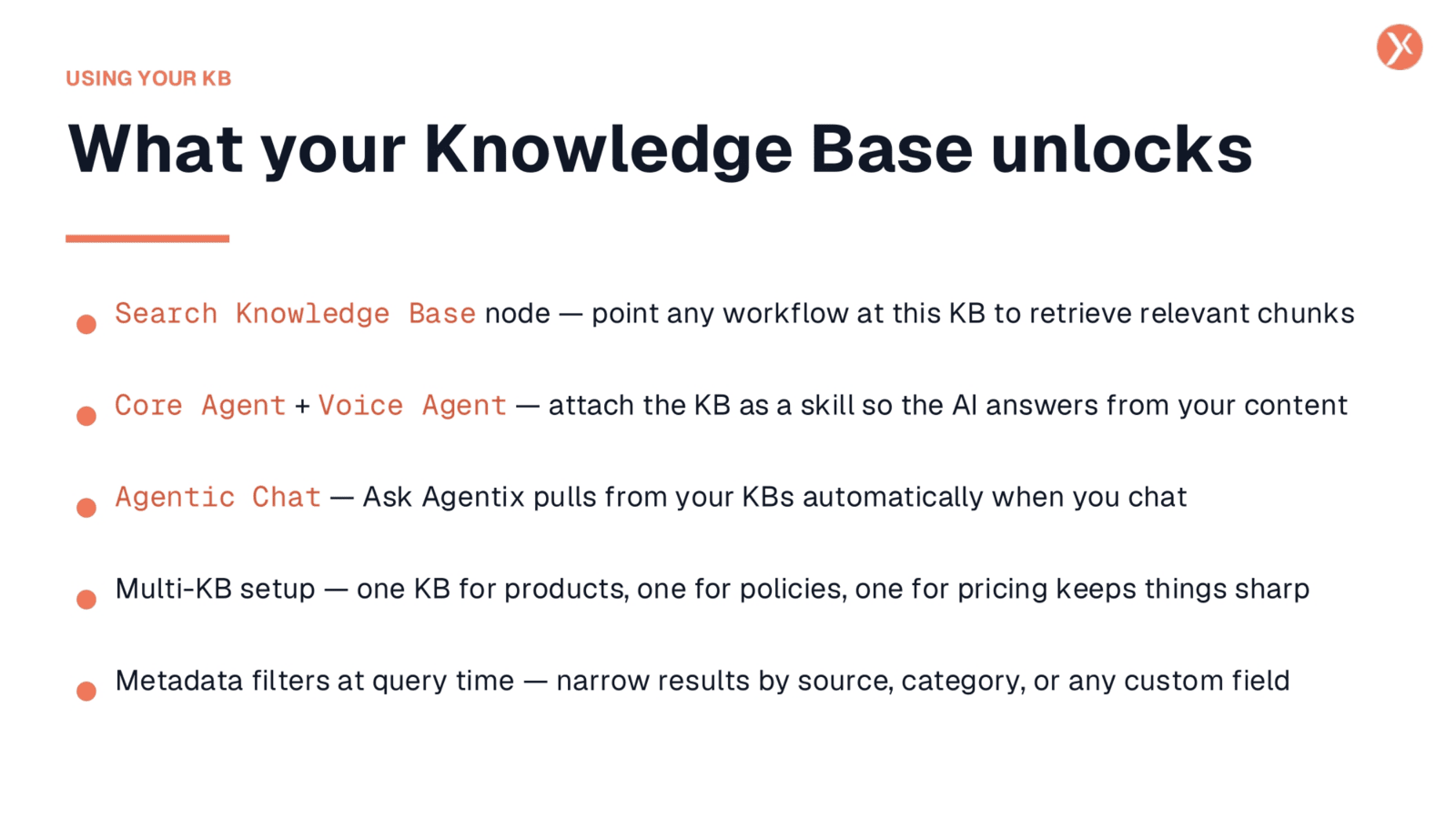
A Knowledge Base unlocks powerful capabilities across Expedify. You can direct any AI requiring content to this Knowledge Base. Within workflows, the "Search Knowledge Base" node efficiently retrieves relevant chunks for queries. For Core and Voice Agents, attaching Knowledge Bases as skills ensures they provide accurate answers directly from your content. Additionally, Ask Agentix automatically leverages your Knowledge Bases. For optimal retrieval, it's recommended to maintain focused Knowledge Bases, perhaps one for products, another for policies, and a third for pricing.
What your Knowledge Base unlocks
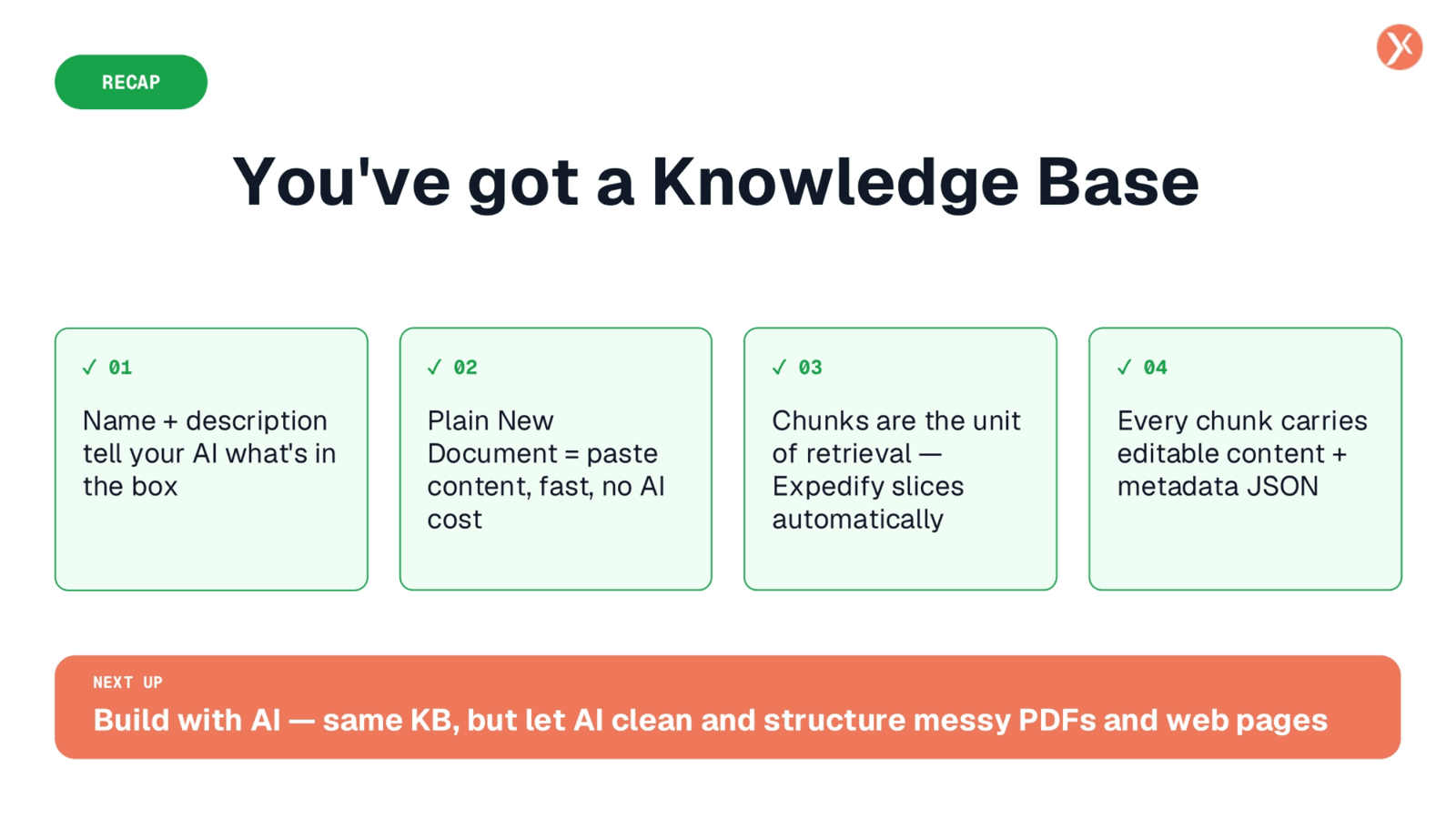
To recap, a Knowledge Base functions as a structured, labeled library for your content. Adding plain text is a straightforward process, requiring no AI cost or waiting. Expedify automatically processes this content, chunking, embedding, and making it fully searchable. Both the content and its associated metadata within each chunk are editable, offering flexibility for adjustments. In our next lesson, we will explore using AI Import to process complex PDFs, demonstrating how AI can significantly enhance content cleaning and structuring.
You've got a Knowledge Base
You've successfully learned the fundamentals of creating and populating a Knowledge Base. This foundation is crucial for leveraging AI effectively. Thank you for joining this lesson.