Database Change Trigger
Today, we'll map out the four essential configurations for every Database Change Trigger. We'll cover selecting the entity to watch, defining the type of change, optionally specifying watched fields, and setting filter conditions. Mastering these elements ensures your triggers are precise and effective.
Trigger in a Workflow Demo
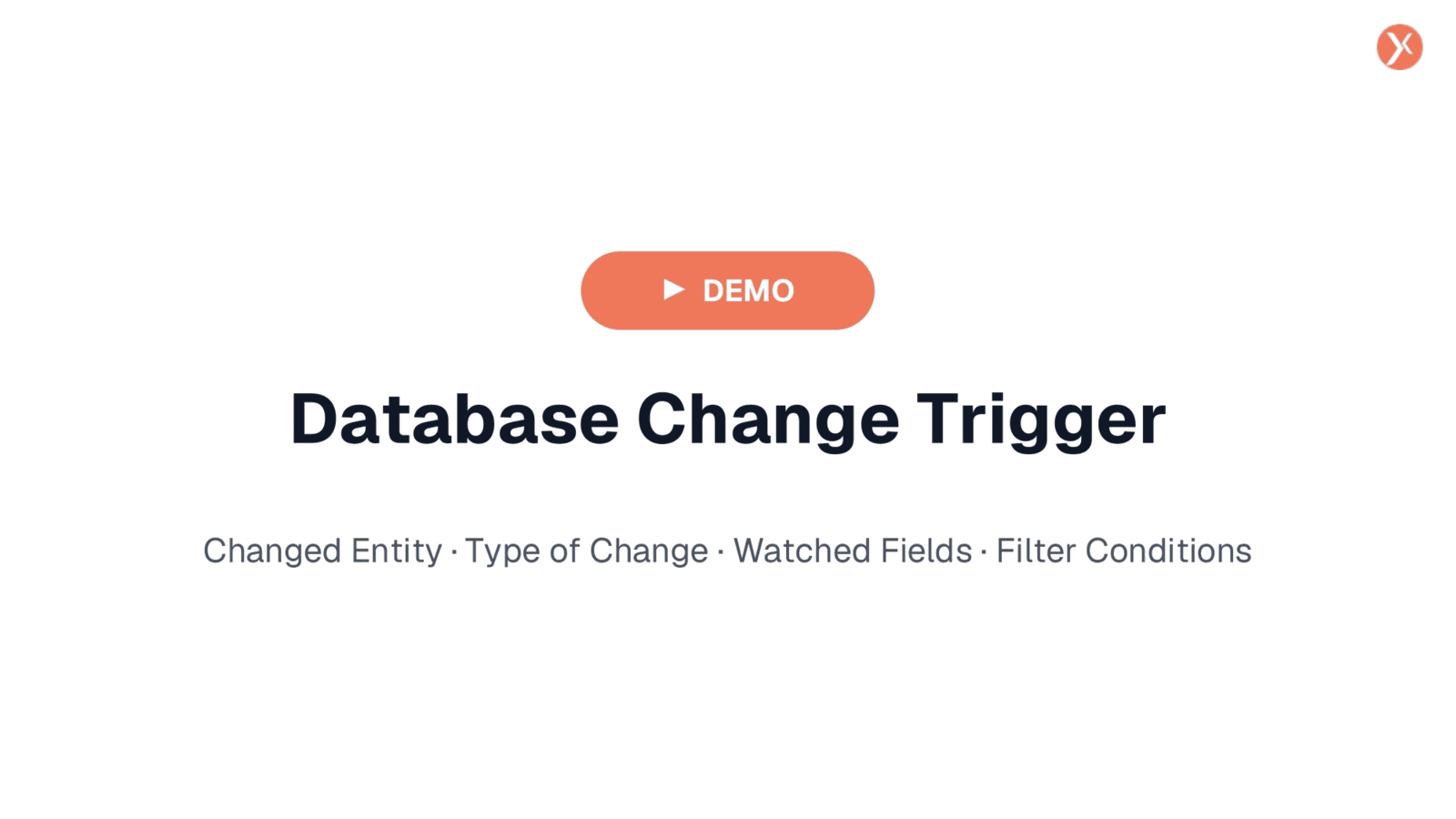
Here we see the Database Change Trigger integrated into a simple workflow, paired with an Email Send action. When a specified CRM change occurs, the trigger activates, and the email is dispatched. While we won't be building this entire flow today, our focus is on understanding the detailed configurations within this trigger, ensuring it operates exactly as intended.
Accessing Trigger Configuration
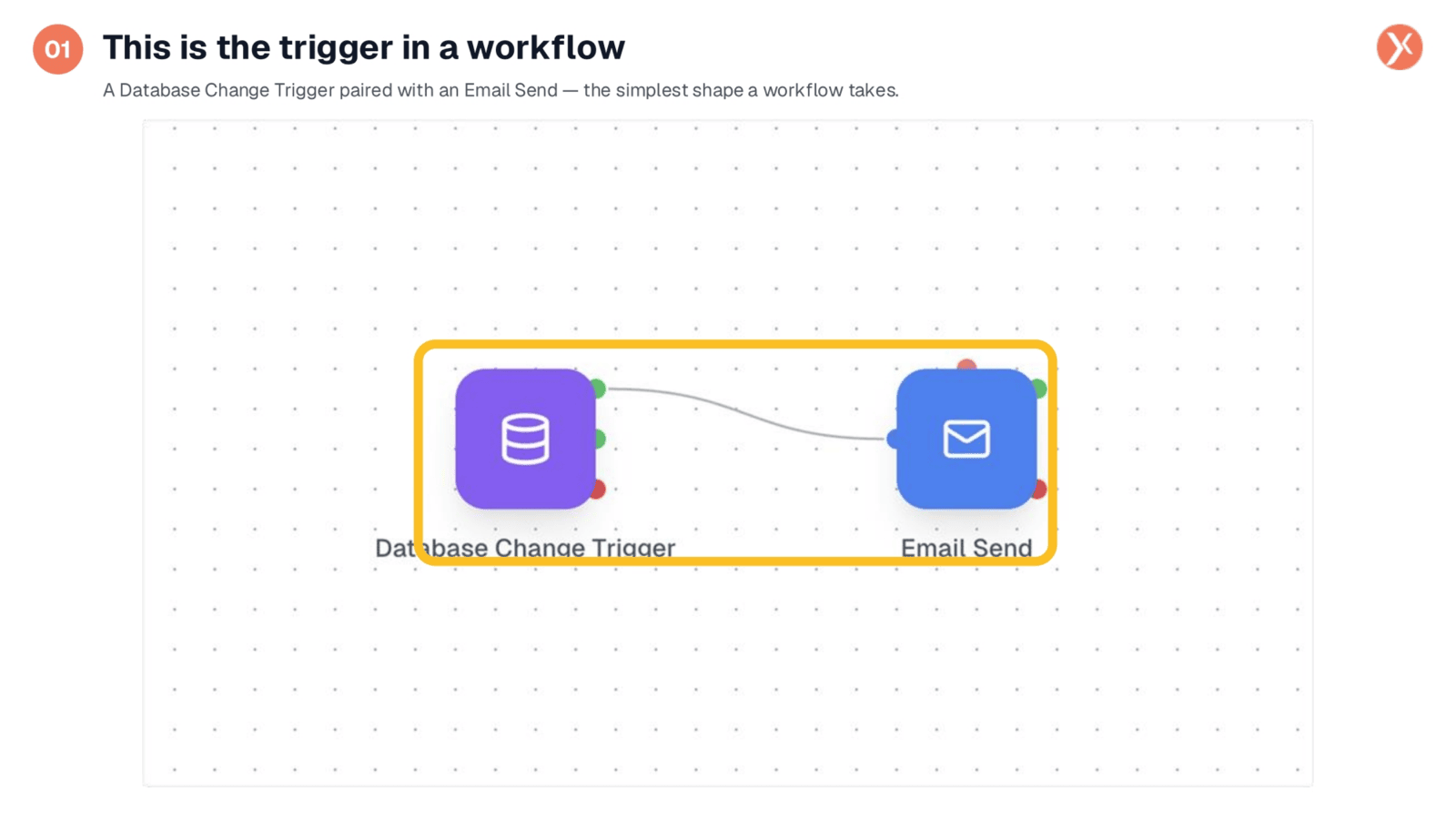
To access and customize the trigger's settings, simply double-click the Database Change Trigger node within your workflow. This action will open its configuration panel, allowing you to define precisely how and when the trigger should activate.
Understanding the Configuration Panel
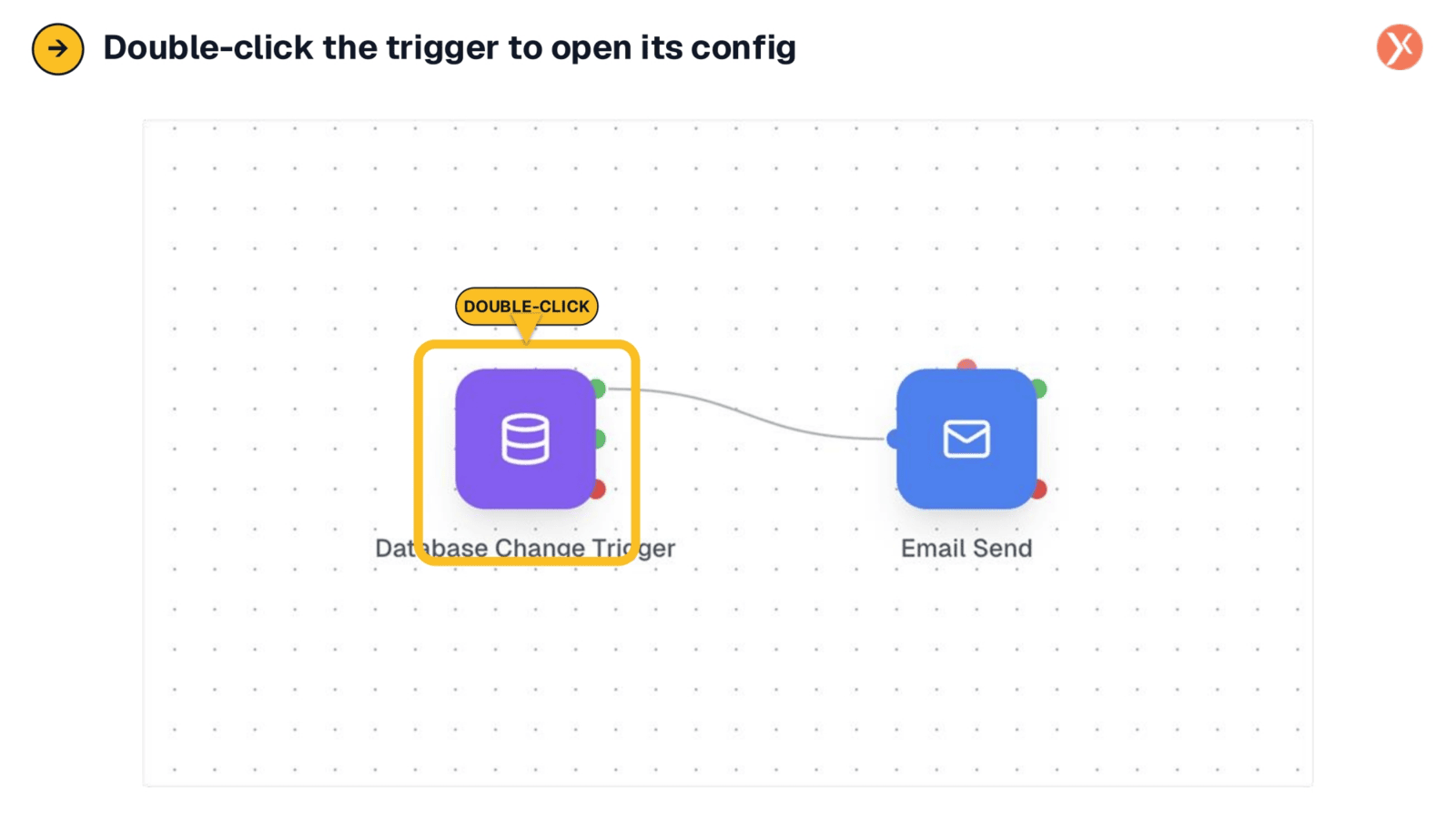
The full configuration panel presents four distinct sections, organized from top to bottom. First, 'Changed Entity' specifies which CRM table the trigger monitors. Next, 'Type of Change' defines the operations it listens for. 'Watched Fields' allows you to refine UPDATE triggers to specific fields, and 'Filter Conditions' enables narrowing based on a record's actual values. We'll now explore each of these sections in detail.
Selecting the Changed Entity
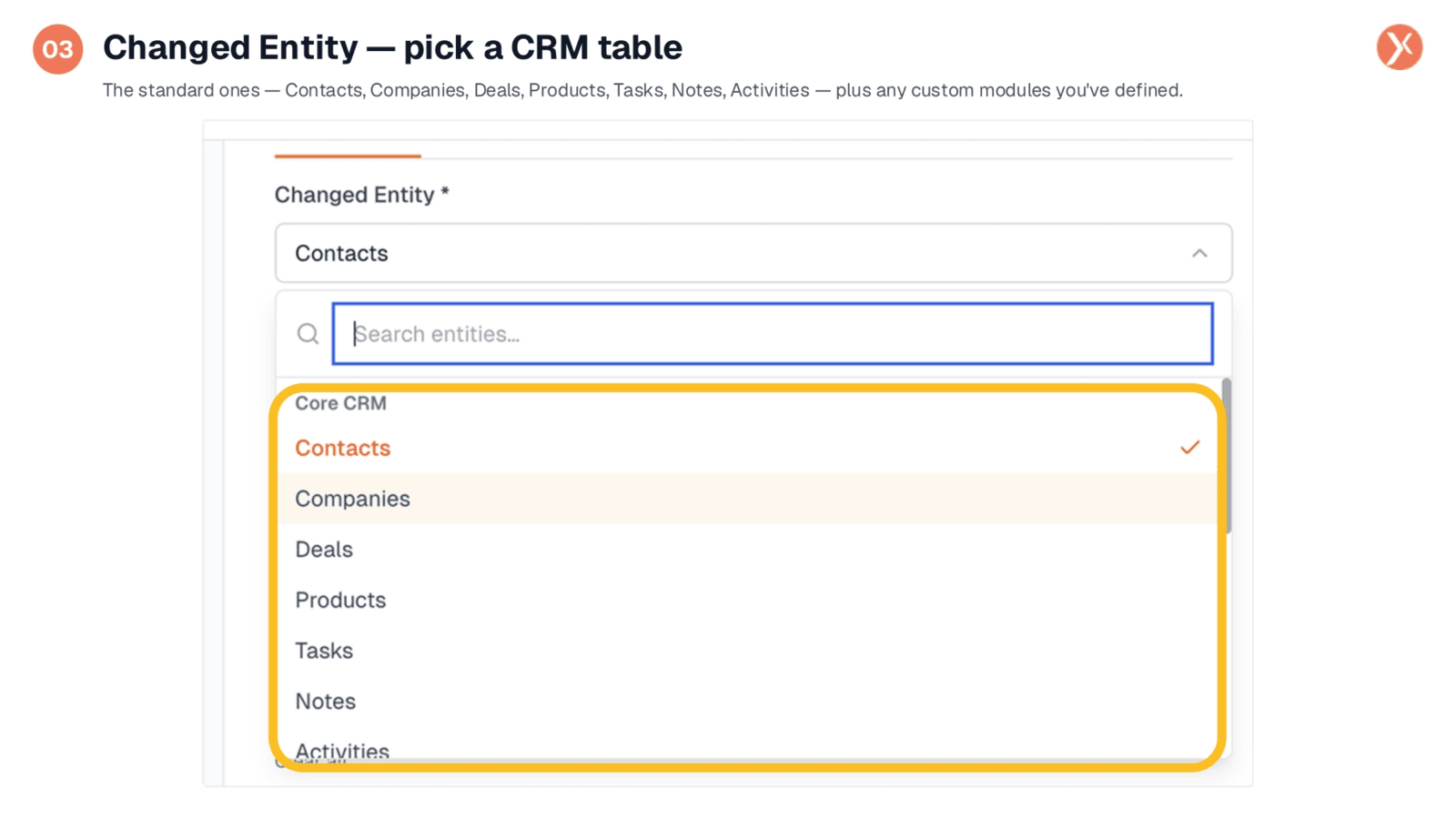
The 'Changed Entity' setting is where you specify the CRM table you wish to monitor. This includes standard entities like Contacts, Companies, Deals, Products, Tasks, Notes, and Activities, as well as any custom modules you've defined. It's important to note that you can only select one entity per trigger. If your workflow needs to respond to changes across multiple entities, you'll need to set up separate workflows for each.
Defining the Type of Change
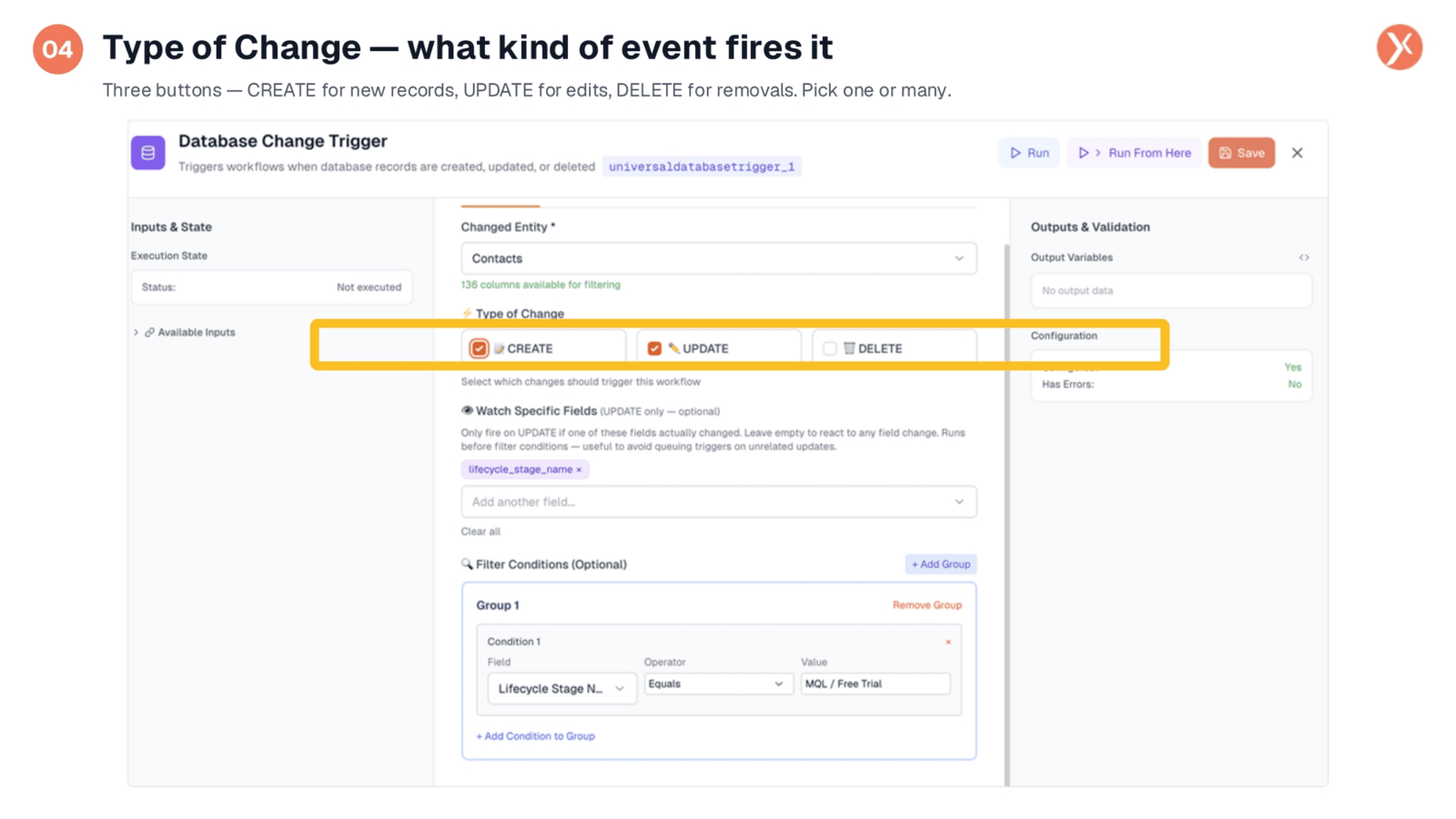
Next, the 'Type of Change' section allows you to specify which events will activate the trigger. You have three options: 'CREATE' for new record additions, 'UPDATE' for any edits to existing records, and 'DELETE' for record removals. You can select one, two, or all three. In this example, both 'CREATE' and 'UPDATE' are selected, indicating the workflow should respond to new contacts and changes to existing ones, while ignoring deletions.
Utilizing Watched Fields for Precision
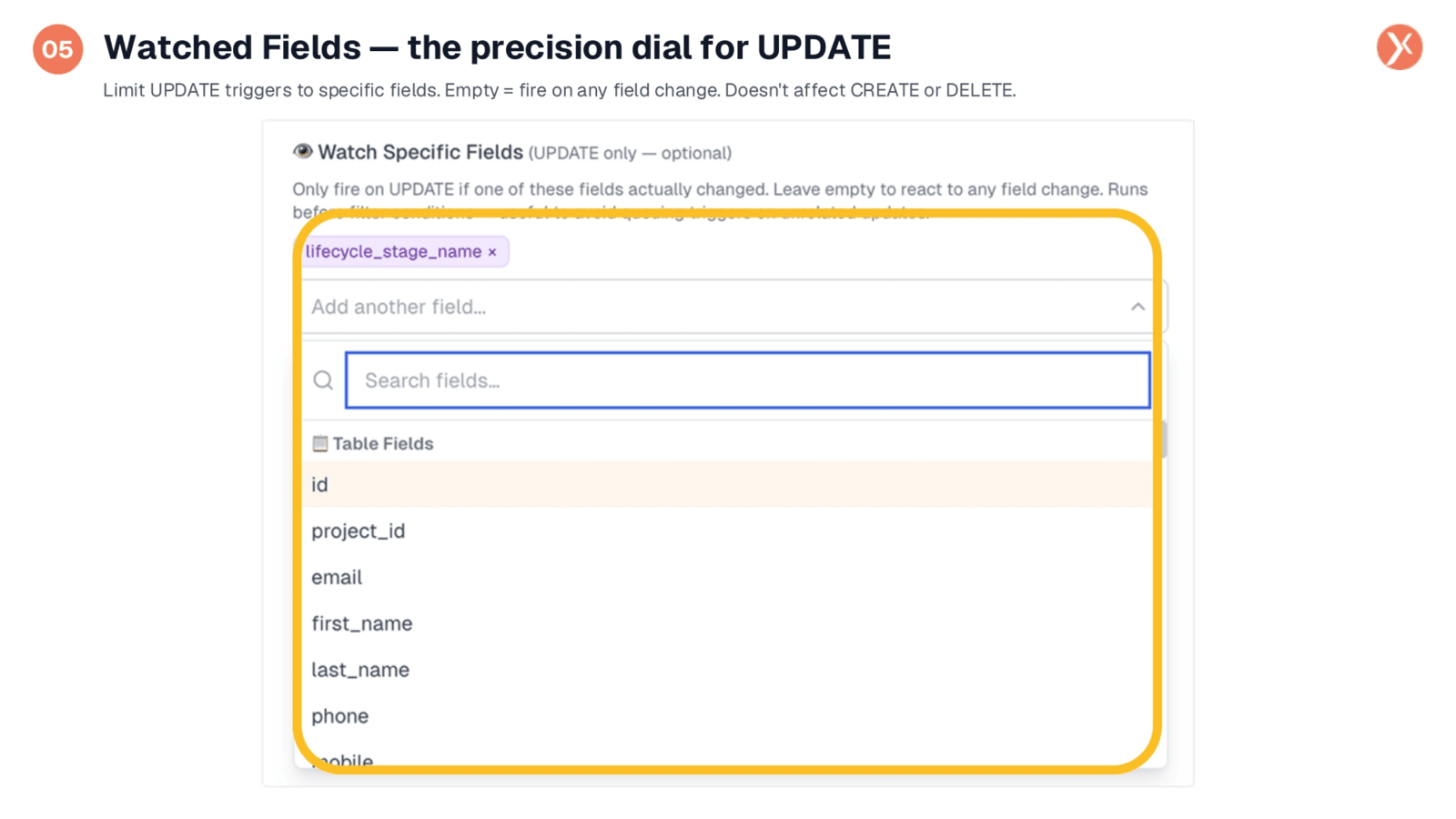
Watched Fields offer a crucial level of precision, particularly for 'UPDATE' triggers. By default, an 'UPDATE' trigger fires on any record modification, which can be overly broad. This feature allows you to specify that the trigger should only activate if a particular field changes. For instance, by selecting 'lifecycle_stage_name,' the trigger will only fire when a contact's lifecycle stage is updated, ignoring other edits. Remember, Watched Fields only apply to 'UPDATE' operations, not 'CREATE' or 'DELETE'.
Applying Filter Conditions
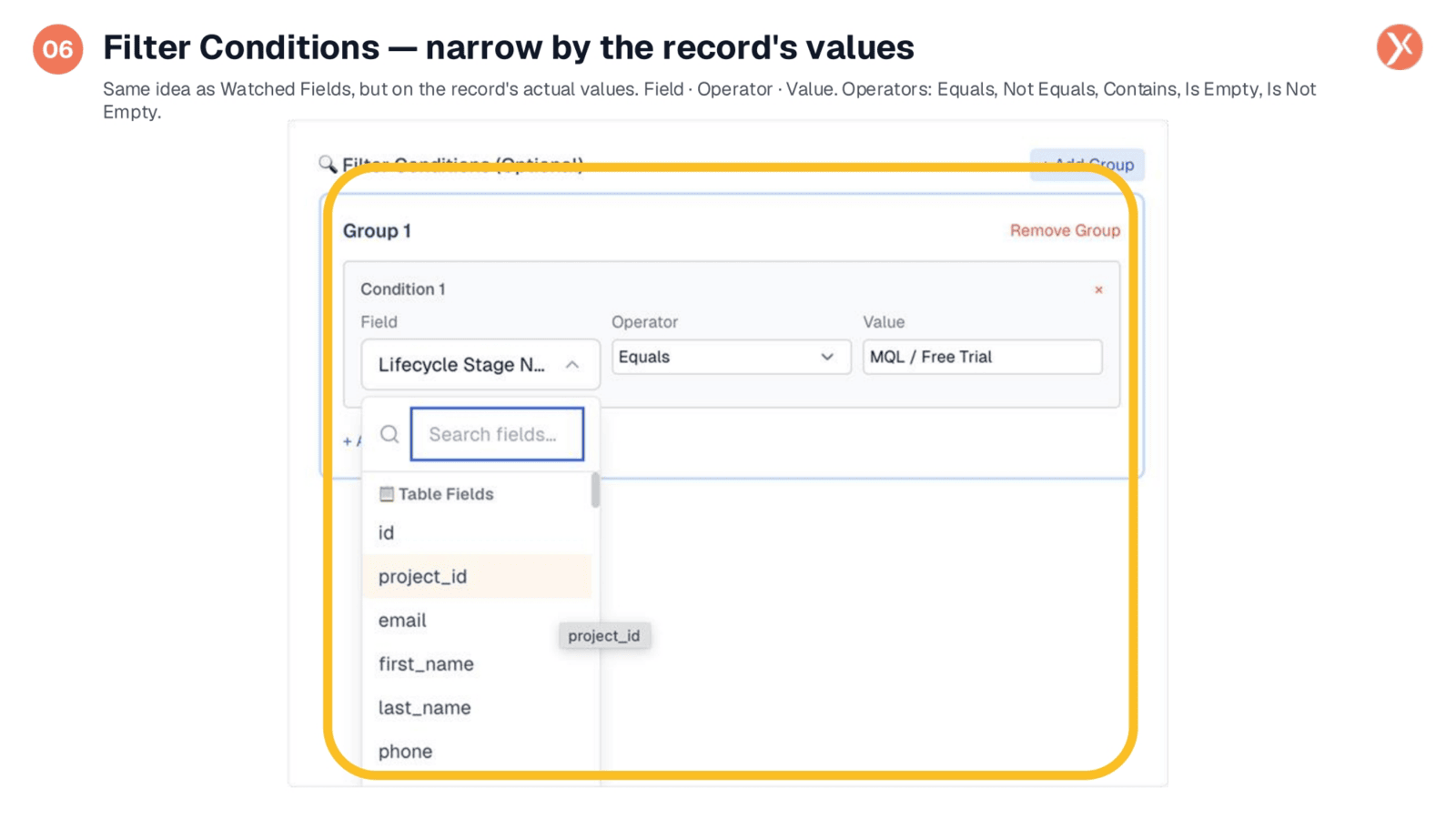
Filter Conditions provide the final layer of precision, focusing on a record's actual values. Unlike Watched Fields, which detect if a field changed, Filter Conditions evaluate the field's current value. You select a field, an operator like 'Equals' or 'Contains,' and a specific value. In this example, the trigger will only fire if the 'Lifecycle Stage' equals 'MQL / Free Trial.' This combination of watched fields and filter conditions creates highly targeted triggers, ensuring workflows activate only under very specific circumstances.
Complex Logic with Multiple Groups
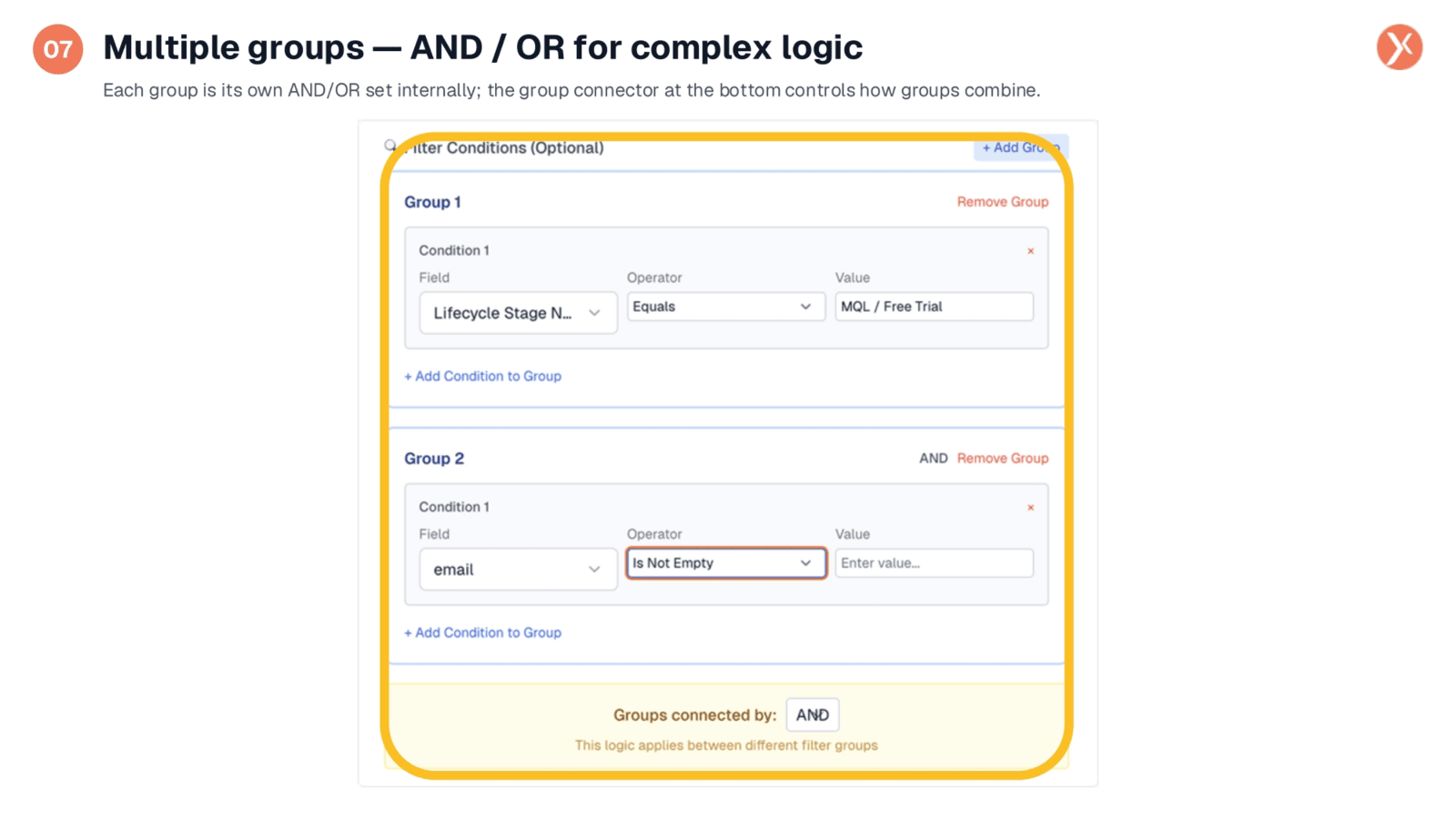
For more complex scenarios, you can stack multiple filter groups, each with its own internal AND/OR logic. The 'Groups connected by' toggle at the bottom determines how these groups combine, typically using 'AND' or 'OR.' For instance, you might require a contact's lifecycle stage to be 'MQL' or 'Free Trial' AND that their email field is not empty. This advanced capability allows you to define intricate criteria, ensuring your workflows respond to highly specific combinations of record values.
Database Change Trigger Outputs
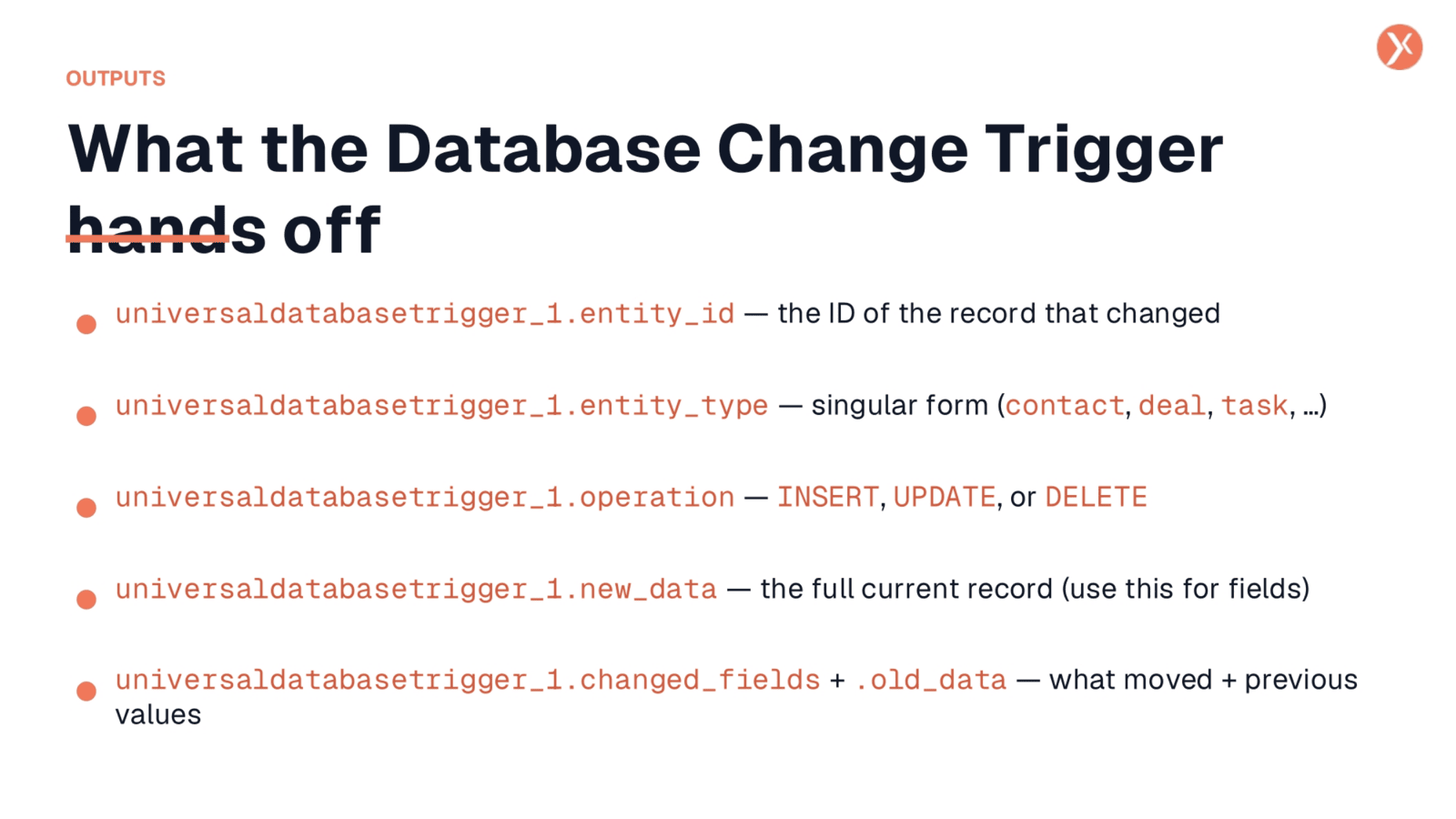
The Database Change Trigger provides valuable data to downstream nodes. This includes the entity_id of the changed record, its entity_type in singular form, and the operation performed, such as INSERT, UPDATE, or DELETE. Crucially, new_data provides the full current record as an object, allowing access to any field. For UPDATE operations, changed_fields offers a dictionary of only the modified fields with both old and new values, and old_data provides the full previous state for comparison. This comprehensive output enables robust workflow automation.
Database Change Trigger Recap
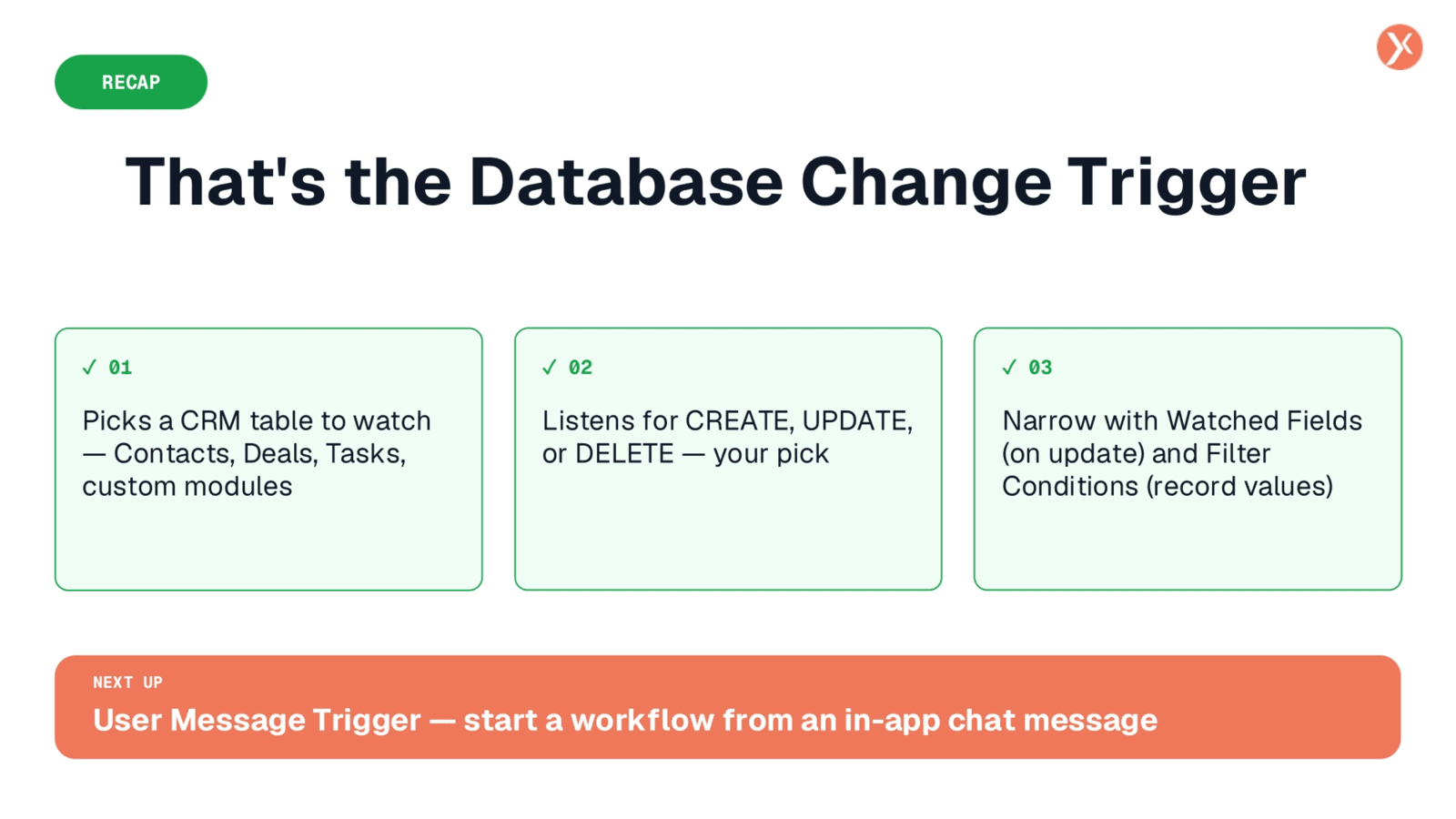
That concludes our look at the Database Change Trigger. We covered its four key sections: entity, type of change, watched fields, and filter conditions. These tools empower you to create precise and effective workflow automations.
Next Up: User Message Trigger
This page intentionally left blank, serving as a visual break in the presentation.