Inbound Voice Call
Expedify automates inbound voice calls, streamlining the process from the phone provider to a complete transcript. This system efficiently handles calls through a pre-answer phase, engages with a voice agent, and then generates a detailed transcript for review.
Inbound Voice Call Demo Flow
Our demonstration begins with a practical workflow, showcasing the integration of a voice inbound trigger, a voice agent, and a knowledge base. We'll explore the trigger's configuration, including phone integration, number setup, and call handling. The session will also highlight how to connect your phone provider and build the AI voice agent. Finally, we'll examine the call inbox, where every interaction is logged with full recordings and transcriptions.
AI Voice Automation Structure
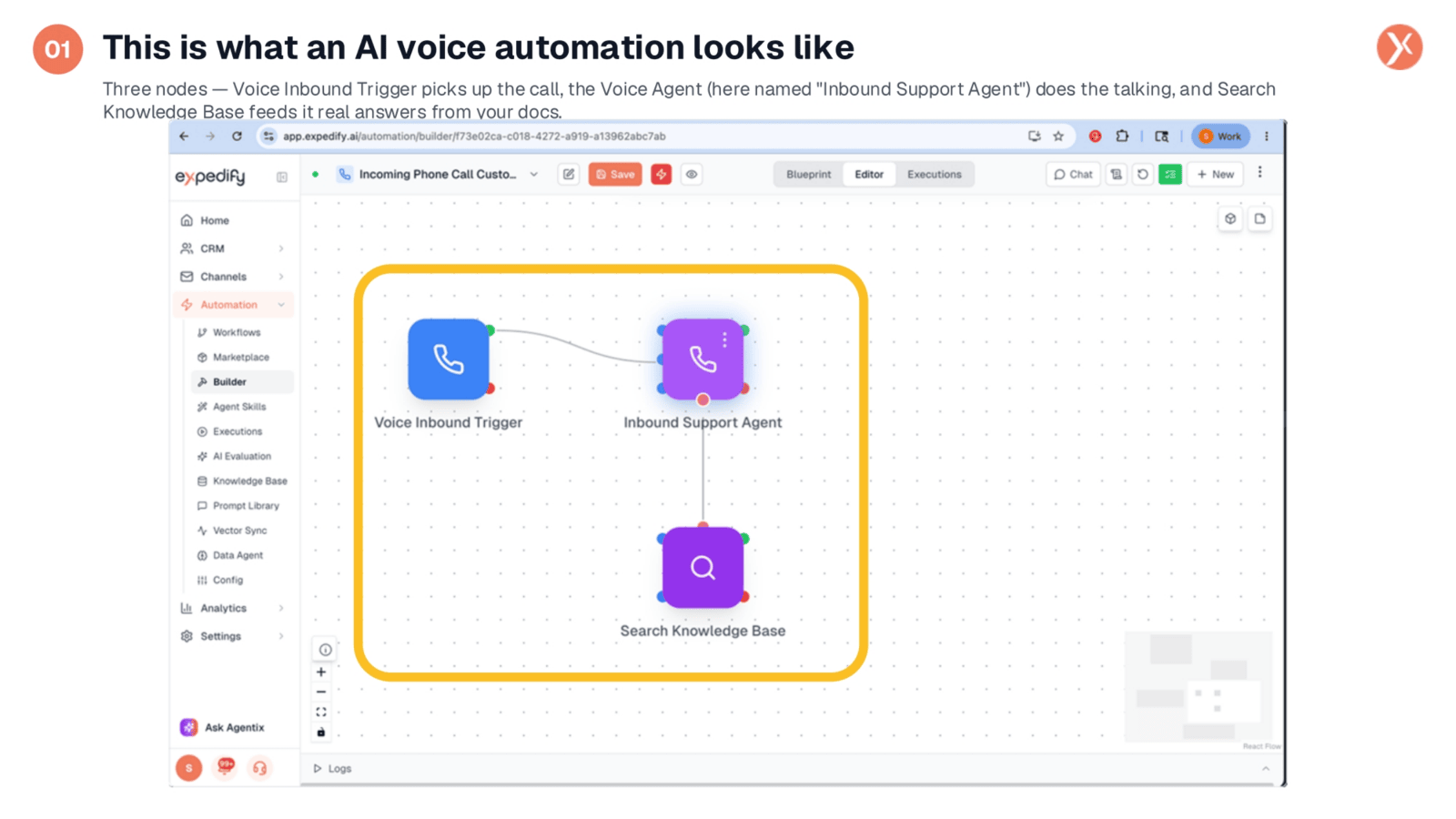
An AI voice automation workflow can be remarkably simple, often requiring just three core nodes. The Voice Inbound Trigger initiates the process when a customer calls, activating the system. This then connects to the Voice Agent, here designated as the 'Inbound Support Agent,' which handles the actual conversation. Crucially, the Search Knowledge Base node provides the agent with accurate answers by drawing from your documentation, preventing guesswork. This setup creates an efficient, AI-powered customer support line.
Accessing the Voice Inbound Trigger
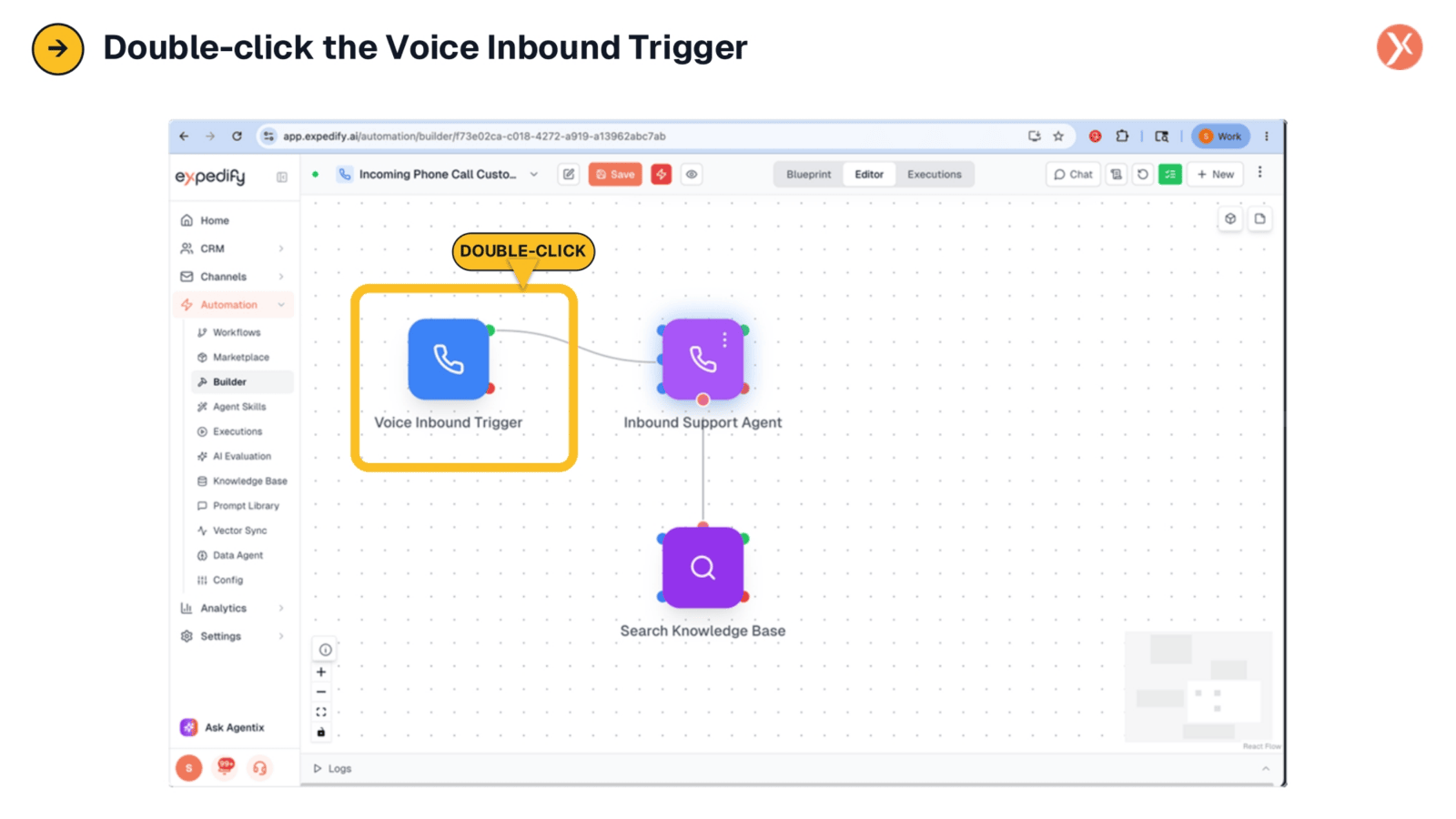
To begin configuring your inbound voice call automation, simply double-click the Voice Inbound Trigger node. This action opens its configuration panel, providing access to all the settings that control how the system handles incoming calls. Customizing these parameters is essential for integrating the automation seamlessly with your existing phone infrastructure and ensuring optimal performance.
Trigger Configuration Fields
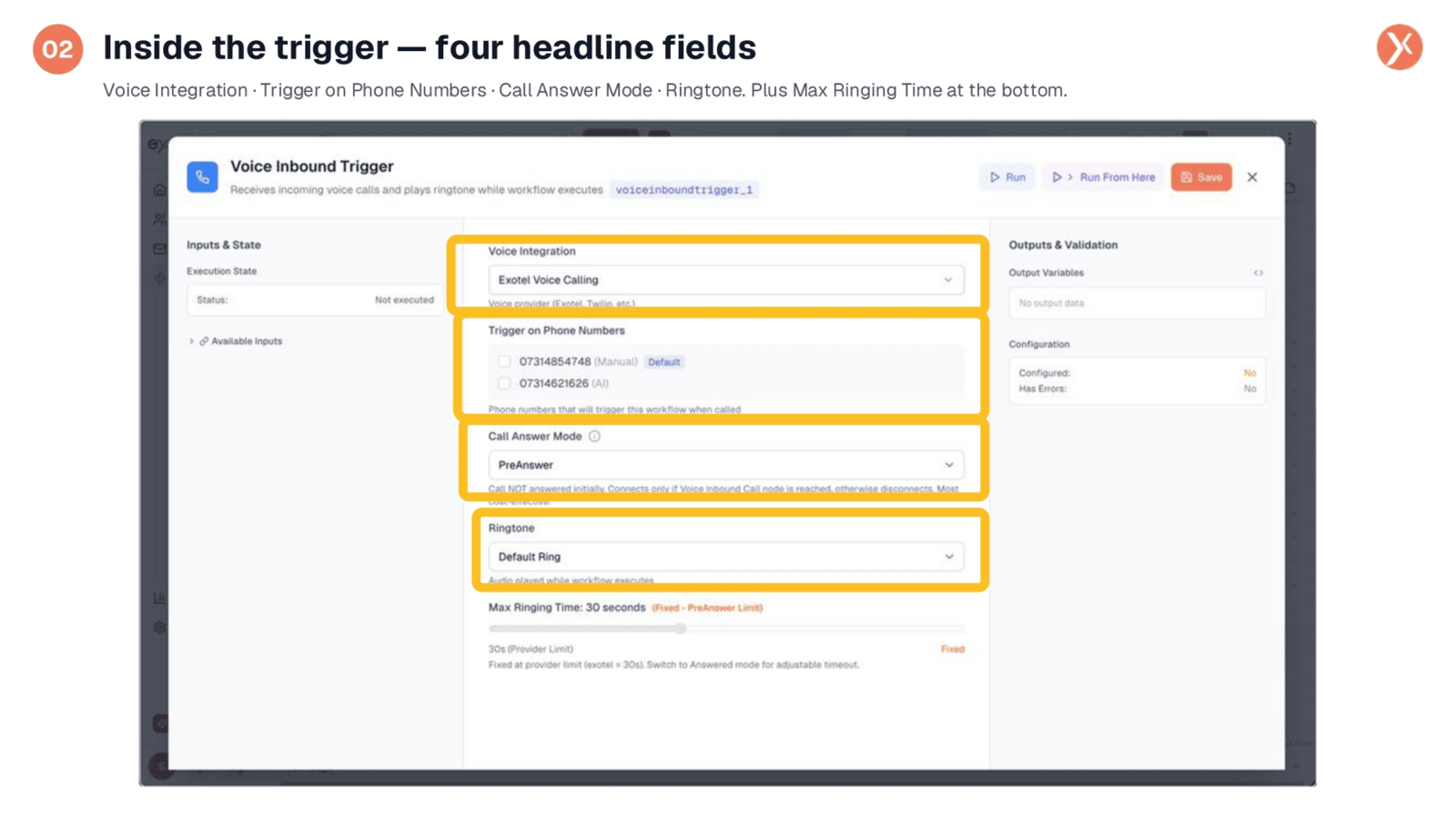
Within the trigger's configuration, four key fields require your attention. First, 'Voice Integration' specifies the phone provider for this trigger. Next, 'Trigger on Phone Numbers' designates which of your business numbers will activate this workflow upon an incoming call. 'Call Answer Mode' determines how the call is picked up, with various options available. 'Ringtone' sets the audio played to the caller during workflow initiation, and 'Max Ringing Time' defines the maximum duration the phone will ring before the system disengages. We'll now explore the Voice Integration dropdown.
Selecting Voice Integration
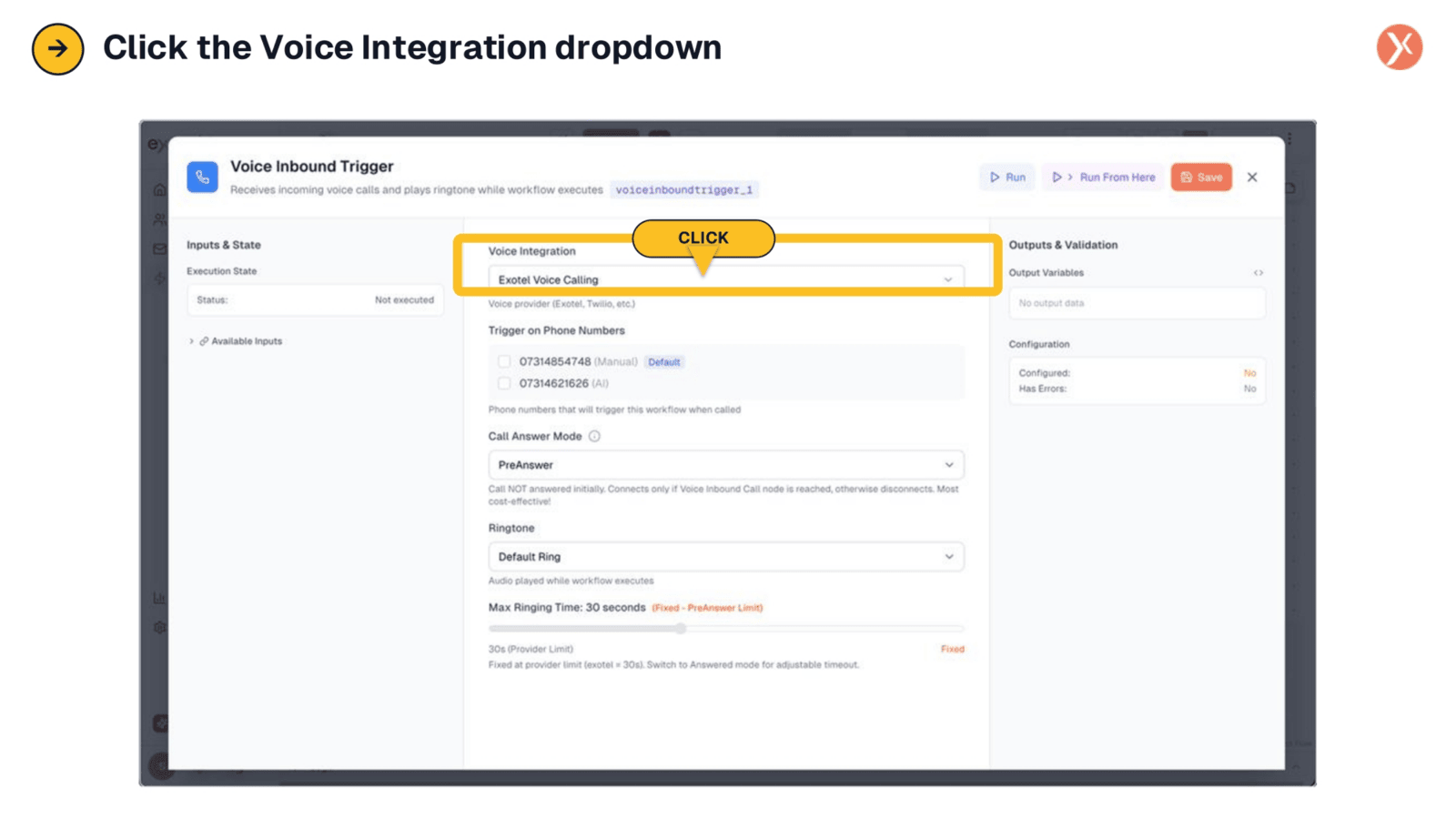
To select your preferred phone provider, simply click on the 'Voice Integration' dropdown menu. This action will reveal a list of all connected voice integrations, allowing you to choose the one that hosts the number you wish to monitor. This step is crucial for linking your Expedify workflow to your telecommunications infrastructure.
Choosing Your Phone Provider
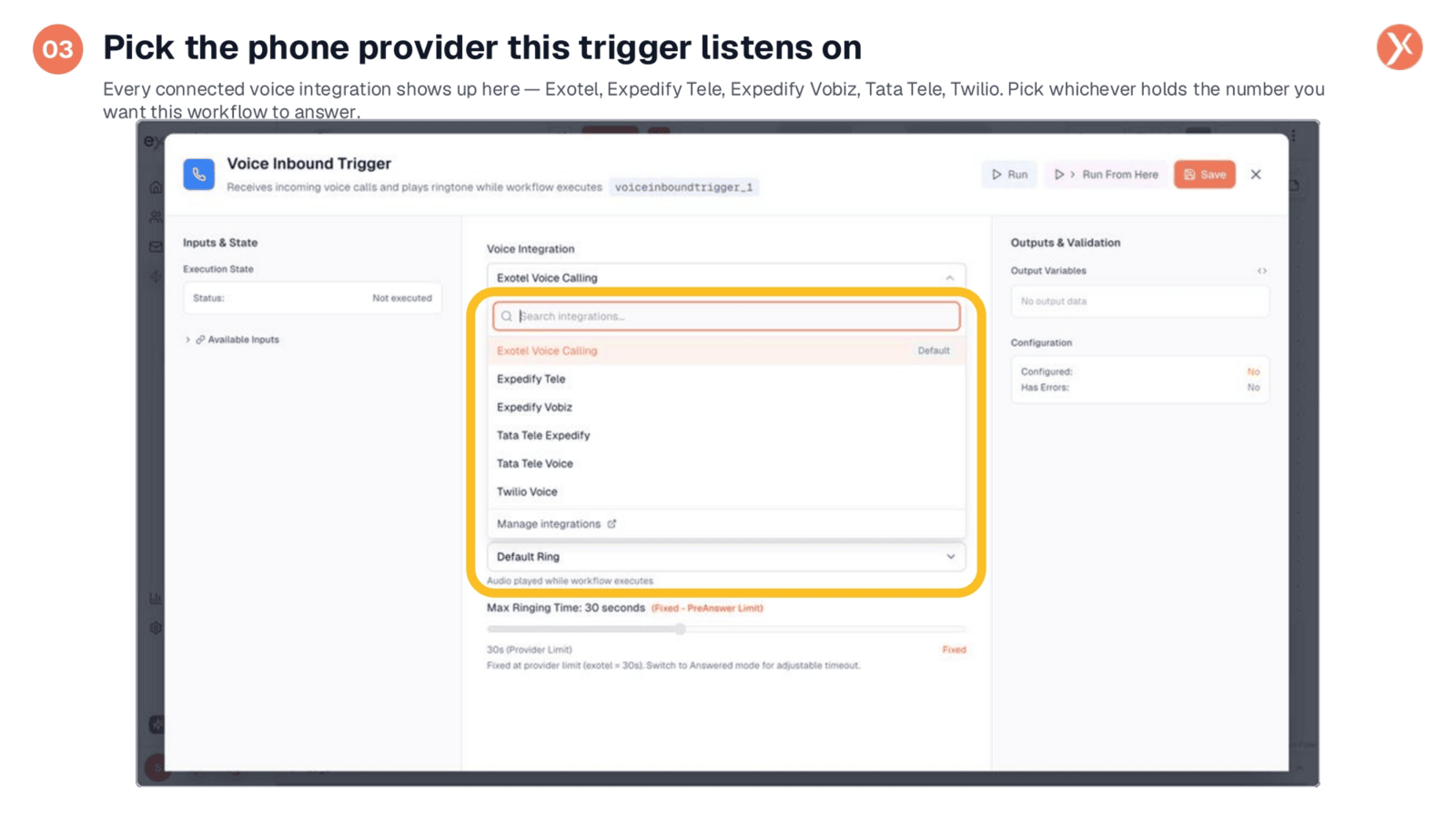
The dropdown displays all your connected voice integrations, including providers like Exotel, Expedify Tele, Expedify Vobiz, Tata Tele, and Twilio Voice. Select the provider that hosts the specific business number you want this workflow to monitor. If your provider isn't listed, it indicates it needs to be connected first, a process we'll cover shortly. Once the provider is chosen, the associated phone numbers will populate, allowing you to tick the exact number that should activate this workflow.
Call Answer Modes: PreAnswer vs. Answered
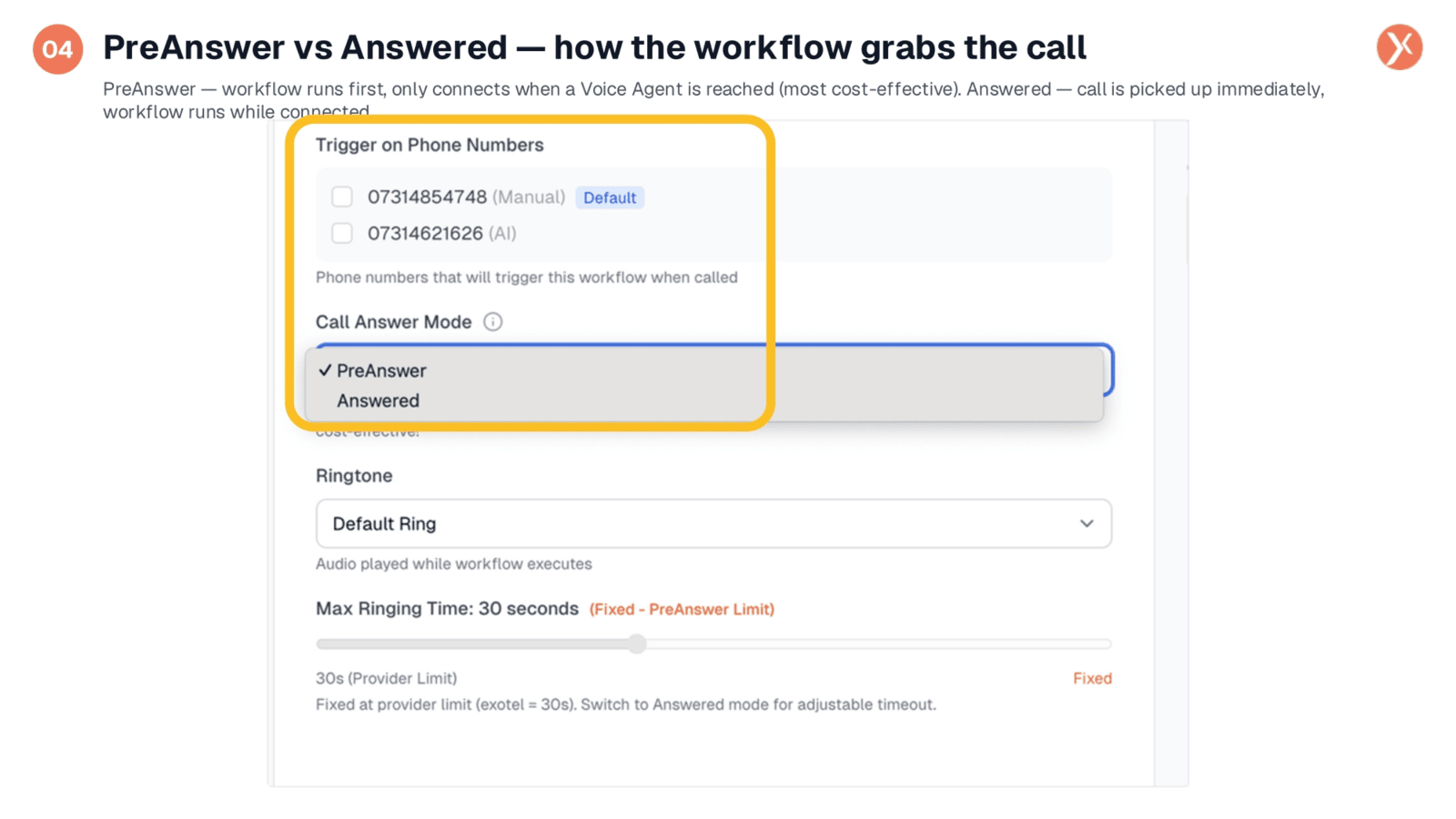
There are two primary call answer modes: 'PreAnswer' and 'Answered.' With 'PreAnswer,' the call is not immediately picked up; instead, the workflow runs first, connecting only when it reaches a Voice Agent node. This is often the most cost-effective choice, as billing begins only when the conversation starts. Conversely, 'Answered' mode picks up the call instantly, running the workflow while the caller is already connected. For most AI-agent workflows, 'PreAnswer' is the recommended setting to optimize costs and workflow efficiency.
Connecting Your Phone Provider
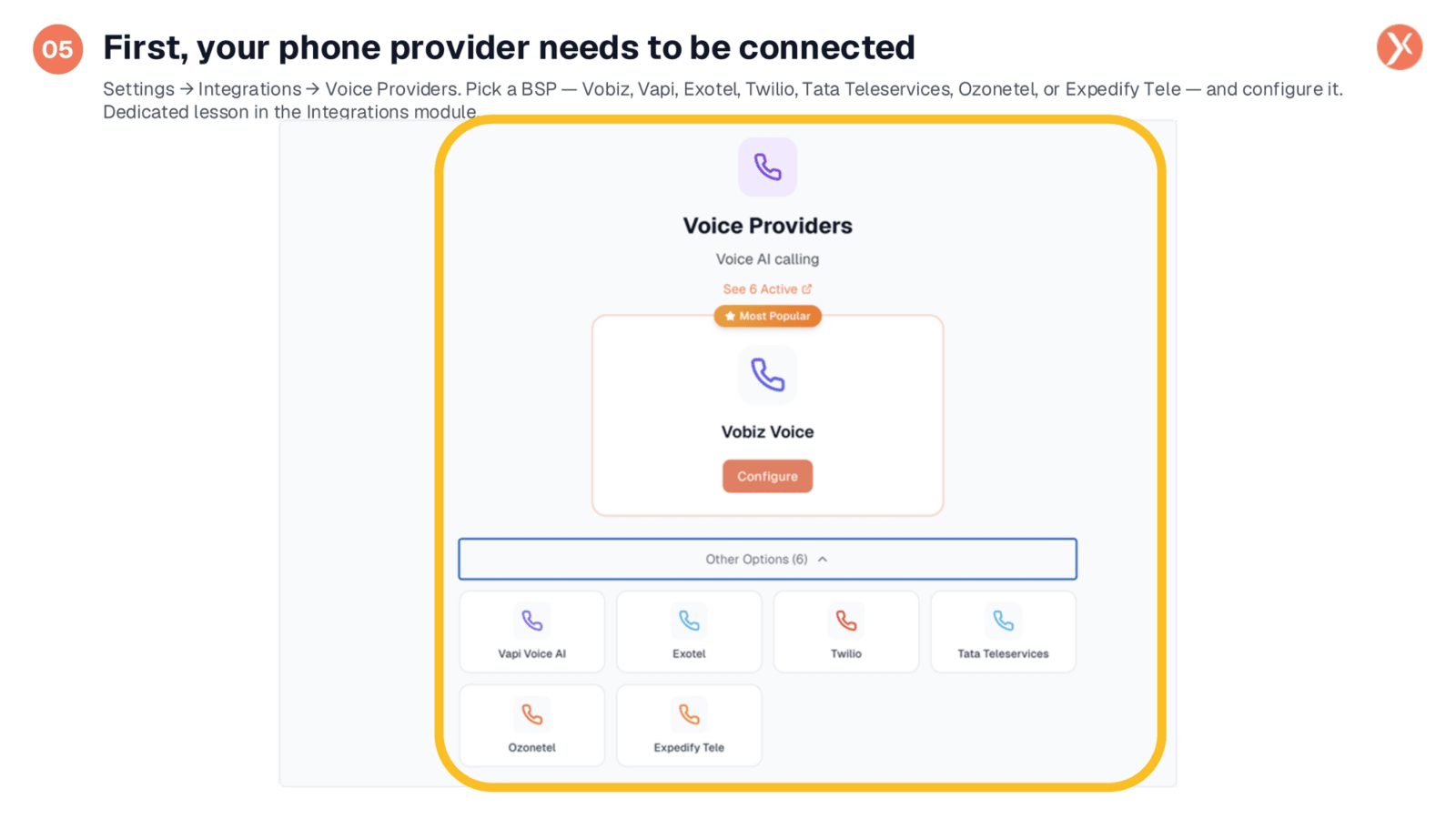
Before configuring the trigger, your phone provider must be connected within Expedify. Navigate to 'Settings,' then 'Integrations,' and select 'Voice Providers.' We support major Business Service Providers like Vobiz, Vapi Voice AI, Exotel, Twilio, Tata Teleservices, Ozonetel, and Expedify Tele. Choose your provider, click 'Configure,' and input your credentials. This foundational step is essential; without a connected provider, the trigger cannot listen for incoming calls. A dedicated lesson on integrations is available for more detailed guidance.
The Voice Agent: The AI That Talks
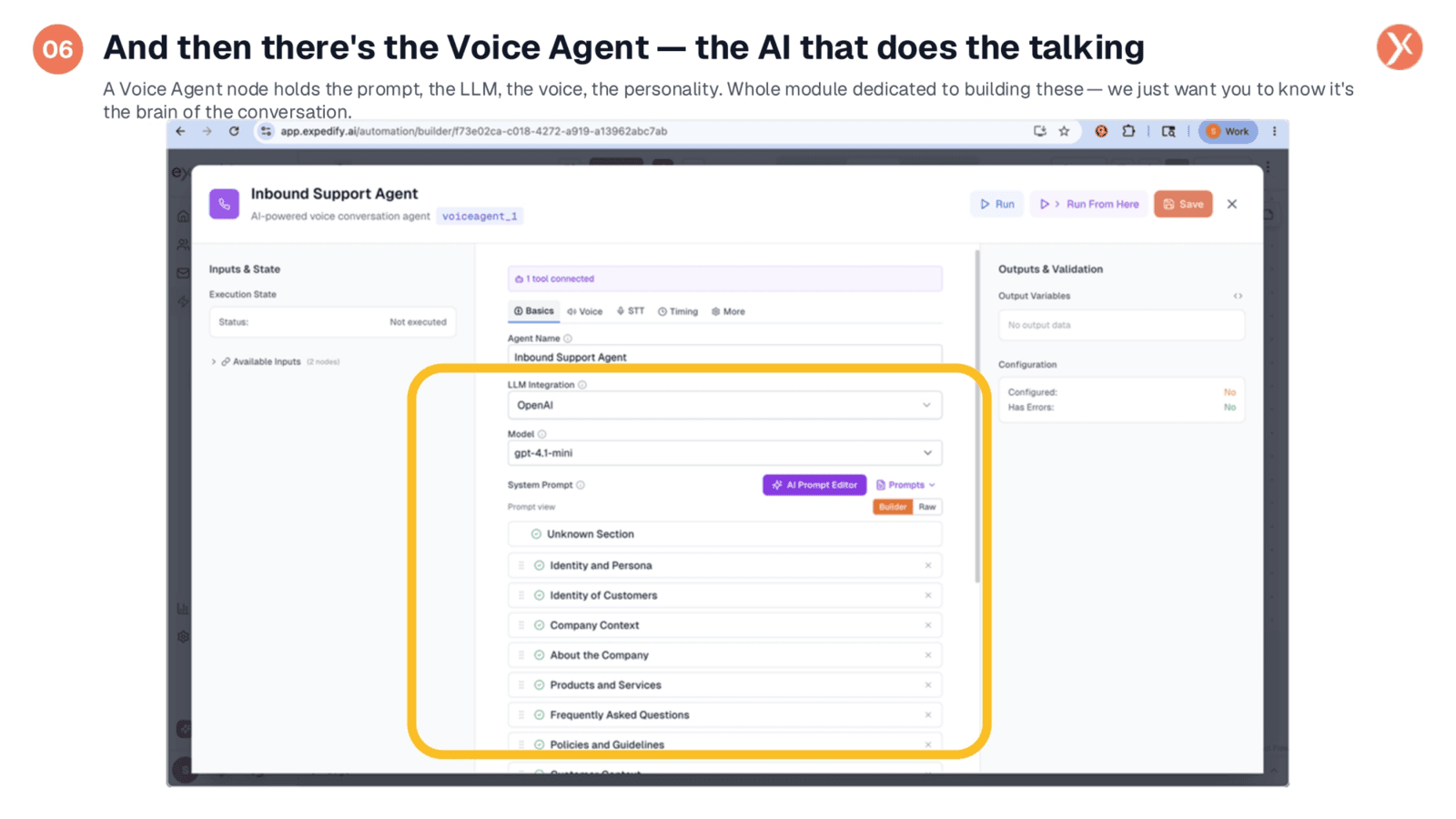
While the trigger initiates the call, the Voice Agent is the AI responsible for the actual conversation. This node is where you define the agent's personality and conversational parameters. Its prompt is structured into sections covering the agent's identity, customer profiles, company context, product details, FAQs, and operational guidelines. You also select the underlying Large Language Model and the agent's voice. A dedicated module provides comprehensive guidance on building Voice Agents, but for now, understand that the trigger answers the call, and the agent engages in dialogue.
Agent Knowledge from Your Documents
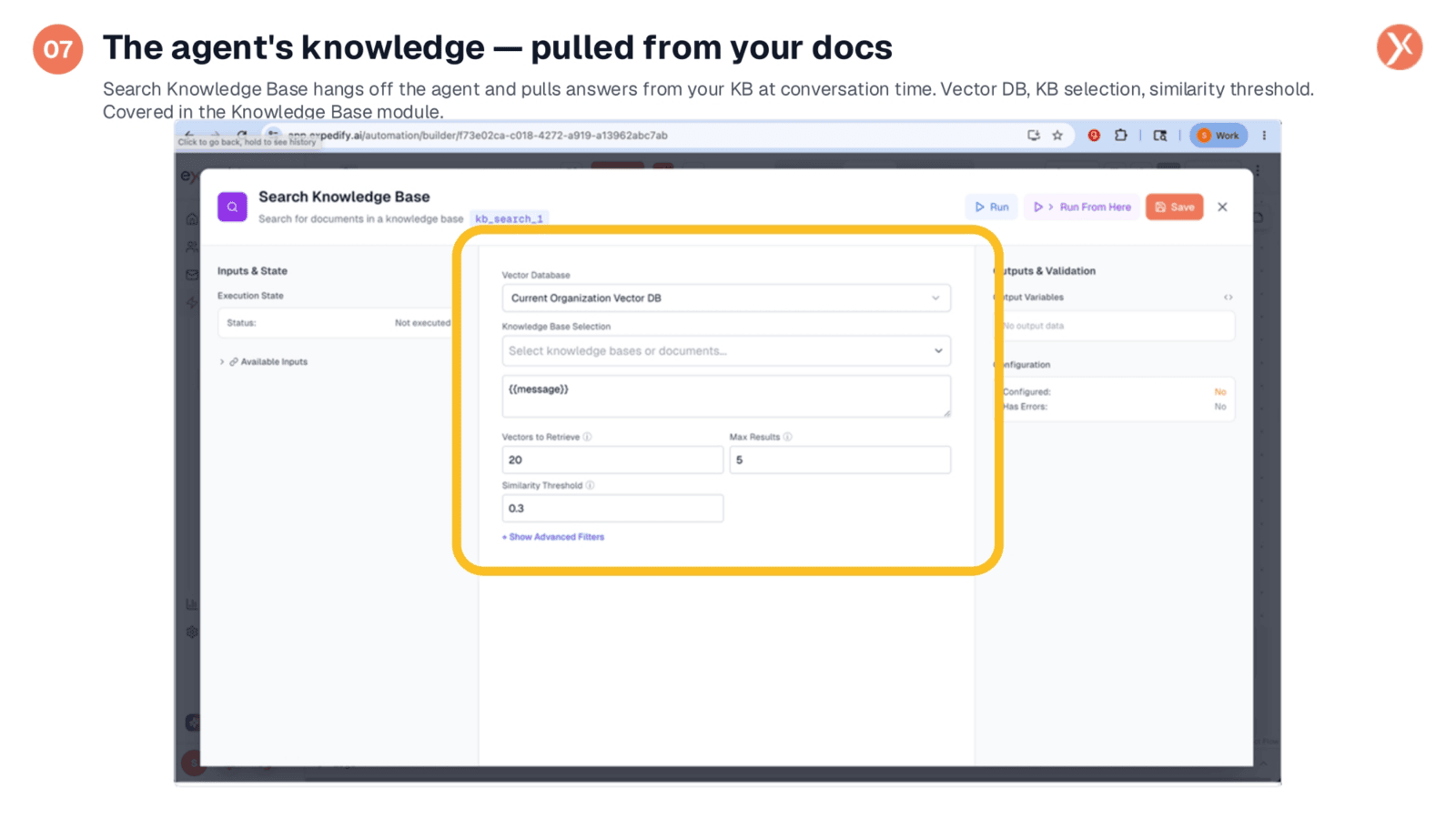
Adjacent to the Voice Agent is the Search Knowledge Base node, which empowers the agent to provide accurate answers. You configure this node to reference your existing knowledge bases, such as product documentation, FAQs, or policy manuals. During a customer interaction, when a question arises, this node intelligently retrieves relevant information and feeds it to the agent. This crucial component prevents the AI from generating incorrect or fabricated responses, ensuring it provides precise, verifiable information. The Knowledge Base module offers detailed instructions on setting this up.
Call Logging in Channels Voice
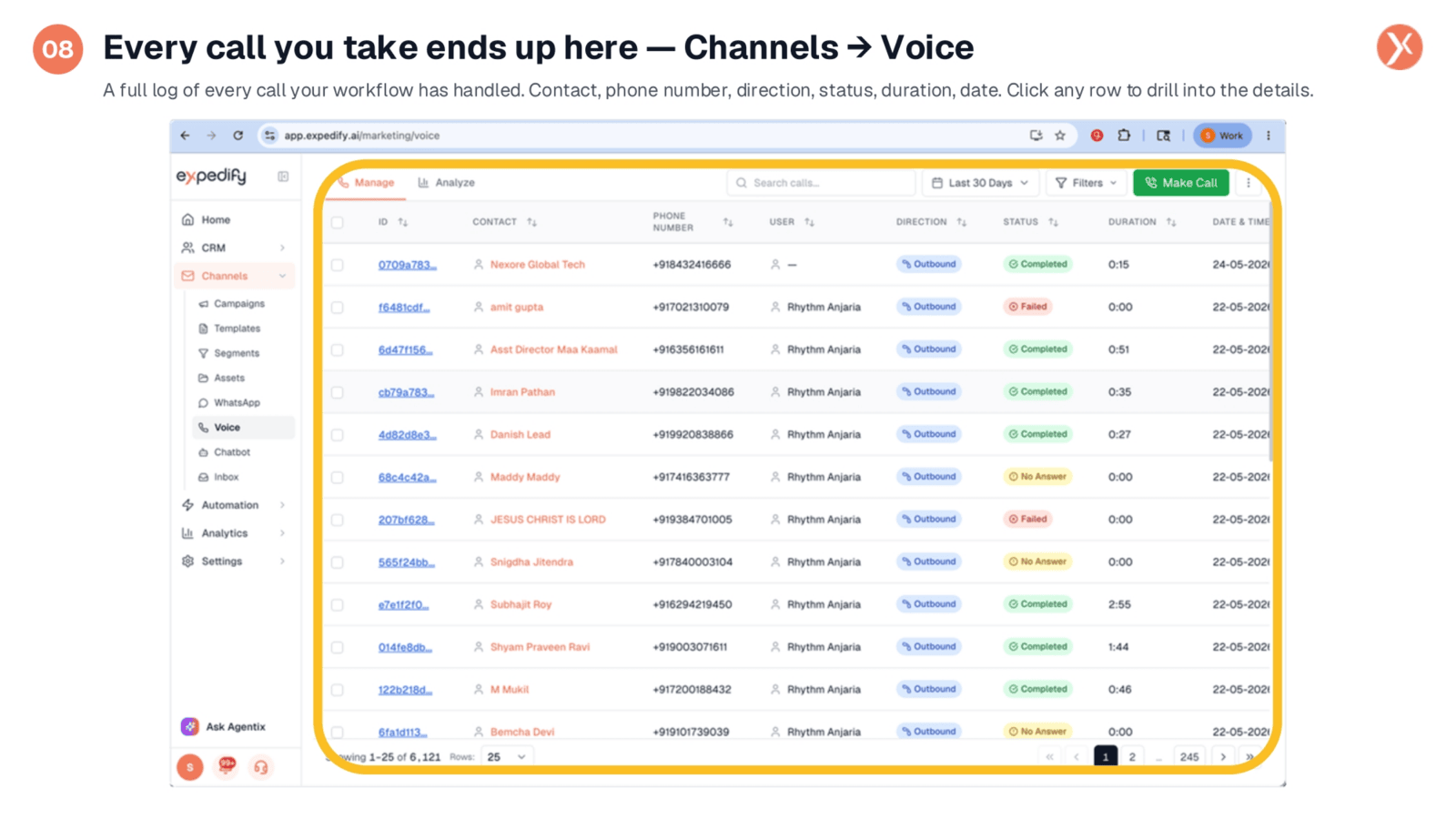
After a call is handled by the workflow, its details are logged under 'Channels,' then 'Voice.' This section provides a comprehensive history of every interaction, including the caller's identity, the dialed number, call direction, status (completed or failed), duration, and timestamp. This centralized call history allows for easy tracking and oversight. Clicking on any row will provide access to more granular details about that specific call, enabling deeper analysis and review.
Automatic Recording and Transcription
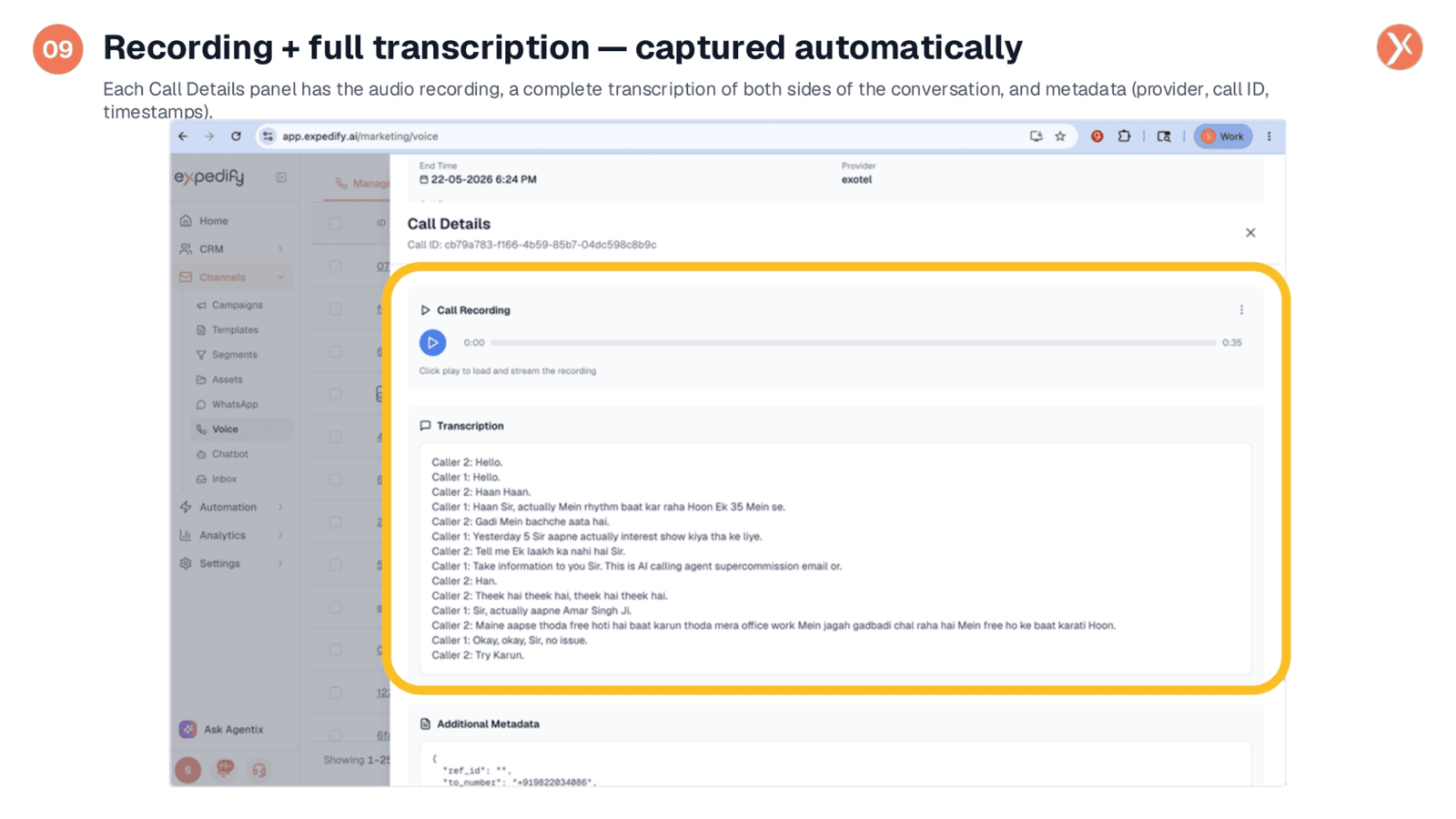
Opening any call record reveals its complete audio recording, allowing you to listen to the entire interaction. Below the recording, a full transcription captures both sides of the conversation, detailing every word spoken by the customer and the AI agent. This invaluable resource enables thorough review of AI performance, identification of areas for prompt improvement, and effective training for human representatives. Additionally, essential metadata such as the provider, call ID, and timestamps are automatically captured, providing a comprehensive record of every inbound call.
Inbound Voice Call Trigger Outputs
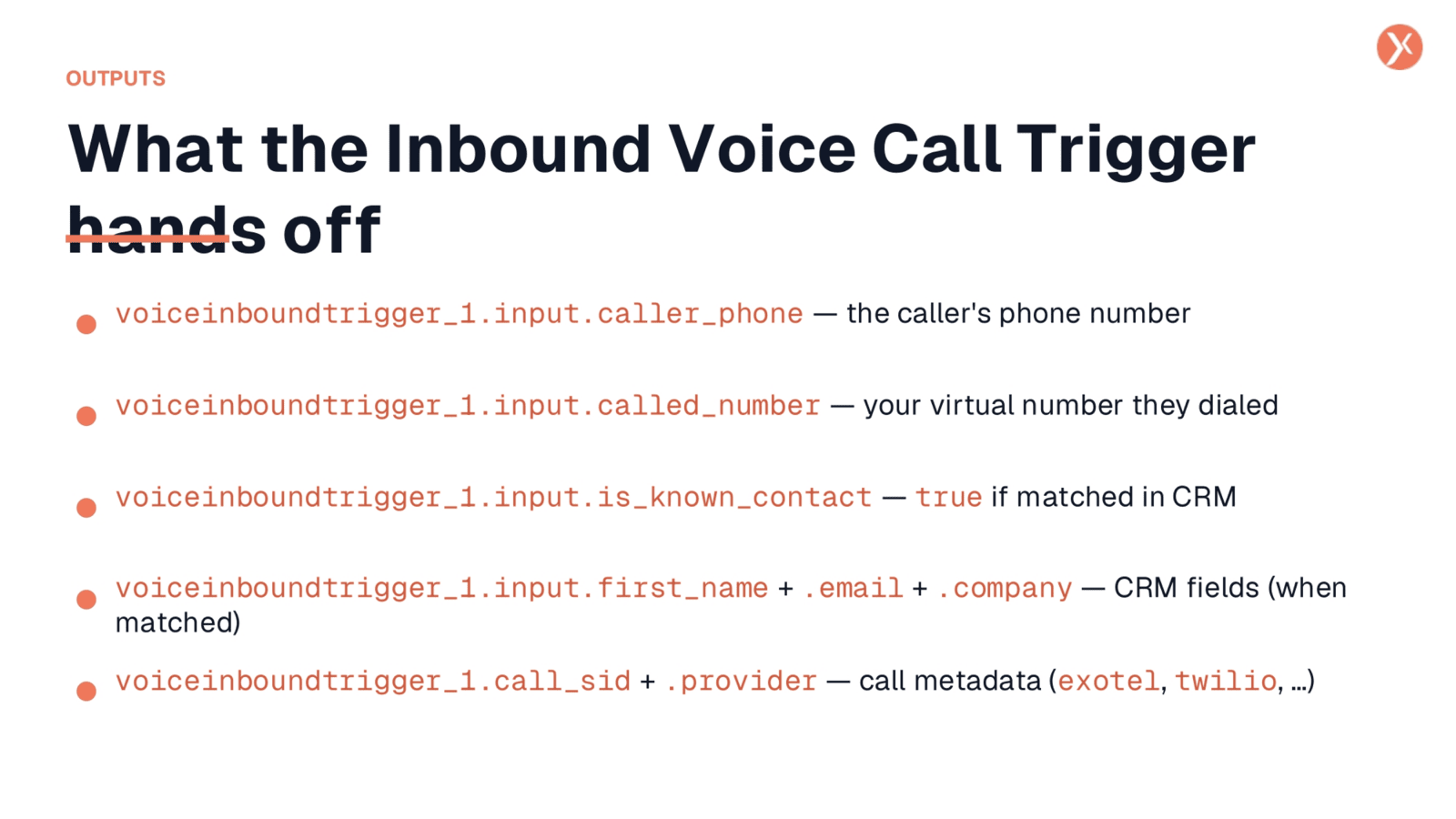
The Inbound Voice Call trigger passes crucial data to downstream nodes. This includes the caller's phone number, the specific virtual number they dialed, and whether they are a known contact in your CRM. If a match is found, additional CRM fields like first name, email, and company are also provided. Furthermore, the trigger supplies call metadata, such as the call identifier and the handling provider. This information is vital for personalizing interactions, routing calls effectively, and enabling subsequent logging or follow-up actions.
Inbound Voice Call Trigger Recap
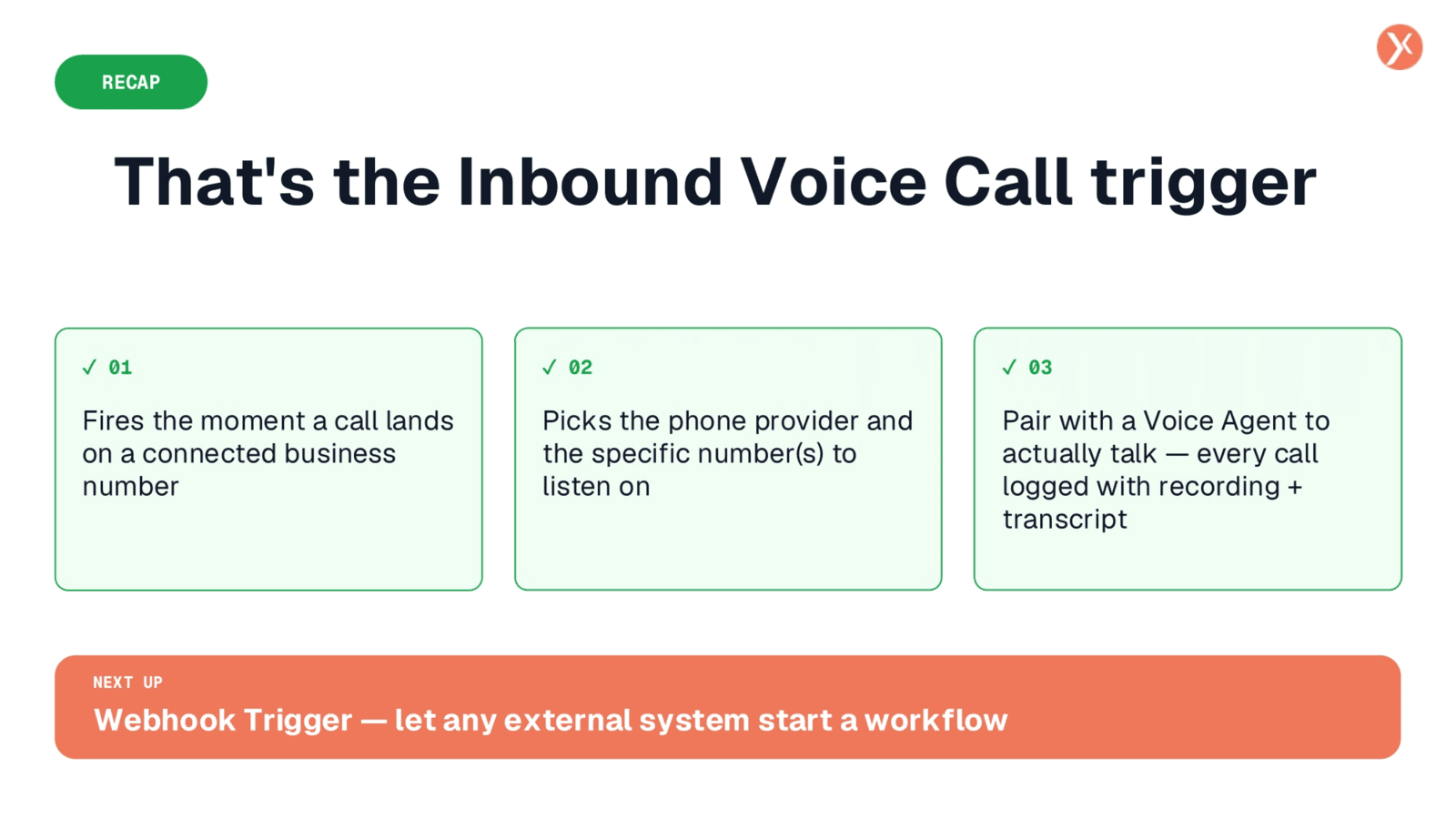
We've explored the Inbound Voice Call trigger, covering phone integration, number selection, and call answer modes. Remember to configure your phone provider and voice agent separately. All calls are automatically recorded and transcribed. Thank you for your time.