Google Calendar Trigger
This lesson provides a comprehensive walkthrough of the Google Calendar Trigger node. We'll cover every field, event type, and filter, ensuring you understand each setting before building your automated workflows. This powerful tool allows you to automate tasks based on various calendar events, streamlining your meeting management.
Google Calendar Trigger - The Anatomy

Let's explore the anatomy of the Google Calendar Trigger.
Prerequisite: Connect Google Calendar First
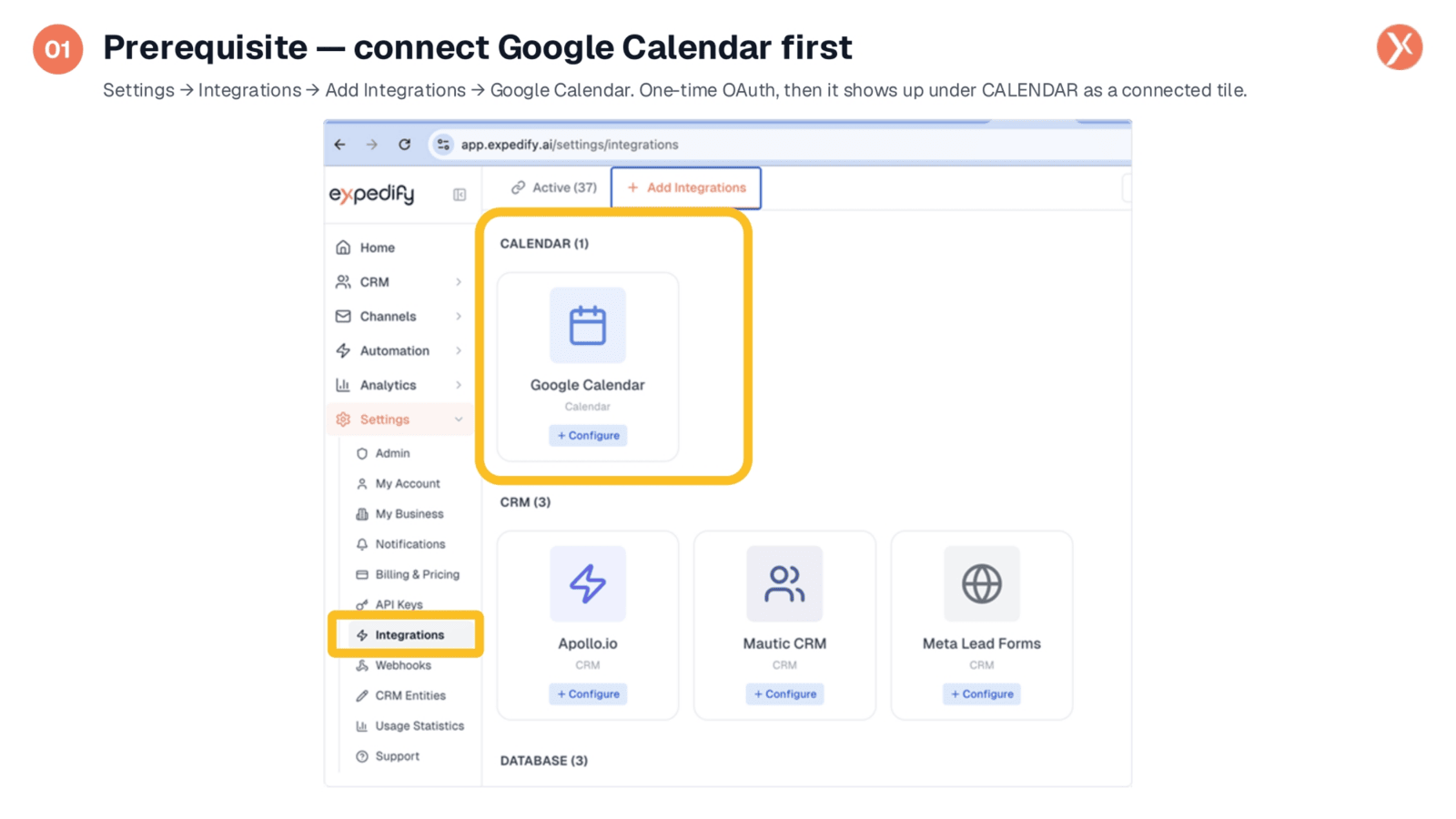
Before the Google Calendar Trigger can function, your Expedify organization needs a connected Google Calendar account. This is a one-time setup performed in Settings, under Integrations. You'll add Google Calendar, complete the Google OAuth process, and grant Expedify access. Once connected, it appears as a tile in the CALENDAR section, ready for the trigger to listen to events. Without this initial connection, the trigger has no calendar to monitor.
The Trigger on the Canvas
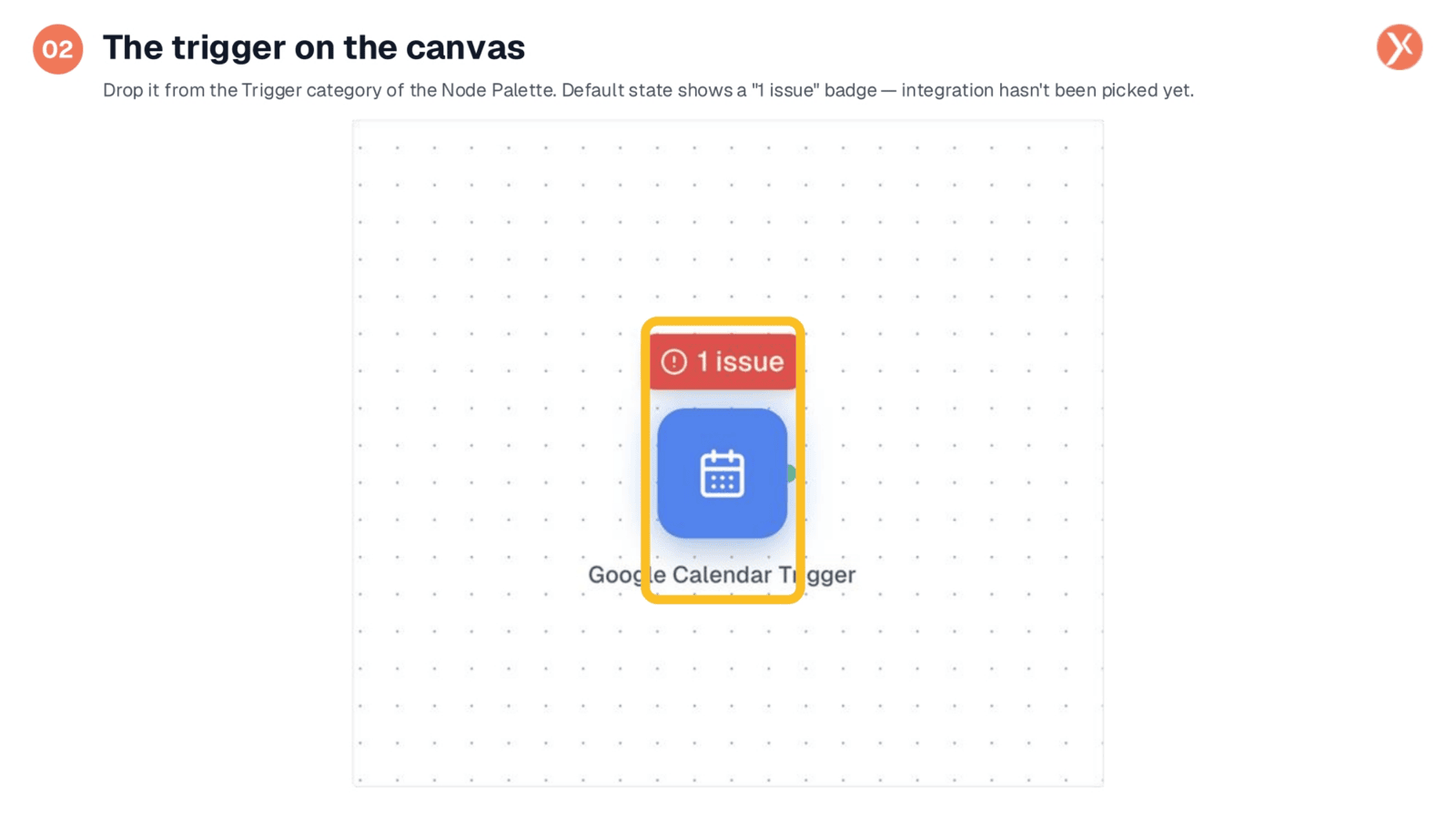
When you drop the Google Calendar Trigger onto the canvas from the Node Palette, it appears with a calendar icon and its label. Initially, you'll notice a small red '1 issue' badge, indicating it's not yet configured. This is the default state for all new triggers. To resolve this, simply double-click the trigger to open its configuration panel, which we'll explore next.
What's in the Config Panel
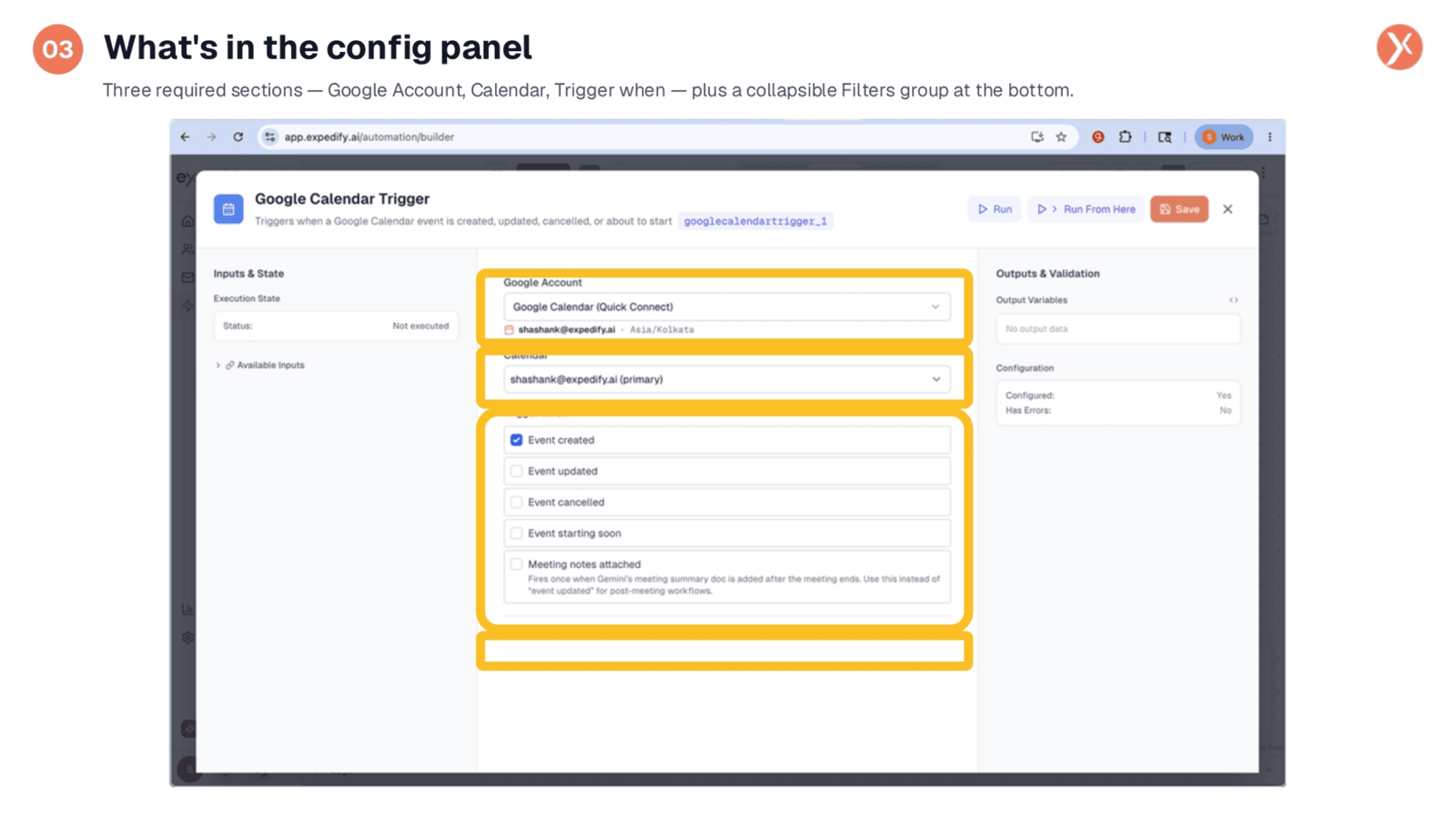
Double-clicking the trigger opens its configuration panel, which is divided into four key sections. At the top, you'll find the Google Account selection, followed by the Calendar choice. The middle block details the 'Trigger when' options, allowing you to select from five event types. Finally, at the bottom, there's a collapsible 'Filters' group, which is optional but crucial for narrowing down the events you care about. We'll examine each of these sections in detail.
Google Account: Which Connection to Use
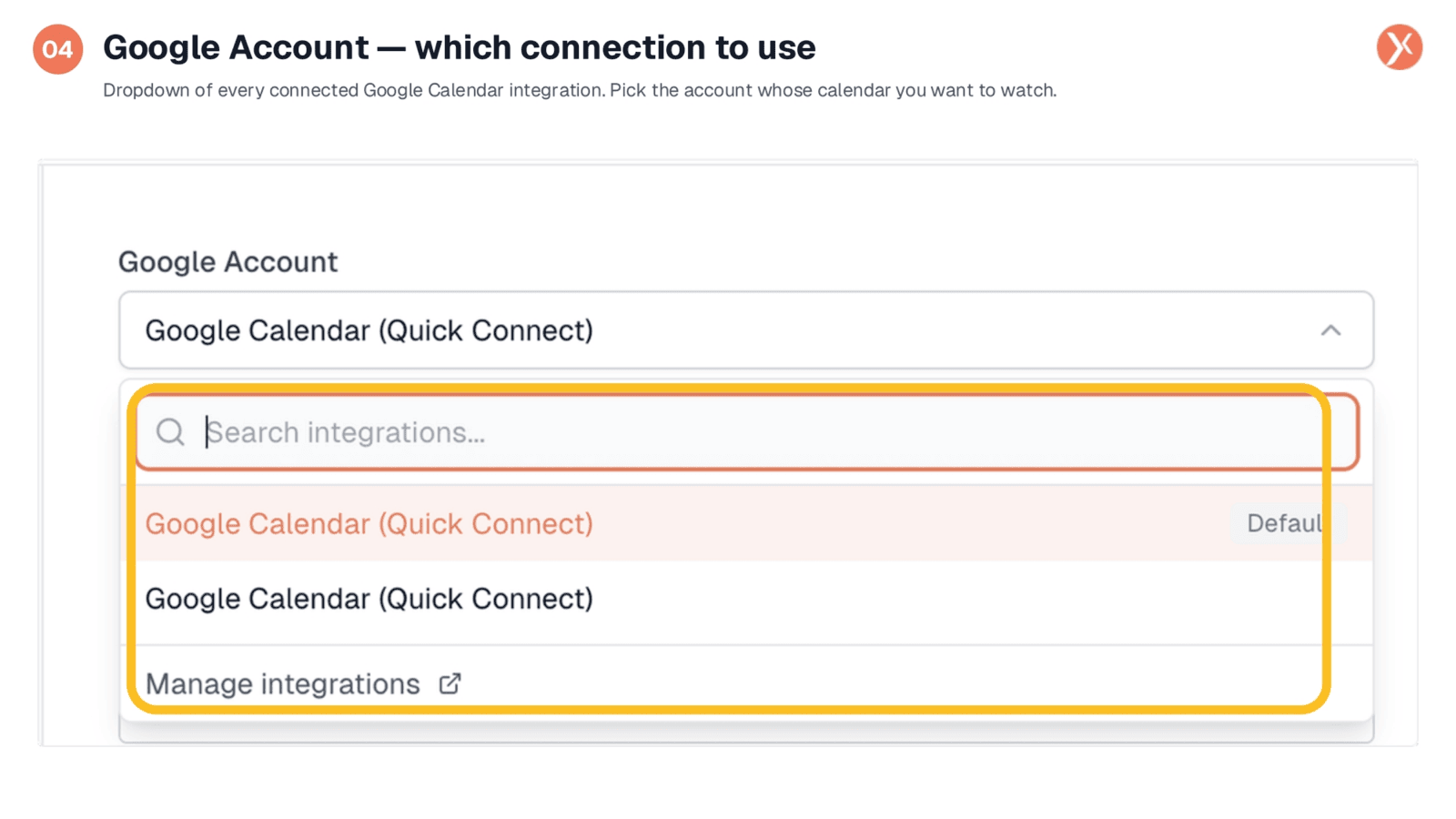
The first field in the config panel is 'Google Account'. If your organization has multiple Google Calendar connections, perhaps one for sales and another for a founder, all will be listed here. You'll select the specific connection this trigger should use. Most organizations typically have one default connection. A 'Manage integrations' link is also available, allowing you to quickly add new connections if needed. Your selection here determines which calendars become available in the next dropdown.
Calendar: Which Calendar to Watch
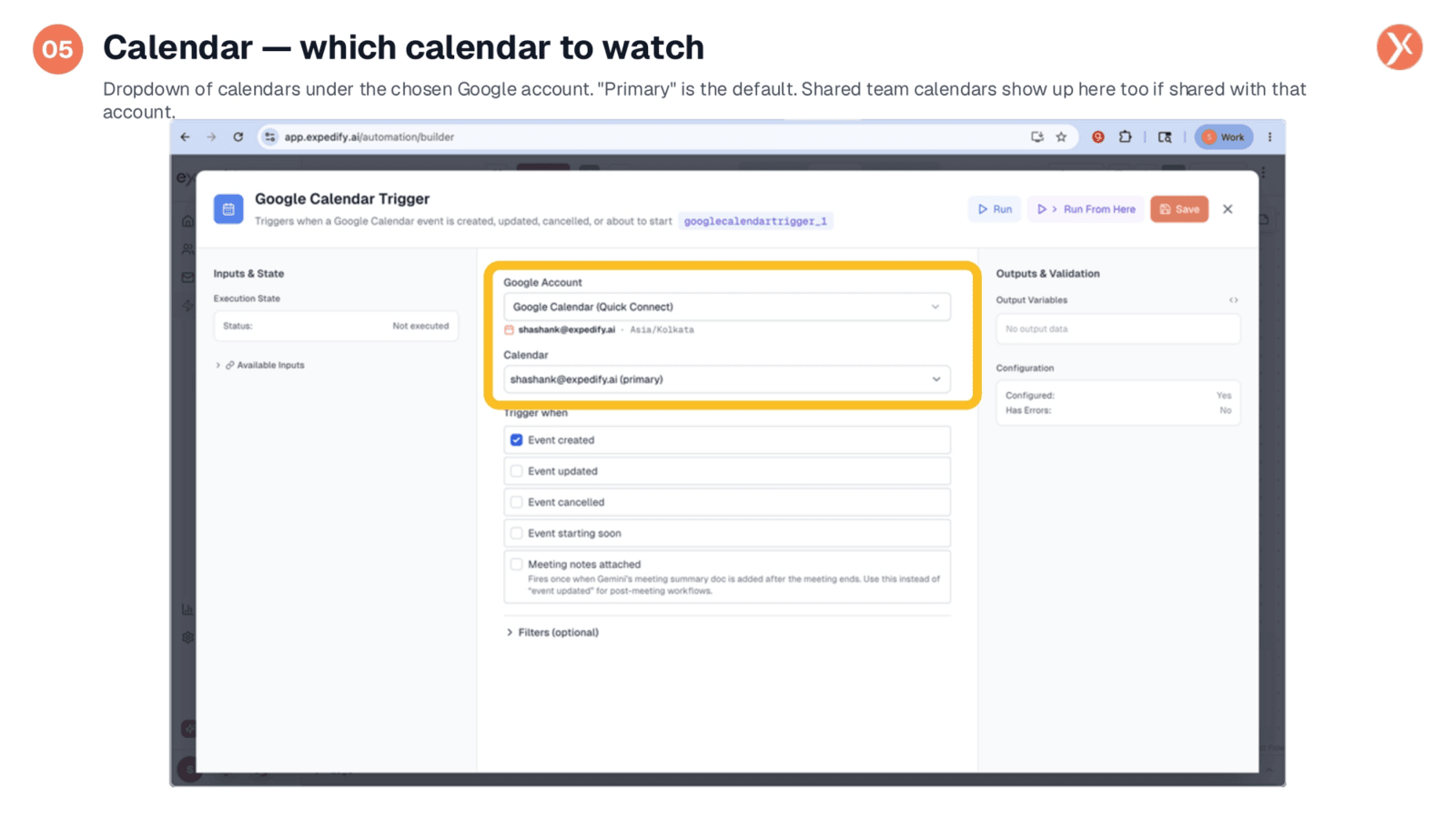
Next, you'll choose the specific calendar to watch. A single Google account can host multiple calendars, including your primary calendar and any shared team calendars. All these will appear in this dropdown. For instance, a sales team might select their primary calendar for individual calls or a dedicated shared 'Sales Calls' calendar. It's important to note that the trigger will only monitor the single calendar you select, not all calendars associated with the chosen Google account.
Trigger When: The Five Events That Can Fire It
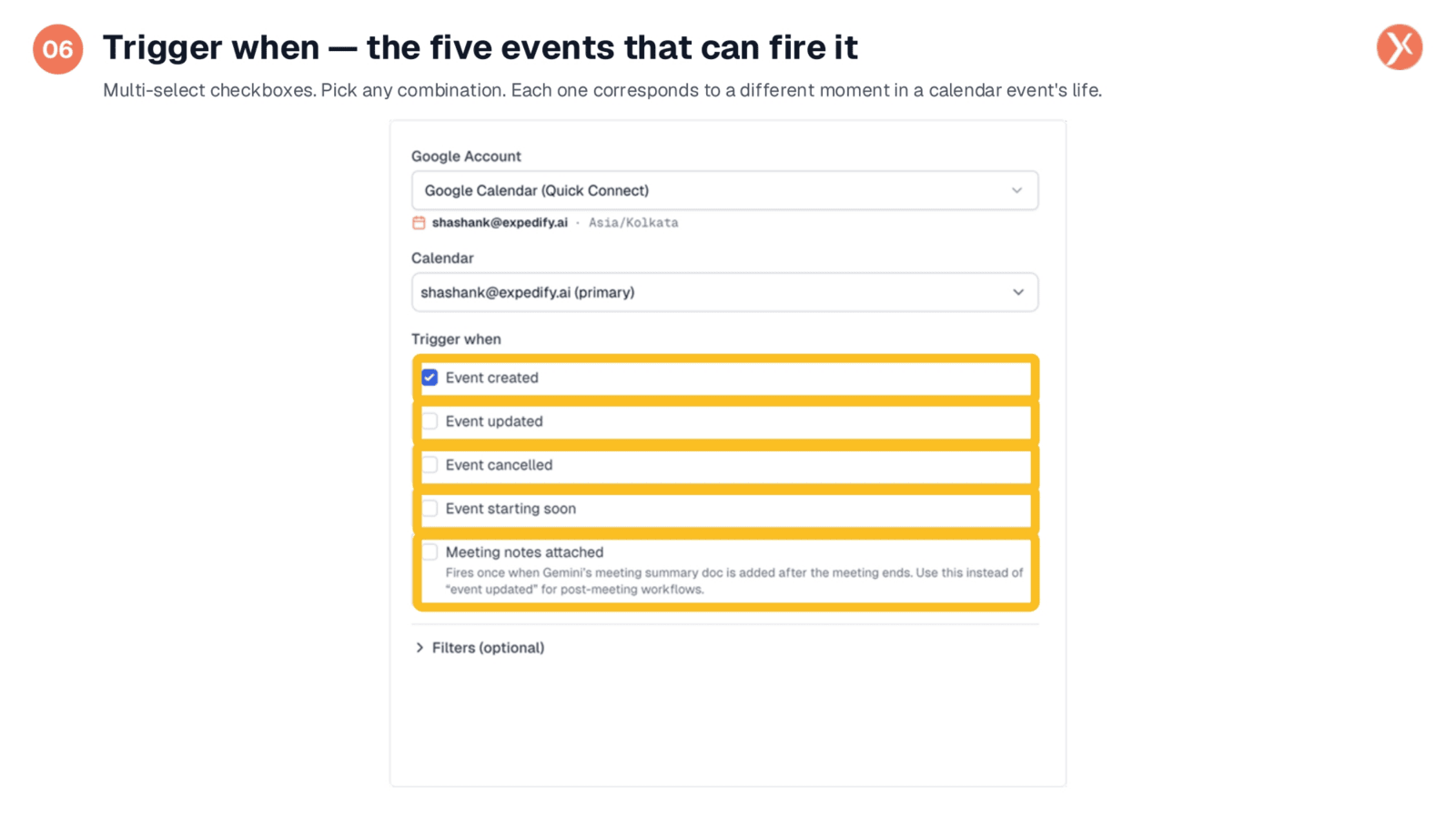
The 'Trigger when' section is central to defining your automation. You can multi-select from five distinct event types. 'Event created' fires when a new meeting is booked, ideal for new prospect workflows. 'Event updated' triggers when an existing event changes, such as a time adjustment or attendee addition. 'Event cancelled' activates upon meeting deletion, useful for rescheduling automations. 'Event starting soon' fires a configurable number of minutes before a meeting, perfect for pre-meeting preparations. Lastly, 'Meeting notes attached' triggers once a Google Doc, typically Gemini's auto-generated summary, is added to the event after the meeting concludes, serving post-meeting workflows.
Filters: Narrow It Down by Text
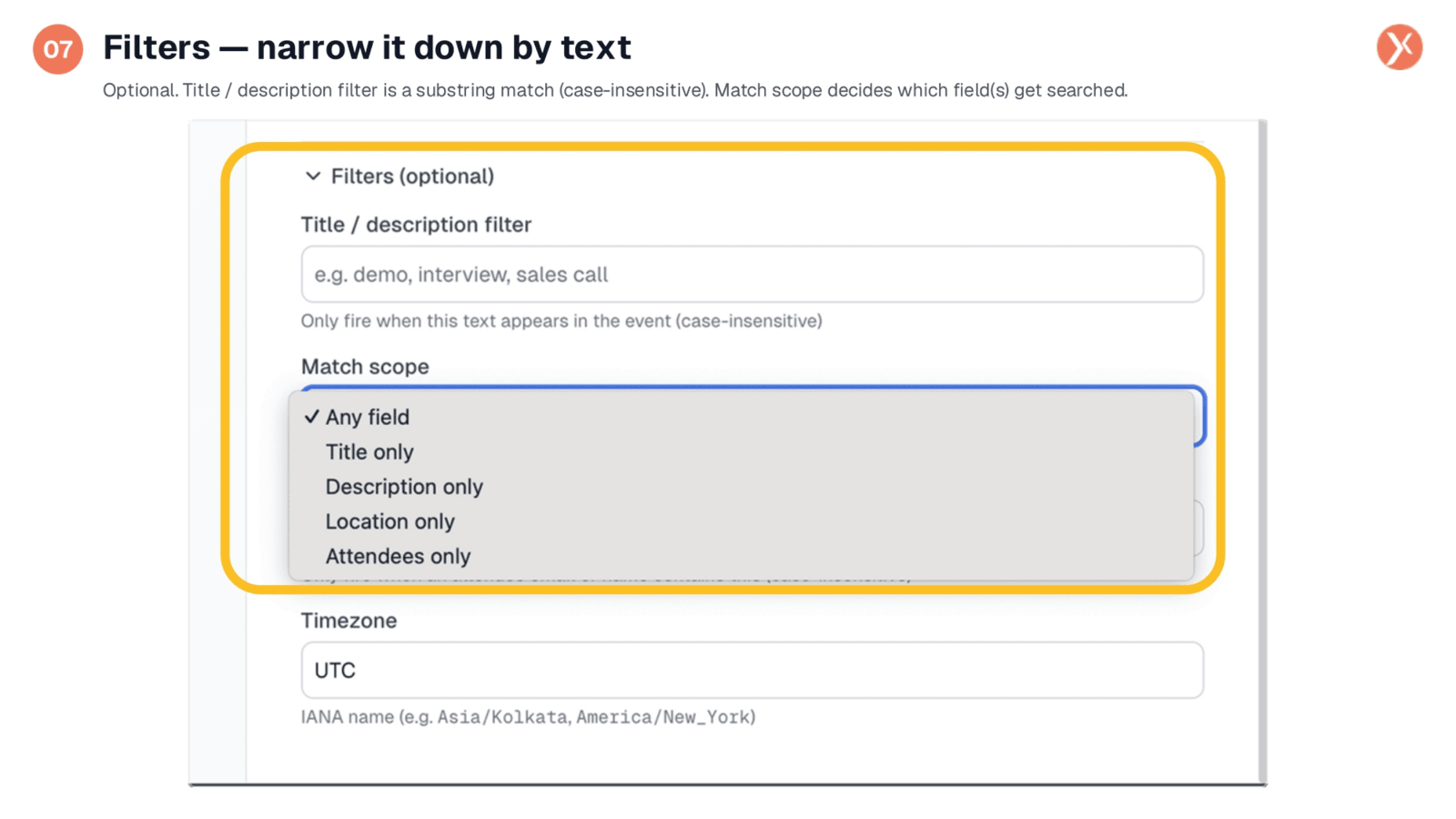
Filters are optional yet powerful for refining when your trigger fires. The 'Title / description filter' allows you to enter any text, like 'sales call' or 'demo', and the trigger will only activate if that text appears in the event. Below this, 'Match scope' determines where the search occurs. The default is 'Any field', encompassing title, description, location, or attendees. You can narrow this to 'Title only', 'Description only', 'Location only', or 'Attendees only' to ensure the trigger only fires on relevant events, preventing unnecessary activations from general calendar noise.
Filters: Attendee Filter and Timezone
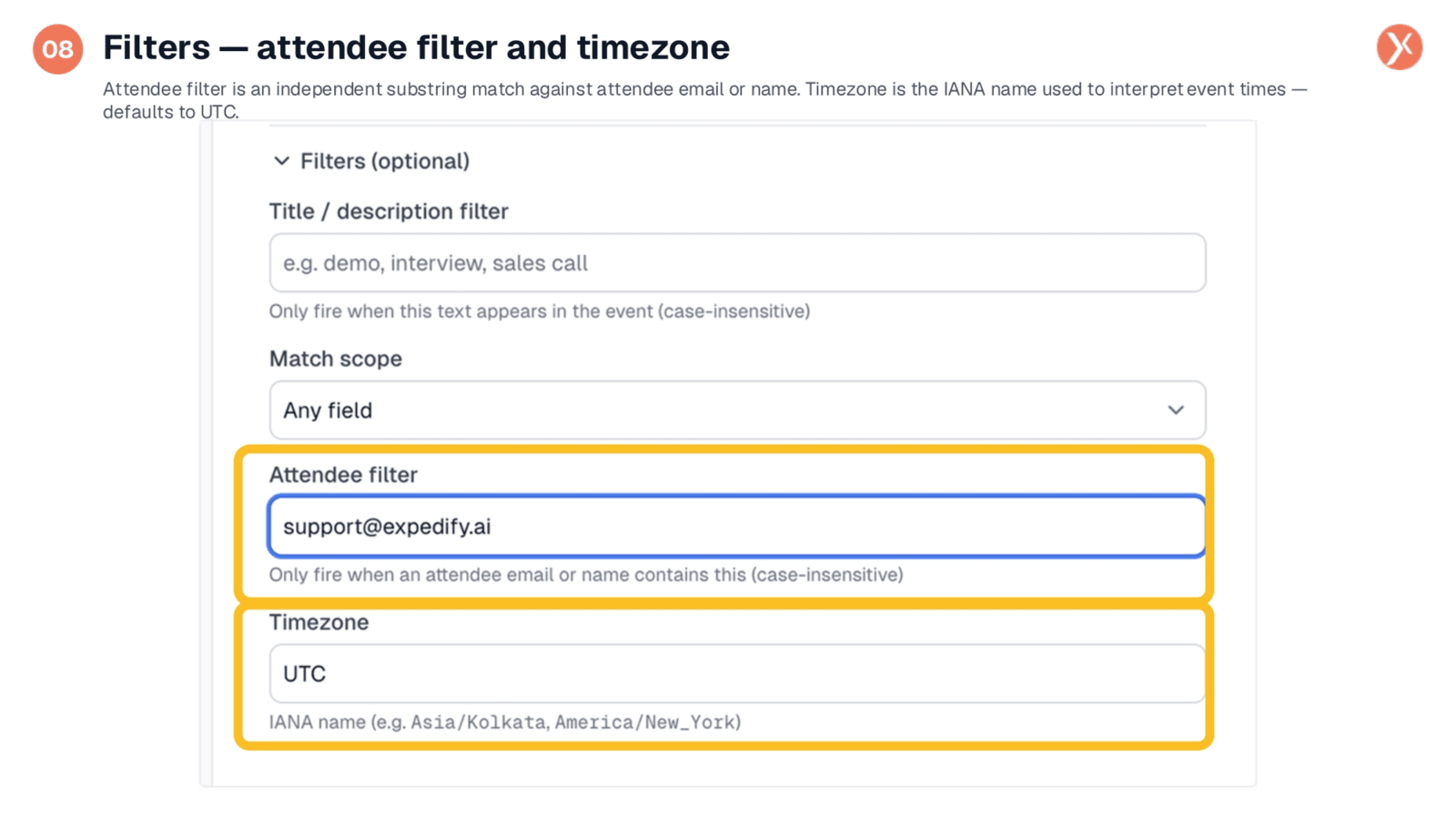
Two additional filters provide further control. The 'Attendee filter' allows you to specify an email or name fragment, such as 'support@expedify.ai', ensuring the trigger only fires if an attendee matches. This filter operates independently and stacks with the title filter, enabling precise targeting like 'meetings with 'demo' in the title AND an attendee from expedify.ai'. The 'Timezone' field, using IANA names like 'Asia/Kolkata', defaults to UTC and is crucial for accurate event time interpretation, especially for 'Event starting soon' lead-time calculations. Adjust this to your organization's actual timezone if it differs from UTC.
What the Google Calendar Trigger Hands Off
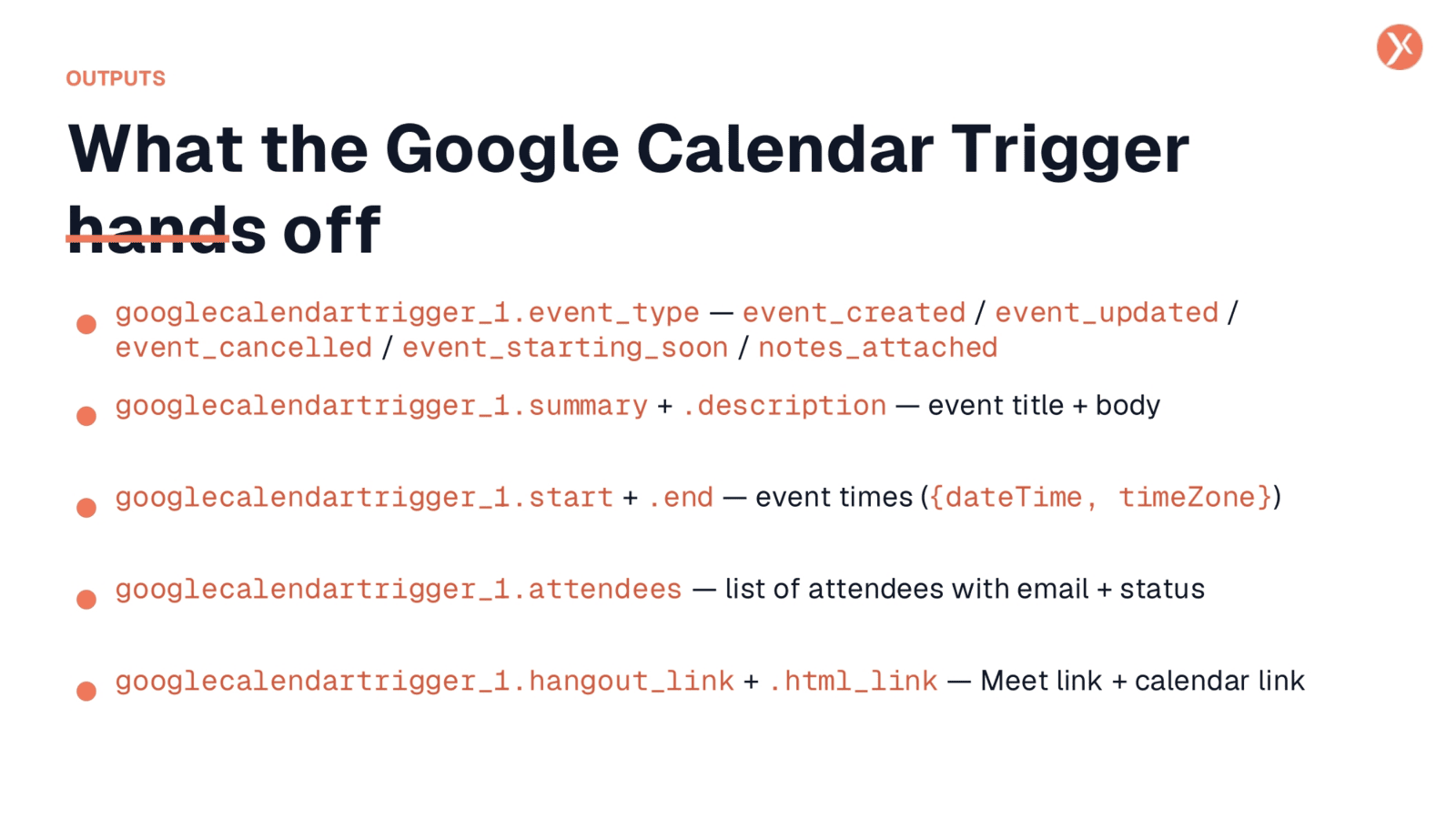
The Google Calendar Trigger provides valuable data to your downstream nodes. The 'event_type' output indicates which event fired: created, updated, cancelled, starting soon, or notes attached, allowing for conditional branching in your workflows. 'summary' provides the event title, while 'description' contains the event body. 'start' and 'end' are time objects with dateTime and timeZone, useful for reminder emails. The 'attendees' output lists all attendees with their email and status. Finally, 'hangout_link' provides the Google Meet link if available, and 'html_link' offers the direct calendar link. These outputs can be wired into any subsequent actions.
That's the Google Calendar Trigger, End-to-End
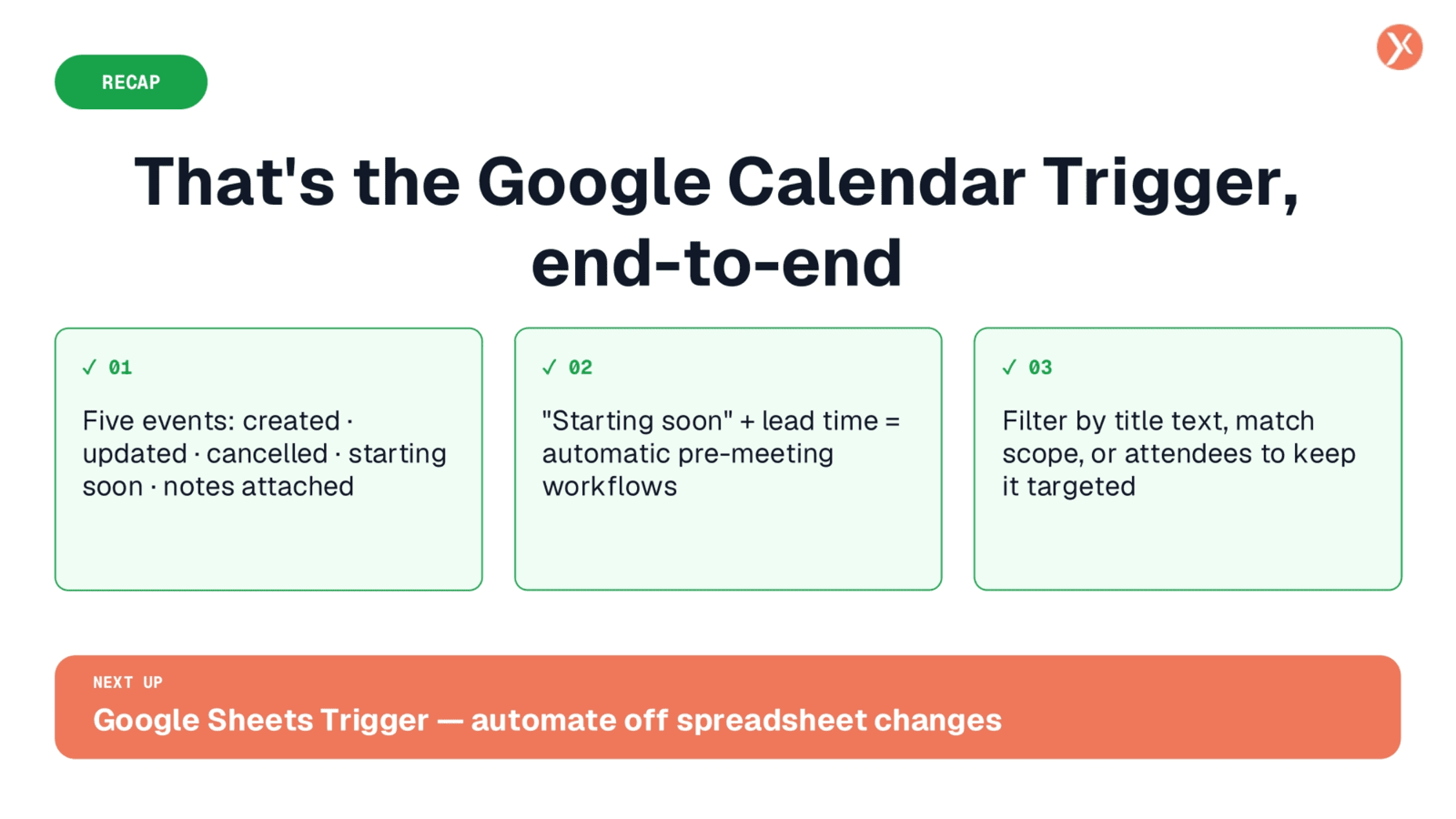
That concludes our deep dive into the Google Calendar Trigger. Thank you for joining, and next, we'll explore the Google Sheets Trigger to automate off spreadsheet changes.