Core Agent
The Core Agent represents a significant leap in automation, functioning as an AI that can independently think, select appropriate tools, and execute actions. It processes user input, leverages various tools like search, Google Sheets, or email, and then completes the requested action. This intelligent agent is designed to automate complex, multi-step tasks, bringing a new level of efficiency to your operations.
Core Agent Demo Overview
This demonstration provides an overview of the Core Agent's key components and functionalities. We'll delve into how it integrates various tools, utilizes a sophisticated prompt builder, manages memory across conversations, and performs multiple iterations to achieve its objectives. This session will highlight the core elements that make the Core Agent a powerful solution for advanced automation.
Wiring Up the Core Agent with Tool Ports
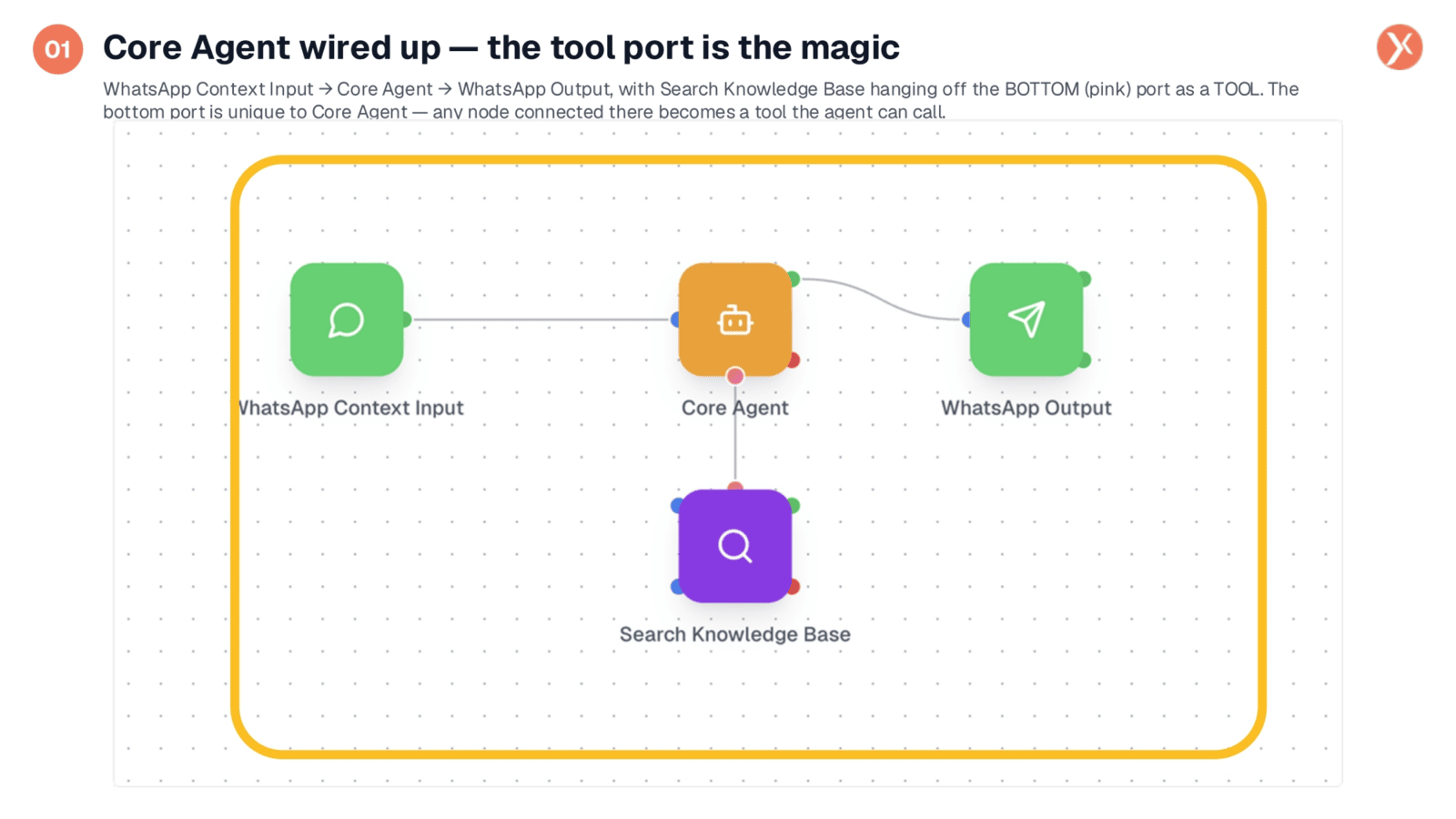
Here we see a Core Agent workflow, illustrating how it's wired up with a tool. A WhatsApp context input feeds user messages and chat history to the Core Agent, which then processes the information and sends an output via WhatsApp. Crucially, a "Search Knowledge Base" tool is connected to the Core Agent's unique bottom port. Any node connected to this port becomes a tool the agent can dynamically call, enabling it to make real-time decisions on when to use specific functionalities.
Double-Click to Open Core Agent Configuration
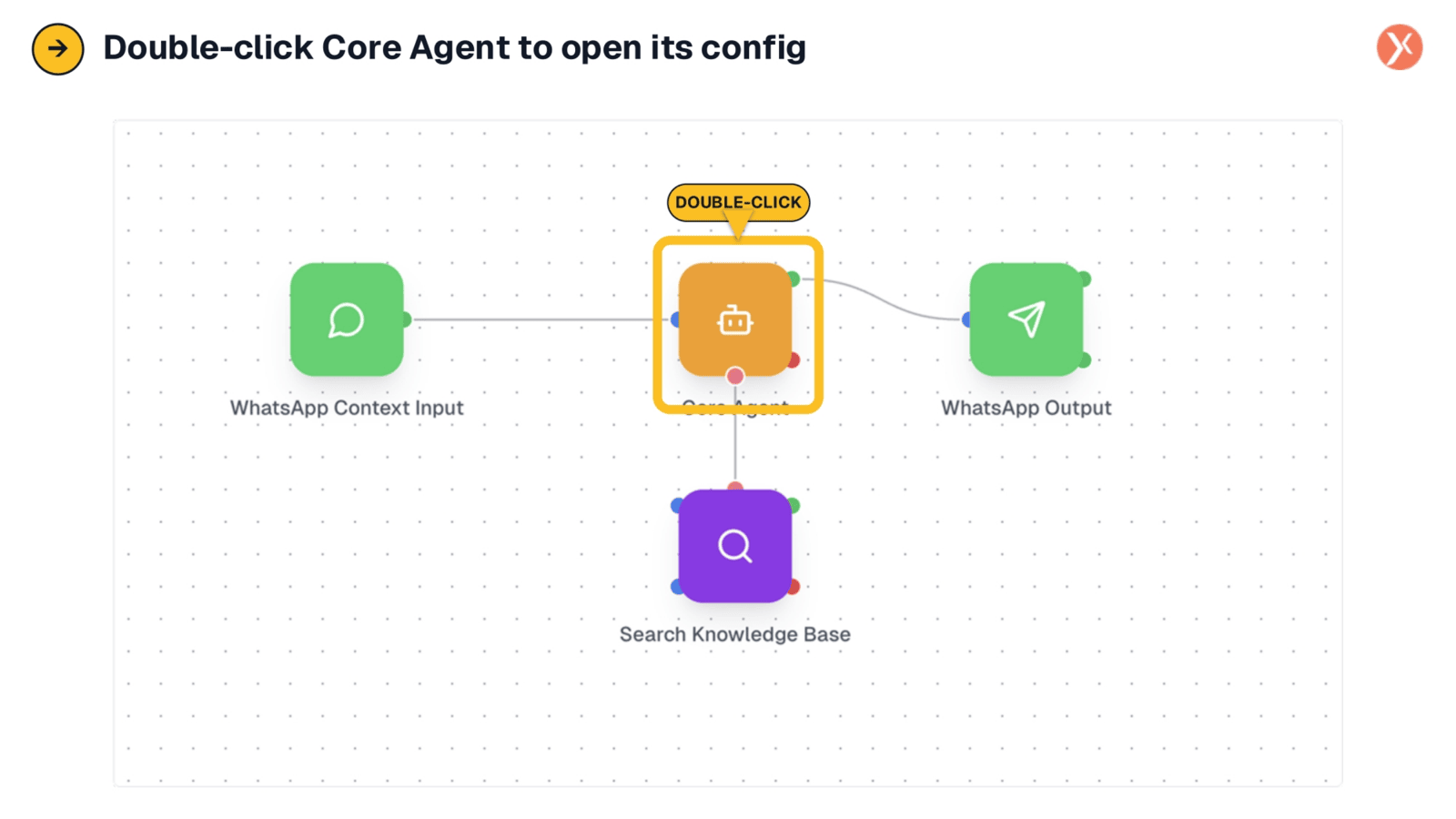
To configure the Core Agent, simply double-click the orange agent node within your workflow. This action opens its dedicated configuration panel, providing access to all the settings needed to customize its behavior. Here, you can define its parameters and ensure it integrates seamlessly into your automation processes, tailoring its operation to your specific requirements.
Core Agent Configuration: Basic and Advanced Settings
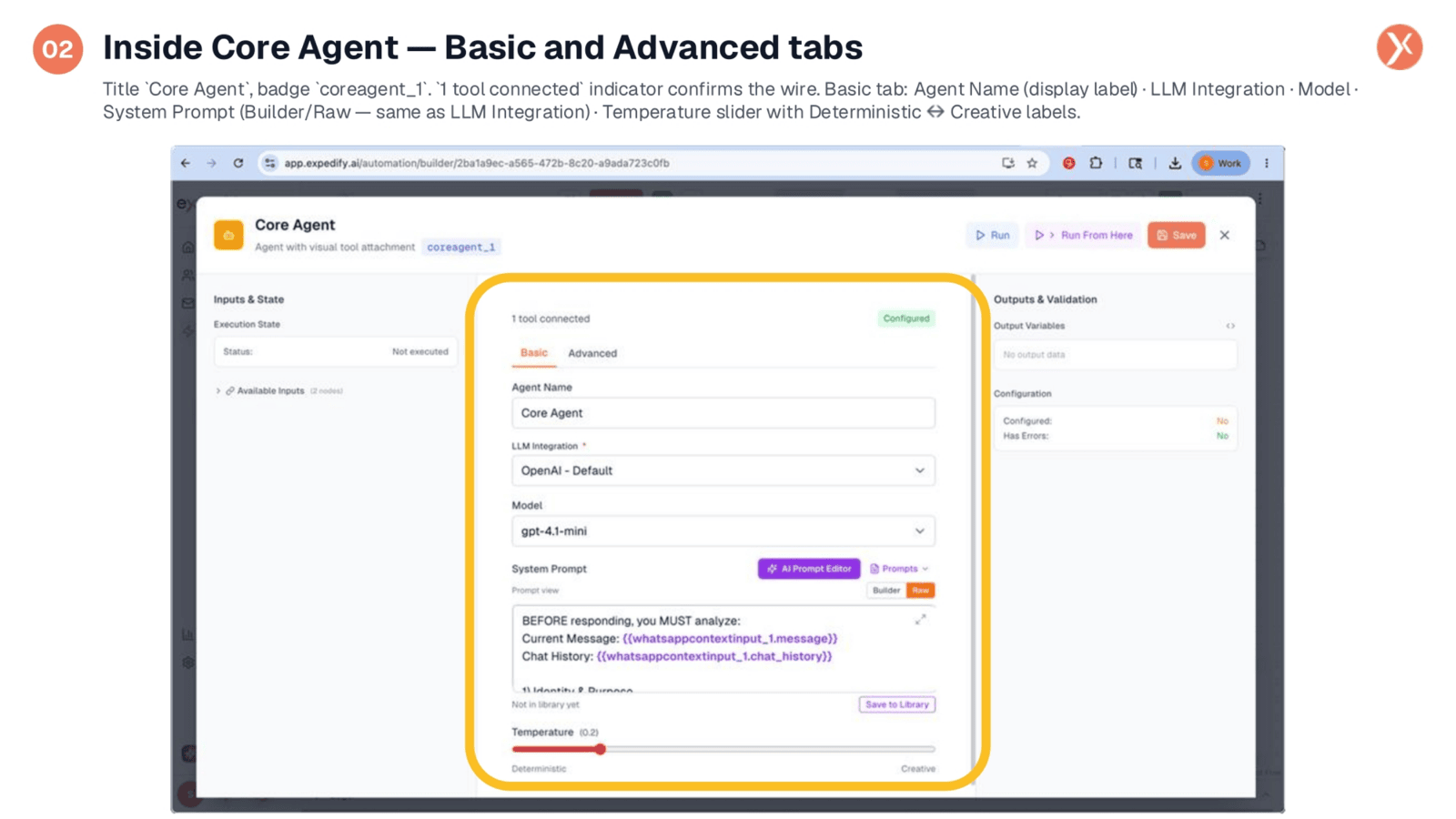
Upon opening the Core Agent node, you'll find two main tabs: Basic and Advanced. The Basic tab displays the Agent Name, LLM Integration, Model selection, and the System Prompt editor. It also shows an indicator confirming that one tool is connected. The Temperature slider, ranging from Deterministic to Creative, is also located here, allowing you to control the agent's response variability.
Clicking the Model Dropdown in Core Agent
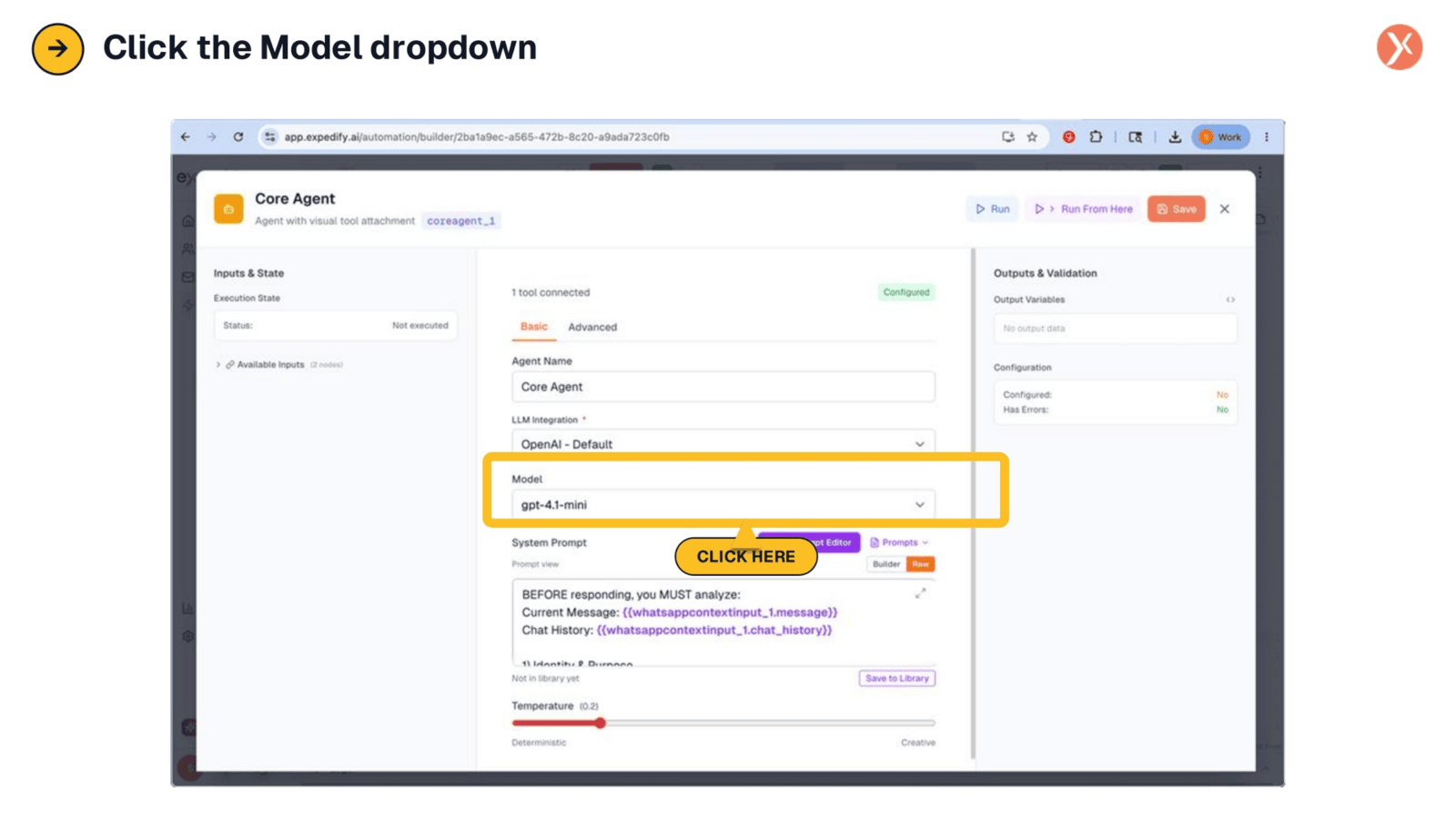
To select the appropriate language model for your Core Agent, click the Model dropdown menu. This action reveals a list of available models, similar to those found in LLM Integration. Choosing the right model is crucial for optimizing the agent's performance and ensuring it can effectively handle the complexity of its assigned tasks.
Model Dropdown: Conservative Selection for Core Agent
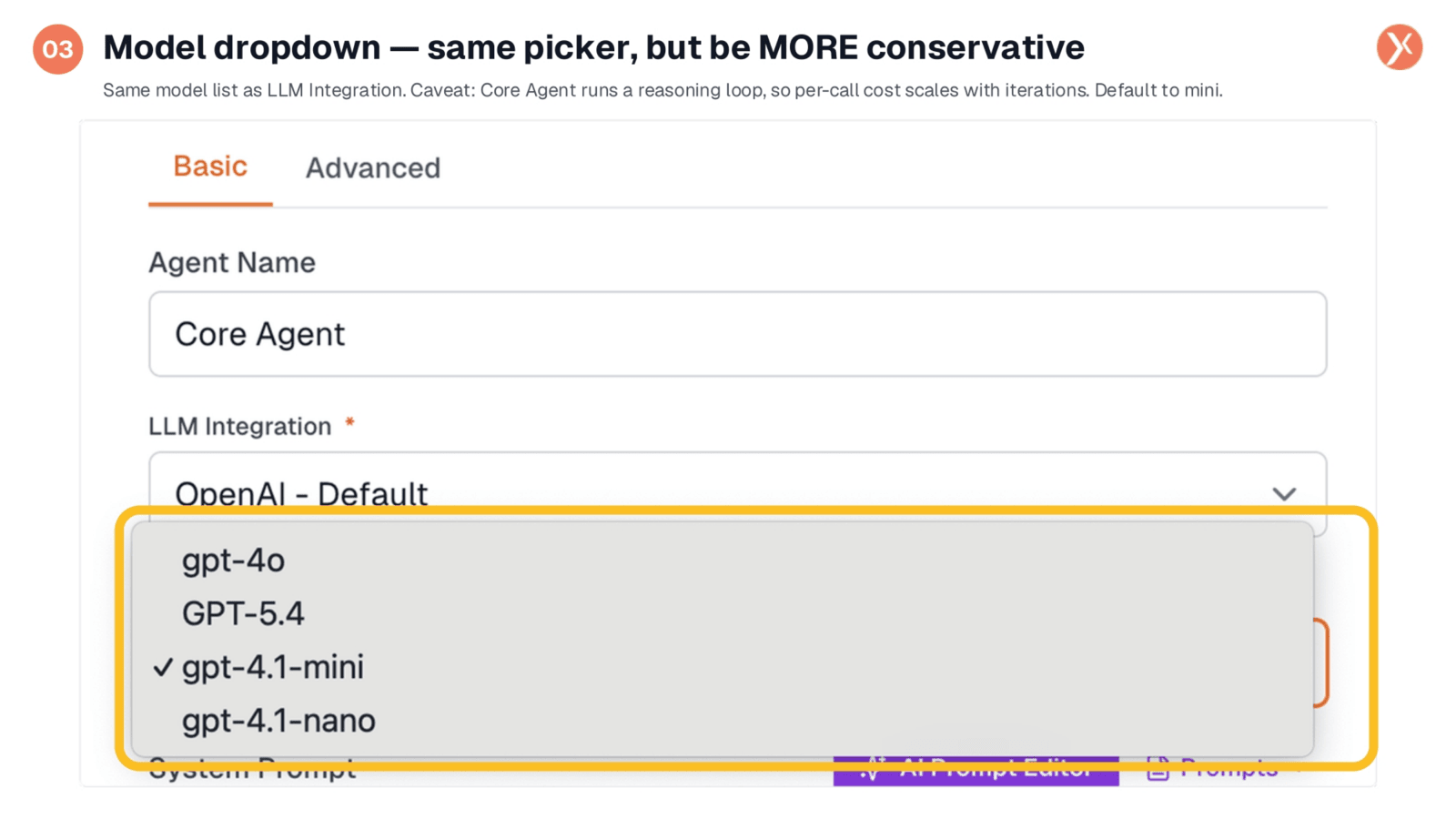
The model dropdown offers the same options as LLM Integration, but it's important to be more conservative with your selection for the Core Agent. Since the Core Agent operates with a reasoning loop, each iteration involves an additional LLM call, which can quickly increase costs. The 'mini' model is often sufficient for most agentic tasks, including tool-calling, making it a cost-effective choice. Reserve larger models for genuinely complex reasoning challenges.
Prompt Builder and Raw Mode: Same Framework
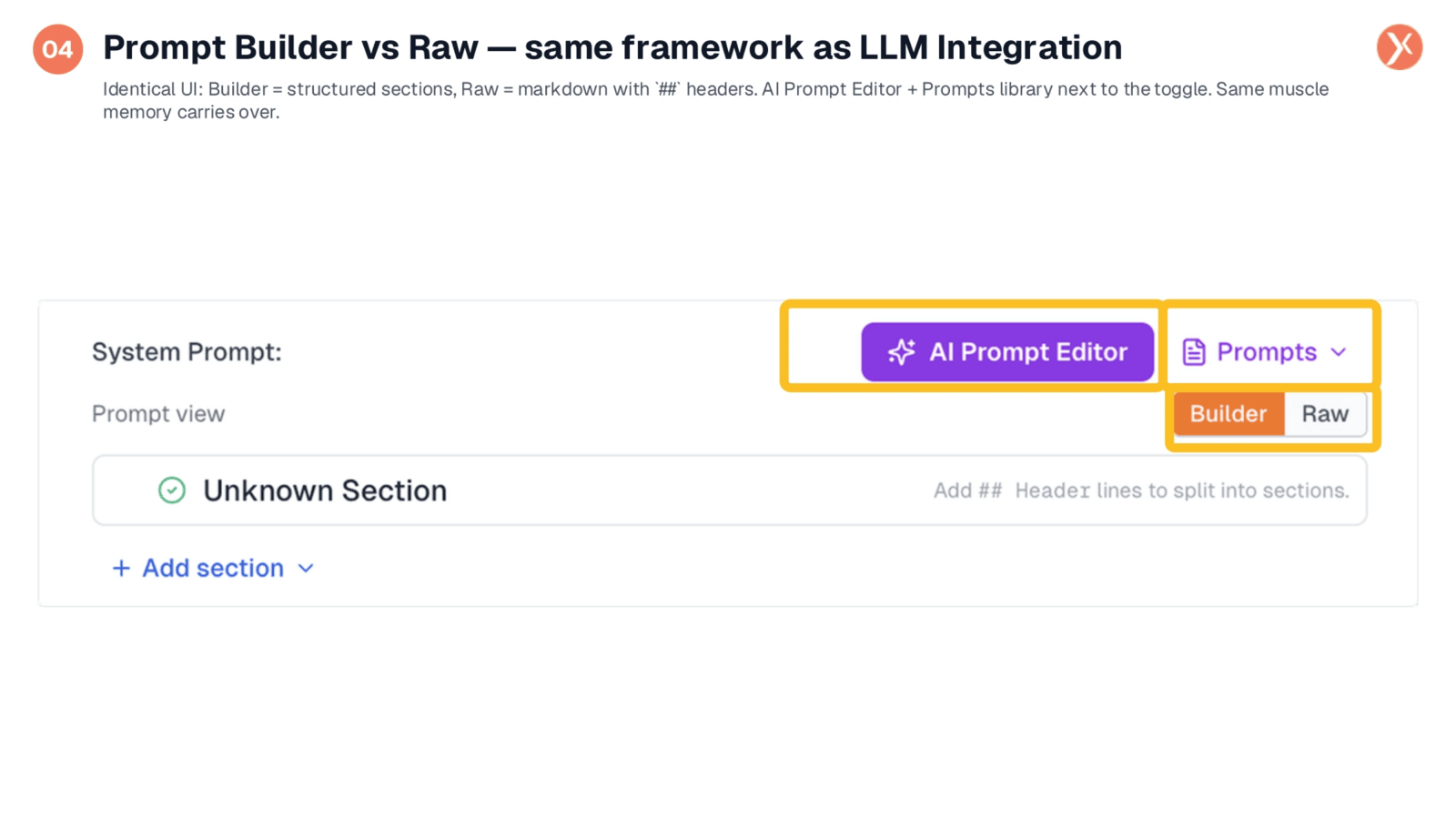
The system prompt area in Core Agent is identical to that of LLM Integration, featuring both a Builder and Raw mode toggle. This consistency ensures that your prompt-engineering muscle memory carries over, making it easy to switch between structured sections and markdown headers. The AI Prompt Editor and Prompts library are also readily available, providing a familiar and efficient environment for prompt creation.
Adding Sections: Core Agent's Tool Usage Feature
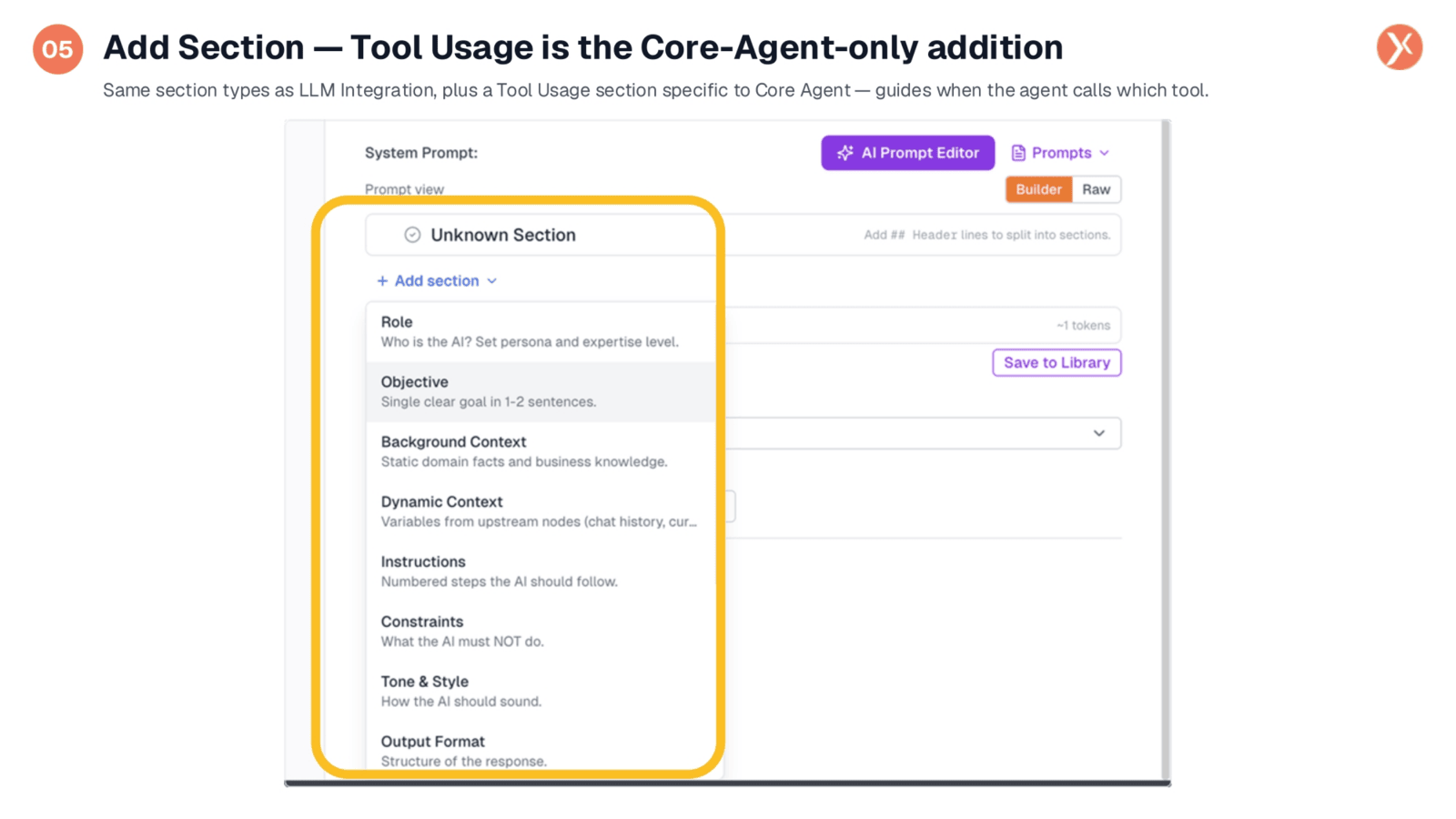
When adding sections to your prompt, you'll find familiar types like Role, Objective, and Instructions. Unique to the Core Agent is the "Tool Usage" section, which allows you to guide the agent on when to call specific tools. For instance, you can instruct it to search a knowledge base for product questions but respond directly to general greetings. This section helps make tool calls more deterministic and explainable, optimizing the agent's decision-making process.
Structured Prompt: Familiar Anatomy and Token Cost
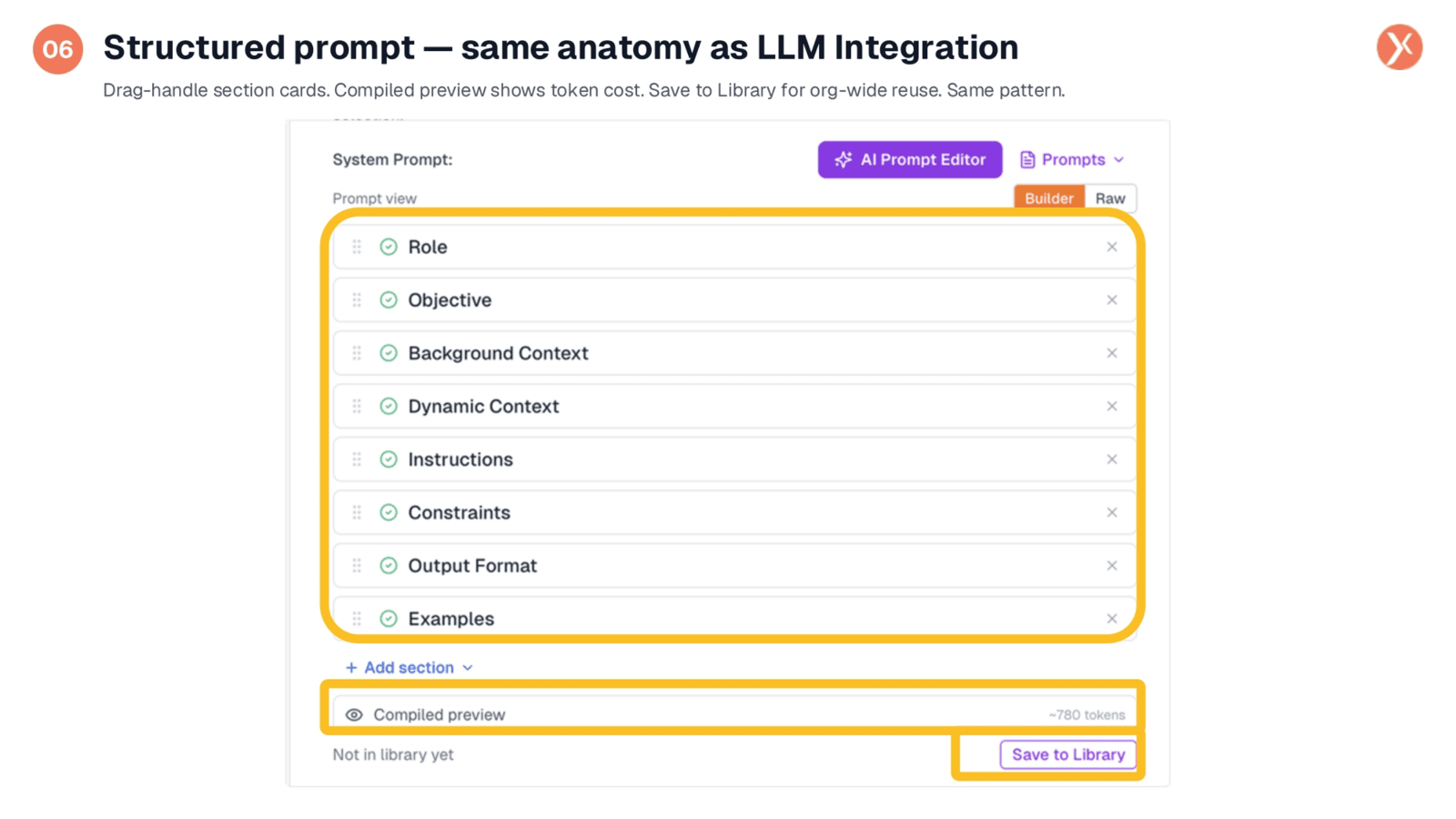
The structured prompt UI in Core Agent mirrors that of LLM Integration, utilizing drag-handle cards for each section. A compiled preview displays the token cost, helping you manage expenses. Prompts can be saved to the library for organization-wide reuse, promoting consistency and efficiency. For Core Agent, it's crucial to keep instructions and tool usage sections concise, as lengthy or ambiguous instructions can lead to increased agentic costs due to extra reasoning iterations.
Section Editor: Insert Variables and Templates
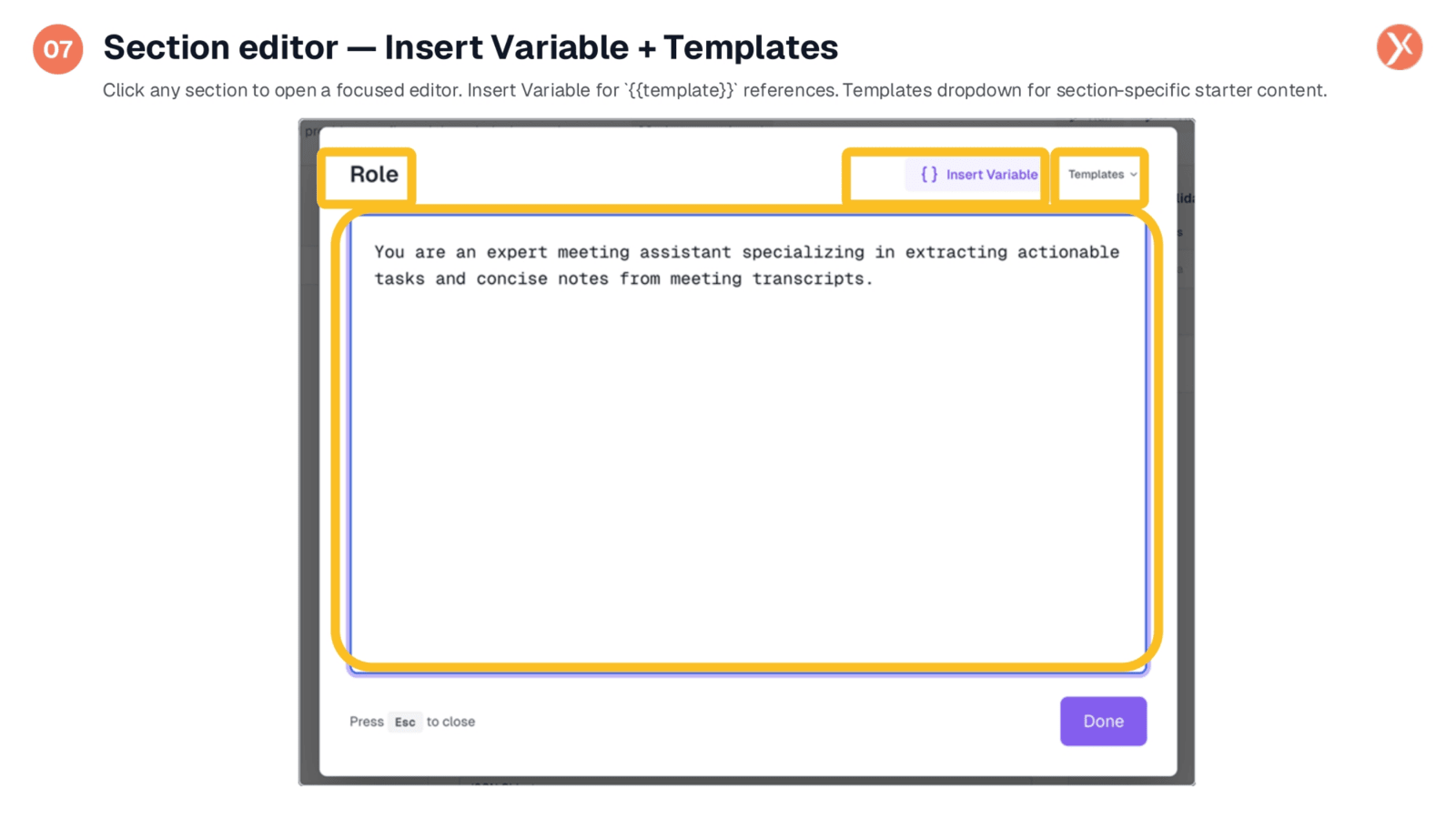
Clicking any section card opens a focused editor, similar to LLM Integration. Here, you can insert variables for typeahead access to upstream node outputs and utilize templates for section-specific starter content. This allows for precise editing and customization of individual prompt sections. For Core Agent, the Dynamic Context section is typically used to input the user's current message, chat history, and any retrieved context from connected tools.
Raw Mode: Markdown Syntax for Prompts
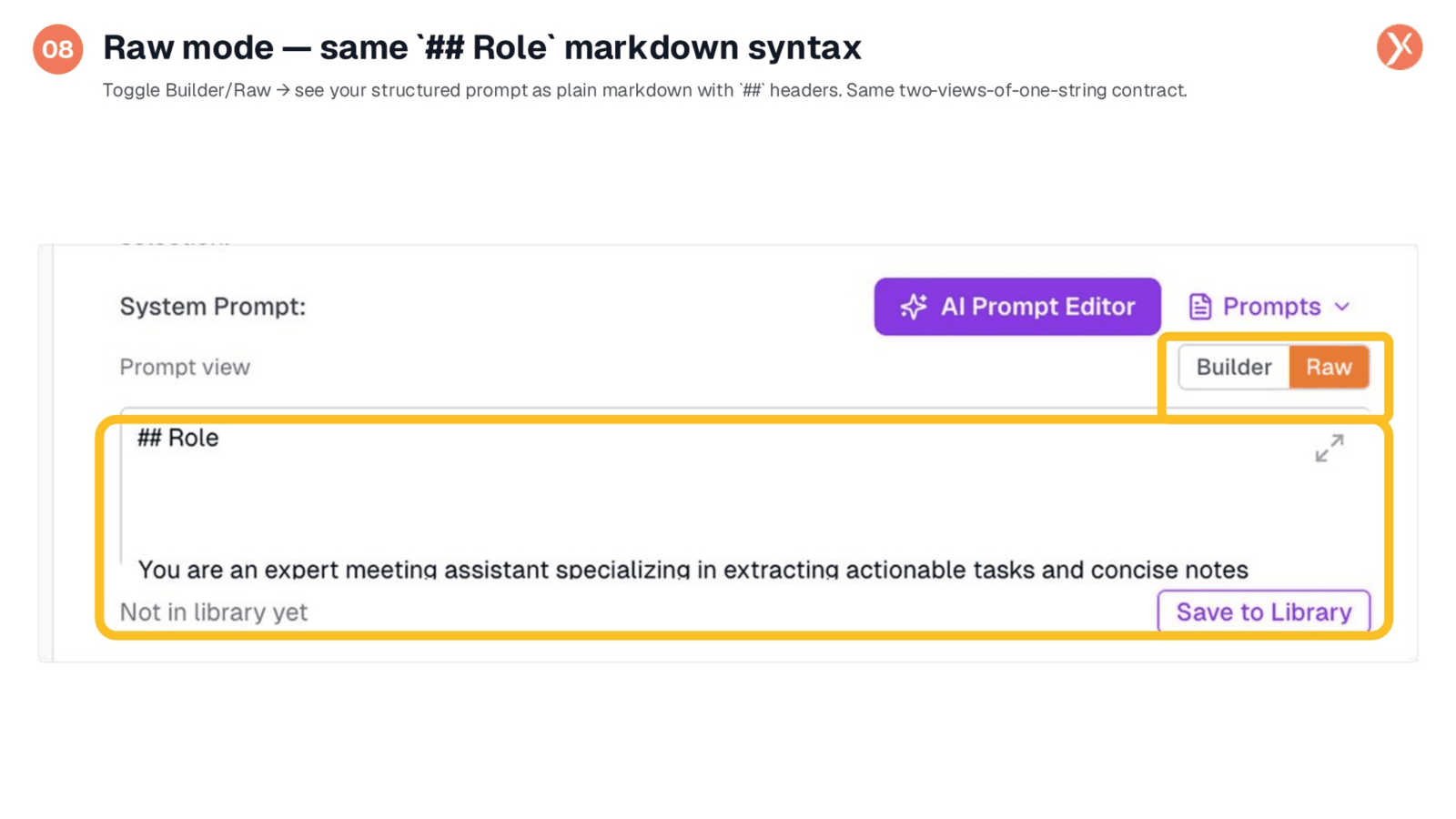
The Raw mode in Core Agent functions identically to LLM Integration, displaying your structured prompt as plain markdown with hash-hash headers as section delimiters. This dual-view approach ensures that switching between Builder and Raw modes never results in lost content. Raw mode is ideal for pasting in or out prompt content, while Builder mode is preferred for everyday iteration and structured editing.
Prompts Library: Org-Wide and Shared
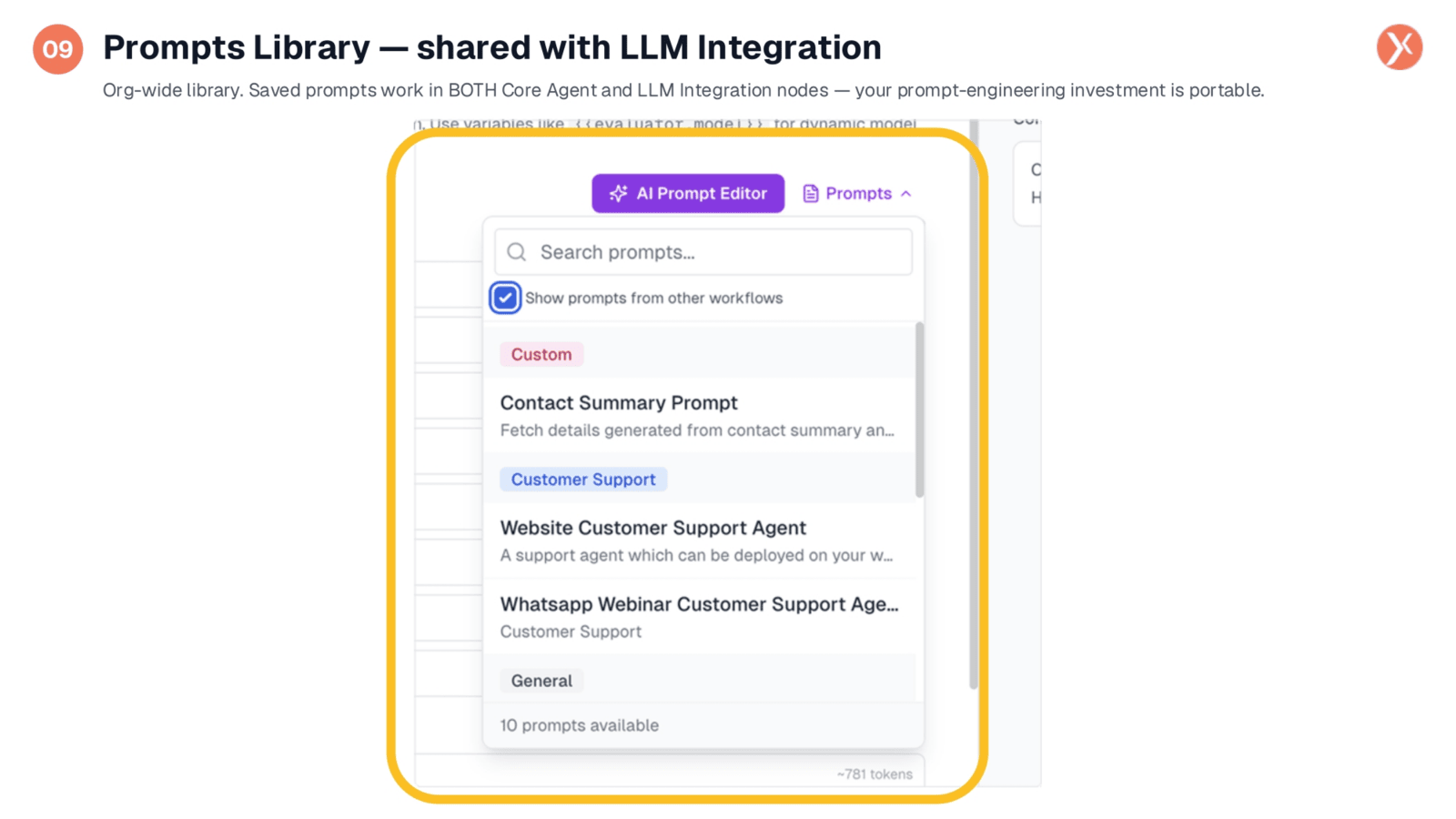
The Prompts library is an organization-wide resource, shared between both Core Agent and LLM Integration nodes. This means a prompt saved from a Core Agent can be loaded into an LLM Integration node and vice versa, making your prompt-engineering investment portable. This shared library ensures consistency across single-shot and agentic contexts, serving as a central source of truth for your prompt assets.
AI Prompt Editor: Meta-AI Assistance
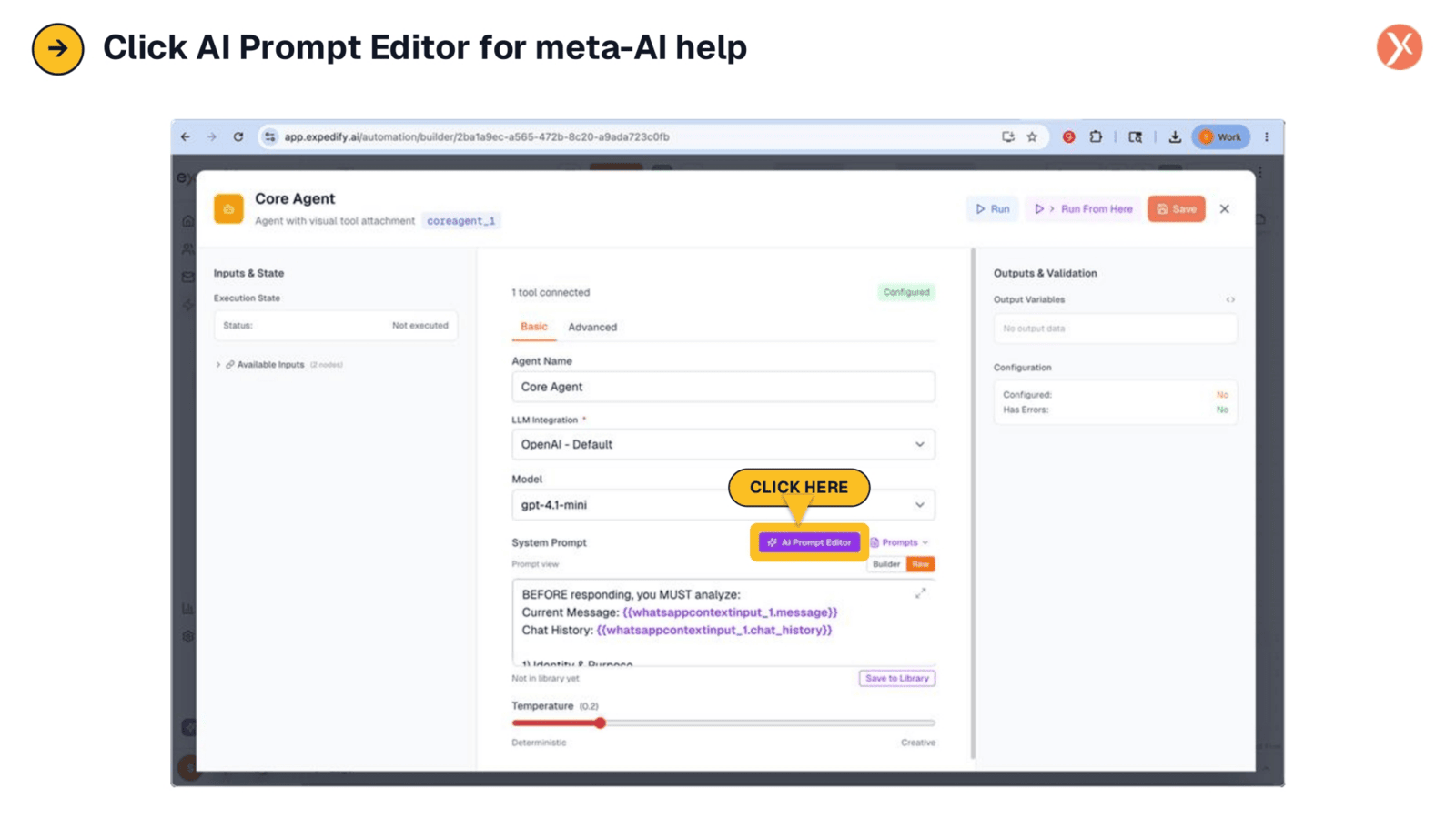
Clicking the AI Prompt Editor button initiates a three-stage flow, similar to LLM Integration, offering meta-AI assistance for prompt creation. This feature helps you refine or replace existing prompts and select context to include. A key difference in Core Agent is that the "Connected tools" context option becomes active, allowing the AI to leverage your tool list to suggest smarter, more relevant prompt modifications.
AI Prompt Editor: Connected Tools Context
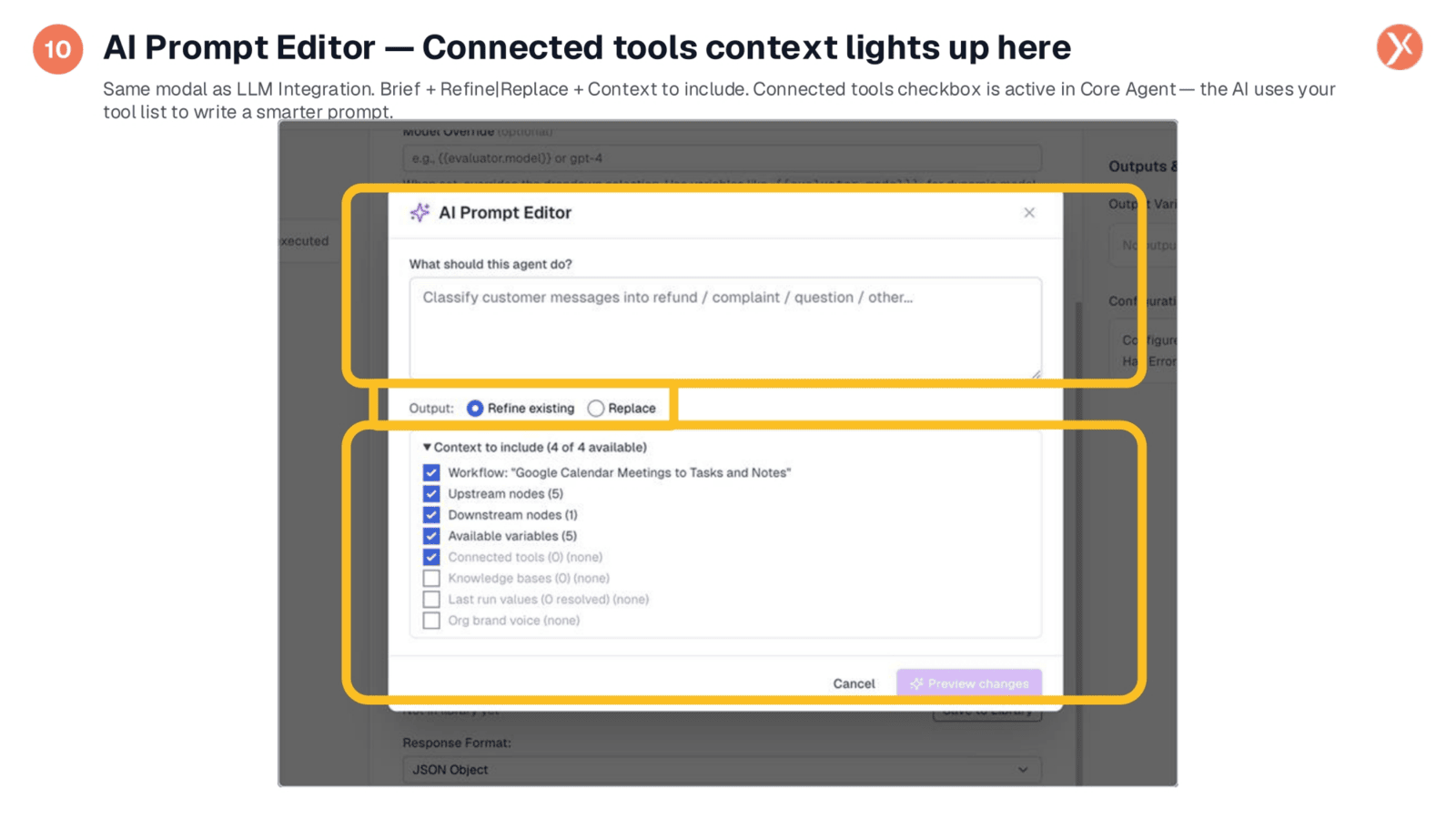
The AI Prompt Editor modal is similar to LLM Integration, offering options for brief descriptions, refining or replacing content, and including context. A notable distinction for Core Agent is the active "Connected tools" context option. When tools are wired in, the AI uses this information to write a smarter prompt, potentially suggesting a "Tool Usage" section to guide the agent on when to call specific tools like a knowledge base.
Proposed Changes: Line-by-Line Approval
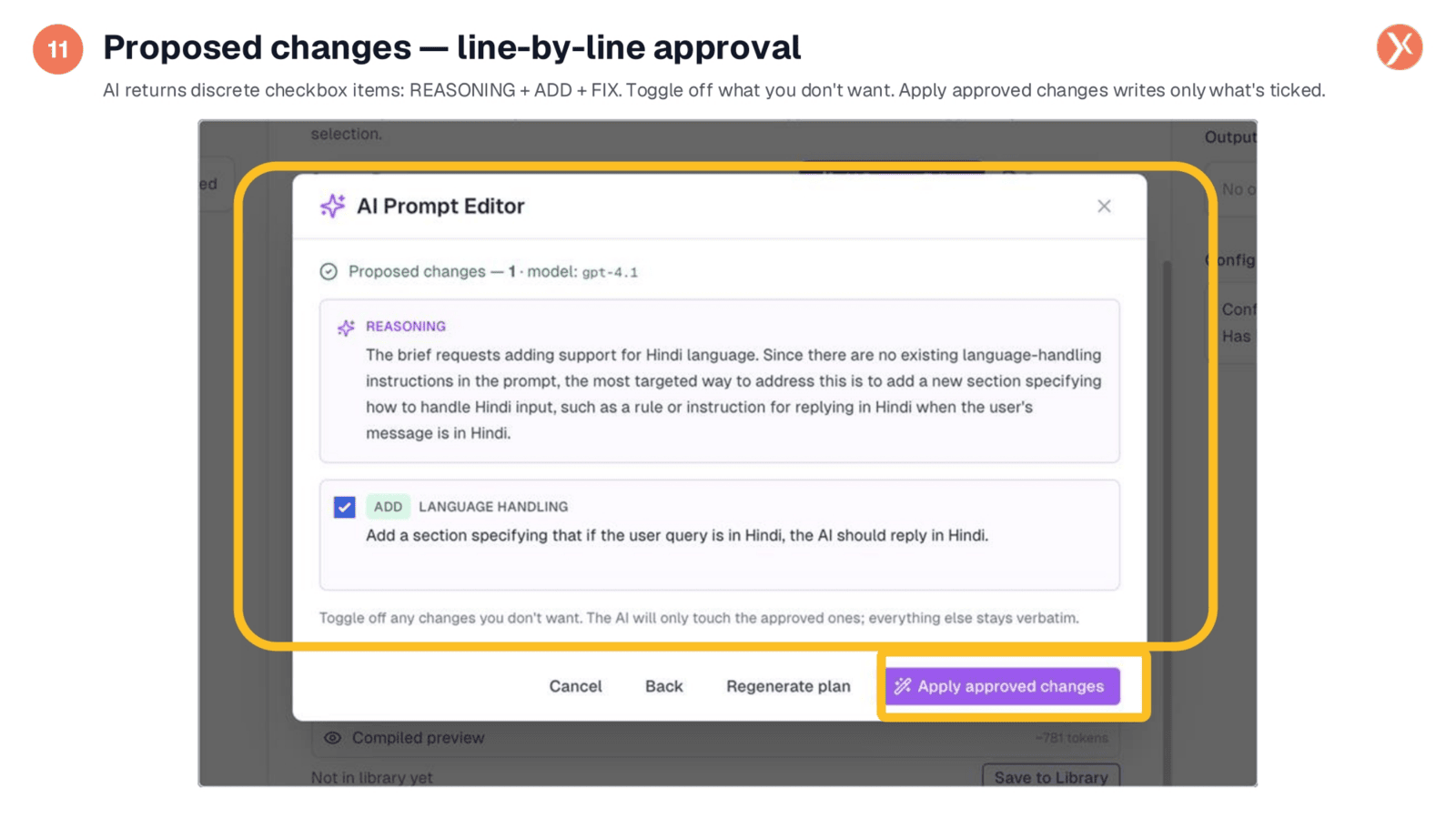
The AI returns its proposed changes as a checkboxed list, including a reasoning section at the top, followed by suggested additions and fixes. You can review the AI's assumptions and toggle off any changes you don't wish to apply. Only the ticked items will be written to the prompt, ensuring you maintain full control over the modifications. This three-stage flow provides a controlled and transparent editing process.
Diff Review: Side-by-Side Comparison Before Applying
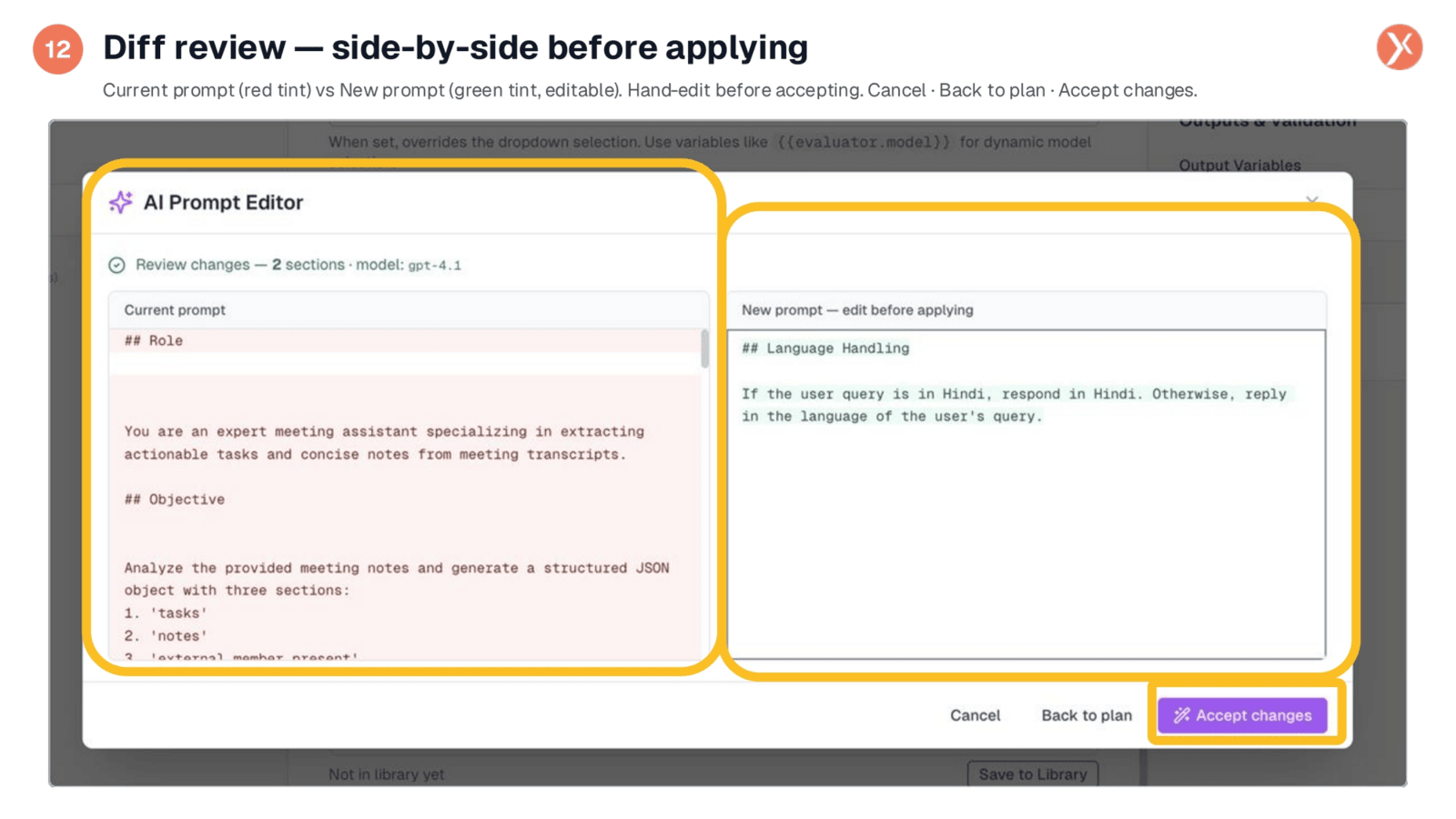
Before applying changes, the diff view provides a side-by-side comparison of the current prompt and the new proposed prompt. The current prompt is highlighted in red on the left, while the new, editable prompt is shown in green on the right. This allows for hand-editing the new prompt if the AI's wording isn't quite right. You can accept changes, go back to the plan, or cancel entirely, ensuring precise control over your prompt updates.
Temperature Slider: Deterministic to Creative Control
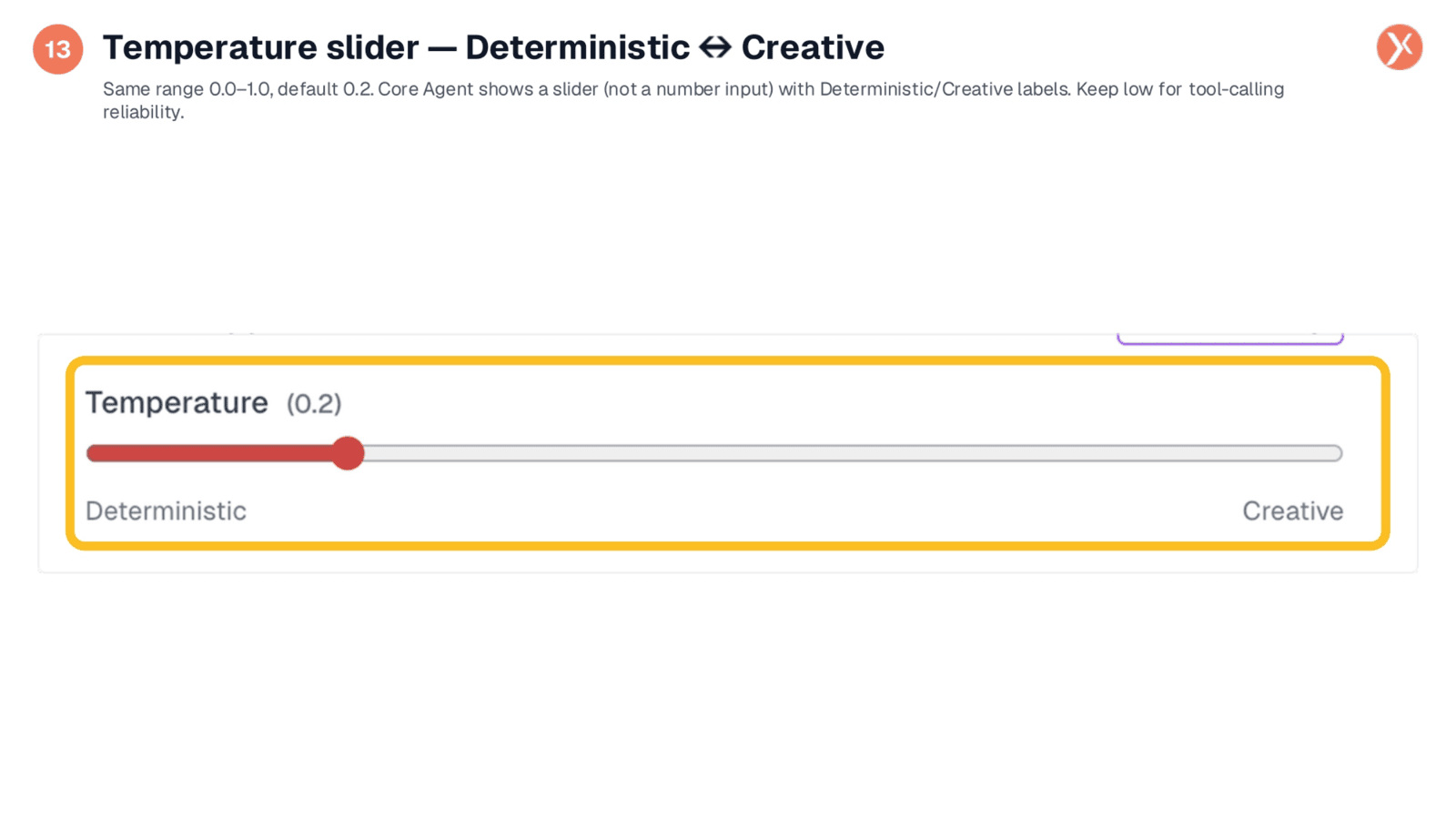
The Temperature setting in Core Agent is presented as a slider, ranging from Deterministic on the left to Creative on the right, with a default of 0.2. For agents that utilize tools, it's crucial to keep this setting low, ideally at 0.2 or below. Higher temperatures can degrade tool-calling reliability, potentially causing the agent to hallucinate tool names or skip necessary calls. Only increase temperature if your agent is primarily conversational and doesn't rely heavily on tools.
Clicking the Advanced Tab for Agentic Settings
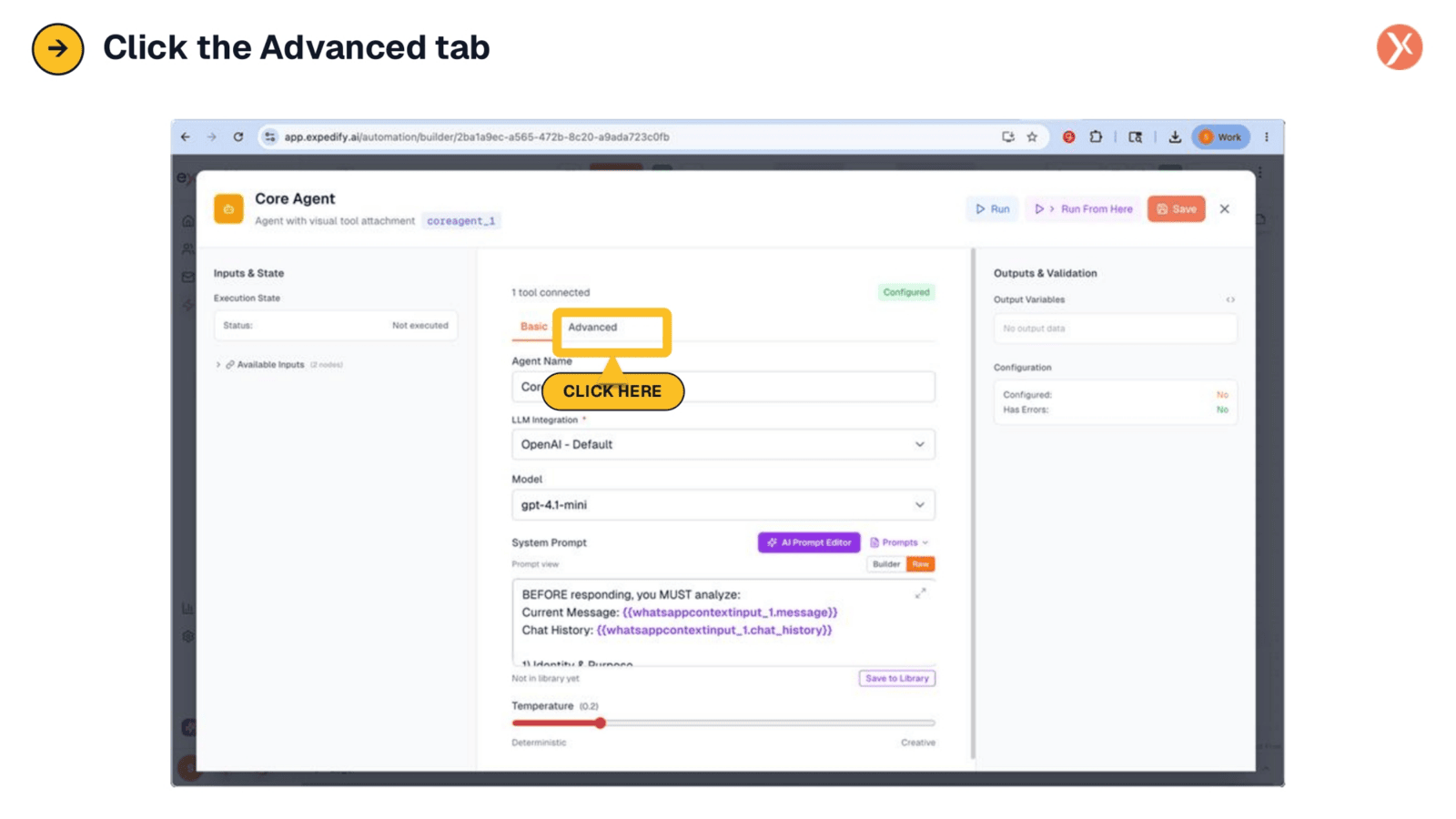
To access the Core Agent's unique agentic-loop settings, navigate to the Advanced tab. This section contains crucial configurations that differentiate the Core Agent from a standard LLM call, enabling its autonomous reasoning and memory capabilities. Clicking this tab opens up the controls for fine-tuning the agent's behavior in complex, multi-step scenarios.