Voice Agent
Today, we'll explore Expedify's Voice Agent, an AI designed to hold real phone conversations. We'll delve into its core functionality, examining how it integrates with existing workflows and handles complex interactions. Our session will cover the five essential configuration tabs, ensuring you can set up a production-ready voice agent with confidence.
Voice Agent Demo: Mastering Five Configuration Tabs
This demonstration will guide you through the Voice Agent's configuration. We'll open the Voice Agent within an outbound voice workflow, then systematically tour all five tabs: Basics, Voice, STT, Timing, and More. Each tab offers crucial settings for the agent, prompt, accent, voice selection, turn detection, interruption handling, call-end rules, performance, and recording.
Understanding a Real Outbound Voice Agent Workflow
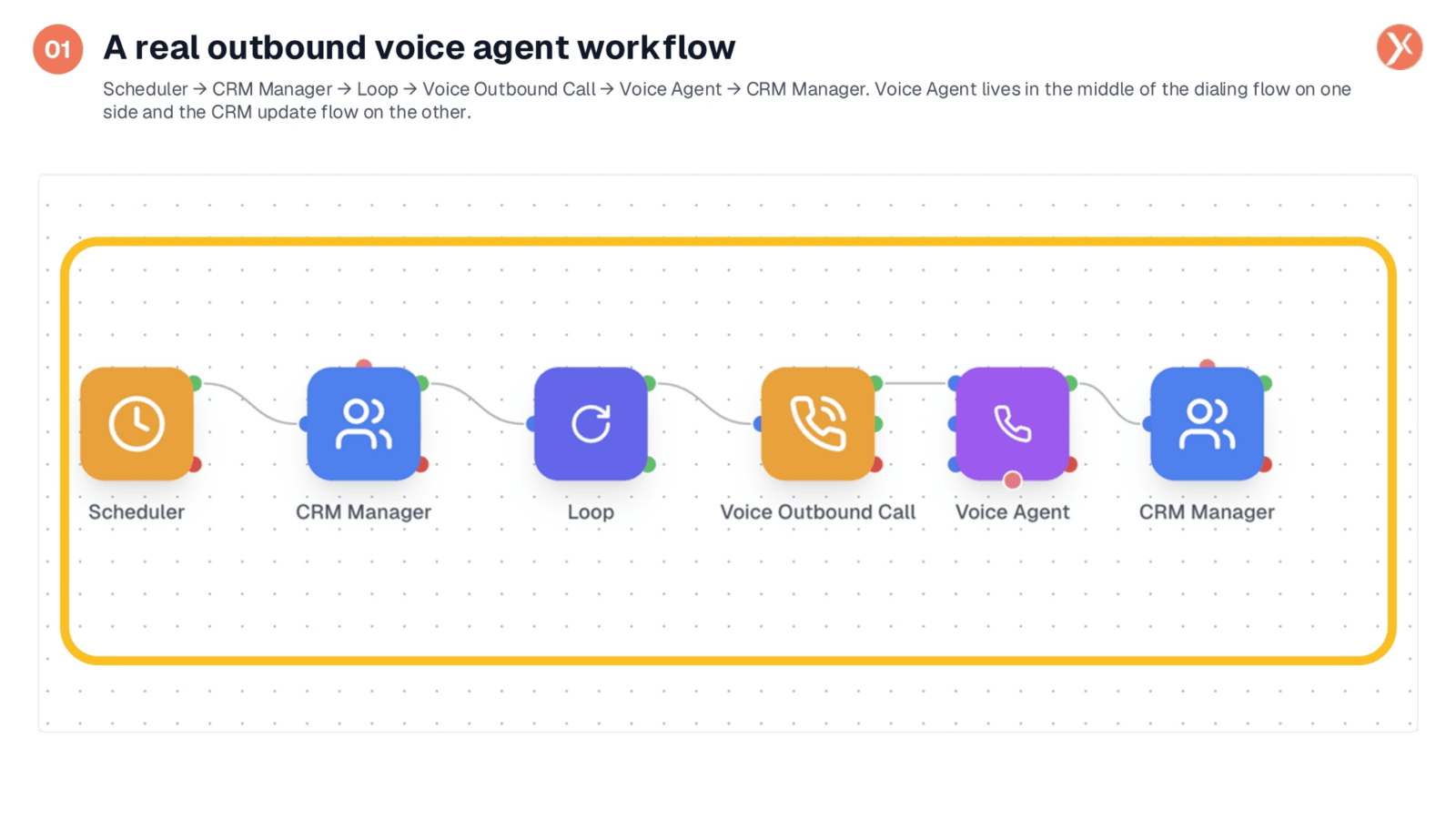
Let's examine a typical outbound voice workflow. It begins with a Scheduler, which triggers calls, for instance, daily at 9 AM. The CRM Manager then provides a list of contacts. A Loop iterates through each contact, and the Voice Outbound Call dials the number. The call is then handed off to the Voice Agent, which handles the actual conversation. Once the call concludes, the CRM Manager updates the record with details like call outcome and transcript. The Voice Agent is central to this process, managing the conversation between dialing and CRM updates.
Accessing Voice Agent Configuration
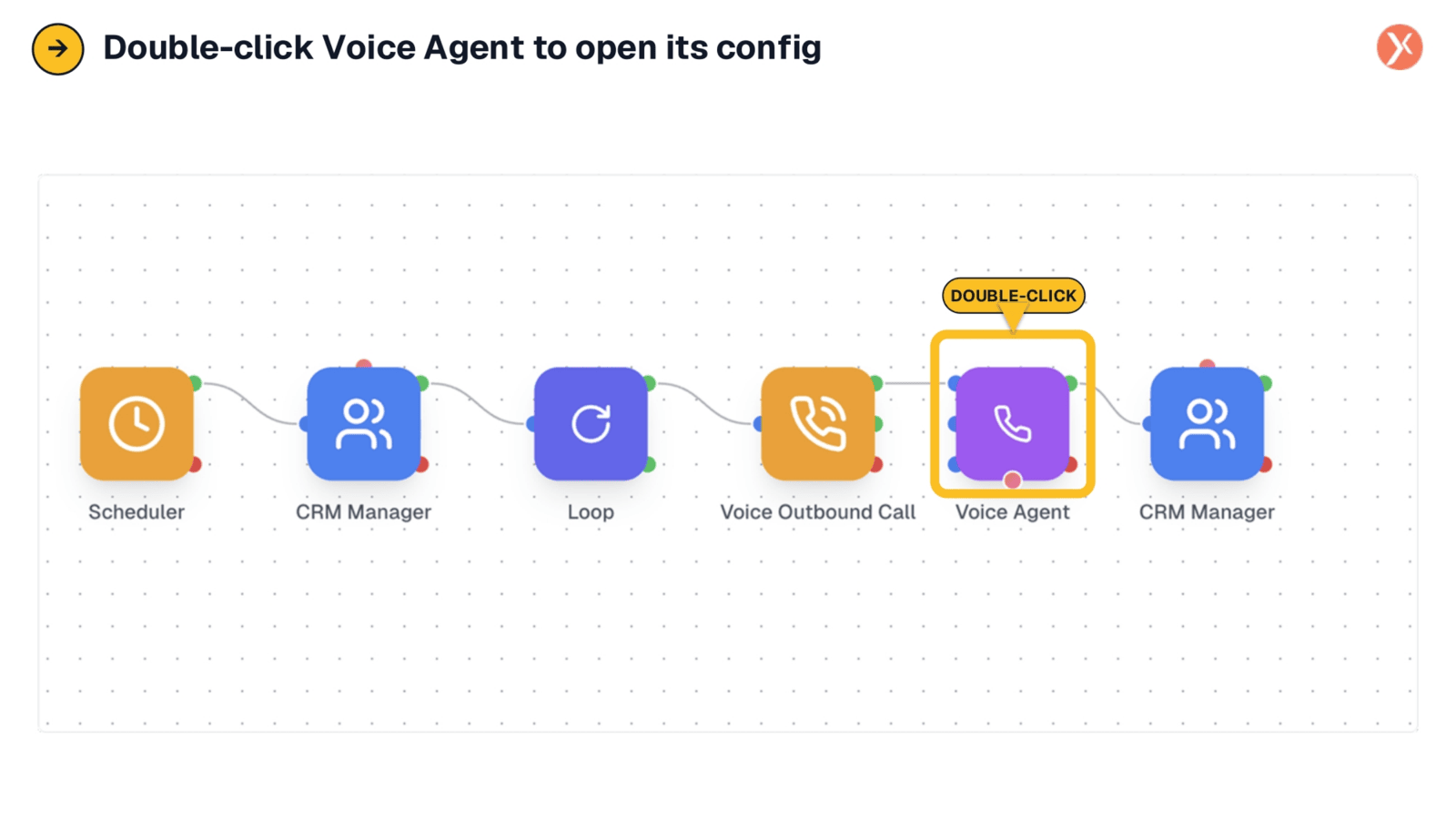
To access the Voice Agent's configuration settings, simply double-click the purple Voice Agent node within your workflow. This action will open the detailed configuration panel, allowing you to customize its behavior and performance.
Exploring the Voice Agent's Five Configuration Tabs
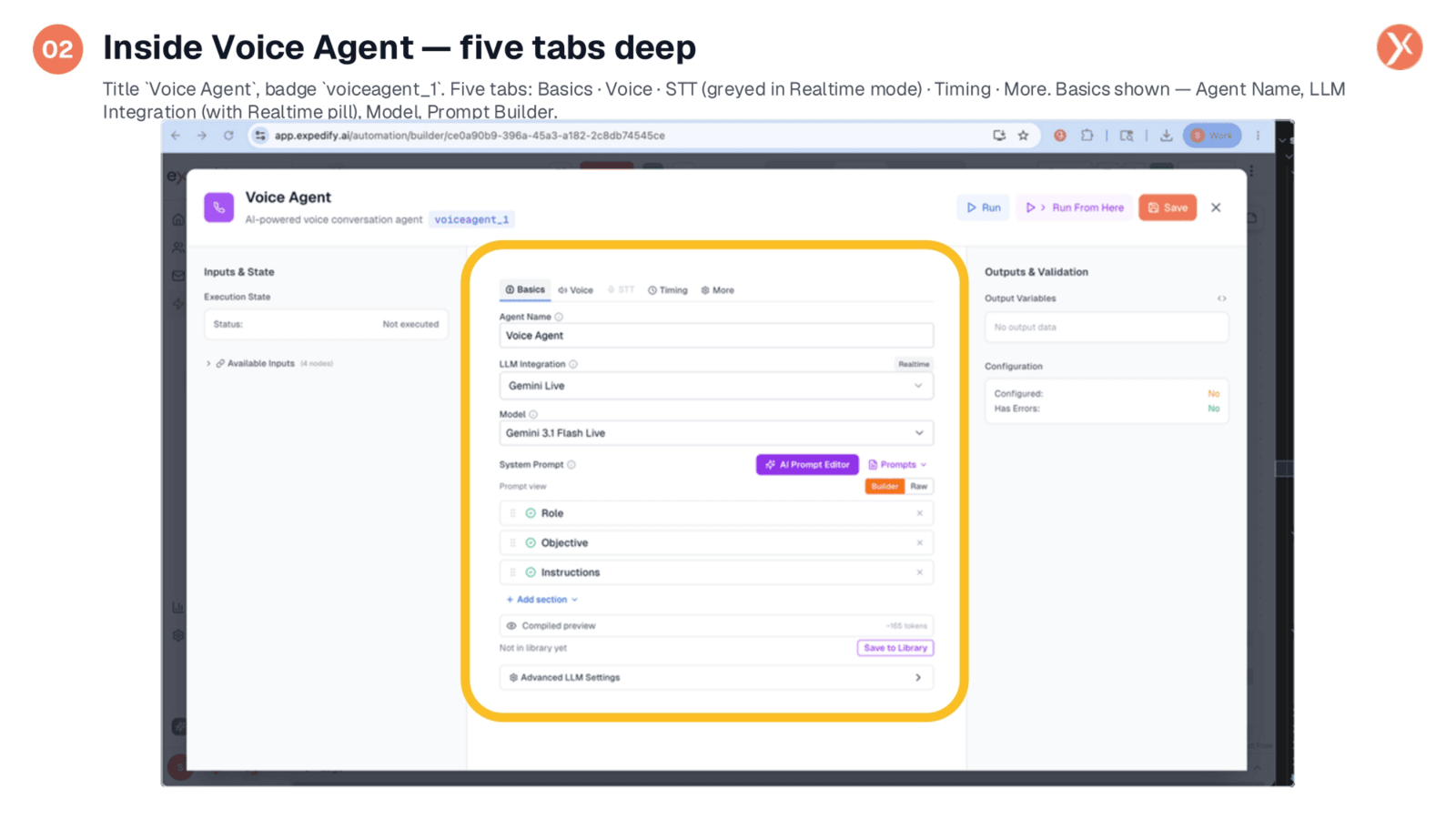
Upon opening the Voice Agent node, you'll notice its title, 'Voice Agent,' and badge, 'voiceagent_1.' Unlike other AI nodes, this one features five distinct tabs: Basics, Voice, STT, Timing, and More. The Basics tab, currently displayed, covers the agent name, LLM Integration, model selection, and the familiar system prompt builder. We'll explore each of these tabs in detail to understand their specific functions.
Basics Tab: Agent, LLM, and System Prompt Configuration
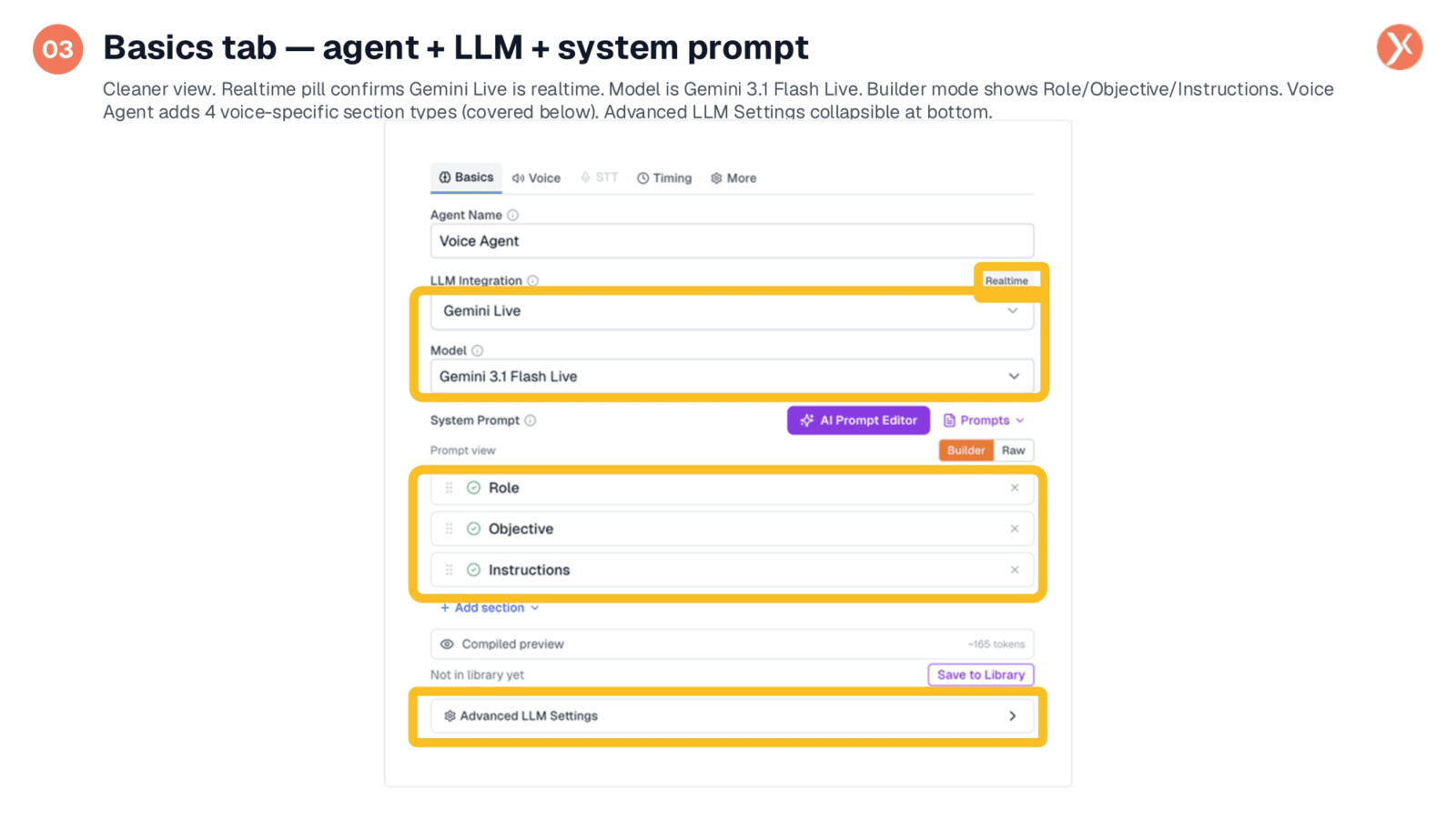
The Basics tab provides a clear overview of the agent's fundamental settings. The 'Agent Name' is a display label, while 'LLM Integration' shows 'Gemini Live' as a realtime provider, indicated by the 'Realtime' pill. The 'Model' is set to 'Gemini 3.1 Flash Live,' chosen from available realtime models. The 'System Prompt' area utilizes the same Builder/Raw editor found in other AI nodes, featuring sections for Role, Objective, and Instructions. Additionally, Voice Agent introduces four voice-specific section types: Conversation Style, Brevity Rules, Language & Accent, and Silence Behavior. Advanced LLM Settings, including Temperature and max tokens, are also accessible at the bottom.
Selecting LLM Integration Providers
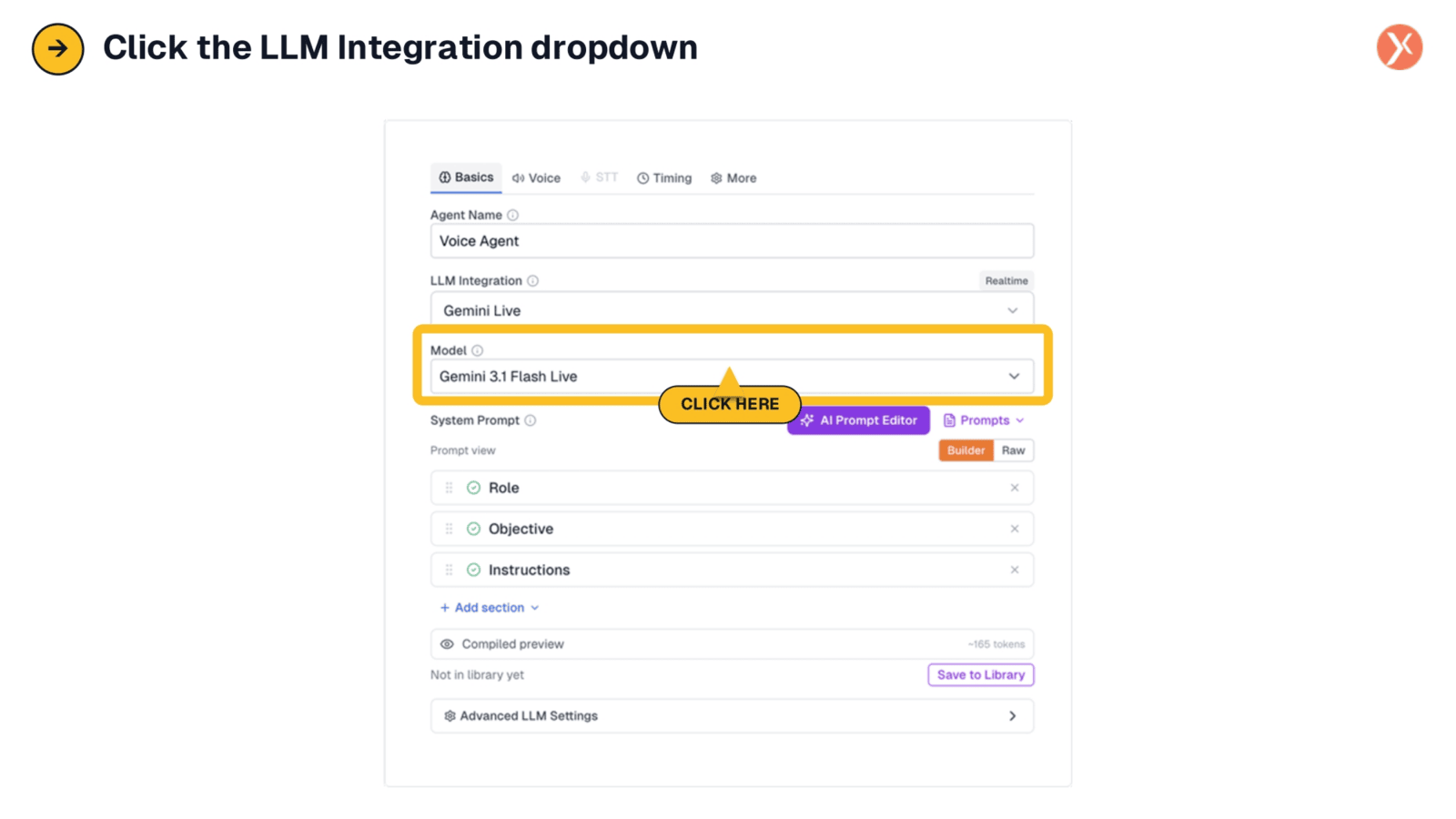
To view the available realtime providers, click on the LLM Integration dropdown menu. This action will reveal a list of options, allowing you to choose the most suitable integration for your voice agent's needs.
LLM Integration: Prioritizing Realtime Providers
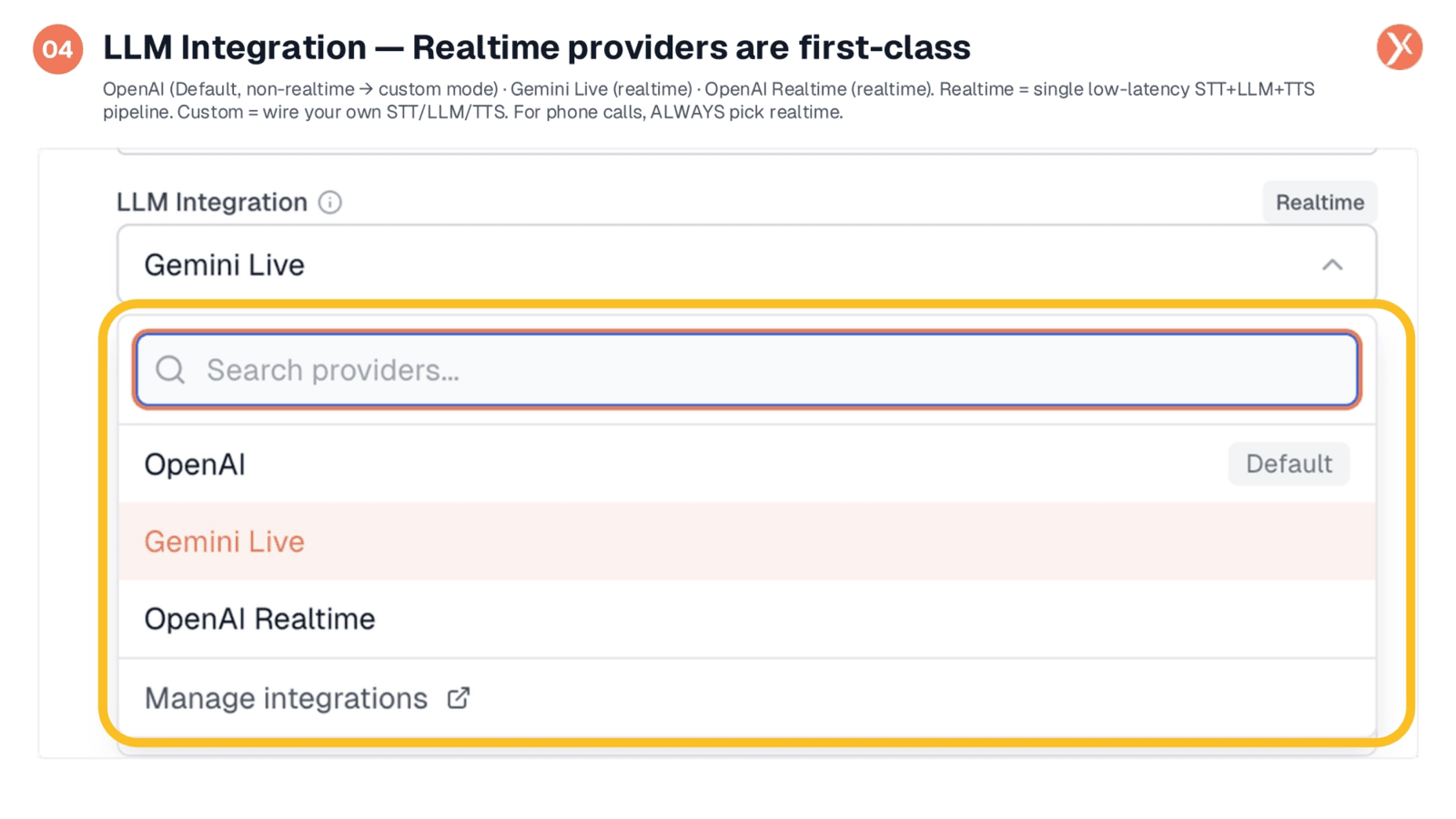
The provider picker allows you to search and select LLM integrations. OpenAI, as the default, is a non-realtime provider, which would activate custom voice mode requiring separate STT and TTS wiring. However, for phone calls and voice chatbots, it's crucial to select a realtime provider like Gemini Live or OpenAI Realtime. These providers handle speech-to-text, the LLM call, and text-to-speech in a single, low-latency stream, which is essential for natural, responsive conversations. Custom mode is reserved for specific scenarios where a particular STT or TTS is needed outside the realtime stack.
Advanced LLM Settings: Optimizing Temperature for Voice Agents
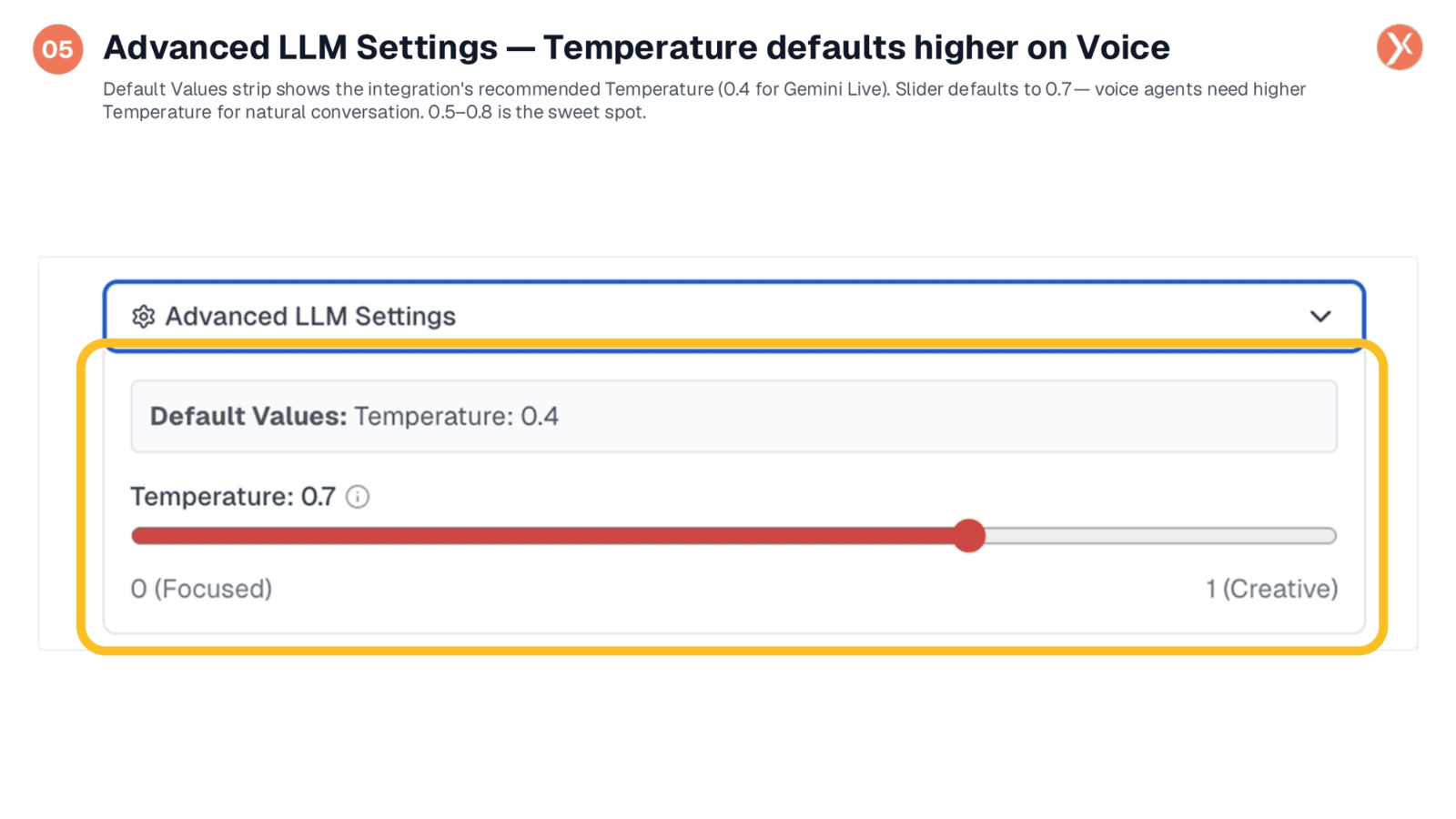
A key detail in Advanced LLM Settings is that the temperature defaults higher for Voice Agents, typically at 0.7, ranging from 0 to 1. This higher setting is crucial for making voice agents sound natural and less robotic, as it introduces variation in phrasing. While Gemini Live recommends 0.4, a range of 0.5 to 0.8 is ideal for phone-quality agents. Lower temperatures suit transactional flows requiring consistency, while higher temperatures are better for conversational flows like customer support, ensuring a more human-like interaction.
Prompt Builder: Voice-Specific Sections for Enhanced UX
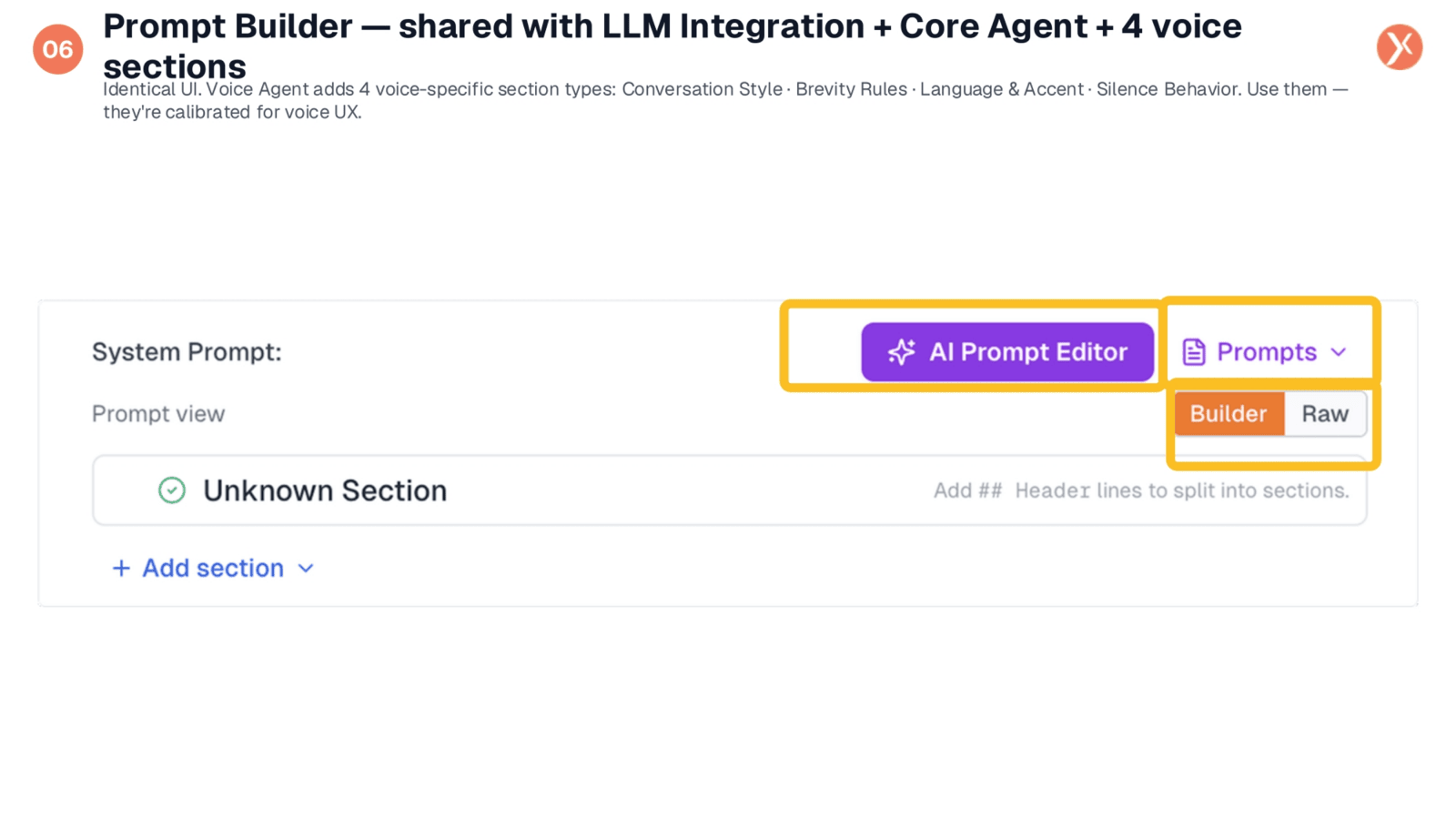
The prompt-builder interface is consistent with LLM Integration and Core Agent, offering Builder and Raw modes, an AI Prompt Editor, and a Prompts library. For Voice Agent, however, the section menu includes four additional types specifically designed for voice interactions. These include 'Conversation Style' for tone, 'Brevity Rules' to prevent rambling, 'Language and Accent' for pronunciation instructions, and 'Silence Behavior' to manage pauses. Utilizing these voice-specific sections is highly recommended as they are calibrated for optimal voice user experience and can significantly reduce debugging efforts.
AI Prompt Editor: Voice-Aware Context for Better Prompts
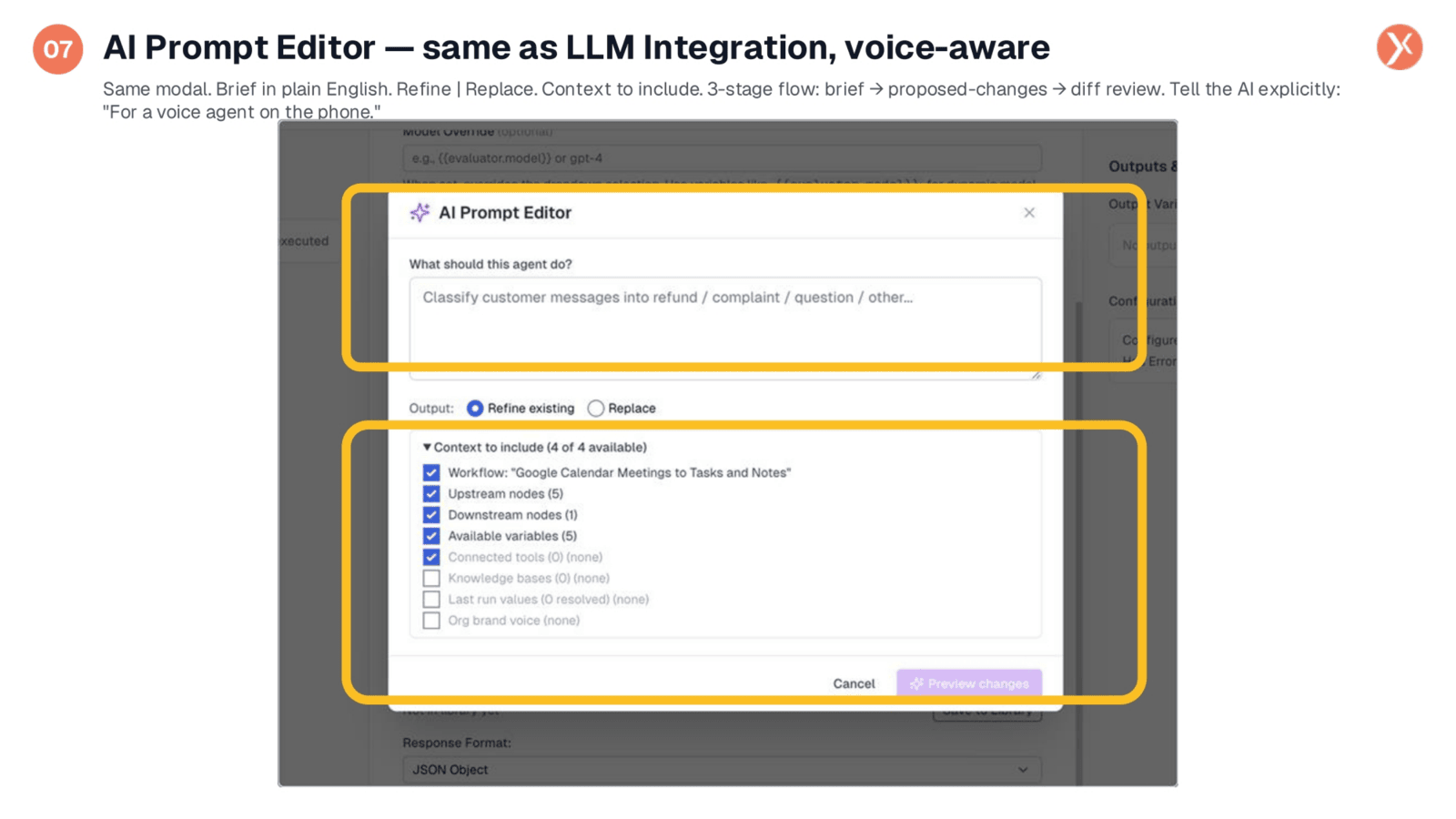
The AI Prompt Editor functions identically to its counterparts in LLM Integration and Core Agent, featuring a three-stage flow: brief, proposed changes review, and diff review. For Voice Agent, the AI is inherently aware of voice constraints. When prompted to create a customer support prompt, it will often automatically incorporate voice-specific brevity rules and silence behavior sections. To maximize effectiveness, explicitly state the context, such as 'For a voice agent on the phone,' to guide the editor in generating more relevant and optimized prompts.
Navigating to the Voice Tab
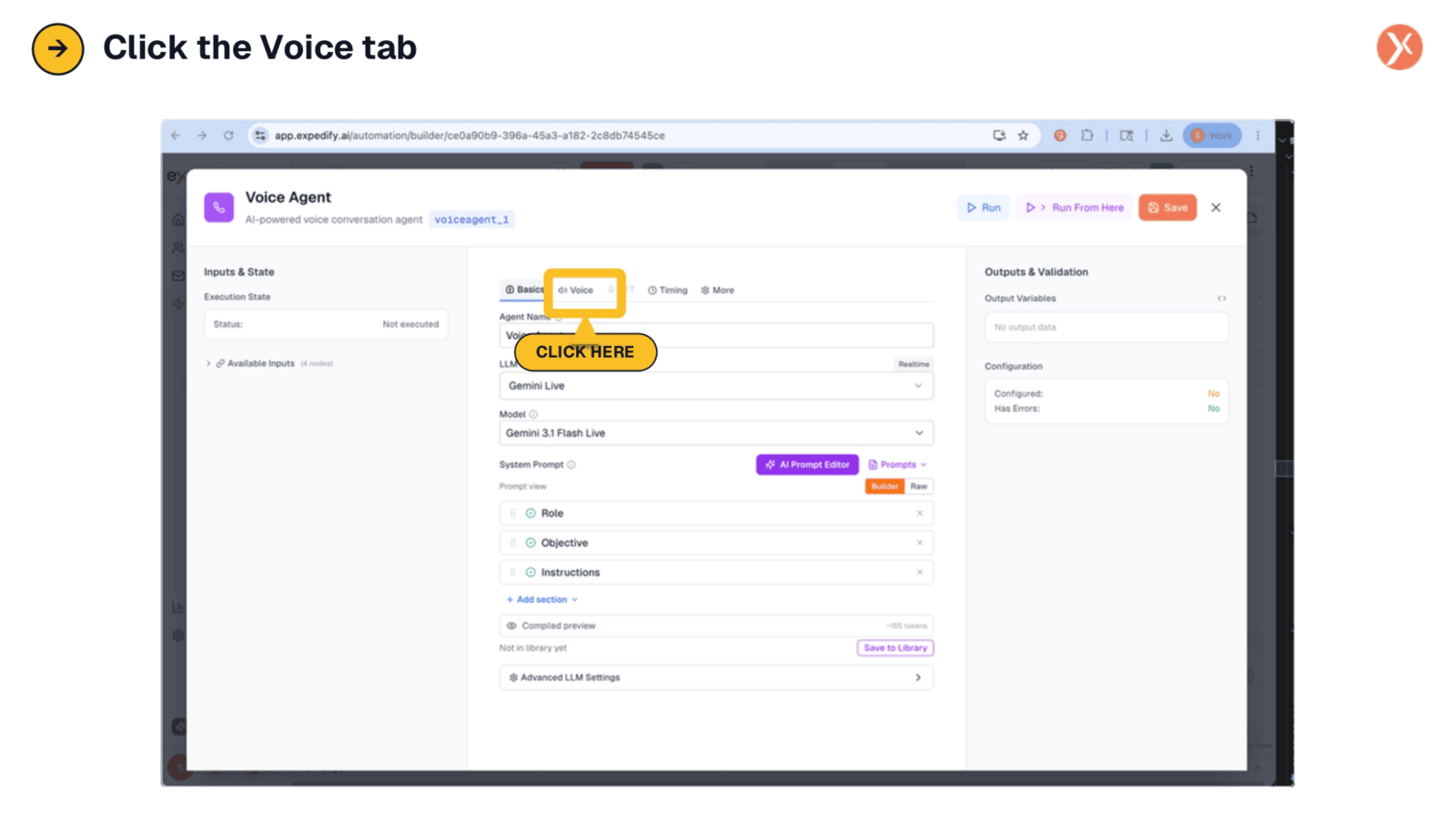
To configure accent and voice selection for your agent, proceed by clicking on the 'Voice' tab. This action will take you to the dedicated settings for customizing the agent's spoken characteristics.
Voice Tab: Native Voice Handling by Realtime Providers
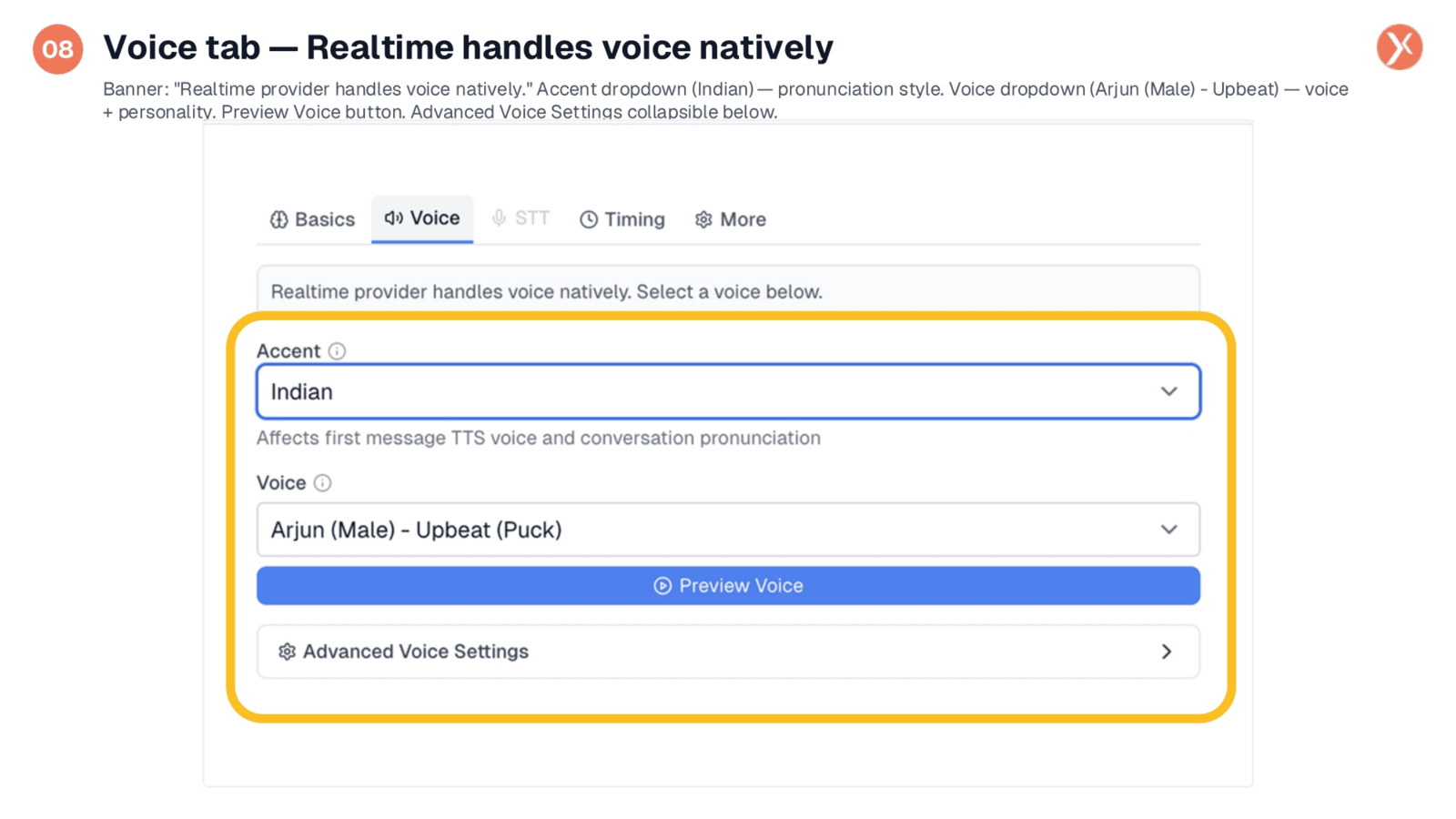
On the Voice tab, a banner confirms that the realtime provider handles voice natively, eliminating the need for separate Text-to-Speech wiring. You'll find two key pickers: 'Accent,' which controls pronunciation style, and 'Voice,' which selects the actual voice and personality, such as 'Arjun (Male) - Upbeat.' It's crucial to use the 'Preview Voice' button to hear samples before committing, as names can be misleading. Below these, 'Advanced Voice Settings' offers options for language auto-detection and turn detection sensitivity.
Accent Options: 13 Regional Choices for India
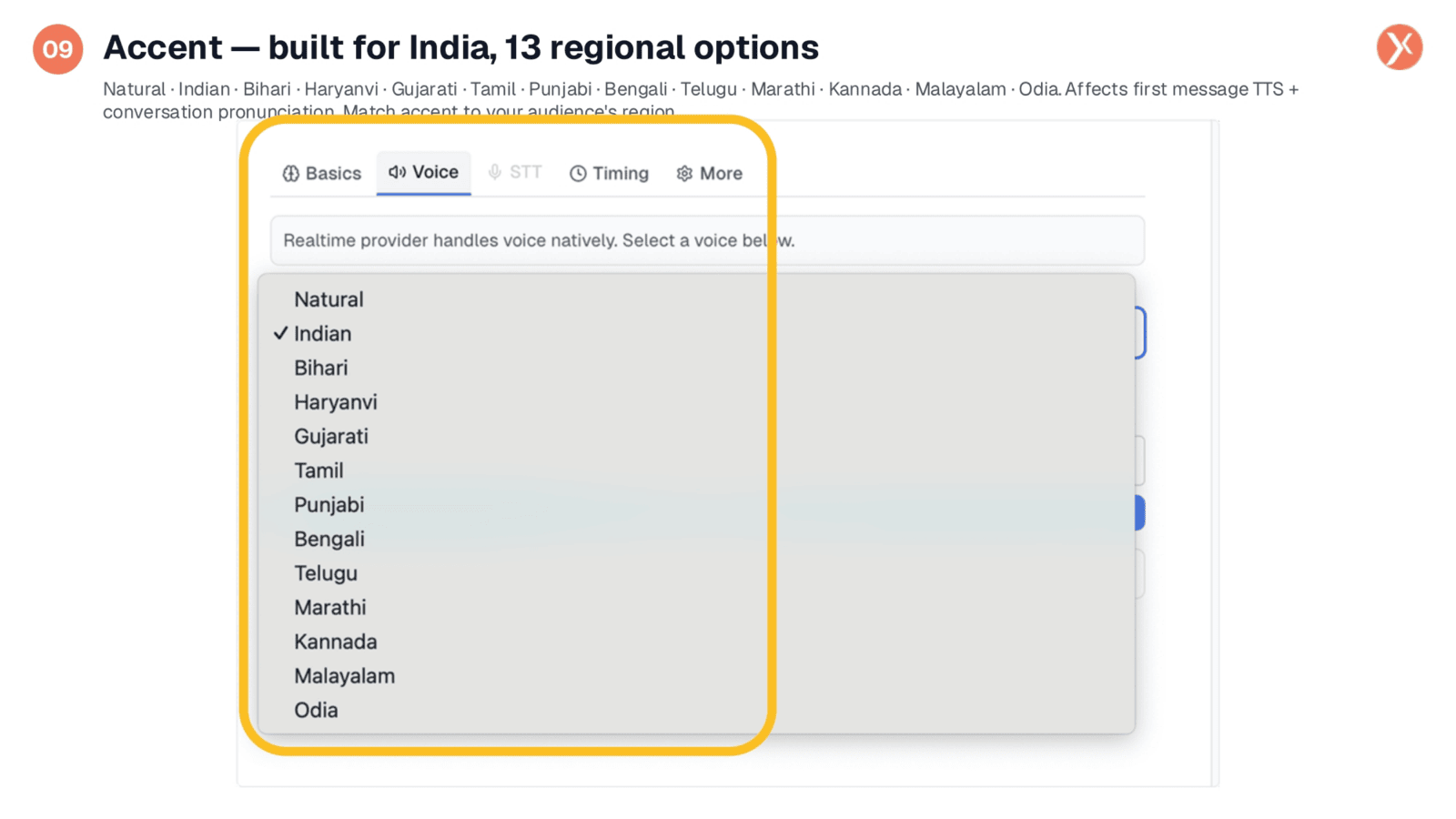
The accent list provides 'Natural' for generic English, alongside twelve Indian regional accents, including 'Indian' as the pan-India default, Bihari, Haryanvi, Gujarati, Tamil, Punjabi, Bengali, Telugu, Marathi, Kannada, Malayalam, and Odia. These options are specifically designed for the Indian market. Matching the accent to your audience's region enhances the caller's experience. The chosen accent influences both the initial message's sound and the AI's pronunciation throughout the conversation. If unsure, 'Indian' is a safe, widely applicable choice.
Voice Selection: Over 20 Named Voices with Unique Personalities
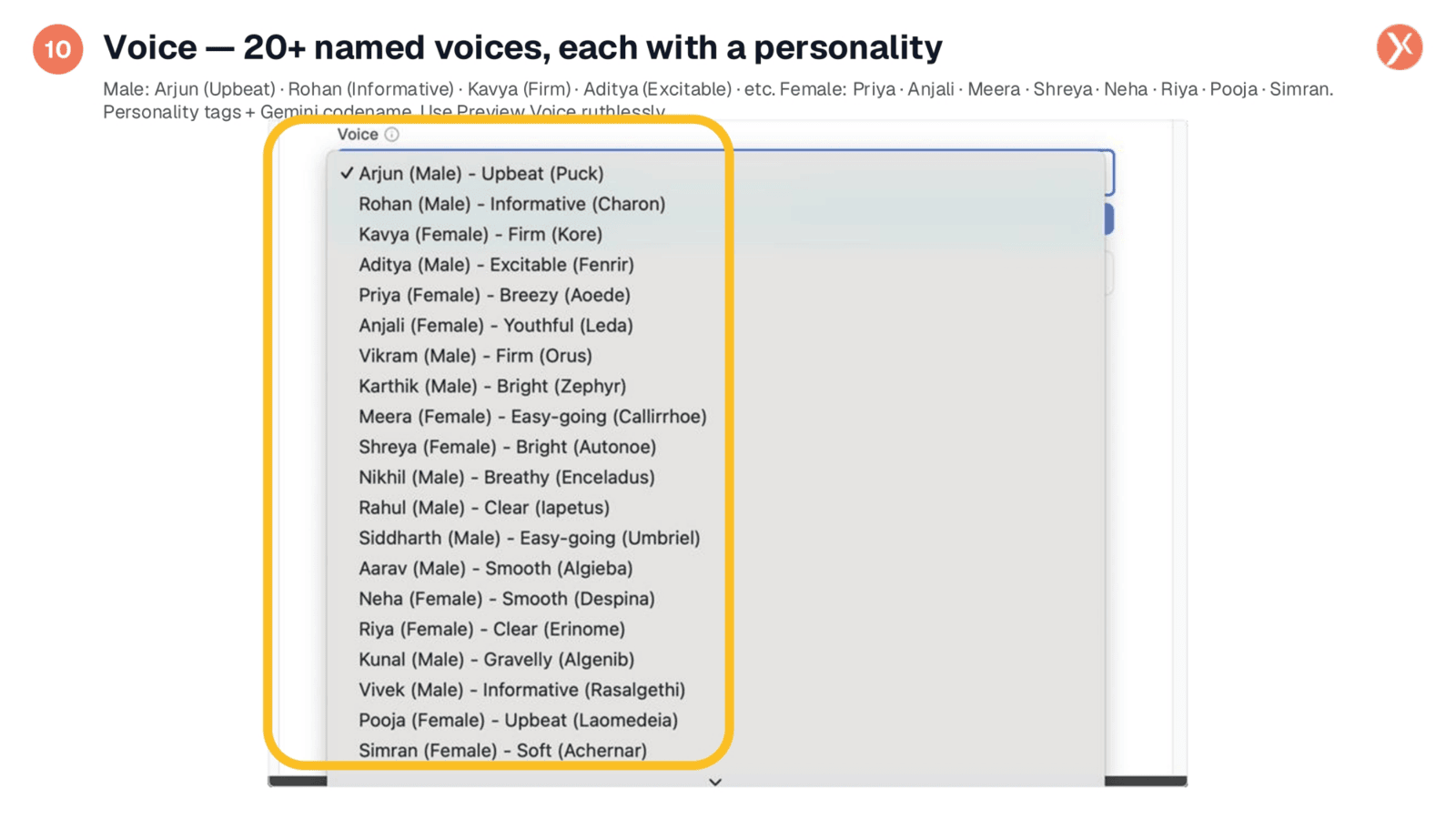
There are over twenty voices available, each with an Indian name, gender, and distinct personality. Examples include 'Arjun (Male) - Upbeat,' 'Rohan (Male) - Informative,' and 'Kavya (Female) - Firm,' among others like Excitable, Breezy, and Easy-going. The bracketed names are underlying Gemini voice codenames, which you can disregard. The key is to match the personality to your use case: 'Upbeat' for promotional calls, 'Informative' for support, 'Firm' for collections, or 'Easy-going' for casual welcomes. Always use the 'Preview Voice' feature to listen to several options before making a final decision.
Advanced Voice Settings: Language Auto-Detect and Turn Detection
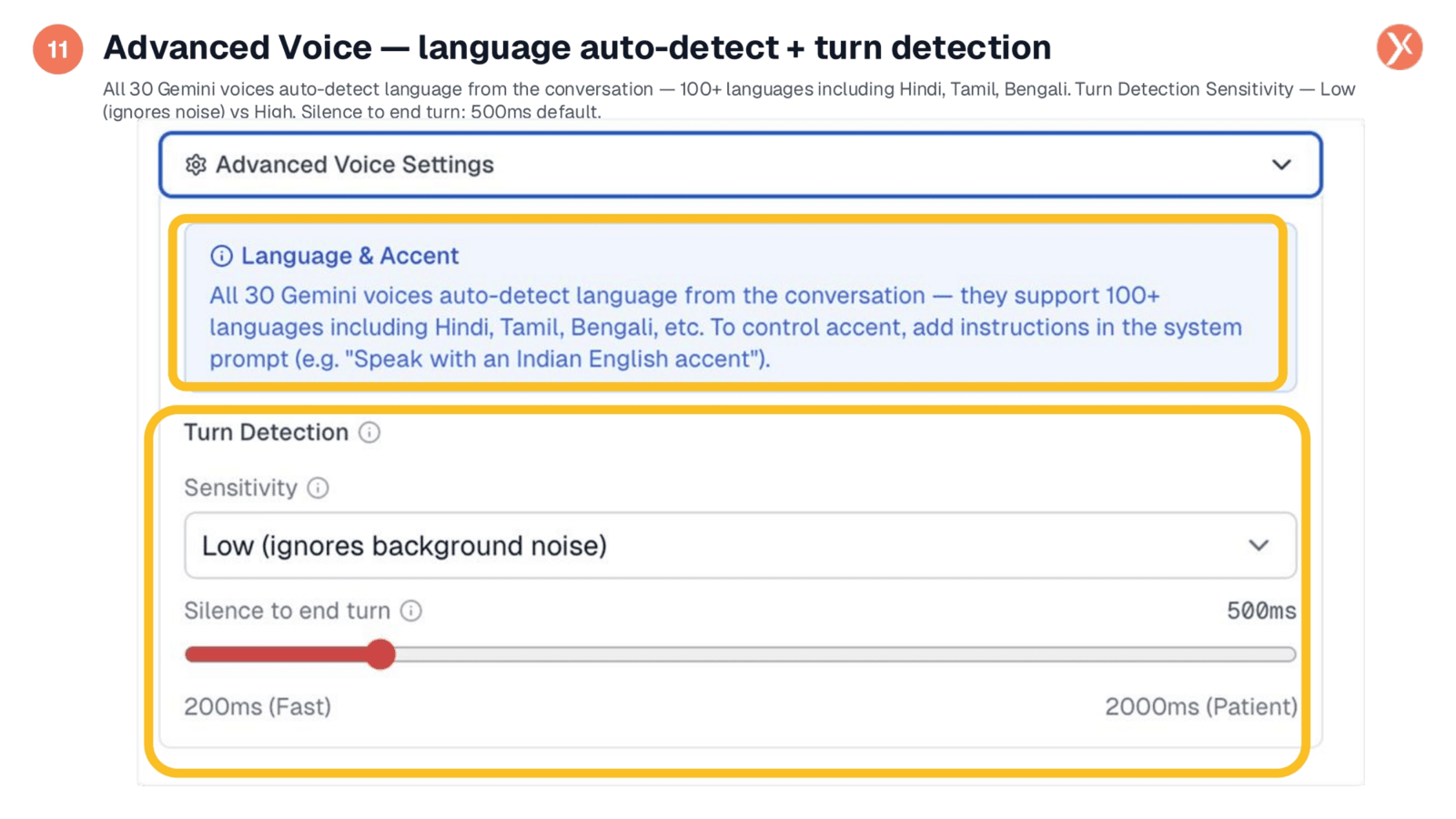
Advanced Voice Settings offer two critical features for voice agents. First, 'Language auto-detection' allows Gemini's voices to automatically detect and respond in the caller's language, supporting over 100 languages, including Hindi, Tamil, and Bengali. This means the agent can seamlessly switch languages mid-conversation. Second, 'Turn Detection' determines when the agent recognizes the caller has finished speaking. 'Sensitivity Low' is ideal for noisy environments, while 'High' suits quieter settings. The 'Silence to end turn' setting, with a default of 500 milliseconds, can be adjusted for faster or slower conversational pacing.
Accessing the Timing Tab
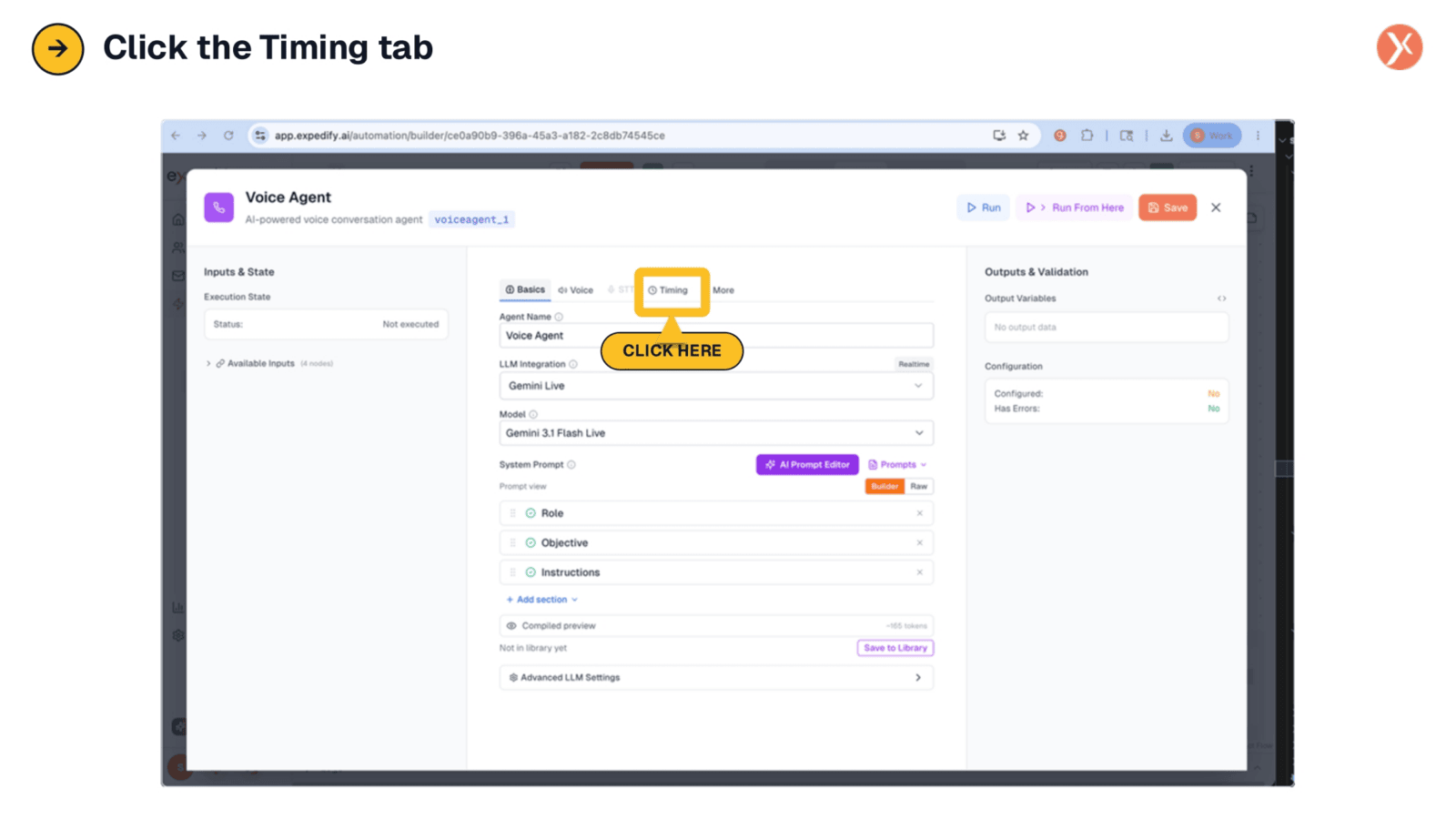
To configure interruption handling and call-end rules for your voice agent, click on the 'Timing' tab. This section provides essential controls for managing the flow and duration of conversations.
Timing Tab: Interruption Handling and Call Termination Settings
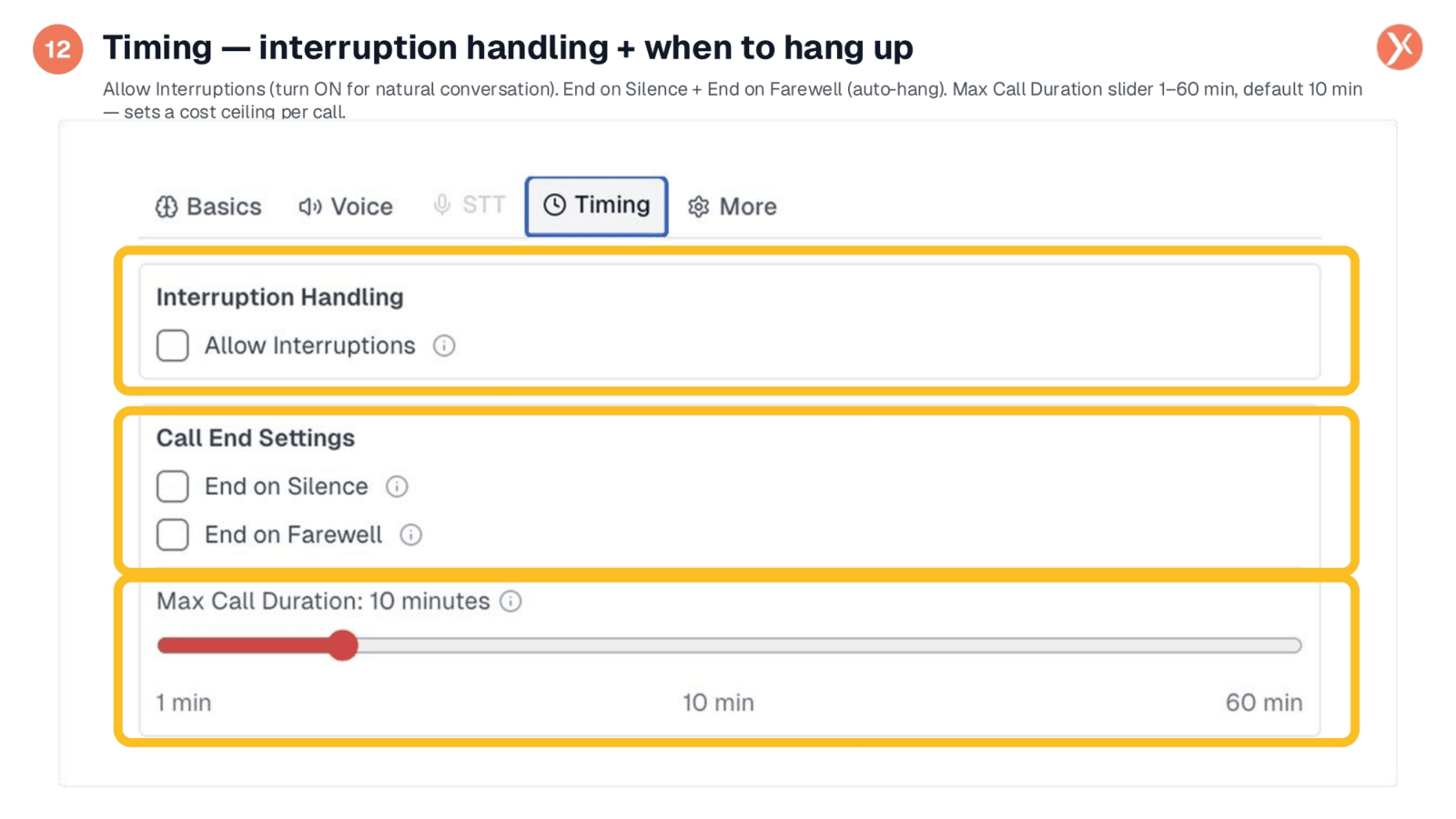
The Timing tab presents three crucial settings. 'Allow Interruptions,' though off by default, should be enabled for natural conversations, as human interactions often involve interruptions. 'End on Silence' gracefully terminates a call if the caller remains quiet for an extended period. 'End on Farewell' automatically hangs up when either the agent or caller says goodbye, preventing awkward silences. Finally, 'Max Call Duration' sets a hard timeout, ranging from one to sixty minutes, with a default of ten minutes, which helps manage call costs effectively.
Navigating to the More Tab
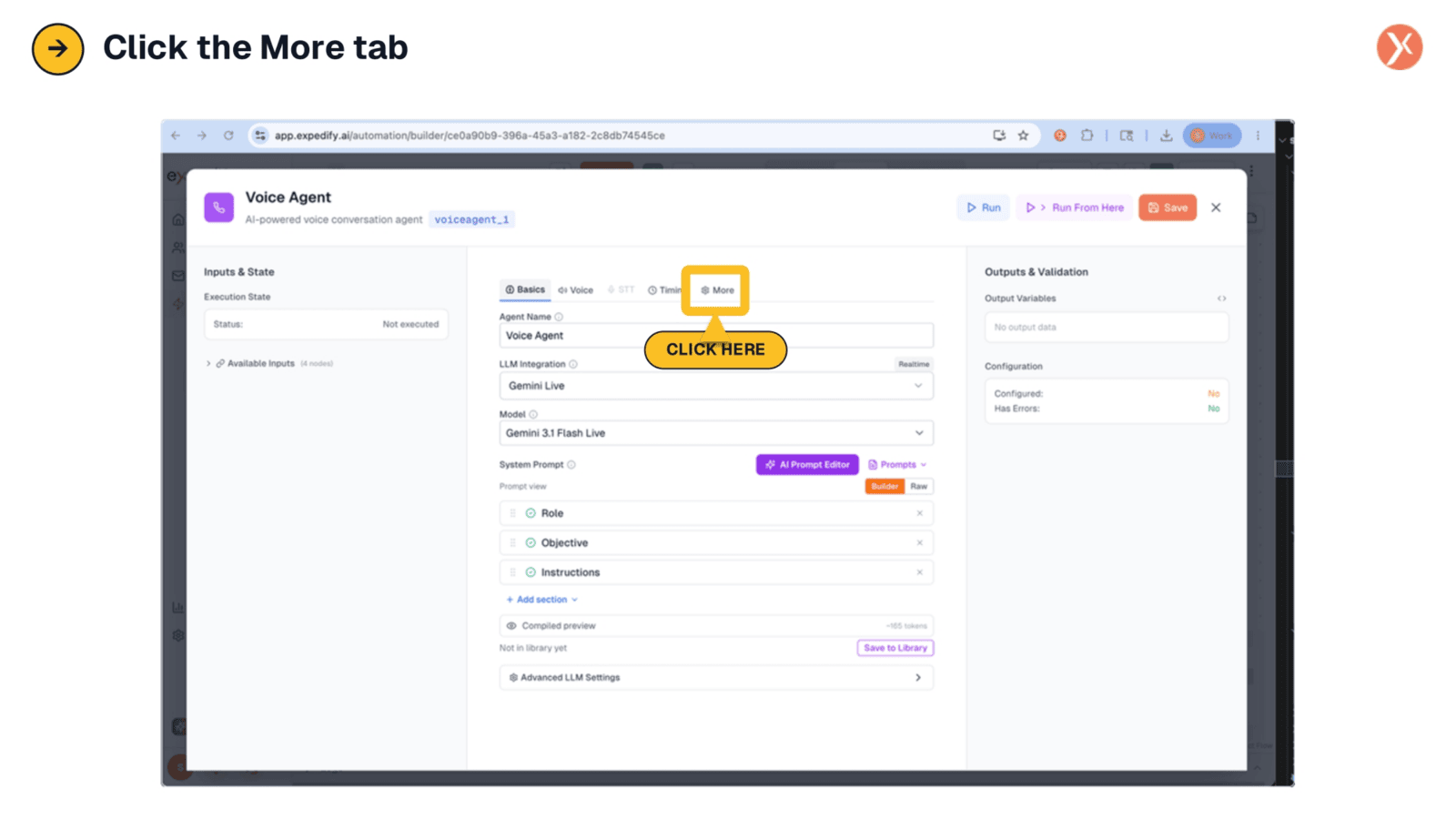
To access additional settings related to performance, recording, and background ambience, click on the 'More' tab. This section offers further customization options for your voice agent's operational characteristics.