LLM Integration
This session focuses on LLM Integration, the core workhorse for structured AI tasks. It's a direct call to an LLM, taking a prompt and returning a response. This node is ideal for extracting data, classifying text, summarizing, generating content, translating, or scoring, offering deterministic and controllable behavior. We'll explore how to leverage it effectively.
LLM Integration Demo Overview
Let's walk through the LLM Integration process. We'll begin by selecting a provider and a model, then move on to building a structured prompt using distinct sections. A key step is enabling JSON Object response for seamless data parsing downstream, eliminating the need for a separate Transform node. We'll also explore the AI Prompt Editor, a powerful feature that assists in prompt creation, and learn how to save reusable prompts to a library. Finally, we'll cover tuning the safety parameters within the Advanced tab.
Introducing the LLM Integration Node
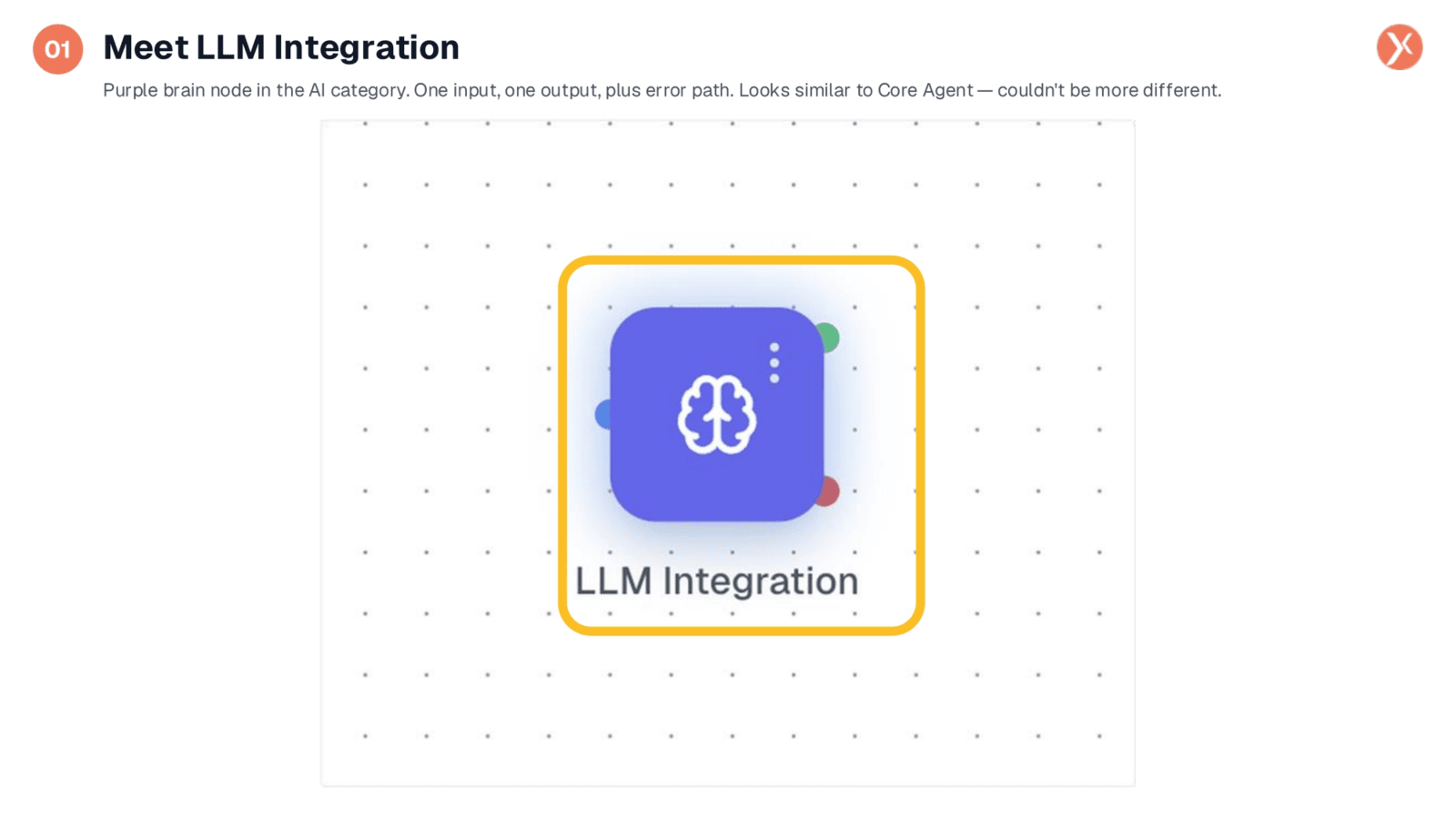
This is the LLM Integration node, identifiable by its purple brain icon within the AI category. It features a single input, one output, and an error path. While it may visually resemble the Core Agent node, their functionalities are distinct. Core Agent is designed for complex conversational agents with tools and memory, whereas LLM Integration is specifically for single-shot AI calls. If your task involves a direct prompt-in, response-out interaction, this is the ideal node to use for efficient and focused AI operations.
Exploring Basic and Advanced LLM Integration Tabs
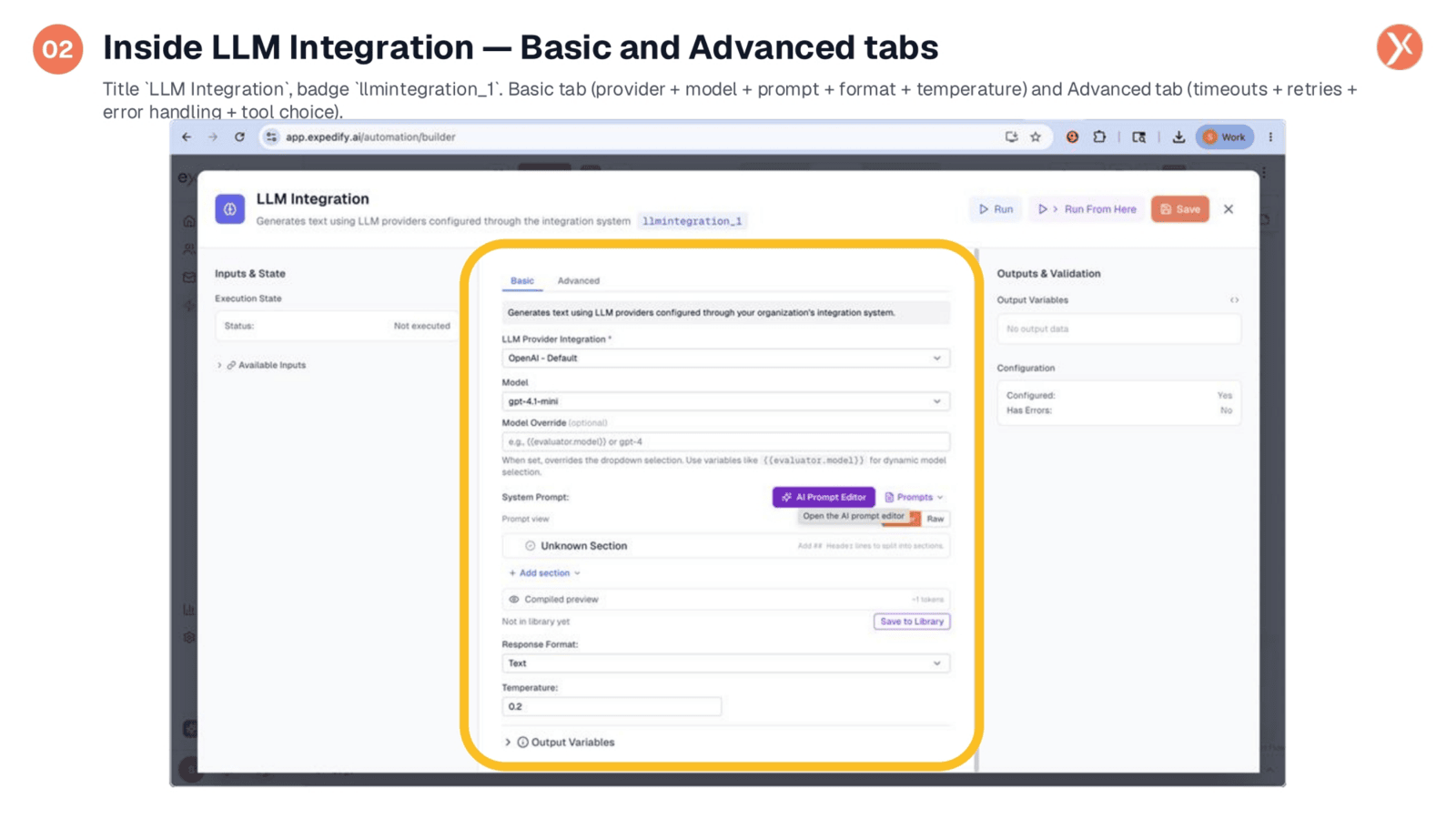
Upon opening the LLM Integration node, you'll find two main tabs: Basic and Advanced. The Basic tab handles most of your configuration, including selecting your LLM Provider Integration, such as OpenAI or Anthropic, and choosing the specific model. Here, you'll also define the System Prompt using a structured builder, set the Response Format to either text or JSON Object, and adjust the Temperature for determinism or creativity. The Advanced tab provides crucial safety controls like timeouts, retries, and error handling instructions. The right-hand panel continuously displays live output variables and configuration status.
Provider, Model, and Dynamic Model Override Capabilities
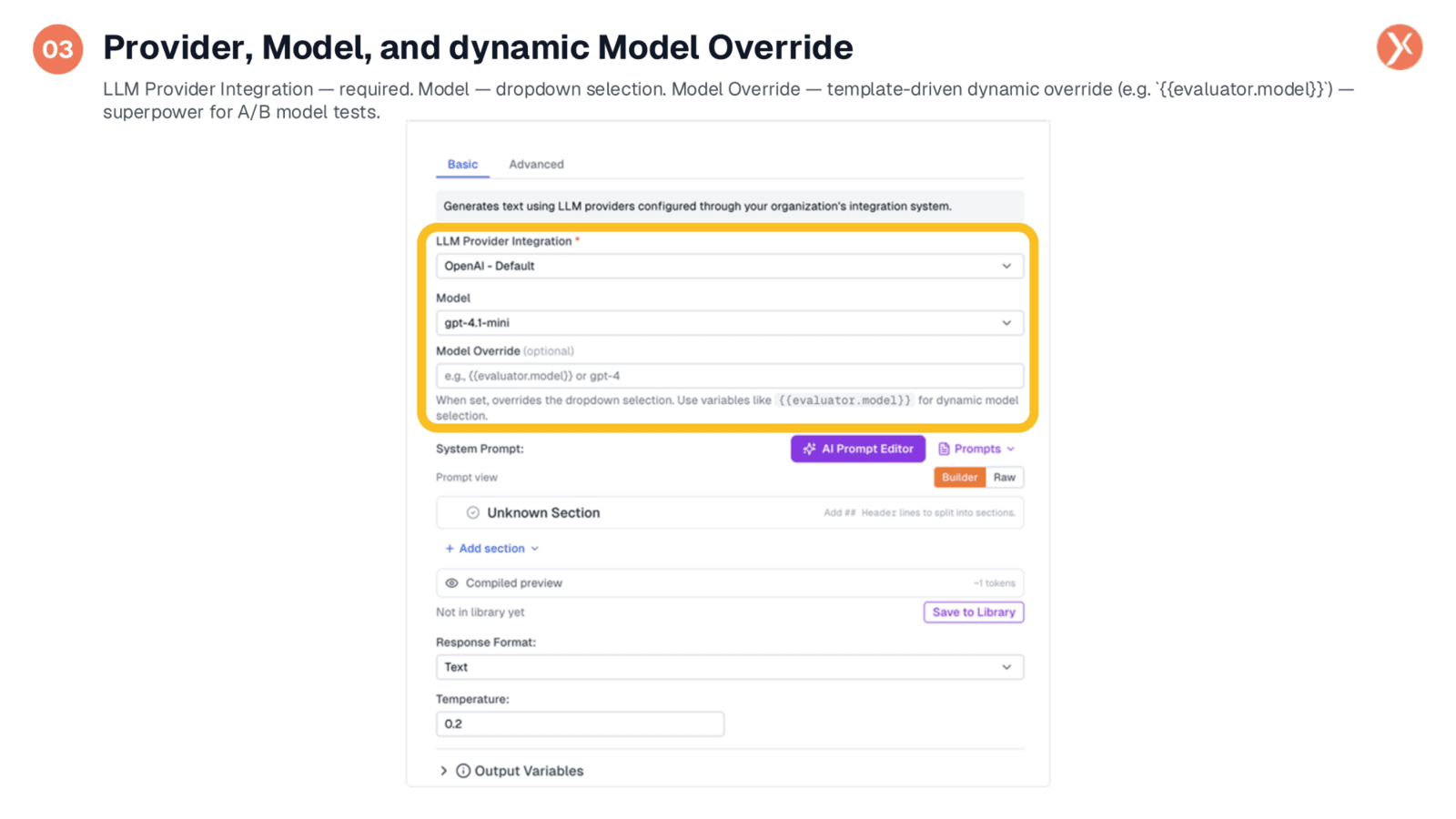
At the top of the configuration, three key fields are available. First, LLM Provider Integration is a required setting, linking to your organization's configured AI connections like OpenAI or Anthropic. Next, you select the specific Model from a dropdown list. A powerful yet often underutilized feature is Model Override. This template-driven field allows you to dynamically specify the model at runtime, using variables from upstream nodes. This capability is invaluable for A/B testing different models, such as gpt-4.1-mini against gpt-4o, within the same workflow without needing to duplicate nodes, which is crucial for production AI evaluation.
Accessing the Model Dropdown
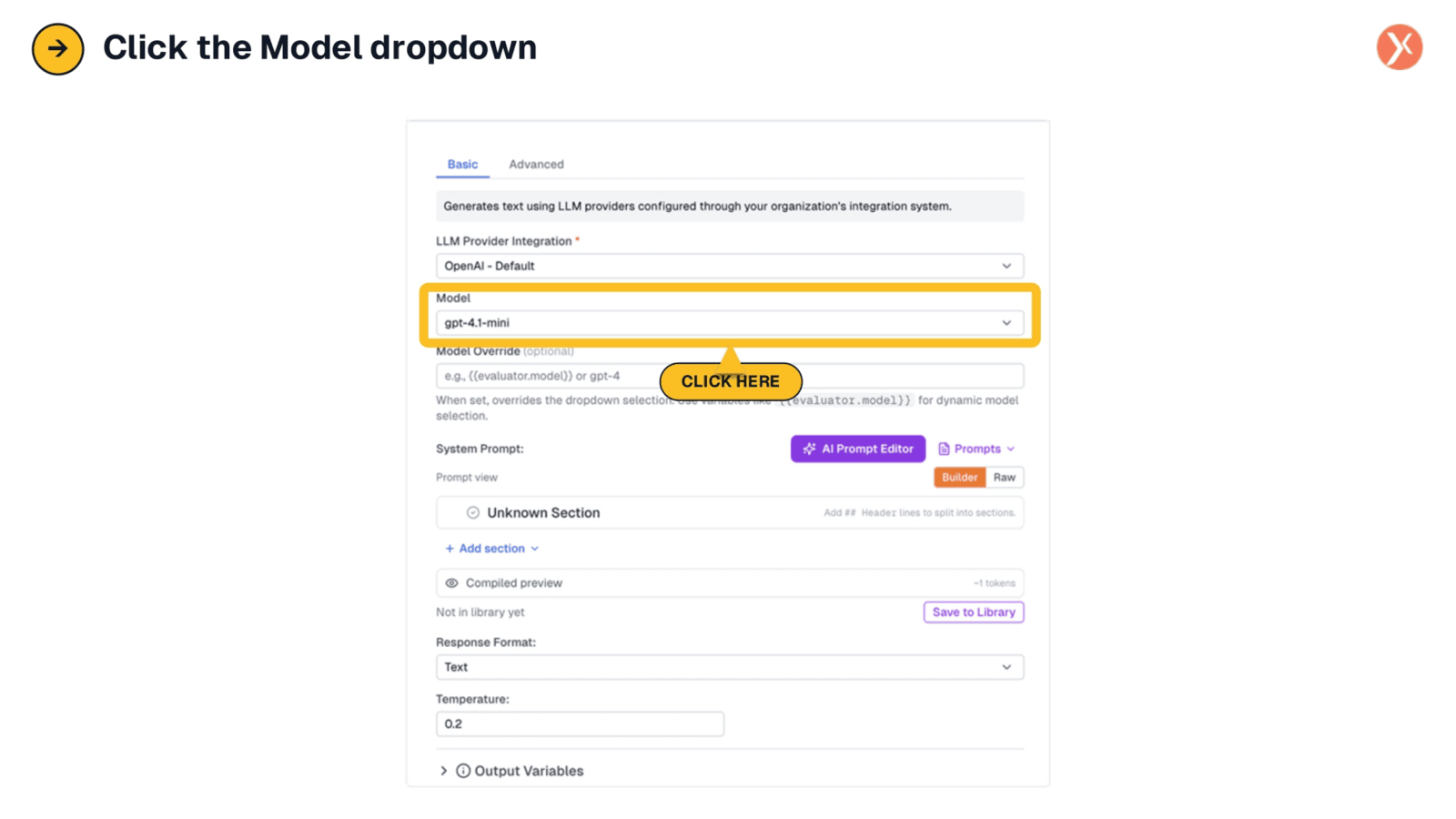
To view the range of available models, simply click on the Model dropdown menu. This action will reveal a comprehensive list of options, allowing you to select the most appropriate model for your specific LLM Integration task, ensuring optimal performance and cost efficiency.
Selecting the Right Model for Your Task
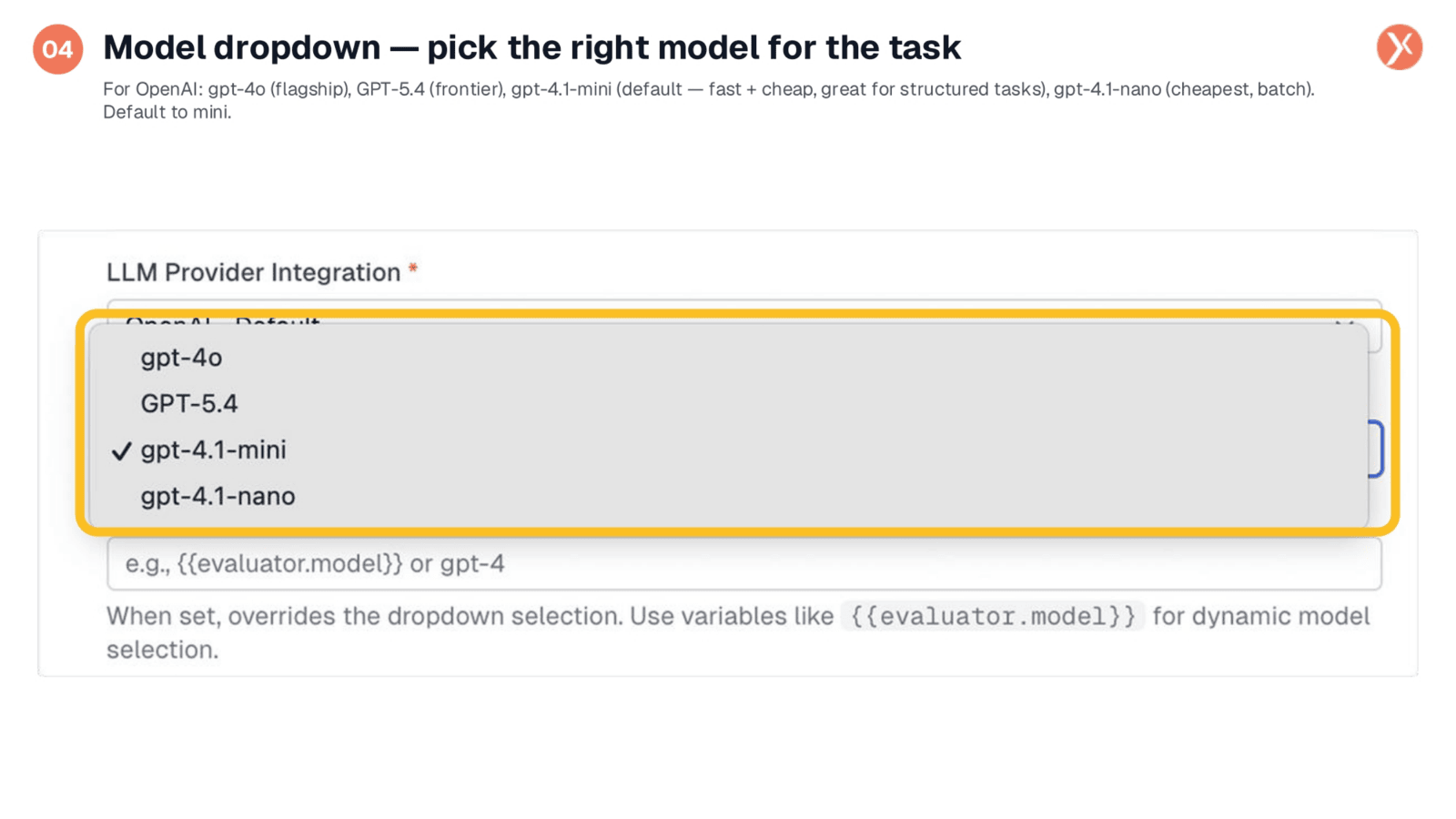
Choosing the right model from this dropdown is a critical decision, as it significantly impacts the cost and performance of your AI workflows. The default, gpt-4.1-mini, is highly effective for approximately ninety percent of structured tasks, offering a balance of speed and affordability. Reserve models like gpt-4o or GPT-5.4 for tasks requiring deep reasoning, such as complex code generation or extensive agentic chains. For classification, extraction, summarization, or scoring, gpt-4.1-mini is usually sufficient. For large-scale batch processing, gpt-4.1-nano provides the most cost-effective solution. Always begin with the cheapest model that meets your quality requirements and only upgrade if absolutely necessary.
Prompt Builder vs. Raw Mode: A Scalable Framework
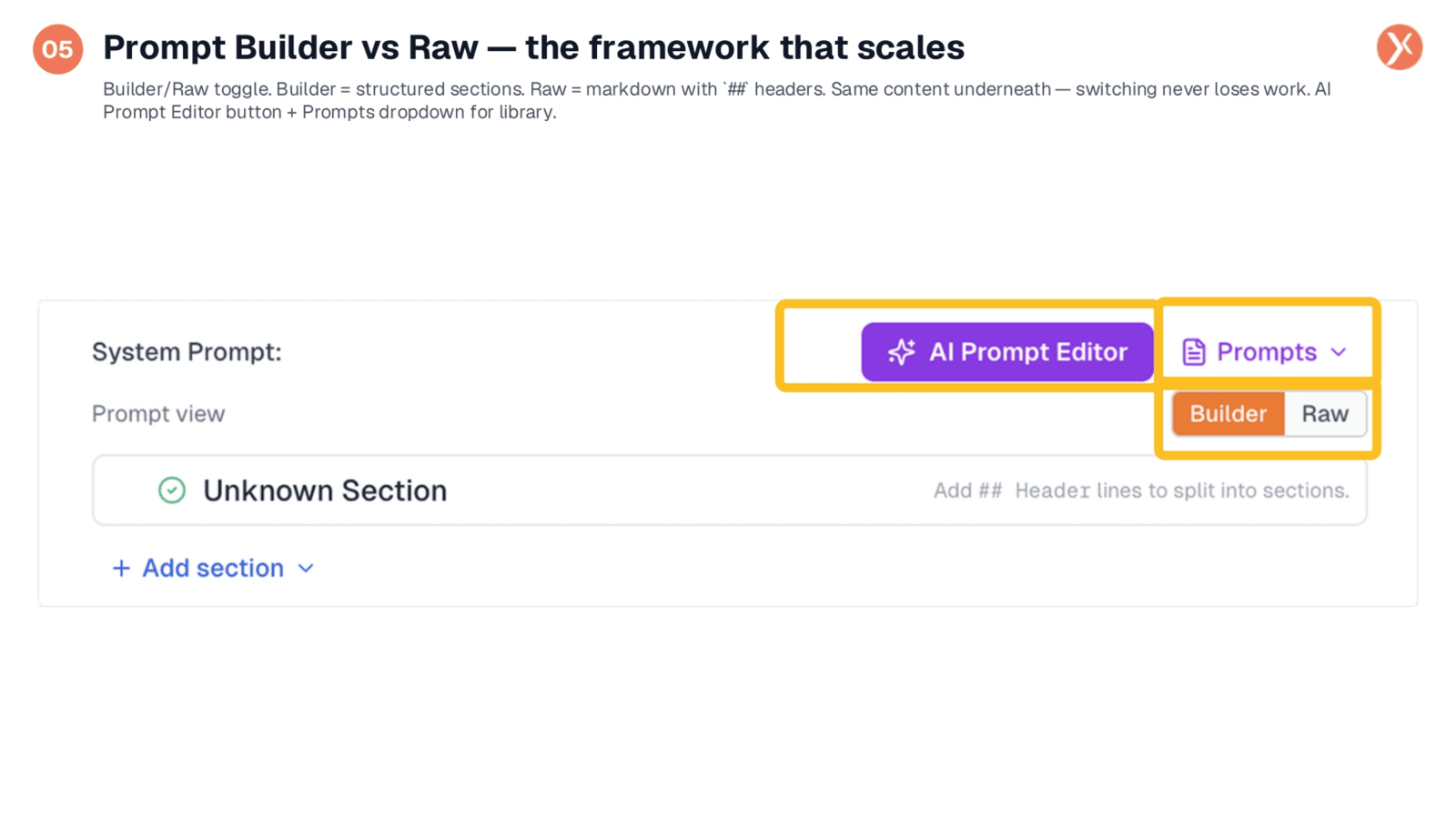
The Prompt Builder is a crucial feature that distinguishes production-ready AI from simpler implementations. By default, the Builder mode structures your system prompt into named sections, which is far more effective for LLMs to interpret than a single block of text. You can toggle to Raw mode to view the same content in markdown format, using hash-hash headers, without losing any work when switching between views. This structured approach enhances prompt clarity and maintainability. We'll revisit the AI Prompt Editor button and the Prompts dropdown later, as they offer additional powerful functionalities for prompt management.
Add Section: The Prompt Anatomy Menu
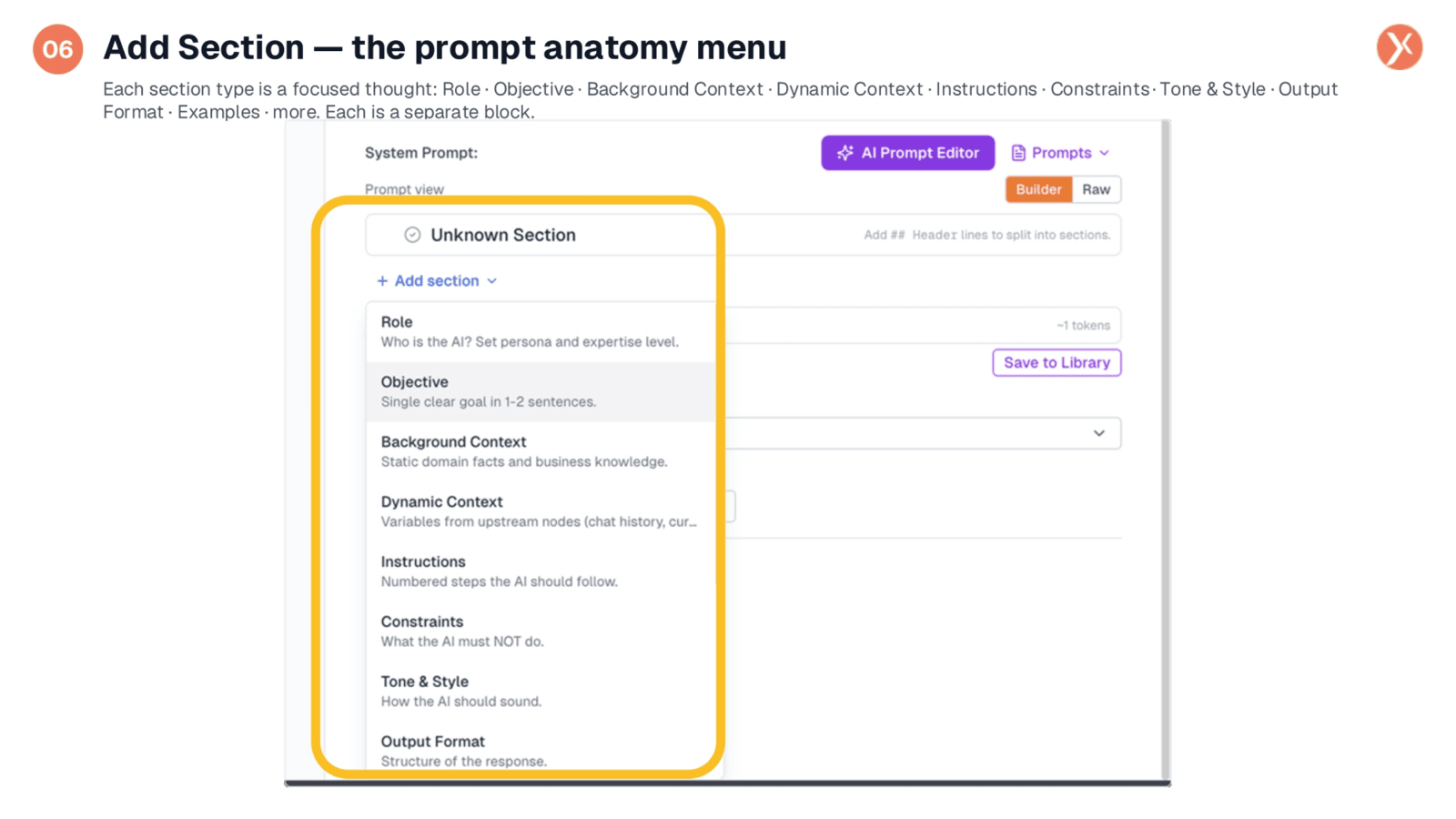
The 'Add Section' menu is an incredibly powerful, yet often underutilized, feature for crafting precise prompts. Each section type encourages a focused approach to prompt design. For instance, 'Role' defines the AI's persona, while 'Objective' sets a concise goal. 'Background Context' provides static domain knowledge, and 'Dynamic Context' incorporates variables from upstream nodes. 'Instructions' outline numbered steps for the AI to follow, and 'Constraints' specify what the AI must avoid. 'Tone & Style' dictates the AI's communication manner, and 'Output Format' is crucial, especially when using JSON mode. This structured approach enhances clarity and ensures the AI performs exactly as intended.
Anatomy of a Production Prompt
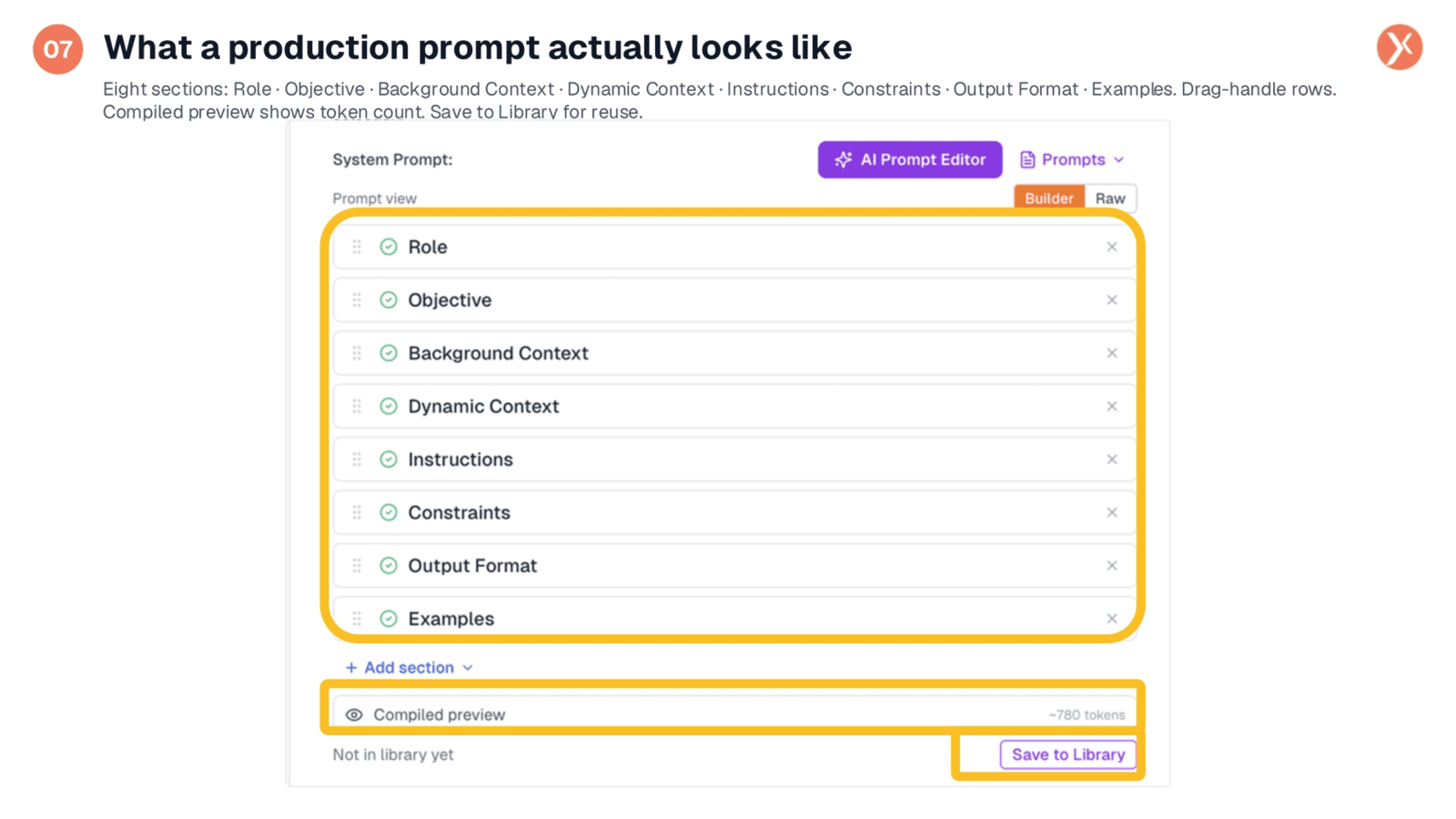
A well-structured production prompt typically incorporates multiple sections, such as Role, Objective, Background Context, Dynamic Context, Instructions, Constraints, Output Format, and Examples. Each section is presented as a distinct card, allowing for easy reordering via drag handles and individual deletion. Clicking on any section opens a focused editor, eliminating the need to navigate through lengthy text blocks. The system provides a live token count, helping you manage prompt length. Prompts can be saved to a library for reuse across various workflows, which is essential for long-term maintainability and scalability in production environments, enabling independent evolution of each section during iteration.
Focused Section Editor with Variables and Templates
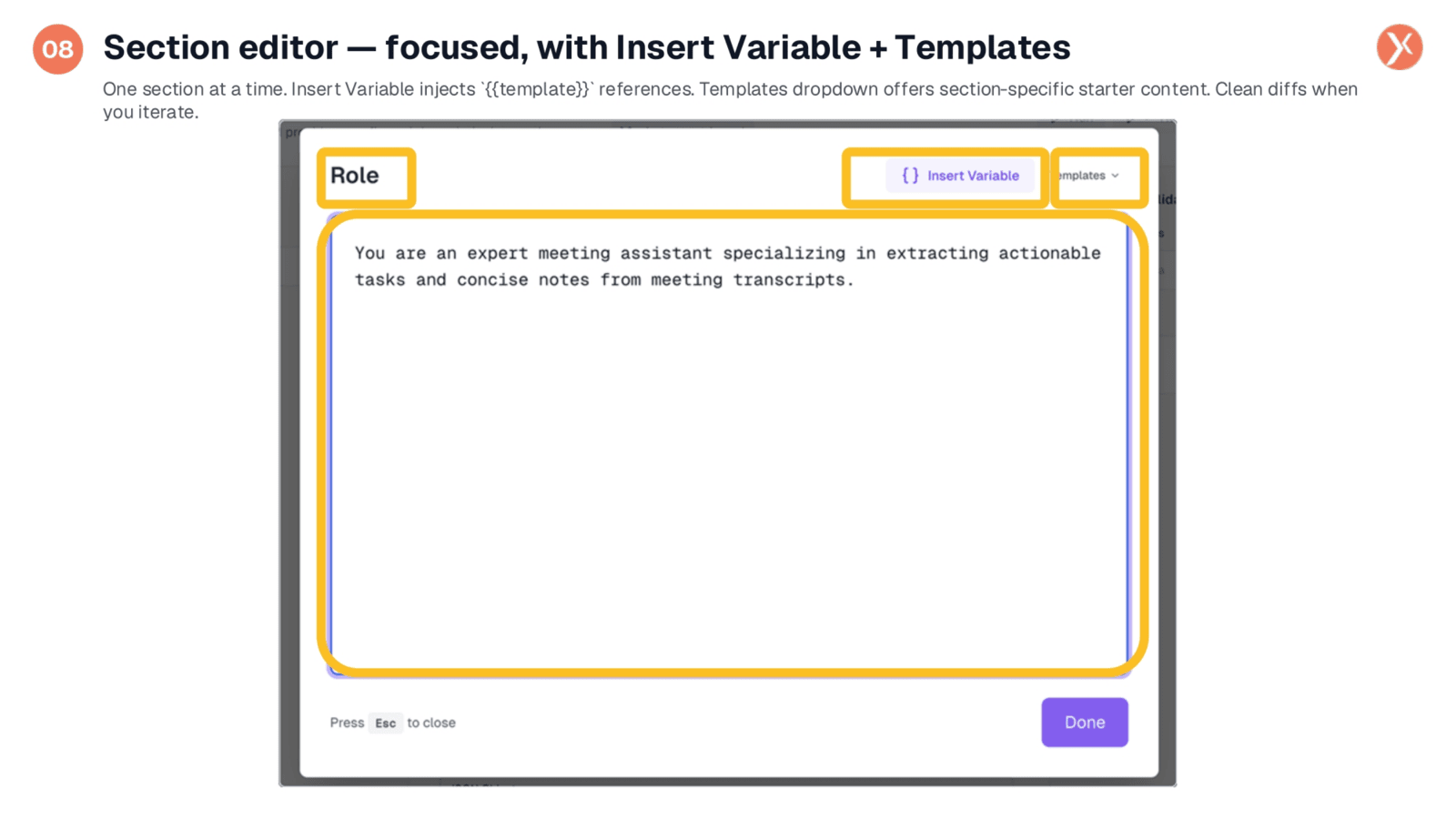
Clicking on any section card reveals a focused editor, allowing you to concentrate on a single section without distractions. The 'Insert Variable' button is a powerful tool, providing a typeahead list of all upstream node outputs that can be referenced using double-curly bracket syntax. Additionally, the 'Templates' dropdown offers section-specific starter content, such as 'you are an expert at' scaffolds for the Role section. This focused editing approach ensures that when you iterate, changes are isolated to one section, resulting in clean diffs. This significantly simplifies versioning, debugging, and peer review processes, enhancing overall development efficiency.
Instructions: Numbered Steps for AI Execution
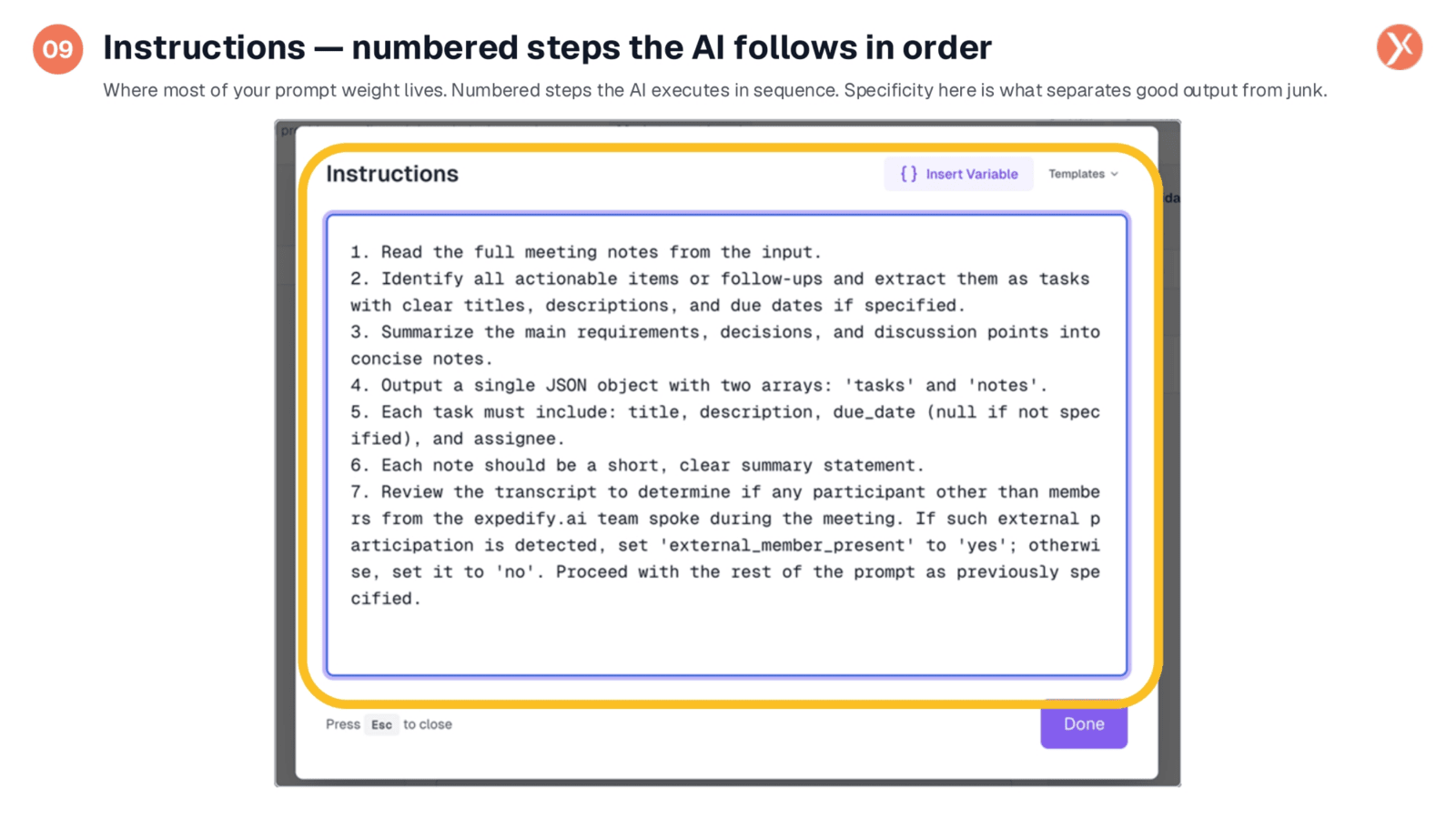
The 'Instructions' section carries significant weight in your prompt, guiding the LLM through a sequence of numbered steps. Specificity is paramount here, as it directly correlates with the quality and reliability of the output. For example, clear instructions might include reading meeting notes, identifying actionable items with specific details, summarizing key points, and outputting a structured JSON object while validating external participants. Each step should be unambiguous. Vague instructions often lead to inconsistent results, whereas precise, step-by-step guidance ensures predictable and consistent outputs, forming a solid foundation for subsequent downstream nodes in your workflow.
Raw Mode: Markdown Syntax for Prompt Content
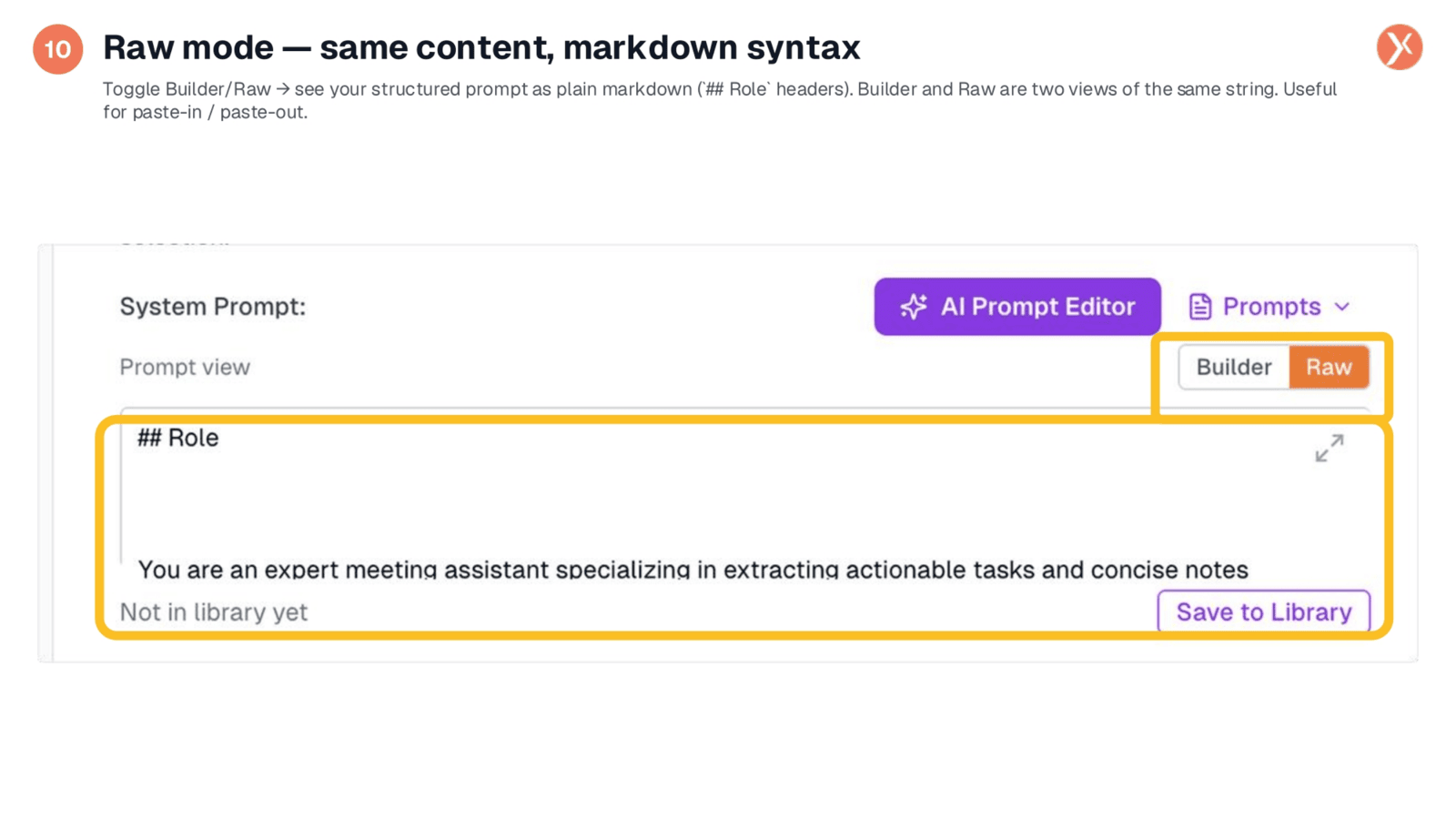
Switching to Raw mode allows you to view your structured prompt in plain markdown format, with sections delineated by hash-hash headers. This mode presents the exact same content as the Builder view, just in a different representation. Raw mode is particularly useful for quickly copying prompts for external testing, such as in ChatGPT, or for pasting in prompts from other sources. The system intelligently parses these markdown headers back into structured sections when you return to Builder mode. While the Builder is often preferred for daily work, Raw mode offers flexibility for specific paste-in and paste-out scenarios.
Prompts Library: Centralized Reuse Across Workflows
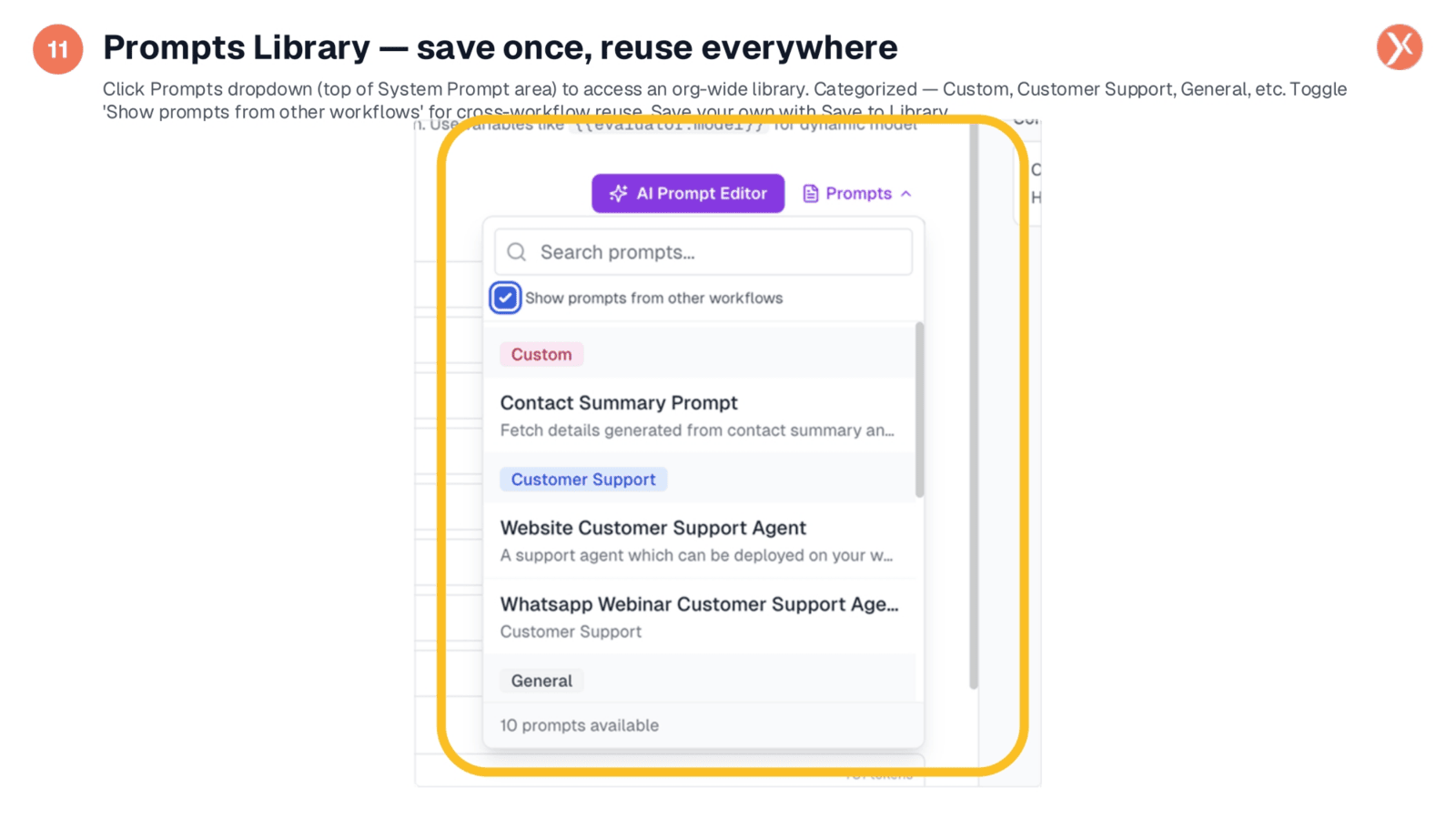
The Prompts Library serves as a centralized repository for reusable prompts across your entire organization. By clicking the 'Prompts' dropdown at the top of the system prompt area, you can access a searchable list, categorized into sections like Custom, Customer Support, and General. The 'Show prompts from other workflows' checkbox allows you to access prompts created in different workflows within your organization. You can easily load any prompt from the library, and save your own with versioning using the 'Save to Library' option. This feature transforms prompt engineering into a shared organizational asset, preventing redundant prompt creation across multiple workflows.
AI Prompt Editor for Meta-AI Assistance
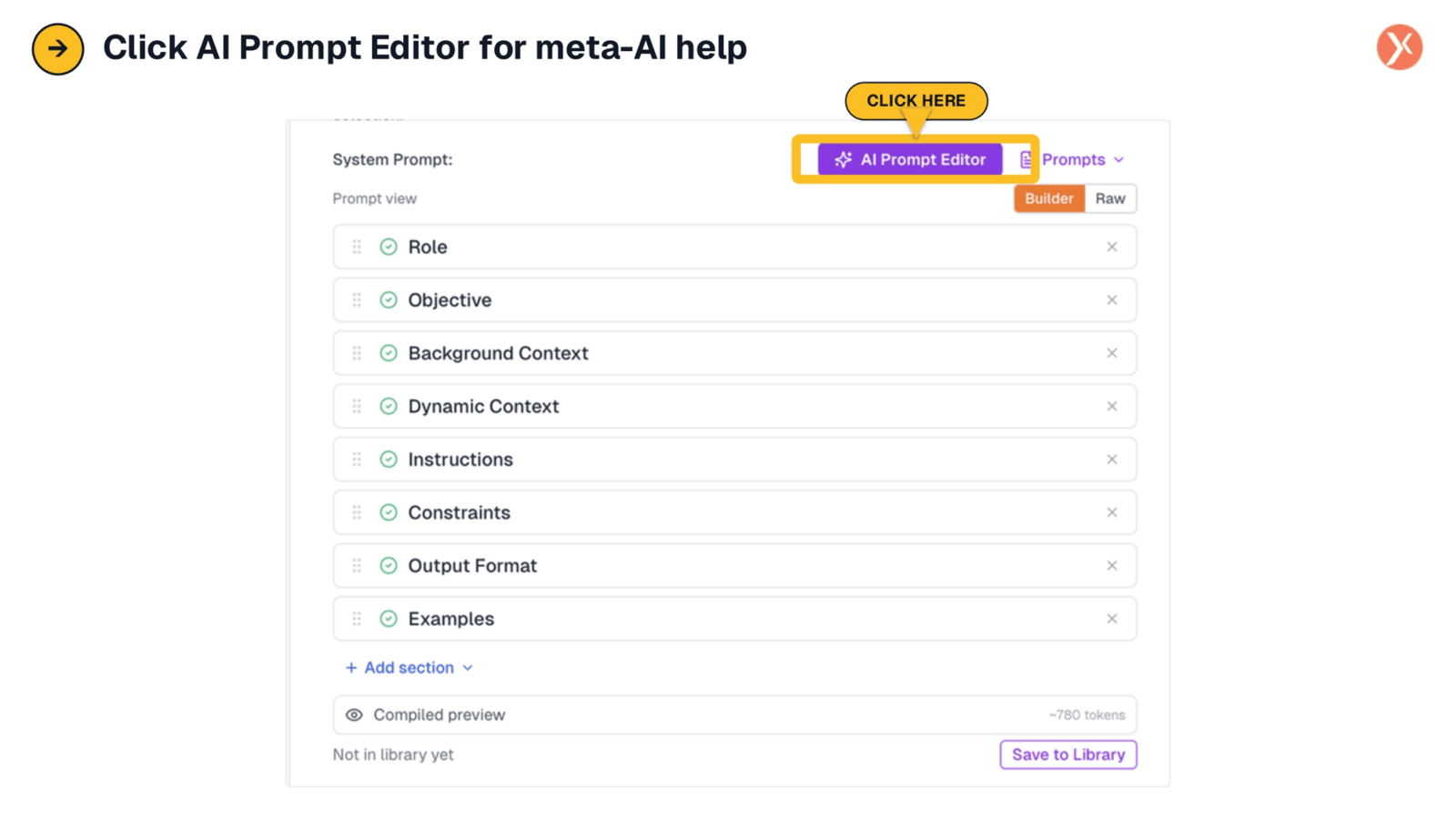
To leverage the power of AI in refining or generating your prompts, simply click the 'AI Prompt Editor' button. This feature provides meta-AI assistance, allowing the system to help you craft or enhance your prompt based on your specifications, streamlining the prompt engineering process.
AI Prompt Editor: Describe and Generate Prompts
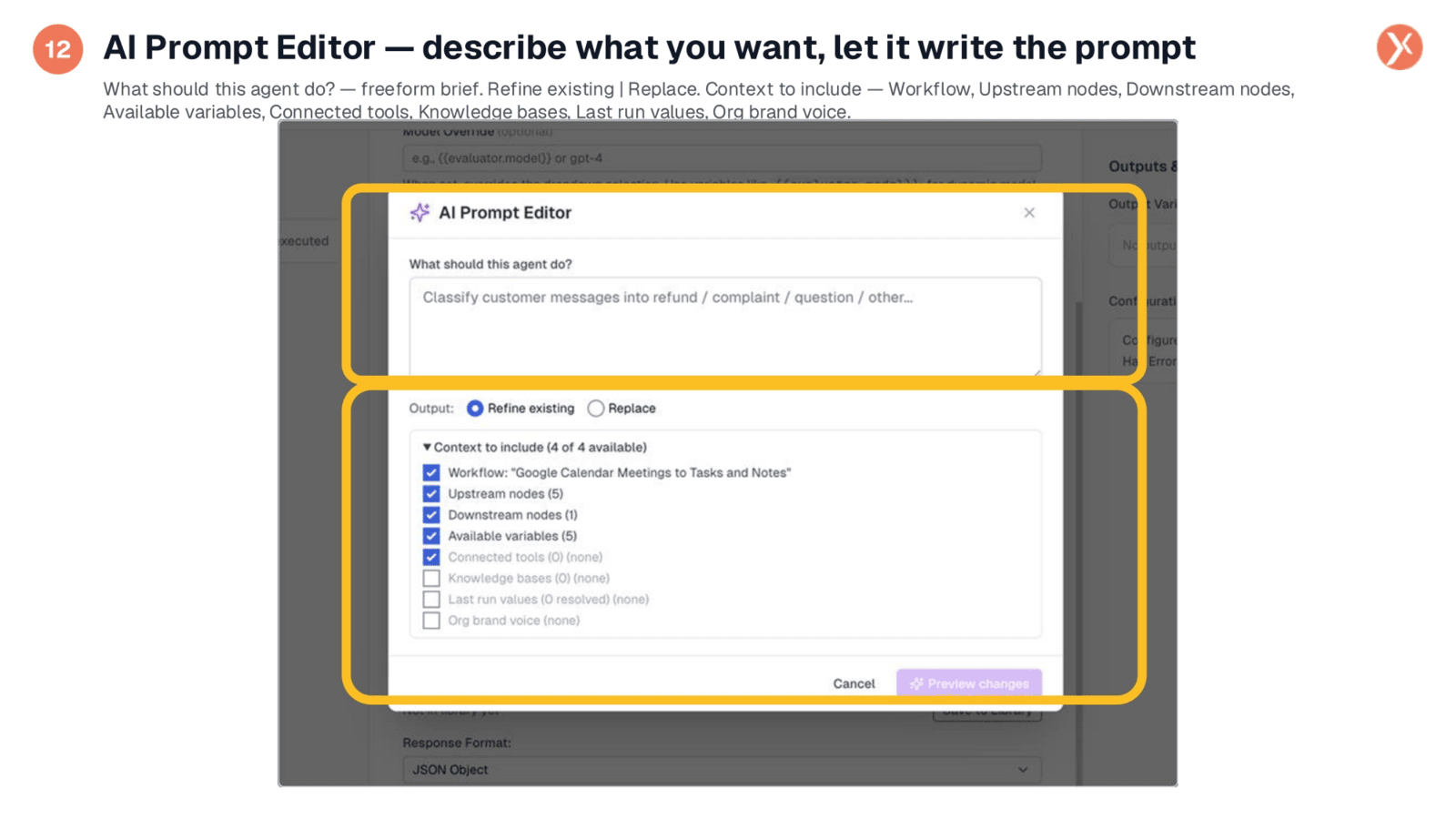
The AI Prompt Editor is a powerful meta-feature where AI assists in writing your prompt. You provide a freeform brief, such as classifying customer messages, and choose whether to refine an existing prompt or replace it entirely. The 'Context to include' section is crucial, as it allows the AI to leverage information about your workflow, upstream and downstream nodes, available variables, connected tools, knowledge bases, last run values, and even your organization's brand voice. Providing more context enables the AI to generate a more accurate and tailored prompt, transforming it into a context-aware prompt engineering tool rather than just a simple prompt generator.
Proposed Changes: Granular Review Before Writing
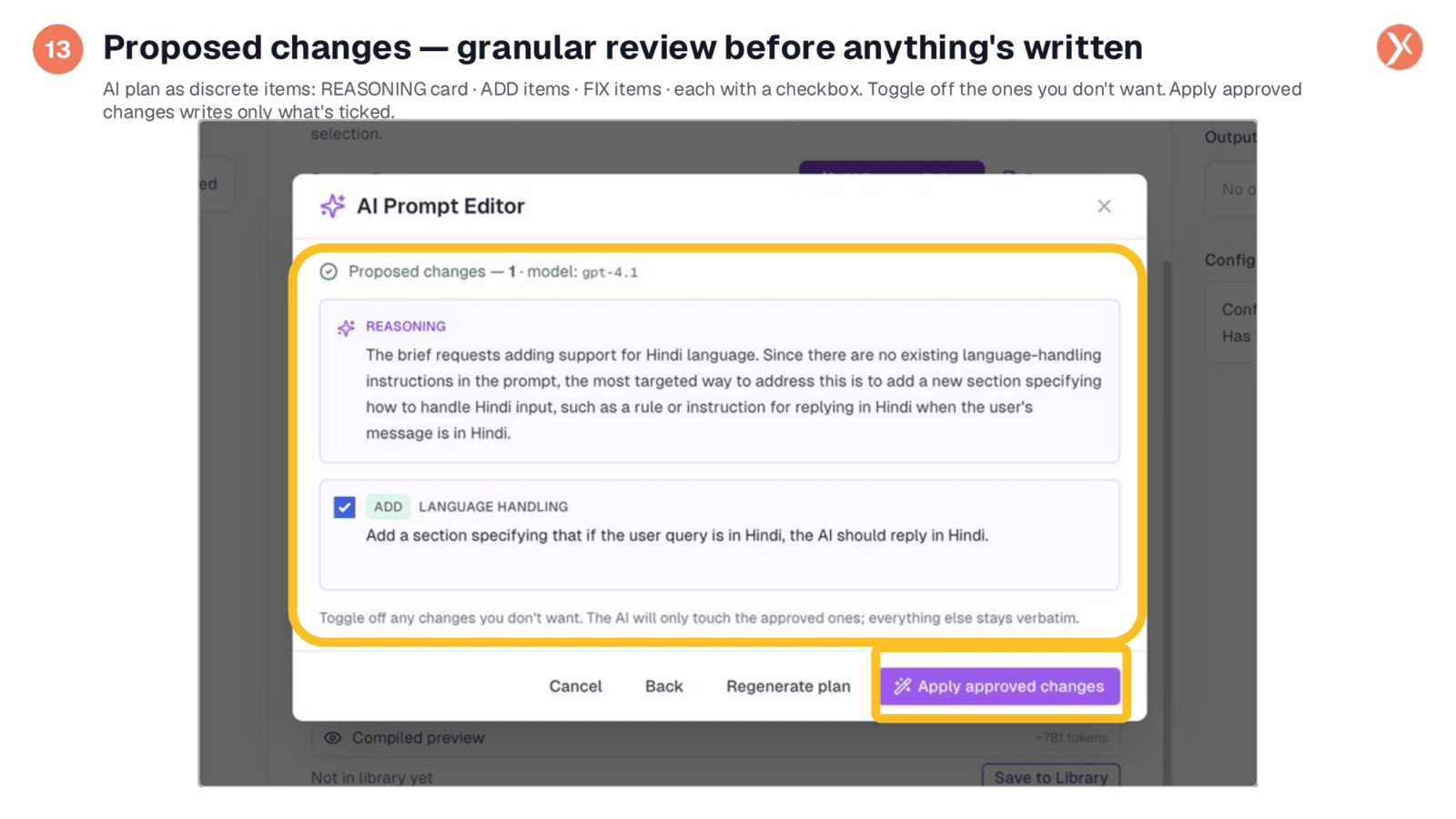
The AI Prompt Editor presents its proposed changes as a detailed plan, starting with a 'REASONING' card that explains the rationale behind each suggestion. This is followed by a list of 'ADD' and 'FIX' items, each with a checkbox, allowing for granular control. You can deselect any changes you don't wish to implement. For instance, if a user requests Hindi language support, the AI might propose adding a 'Language Handling' section. This allows you to review and approve specific modifications. Clicking 'Apply approved changes' ensures that only the selected items are written to your prompt, making the AI Prompt Editor a safe and controlled tool for prompt refinement.
Diff Review: Visualizing Prompt Changes
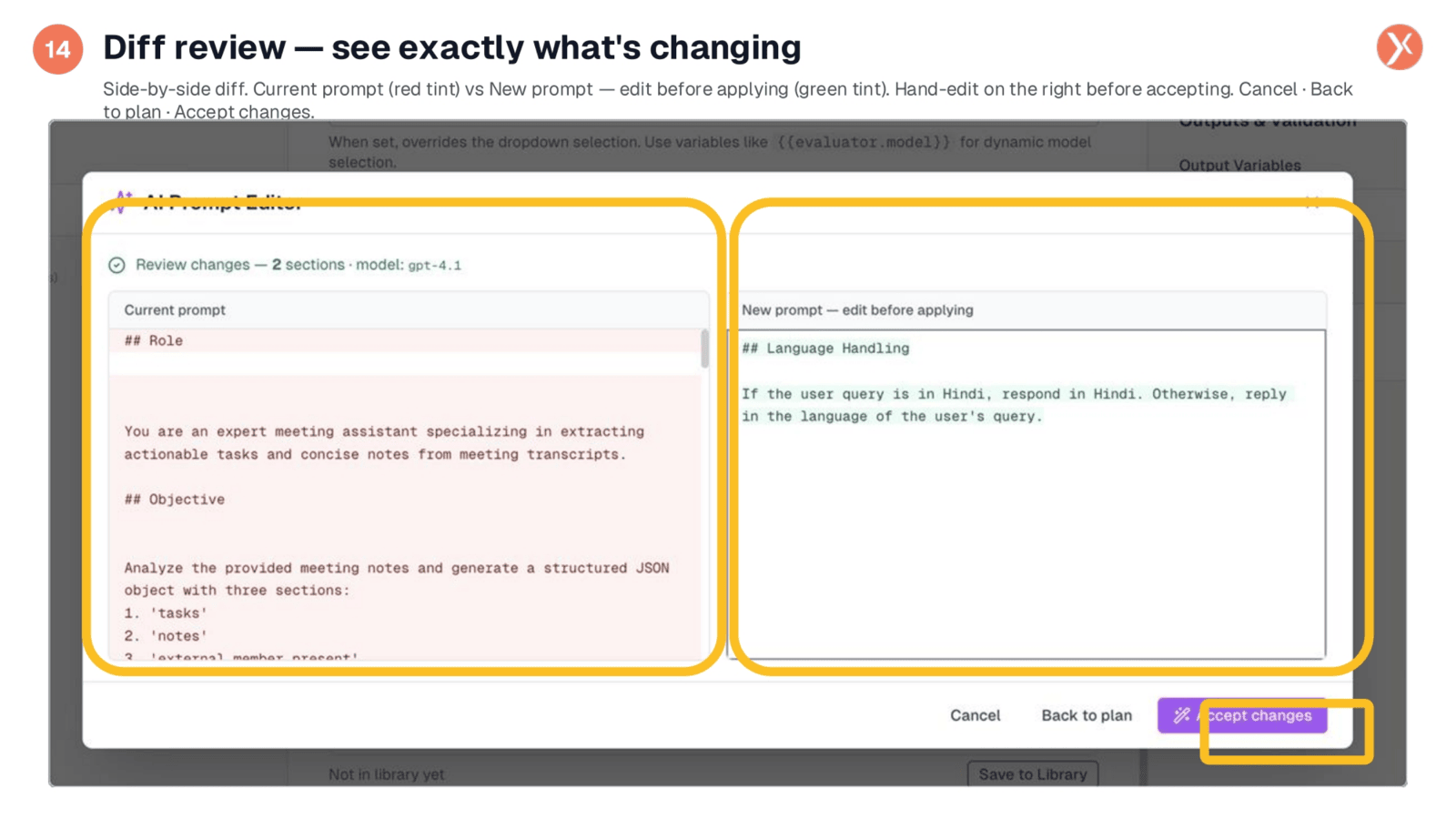
Before applying any changes, the diff review provides a crucial final guardrail. It presents a side-by-side comparison: your current prompt, highlighted in red, and the proposed new prompt, shown in green. You have the flexibility to hand-edit the new prompt directly on the right side before acceptance, allowing you to fine-tune the AI's suggestions. You can then 'Accept changes' to apply the modifications, 'Back to plan' to reconsider, or 'Cancel' to discard everything. This three-stage review process—briefing, proposed changes, and diff review—builds trust in the AI as a reliable tool, ensuring you maintain full control over your prompt engineering.
Response Format: JSON Object for Auto-Parsing
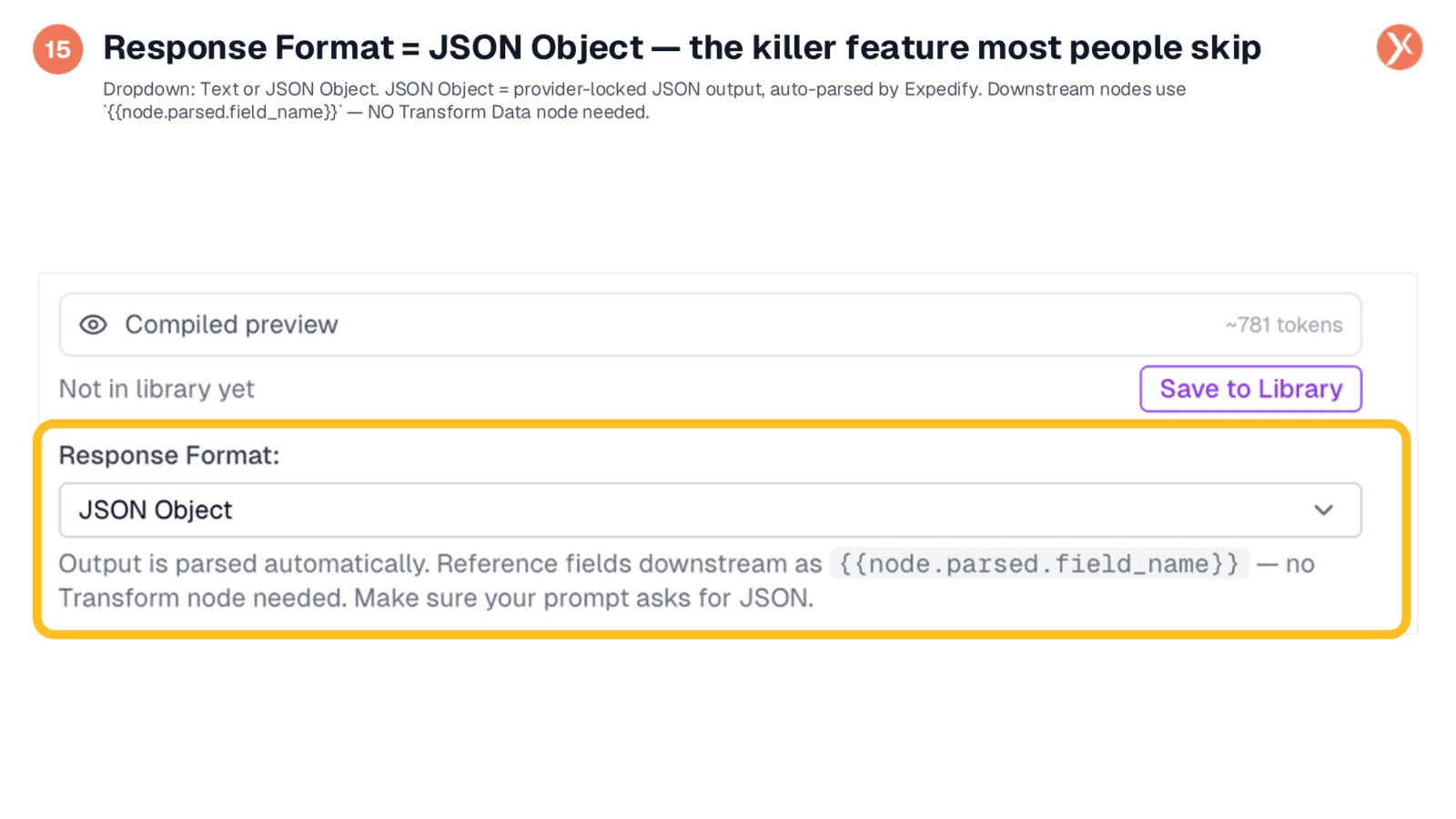
If there's one key takeaway, it's the 'Response Format' setting. While the default is Text, switching to 'JSON Object' offers significant advantages. First, the LLM is constrained to output valid JSON, eliminating formatting inconsistencies. Second, Expedify automatically parses this JSON into a structured object. Third, downstream nodes can directly reference specific fields using llmintegration_1.parsed.field_name syntax. This means you completely bypass the need for a 'Transform Data' node or manual JSON parsing, leading to cleaner, faster, and more reliable workflows. Always ensure your prompt explicitly requests JSON output when utilizing this powerful feature for structured data tasks.