Create a Knowledge Base
Today, we're diving into creating a robust knowledge base, focusing on how to organize, structure, and power your AI with trusted information. We'll cover the process from adding content and structuring it, to enriching it with metadata, ensuring it's ready for use.
AI Import Demo
We're beginning a demonstration of AI Import, a powerful feature designed to handle complex content. This demo will show how we can take a real PDF document, run it through an Expedify workflow, and achieve clean, structured content within the same knowledge base we've been using. Our goal is to add a richer document, like a product catalog, which is typically challenging to process as plain text.
Adding a Second Document to the Knowledge Base
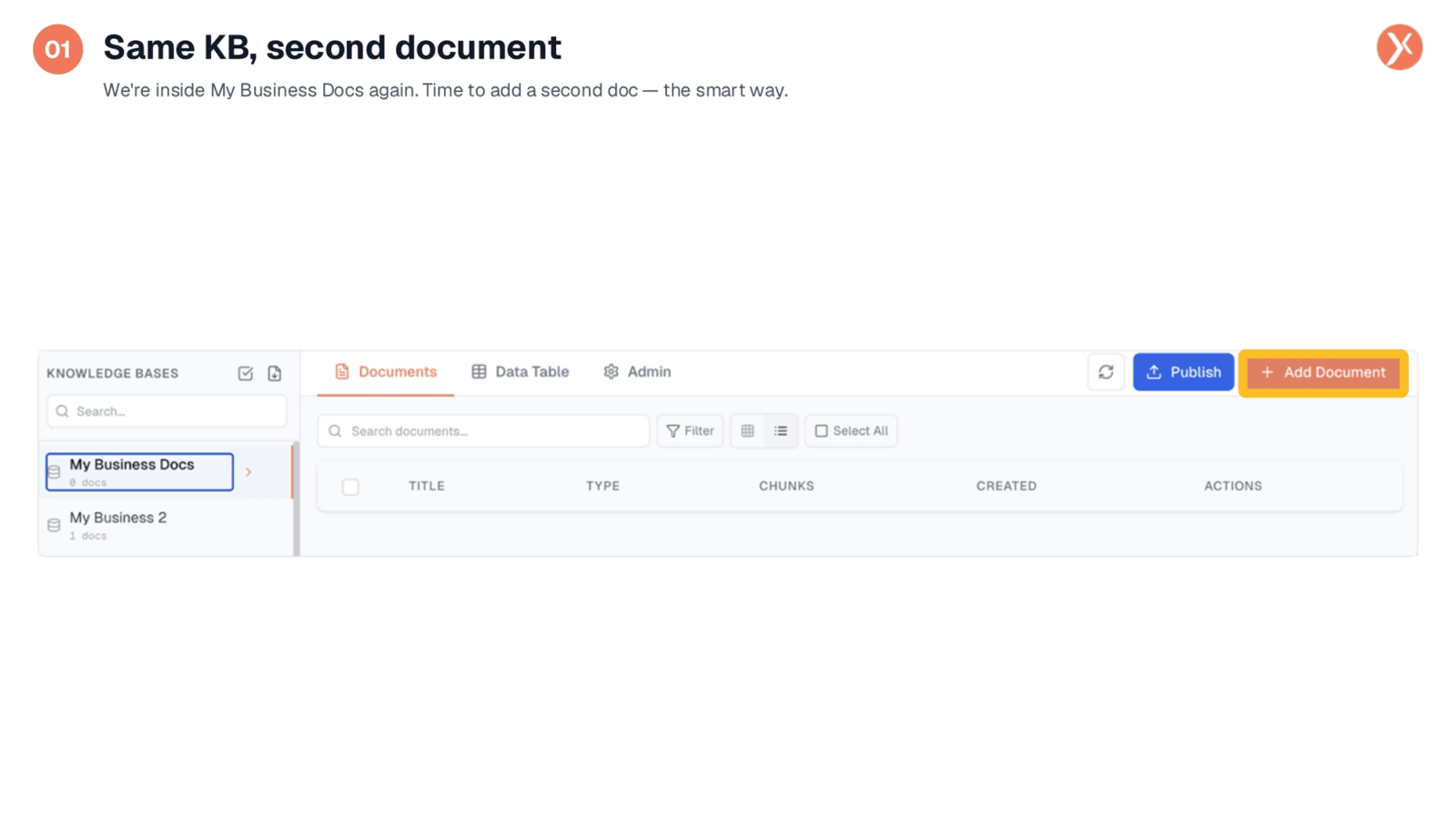
Within our 'My Business Docs' knowledge base, we're now ready to add a second document, but this time, we'll use a smarter approach. Instead of manually adding content, we'll leverage AI Import. This feature is specifically designed to extract, clean, and structure content automatically from various sources, including complex documents and web pages. The key benefit here is the AI's ability to reformat content, ensuring it's not just raw text but intelligently structured data.
Two Ways to Add Content: AI Import for Complex Documents
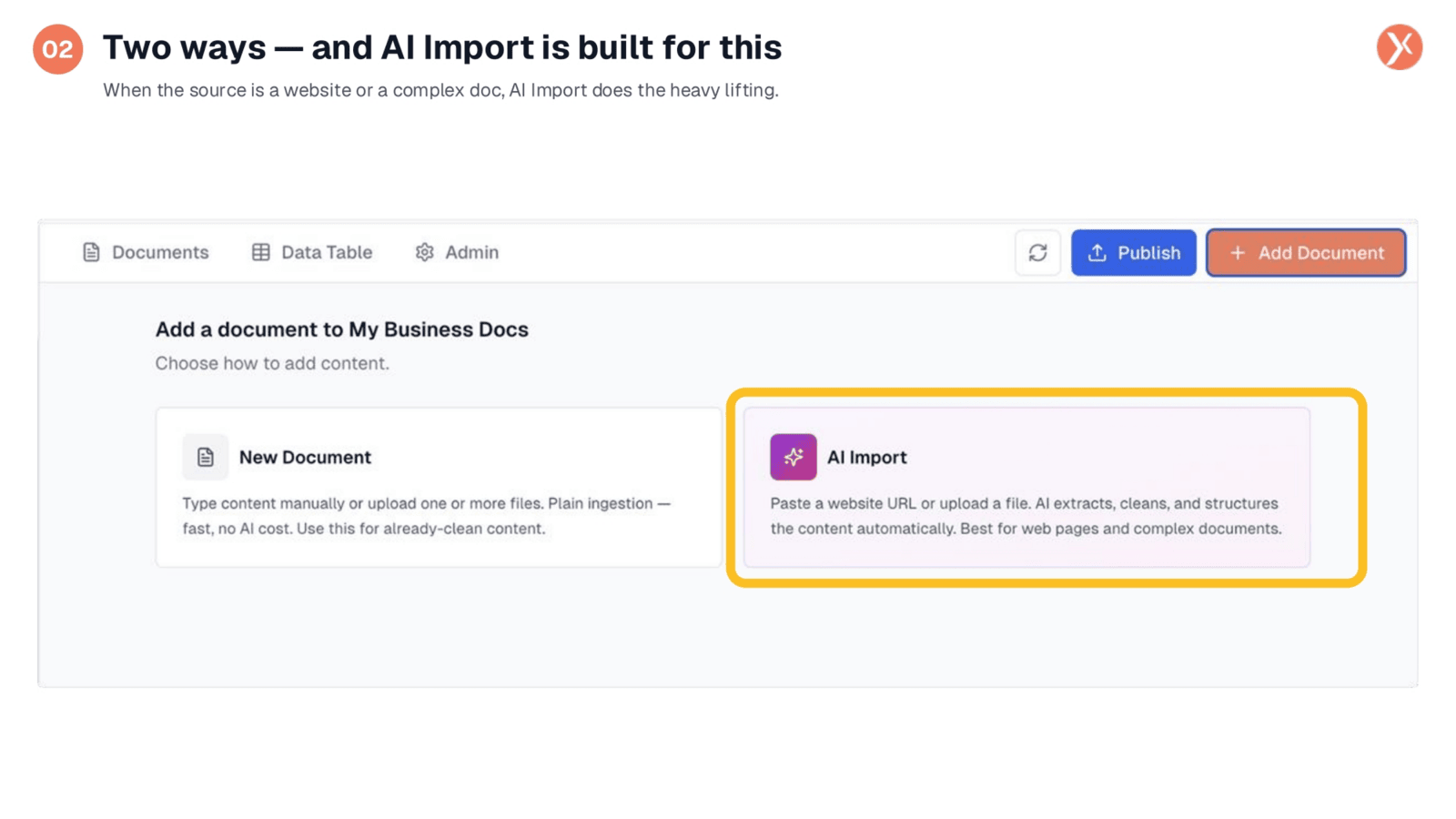
Expedify offers two primary methods for adding content: 'New Document' for already-clean text, and 'AI Import' for more complex sources. AI Import is specifically engineered to handle the heavy lifting when dealing with websites or intricate documents. It automatically extracts, cleans, and structures content, making it ideal for web pages and documents with complex layouts. This intelligent structuring goes beyond simple text ingestion, ensuring your data is truly AI-ready.
Opening the AI Import Flow
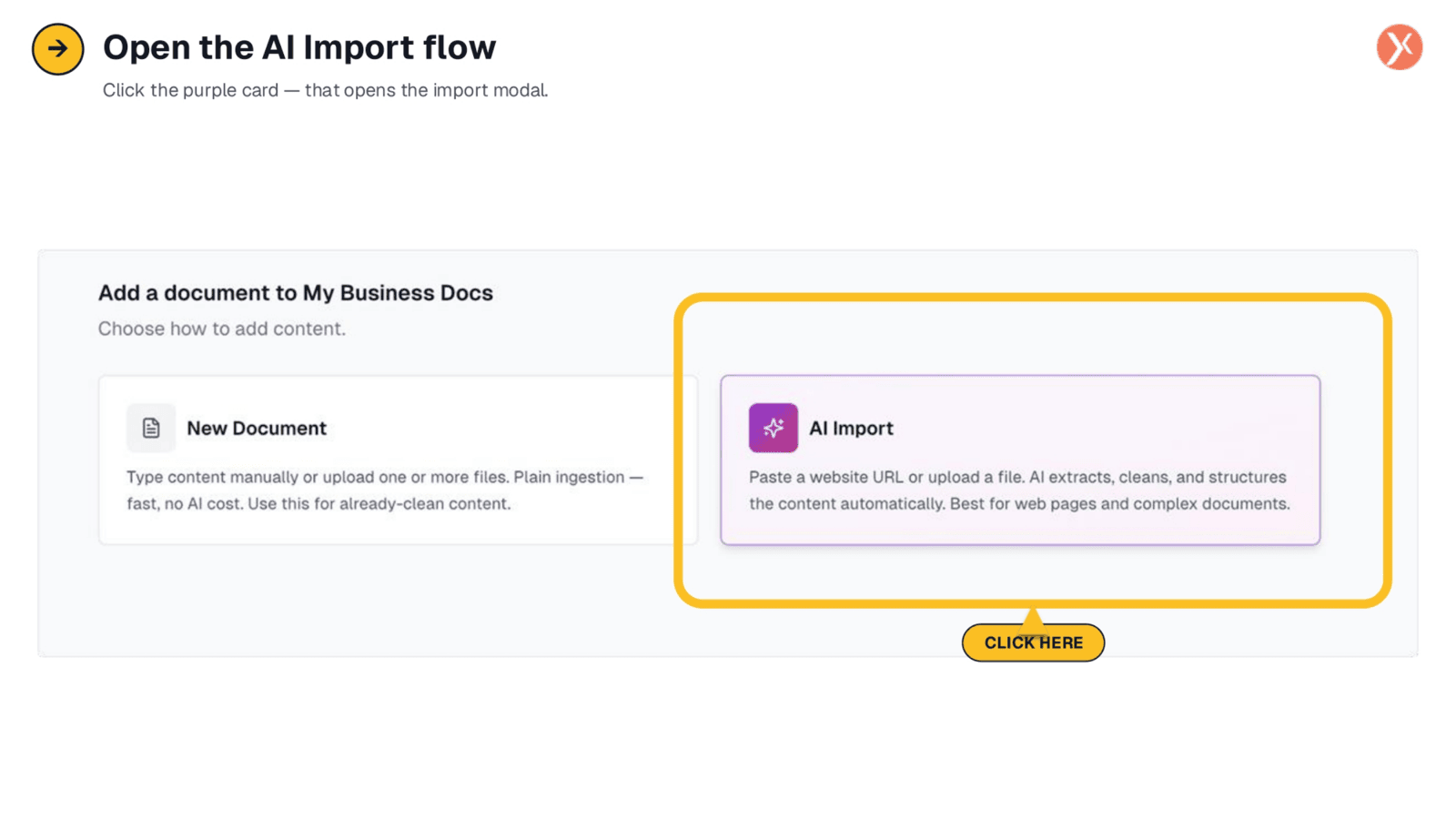
To initiate the process, we simply click the 'AI Import' card, which then opens the dedicated import modal. This modal presents options for importing content from either a website or a document. For our current task, we'll select the 'Document' tab to upload a PDF. It's important to note that this action triggers a powerful Expedify workflow in the background, which extracts, processes, and adds the content to your knowledge base, handling all the complex steps automatically.
Selecting the Source: Website or File Upload
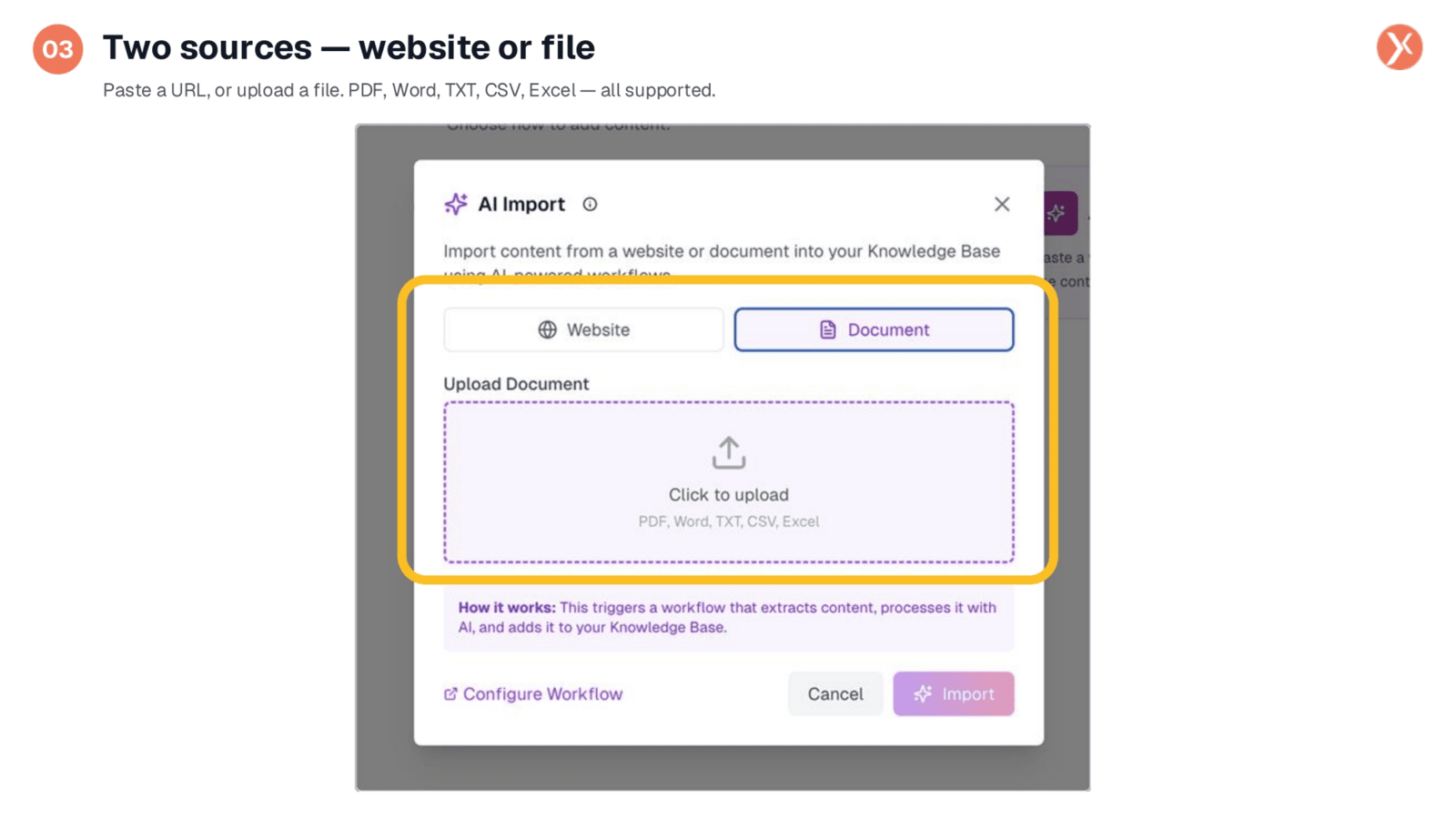
The AI Import modal offers flexibility, allowing you to choose between two primary sources: a website URL or a file upload. Expedify supports a wide range of file types, including PDFs, Word documents, TXT, CSV, and Excel. We're preparing to upload a PDF containing a product catalog with a structured table. This is precisely where AI Import excels, as a manual copy-paste into a standard document would render such a table unreadable for AI, a challenge that AI Import is designed to overcome by intelligently parsing and structuring the content.
The Product Catalog PDF Source Document
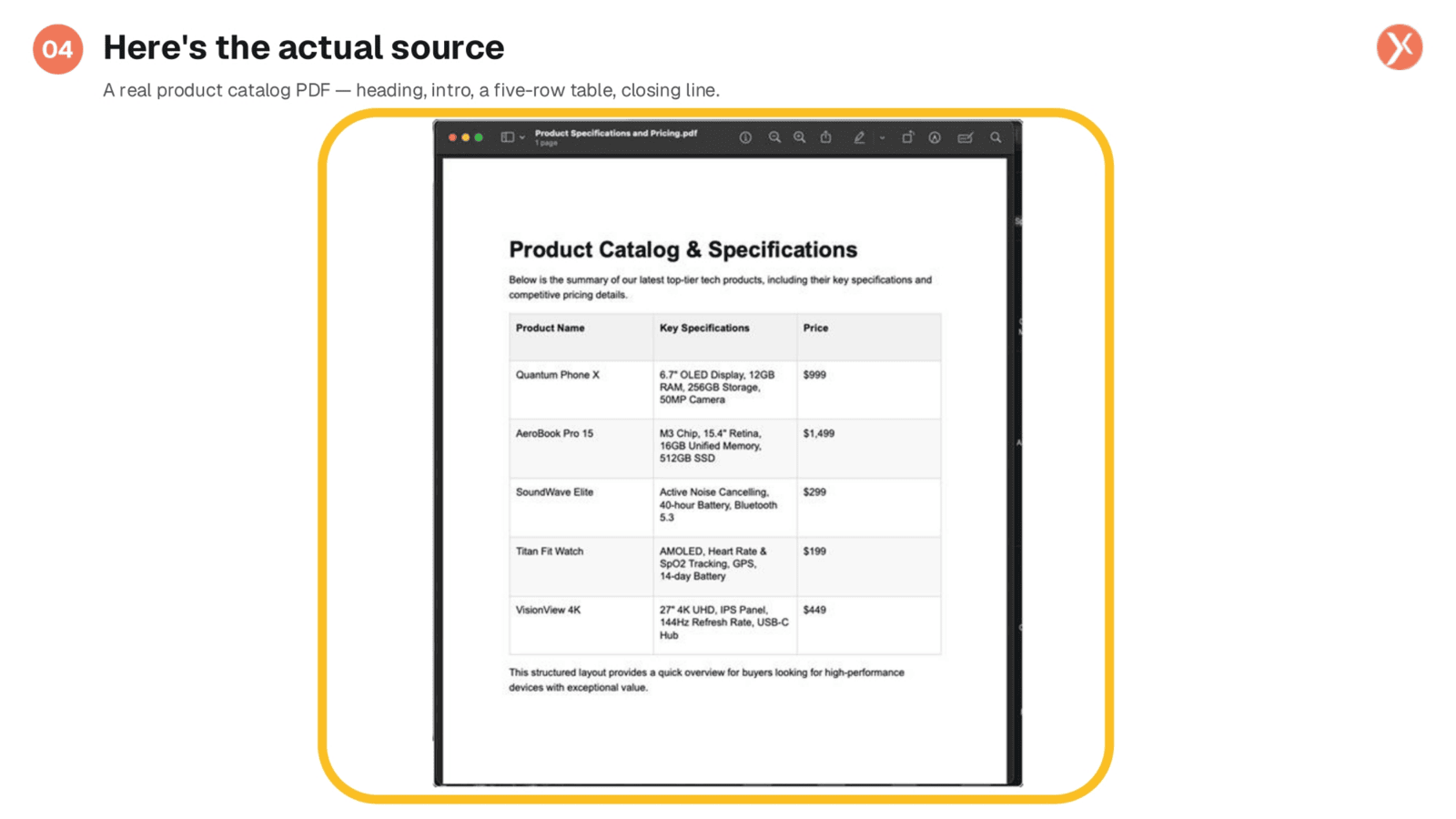
This is the actual source document we'll be importing: a product catalog PDF. It features a clear heading, an introductory paragraph, and most importantly, a five-row table detailing various products like the Quantum Phone X and AeroBook Pro 15, complete with their key specifications and pricing. This structured layout, while human-readable, poses a significant challenge for traditional AI ingestion methods. AI Import is specifically designed to recognize and preserve this tabular structure, ensuring the data remains meaningful and accessible for AI processing.
Attaching the File and Initiating Import
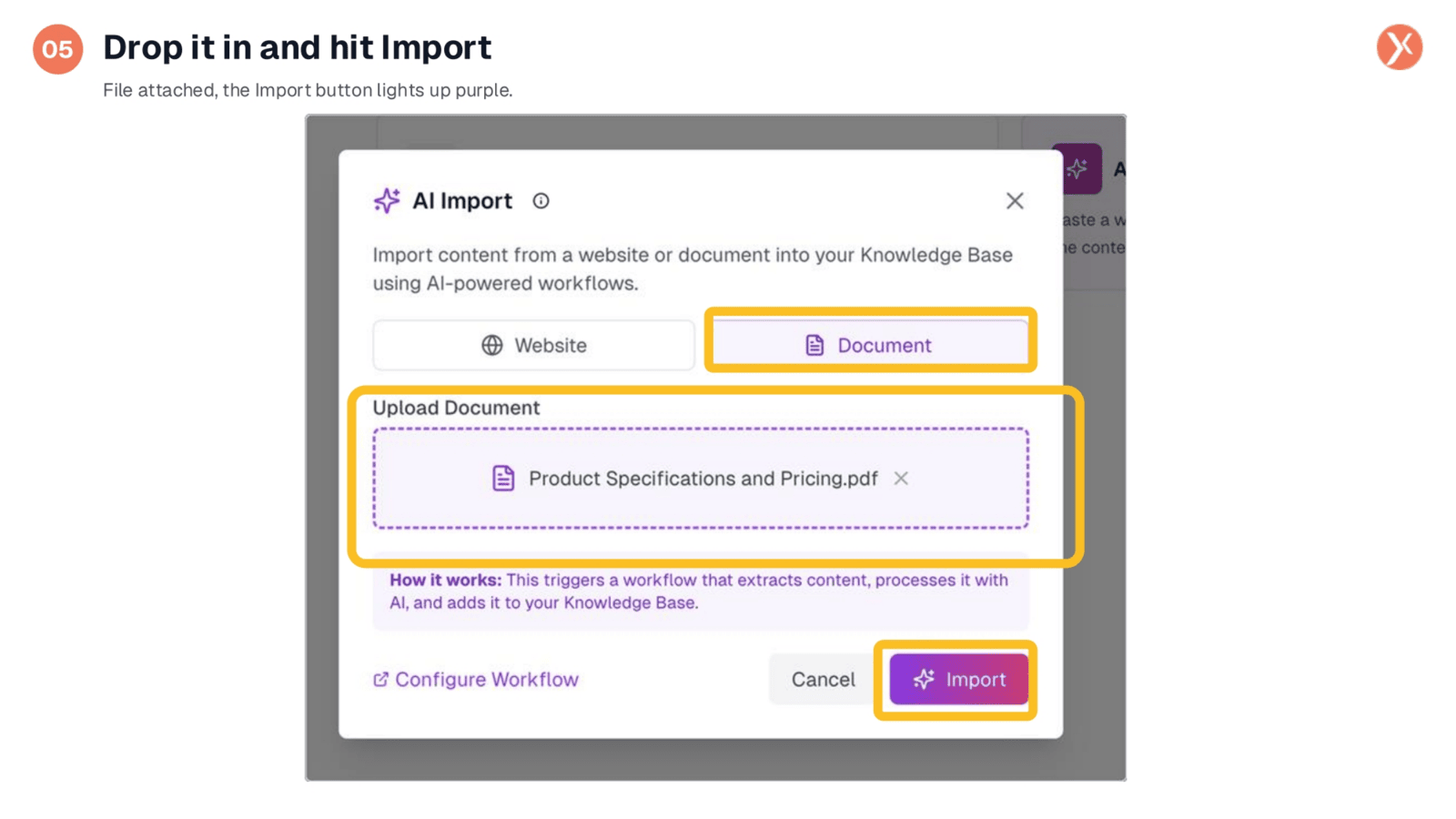
Once the PDF is attached to the upload area, the 'Import' button illuminates, signaling readiness. With a single click, the powerful Expedify workflow is activated. This initiates a series of automated steps: the PDF is extracted, its content is cleaned, and the structured data, including tables, is reformatted into proper markdown. The system then chunks the content, generates embeddings, and seamlessly integrates the new document into our 'My Business Docs' knowledge base, all within a matter of seconds.
Successful Content Import Confirmation
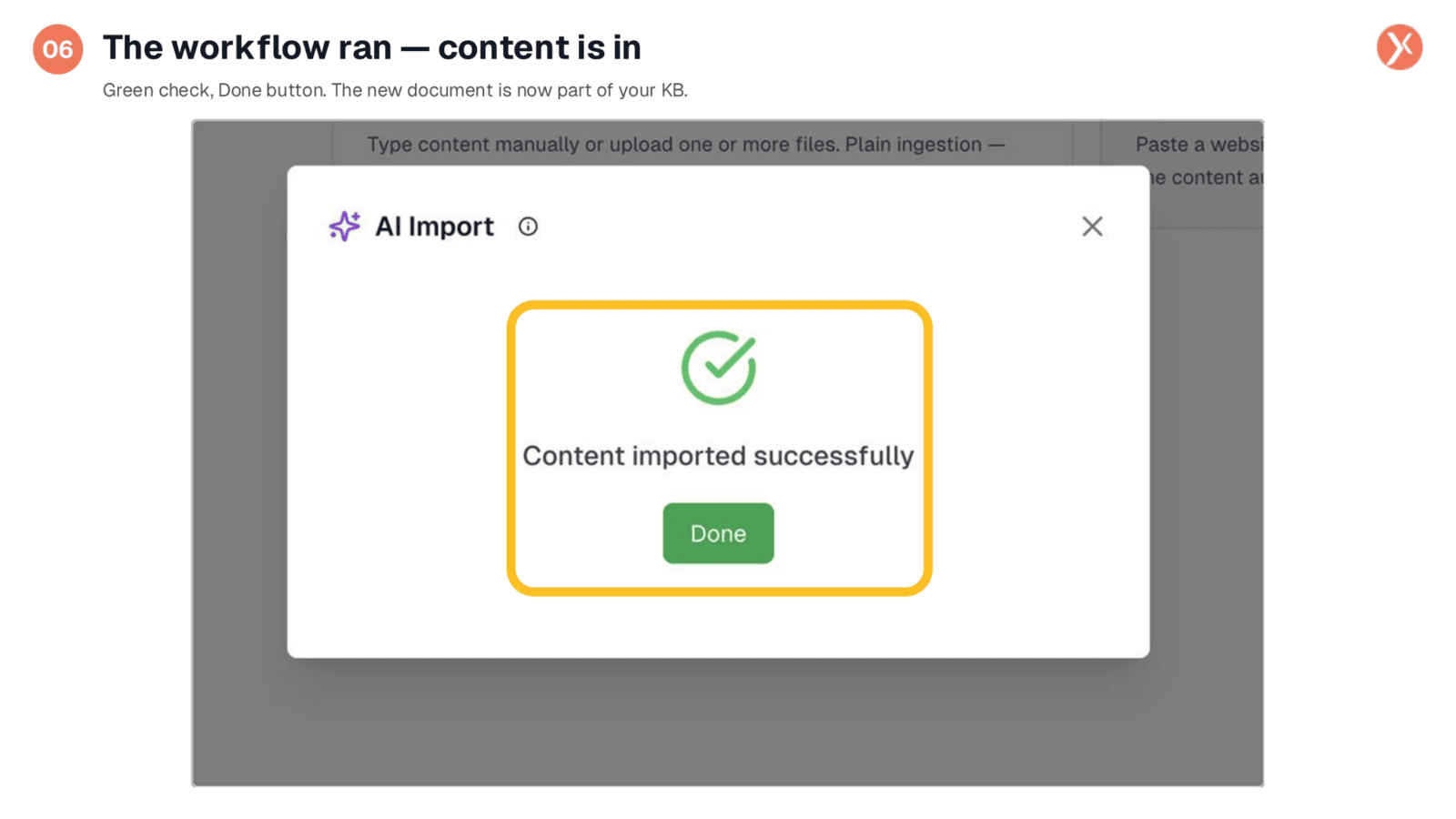
Following the import, we receive a clear confirmation: 'Content imported successfully.' This green checkmark signifies that the entire workflow has completed, and the new document is now an integral part of our knowledge base. This seemingly simple confirmation represents a complex backend process where the PDF was parsed, its content extracted, intelligently structured into markdown, and then chunked. The system ensures that the content is not only present but also optimized for AI retrieval.
New Document Added: Product Specifications and Pricing
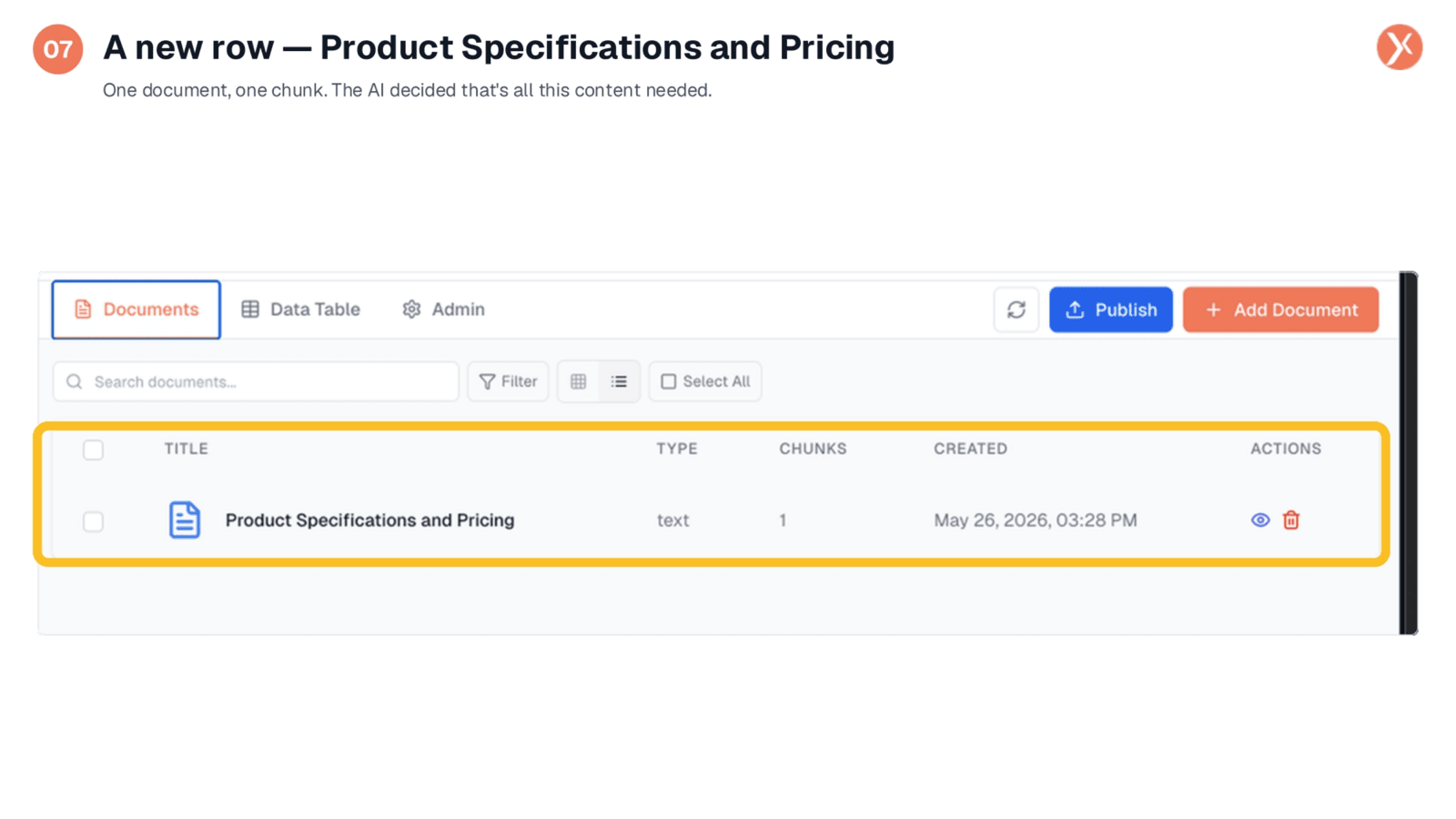
Returning to the Documents tab, we can now see the newly added 'Product Specifications and Pricing' document. Notably, it's listed as a single chunk. This highlights AI Import's intelligent chunking capability, which groups content by meaning rather than arbitrary character limits, ensuring that related information is kept together for more effective retrieval. Unlike previous methods that might split content, the AI here determined that the entire product catalog was cohesive enough to remain a single, comprehensive unit.
AI-Structured Content: Markdown Table Preservation
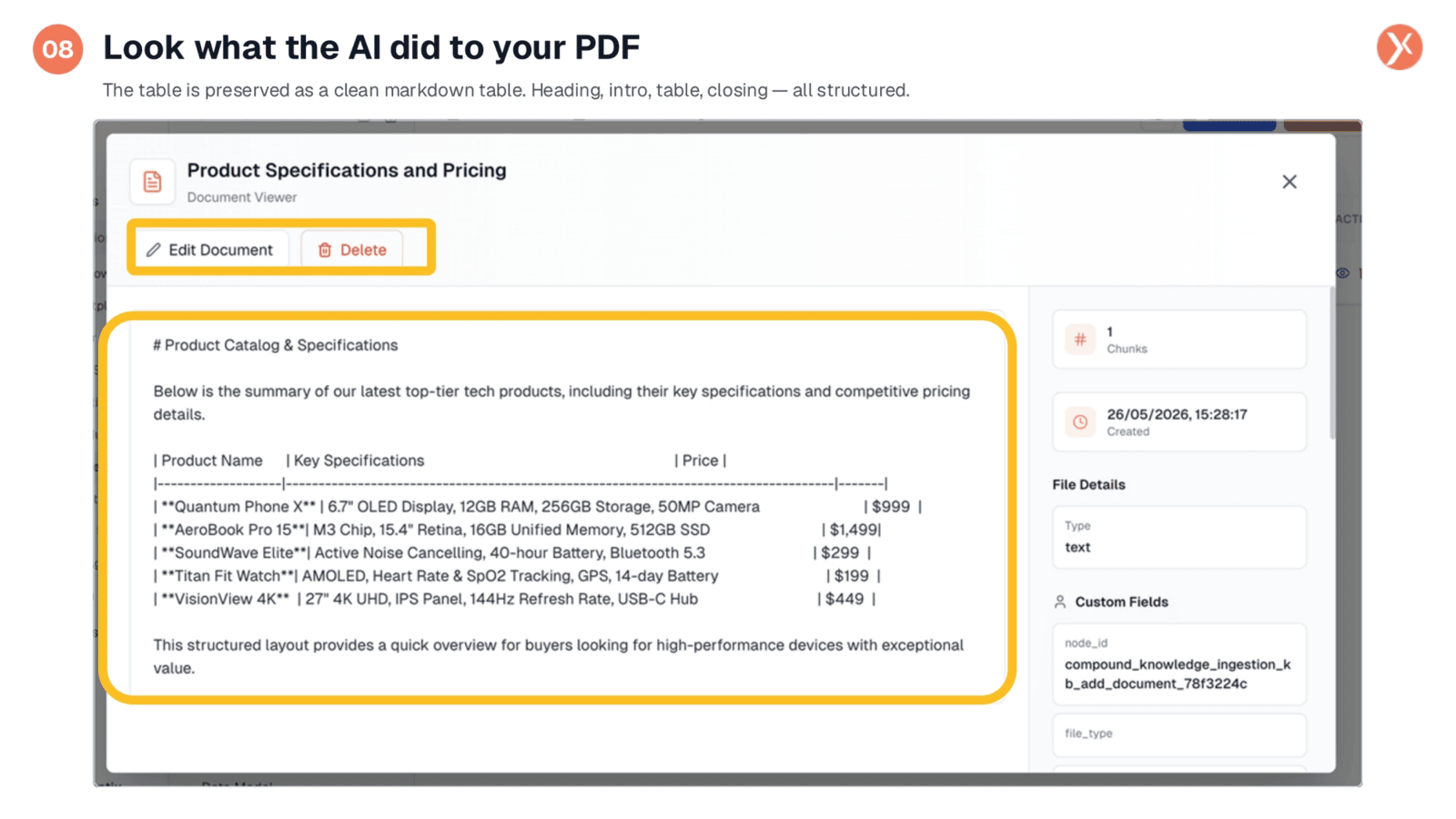
This is the core benefit of AI Import: the PDF content has been transformed into a clean, structured markdown table. The original heading, introductory text, and the entire five-row product table are perfectly preserved, complete with proper markdown formatting. The AI intelligently recognized the table structure within the PDF and rebuilt it in a format that is easily parsable and usable by other AI tools. This ensures that complex data, which would otherwise be a jumbled mess, becomes highly accessible and actionable for your AI applications.
Traceability Through Metadata: The Node ID Story
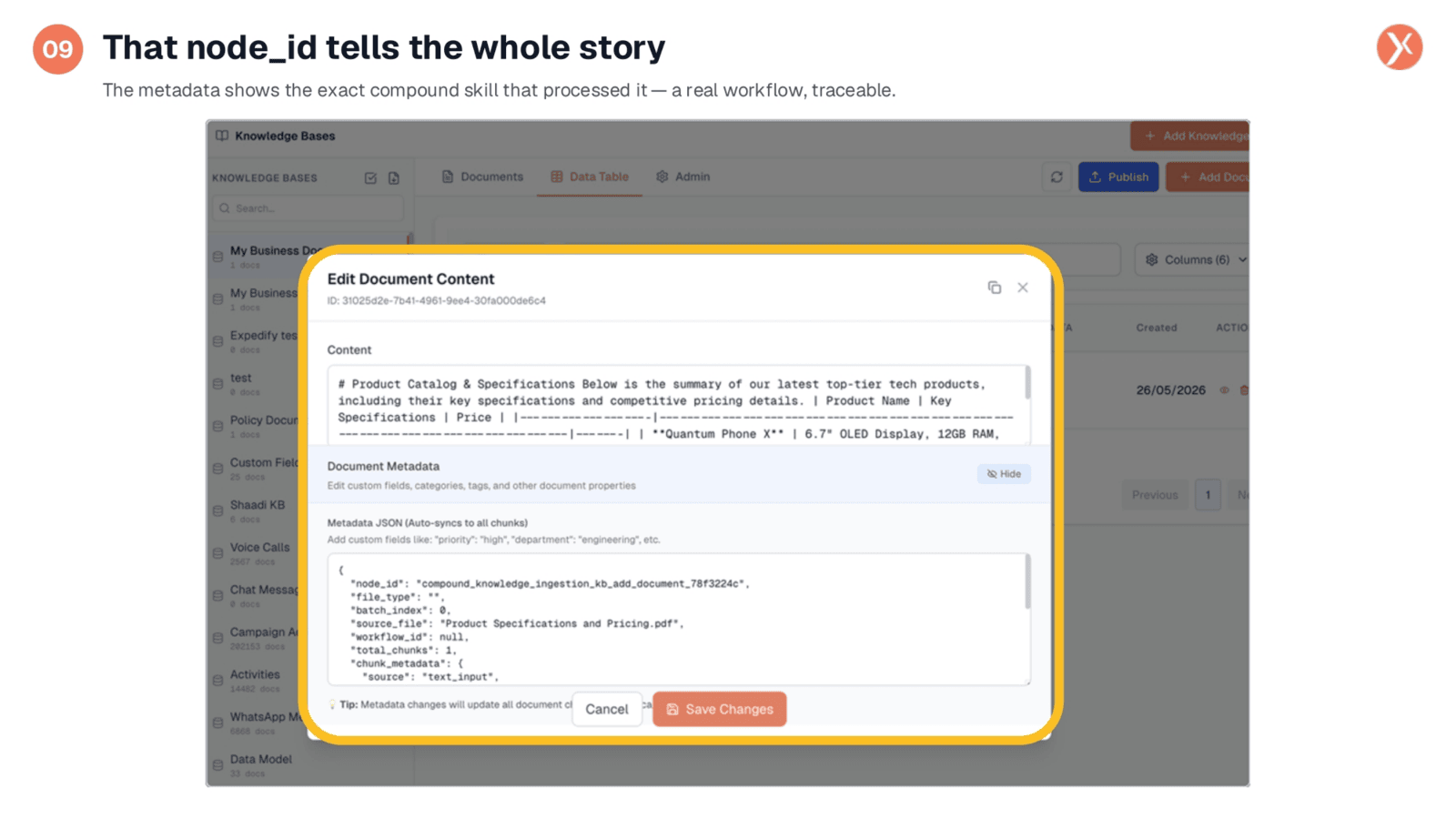
Delving into the document's metadata, we find the node_id field, which provides a complete audit trail of the processing. This node_id indicates the specific 'compound skill' or workflow chain within Expedify that handled the PDF. Fields like file_type, source_file, and workflow_id ensure full traceability, allowing you to understand exactly how your content was processed. This level of detail is crucial for transparency and, if needed, for customizing how the AI cleans and structures your content, though the default settings are typically highly effective.
AI Import vs. New Document: When to Use Which
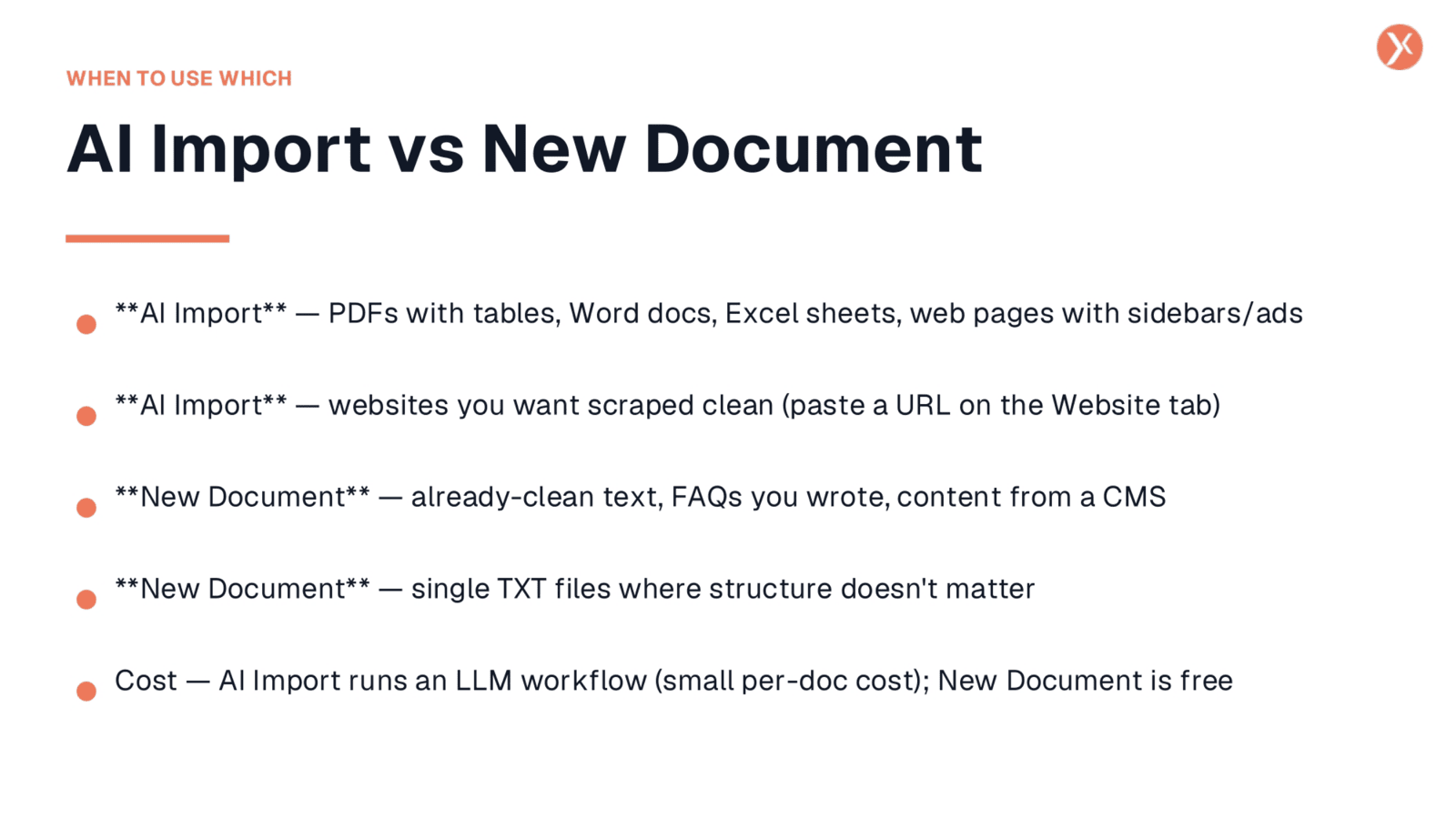
To summarize the choice between AI Import and New Document: opt for AI Import when your source content is complex or 'messy,' such as PDFs with tables, formatted Word documents, Excel sheets, or web pages with various elements. It's also ideal for scraping and cleaning website content by simply pasting a URL. Conversely, use 'New Document' for already-clean text, like FAQs or content from a CMS, or for simple TXT files where structural integrity isn't a concern. Remember, AI Import involves a small per-document cost for its LLM workflow, while New Document is free.
Your Knowledge Base Just Got Smarter
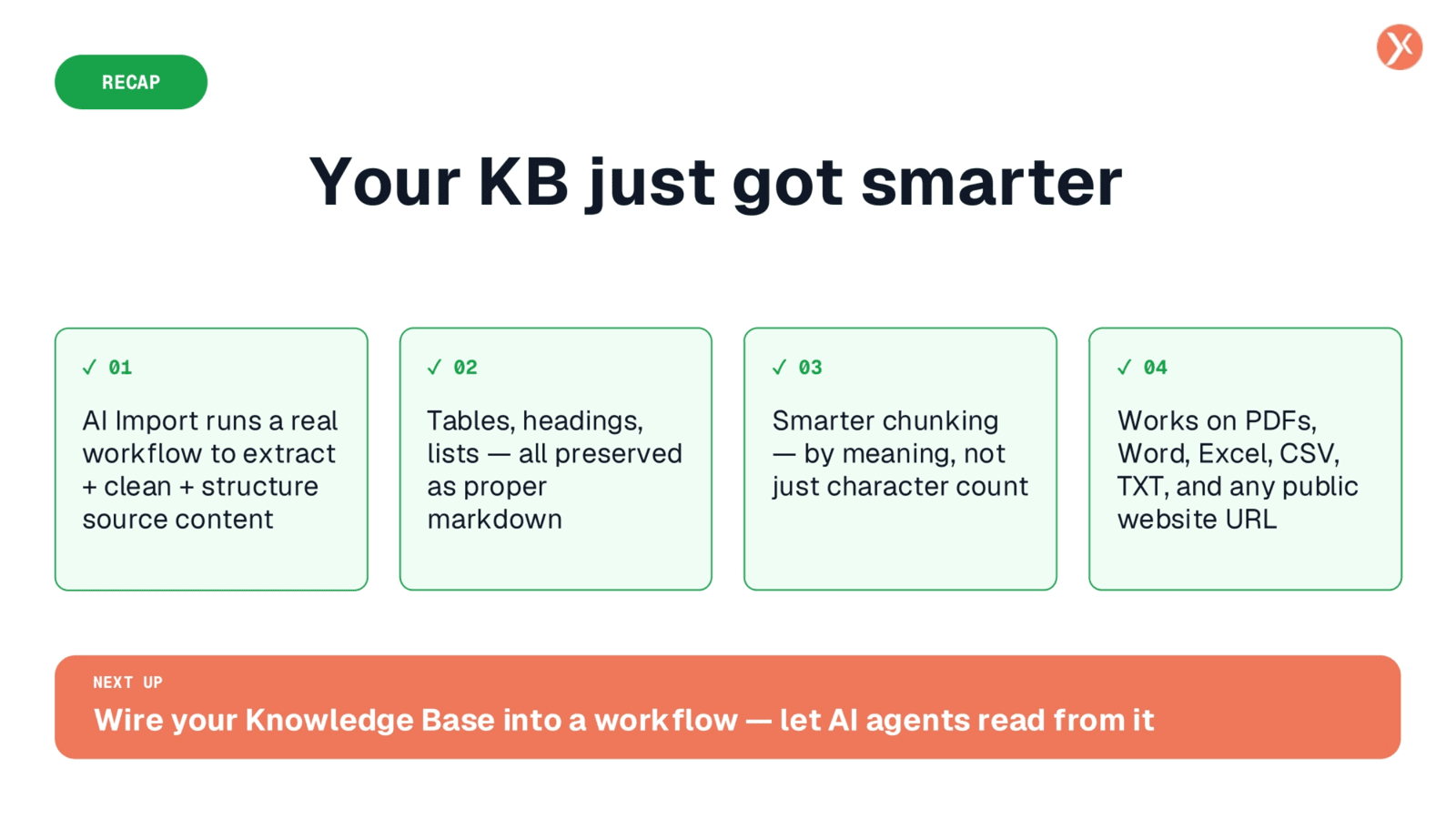
In recap, AI Import significantly enhances your knowledge base by intelligently extracting, cleaning, and structuring content. It preserves complex formats like tables and headings, uses meaning-based chunking, and supports diverse file types and web URLs, making your KB truly smarter.