Text Response
Welcome to the Text Response node, a key output component in Expedify for automating chat replies. This node is designed to send responses back to users, leveraging a powerful templating engine. We'll cover its core functionality, configuration, and how it integrates into your chat workflows.
Text Response Demo Overview
Our lesson today will cover four key aspects of the Text Response node. We'll begin by examining the response template field and the robust templating engine that powers it. Next, we'll explore the 'Show typing indicator' and 'Delay' toggles, which add a polished, human-like cadence to your automated replies. Finally, we'll conduct a live demonstration within the Agentix chat panel to see the entire process in action.
Introducing the Text Response Node
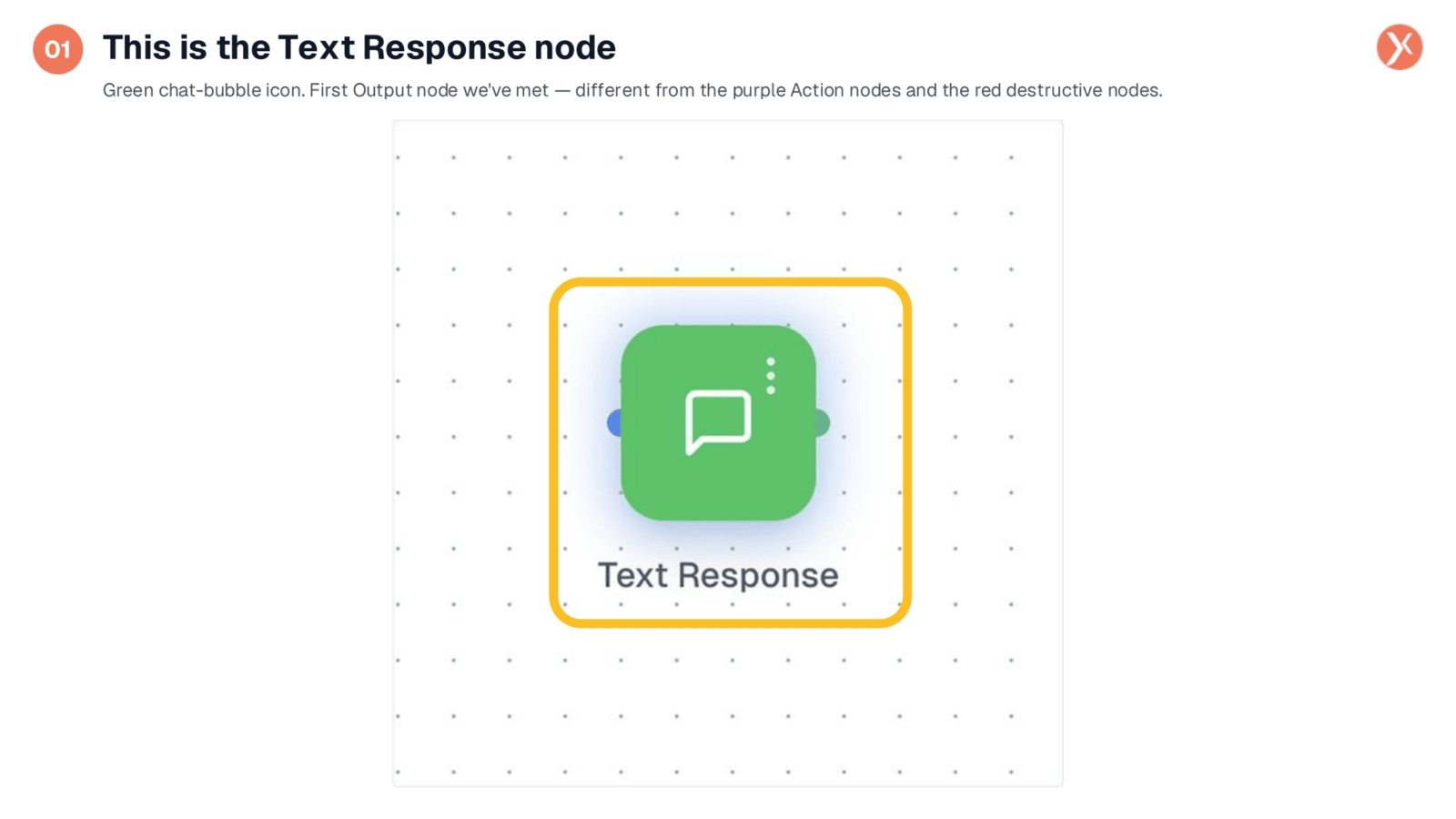
The Text Response node appears on the canvas as a distinctive green chat-bubble icon. In Expedify's color coding, green signifies an Output node, designed to send information back to the user. Unlike purple Action nodes or red destructive nodes, Text Response focuses solely on delivering text replies. It's a fundamental component, typically found at the conclusion of chat-driven workflows, where it takes the processed information and sends a direct response to the user.
Accessing Node Configuration
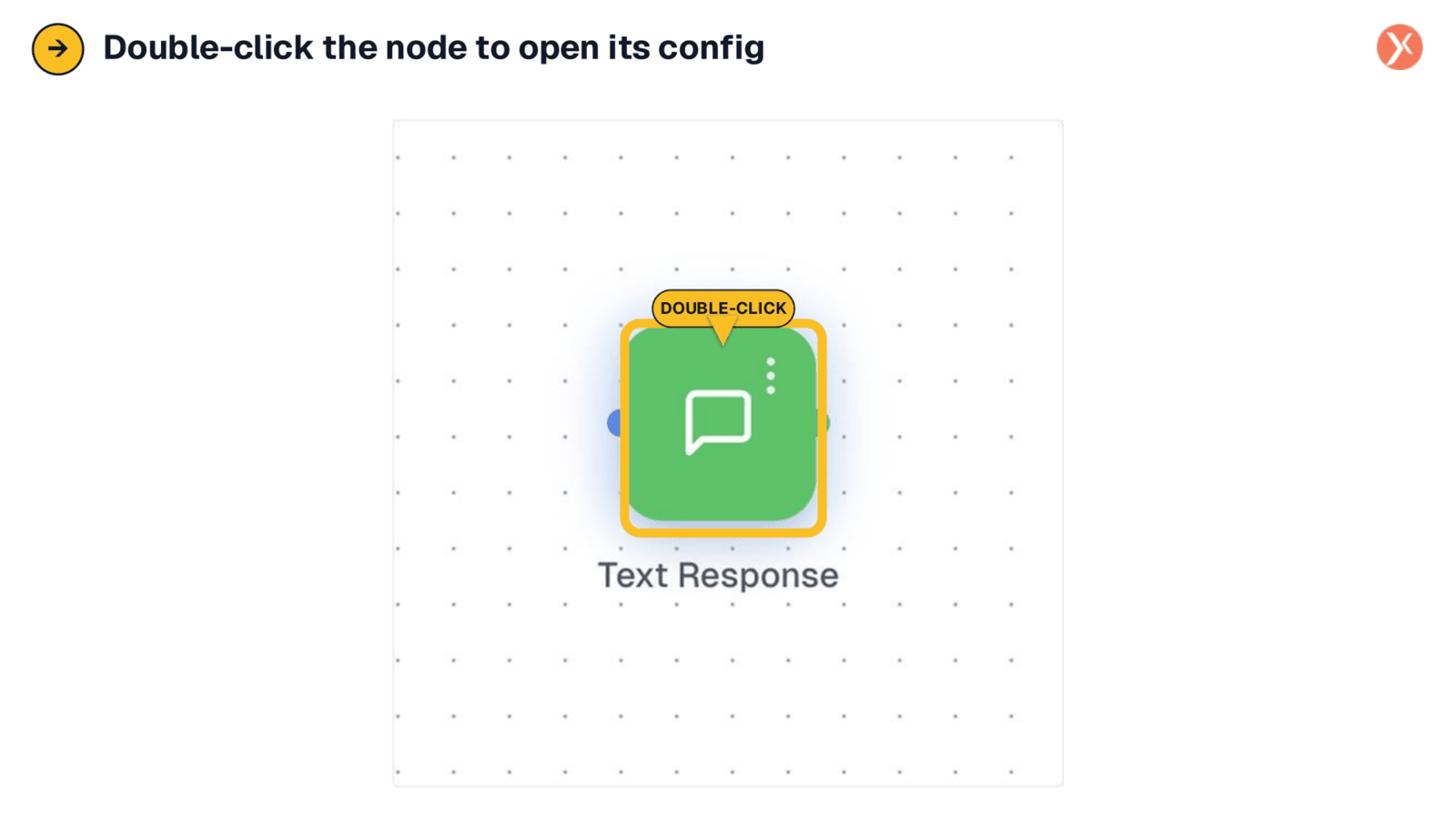
To configure the Text Response node, simply double-click its icon on the canvas. This action will open the dedicated Configuration Panel, providing comprehensive access to all the settings and options for customizing its behavior. This straightforward interaction allows for quick and efficient setup of your automated text responses within the Expedify builder.
Text Response Panel Overview
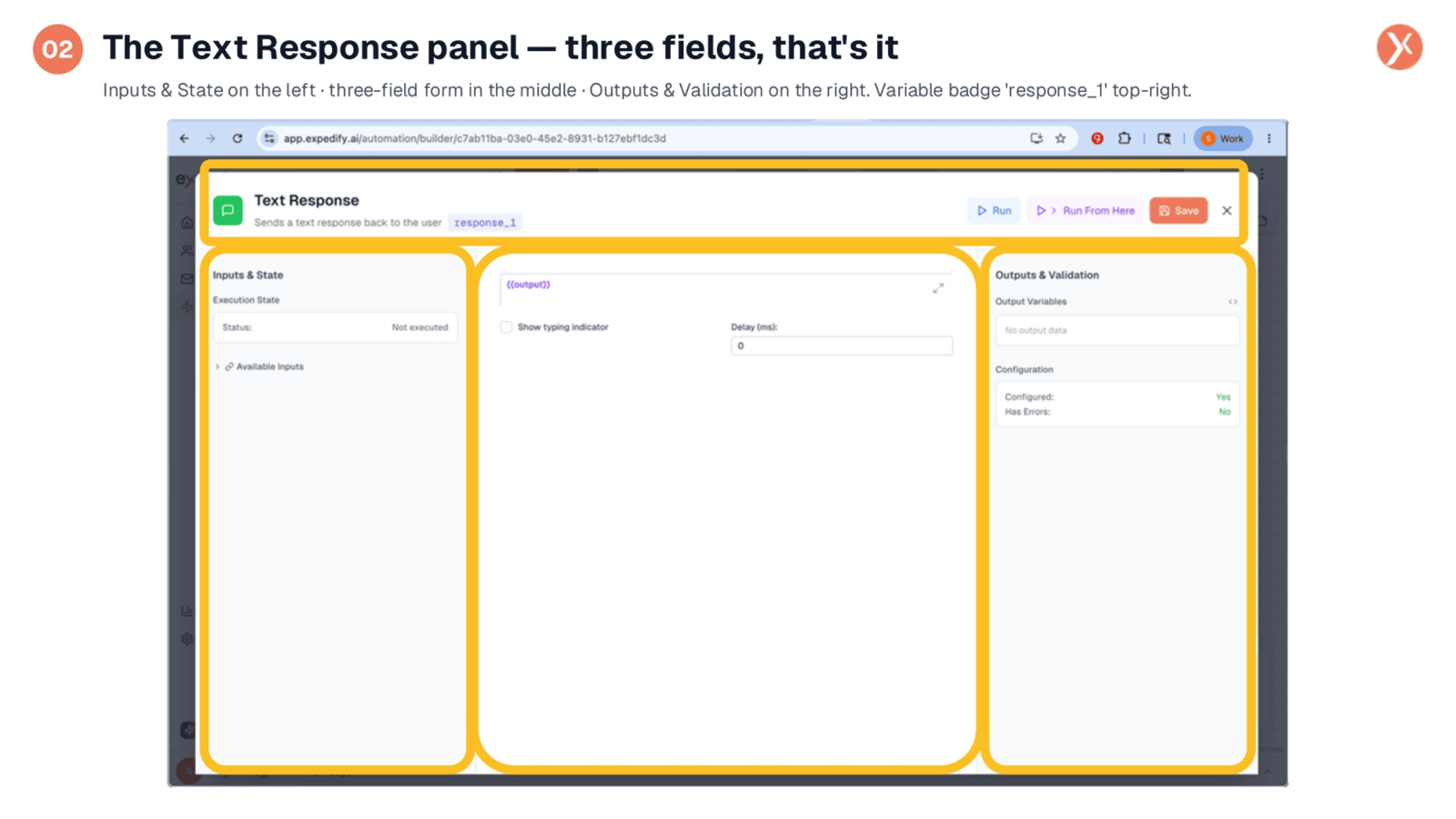
The Node Configuration Panel for Text Response maintains the familiar three-column layout. On the left, you'll find 'Inputs & State,' while 'Outputs & Validation' is on the right, often showing 'Configured: Yes' by default. Our primary focus is the middle column, which contains three key elements: the large response template textarea, the 'Show typing indicator' toggle, and the 'Delay (ms)' field. Additionally, the 'response_1' variable badge at the top indicates the namespace for referencing this node's output in subsequent steps.
Advanced Response Templating
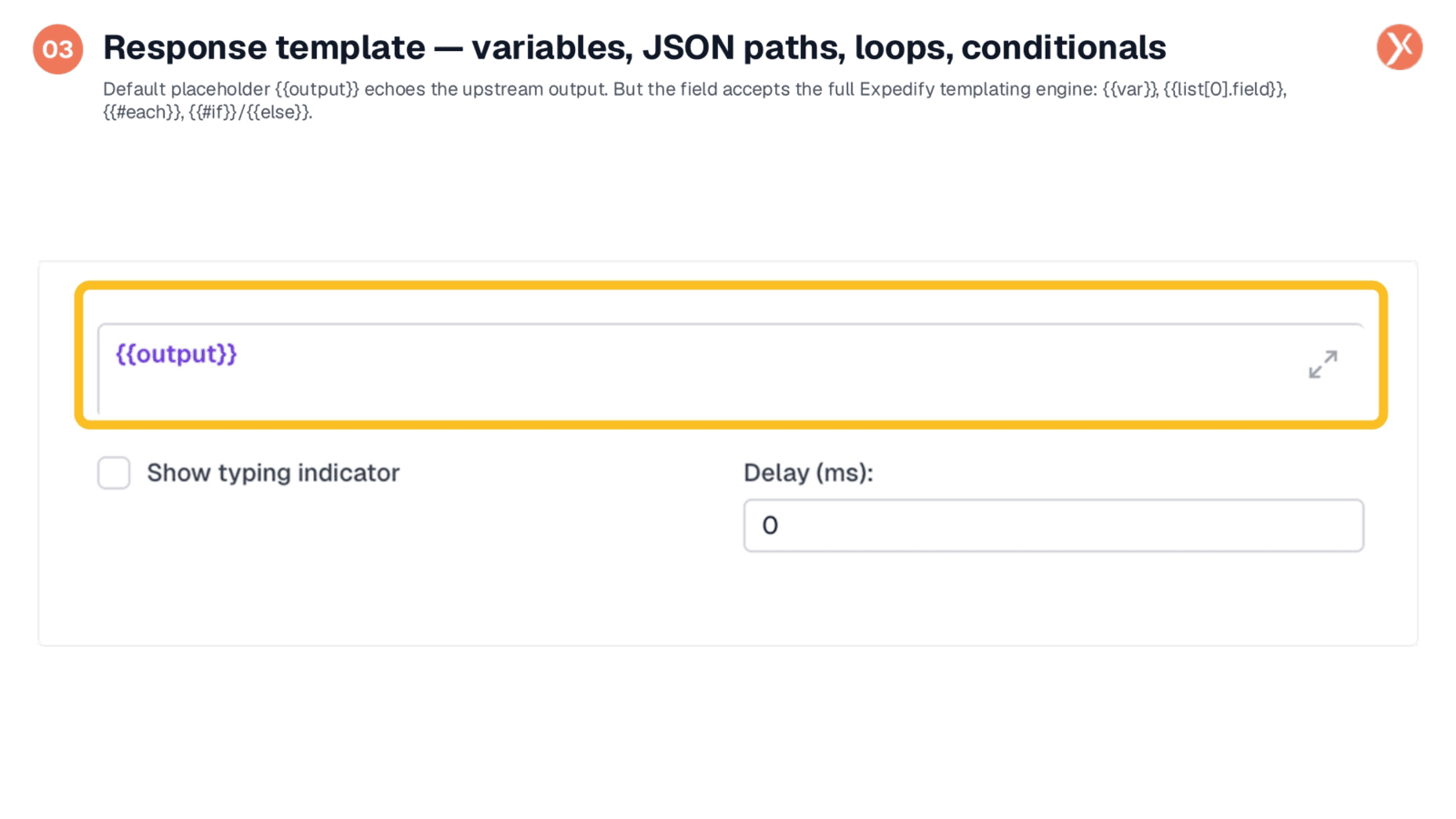
The response template field is a powerful feature, initially pre-filled with {{output}} to echo upstream data. However, it fully supports the Expedify templating engine, allowing for dynamic and complex responses. You can incorporate basic variables like contact.first_name, access nested data using JSON paths such as kb_search_1.results[0].content, and iterate through arrays with {{#each}} loops. Conditional logic using {{#if}} statements also enables the reply to adapt based on specific data, creating a single template capable of generating diverse outputs.
Enhancing Replies with Polish Toggles
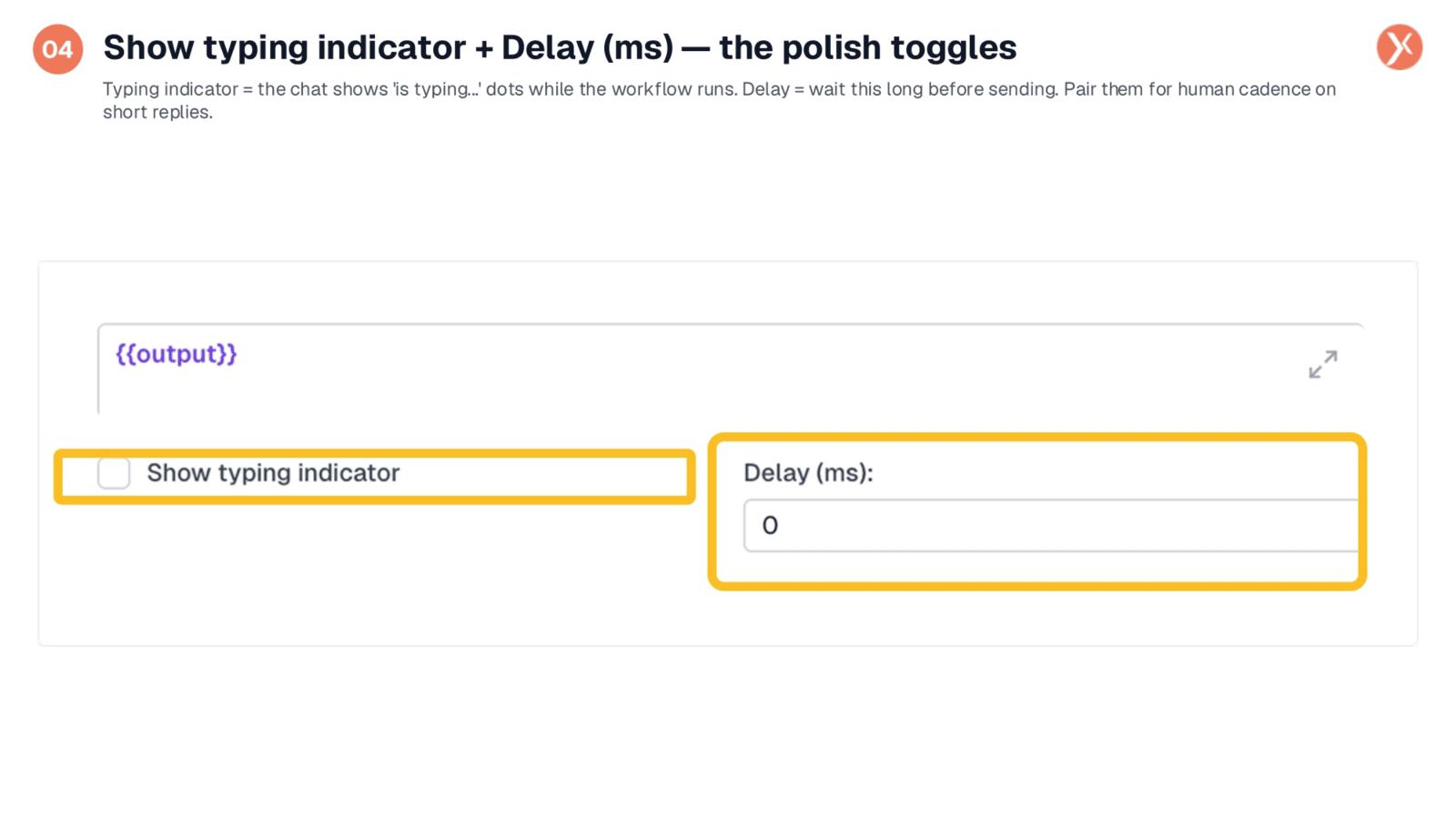
Below the template, two 'polish toggles' enhance the user experience. The 'Show typing indicator' option displays a 'bot is typing' animation, making AI responses feel more human and less instantaneous. The 'Delay (ms)' field allows you to introduce an optional pause before the message is sent, preventing short replies from appearing robotic. Combining both features creates a natural conversational cadence, though for transactional interactions where speed is paramount, you might choose to disable them.
Live Testing in Agentix Chat
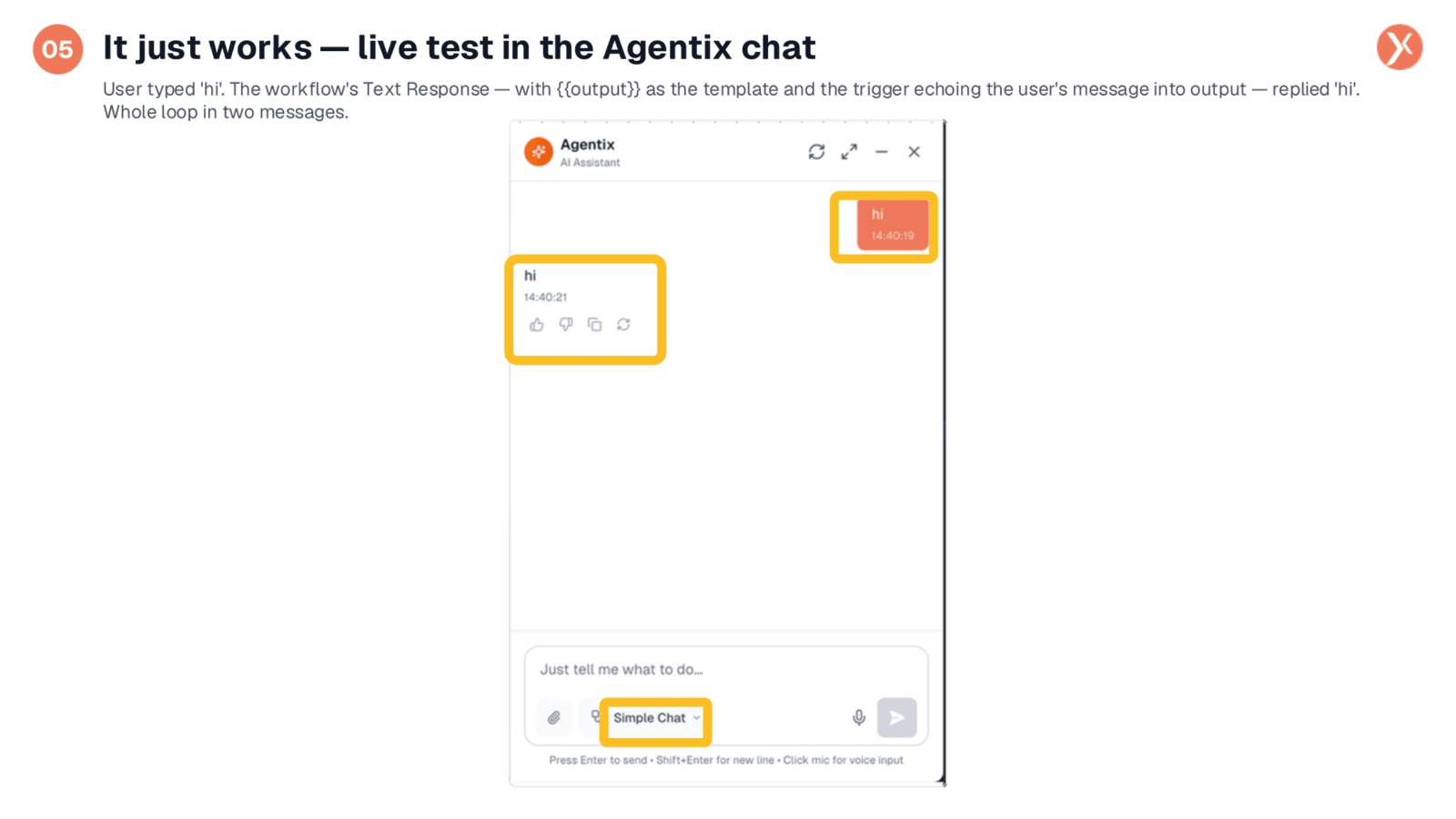
The Agentix chat panel provides an immediate, in-product environment to test your 'Simple Chat' workflows. As demonstrated, a user typing 'hi' triggers the workflow, and the Text Response node, configured with {{output}}, echoes the message back. This end-to-end process, from user input to bot reply, occurs seamlessly. The workflow selector at the bottom confirms the active 'Simple Chat' being tested, and feedback icons allow for quick evaluation of bot responses, enabling rapid development and deployment.
Text Response Node Outputs
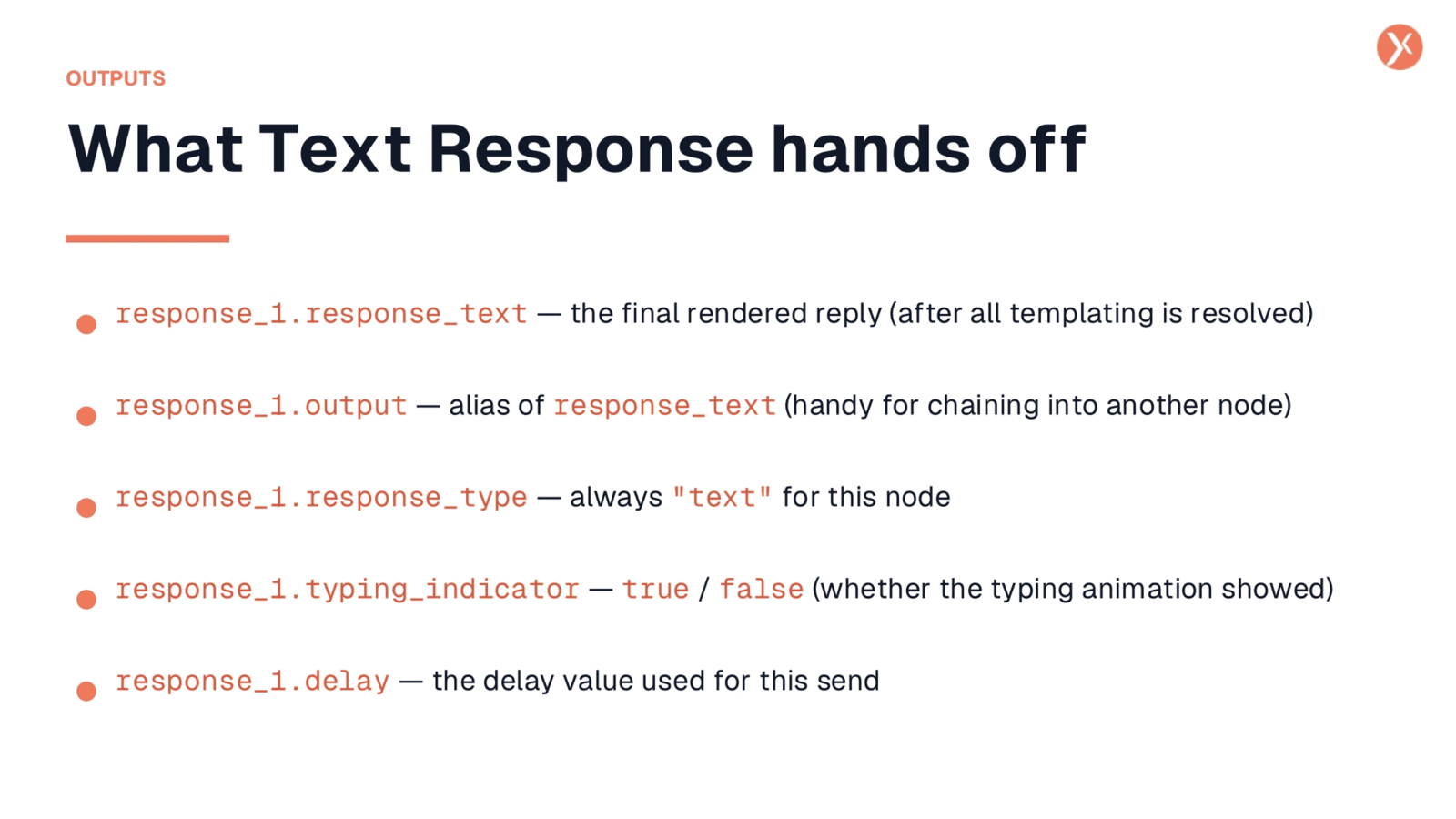
After the Text Response node executes, its outputs become accessible to downstream nodes. response_1.response_text provides the final rendered reply, with all templating fully resolved into plain text. response_1.output serves as an alias for response_1.response_text, simplifying chaining into other nodes that expect a generic output field. The response_1.response_type is consistently 'text' for this node, which is useful for conditional branching. Additionally, the typing_indicator and delay values are echoed for logging and auditing purposes.
Text Response Recap
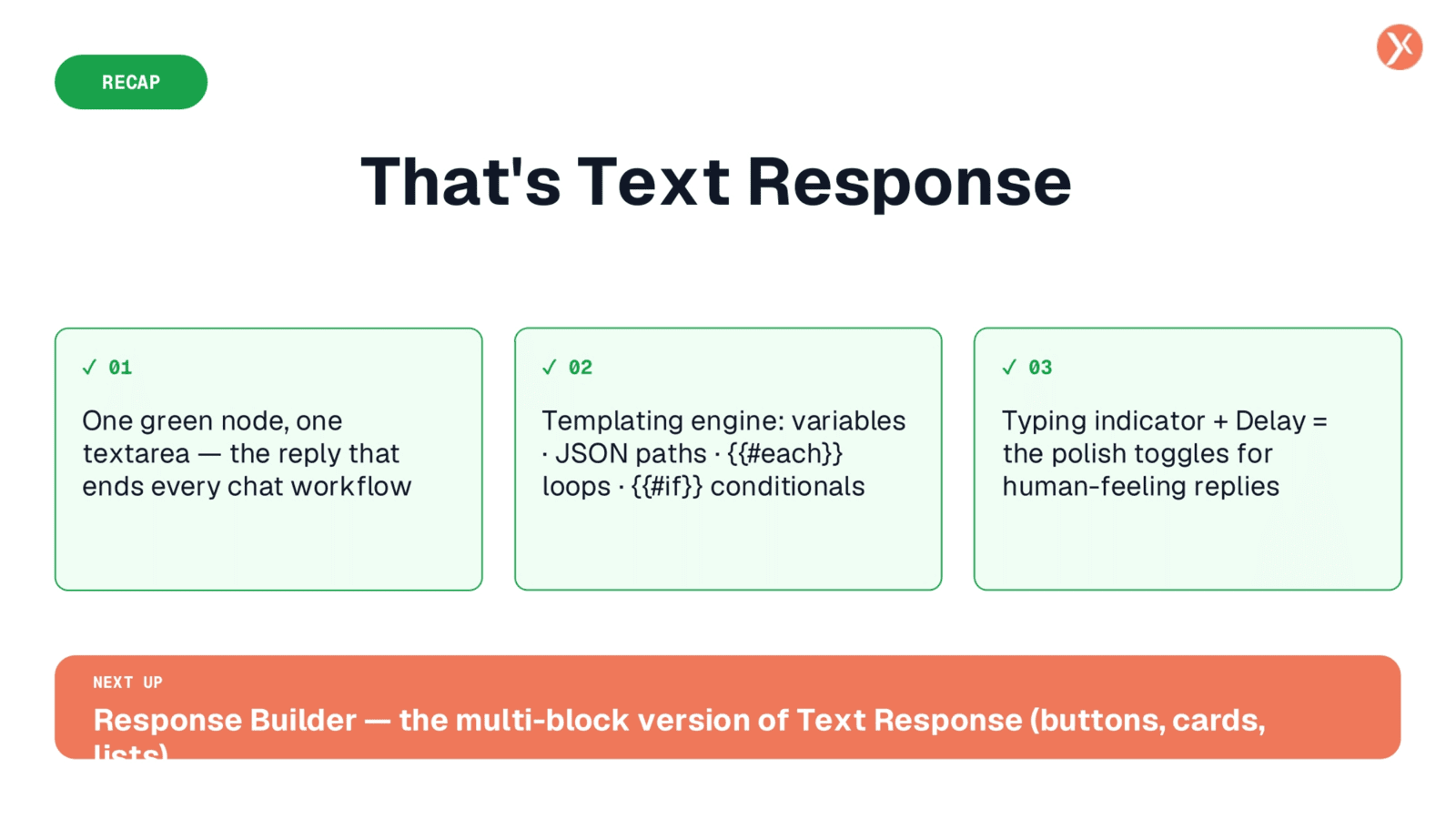
In summary, the Text Response node, with its powerful templating engine and polish toggles, enables dynamic and human-like chat replies. It's a versatile tool for ending chat workflows, ready for testing and deployment.