Campaign Send
Expedify's Campaign Actions empower you to build an audience and send messages at scale. This core marketing node takes a template and a list of contacts, then fires off personalized messages across email, SMS, or WhatsApp, tracking all campaign metrics in one place.
Campaign Send Demo Overview
This demonstration focuses on Campaign Send, Expedify's workhorse marketing node. We'll cover key aspects including channel selection, tracking modes, campaign settings, recipient configuration, and template management. This comprehensive overview will ensure you can leverage Campaign Send for any campaign imaginable.
Campaign Send Node on the Canvas
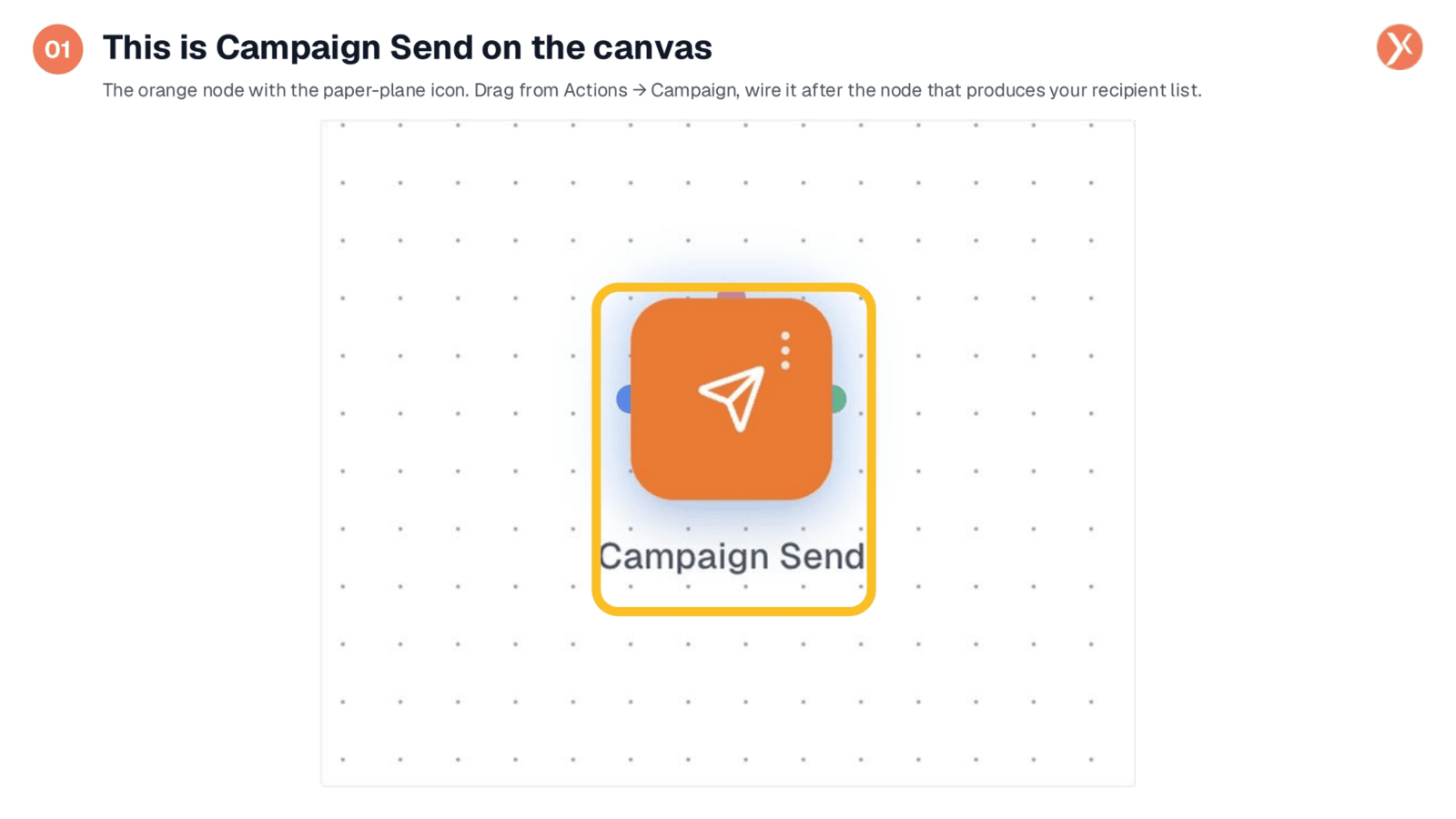
The Campaign Send node appears on the canvas as an orange icon with a paper plane. You'll find it in the Campaign sub-category of the Actions palette. To use it, drag it onto your workflow after any node that generates your recipient list, such as a CRM Manager Search or a Segment trigger.
Accessing Campaign Send Configuration
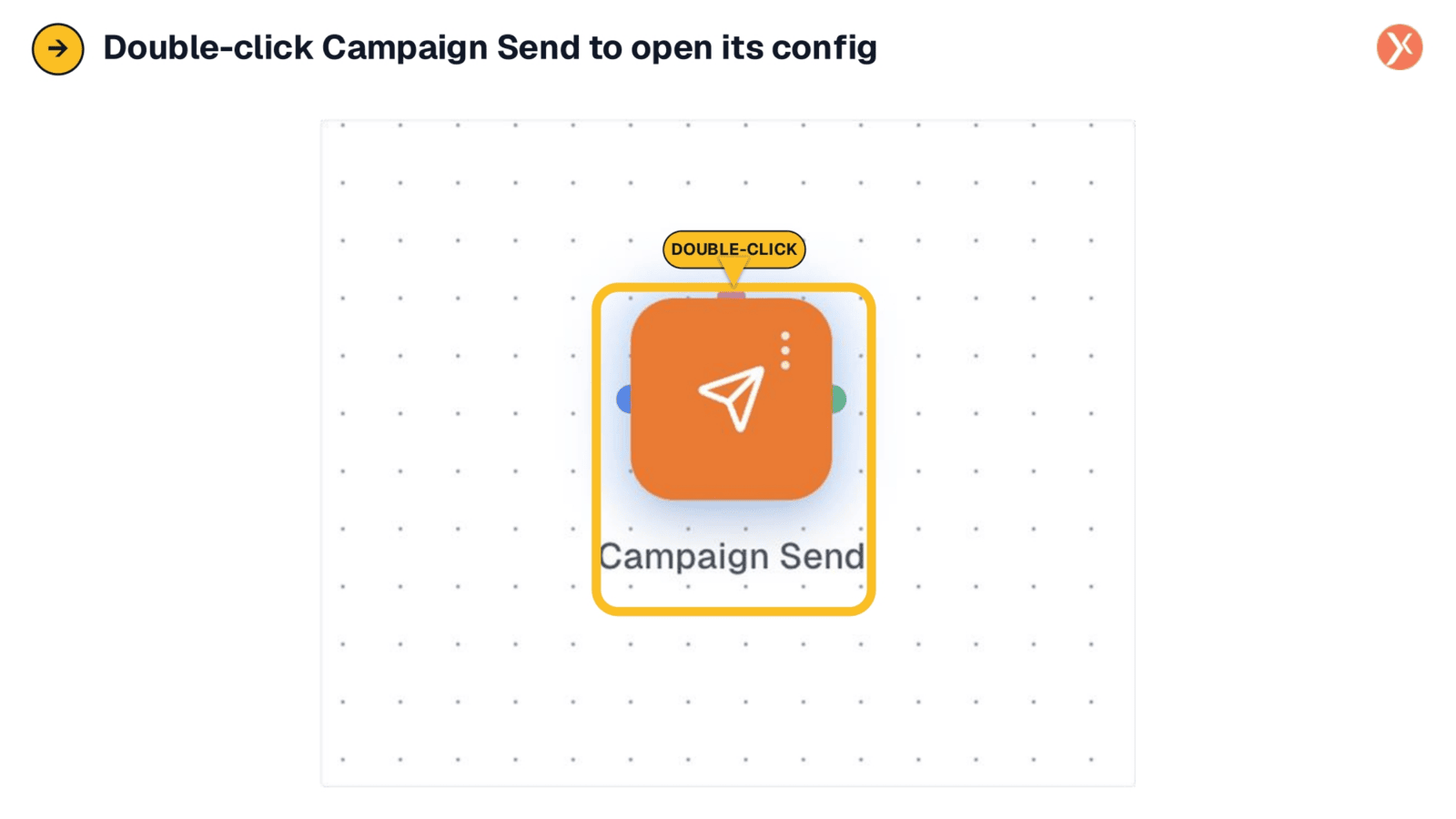
To configure the Campaign Send node, simply double-click its icon on the canvas. This action opens the configuration panel, allowing you to define all the necessary settings for your campaign.
Campaign Send Configuration Panel
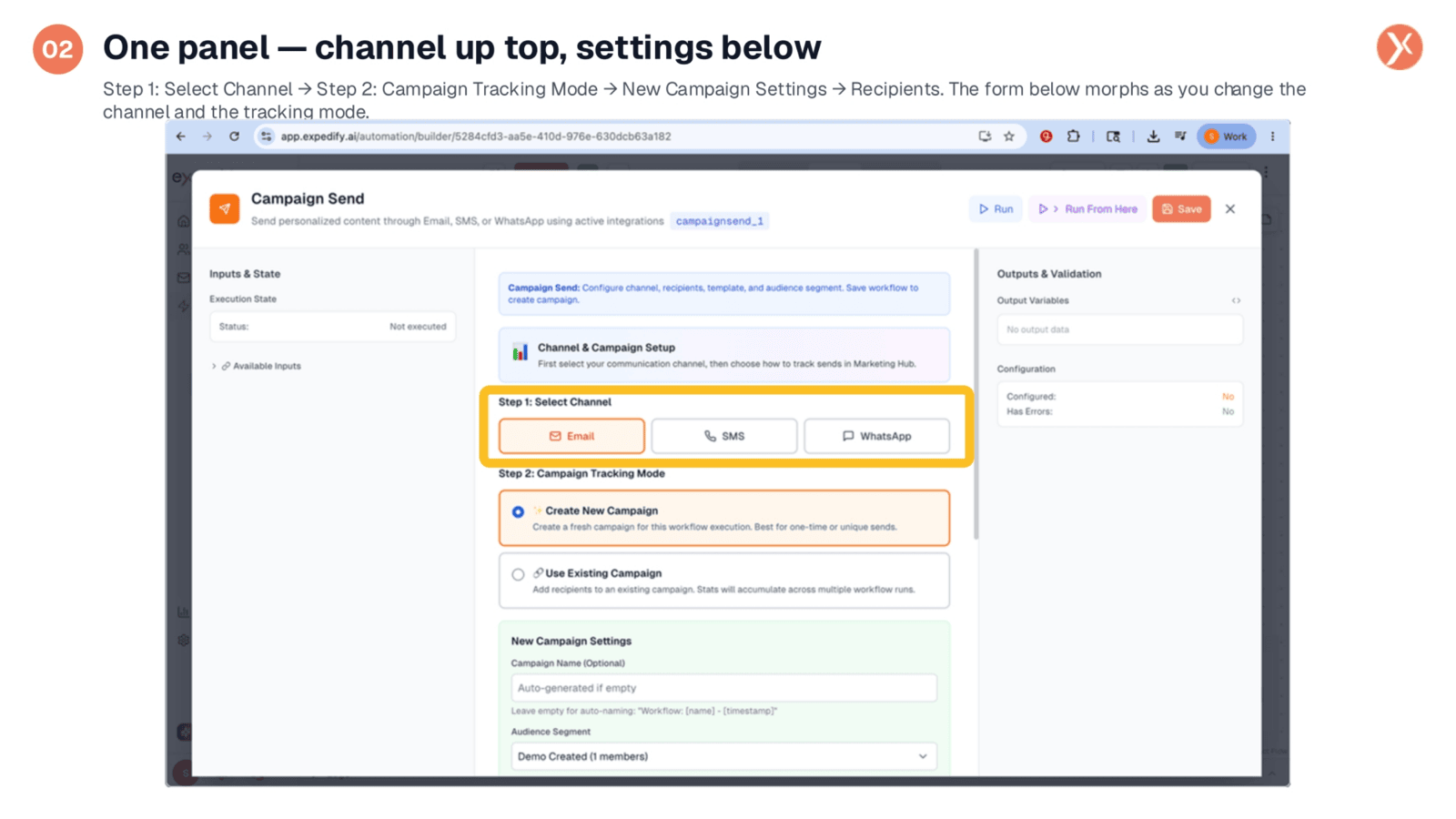
The Campaign Send configuration panel functions like a setup wizard, guiding you from top to bottom. It begins with channel selection, followed by campaign tracking mode, and then opens a green Campaign Settings card for naming, audience segment, and template selection. Further down, the Recipients Configuration specifies the contact list variable. The panel dynamically adjusts based on your selections, ensuring a focused and relevant setup experience.
Step 1: Selecting the Communication Channel
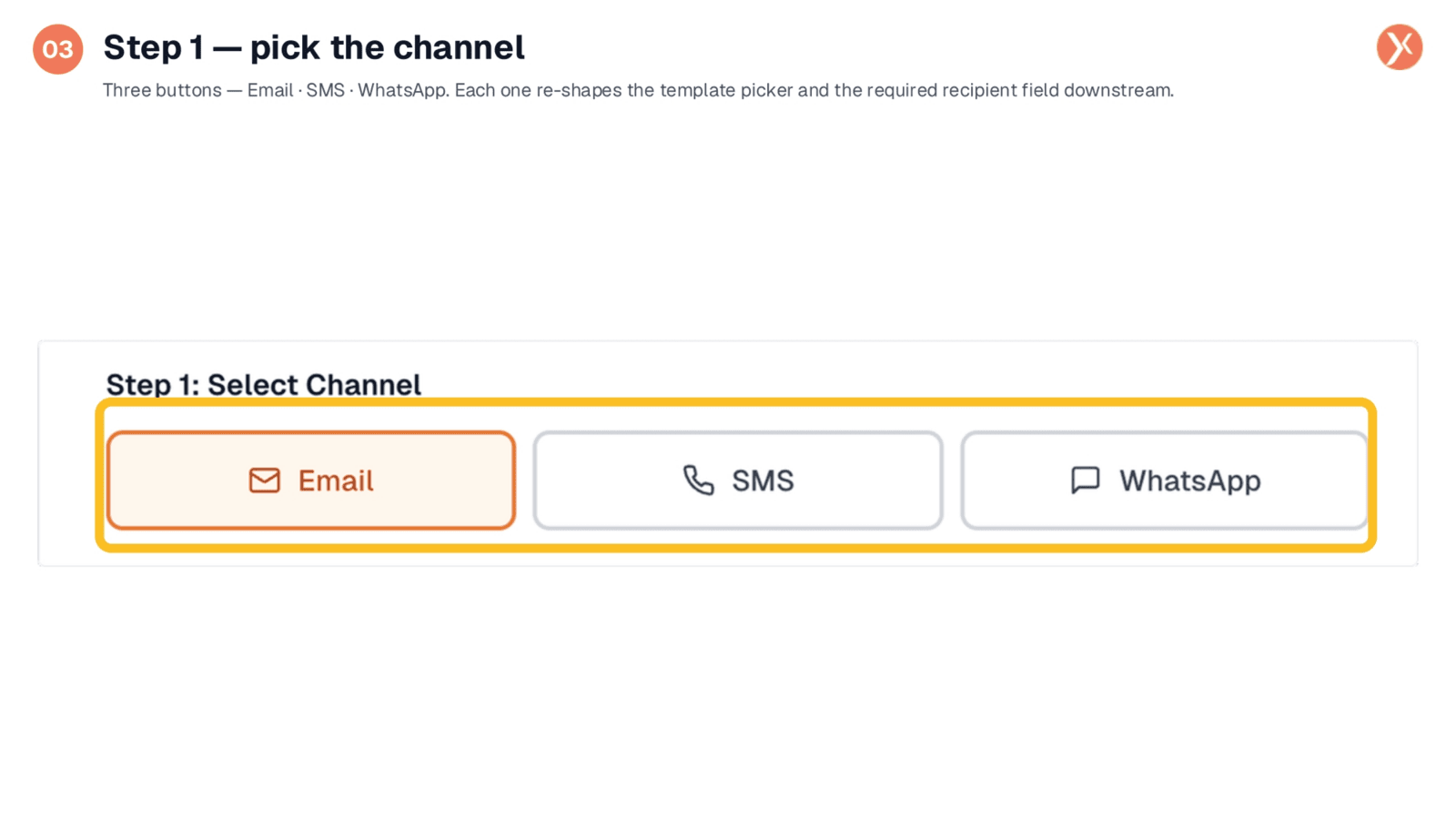
The first crucial decision is selecting your communication channel: Email, SMS, or WhatsApp. This choice is fundamental, as it dictates all subsequent options. The template picker will only display templates relevant to your chosen channel, and the recipient list will require the appropriate contact field, such as an email address for email campaigns or a phone number for SMS and WhatsApp.
Step 2: Campaign Tracking Mode
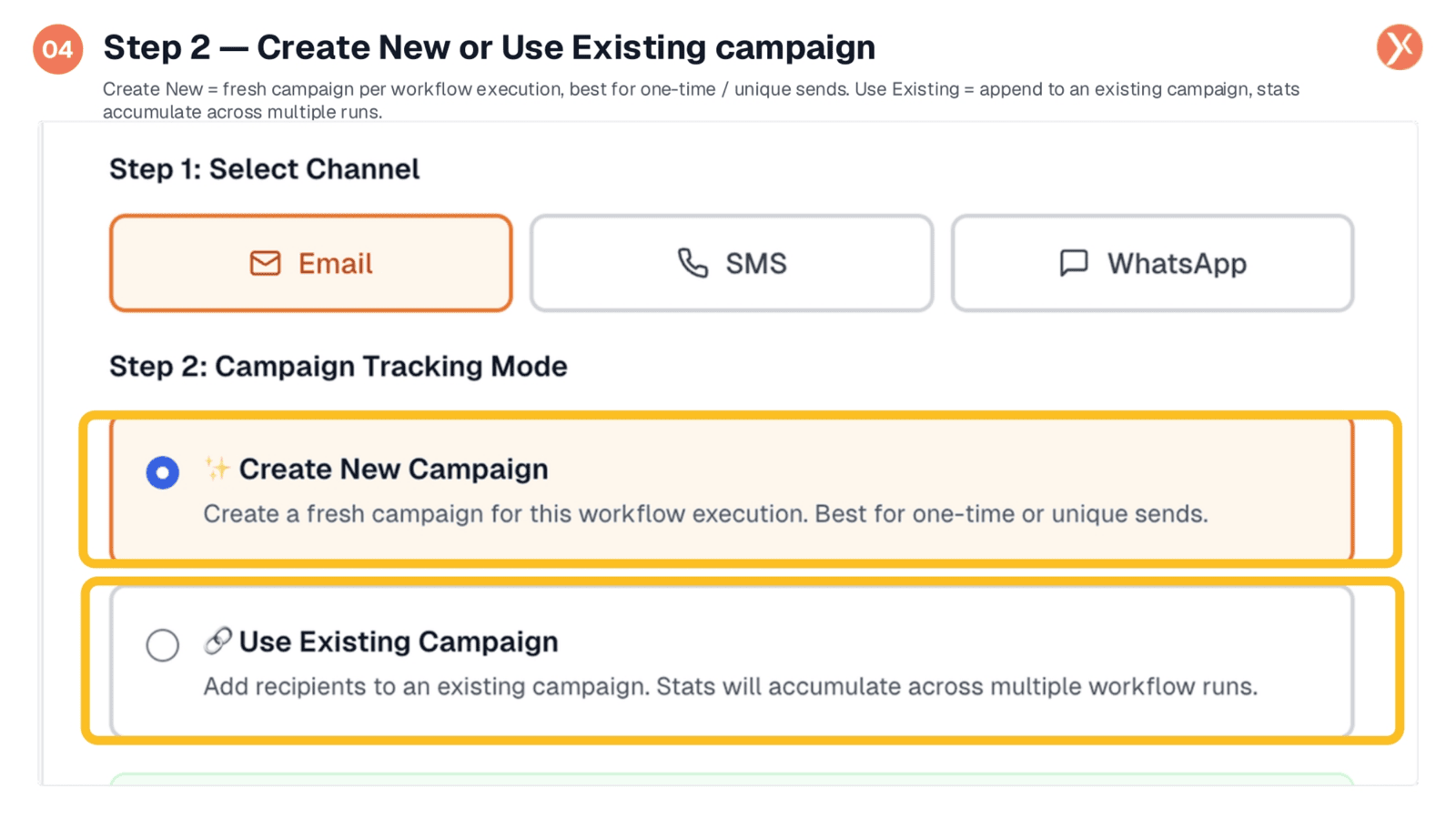
Next, choose your campaign tracking mode. "Create New Campaign" generates a fresh campaign object in Marketing Hub for each workflow execution, ideal for one-time sends. Alternatively, "Use Existing Campaign" allows you to append recipients to a pre-existing campaign, consolidating statistics across multiple workflow runs for ongoing drips or re-engagement flows.
New Campaign Settings Configuration
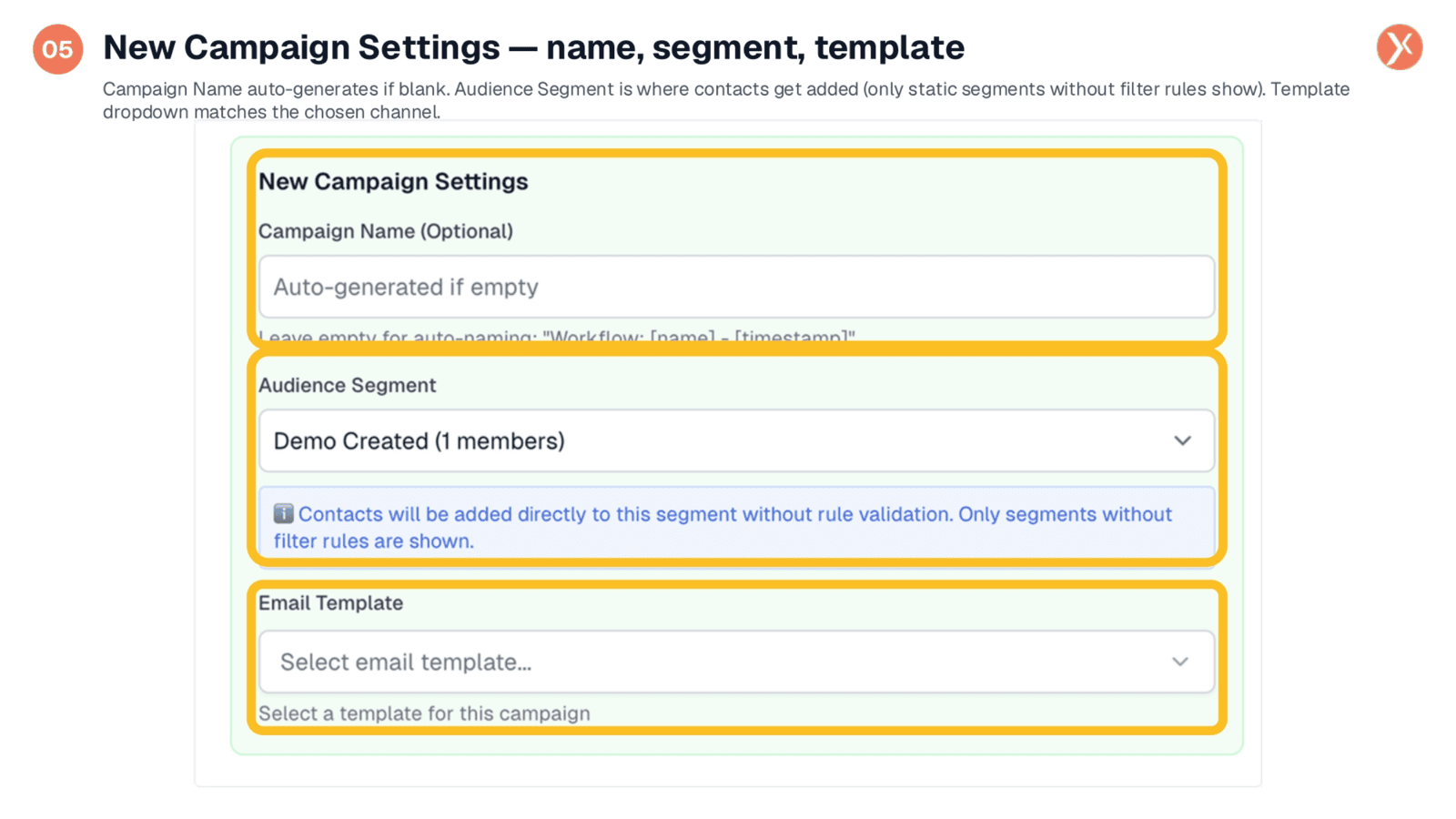
After selecting "Create New," the green Campaign Settings card appears. Here, you can optionally name your campaign; leaving it blank auto-generates a name based on the workflow and timestamp. The Audience Segment field allows you to specify where contacts are added, exclusively showing static segments without filter rules. Finally, the Email Template dropdown lists available templates for your chosen channel.
Configuring Campaign Recipients
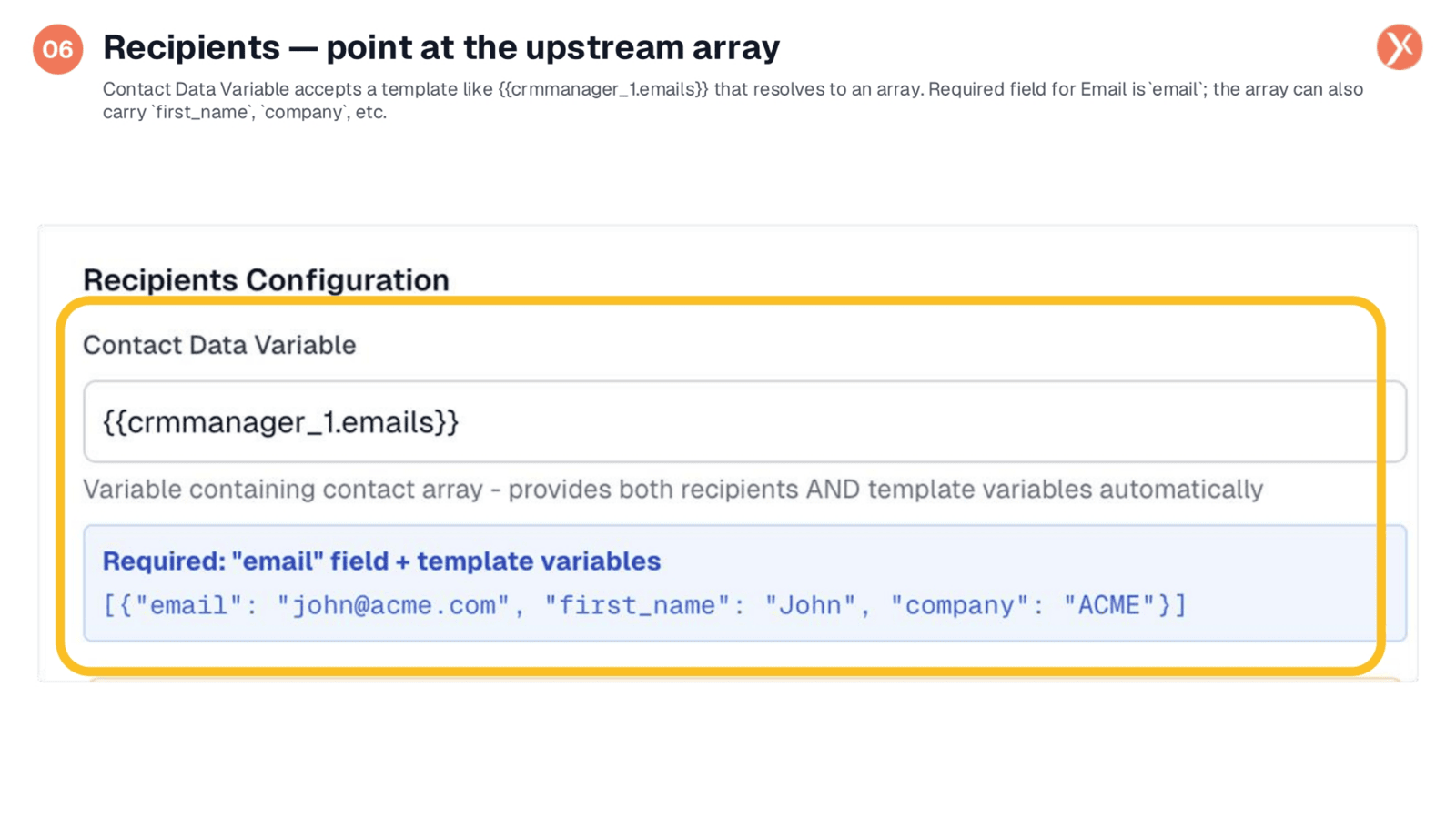
The Recipients Configuration section defines who receives your messages. The "Contact Data Variable" field requires a template variable that resolves to an array of contact objects. For email campaigns, each object must include an "email" field, while additional fields like "first_name" or "company" can be used for template personalization. This single variable provides both recipient and personalization data.
Adapting to WhatsApp Channel Selection
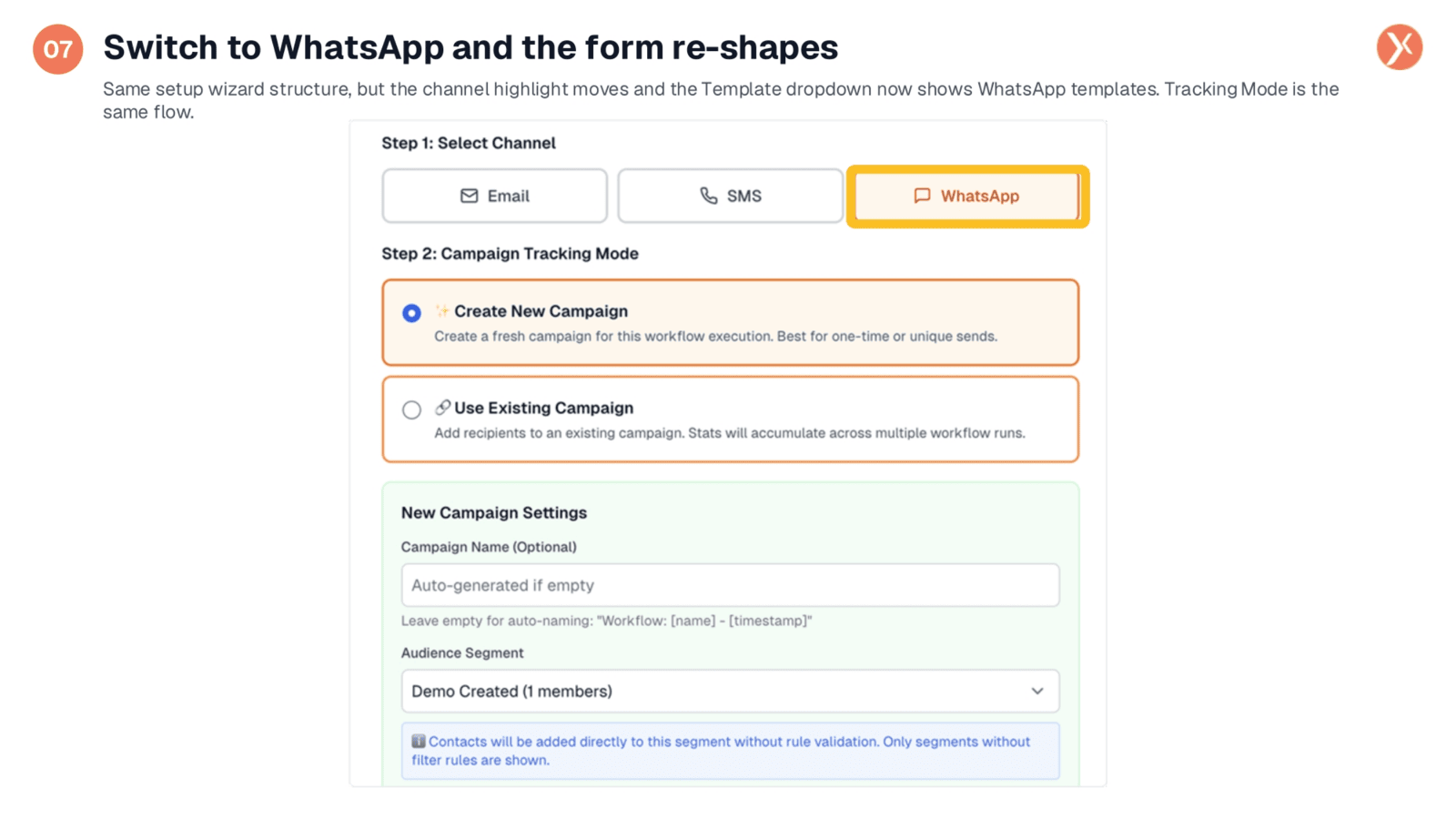
The setup wizard maintains a consistent structure across all channels. When you switch to WhatsApp, the channel highlight moves, and the Template dropdown dynamically updates to display only WhatsApp templates. The Campaign Tracking Mode and New Campaign Settings sections remain visually similar, but their underlying content adapts to the specific requirements of WhatsApp messaging.
Selecting WhatsApp Templates
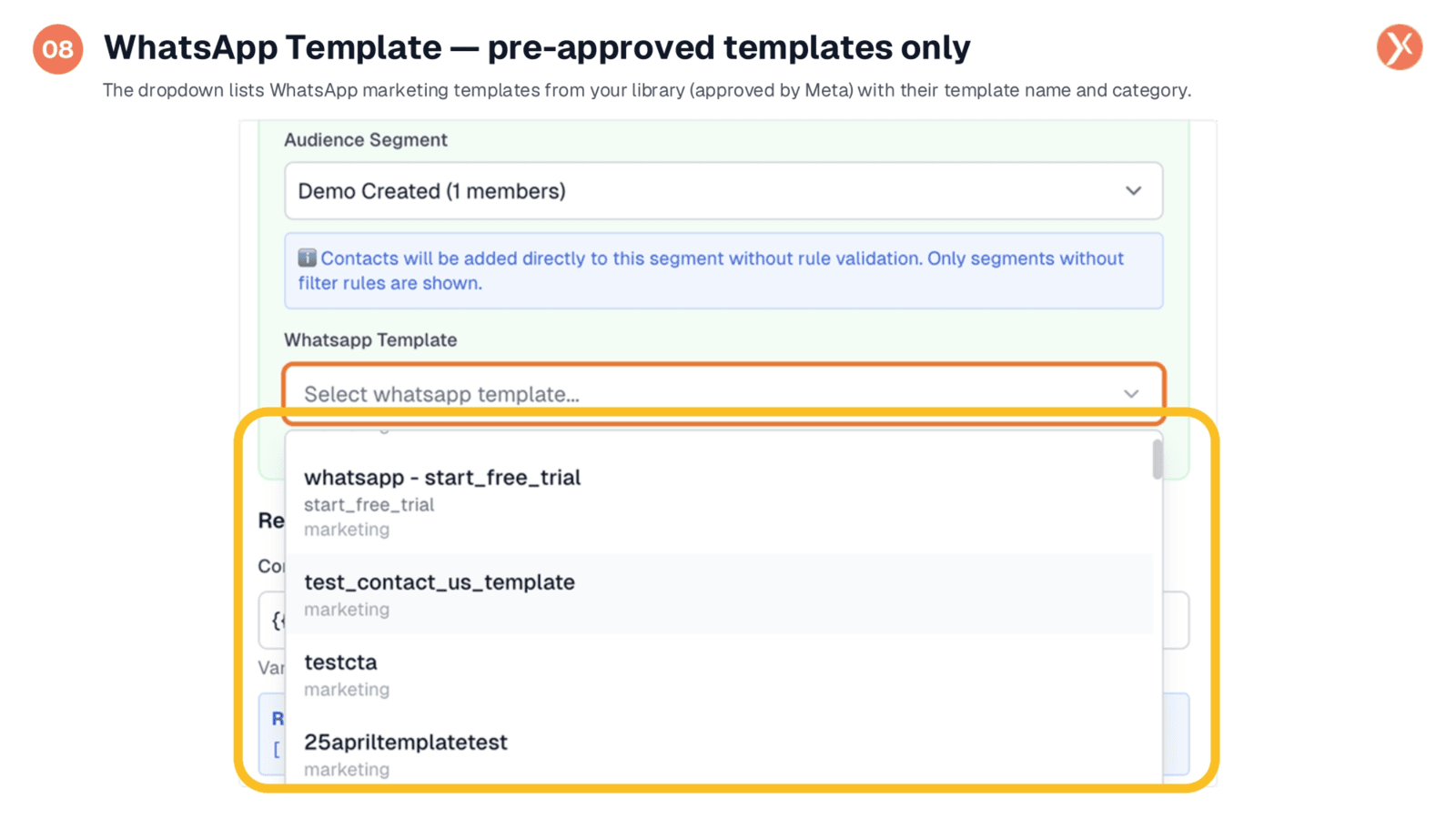
The WhatsApp Template picker displays pre-approved marketing templates from your library, categorized by their Meta registration. Unlike email, WhatsApp requires the use of these pre-approved templates, making this dropdown crucial for selecting your message content. Each template shows its display name and the Meta-side identifier.
WhatsApp Recipient Configuration and Summary
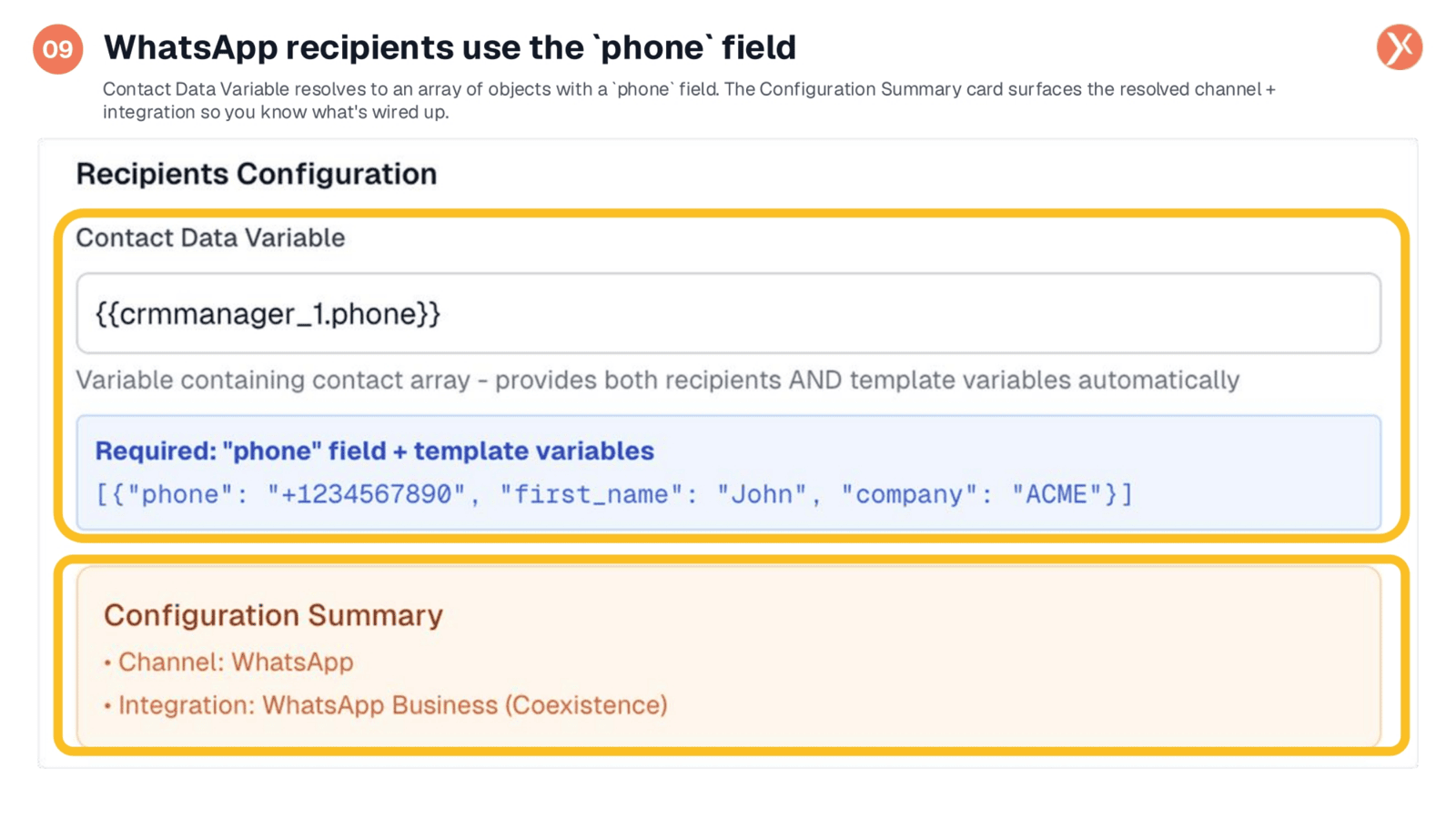
For WhatsApp recipients, the "Contact Data Variable" requires a "phone" field within each contact object, similar to how email uses an an "email" field. Below this, the Configuration Summary card provides a vital sanity check, confirming the resolved channel and the specific integration, such as "WhatsApp Business (Coexistence)," that will be used to deliver your messages.
Workflow Campaign Active Status
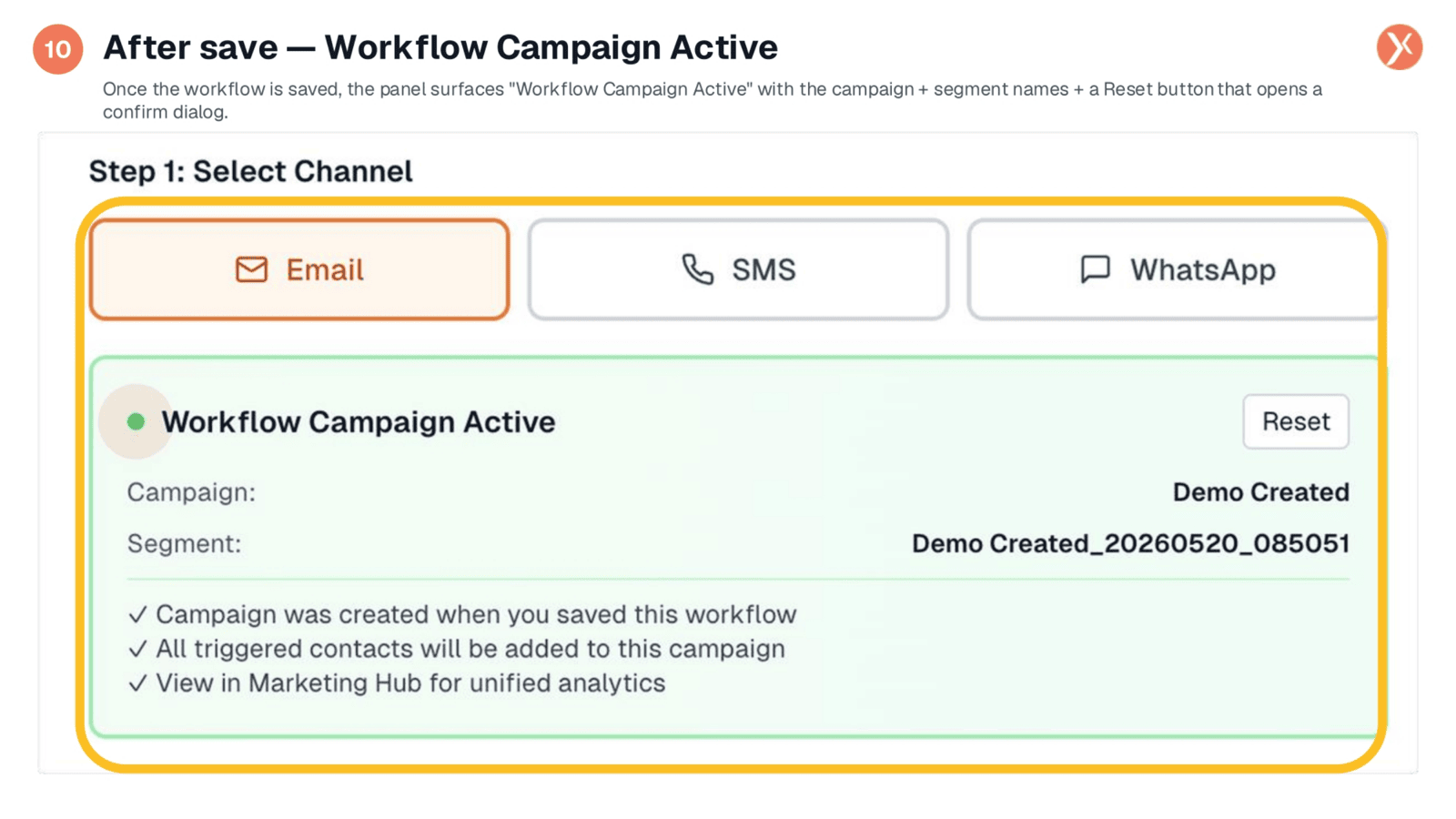
Once a workflow with Campaign Send is saved, reopening the node reveals the "Workflow Campaign Active" card. This card confirms the campaign and segment names, indicates that all triggered contacts will be added, and provides a link to view unified analytics in Marketing Hub. A "Reset" button is available for changing the sender or template, which opens a confirmation dialog.
Understanding the Reset Function
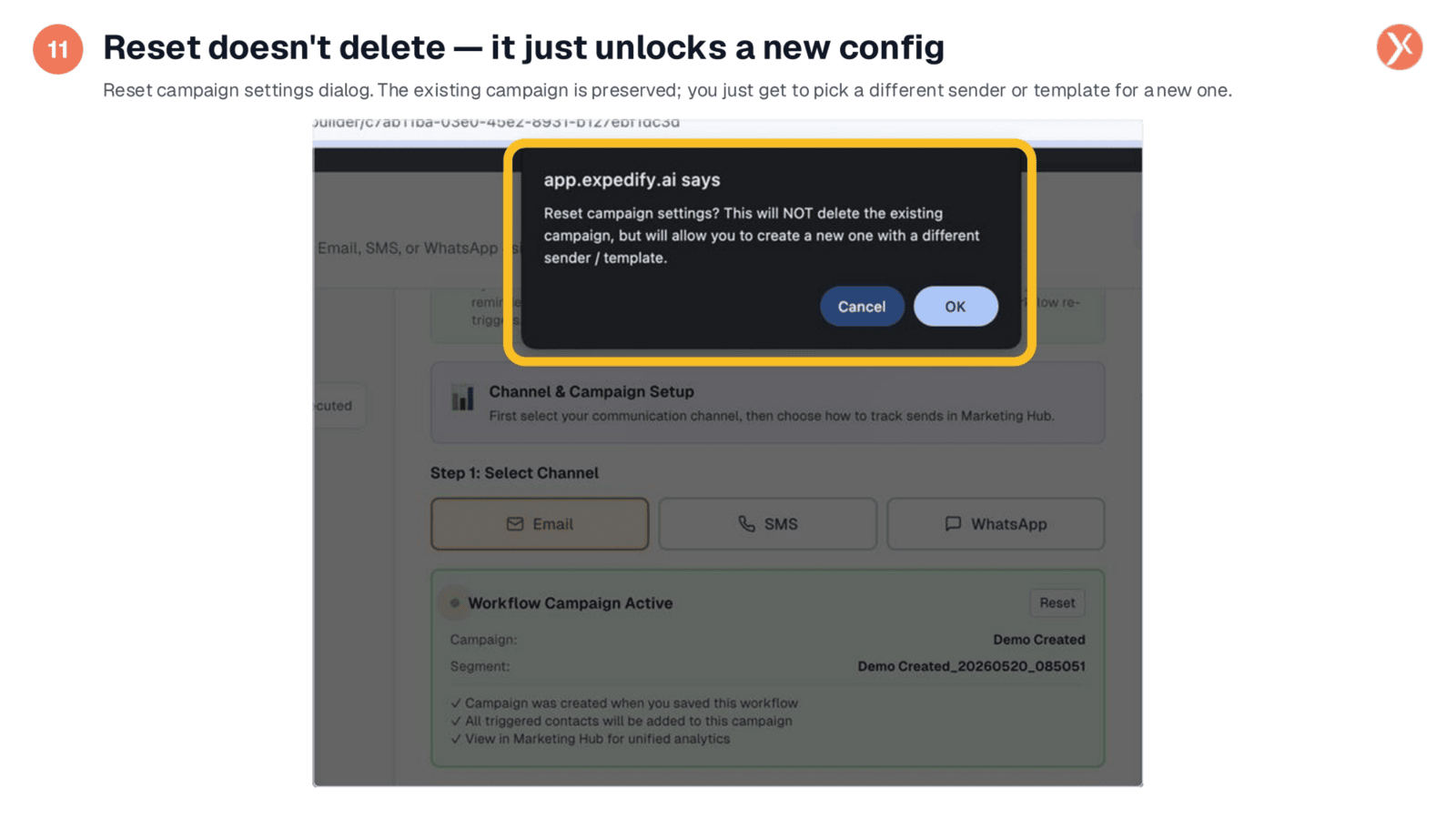
The "Reset" confirmation dialog clarifies that clicking "OK" will not delete the existing campaign or its historical statistics in Marketing Hub. Instead, it simply decouples the node from that campaign, allowing you to create a new one with updated sender or template settings upon the next save. This ensures your past campaign data remains intact while enabling new configurations.
Mapping Template Variables for Personalization
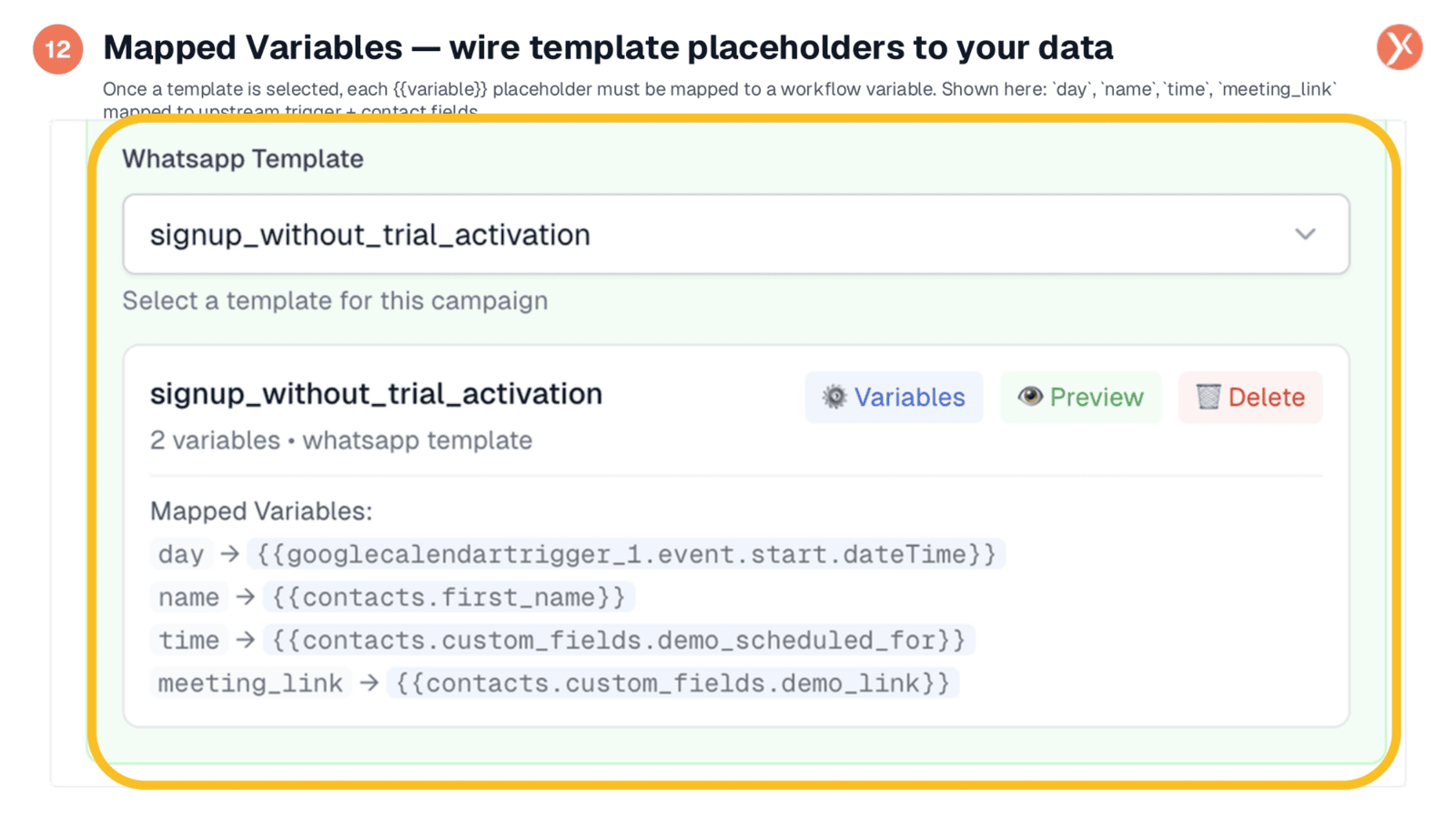
After selecting a template, the panel expands to show a "Mapped Variables" list. Here, every placeholder within your template, such as "day," "name," or "meeting_link," must be linked to a real data source from upstream workflow variables. This is where personalization occurs, as Expedify dynamically substitutes these variables at send time, ensuring each recipient receives a customized message.
Configuring Template Variables and Header Images
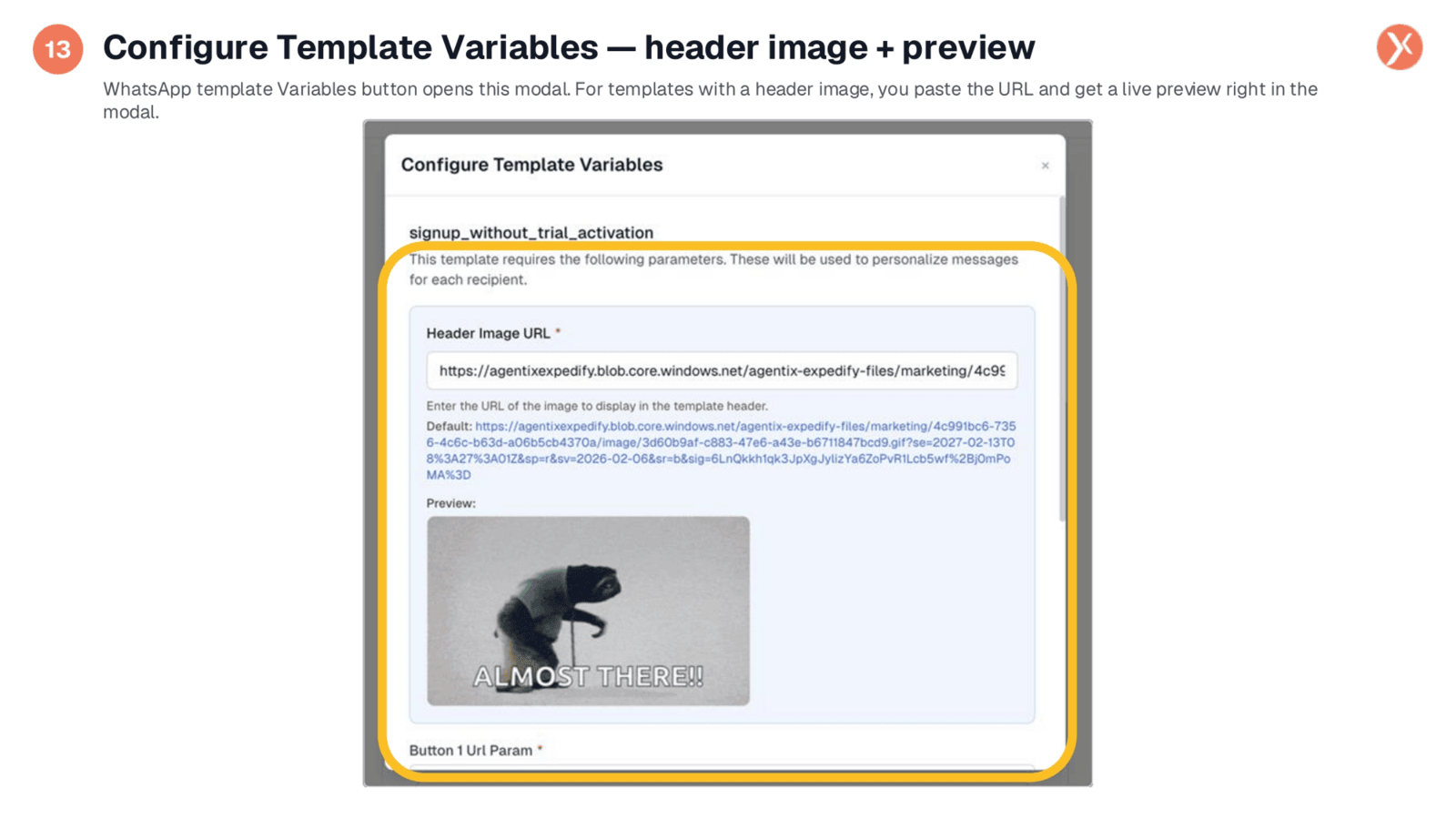
Clicking the "Variables" button opens the "Configure Template Variables" modal. For WhatsApp templates that include a header image, you can paste the image URL here and immediately see a live preview within the modal. This feature is invaluable for confirming image rendering before saving the workflow, preventing errors in your delivered messages.
Configuring Button URLs and Click Tracking
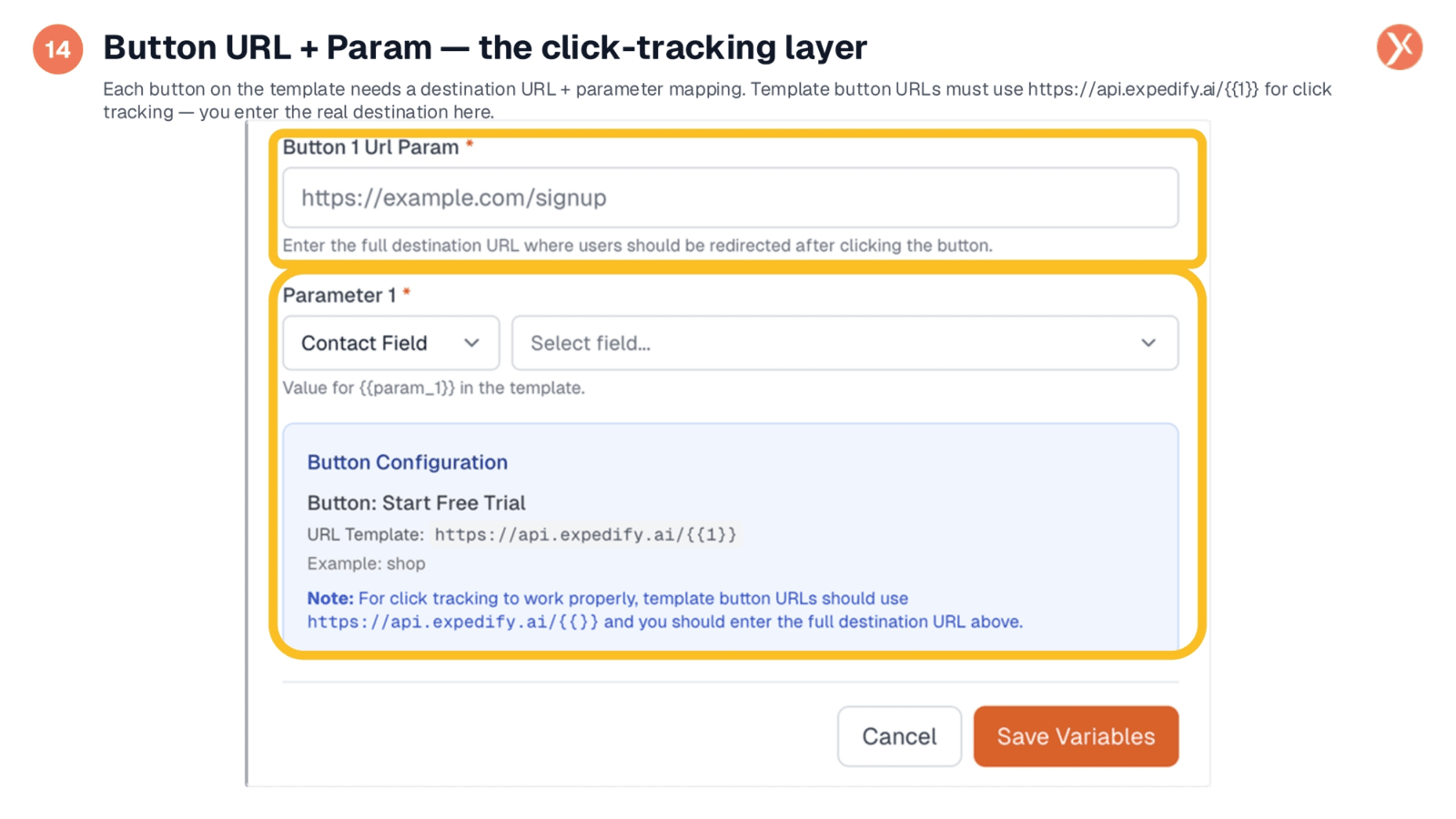
Within the "Configure Template Variables" modal, you'll also find button configuration. For each template button, you must provide the full destination URL where users will be redirected, along with a parameter mapping to personalize the URL for each recipient. For proper click tracking, template button URLs must use Expedify's tracker URL pattern, with the actual destination entered here.
Campaign Send Output Data
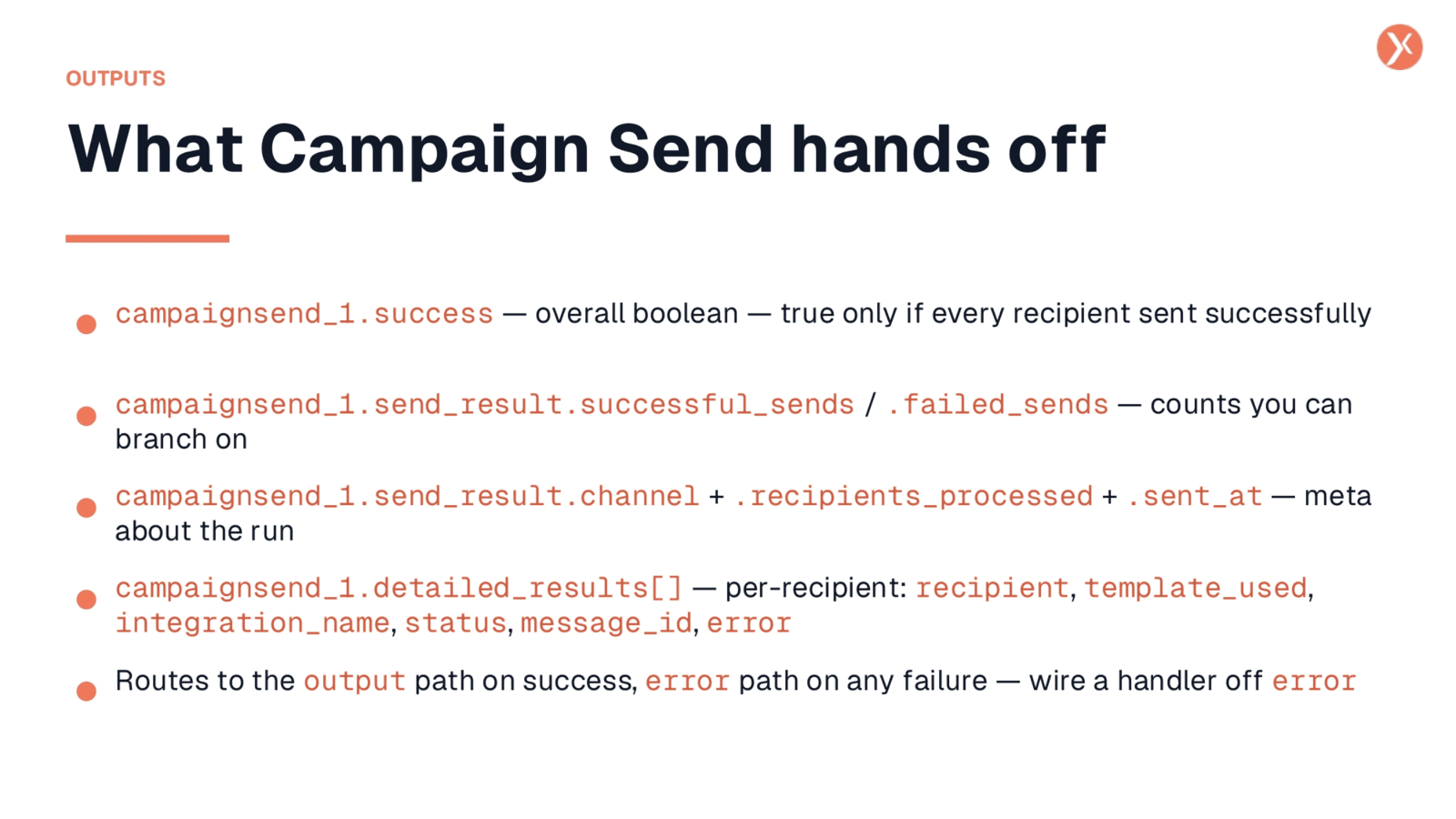
Campaign Send provides comprehensive output data for downstream nodes. campaignsend_1.success is a boolean indicating overall success. campaignsend_1.send_result.successful_sends and .failed_sends provide counts for branching logic. The send_result object also includes channel, recipient count, and timestamp. campaignsend_1.detailed_results is an array with per-recipient data, including status and any errors, enabling granular retries or alerts.
Campaign Send Recap
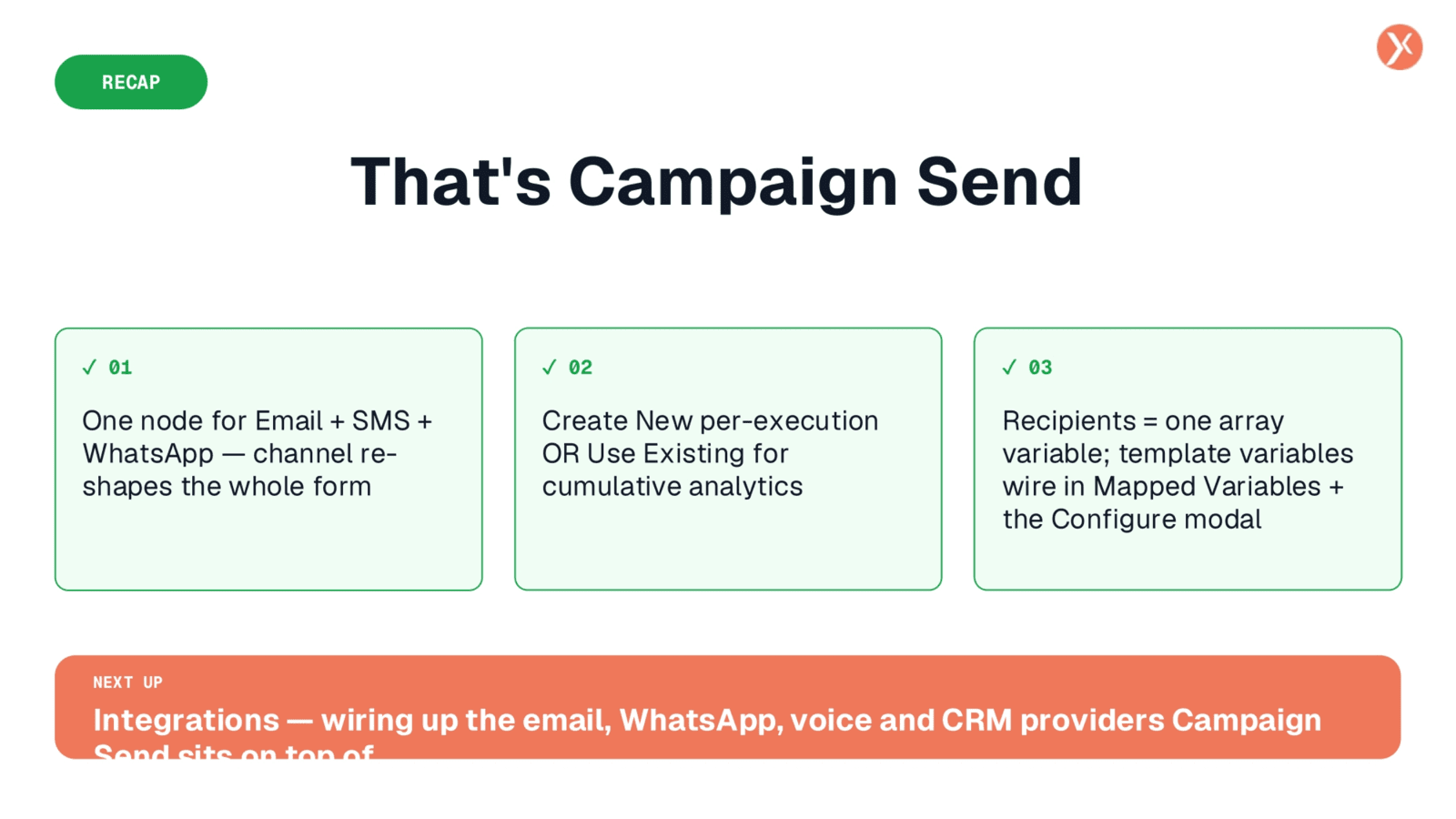
We've covered Campaign Send comprehensively, from selecting channels and tracking modes to configuring campaign settings, recipients, and template variables. This powerful node, sitting atop Expedify's integration layer, enables robust, personalized marketing automation.