Voice Response
Voice Response converts workflow-generated text into spoken audio, delivering an audio file for various applications. This presentation will explore every option within the Voice Response node, including its three-tab configuration: Text Input, Voice Settings, and Output. We'll also cover when to use each synthesis mode.
Demo: Voice Response Overview
Let's begin with a demo of Voice Response.
Voice Response on the Canvas
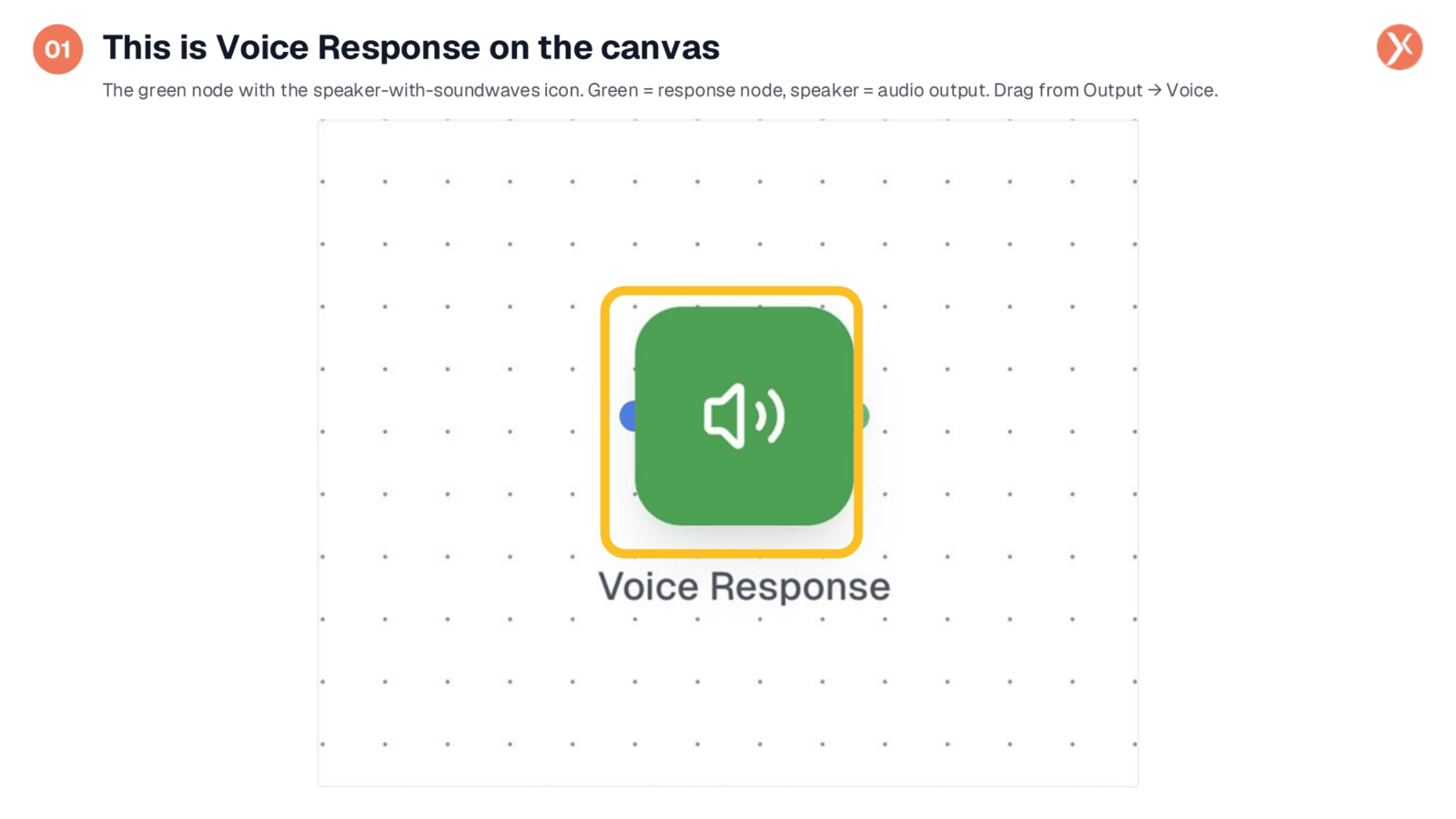
The Voice Response node appears on the canvas as a green icon with sound waves, signifying its role in producing audio responses. This green color is consistent with other response-generating nodes. You can easily drag it from the Output category and connect it after any upstream node that generates text, such as a Core Agent or an LLM Integration. Once placed, simply double-click the node to access its configuration settings.
Opening Voice Response Configuration
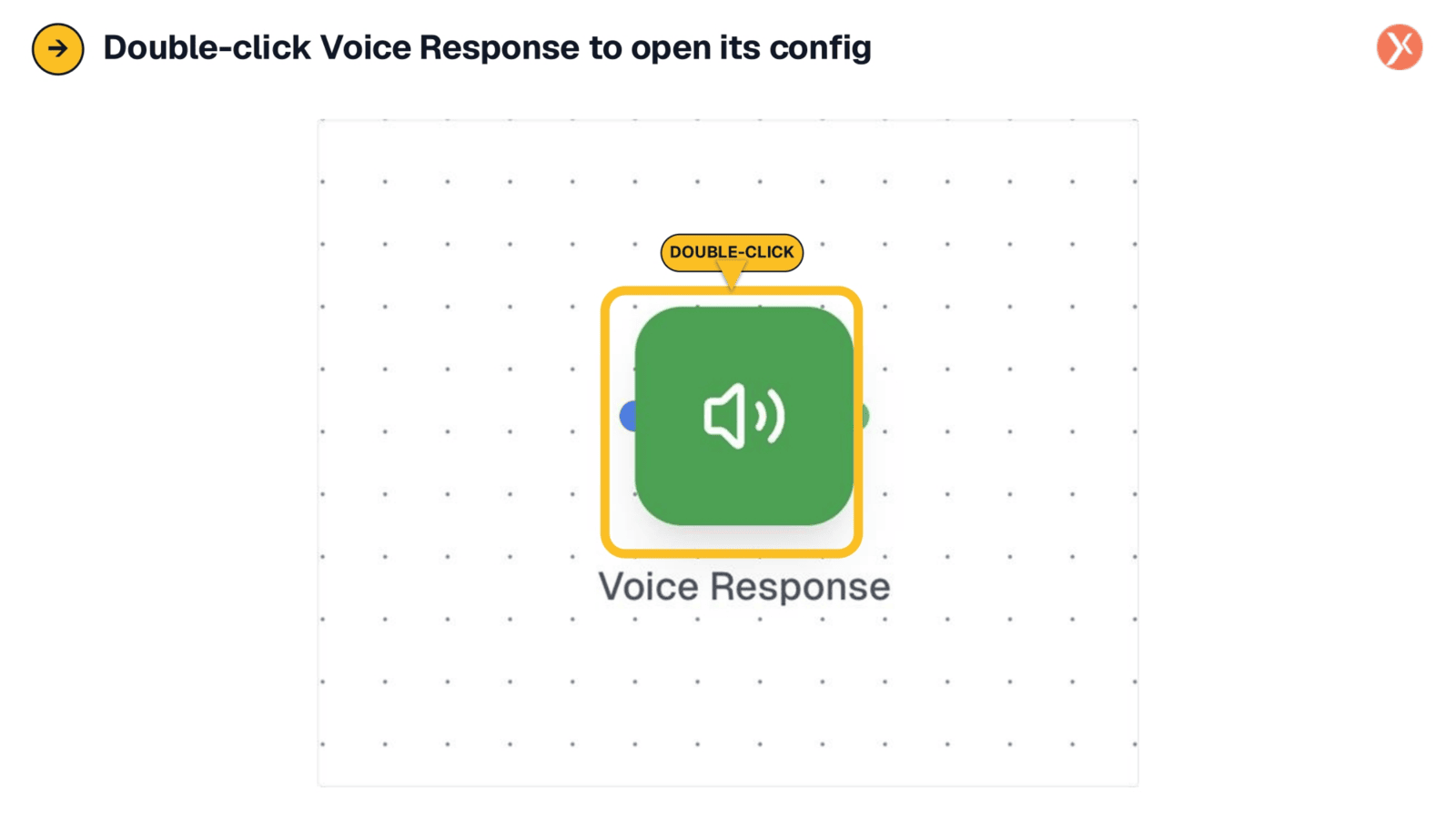
To begin configuring the Voice Response node, simply double-click its icon on the canvas. This action will open the configuration panel, allowing you to customize its settings and define how your text will be converted into speech. It's the first step in tailoring the audio output to your specific workflow needs.
Three-Tab Synthesis Pipeline
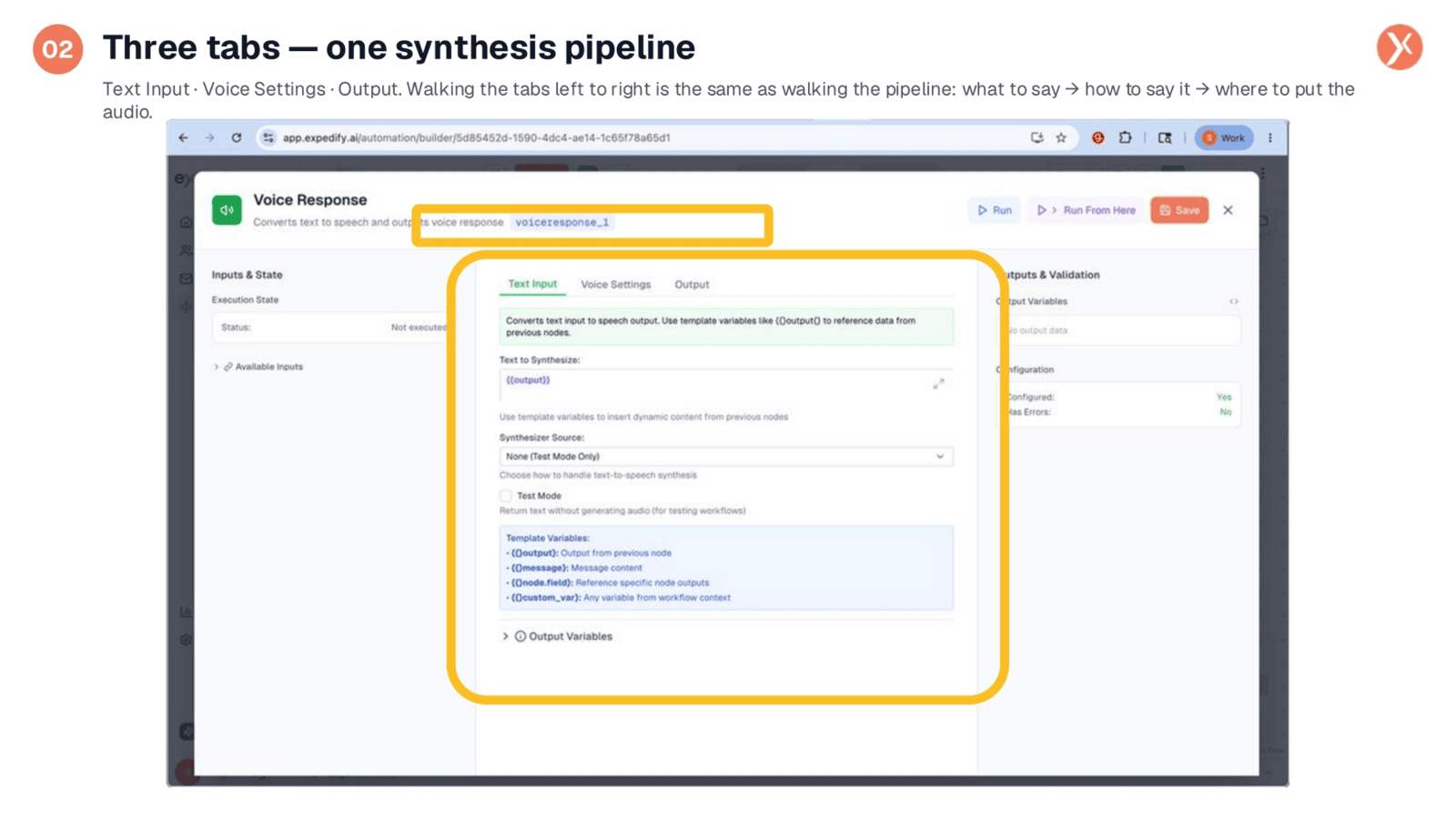
The Voice Response node features a unique three-tab structure, unlike typical Action or Output nodes. This design logically separates the configuration into distinct concerns. The Text Input tab defines what content will be spoken and which synthesizer will be used. Voice Settings controls the audio character, such as voice, speed, and pitch. Finally, the Output tab manages file specifications and the destination of the generated audio. We'll start by exploring the Text Input tab, which is the default view.
Tab 1: Text Input Configuration
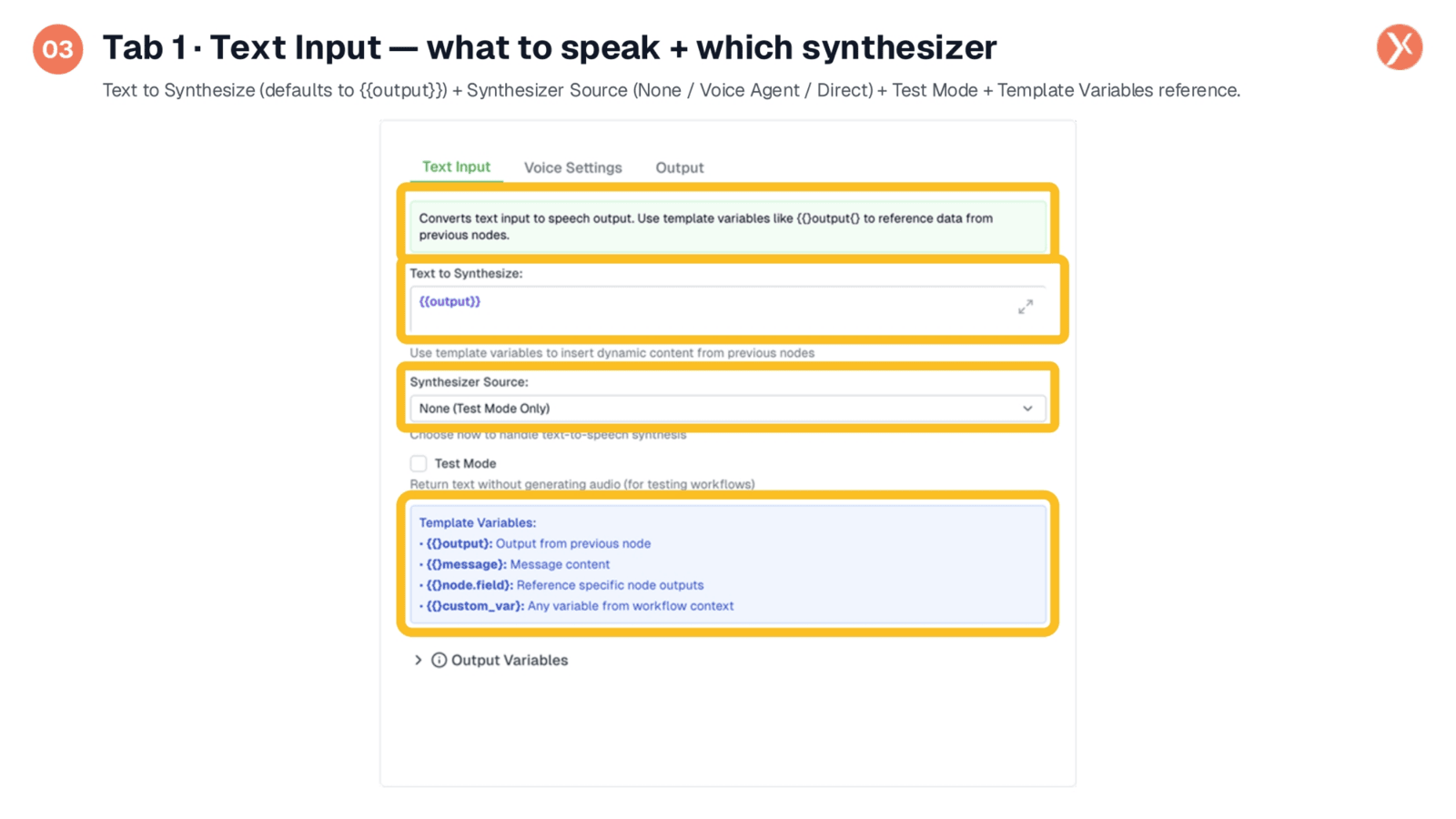
The first tab, Text Input, is divided into four key sections. The 'Text to Synthesize' field specifies the content to be spoken, defaulting to the output from the previous node, but also accepting literal text or any template variable. 'Synthesizer Source' determines the text-to-speech engine. 'Test Mode' allows you to test workflows without generating actual audio, saving TTS credits. Additionally, a 'Template Variables' card provides a convenient reference for available variable patterns to use in your text.
Synthesizer Source Modes
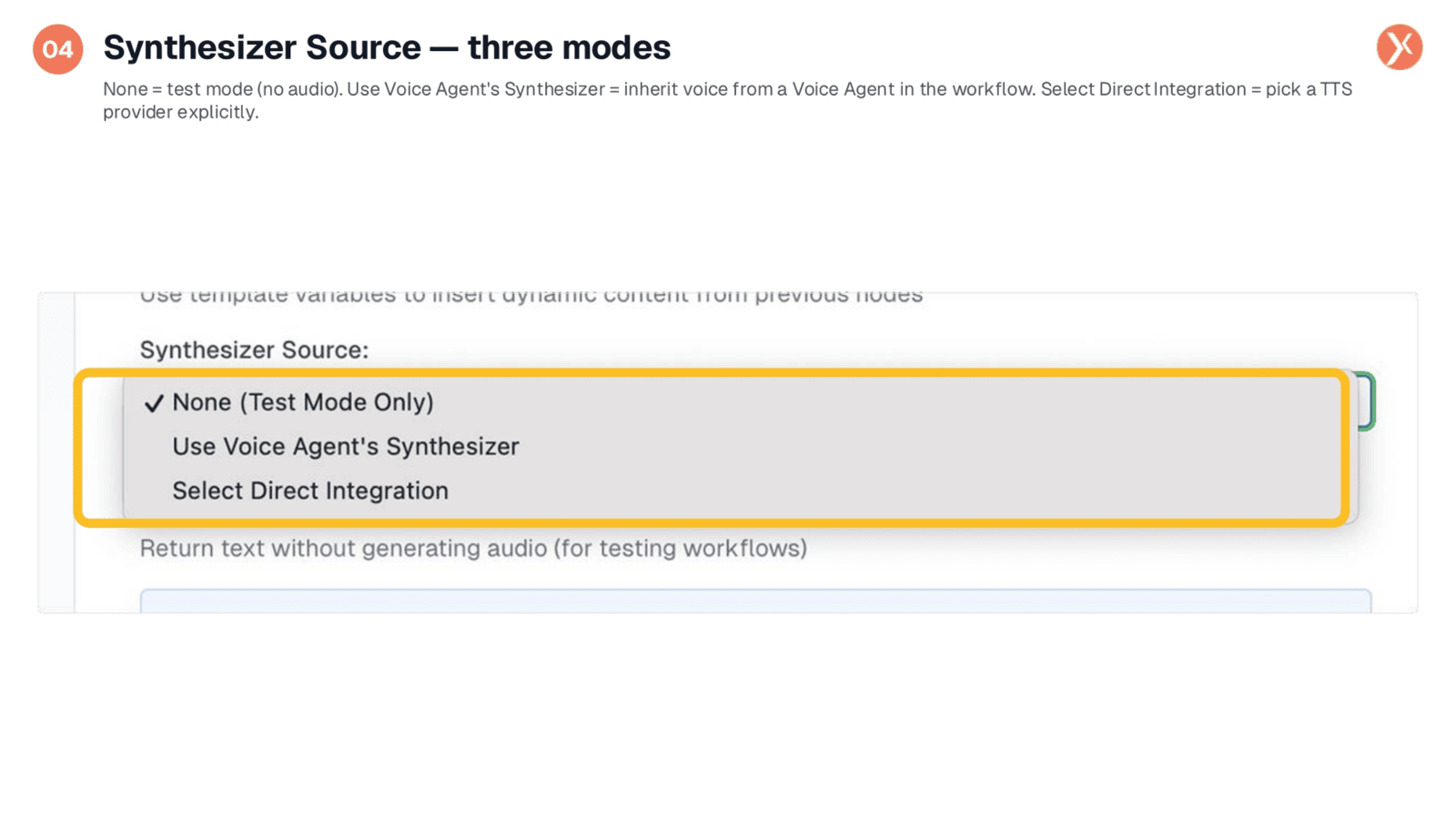
The Synthesizer Source offers three distinct modes. 'None (Test Mode Only)' is the default, returning only the text without generating audio, ideal for verifying workflow logic without consuming text-to-speech credits. 'Use Voice Agent's Synthesizer' is for workflows already incorporating a Voice Agent node, ensuring consistent voice configuration across conversations and post-conversation messages. Lastly, 'Select Direct Integration' allows you to explicitly choose a specific text-to-speech provider from your configured Integrations, dedicating it solely to this node.
Direct Integration for TTS Providers
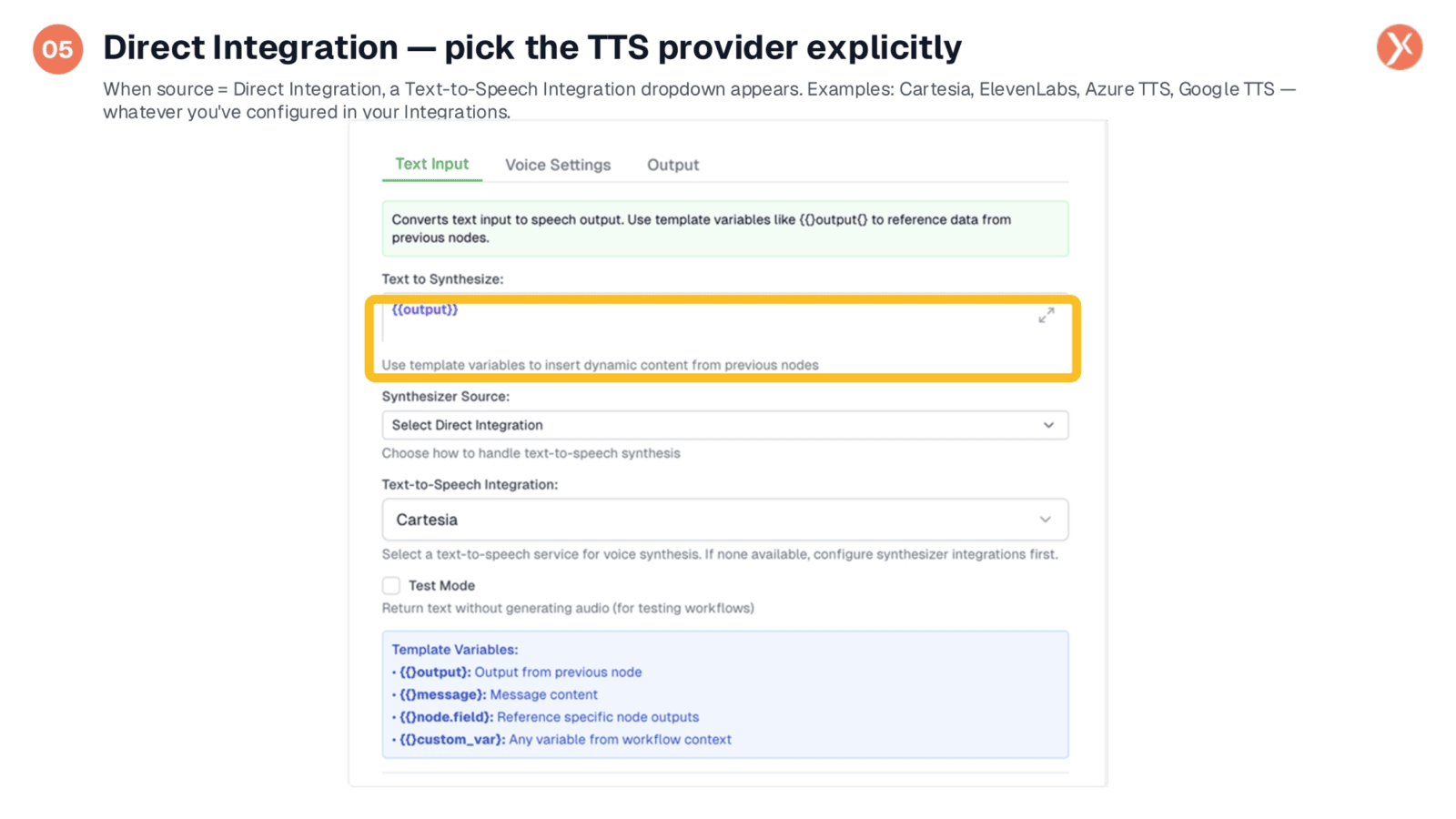
Choosing 'Select Direct Integration' reveals a new 'Text-to-Speech Integration' field, displaying all configured TTS providers from your Integrations. For instance, Cartesia, a high-quality real-time TTS provider, is selected here, but you could also choose ElevenLabs, Azure, or Google. If no synthesizer integrations are available, you'll need to set them up first. Once a provider is chosen, the Voice Response node will utilize that integration's specific voices and pricing for all subsequent text-to-speech synthesis.
Tab 2: Voice Settings for Audio Character
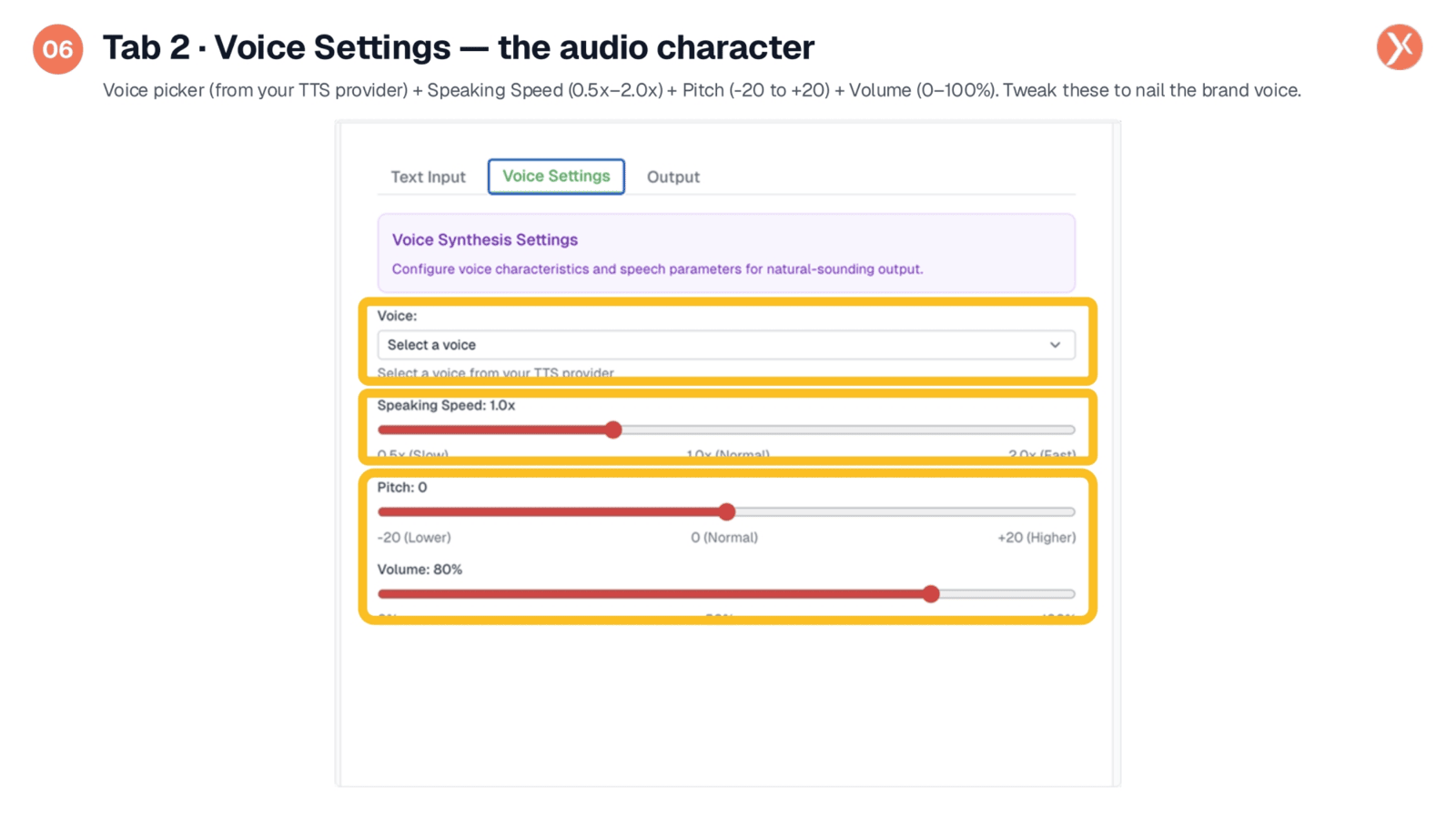
The second tab, Voice Settings, defines the audio character, focusing on how the voice sounds rather than the content itself. The 'Voice' picker allows you to select from multiple voices offered by your chosen TTS provider, ensuring it aligns with your brand. 'Speaking Speed' can be adjusted from 0.5x to 2.0x, with 1.0x as the default. 'Pitch' enables subtle adjustments to the voice's tone, while 'Volume' controls the loudness, typically set at 80%. These four parameters collectively shape the audio's personality.
Tab 3: Output File Specifications and Destination
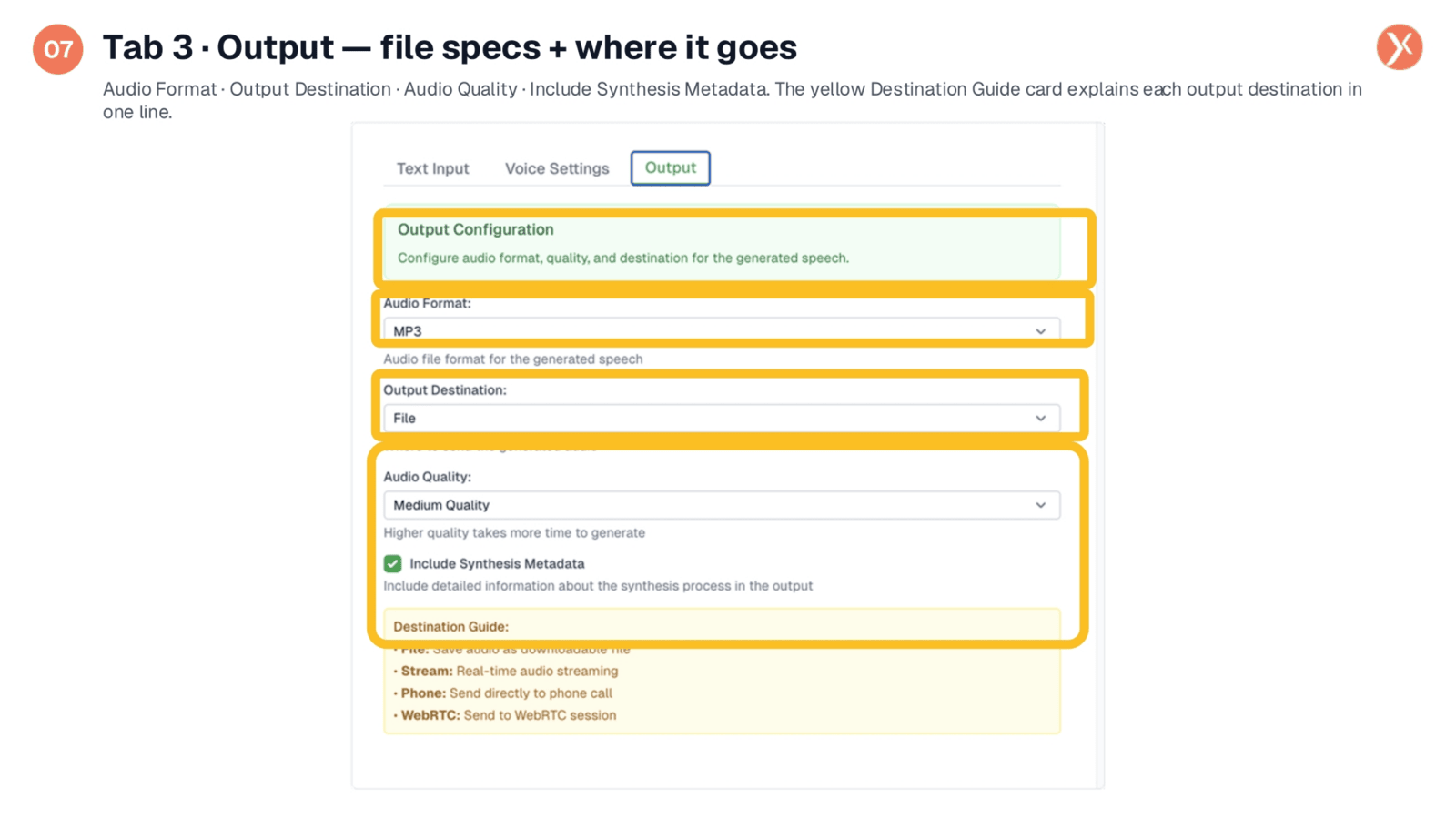
The third tab, Output, manages the file specifications and destination, featuring four key fields. 'Audio Format' defaults to MP3, with WAV, OGG, and M4A also available. 'Output Destination' specifies where the audio will be sent. 'Audio Quality' offers three tiers: Low (fast), Medium (default), and High (pristine), balancing speed and fidelity. 'Include Synthesis Metadata' is enabled by default, providing details like duration, character count, and provider information in the output. A 'Destination Guide' card offers a quick reference for the four output modes.
Supported Audio Formats
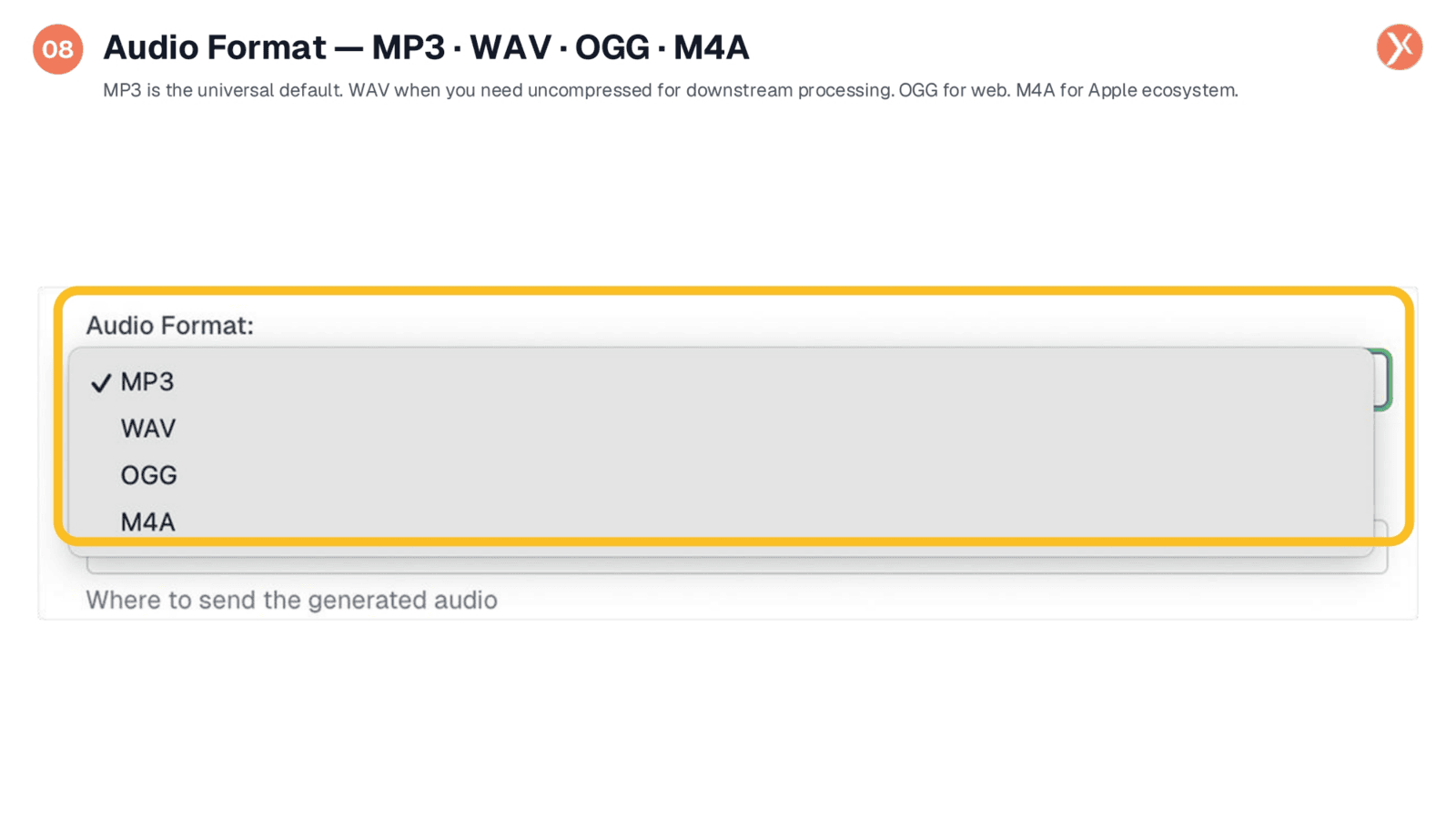
Voice Response supports four audio formats. MP3 is the universal default, offering broad browser compatibility, small file sizes, and good quality, making it suitable for most applications. WAV is ideal for uncompressed audio, necessary for downstream processing or feeding into other models. OGG provides an open-source, web-friendly alternative. M4A is specifically designed for the Apple ecosystem. The choice of format should align with the intended use and destination of your audio.
Output Destination Options
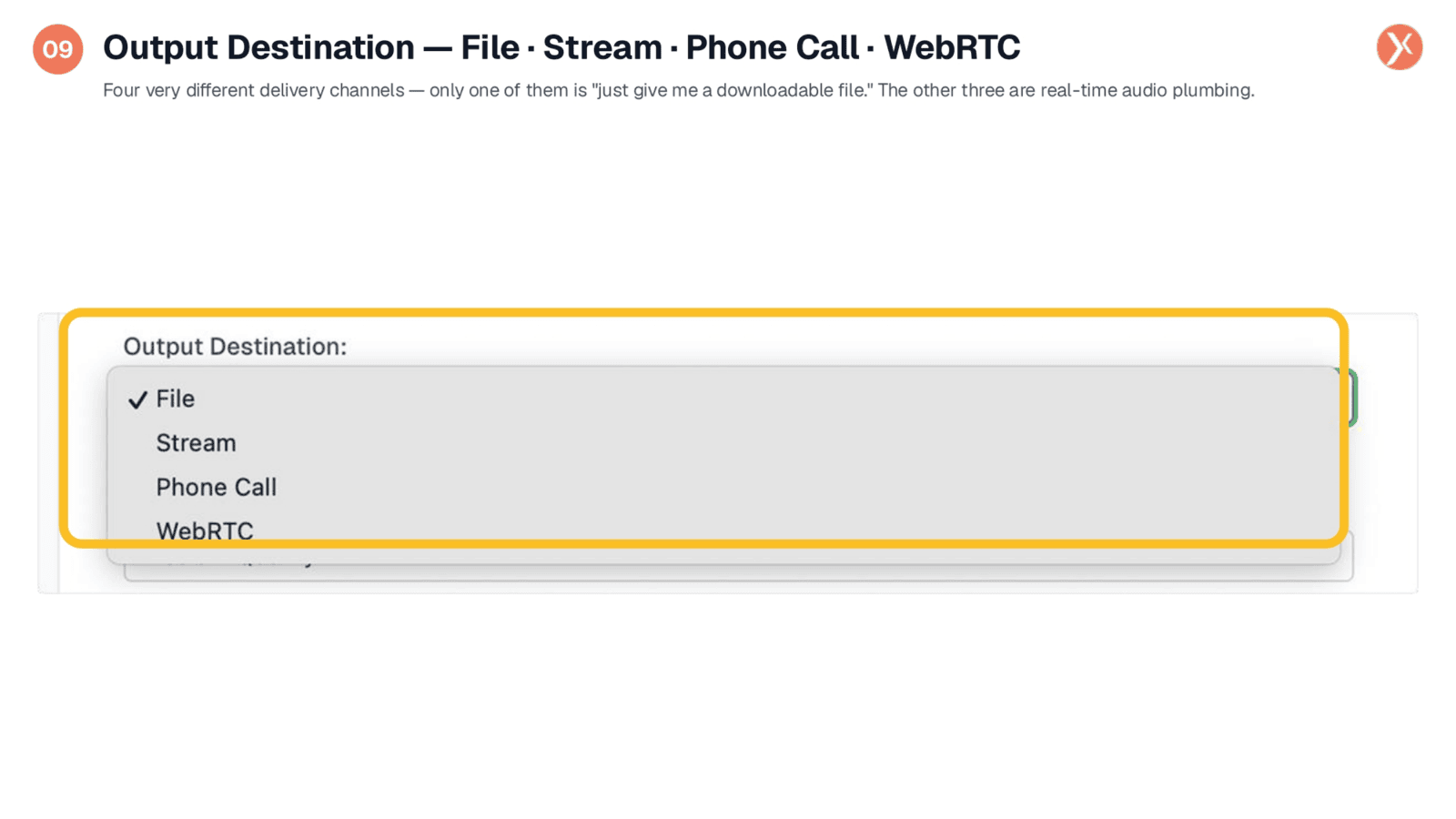
The 'Output Destination' field is crucial, offering four distinct delivery channels. 'File' is the default, saving audio as a downloadable file for emails or CRM storage. 'Stream' enables real-time audio streaming for live applications. 'Phone Call' sends audio directly into an active call, allowing Voice Response to integrate with Outbound Voice nodes for mid-conversation TTS responses. 'WebRTC' delivers audio to a WebRTC session, facilitating browser-based voice agents. This choice fundamentally shifts the node's function from offline file generation to real-time audio delivery.
Audio Quality Tiers
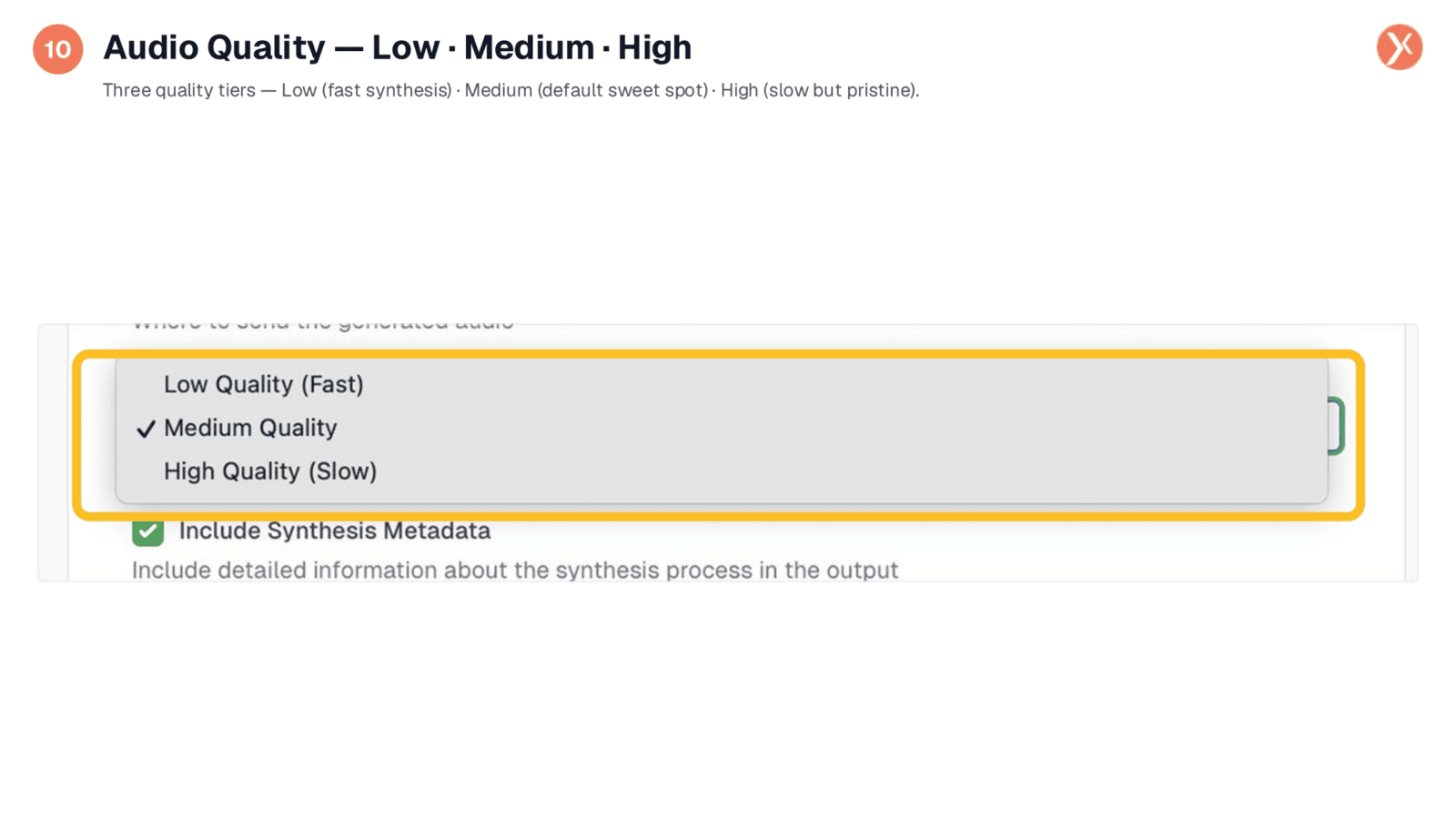
Audio Quality offers three tiers to balance synthesis time and fidelity. 'Low Quality (Fast)' reduces synthesis time and file size, ideal for quick previews or voice notifications where speed is paramount. 'Medium Quality' is the default and recommended for most production scenarios, providing clear voice, reasonable file size, and efficient synthesis. 'High Quality (Slow)' is reserved for situations where audio fidelity is non-negotiable, such as brand-critical campaigns or audiobook segments, though it entails longer synthesis times and larger files.
Voice Response Outputs
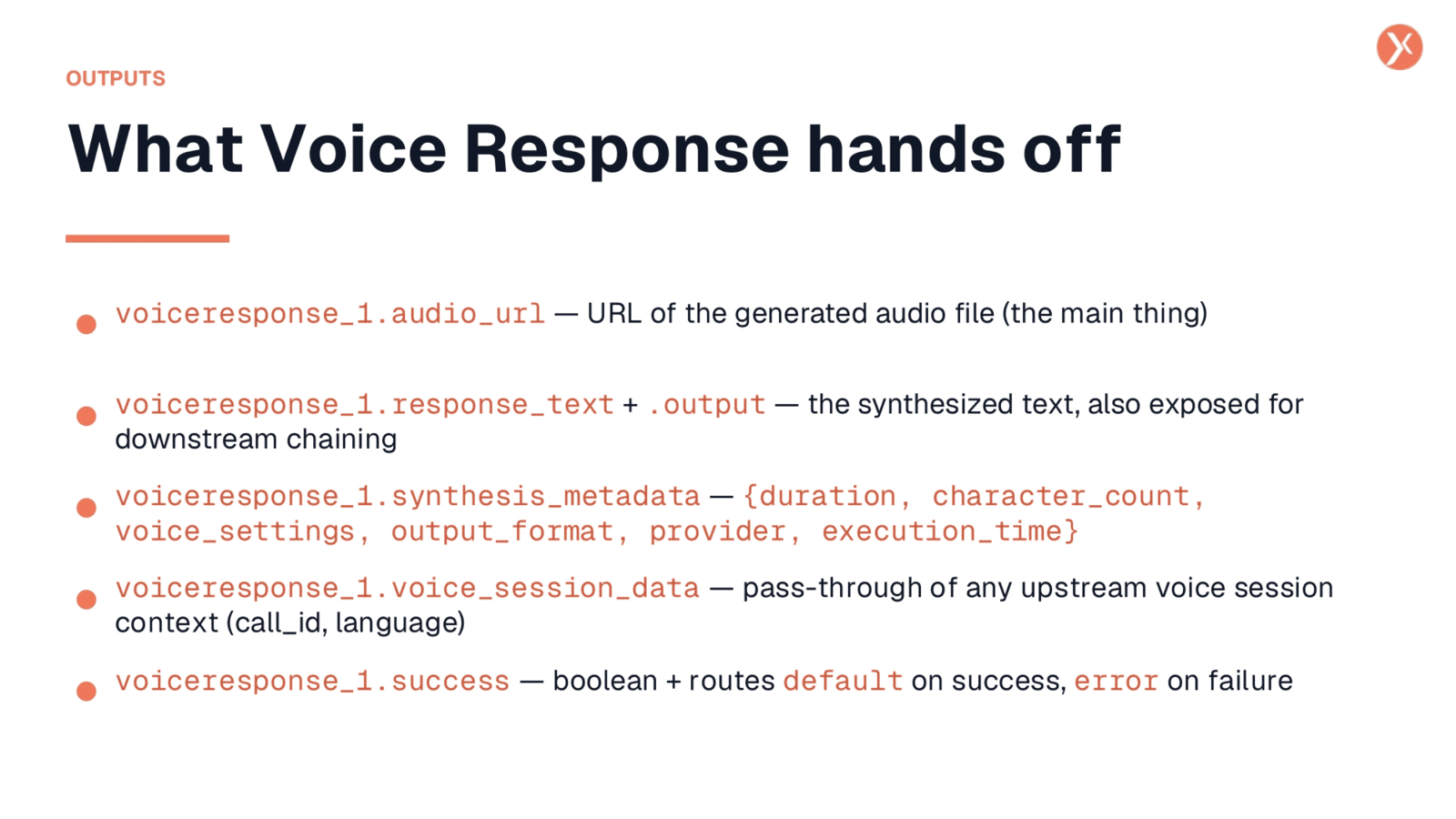
Voice Response provides several outputs for downstream nodes. The primary output is voiceresponse_1.audio_url, which is the URL of the generated audio file, ready for embedding or streaming. voiceresponse_1.response_text and .output provide the synthesized text, allowing for further text-based processing. voiceresponse_1.synthesis_metadata offers valuable data like duration, character count, and provider information for tracking and debugging. voiceresponse_1.voice_session_data passes through any upstream voice session context. Finally, voiceresponse_1.success indicates whether the synthesis was successful.
Voice Response Recap and Next Steps
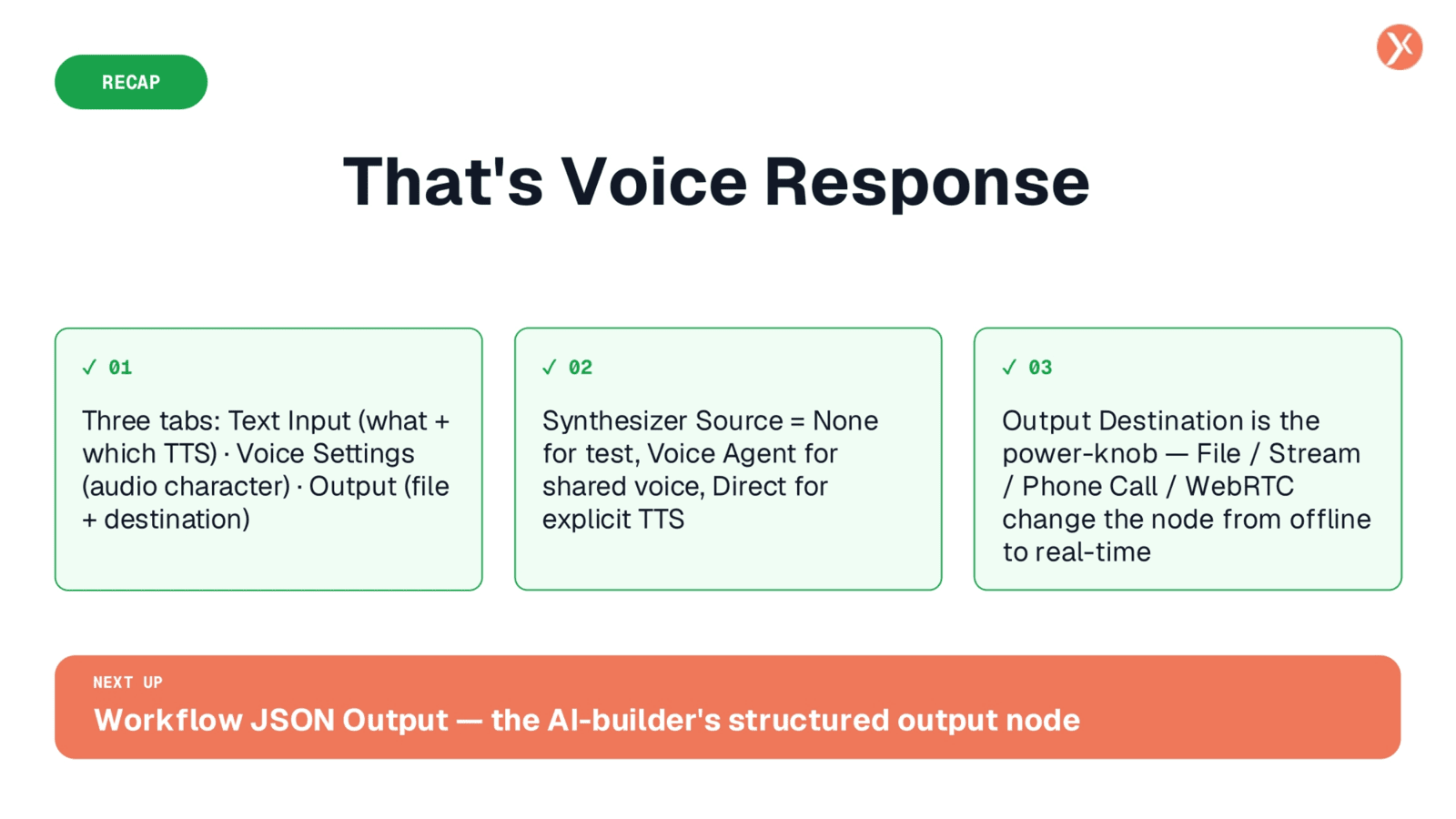
We've thoroughly explored the Voice Response node, from its three core tabs: Text Input, Voice Settings, and Output. You now understand how to define the text to be spoken, customize the audio character, and specify the output destination. Remember to utilize Test Mode for workflow development without consuming TTS credits, and choose 'Voice Agent's Synthesizer' for consistent voice across agents. 'Direct Integration' allows explicit TTS provider selection. The 'Output Destination' is key, transforming the node for offline file generation or real-time voice plumbing. Next, we'll cover Workflow JSON Output, the structured output node for AI-generated workflows.