WhatsApp Output
Welcome to our session on WhatsApp Output, a powerful node designed to close the conversation loop in your automated workflows. This tool is perfect for sending replies, confirmations, and scheduled messages directly to your users on WhatsApp, enhancing engagement and efficiency.
WhatsApp Output Demo Overview
Today, we'll walk through the WhatsApp Output node, covering its key configuration fields and functionalities. We'll examine message types, content handling, fallback options, typing indicators, and the critical 24-hour window. This demo will provide a comprehensive understanding of how to effectively use this node in your Expedify automations.
Integrating WhatsApp Output on the Canvas
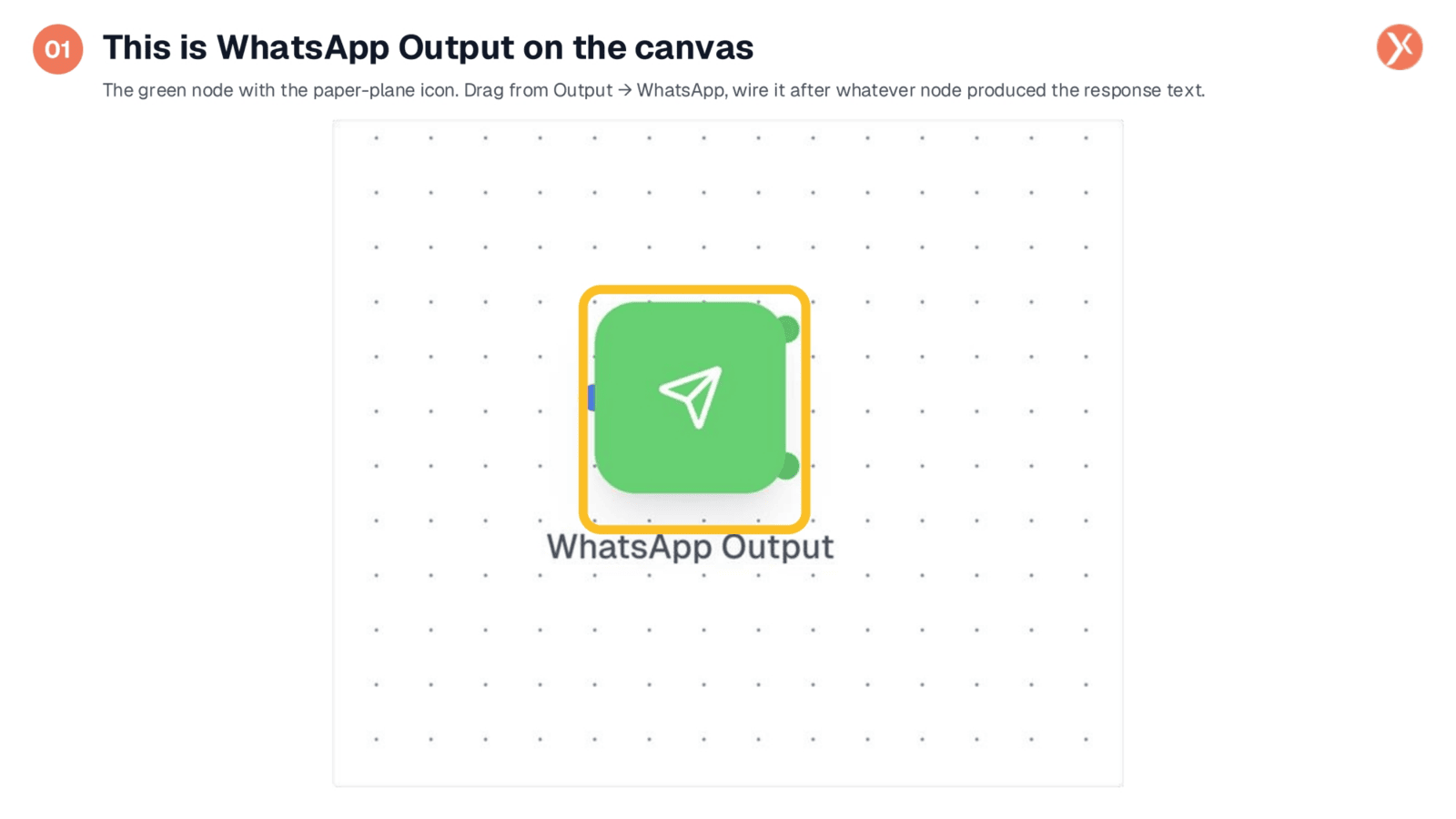
The WhatsApp Output node is easily identified on the canvas by its green color and paper-plane icon, signifying its role in sending responses. To integrate it, simply drag it from the messaging section and connect it after any upstream node that generates the response text. This typically follows nodes like a Core Agent or an LLM Integration, ensuring your automated replies are delivered seamlessly.
Accessing WhatsApp Output Configuration
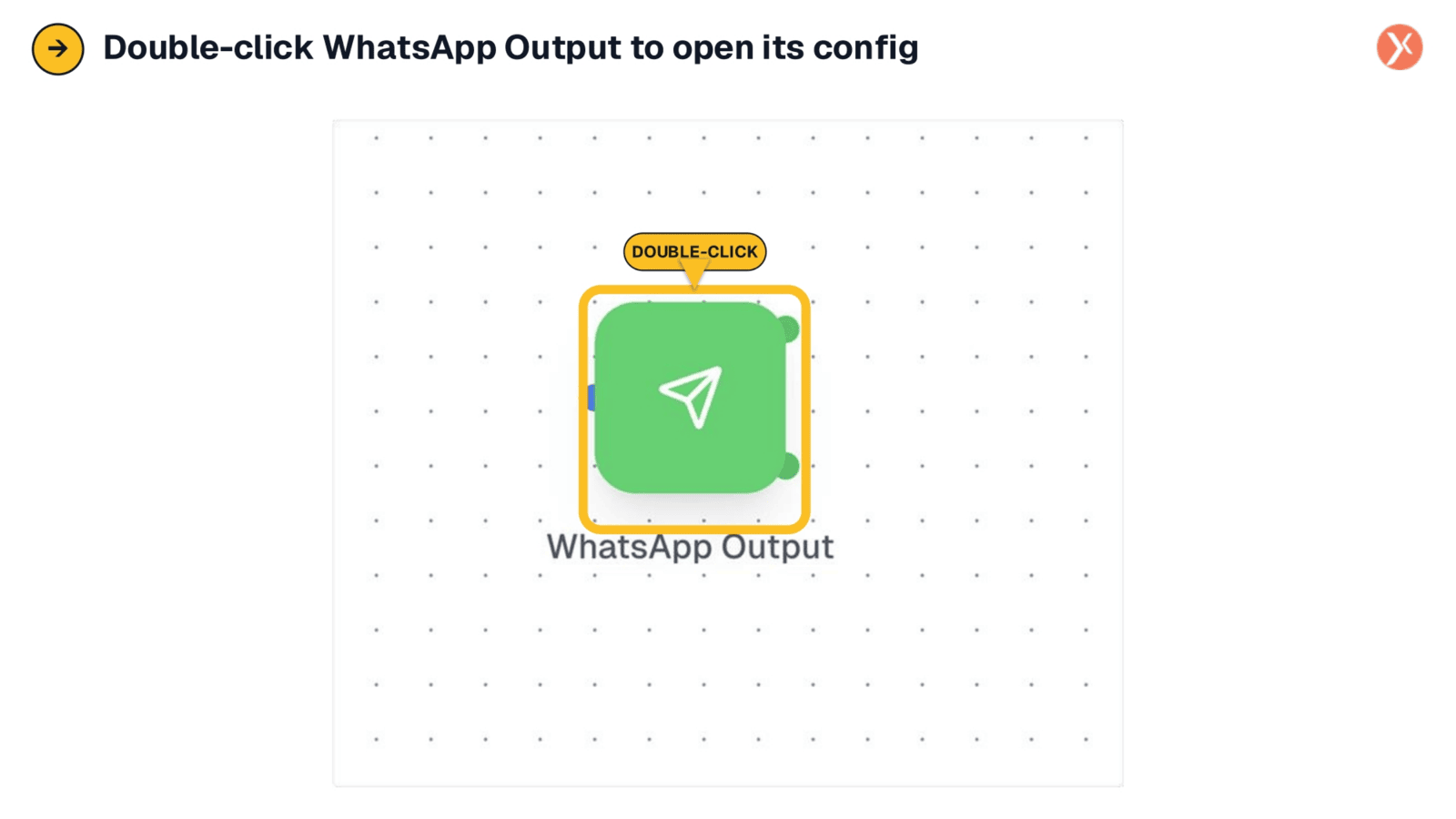
To configure the WhatsApp Output node, you simply double-click on it within the canvas. This action opens its configuration panel, allowing you to customize how your automated messages are sent. It's a straightforward process to access and manage all the settings for your WhatsApp communications.
WhatsApp Output Configuration Panel
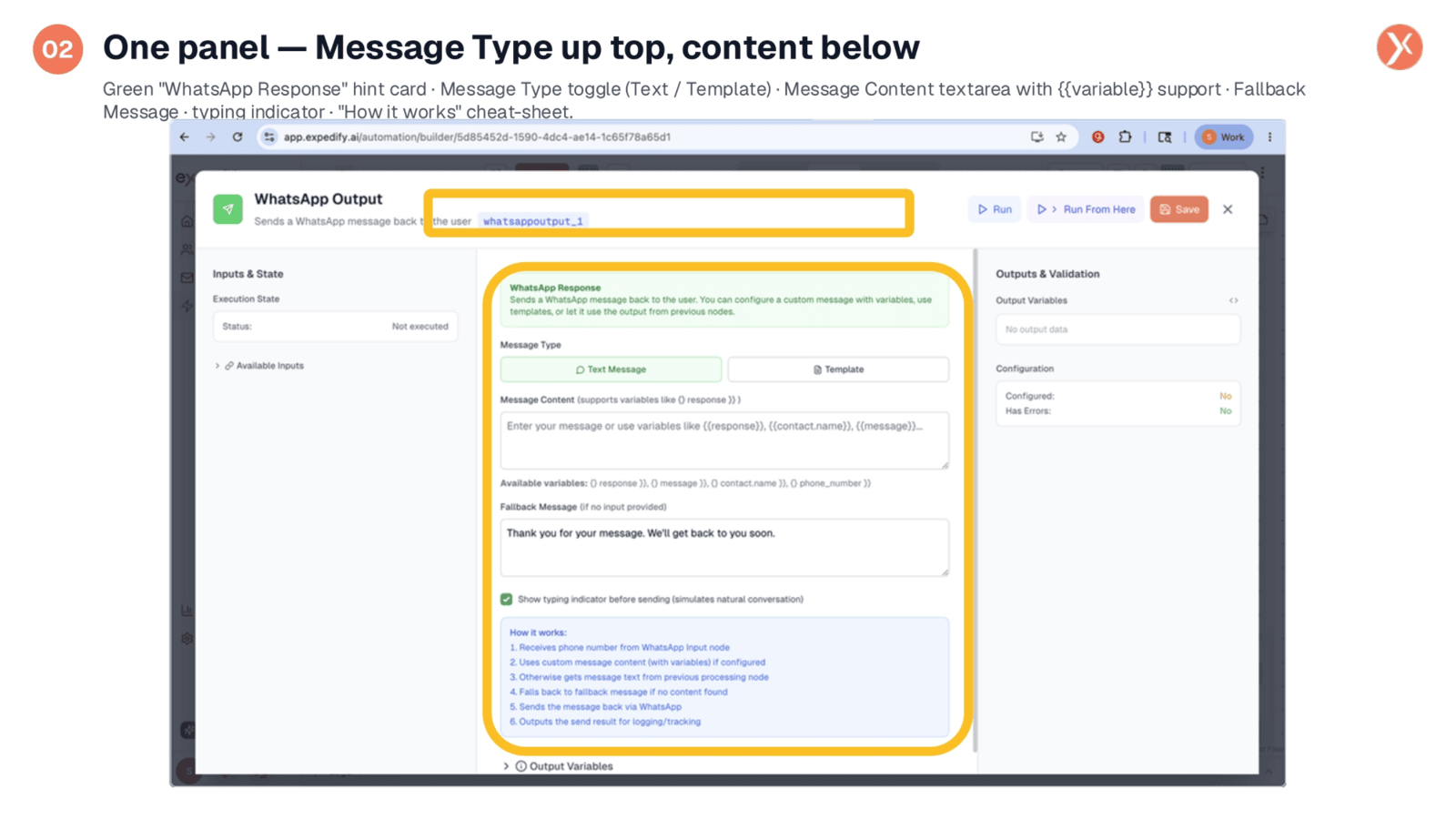
The configuration panel for WhatsApp Output provides a comprehensive view of all settings. At the top, an orientation card explains that you can use custom messages, variables, or templates. Below, you'll find the Message Type toggle, the Message Content area, Fallback Message options, and a checkbox for the typing indicator. A 'How it works' cheat-sheet at the bottom summarizes the message resolution priority, ensuring all necessary information is readily available.
Choosing Message Type: Text or Template
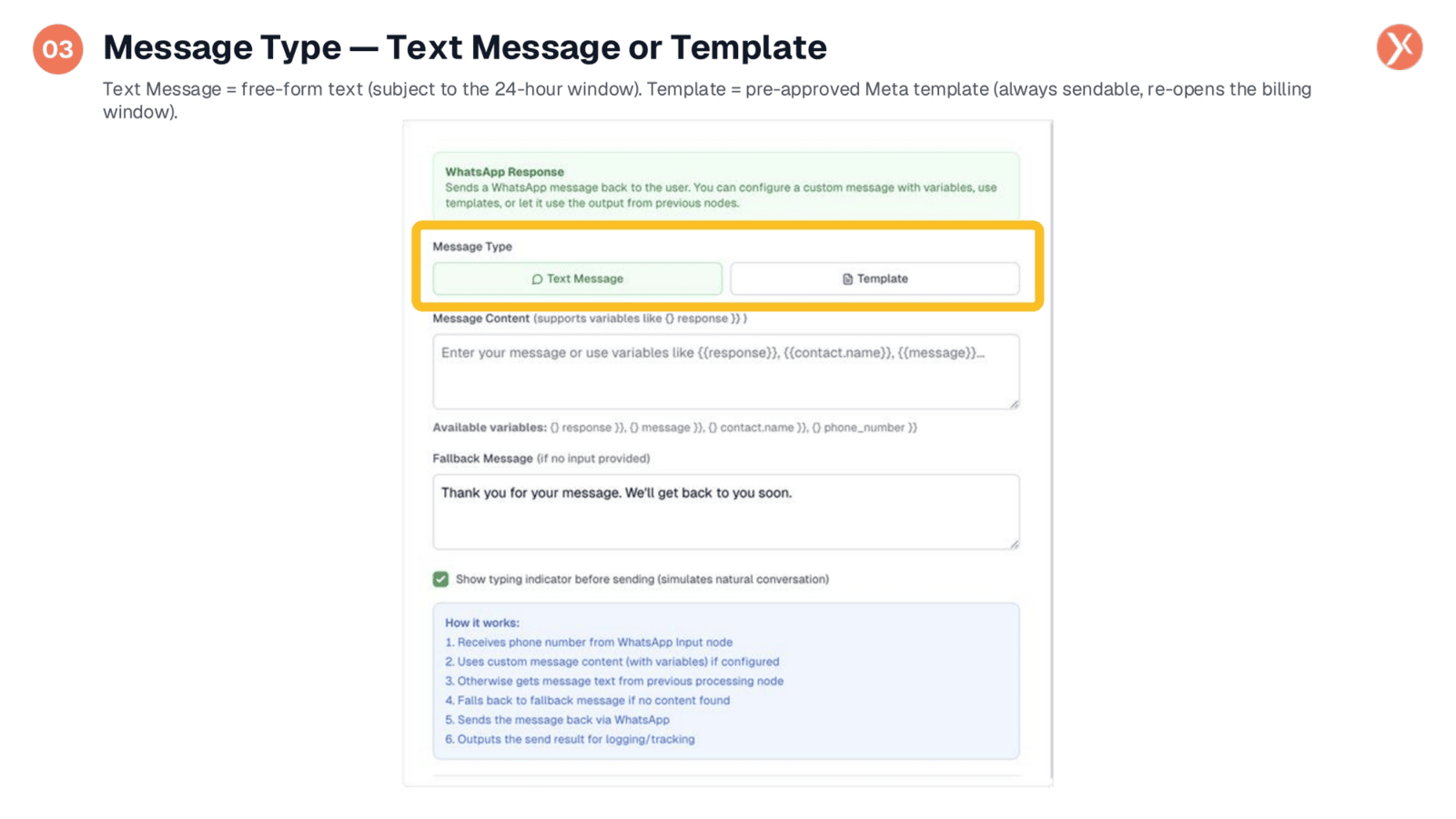
The first crucial decision in configuring WhatsApp Output is selecting the Message Type: either Text Message or Template. Text Message allows for free-form text, ideal for most replies, but it is subject to WhatsApp's 24-hour customer service window. Alternatively, Template mode uses pre-approved Meta templates, which can be sent at any time, making them suitable for proactive outreach like reminders or notifications, bypassing the 24-hour window.
Content, Variables, Fallback, and Typing Indicator
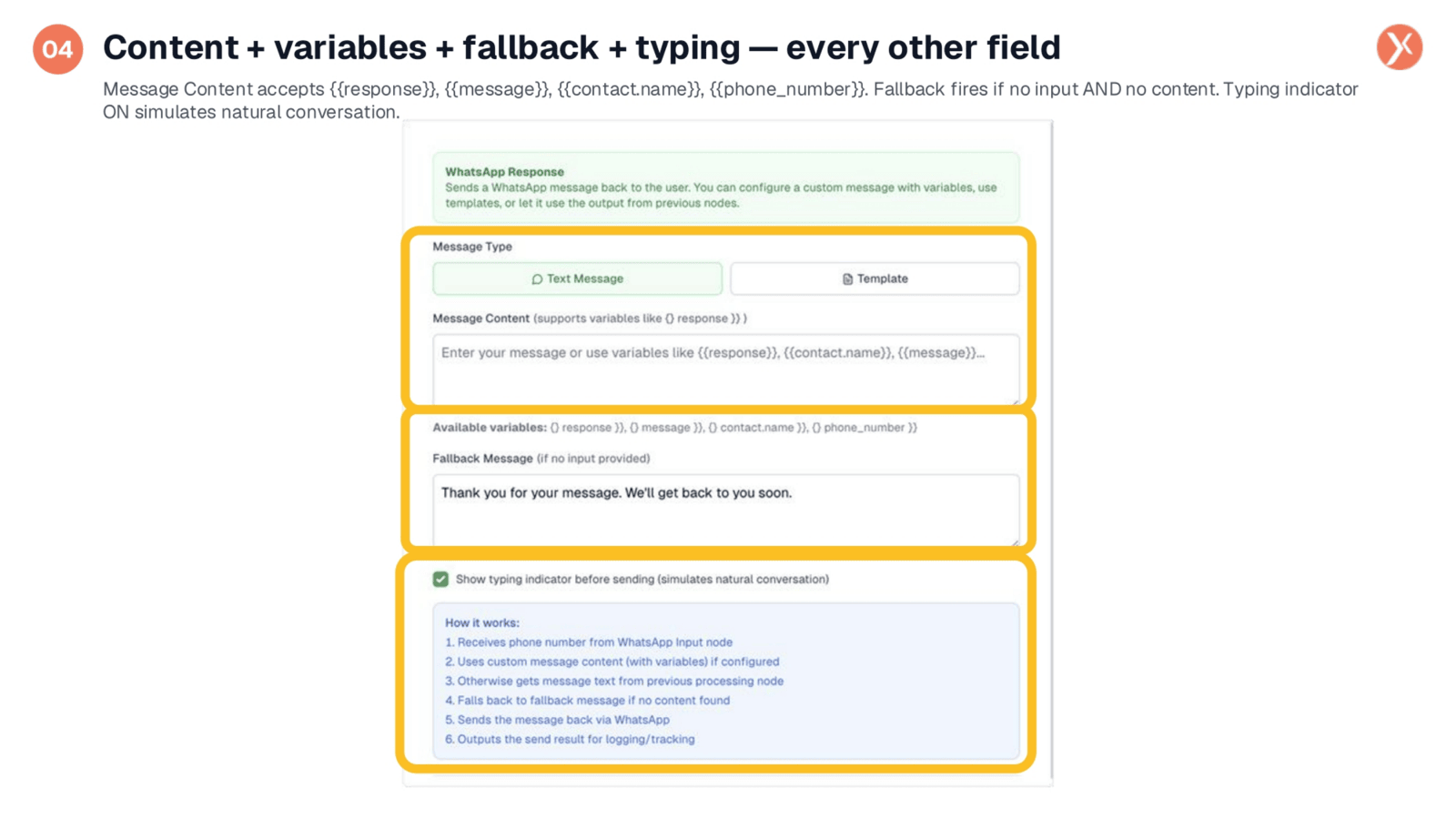
Beyond message type, you configure the Message Content using literal text or dynamic variables like 'response' or 'contact.name'. The Fallback Message ensures a reply is always sent, even if no upstream content is available. The typing indicator, enabled by default, simulates natural conversation by showing WhatsApp typing dots before the message appears. This combination of features ensures robust and human-like automated communication, with a clear priority chain for message resolution.
Recipient's View of WhatsApp Output
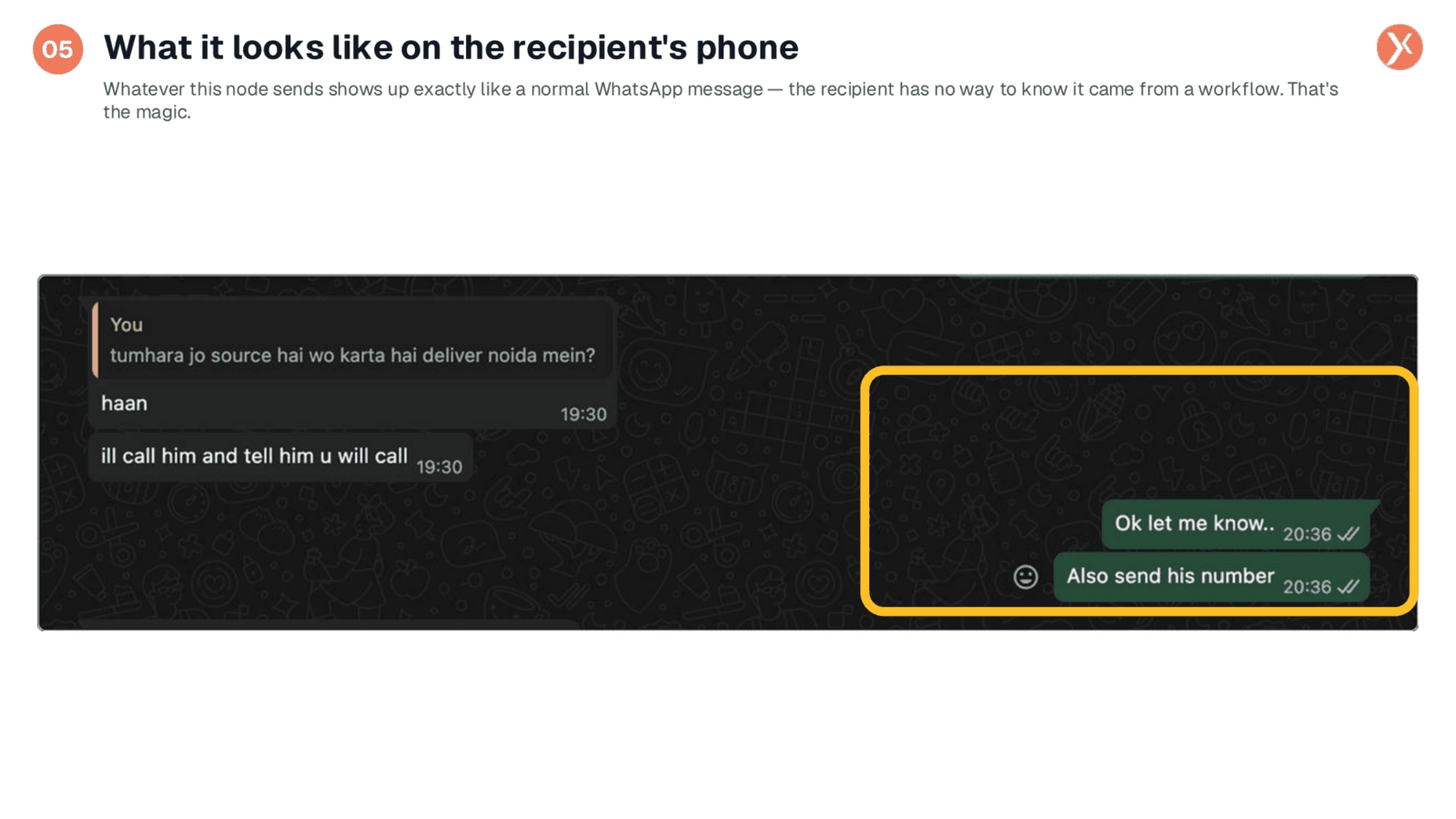
From the recipient's perspective, messages sent via the WhatsApp Output node appear exactly like normal WhatsApp messages. They see a green bubble, a timestamp, and a double tick, with no indication that the message originated from an automated workflow. This seamless integration ensures a natural and familiar user experience, making the automated responses feel personal and immediate, regardless of the underlying Expedify automation.
Understanding the 24-Hour Window
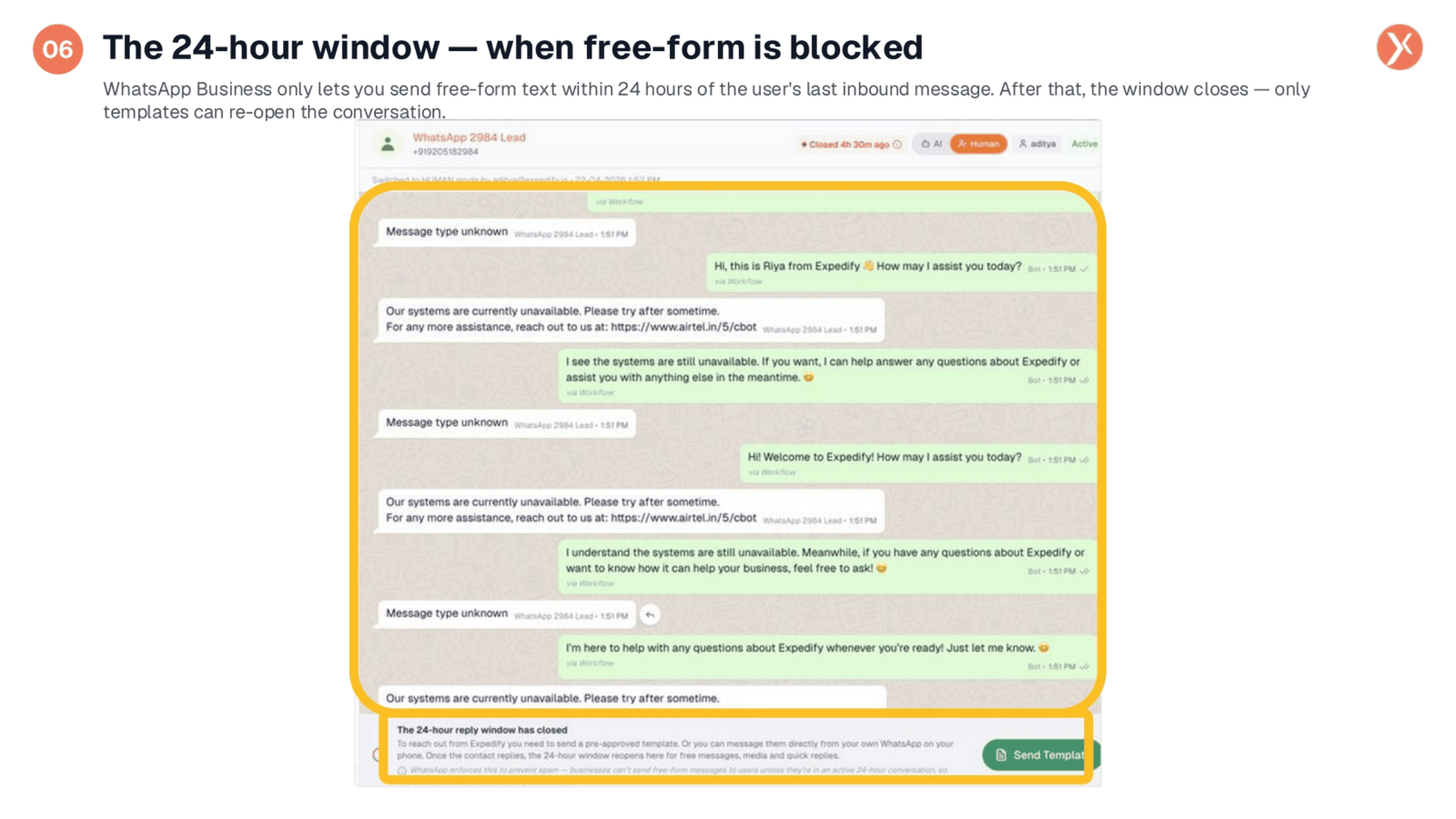
A critical aspect of WhatsApp Business is the 24-hour customer service window. You can send free-form messages within 24 hours of a user's last inbound message. After this window closes, only pre-approved templates can re-open the conversation. The system detects when this window has closed, returning an error code if a free-form message is attempted, allowing your workflow to gracefully fall back to a template or an alternative communication method like email.
Monitoring Conversations in Channels
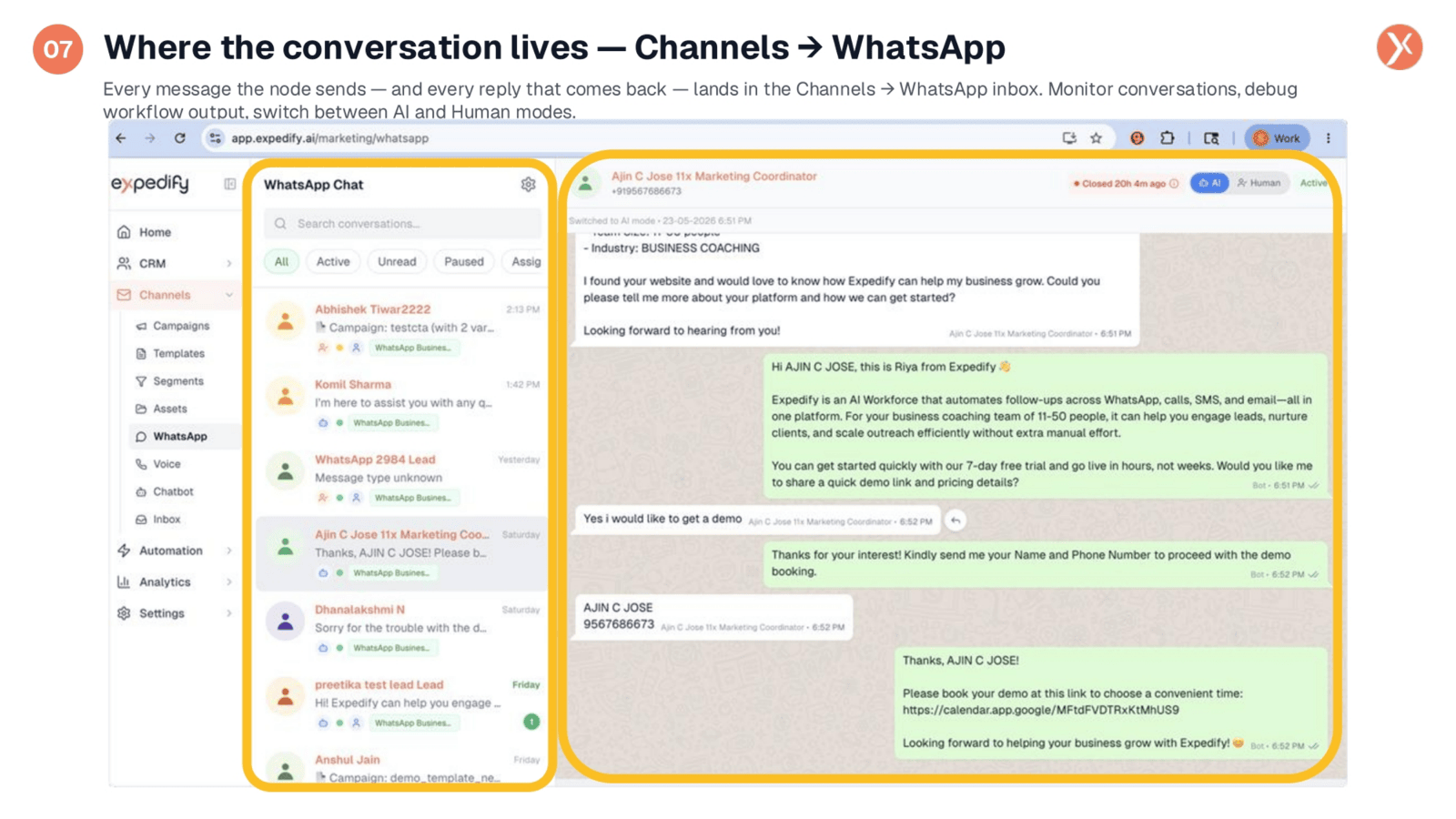
All conversations managed by your WhatsApp Output nodes are centralized within the 'Channels' section, specifically under 'WhatsApp' in the left sidebar. This inbox displays every active conversation, showing bot replies as green bubbles and user messages as grey. You can monitor interactions, debug workflow outputs, and even switch conversations to 'Human mode' for direct intervention, providing comprehensive oversight of your automated communications.
WhatsApp Output Data Handoff
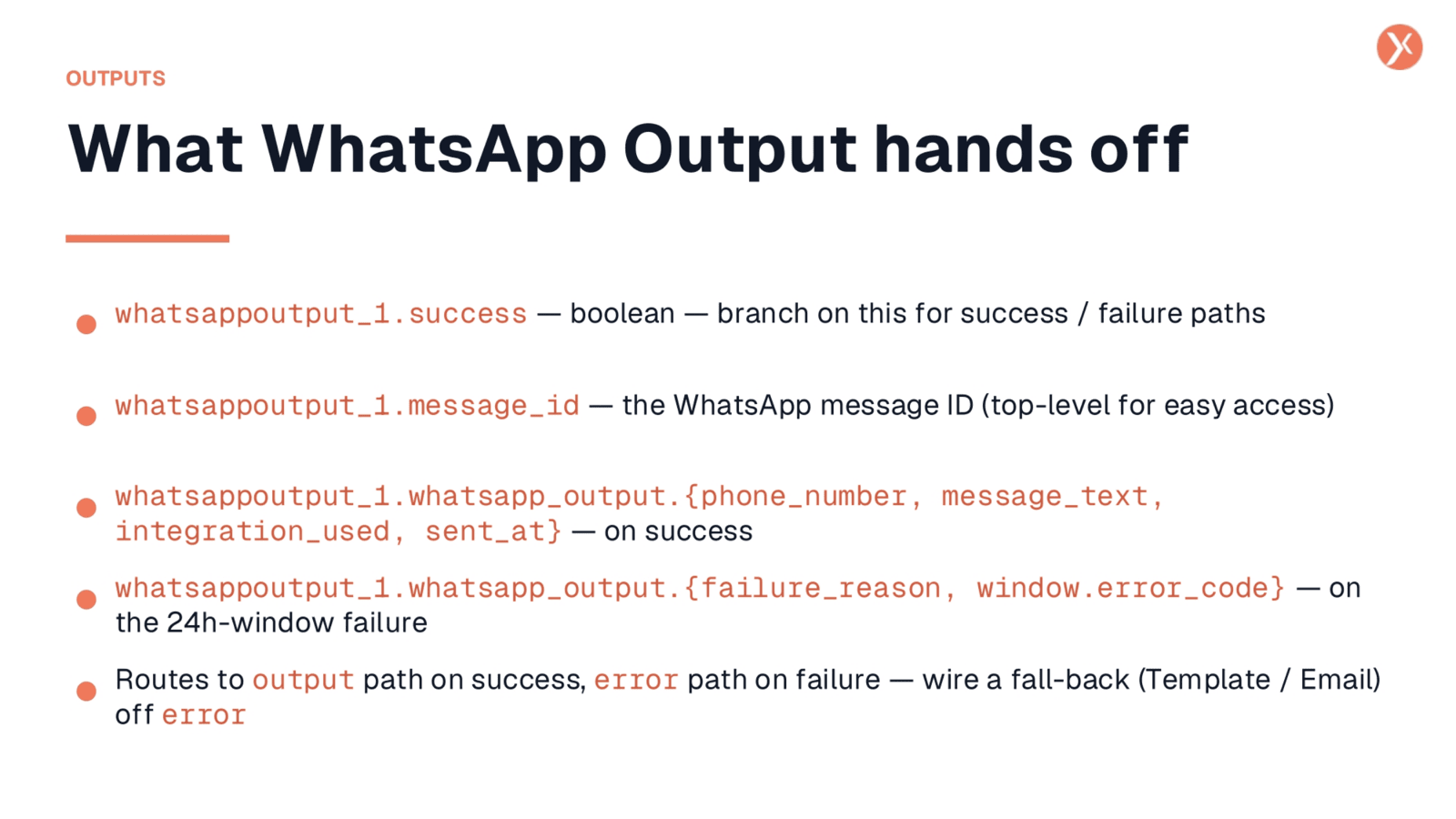
The WhatsApp Output node provides crucial data to downstream nodes, including a 'success' boolean for pass/fail branching and a 'message_id' for tracking delivery status. On success, the 'whatsapp_output' object details the phone number, message text, integration used, and timestamp. In case of failure, especially due to the 24-hour window, it provides a 'failure_reason' and 'error_code'. The node offers distinct output paths for success and error, enabling robust error handling and fallback mechanisms in your workflows.
WhatsApp Output Recap
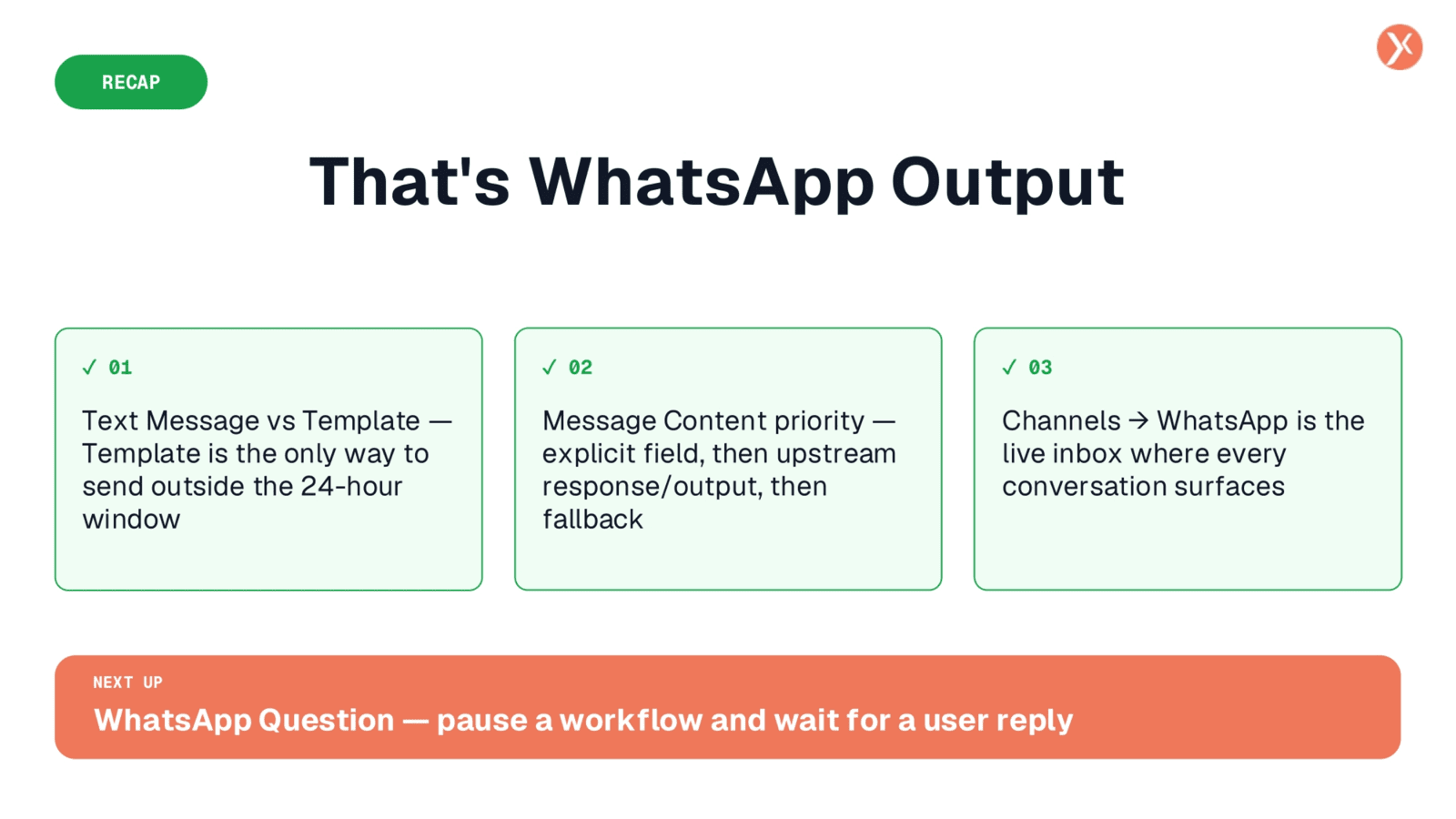
That's WhatsApp Output. Key takeaways include choosing between Text Messages and Templates, understanding the 24-hour window, and monitoring conversations in the Channels inbox. Always wire error paths for robust production workflows.