WhatsApp Question
This session introduces the WhatsApp Question node, a powerful tool for creating interactive conversations. We'll cover its core functionality, quick reply options, how responses are stored, timeout settings, and the underlying pause-resume model that makes it all work.
WhatsApp Question Demo Overview
We're about to dive into a demo of the WhatsApp Question node. This overview highlights key configuration aspects, including the question message, quick replies, how responses are stored, expected response types, and timeout settings. Understanding these elements is crucial for building effective conversational workflows.
WhatsApp Question on the Canvas
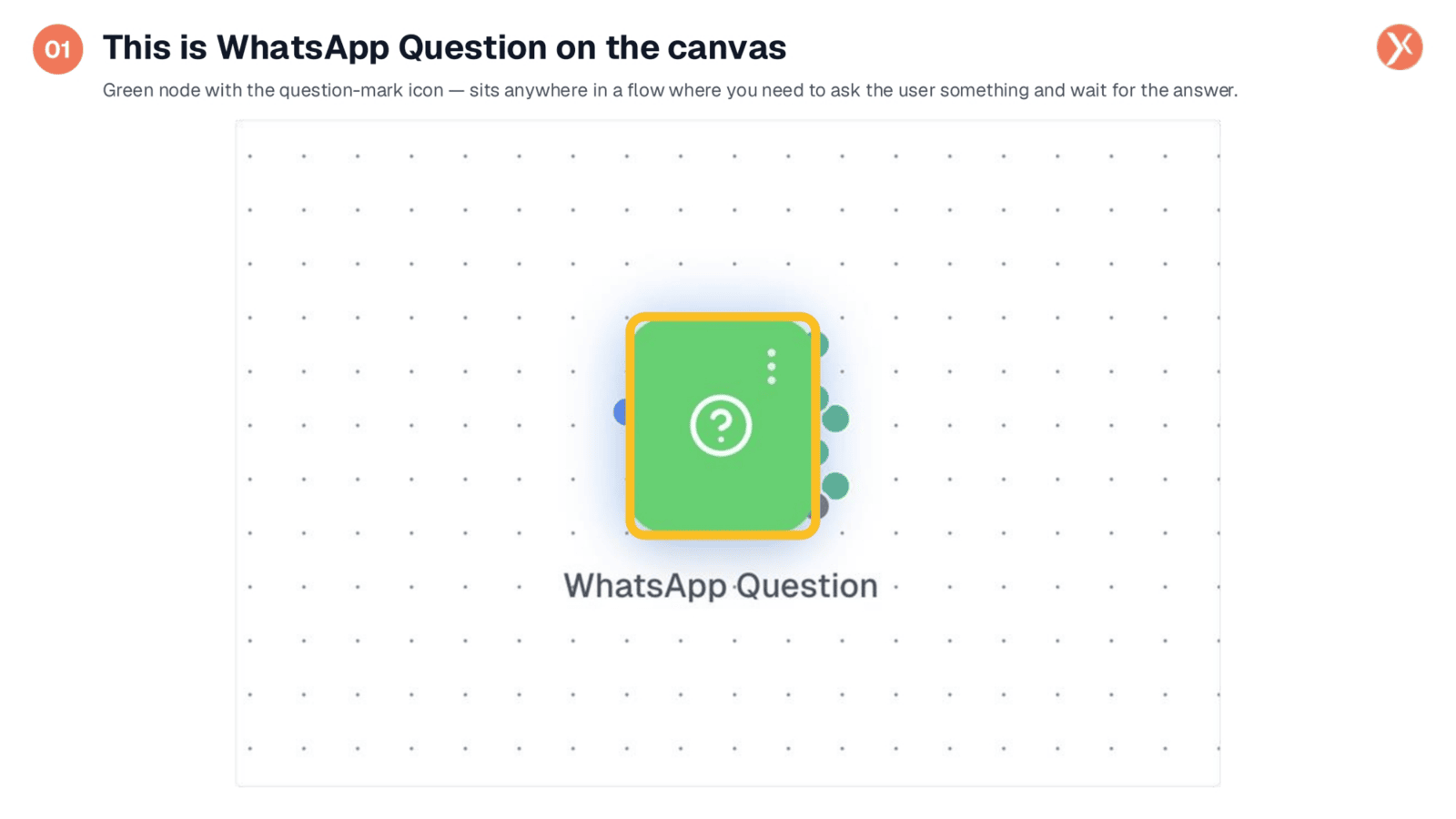
The WhatsApp Question node appears on the canvas as a green icon with a question mark, distinguishing it from other messaging nodes. This visual cue indicates its unique function: to send a message and then pause the workflow, awaiting a user's reply. It can be placed anywhere within your automation flow to initiate or continue a conversation.
Opening WhatsApp Question Configuration
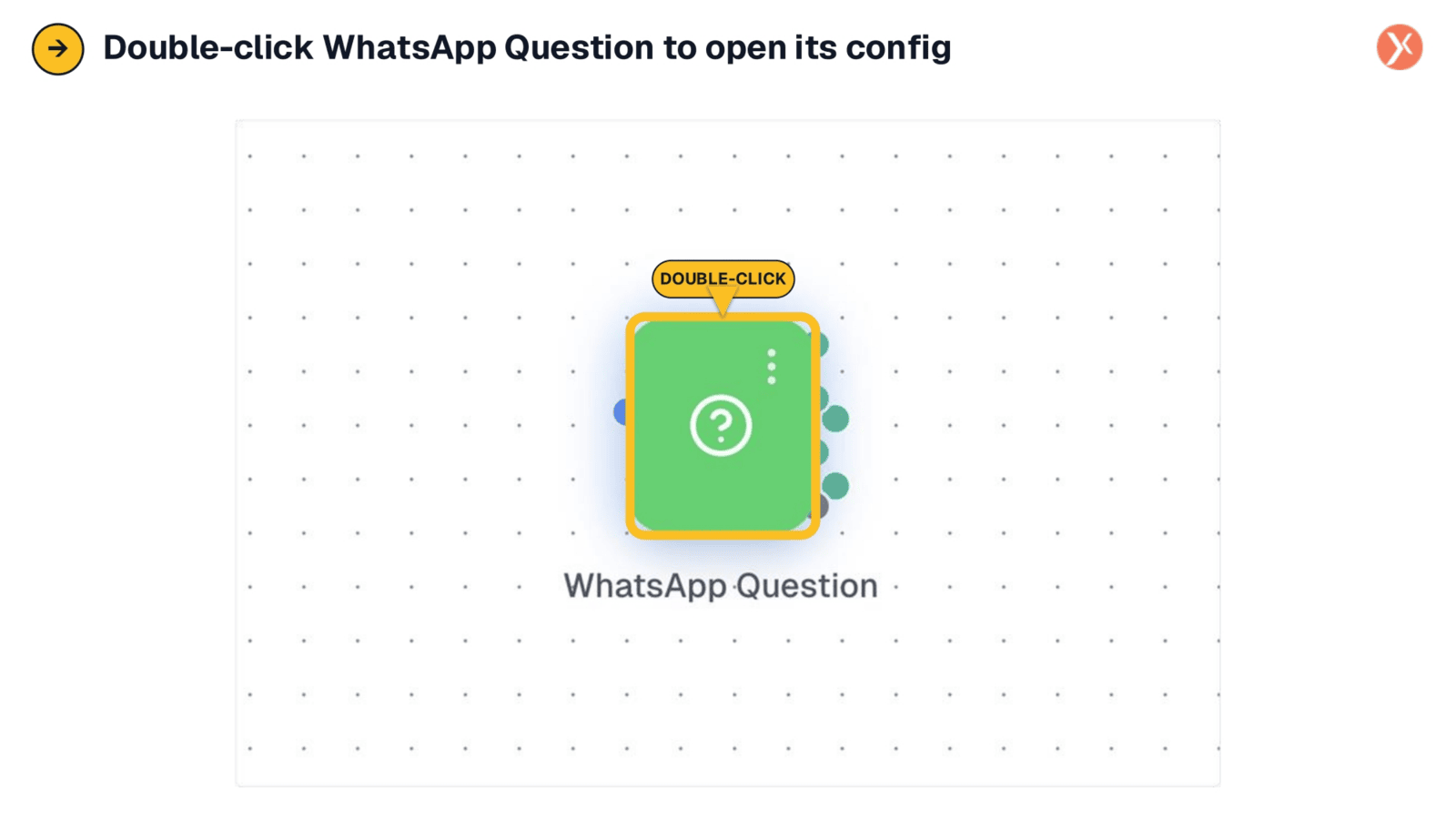
To configure the WhatsApp Question node, simply double-click it on the canvas. This action opens the configuration panel, allowing you to customize its behavior and integrate it seamlessly into your workflow. This step is essential for defining the questions asked and how user responses are handled.
Configuration Panel Overview
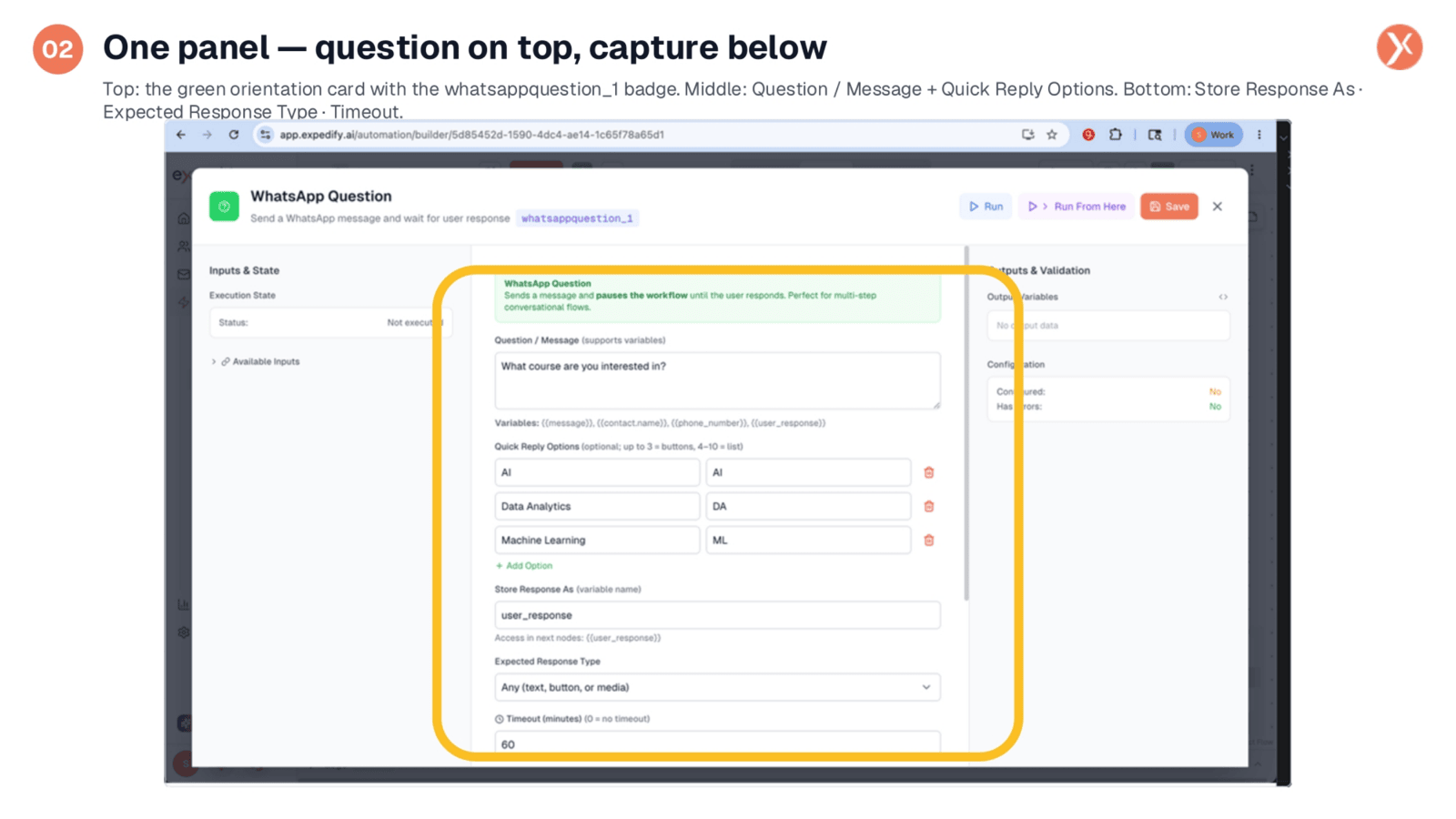
The configuration panel presents a comprehensive view of the WhatsApp Question node's settings. At the top, a green card identifies the node and its purpose: sending messages, pausing the workflow, and waiting for user responses in multi-step conversations. Below, you'll find sections for the question message, quick reply options, response storage, expected response type, and timeout settings, all crucial for defining the node's behavior.
Defining the Question Message
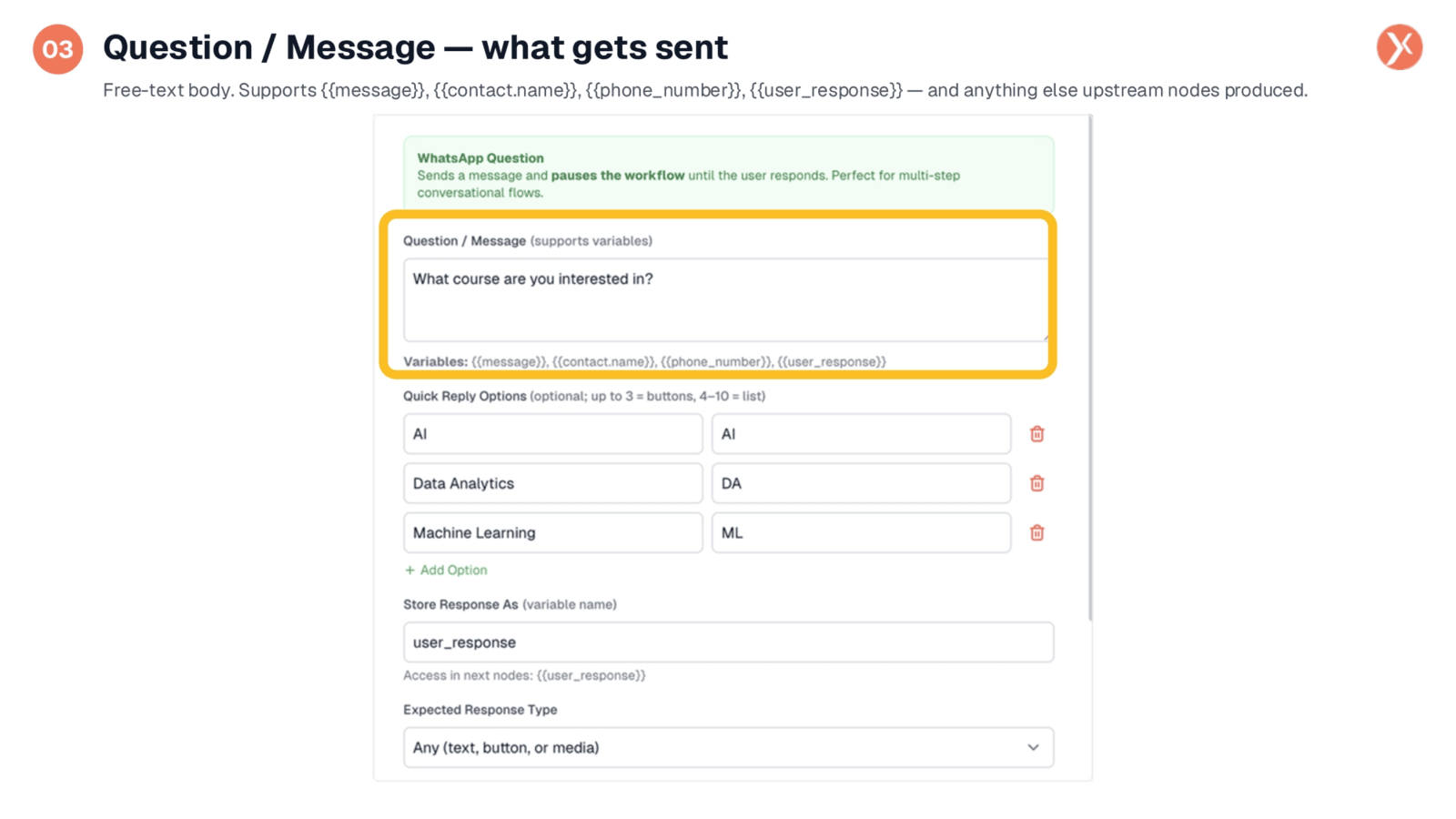
The "Question / Message" field defines the actual WhatsApp message sent to the user. This free-text body supports variables like message, contact name, phone number, and user response, allowing for dynamic and personalized communication. You can also reference outputs from upstream nodes, making your questions highly contextual and tailored to the conversation's progression.
Configuring Quick Reply Options
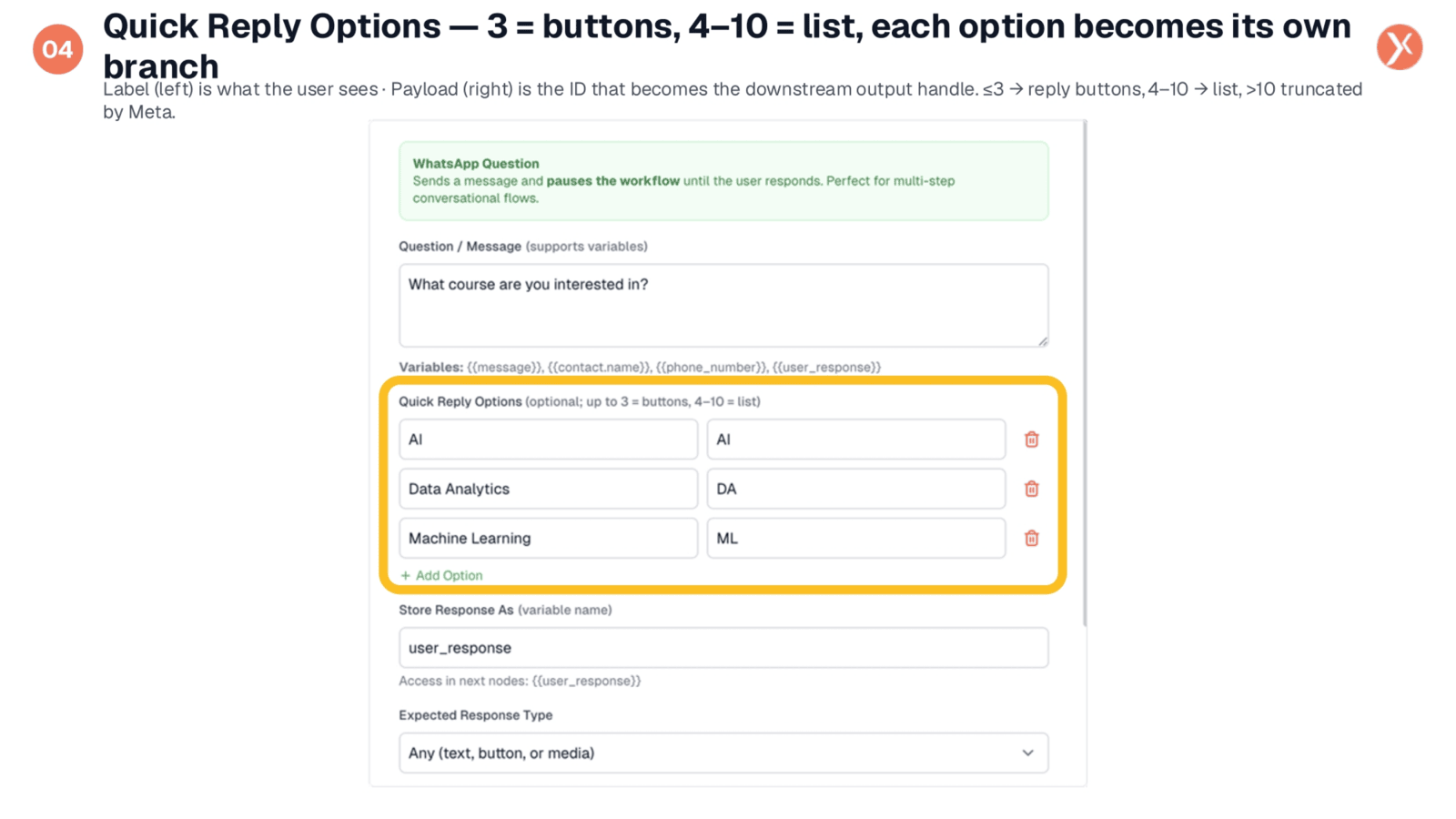
Quick Reply Options are a powerful feature, allowing you to provide users with tappable choices. Each option has a "Label" (what the user sees) and a "Payload" (the ID for downstream branching). Up to three options appear as buttons, while four to ten options automatically convert to a list message. This enables "if-this-then-that" branching logic, creating dynamic and responsive conversational paths based on user selections.
Storing and Validating User Replies
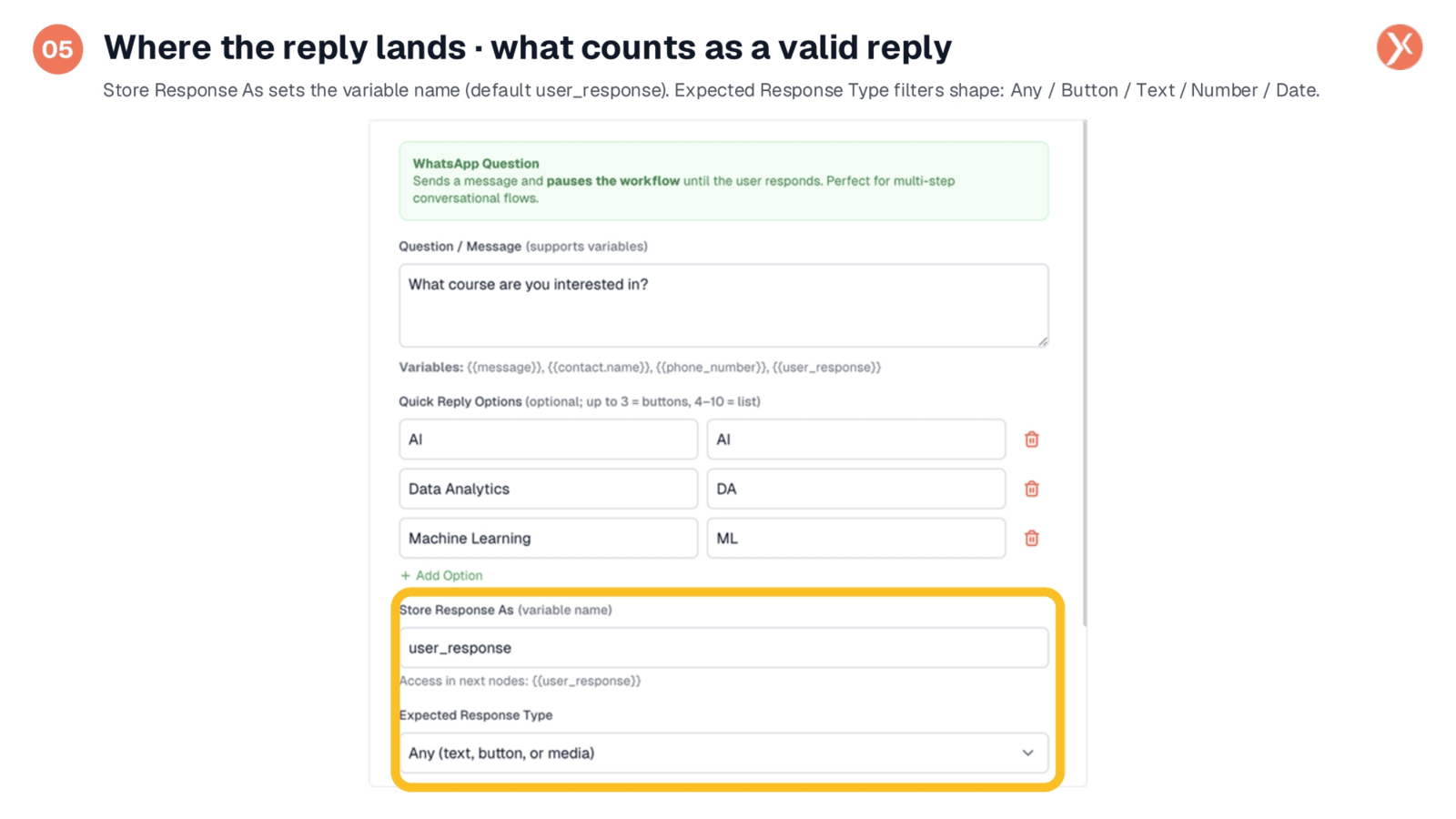
Two critical fields manage how user replies are handled: "Store Response As" and "Expected Response Type." "Store Response As" defines the variable name for the user's reply, defaulting to user underscore response, which can be accessed by downstream nodes. "Expected Response Type" acts as a filter, validating the incoming response as "Any," "Button," "Text," "Number," or "Date," ensuring data quality and guiding users if their input doesn't match expectations.
Setting the Workflow Timeout
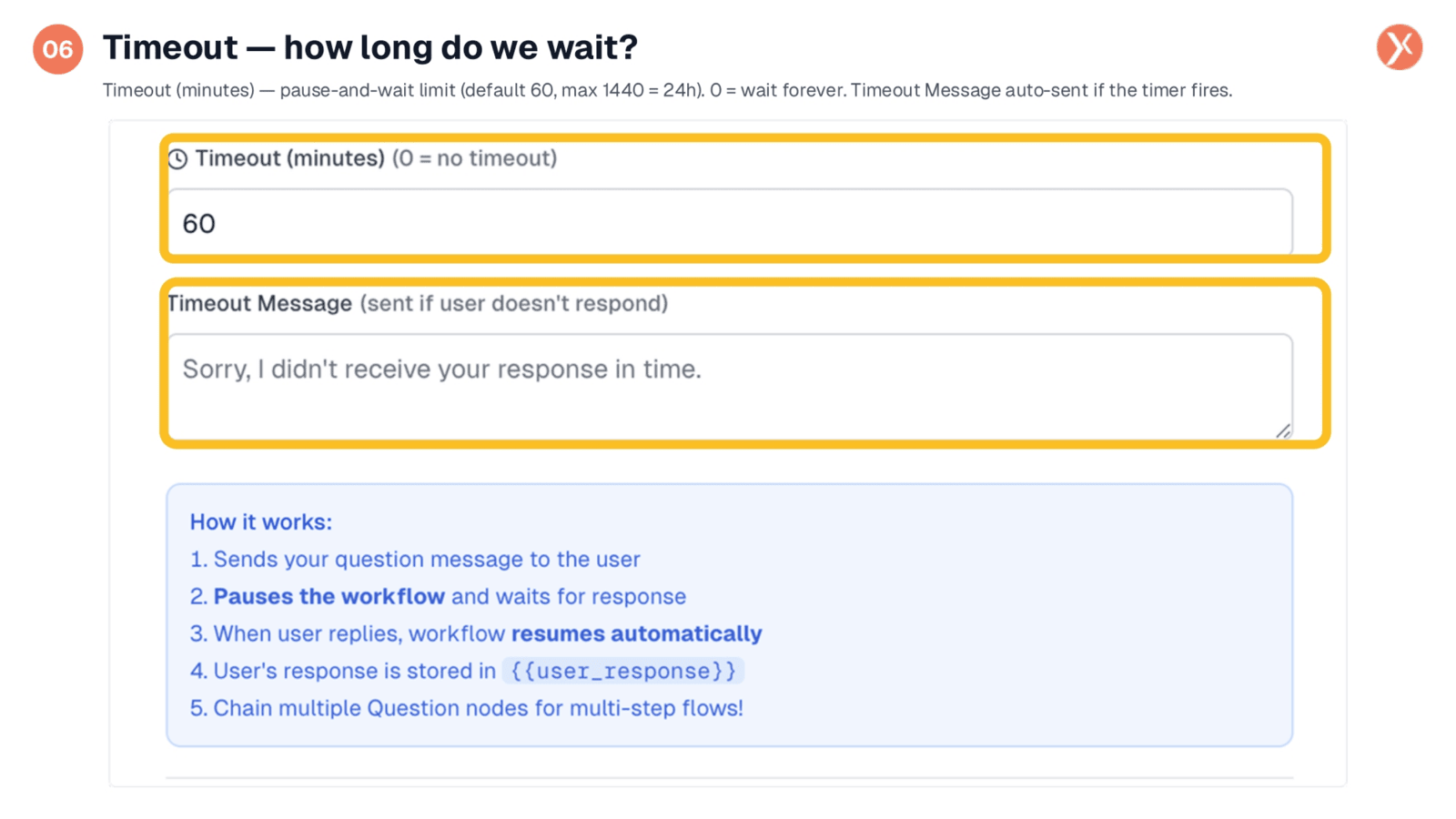
The "Timeout (minutes)" setting defines how long the workflow pauses, awaiting a user's response. The default is 60 minutes, with a maximum of 24 hours; setting it to zero means waiting indefinitely. If the timer expires before a reply, the "Timeout Message" is automatically sent, providing a polite notification to the user. This feature prevents workflows from pausing indefinitely and ensures a smooth user experience.
The Pause and Resume Model
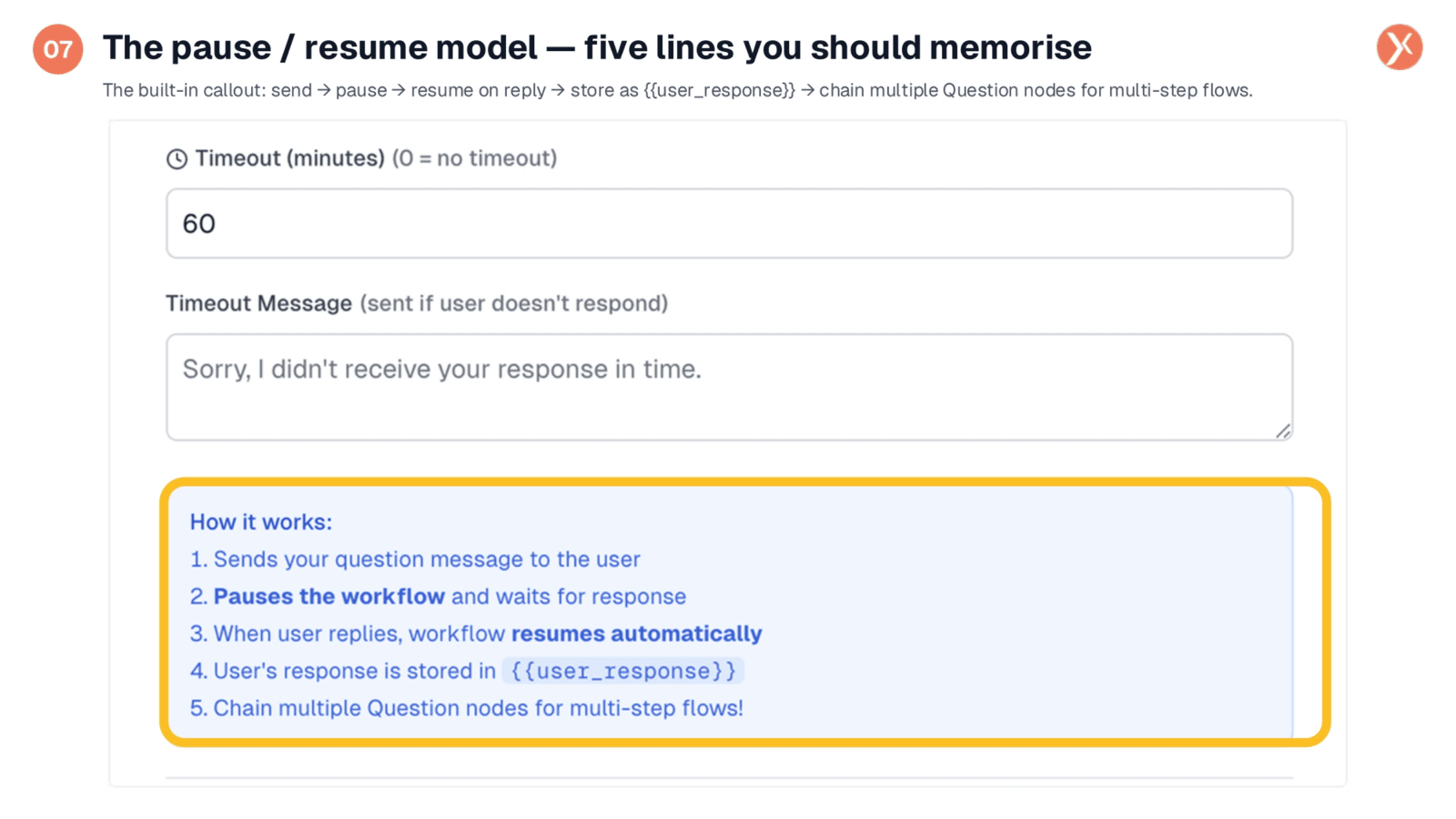
The core of the WhatsApp Question node lies in its pause-and-resume model. First, the question is sent. Second, the workflow pauses, persisting its state. Third, upon receiving a user's reply via the WhatsApp webhook, the workflow automatically resumes from that exact point. Fourth, the user's response is stored in the designated variable. Finally, this model enables chaining multiple Question nodes to build complex, multi-step conversational flows without requiring any coding.
WhatsApp Question Node Outputs
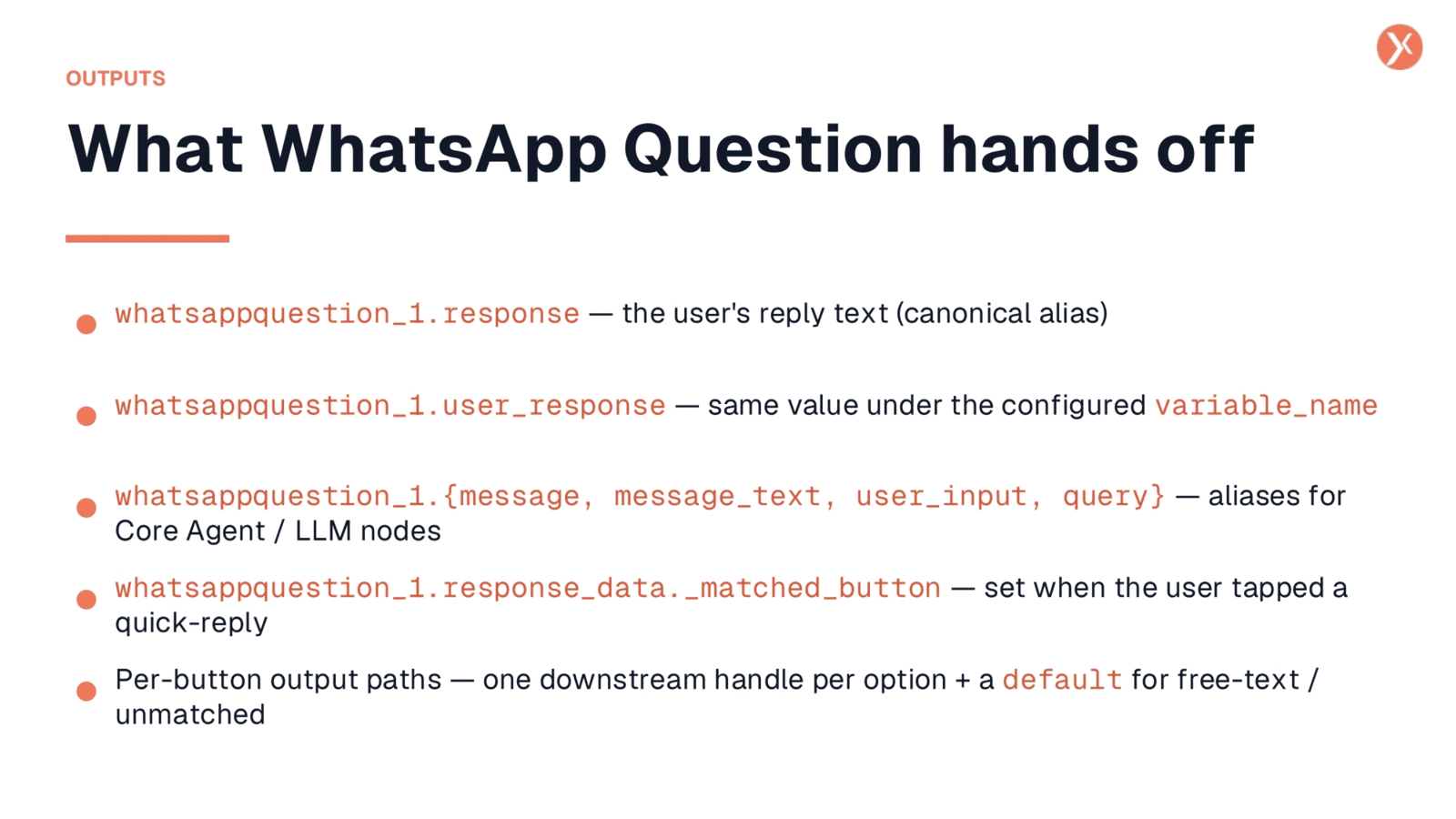
The WhatsApp Question node provides several outputs for downstream nodes. The user's reply text is available as whatsappquestion underscore one dot response and also under the configured variable name, typically user underscore response. Additionally, aliases like message, message text, user input, and query ensure compatibility with Core Agent or LLM nodes. If quick replies were used, response data dot matched button indicates the selected option, and per-button output paths allow for specific branching.
Recap: WhatsApp Question Capabilities
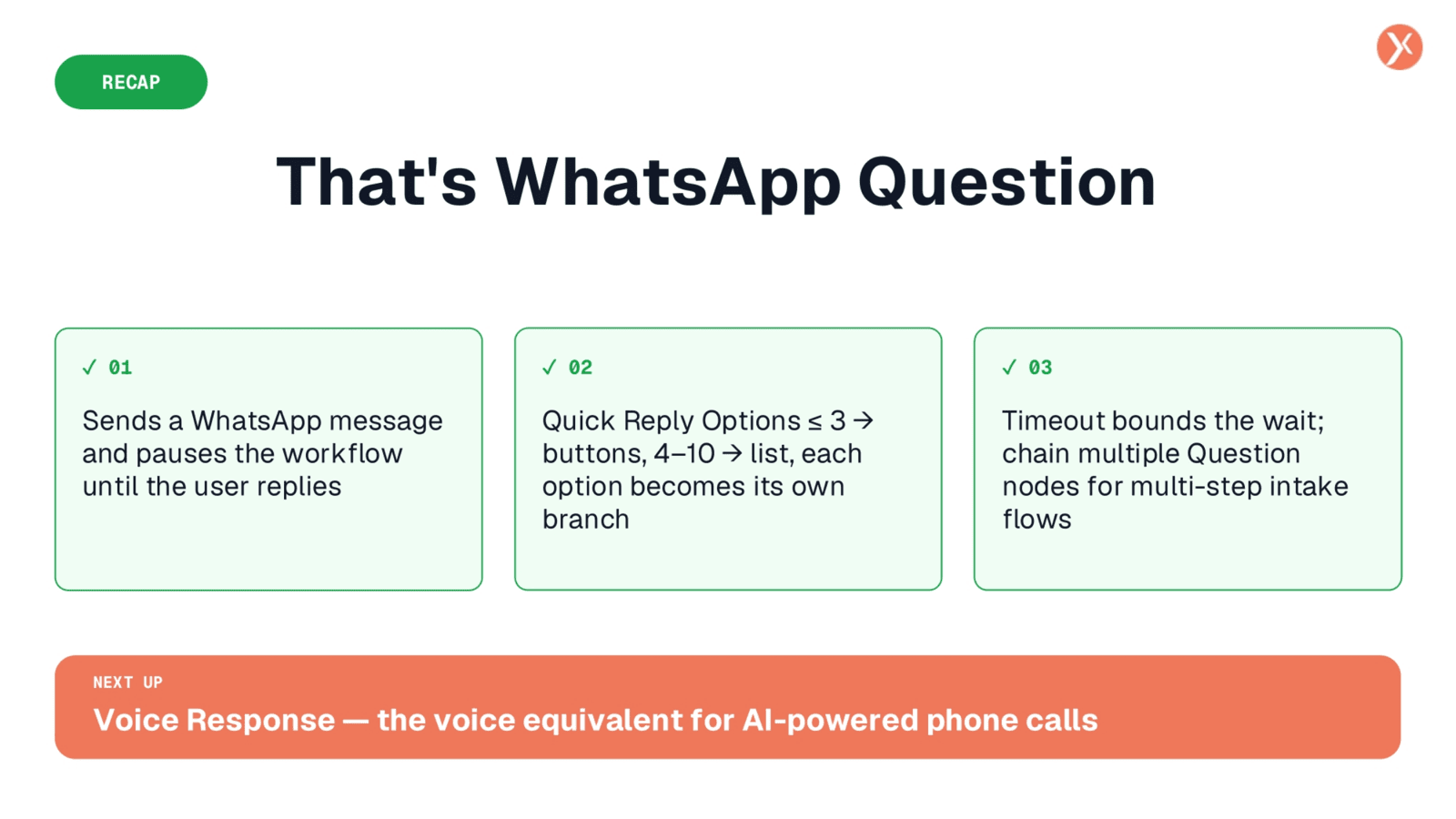
We've covered the WhatsApp Question node, which sends messages and pauses workflows for user replies. It supports quick reply options for branching and uses timeouts to manage wait times, enabling multi-step conversational flows.