Google Calendar
Today, we're diving into the Google Calendar node, a versatile tool for automating events, meetings, and availability. We'll cover its core functionalities, including creating events, retrieving event lists, and checking availability, along with its integration capabilities.
Google Calendar Node Operations
The Google Calendar node offers six distinct operations, though we'll focus on three key ones today: Get Events, Create Event, and Check Availability. The remaining operations, such as Update Event, Delete Event, and Get Event by ID, follow a similar pattern. This node is also designed as an AI tool, allowing Core Agent and Voice Agent to directly schedule meetings on your calendar, streamlining your automation processes.
Identifying the Google Calendar Node
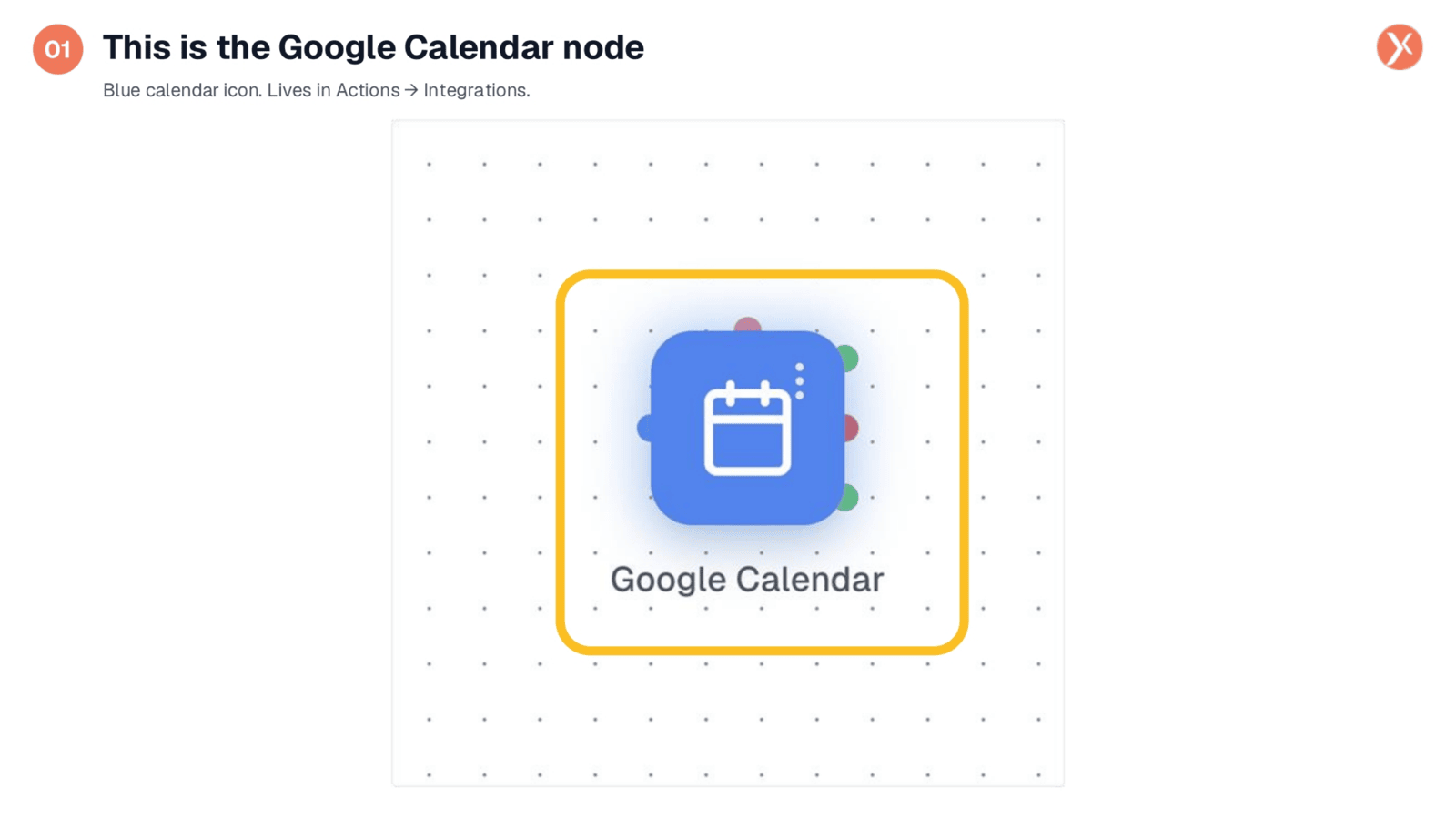
The Google Calendar node is easily identifiable by its blue calendar icon on the canvas. You'll find it within the Actions category, under the Integrations subcategory of the palette. This node is ideal for any workflow requiring interaction with a user's Google Calendar, whether it's booking discovery calls, checking availability, or compiling daily meeting digests. We'll now open it to explore its shared configuration fields.
Accessing Node Configuration
To access the node's settings, simply double-click the Google Calendar icon. This action will open the Configuration Panel, where you can customize its behavior and integrate it into your automation workflows. This panel is your gateway to defining how the node interacts with Google Calendar.
Dynamic Operation Panel Layout
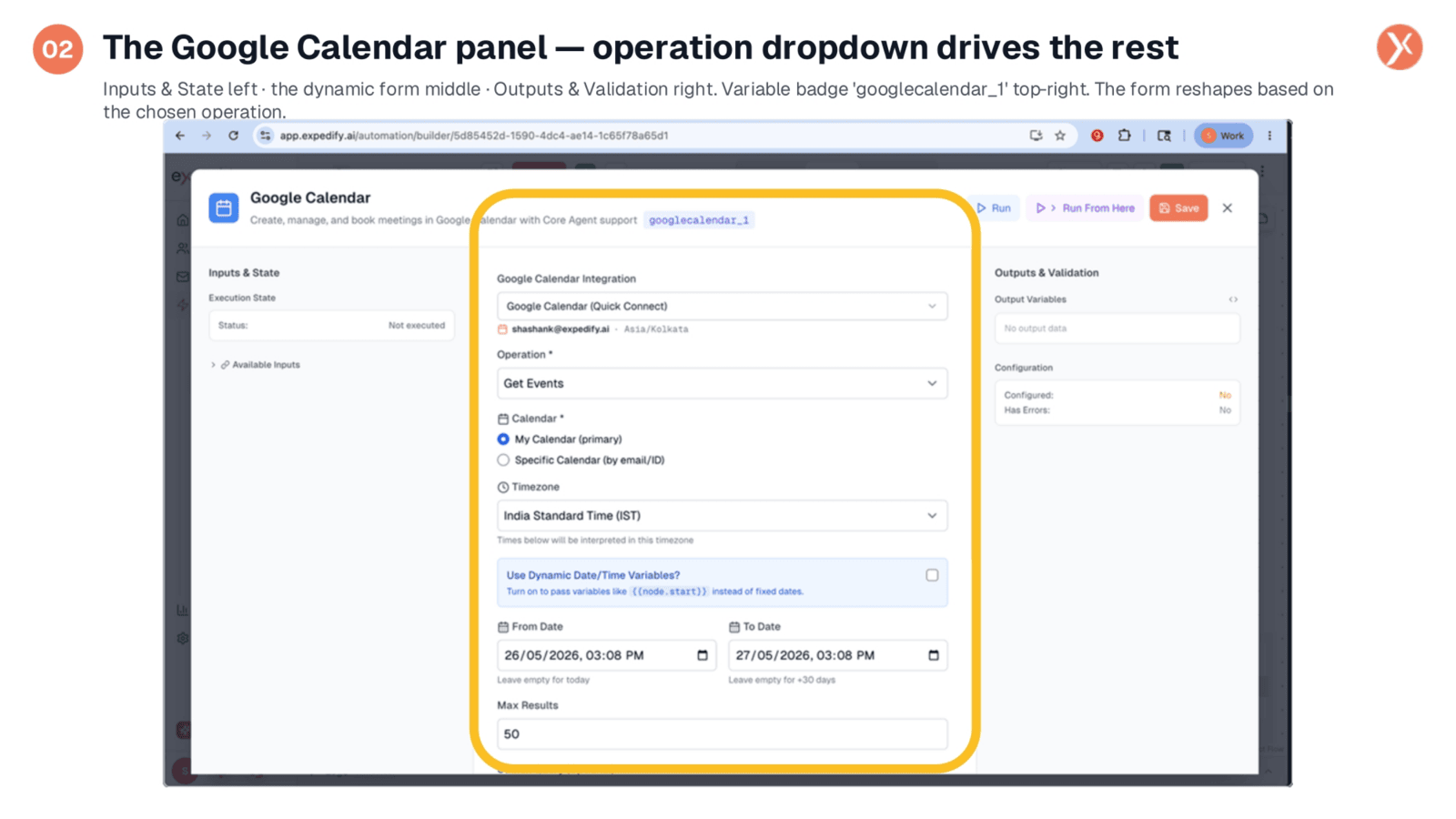
The Node Configuration Panel maintains the familiar three-column layout, with Inputs and State on the left, the dynamic form in the middle, and Outputs and Validation on the right. The variable badge, 'googlecalendar_1', allows other nodes to reference this node's output. Crucially, the central form adapts its fields based on the selected operation. For instance, choosing 'Get Events' displays specific date range and filter options, while 'Create Event' would present fields for event title, description, and attendees, demonstrating the node's flexible design.
Google Calendar Account Integration
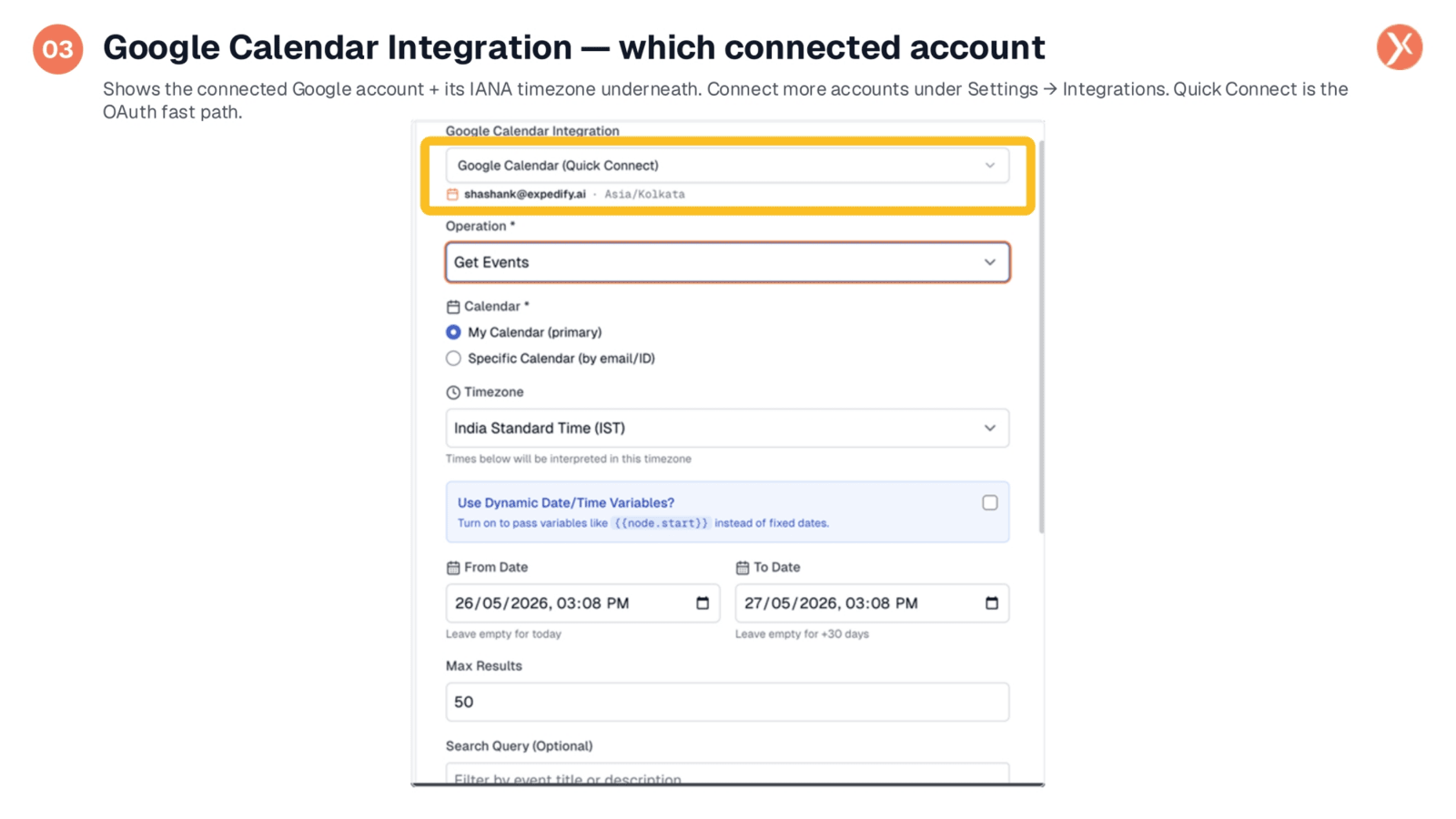
The Google Calendar Integration field is essential for every operation, allowing you to select the connected Google account. As shown, we're using Quick Connect, displaying the account email and IANA timezone, such as 'shashank@expedify.ai, Asia/Kolkata'. If you have multiple Google accounts linked under Settings → Integrations, they will all appear here, enabling you to choose the appropriate calendar for your workflow. Quick Connect offers a streamlined OAuth process, though manual integrations are also supported.
Operation Selection and Form Reshaping
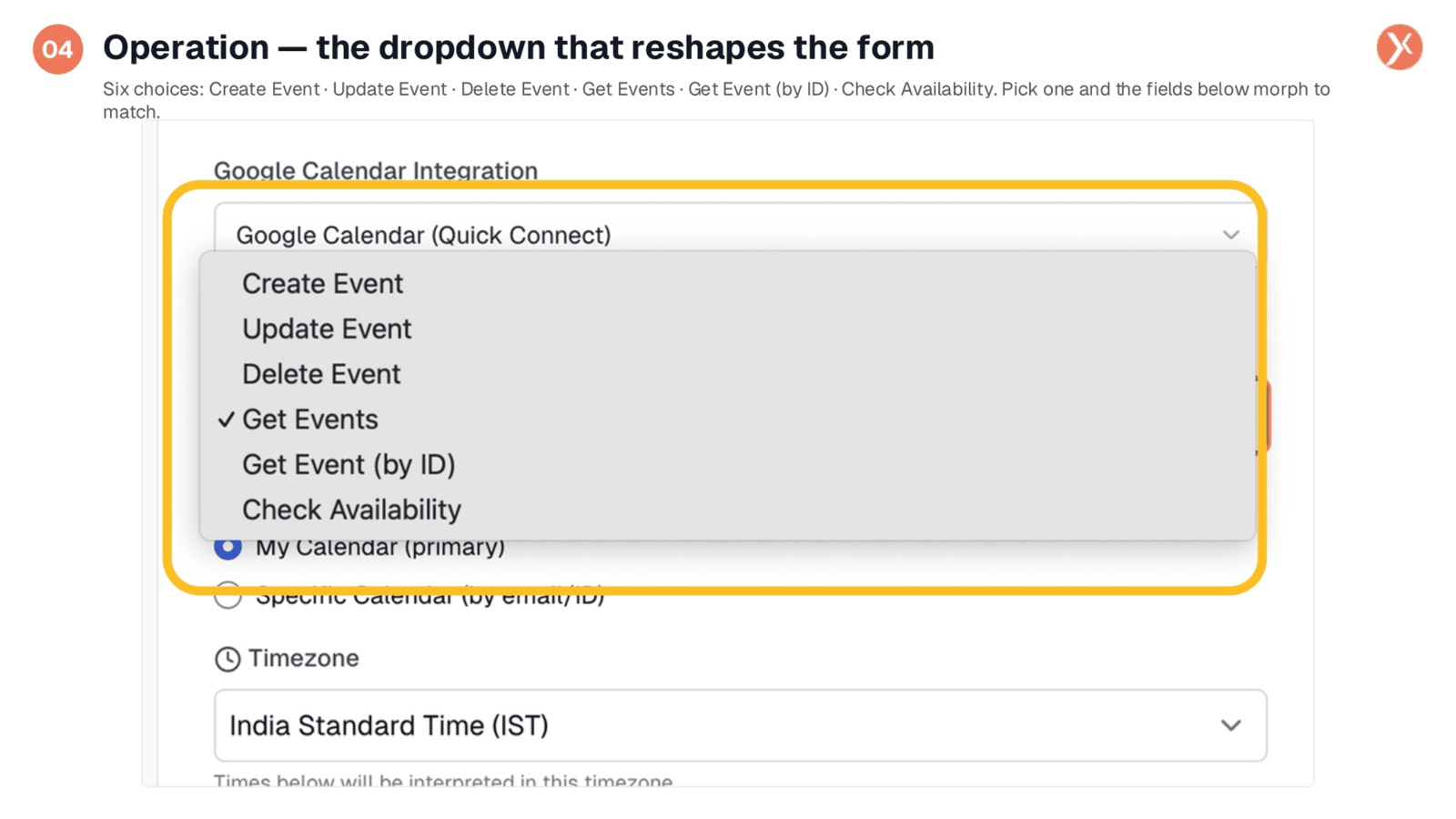
The operation picker is central to this node's functionality, offering six distinct choices. You can create, update, or delete events, retrieve a list of events within a date range, fetch a single event by ID, or check availability for a specific time slot. The form dynamically adjusts its fields based on your selection. For example, choosing 'Create Event' reveals fields for event title and attendees, while 'Get Events' presents options for date range and search queries. This adaptability allows a single node to manage diverse calendar tasks.
Calendar and Timezone Configuration
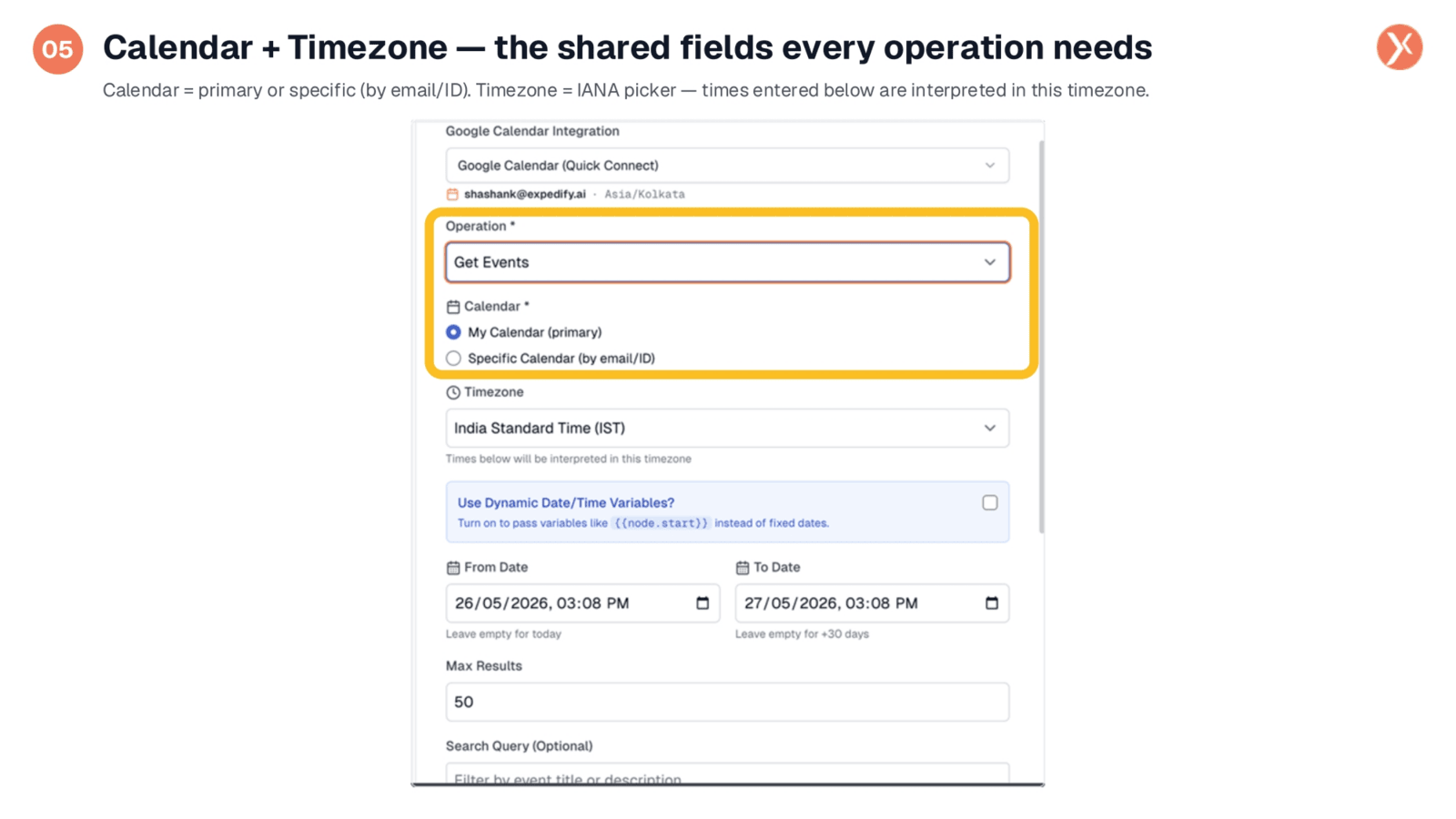
Regardless of the chosen operation, two critical fields remain visible: Calendar and Timezone. The Calendar setting allows you to select either your primary calendar or a specific shared or team calendar using its email or Google ID. The Timezone picker lets you define the IANA timezone for the operation. All dates and times entered subsequently will be interpreted according to this selected timezone. Ensuring these two settings are correctly configured is crucial for accurate event management, especially when dealing with different geographical locations.
Get Events: Date Range and Dynamic Variables
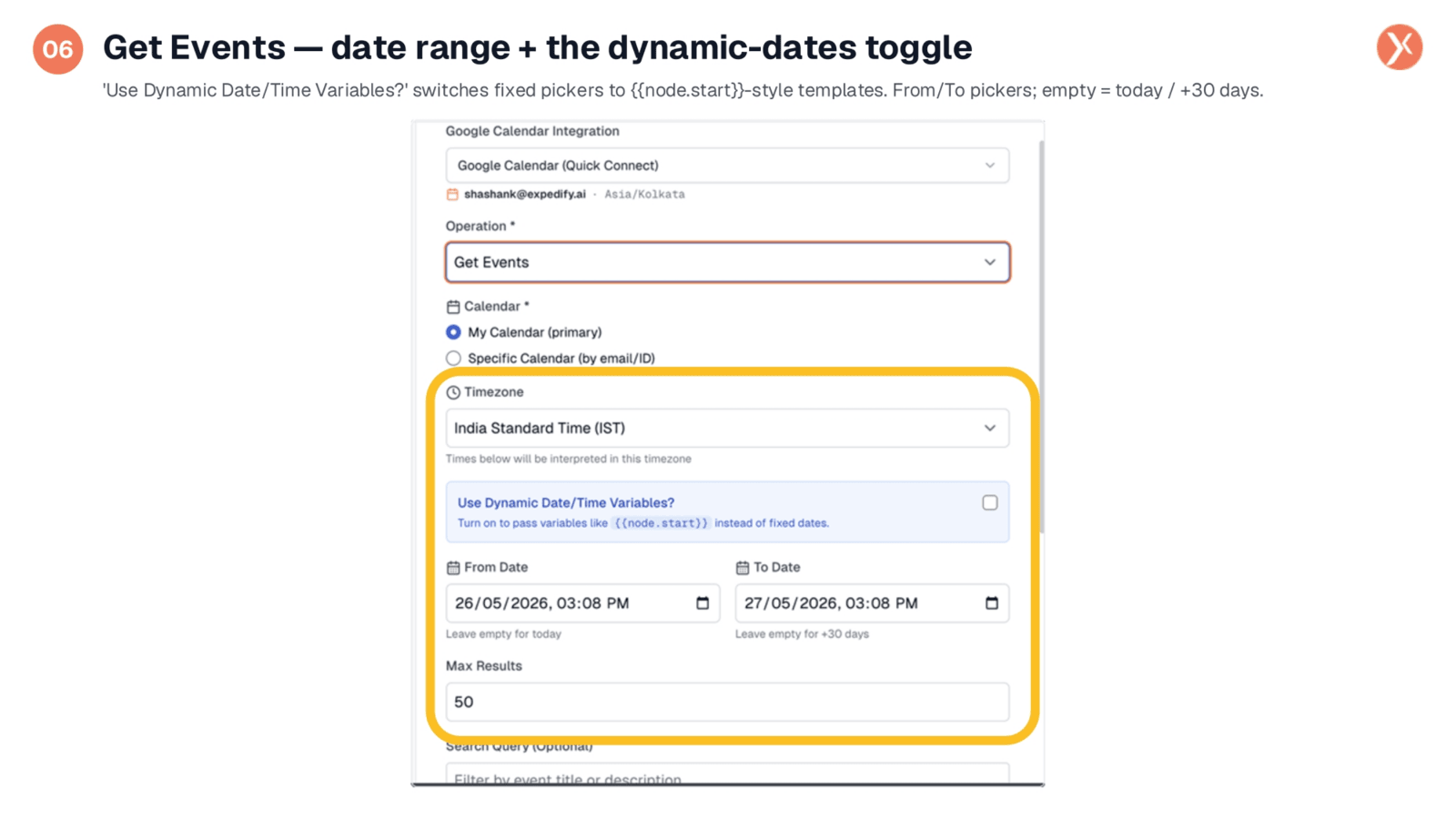
When using the 'Get Events' operation, the first key configuration is the date range, defined by 'From Date' and 'To Date' pickers. Leaving these fields empty defaults to retrieving events for the next thirty days. A crucial feature is the 'Use Dynamic Date/Time Variables?' toggle. When enabled, it switches from fixed date pickers to template variables, allowing your workflow to dynamically query date windows computed by previous nodes, such as a contact's preferred slot from a CRM lookup. This is ideal for creating evergreen workflows that adapt to real-time data.
Get Events: Filtering and Sorting Results
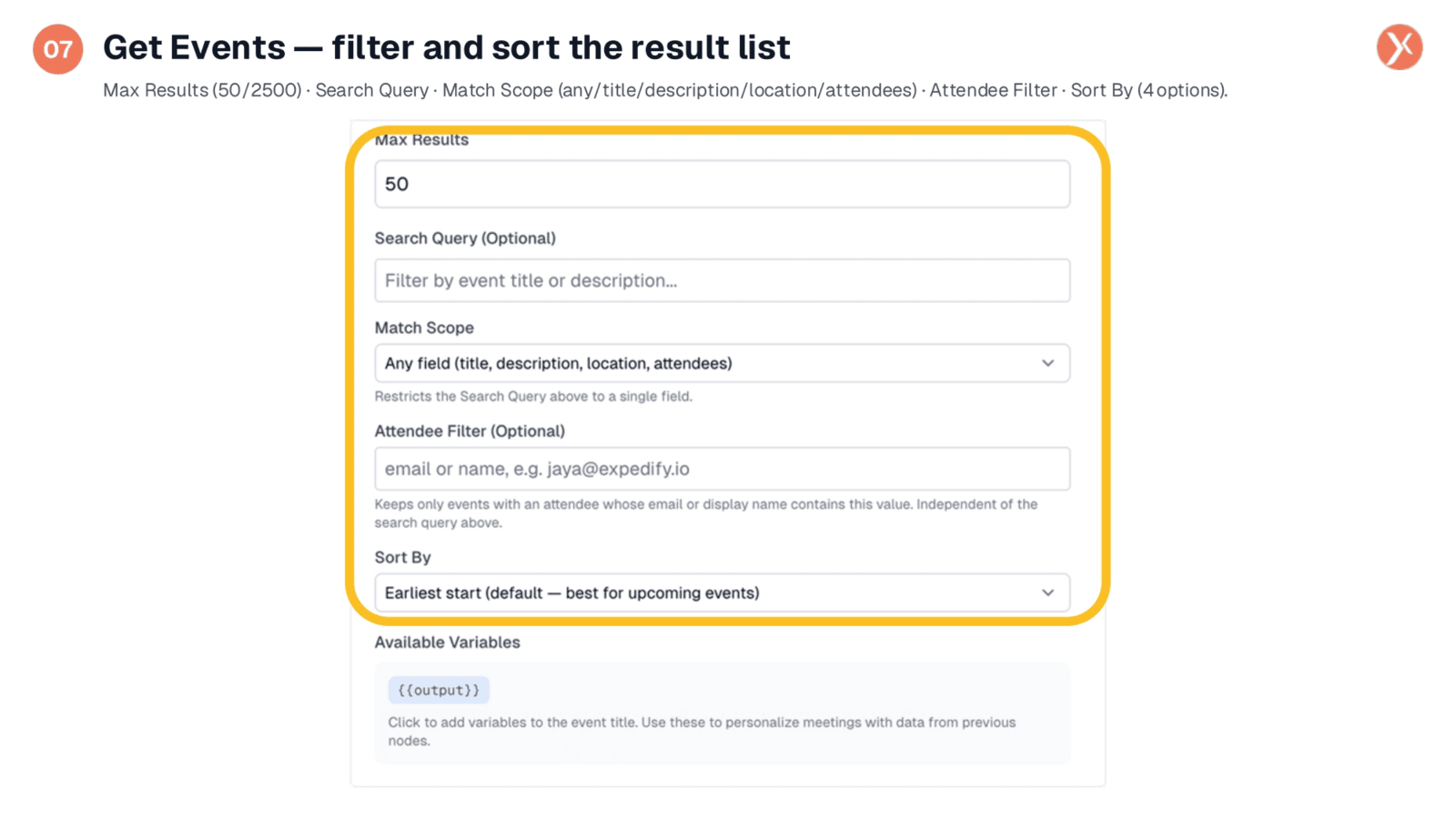
For 'Get Events', you can refine your results using filtering and sorting options. 'Max Results' limits the number of events returned, with a default of fifty. The 'Search Query' field allows free-text filtering across event title, description, location, and attendees. 'Match Scope' can narrow this search to specific fields like 'Title only'. The 'Attendee Filter' independently screens events by attendee email or display name, useful for finding meetings with specific individuals. Finally, 'Sort By' offers four options, with 'Earliest start' being the default, ideal for upcoming events, and 'Latest start' for reviewing past events.
Create Event: Core Details
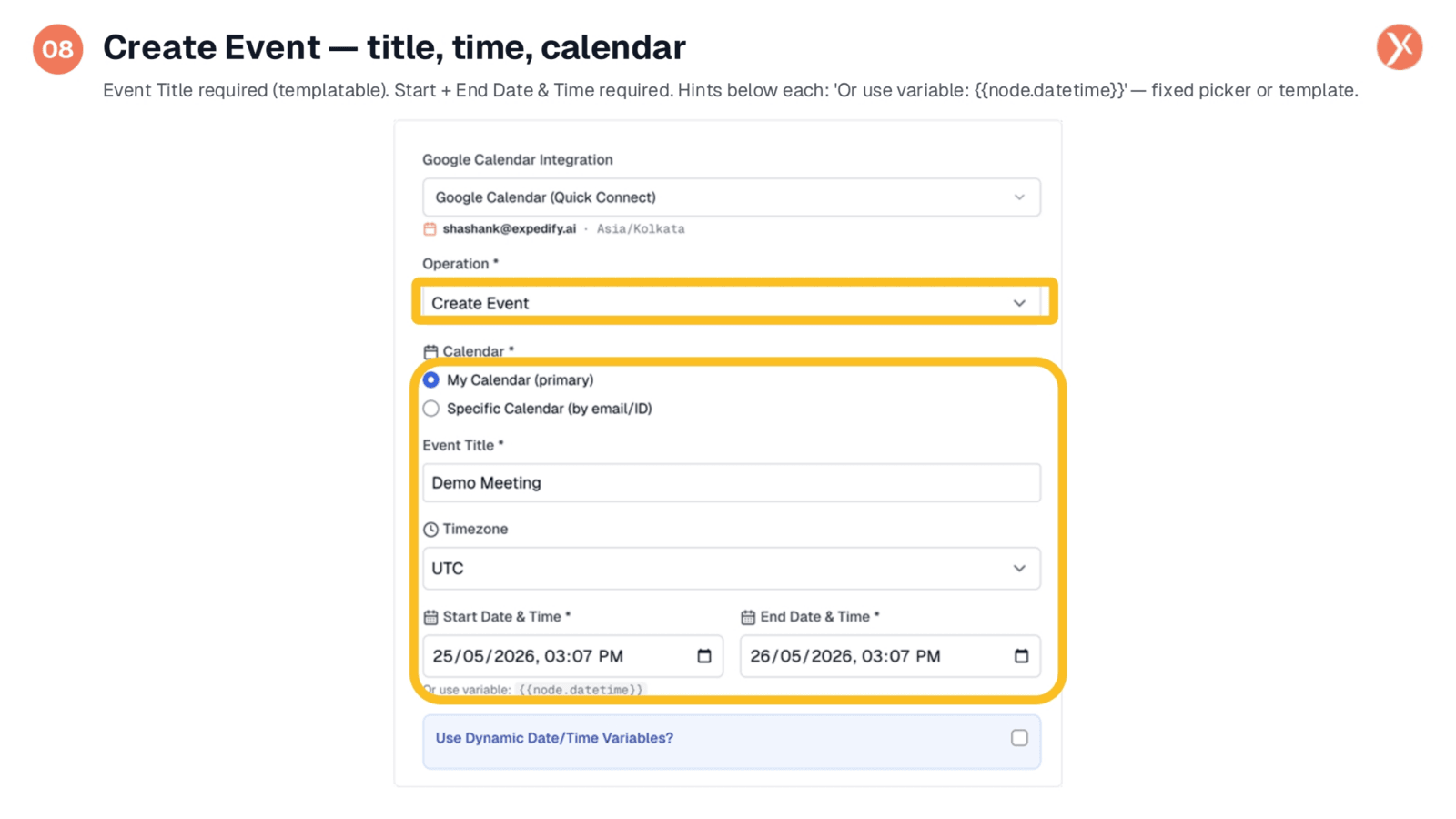
When you select 'Create Event', the form adapts to display specific fields for event creation. Three fields are required: 'Event Title', which is templatable for personalization using variables like a contact's first name; and 'Start Date & Time' and 'End Date & Time'. These date and time fields can be set using fixed pickers or dynamically wired in from upstream variables, such as a computed slot from a previous node. With these core details configured, you've established the foundation for a new meeting, with additional optional settings available for further refinement.
Create Event: Meeting Details
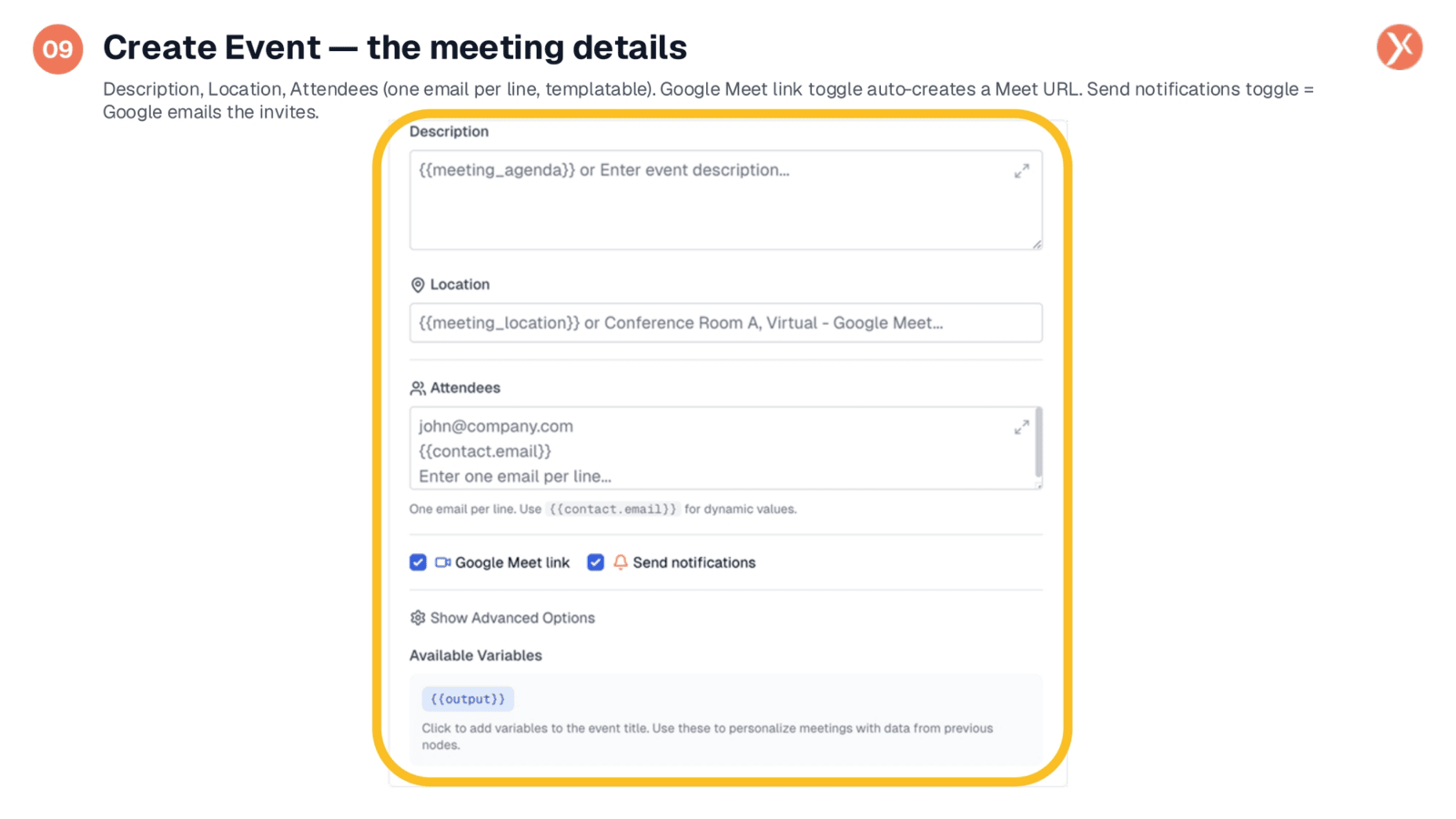
The 'Create Event' form also includes fields for comprehensive meeting details. You can add a 'Description', potentially pulling a 'meeting_agenda' from another node, and specify a 'Location', which can be a physical address or a virtual link. The 'Attendees' field accepts one email per line, supporting dynamic values from sources like CRM lookups. The 'Google Meet link' toggle automatically generates a Meet URL, and 'Send notifications' ensures Google emails calendar invites to all attendees. Both are enabled by default for convenience. Advanced options allow you to set visibility, such as public or private.
Check Availability for a Time Slot
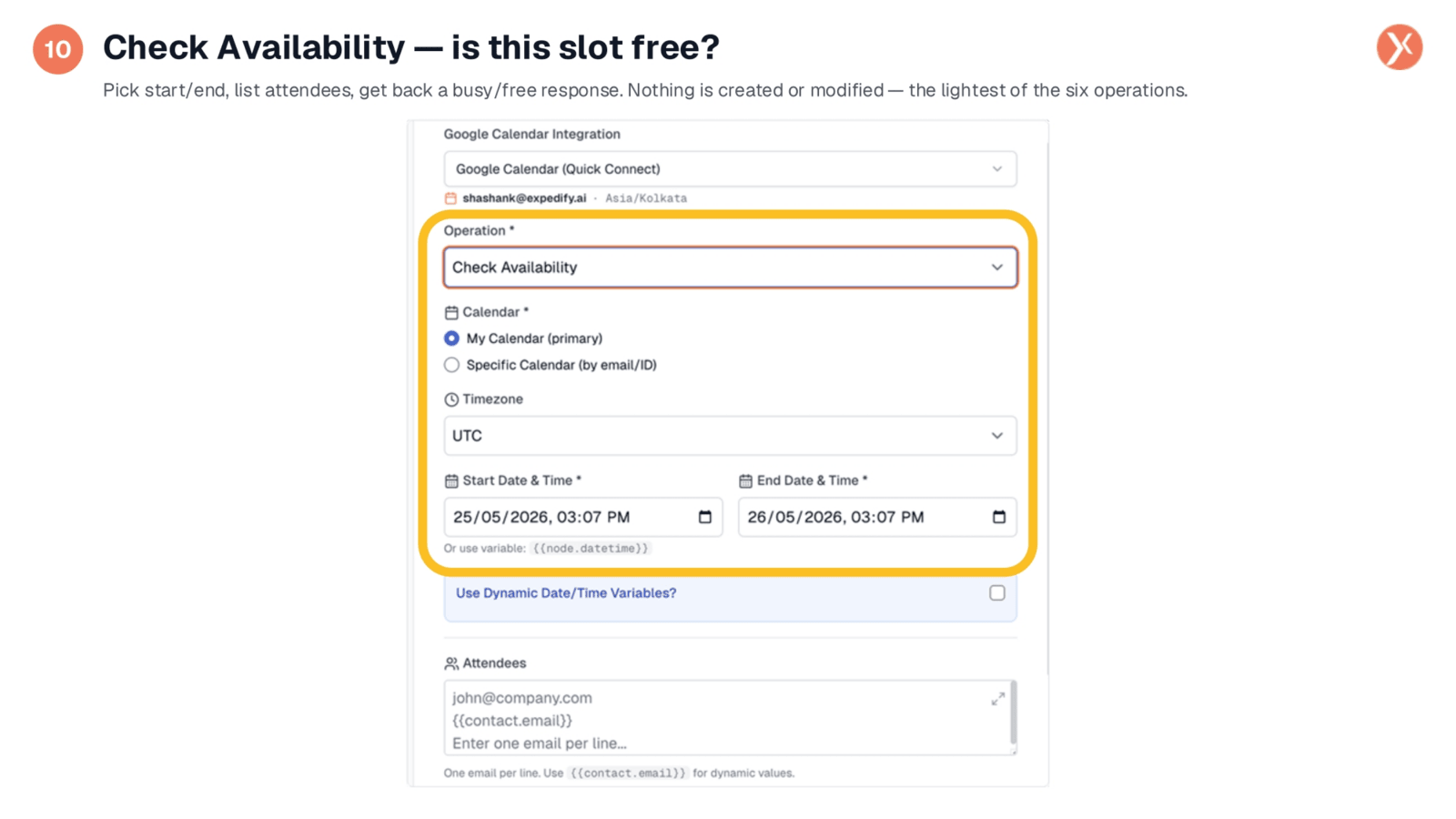
The 'Check Availability' operation offers a streamlined form to determine if a time slot is free. You simply specify a 'Start Date & Time', 'End Date & Time', and list the desired attendees. This operation queries Google Calendar's free/busy API without creating or modifying any events, returning a clear response on each attendee's availability. It's invaluable for confirming a slot before booking an event or for AI agents to propose only available times during customer interactions. The calendar and timezone settings function consistently with other operations.
Google Calendar Node Outputs
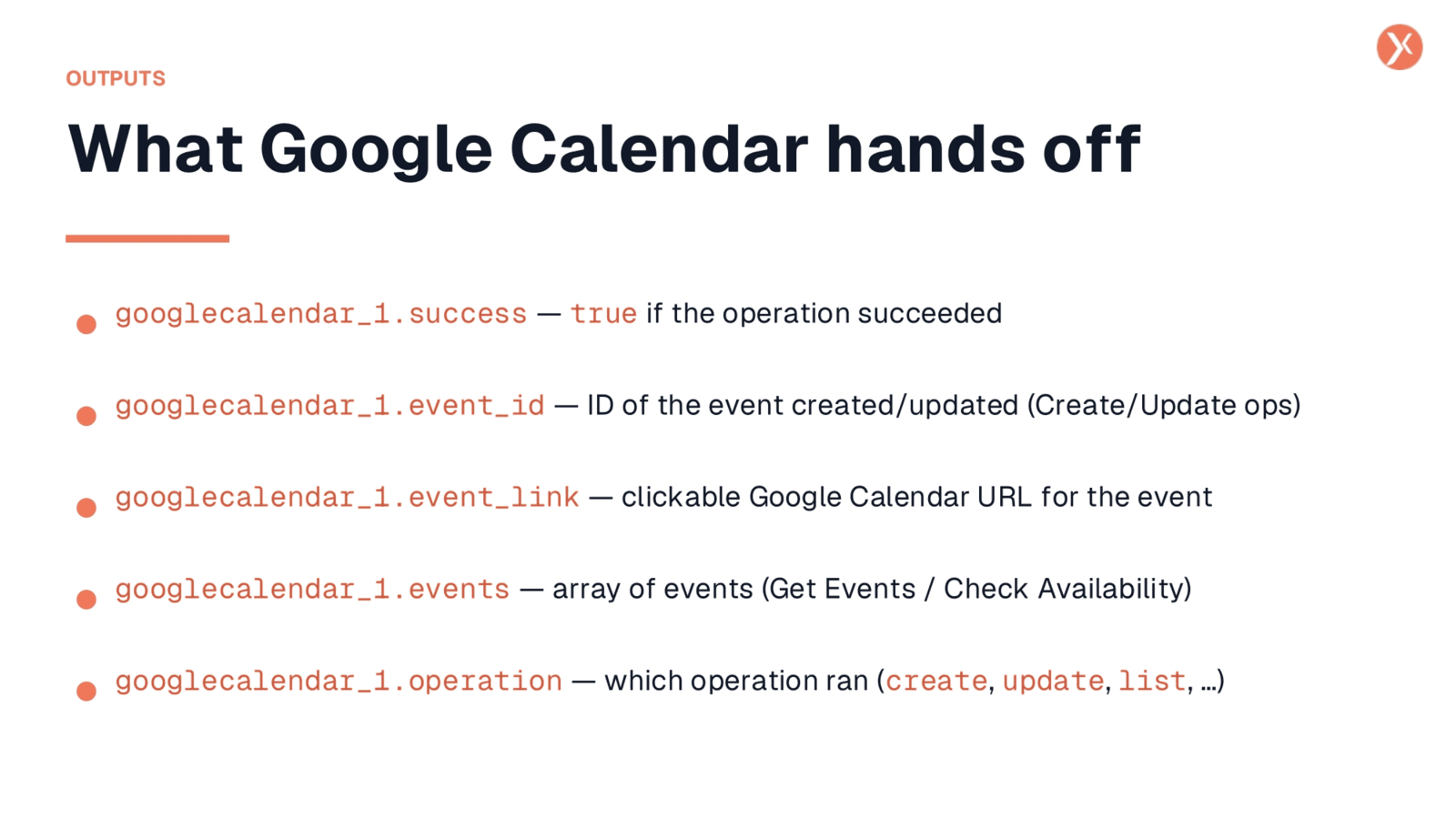
Upon successful execution of any operation, the Google Calendar node provides valuable outputs for downstream nodes. 'googlecalendar_1.success' indicates if the API call was successful. For 'Create' or 'Update' operations, 'googlecalendar_1.event_id' provides the unique identifier of the event, useful for future modifications. 'googlecalendar_1.event_link' offers a clickable URL to the event, perfect for sharing in emails or notifications. 'googlecalendar_1.events' contains an array of events for list-style operations, and 'googlecalendar_1.operation' confirms which action was performed. Additional outputs include conference data for Meet links and attachments.
Google Calendar Node Recap
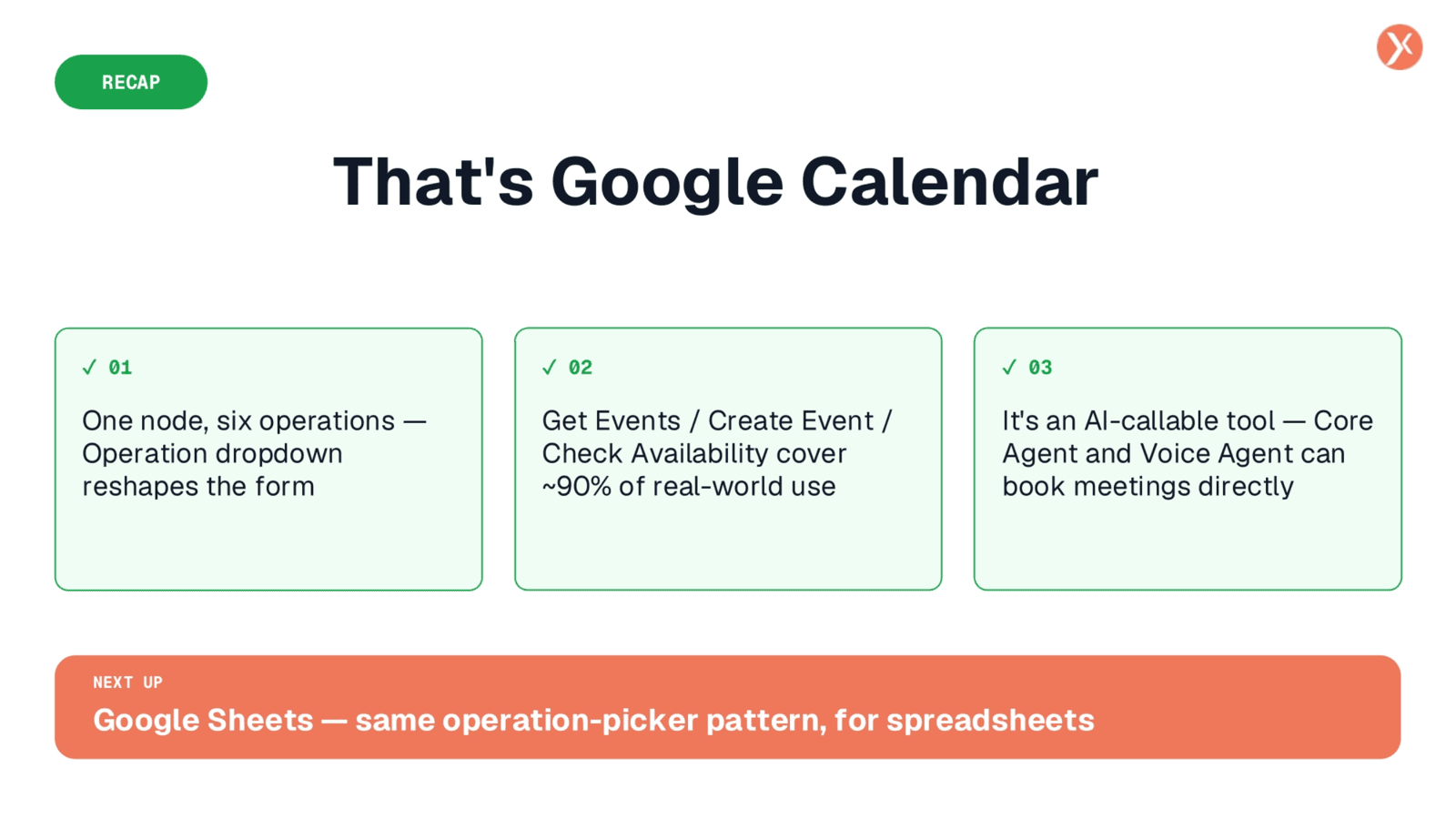
We've explored the Google Calendar node, covering its six operations, with a focus on Get Events, Create Event, and Check Availability. This powerful AI-callable tool streamlines meeting scheduling and calendar management, ensuring efficient automation. Next, we'll delve into Google Sheets.