Google Docs
Welcome to our session on automating Google Docs. This powerful integration allows you to automate document creation, editing, and sharing directly within your workflows. We'll explore its seven core operations, demonstrating how to leverage them for unlimited possibilities in your automated processes.
Google Docs Demo Overview
Let's dive into a demo of the Google Docs integration.
Google Docs Node on Canvas
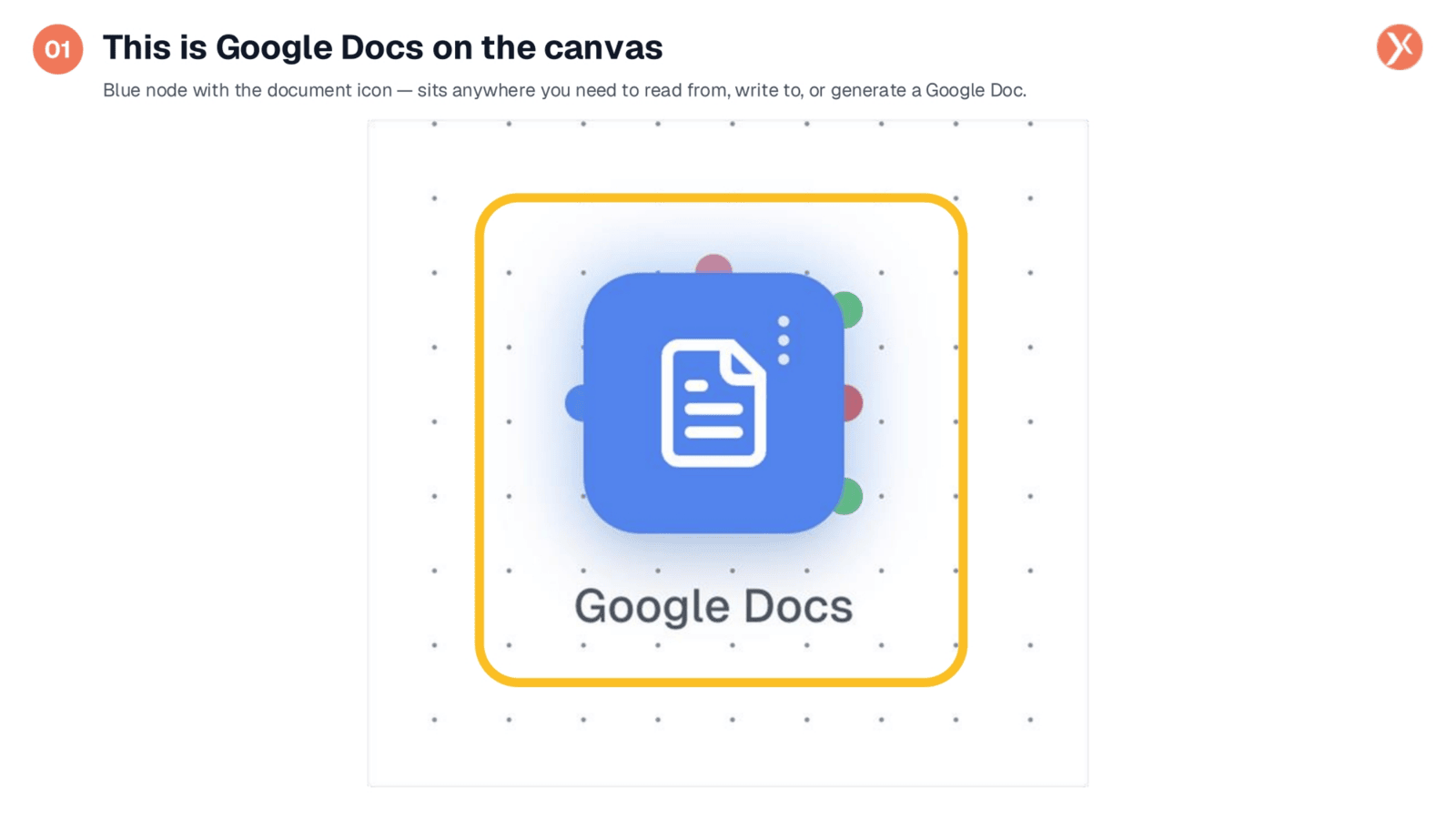
The Google Docs node appears on your canvas as a blue icon, visually grouped with other Google integrations. You can place it anywhere in your workflow where you need to interact with a Google Doc, whether it's reading content, generating new documents, or updating existing ones. This is particularly useful downstream from an AI node that generates content, or following a CRM trigger to log results. To configure its specific actions, simply double-click the node.
Opening Google Docs Configuration
To begin configuring the Google Docs node, simply double-click it on your canvas. This action opens the dedicated configuration panel, providing access to all the settings and options for how your workflow will interact with Google Docs. It's the essential first step to customizing your document automation and defining its role within your broader processes.
Google Docs Configuration Panel
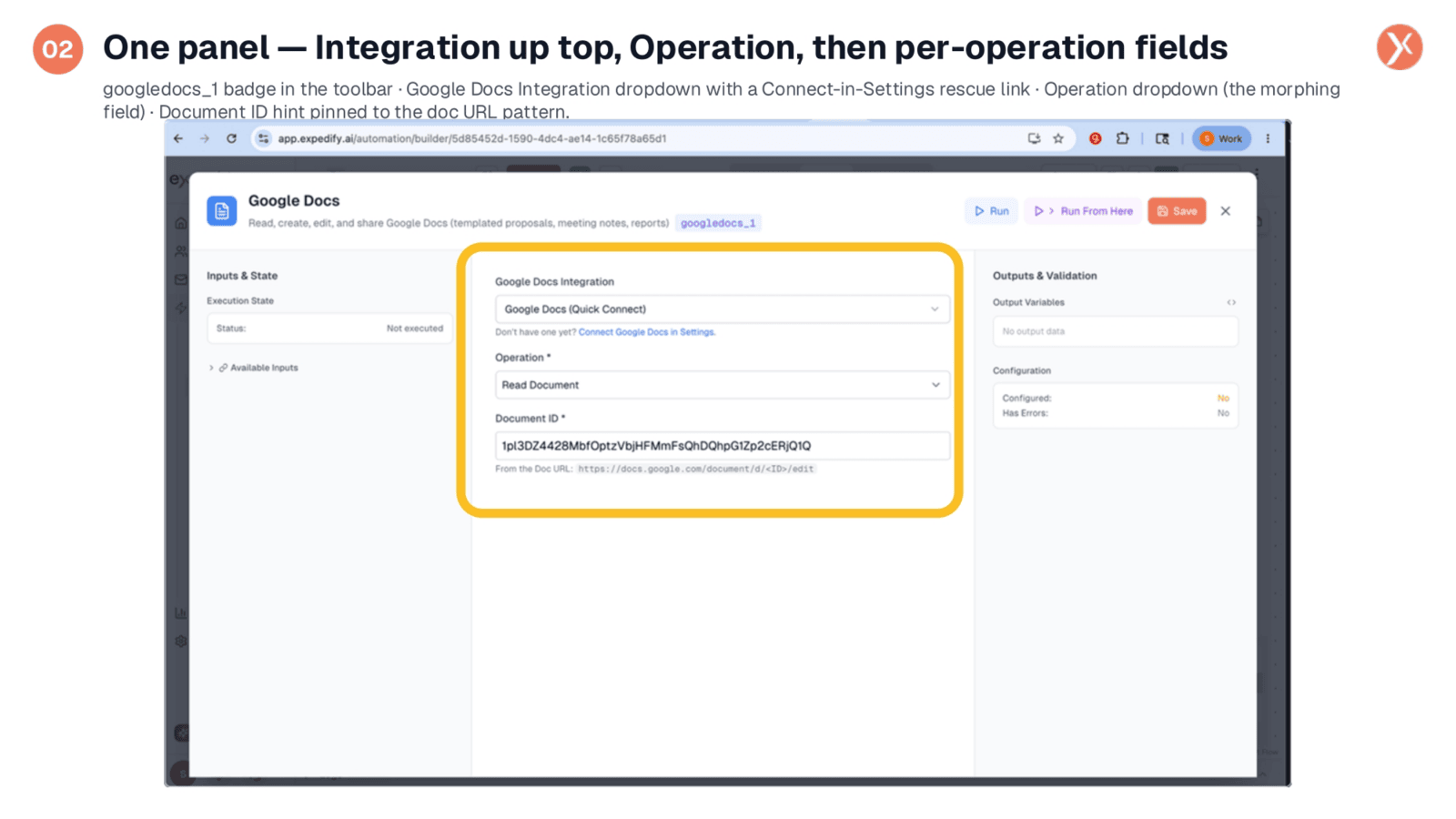
Upon opening the panel, you'll see its structure, starting with the 'googledocs_1' badge, which serves as the reference for downstream nodes. Key fields include the Google Docs Integration dropdown, allowing you to select the connected Google account. Below that is the 'Operation' dropdown, which dynamically changes the rest of the panel based on your selection. Finally, the 'Document ID' field is crucial for most operations, with a helpful hint indicating where to find it in a document's URL. A built-in rescue link is also available if no Google account is connected.
Dynamic Operation Field
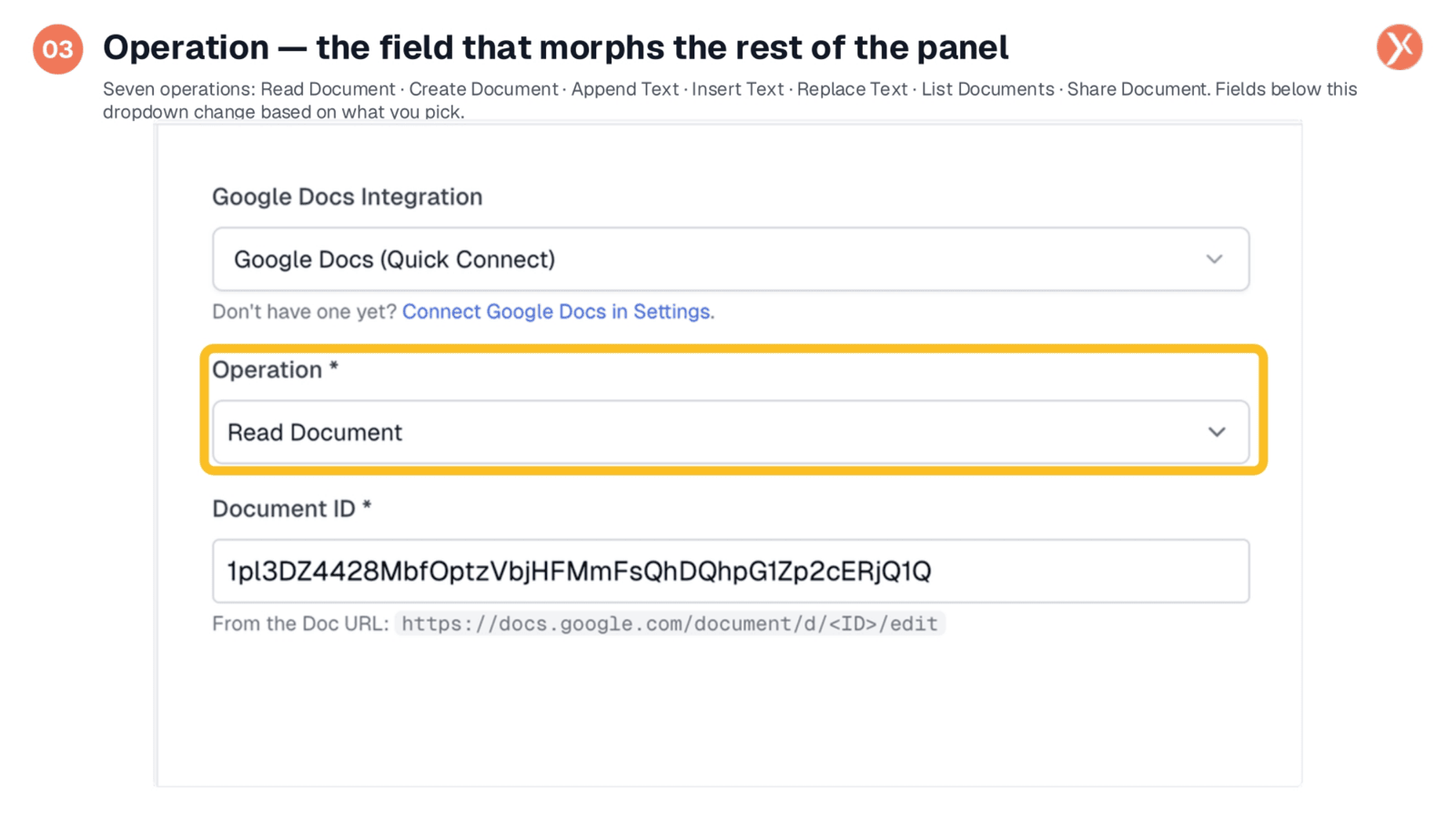
The 'Operation' field is central to defining the node's function, as it dynamically reshapes the rest of the panel. By default, 'Read Document' fetches a document's plaintext body. 'Create Document' generates a new document, while 'Append Text' adds content to an existing one, ideal for audit logs. 'Insert Text' places text at a specific position. 'Replace Text' is a powerful templating tool, swapping tokens with real values. You can also 'List Documents' visible to the integration or 'Share Document' with specific access levels. Each choice presents tailored fields below.
Understanding Document ID
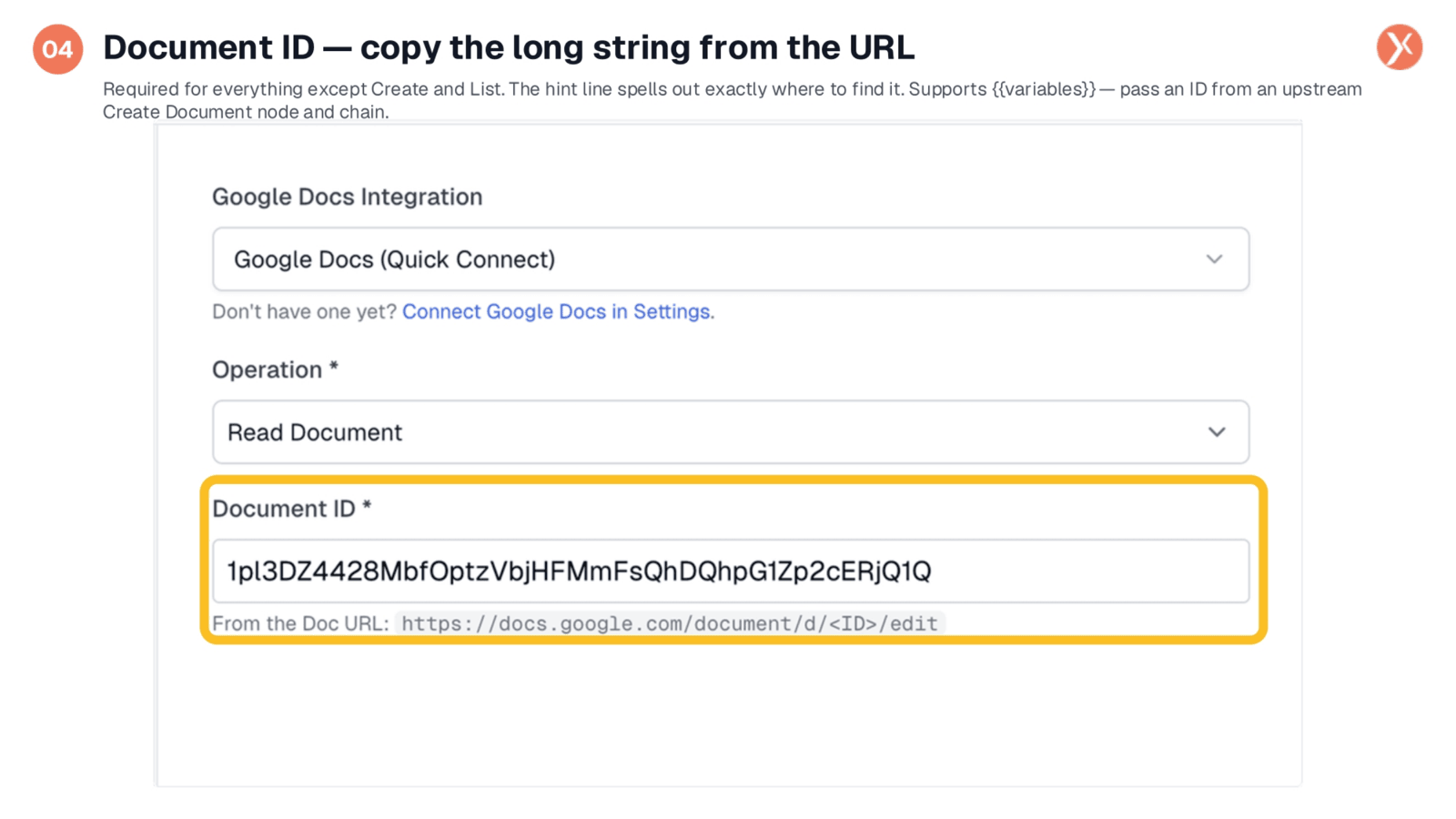
The 'Document ID' field specifies the exact document your operation will target. It's required for all operations except 'Create Document,' which makes a new one, and 'List Documents,' which queries your entire library. You can easily locate this ID as the long string within the document's URL, typically between '/d/' and '/edit'. A crucial feature is its support for variables, enabling you to chain operations. For instance, one node can create a document and expose its ID, which a subsequent node can then use to write into that very same document, building complex workflows.
Operation Cheat Sheet
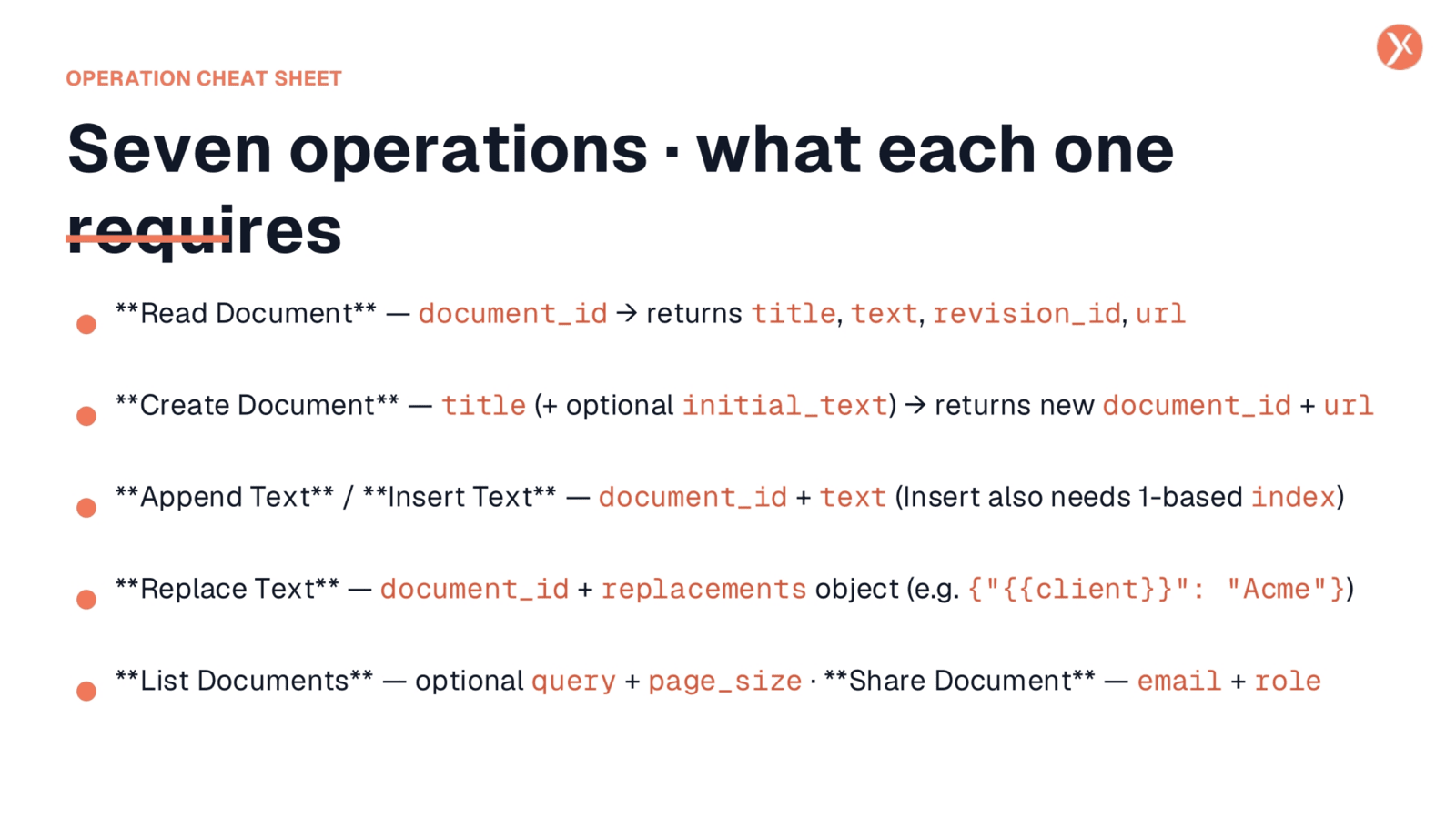
For quick reference, here's a cheat sheet outlining each operation's requirements and outputs. 'Read Document' needs a Document ID and returns the title, text, revision ID, and URL. 'Create Document' requires a title and provides the new document's ID and URL. Both 'Append Text' and 'Insert Text' need a Document ID and the text to write, with 'Insert' also requiring a one-based index. 'Replace Text' is highly effective, taking a Document ID and a replacements object to map search strings to new values. 'List Documents' can use an optional query, and 'Share Document' needs an email and a role.
Google Docs as an AI Tool
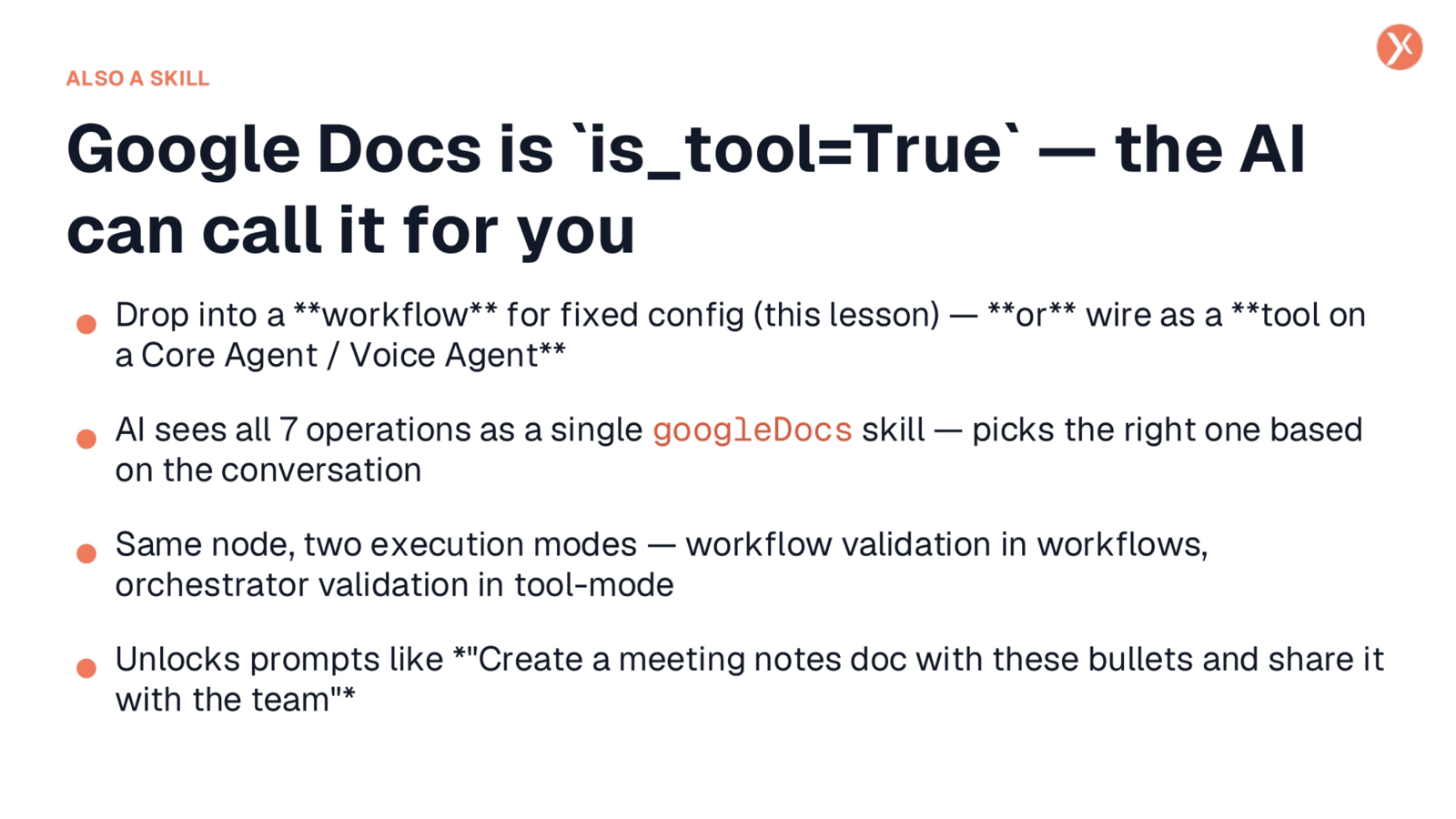
Beyond its role in fixed workflows, the Google Docs node also functions as a skill for Core Agents or Voice Agents. This means it's flagged as 'is_tool=True' in the backend, allowing AI to dynamically call its operations. While we've focused on its workflow application with fixed configurations, you can also deploy it as a tool on an agent. In this mode, the AI intelligently selects the appropriate operation at runtime based on the conversation, enabling advanced prompts like 'create a meeting notes document with these bullets and share it with the team,' where the AI drives the action.
Google Docs Outputs
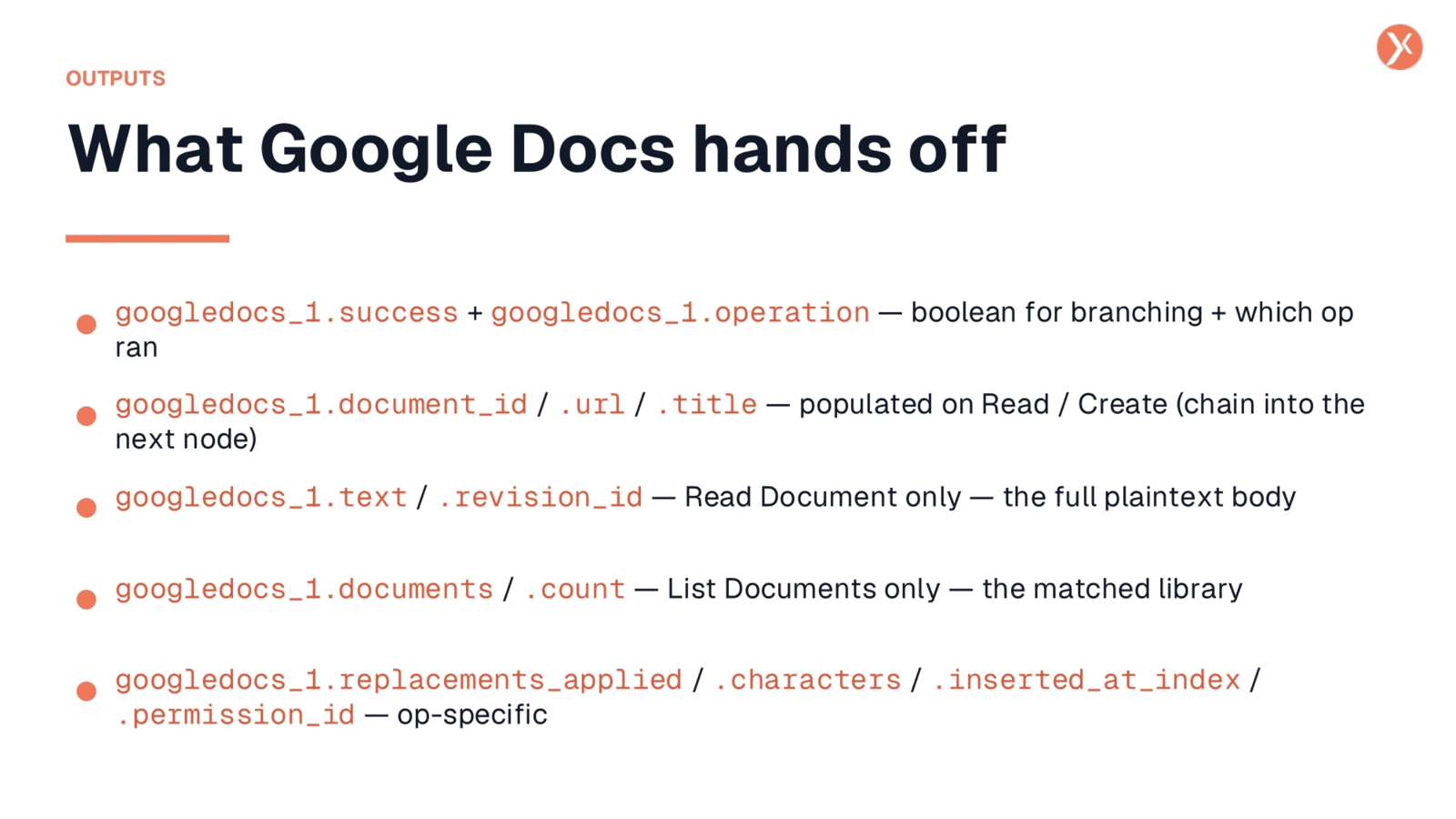
Understanding the outputs of the Google Docs node is essential for building robust workflows. The 'googledocs_1.success' boolean allows for conditional branching based on operation success or failure. 'googledocs_1.operation' indicates which of the seven operations was executed, useful for shared error handling. Operation-specific outputs include 'document_id', 'url', and 'title' for Read and Create operations. 'text' and 'revision_id' are provided by 'Read Document'. 'List Documents' returns a 'documents' array and 'count'. Other outputs like 'replacements_applied' or 'permission_id' are specific to their respective operations, ensuring comprehensive data for downstream processes.
Google Docs Recap
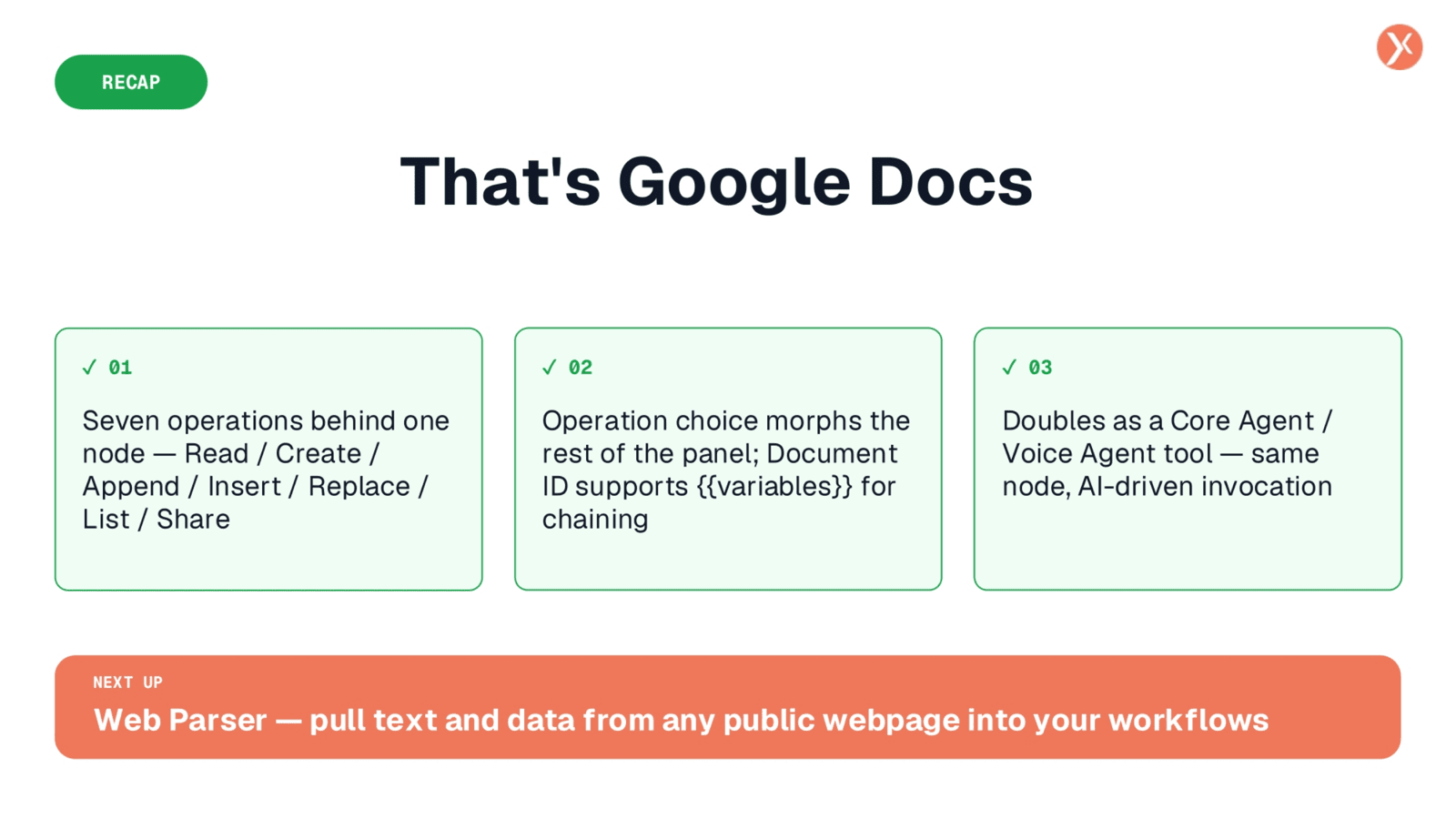
That concludes our overview of the Google Docs integration. It offers powerful automation capabilities, whether in workflows or as an AI-driven tool. Next, we'll explore the Web Parser, pulling text and data from public webpages into your workflows.