Web Search
The Web Search node is the discovery engine for almost any research workflow you'll build. It efficiently takes a query, like "best CRM for AI agents," and returns a structured list of URLs, titles, and snippets. This node works completely free out of the box using DuckDuckGo, requiring no API key or per-search billing.
Web Search Demo Overview
Let's explore the Web Search functionality.
Web Search on the Canvas
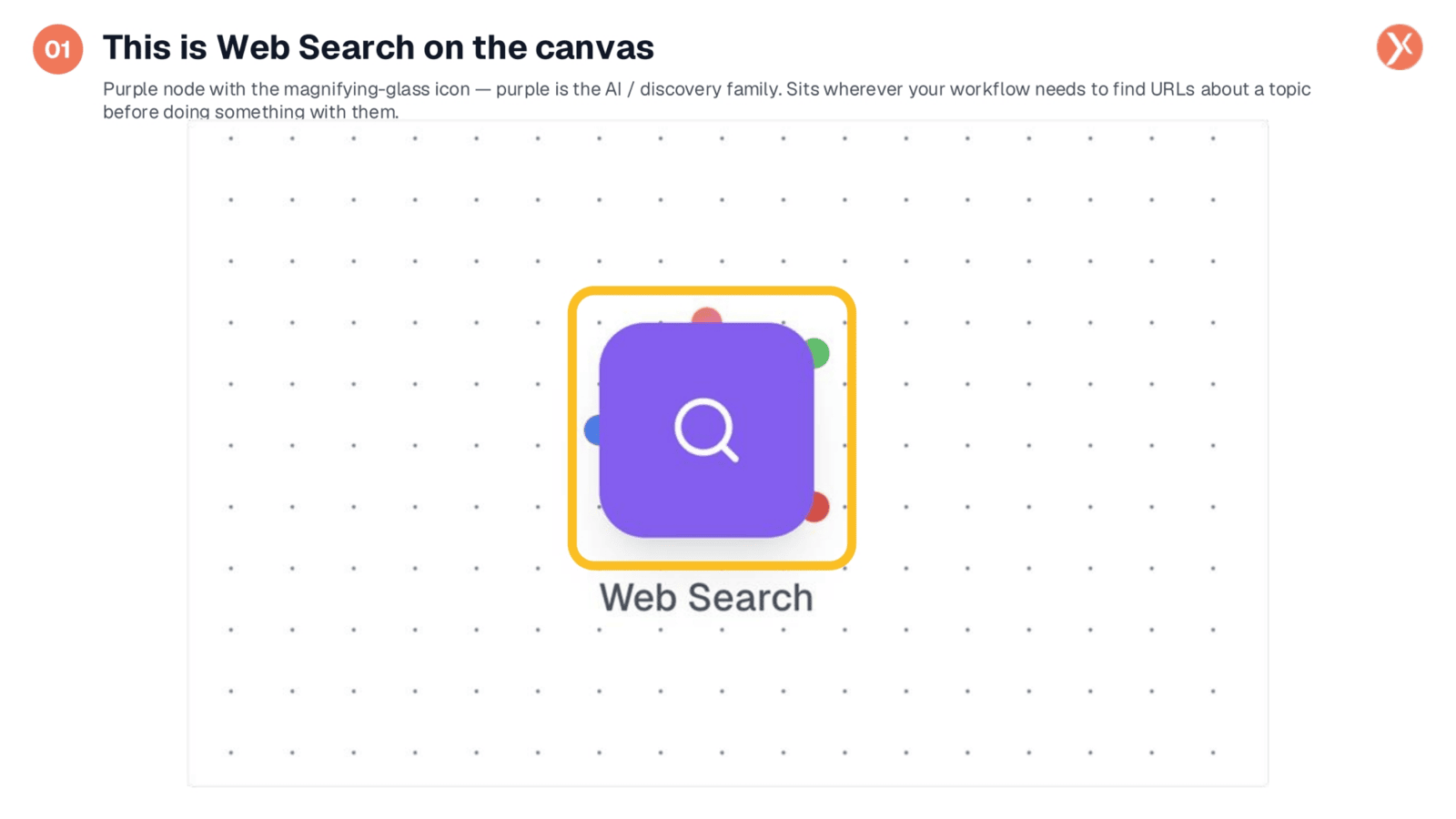
The Web Search node appears on the canvas as a purple icon with a magnifying glass, signifying its role within the AI and discovery family. You can place it anywhere your workflow needs to find relevant URLs about a specific topic. It typically sits at the beginning of a research workflow, often feeding directly into a Web Parser node or a Core Agent for further processing. Double-click the node to access its configuration settings.
Opening Web Search Configuration
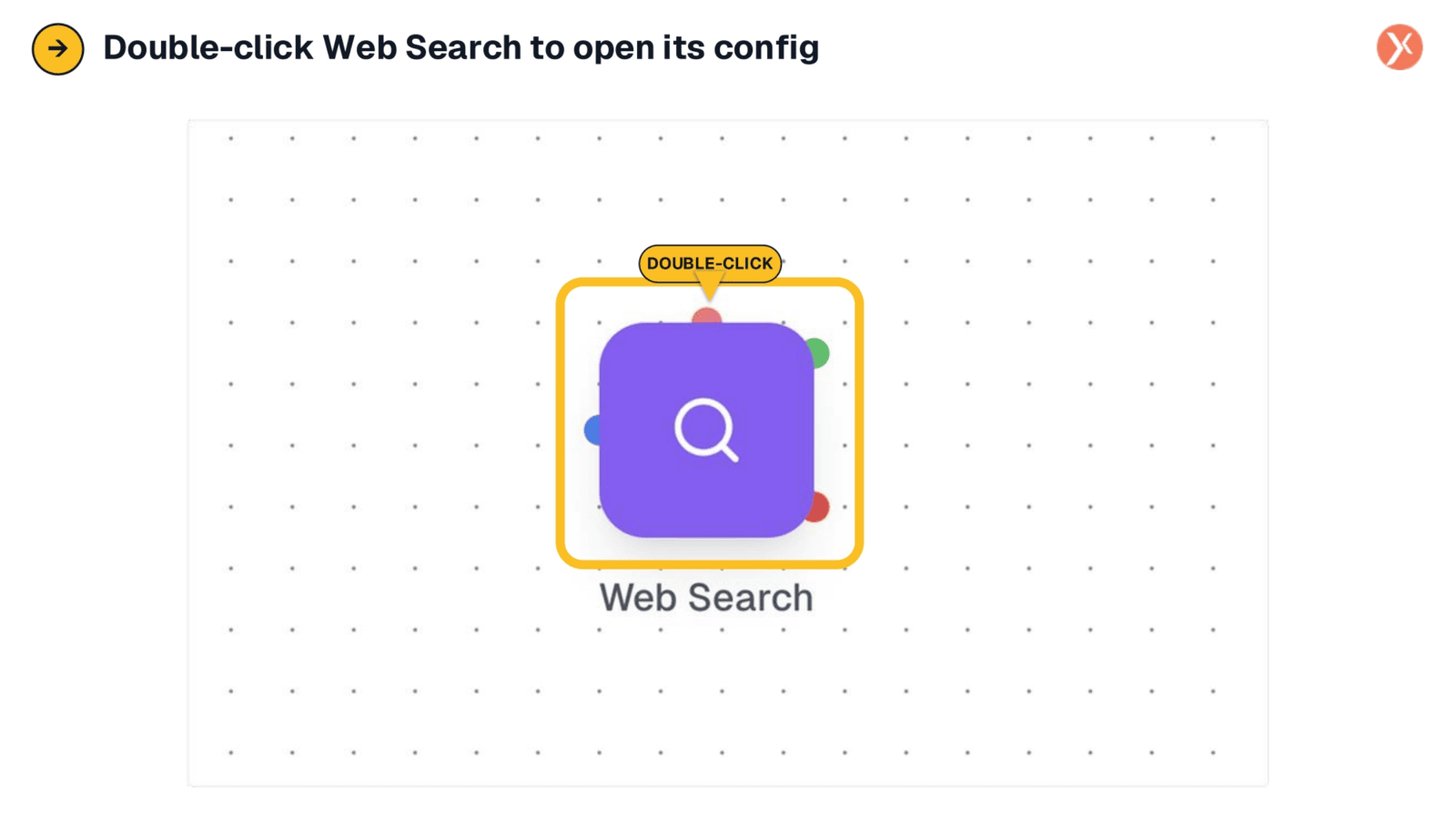
To configure the Web Search node, simply double-click its icon on the canvas. This action will open its dedicated configuration panel, allowing you to define your search parameters. This straightforward interaction ensures you can quickly access and customize the node's behavior, enabling precise control over your workflow's data discovery capabilities.
Web Search Configuration Panel Overview
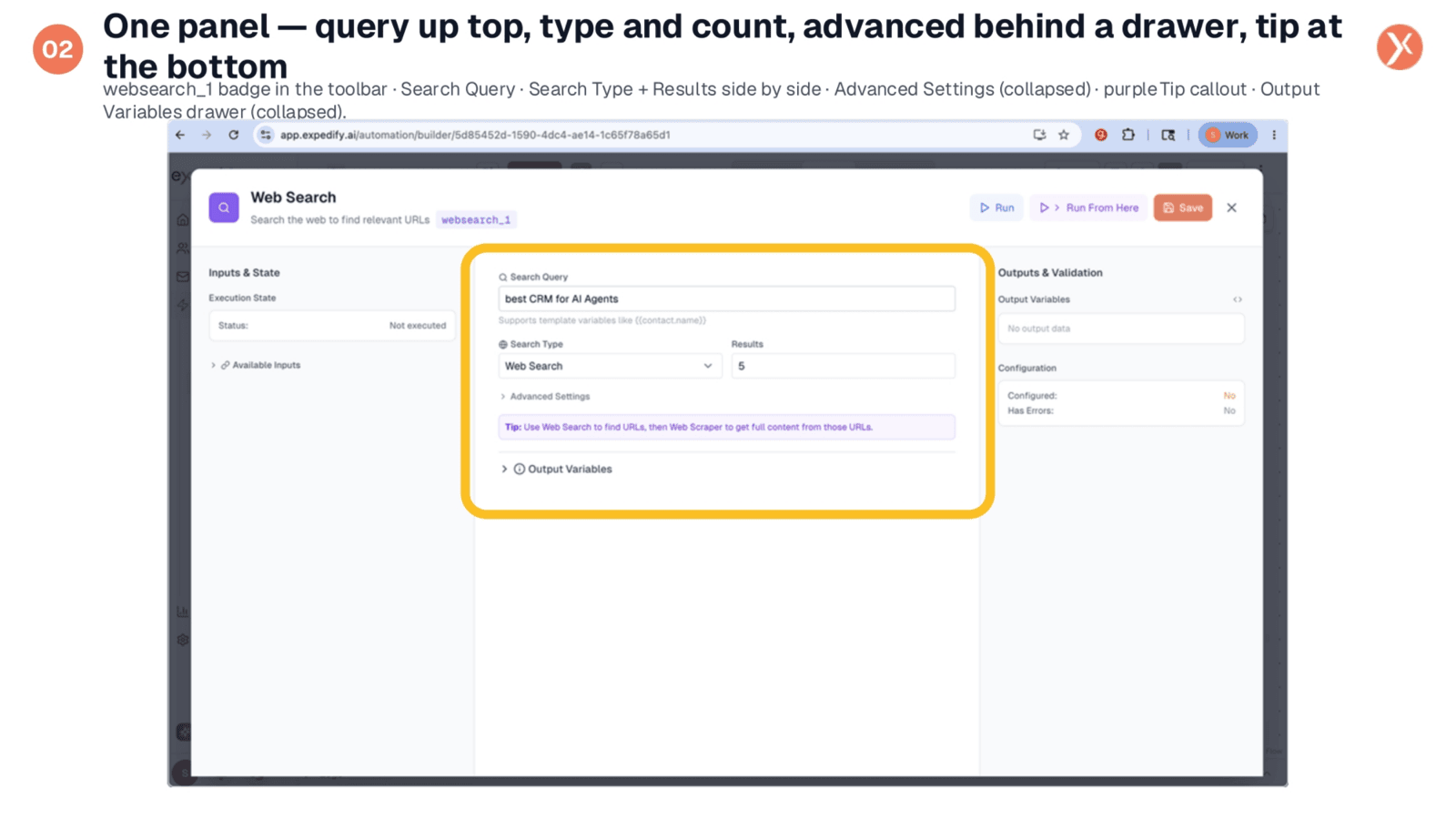
The configuration panel features a top toolbar with the websearch one badge, indicating its variable namespace for downstream nodes. The "Search Query" is the only required field, with all other settings having sensible defaults. You'll find "Search Type" and "Results" side-by-side, along with a collapsed "Advanced Settings" drawer for regional, safe-search, and time-range controls. A crucial tip at the bottom highlights the common "search-then-scrape" pattern, emphasizing its pairing with a Web Scraper node.
Defining Your Search Query
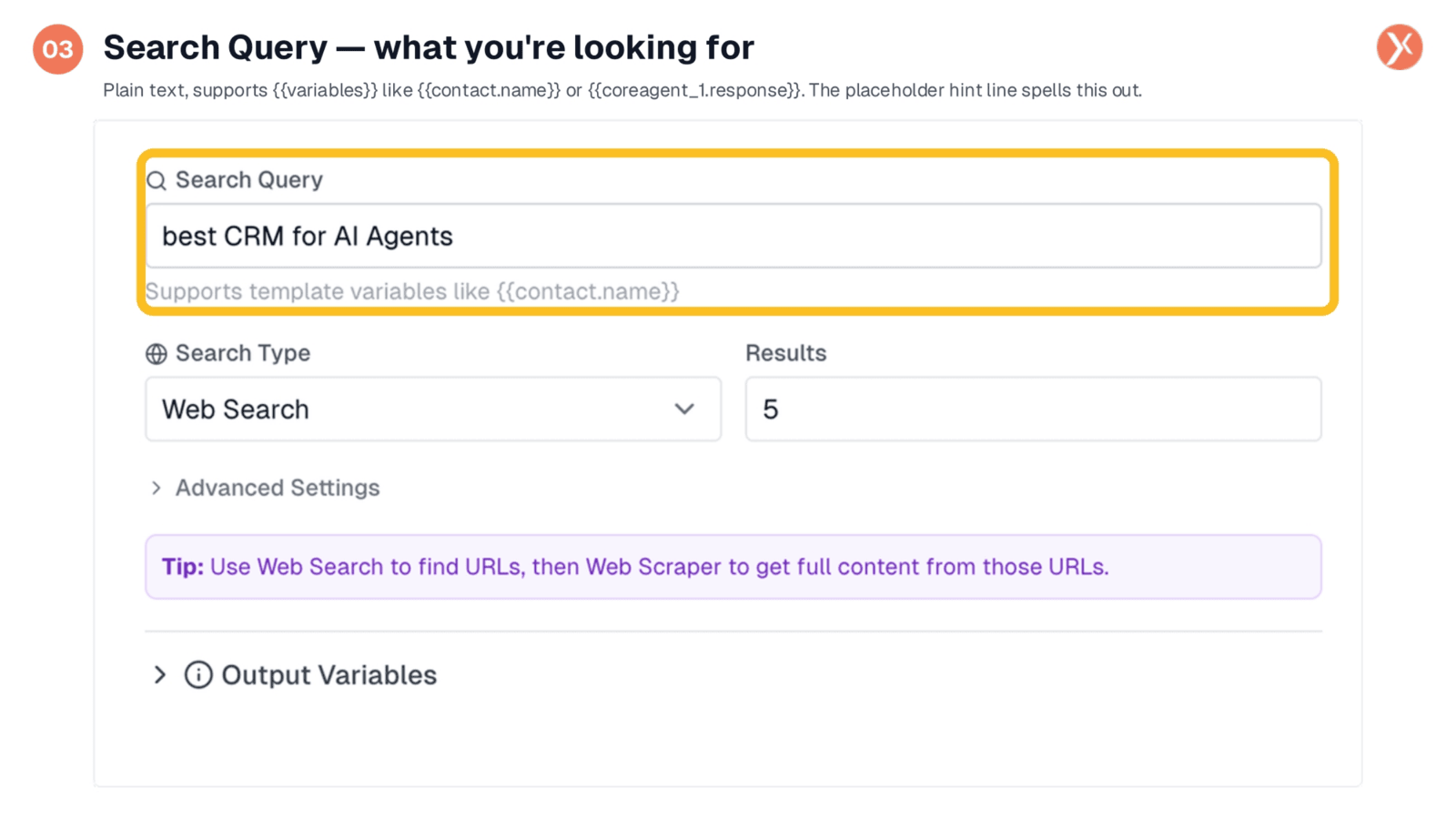
The "Search Query" field is where you input what you're looking for, similar to a standard search engine. Short, specific keywords, typically three to seven words, yield the best results. This field supports template variables, such as double-curly bracket contact dot name double-curly bracket, enabling dynamic queries. You can research a specific lead by passing data from a CRM trigger or chain it off an AI node, allowing a Core Agent to generate an optimal search query. Dynamic queries ensure the node adapts to the specific context of each workflow execution.
Choosing Search Type: Web or News
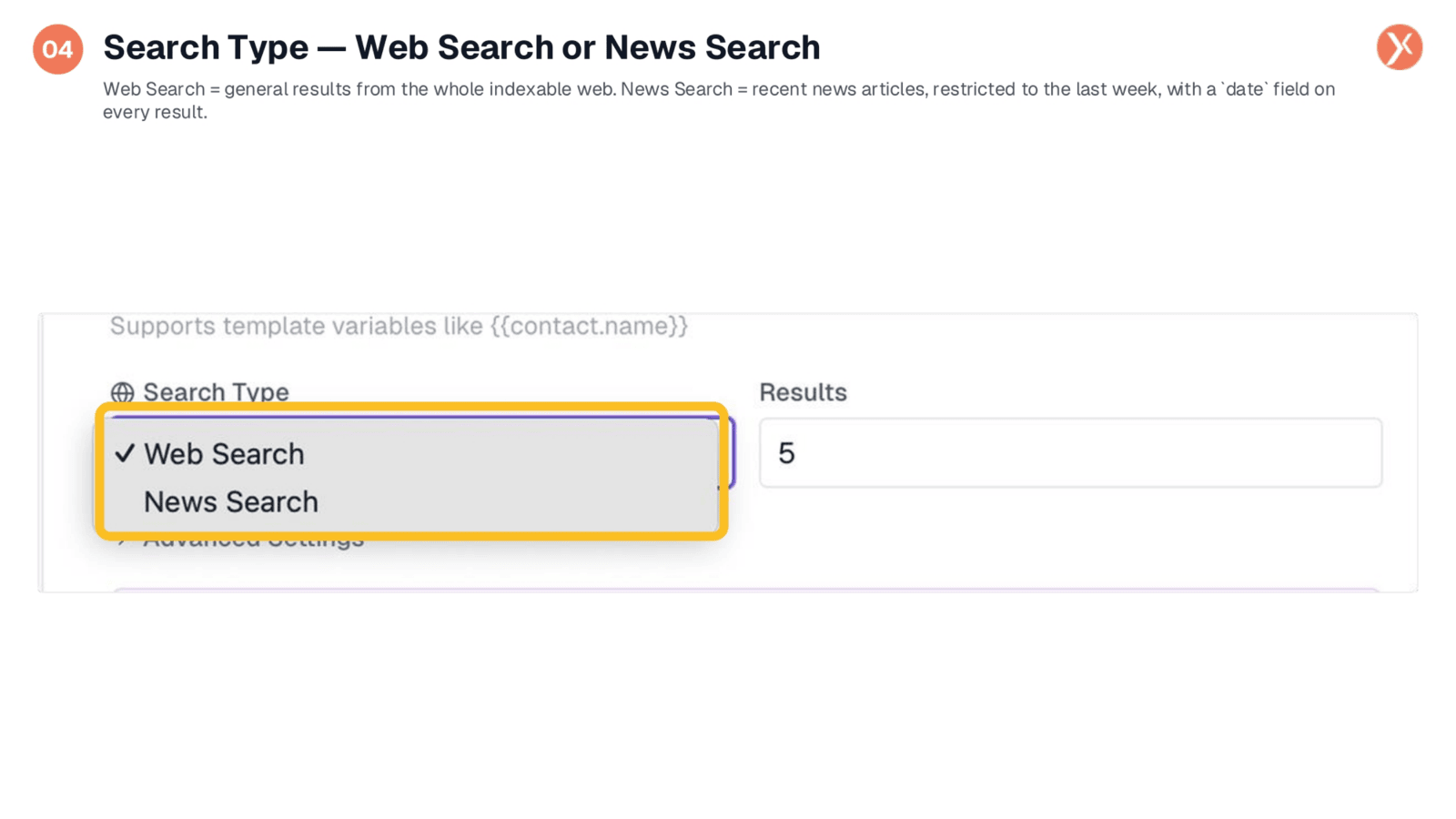
The "Search Type" offers two distinct options: "Web Search" and "News Search." "Web Search" is the default, providing general results from the entire indexable web. "News Search" restricts results to recent news articles from the last week, including an additional date field for chronological sorting. Select "News" when tracking current events like competitor announcements or product launches, and use "Web" for all other general research needs.
Results Count and Advanced Settings
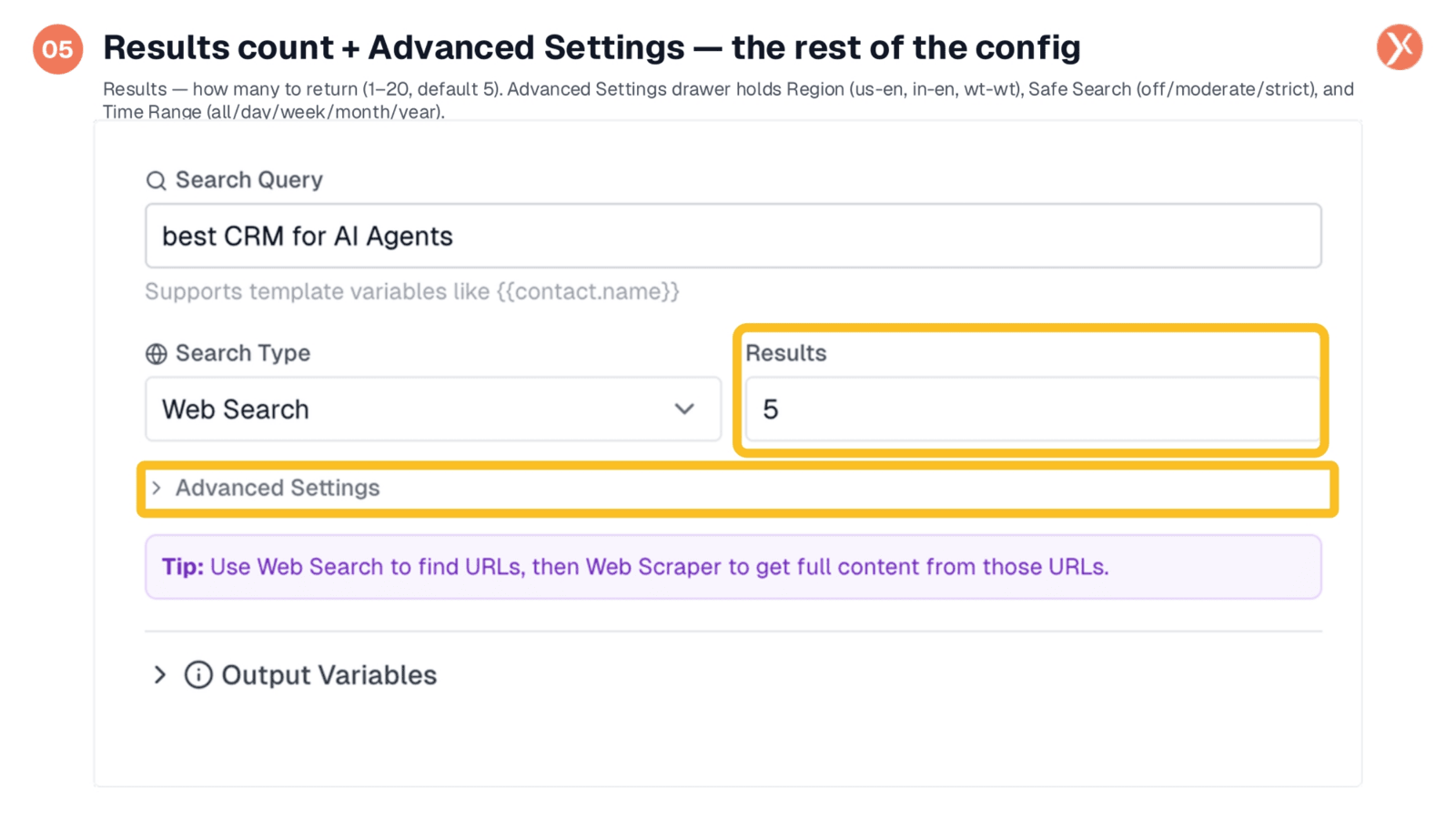
The "Results" field determines the number of URLs returned, with a default of five, a maximum of twenty, and a minimum of one. Five results are often sufficient, as processing too many URLs can slow down execution. Below this, the "Advanced Settings" drawer provides additional controls. These include "Region" for country and language codes, like US English or India English; "Safe Search" options (off, moderate, strict); and "Time Range" filters (day, week, month, year). These settings have sensible defaults and should only be adjusted for specific requirements.
Web Search and Web Parser Combo
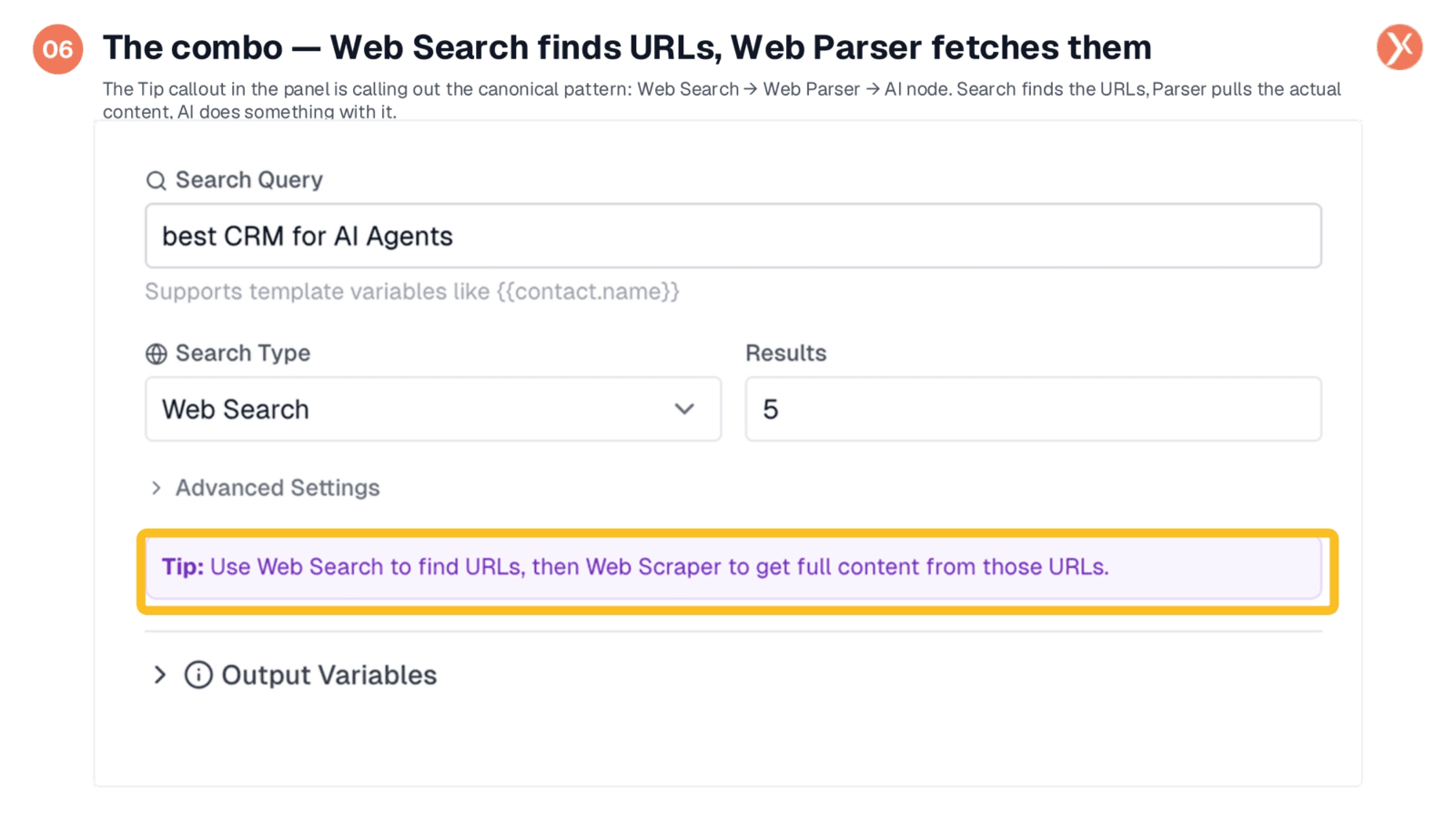
The tip at the bottom of the panel emphasizes a critical workflow pattern: using Web Search to find URLs, then piping those URLs into a Web Scraper to retrieve their full content. Web Search provides URLs and brief snippets, offering enough information to identify relevant links but not the complete content. To delve deeper, integrate a Web Parser node, which extracts the full page text. This combination forms a clean and efficient research pipeline: Web Search for discovery, Web Parser for extraction, and an AI node for summarization or data classification.
Web Search Output Variables
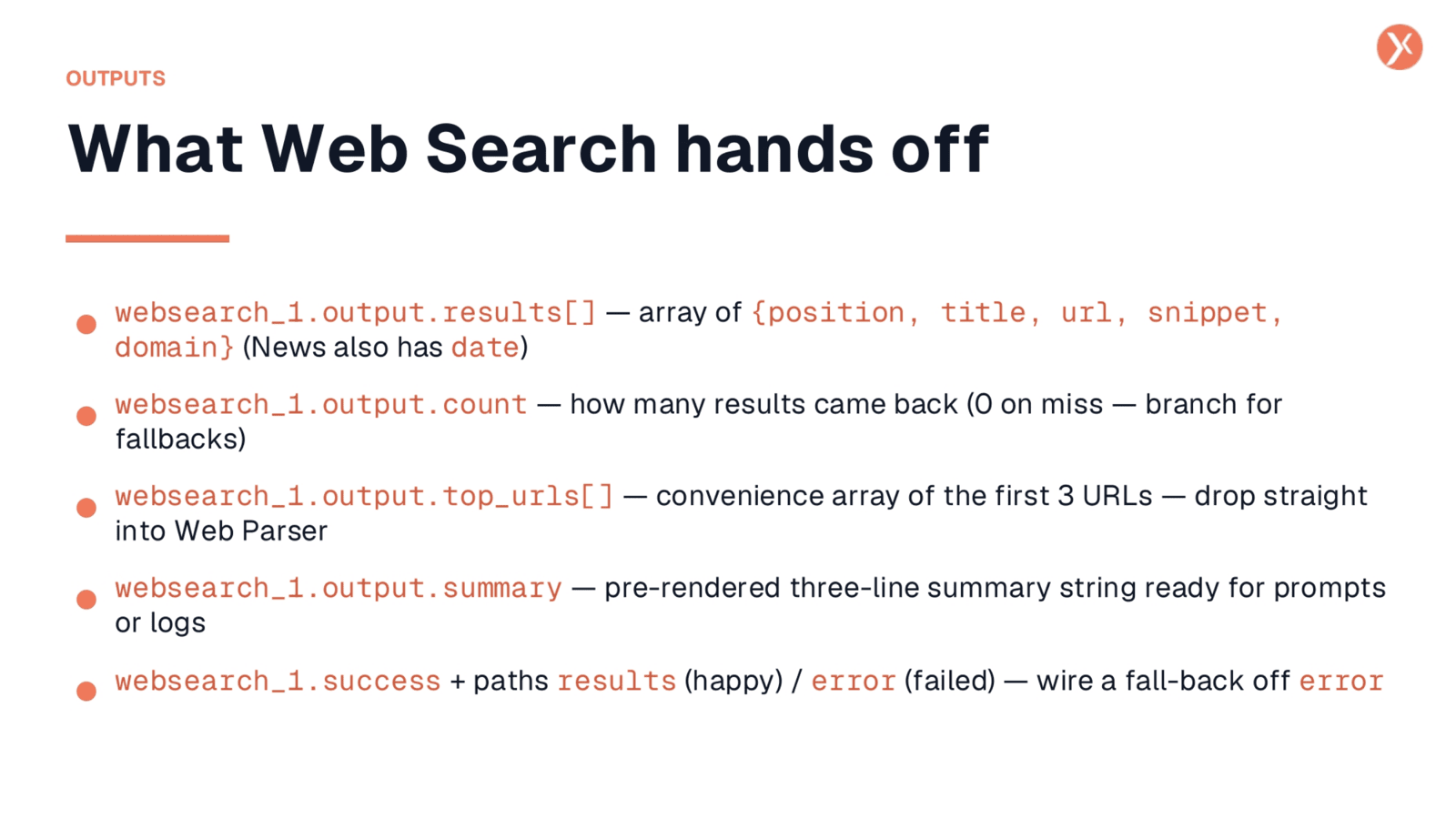
Downstream nodes receive structured output from Web Search. The primary output, websearch one dot output dot results, is an array of objects, each containing a position, title, URL, snippet, and domain. News searches also include a date field. Output dot count indicates the number of results, allowing for fallbacks if no results are found. Output dot top_urls provides a convenient array of the first three URLs as plain strings, ideal for direct input into a Web Parser. Output dot summary offers a pre-rendered three-line summary for LLM prompts or logs. The node also has results and error output paths for robust error handling.
Recap: Key Web Search Features
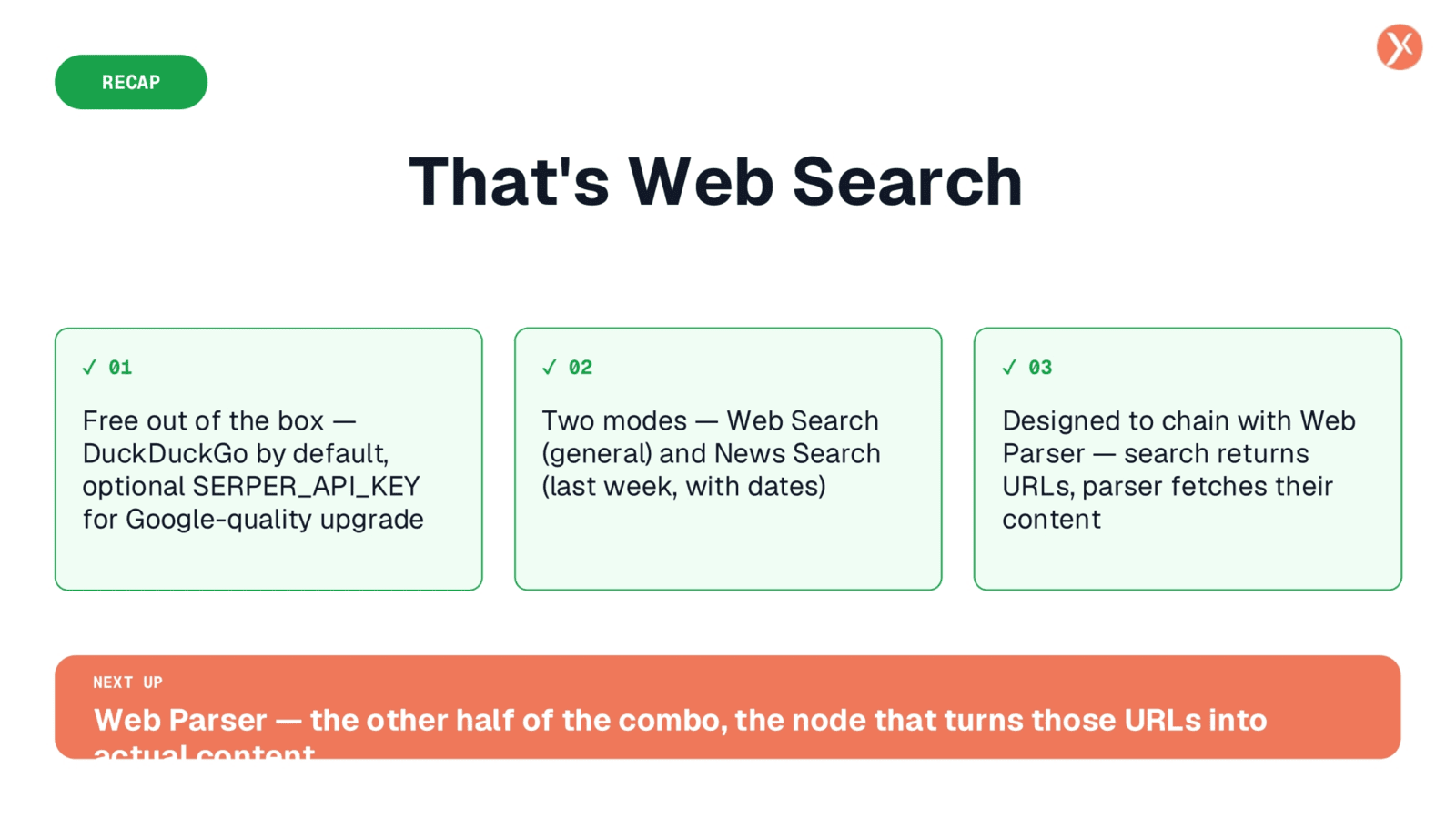
That concludes our overview of Web Search. It's a versatile, free tool, offering both general web and news searches. It seamlessly integrates with Web Parser for comprehensive content retrieval.