Database Query
Welcome to Expedify's Database Query. This powerful feature allows you to directly pull or push data from your database using SQL. It's designed for scenarios where you need advanced data manipulation beyond standard CRM functionalities, providing direct access and control over your data.
Database Query Demo Overview
Let's begin with a quick overview of the Database Query node. This node is categorized as a Data node, indicated by its red color, signifying direct interaction with your data layer. It features one input on the left and two outputs on the right: a green output for successful query results and a red one for errors. This dual-output design allows you to create distinct workflow paths for both successful operations and handling potential failures, ensuring robust automation.
Meet Database Query: The SQL Escape Hatch
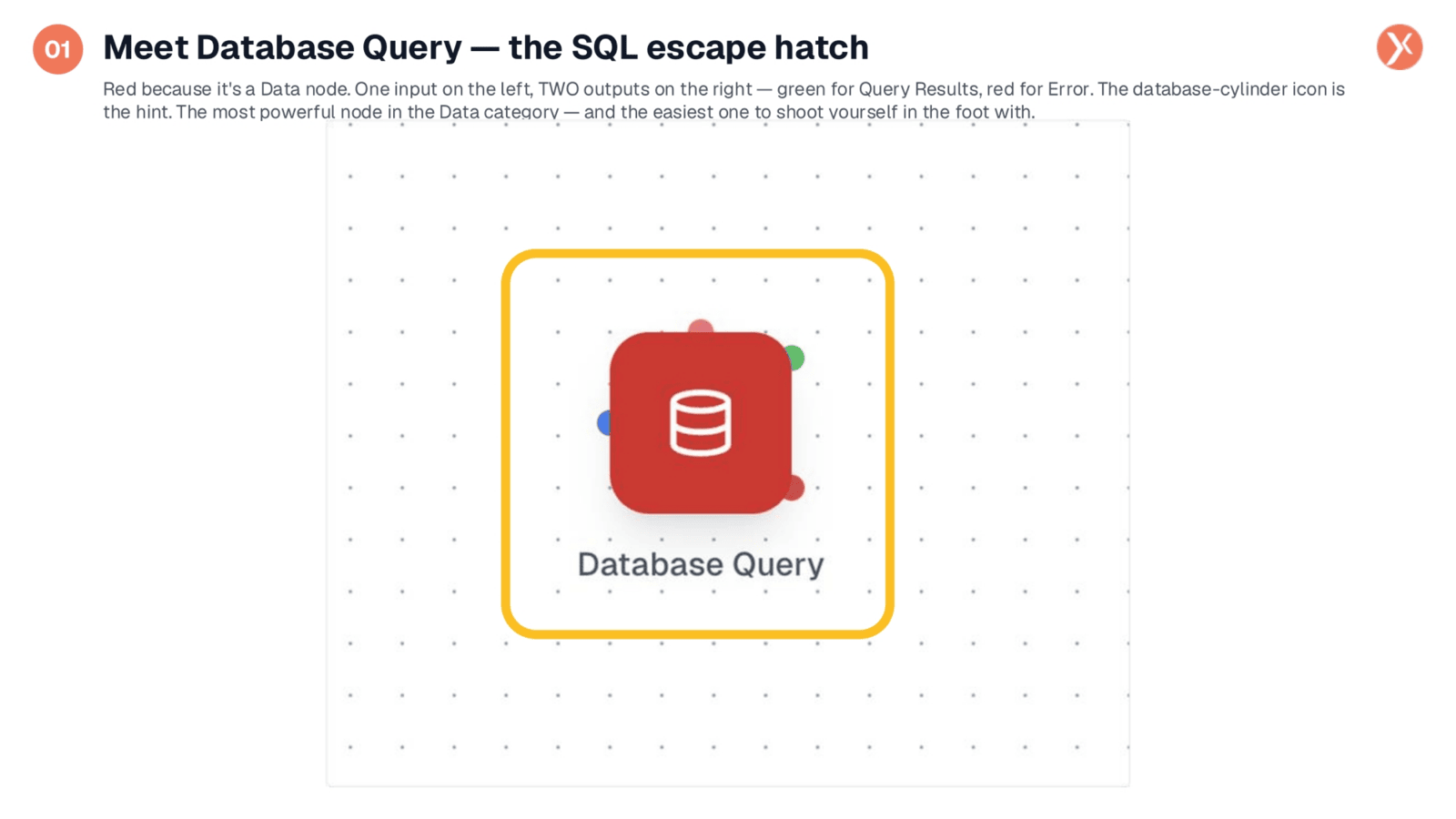
This is the Database Query node, a powerful SQL escape hatch. It's colored red because it's a Data node, directly interacting with your data layer, and features the universal database cylinder icon. It has one input on the left and two outputs on the right: a green one for successful query results and a red one for errors. This allows you to branch your workflow, handling successful outcomes and failures separately, making it a highly capable tool for advanced data operations.
Four Tabs Cover the Whole SQL Workflow
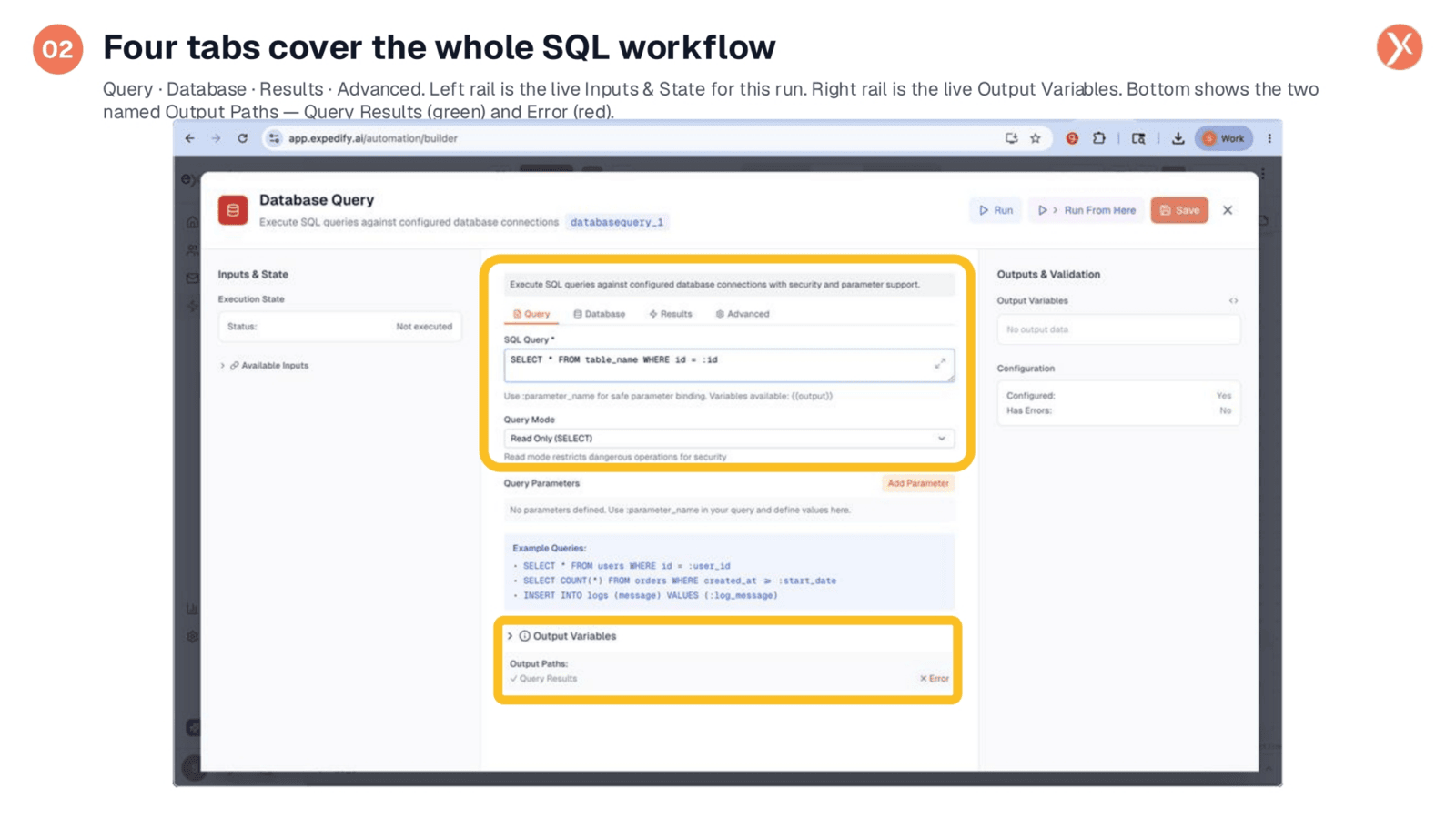
The Database Query node is organized into four key tabs that cover the entire SQL workflow. These are Query, Database, Results, and Advanced. The left panel displays live inputs and the execution state for the current run, while the right panel shows live output variables. At the bottom, you'll see the two named output paths: 'Query Results' for successful operations and 'Error' for when issues arise, providing clear visibility into your query's outcome.
The Query Tab: Write SQL, Pick Mode, Bind Parameters
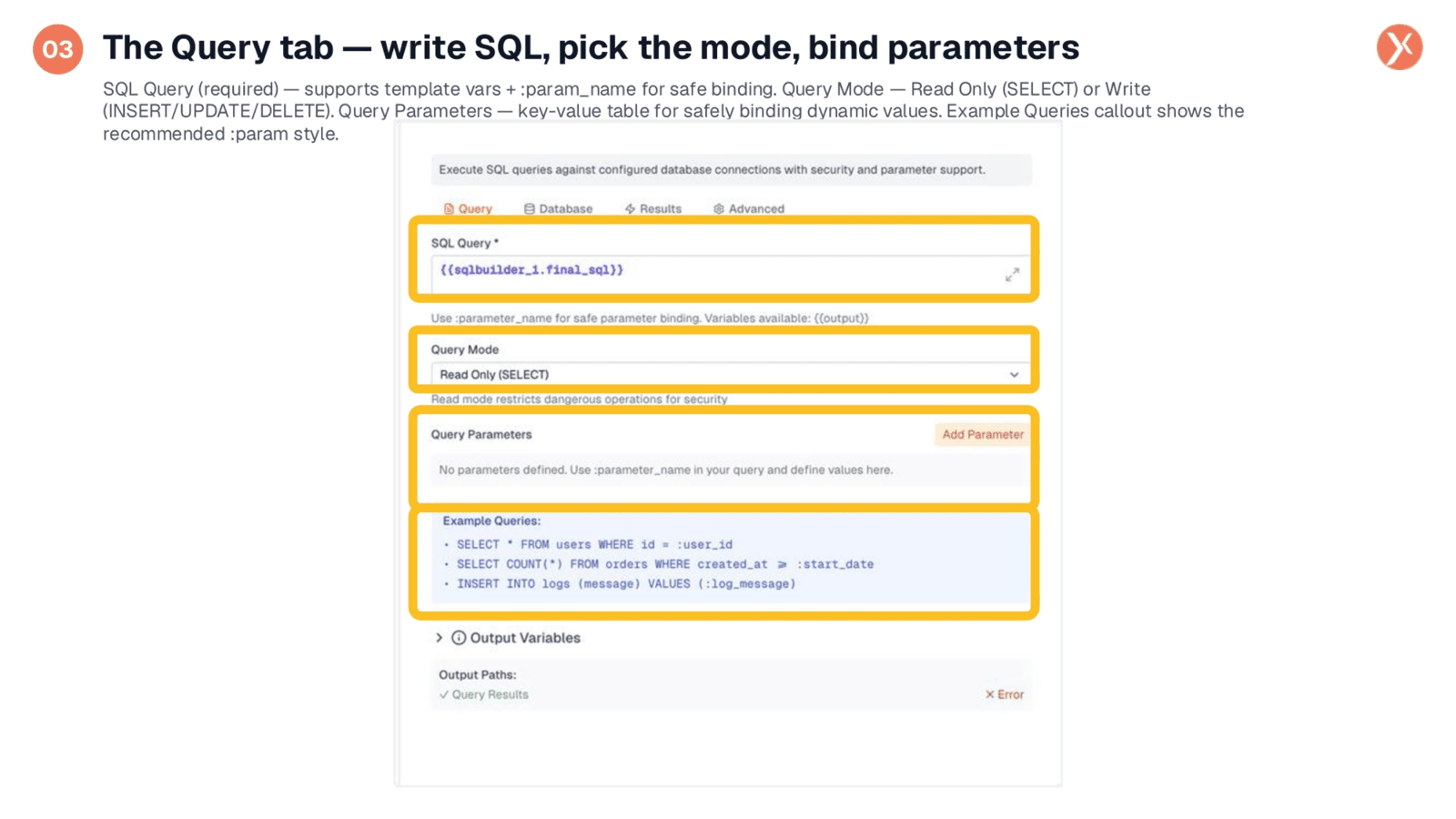
The Query tab is the core of the node, where you write your SQL. The 'SQL Query' field supports template variables and, crucially, colon-prefixed parameter names for secure binding of dynamic values. You can select the 'Query Mode' to be either 'Read Only' for SELECT statements or 'Write' for INSERT, UPDATE, or DELETE operations. The 'Query Parameters' table allows you to define values for your placeholders, ensuring safe execution and preventing SQL injection risks. Example queries are provided to guide you on the recommended parameter style.
Read Only vs. Write: The Safety Switch
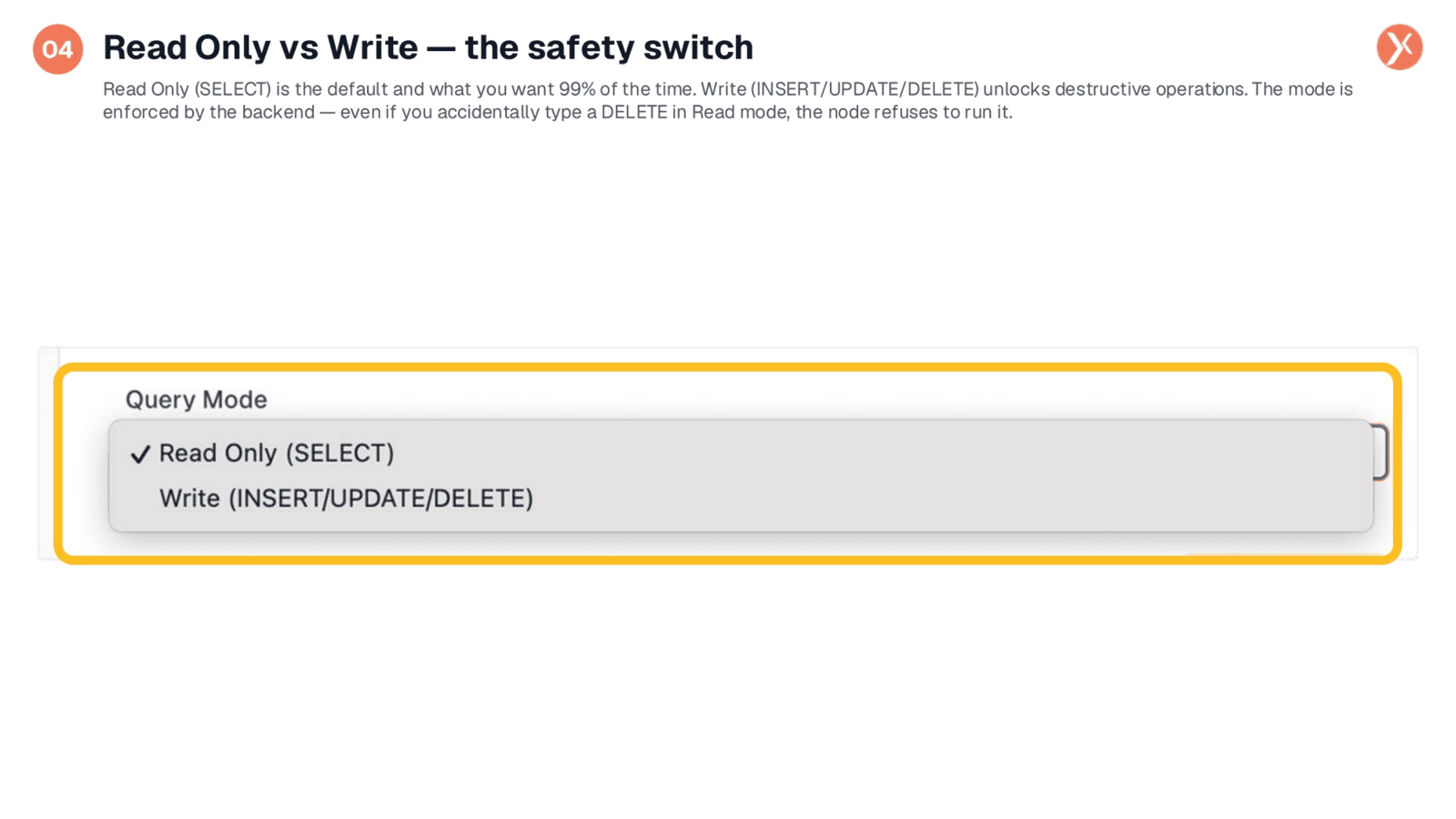
The distinction between 'Read Only' and 'Write' modes is a critical safety feature. 'Read Only' is the default and restricts the node to only execute SELECT queries. This acts as a safeguard, preventing accidental destructive operations even if a DELETE statement is mistakenly entered. 'Write' mode, on the other hand, unlocks operations like INSERT, UPDATE, and DELETE, allowing data modification. It's essential to use 'Write' mode deliberately and only when you intend to alter data, always defaulting to 'Read Only' for maximum safety.
Database Tab: Your Organization's Database by Default
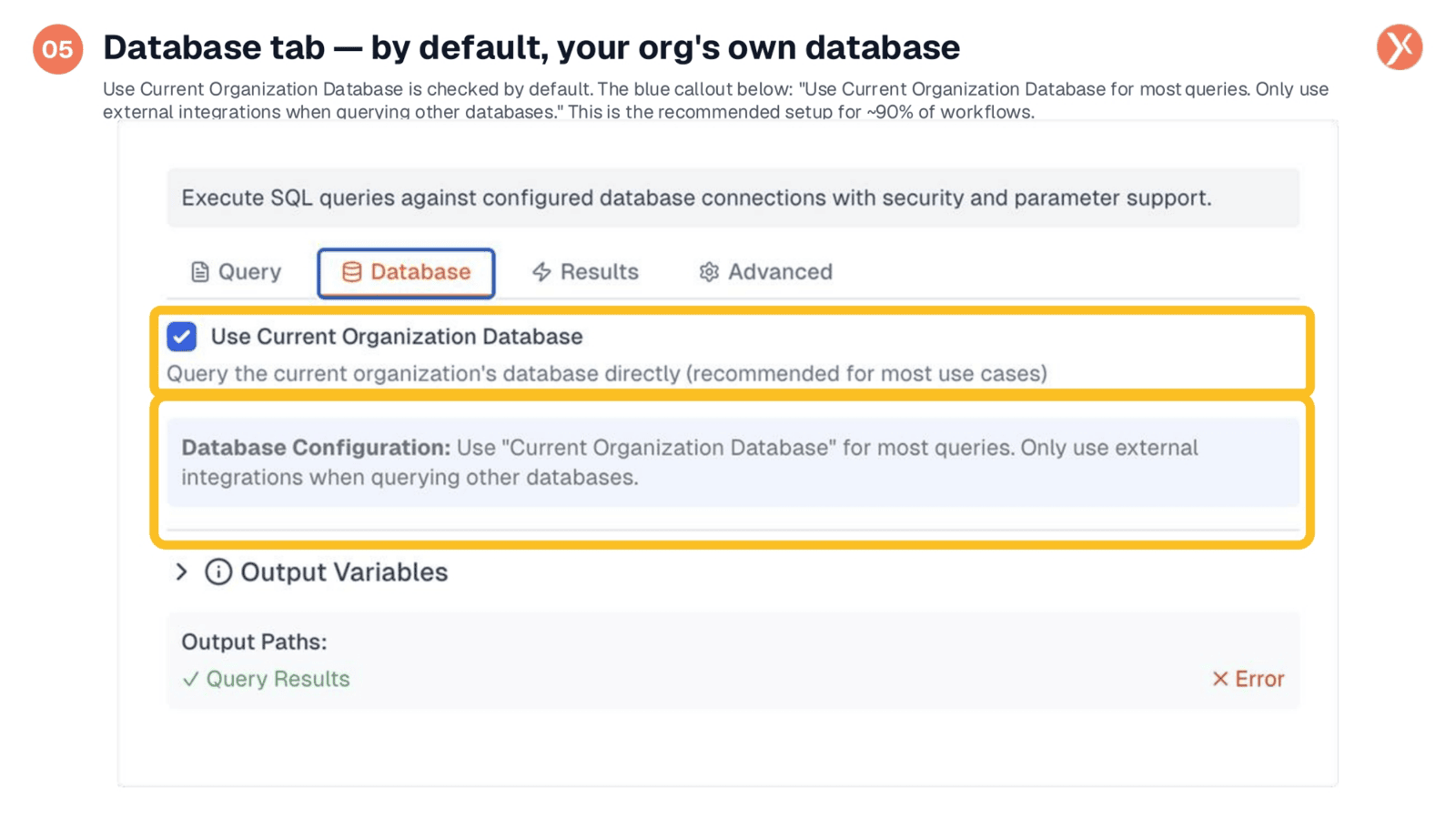
In the Database tab, the 'Use Current Organization Database' checkbox is enabled by default. This means the node will query your organization's own PostgreSQL database, which stores all your CRM records, contacts, and custom modules. This setup requires no additional connection configuration or credential management, making it the recommended choice for most queries. You should only deselect this option when you specifically need to interact with a different external database.
Uncheck the Box: Pick Any Connected Database
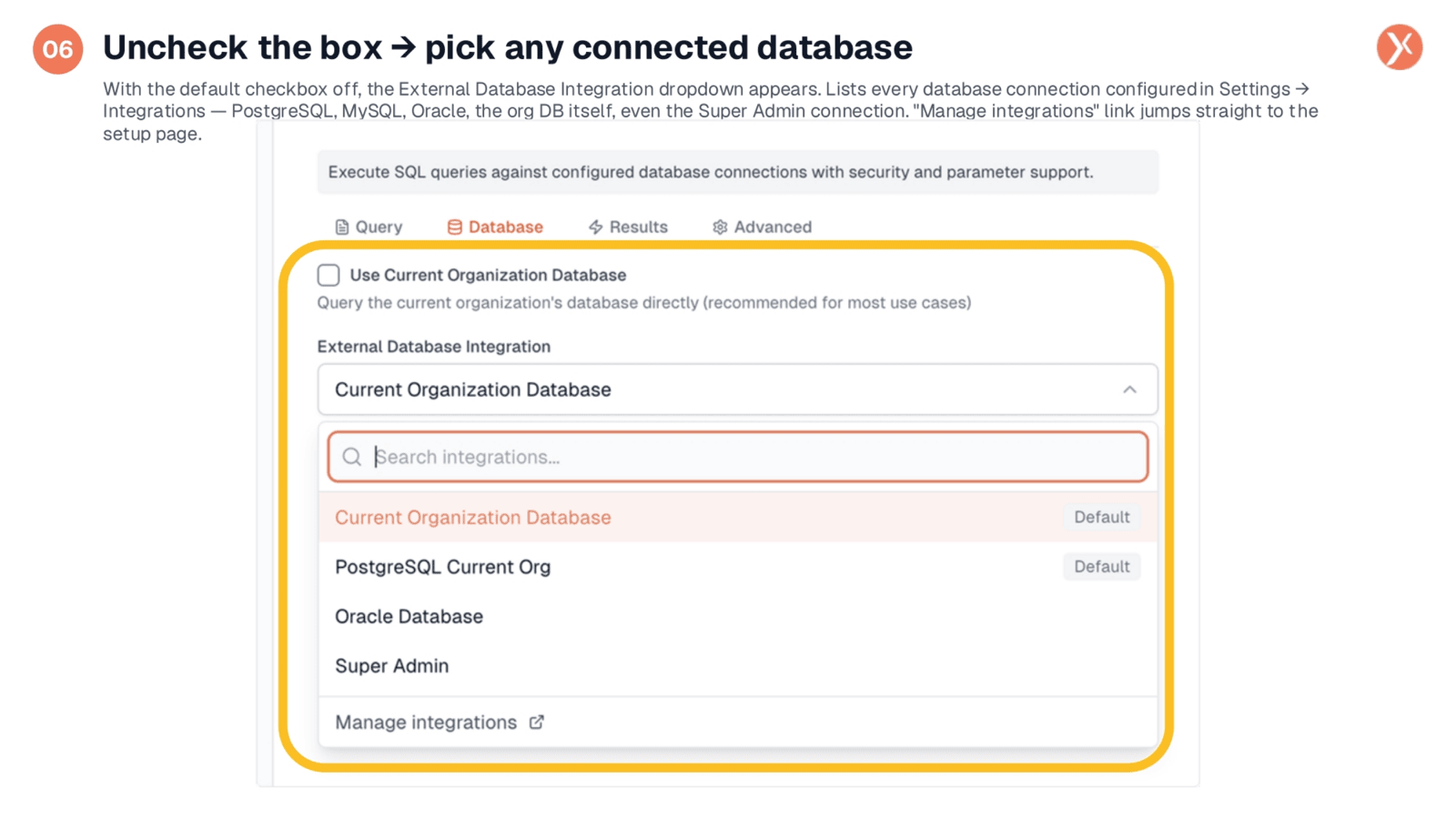
By unchecking the 'Use Current Organization Database' box, an 'External Database Integration' dropdown appears. This list populates with every database connection you've configured in your Settings under Integrations. You'll see options like PostgreSQL, MySQL, Oracle, and even your Super Admin connection. If the database you need isn't listed, a 'Manage integrations' link at the bottom provides a direct shortcut to the Integrations page, allowing you to easily add new connections for external data warehouses or partner systems.
Results Tab: Format, Row Cap, Empty Handling
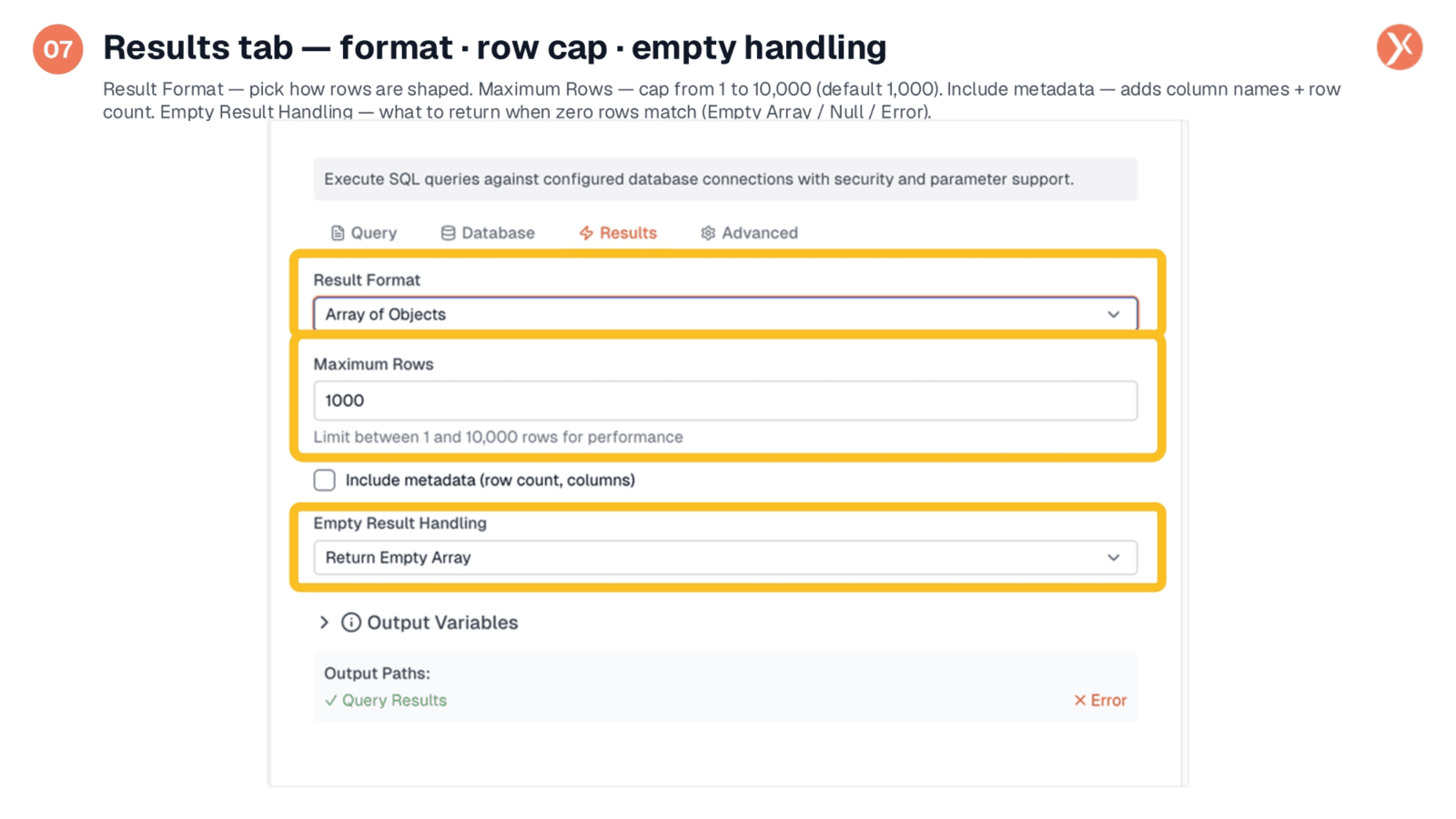
The Results tab controls how your query output is structured. 'Result Format' determines the shape of your rows, with 'Array of Objects' being the standard JSON format. 'Maximum Rows' acts as a crucial guardrail, defaulting to 1,000 and capping at 10,000, to prevent excessive data retrieval that could impact performance. You can also choose to 'Include metadata' to add column names and row counts. 'Empty Result Handling' defines the response when no rows match your query, allowing you to return an empty array, null, or an error.
Four Output Shapes: Pick What Downstream Needs
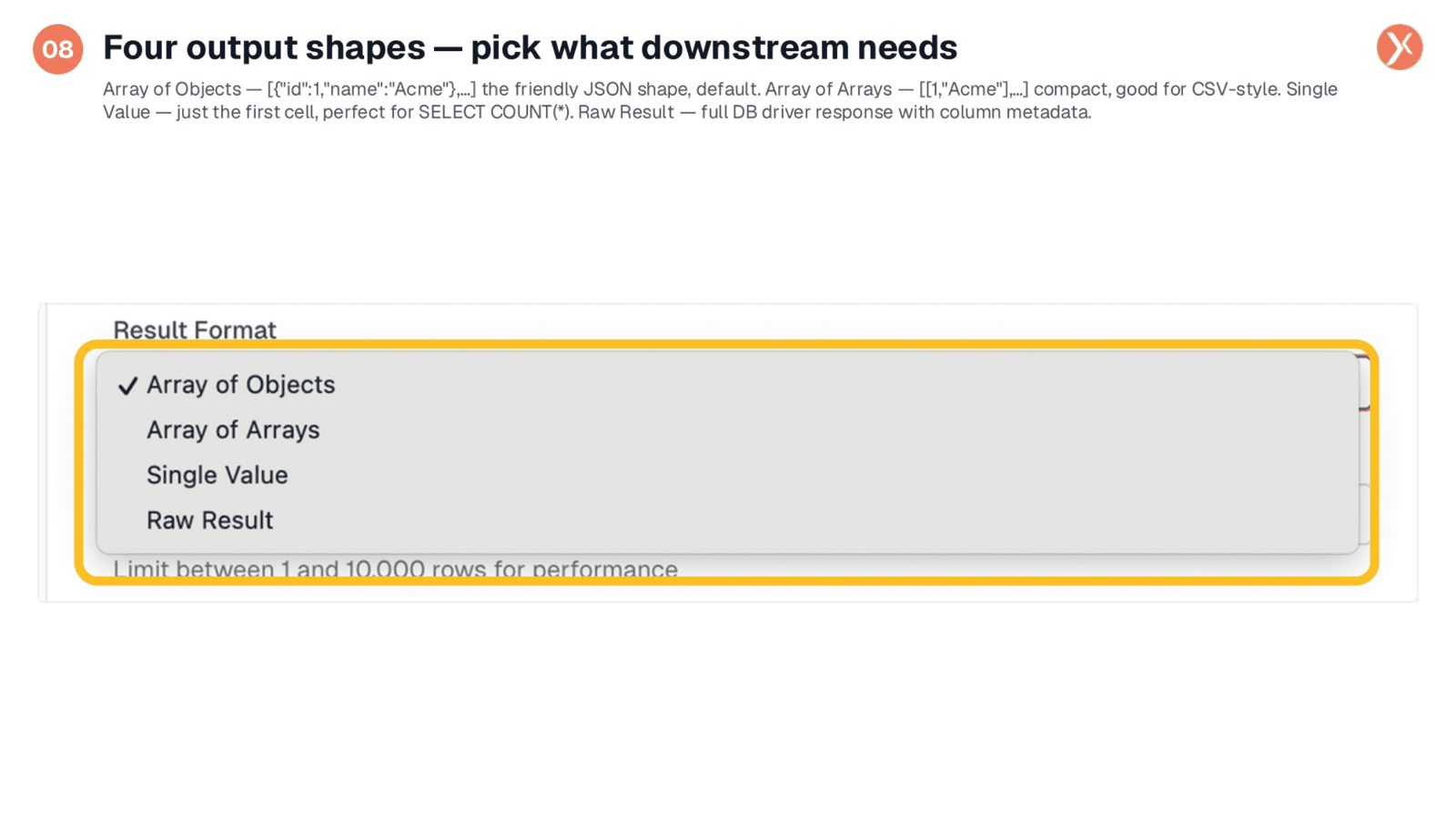
The Database Query node offers four distinct output shapes to suit various downstream requirements. 'Array of Objects' is the default and most common, providing a friendly JSON structure where each row is an object. 'Array of Arrays' offers a more compact, CSV-style format. For specific needs, 'Single Value' returns just the first cell of the first row, ideal for count queries. Finally, 'Raw Result' provides the full database driver response, including comprehensive column metadata, for advanced users. For most applications, 'Array of Objects' is the recommended choice.
Advanced: Timeout, Transaction, Retry, and Security Rules
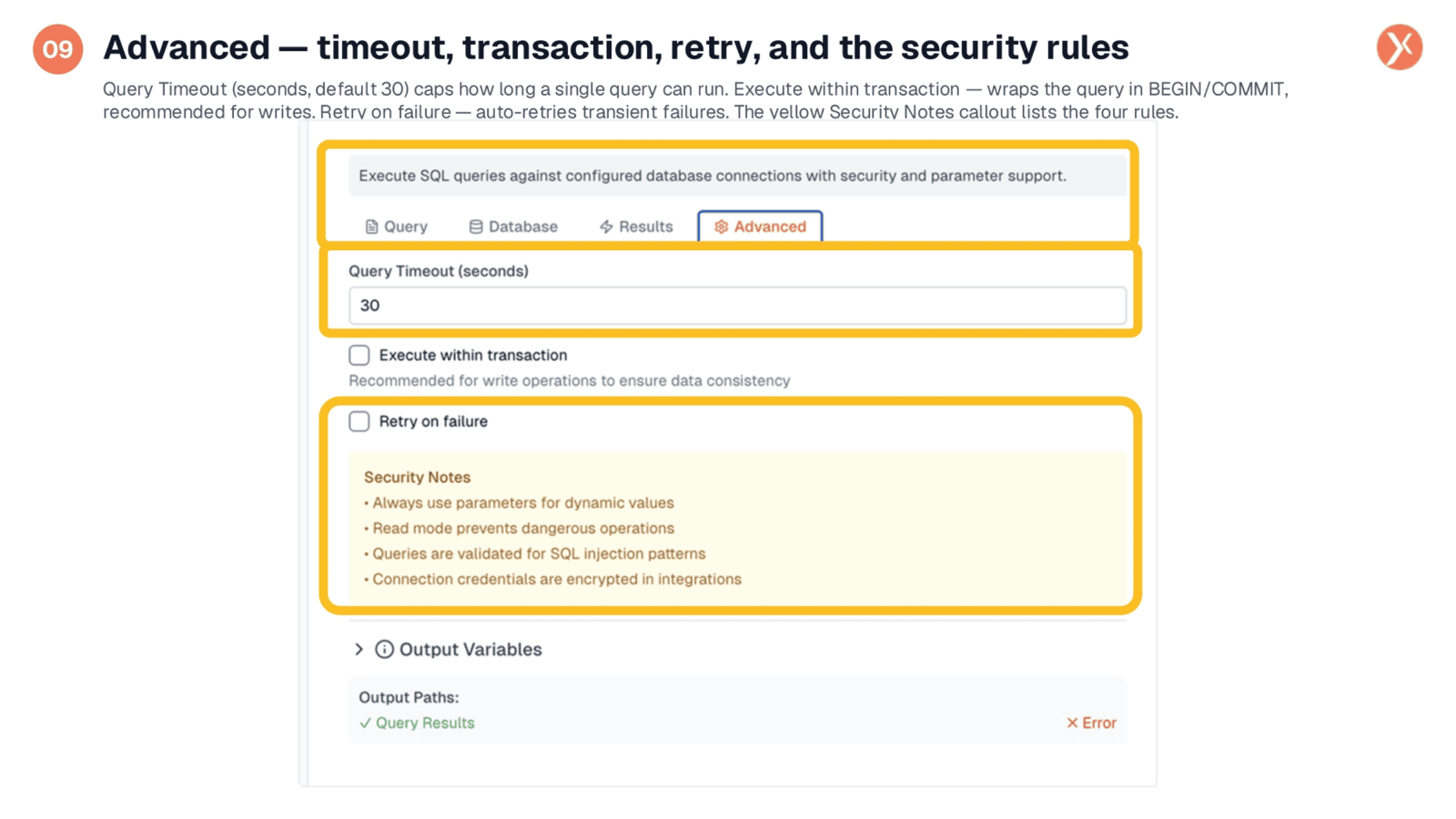
The Advanced tab provides crucial safety and performance controls. 'Query Timeout' sets a maximum duration for a single query, defaulting to 30 seconds, which you can adjust for complex analytical tasks or quick lookups. 'Execute within transaction' is recommended for write operations, ensuring atomicity. 'Retry on failure' automatically reattempts transient errors. Additionally, the 'Security Notes' highlight four key rules: always use parameters for dynamic values, 'Read' mode prevents destructive operations, queries are validated for SQL injection, and connection credentials are encrypted, underscoring the node's robust security measures.
What Database Query Hands Off
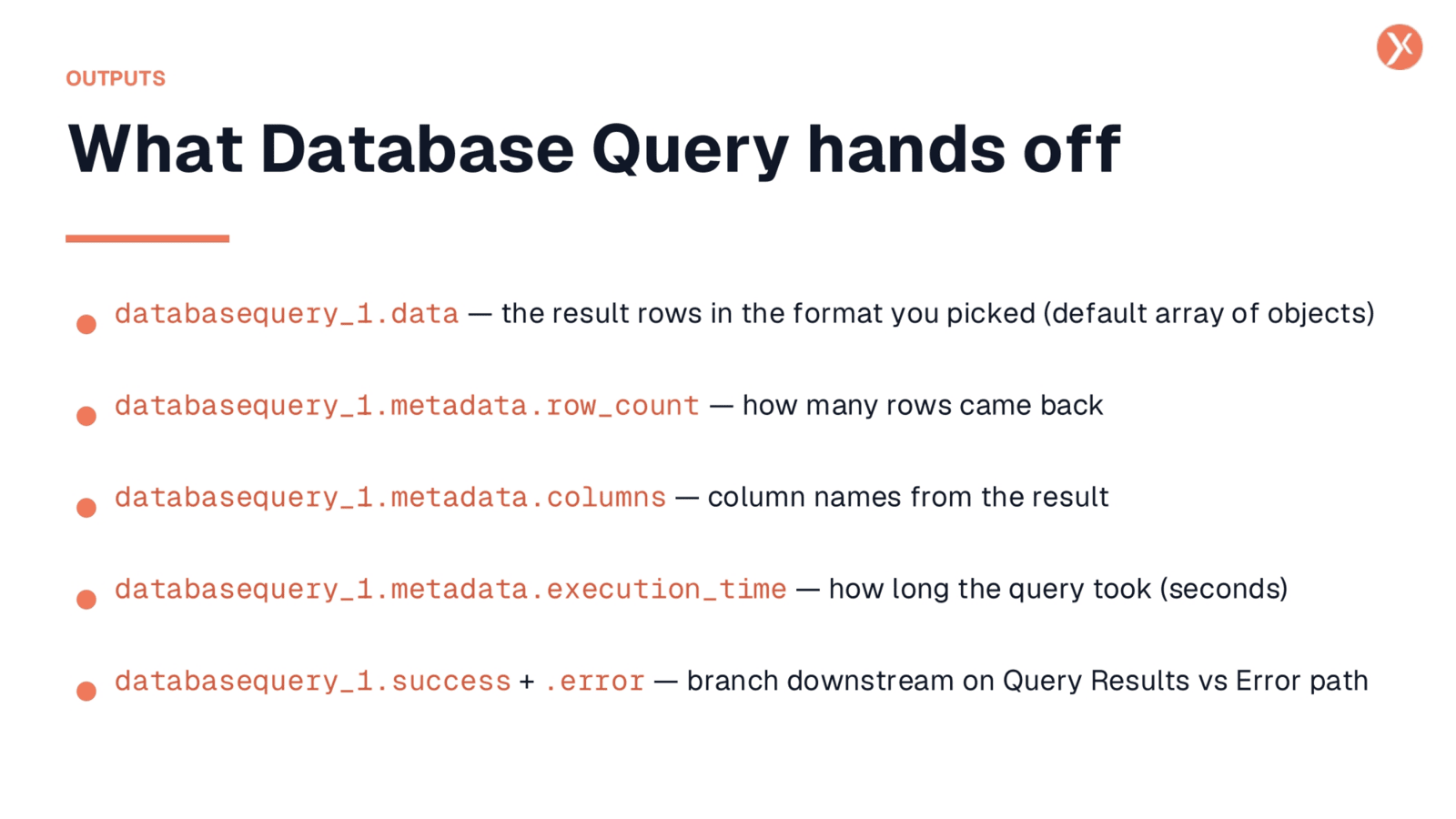
The Database Query node provides several key outputs for your workflow. databasequery_1.data contains the actual query results in your chosen format, typically an array of objects. databasequery_1.metadata.row_count indicates the number of rows returned, useful for conditional branching. databasequery_1.metadata.columns lists the column names from your result set. databasequery_1.metadata.execution_time shows how long the query took in seconds. Finally, databasequery_1.success and .error differentiate the two output paths, allowing you to manage successful outcomes versus errors effectively.
That's Database Query
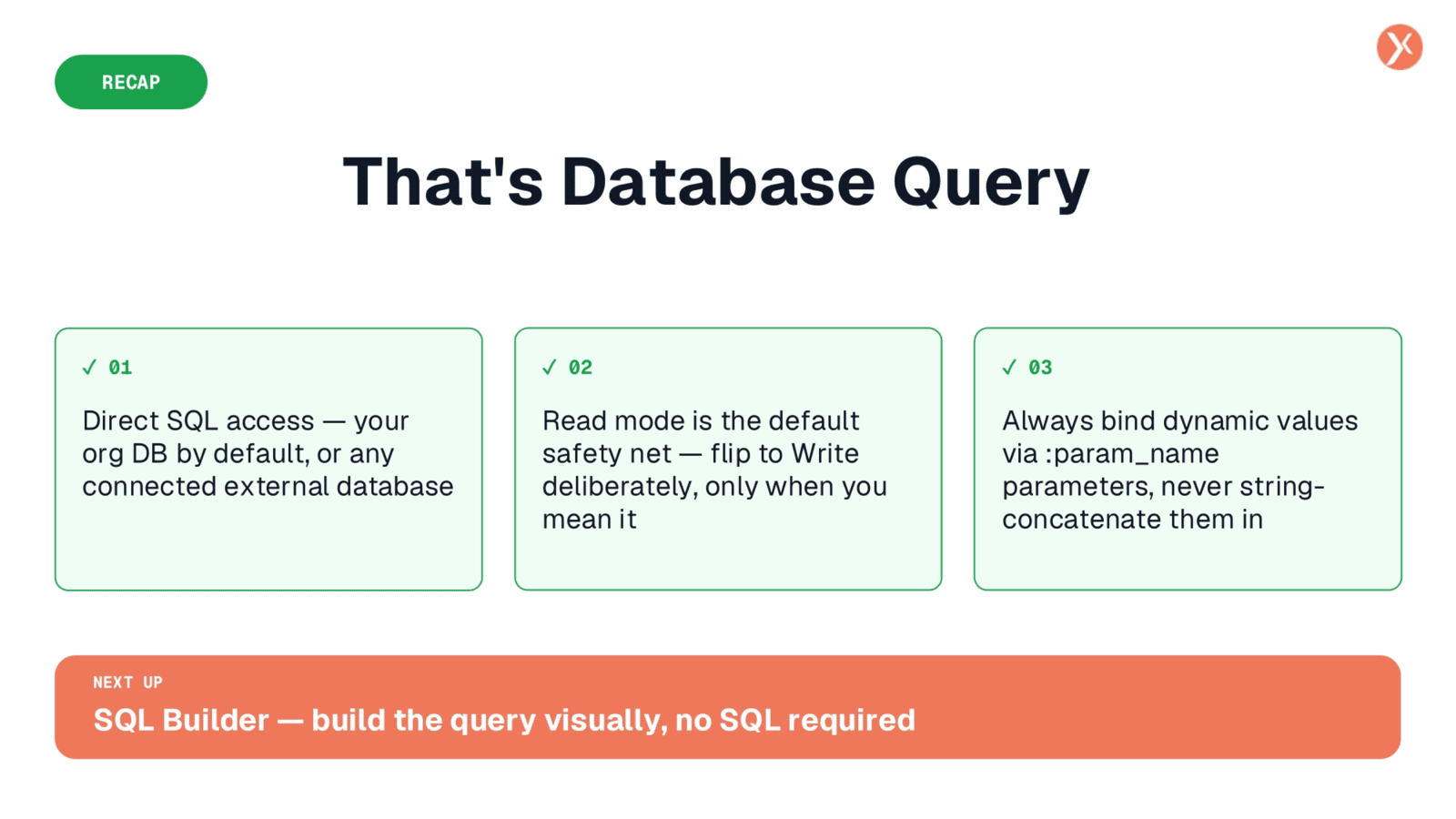
That concludes our overview of the Database Query node. It provides direct SQL access, defaults to your organization's database, and offers crucial safety features like Read mode. Remember to always use parameterized values for dynamic inputs, ensuring secure and efficient data operations.