Delay
The Delay node is Expedify's most versatile logic component, designed to introduce strategic pauses into your automated workflows. At its simplest, it functions as a 'sleep' command, holding execution for a set duration. However, its capabilities extend far beyond that, allowing you to pause until a specific calendar date, or even until a real-world event occurs, like a contact opening an email. This single node offers ten distinct modes, providing precise control over when and how your workflows proceed.
Delay Node Demo: Time-Based, Condition, and Hybrid Modes
Today's demonstration will guide you through the Expedify Delay node's diverse functionalities. We'll explore its five time-based options, delve into three condition-wait modes, and examine the powerful hybrid time-OR-condition. You'll learn which mode to select for optimal workflow timing.
Introducing the Delay Node
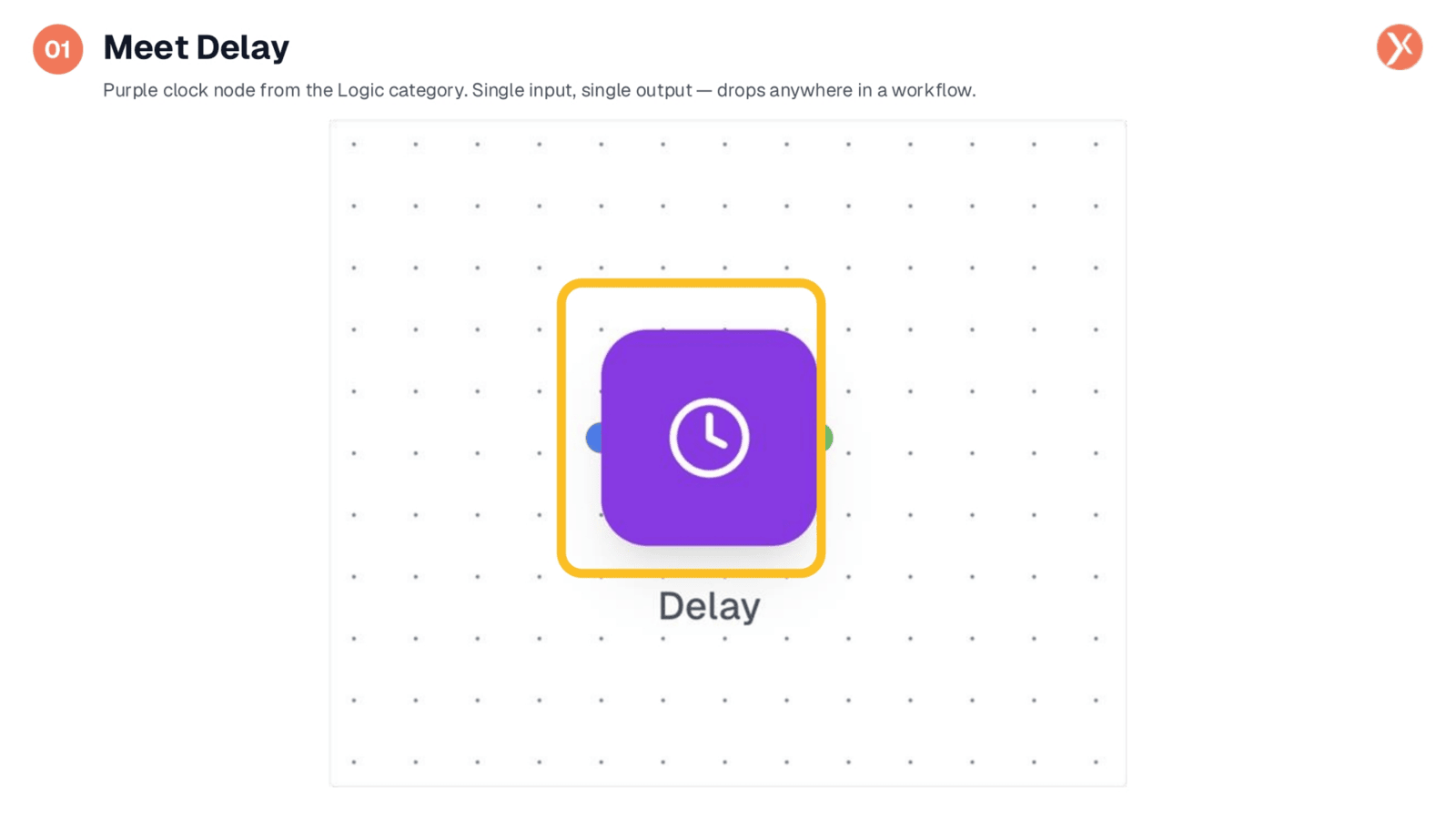
This is the Delay node, visually represented by a purple clock icon within the Logic category of the Node Palette. Like other logic nodes, it features a single input and a single output, allowing it to be seamlessly integrated between any two steps in your workflow. When a workflow reaches this node, it pauses, and the duration or trigger for resuming execution is entirely configurable within its settings.
Configuring the Delay Node
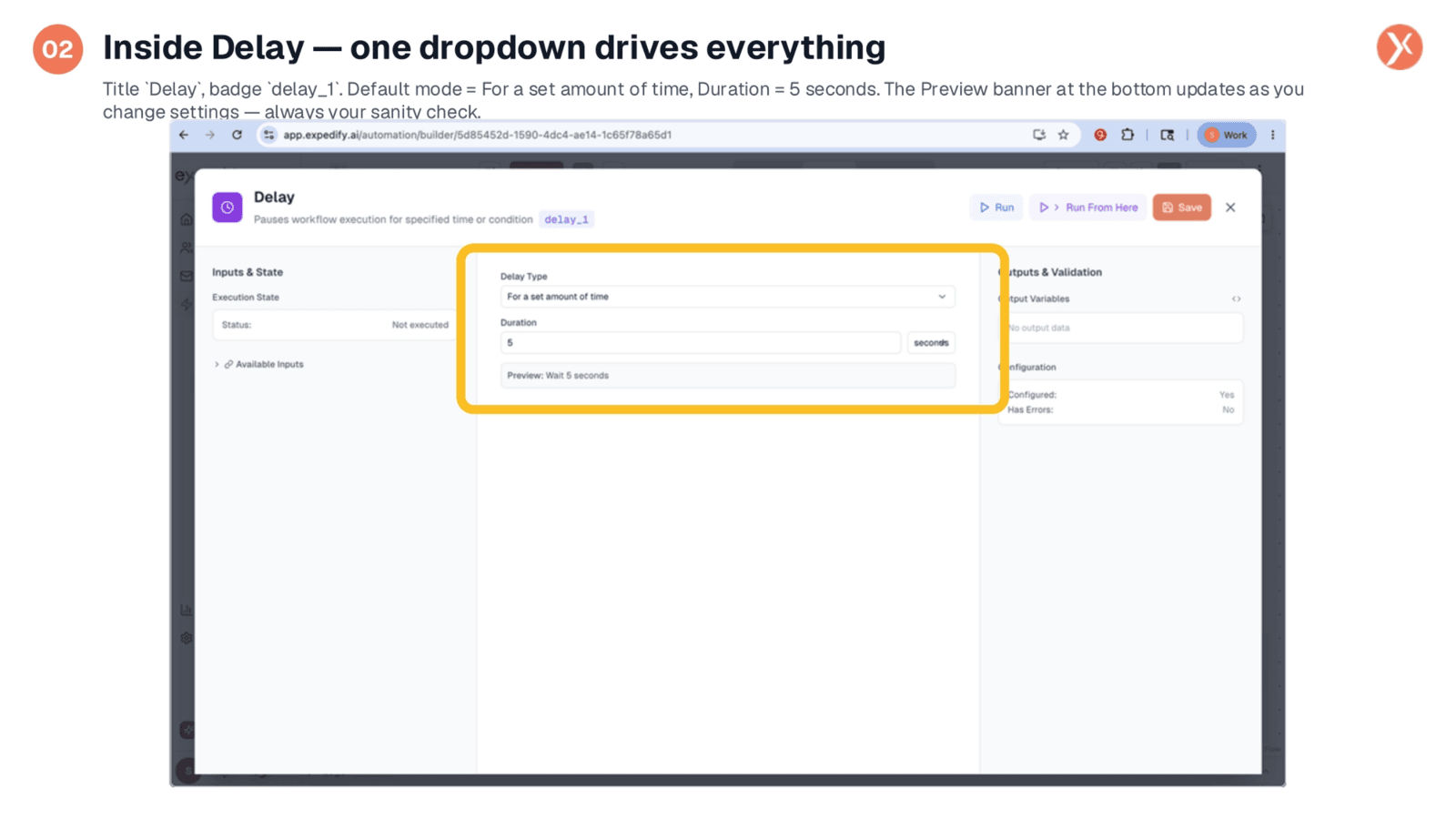
Upon opening the Delay node, you'll see its title and a unique badge, delay_1, which serves as its namespace for downstream references. The core of its configuration lies in the "Delay Type" dropdown. Selecting an option here dynamically reconfigures the rest of the form. By default, it's set to "For a set amount of time," allowing you to specify a duration. Crucially, a "Preview" banner at the bottom provides a plain-English summary of the configured delay, acting as a vital sanity check before saving.
Exploring Delay Type Options
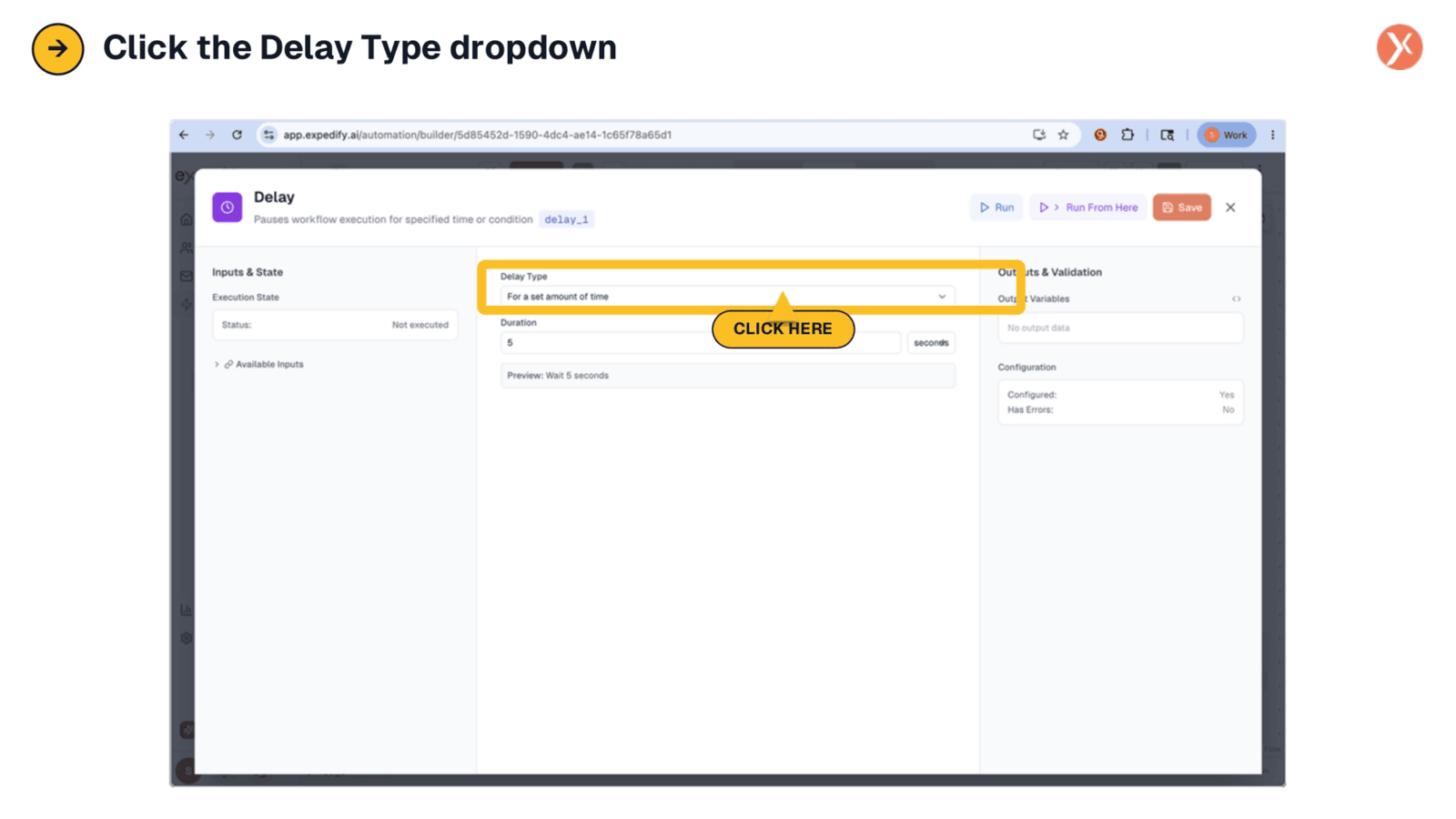
To unlock the full potential of the Delay node, simply click into the "Delay Type" dropdown. This action reveals a comprehensive menu of all available delay modes, categorized for clarity. Each selection here will tailor the node's behavior to meet specific timing or condition-based requirements within your workflow.
Overview of Delay Modes
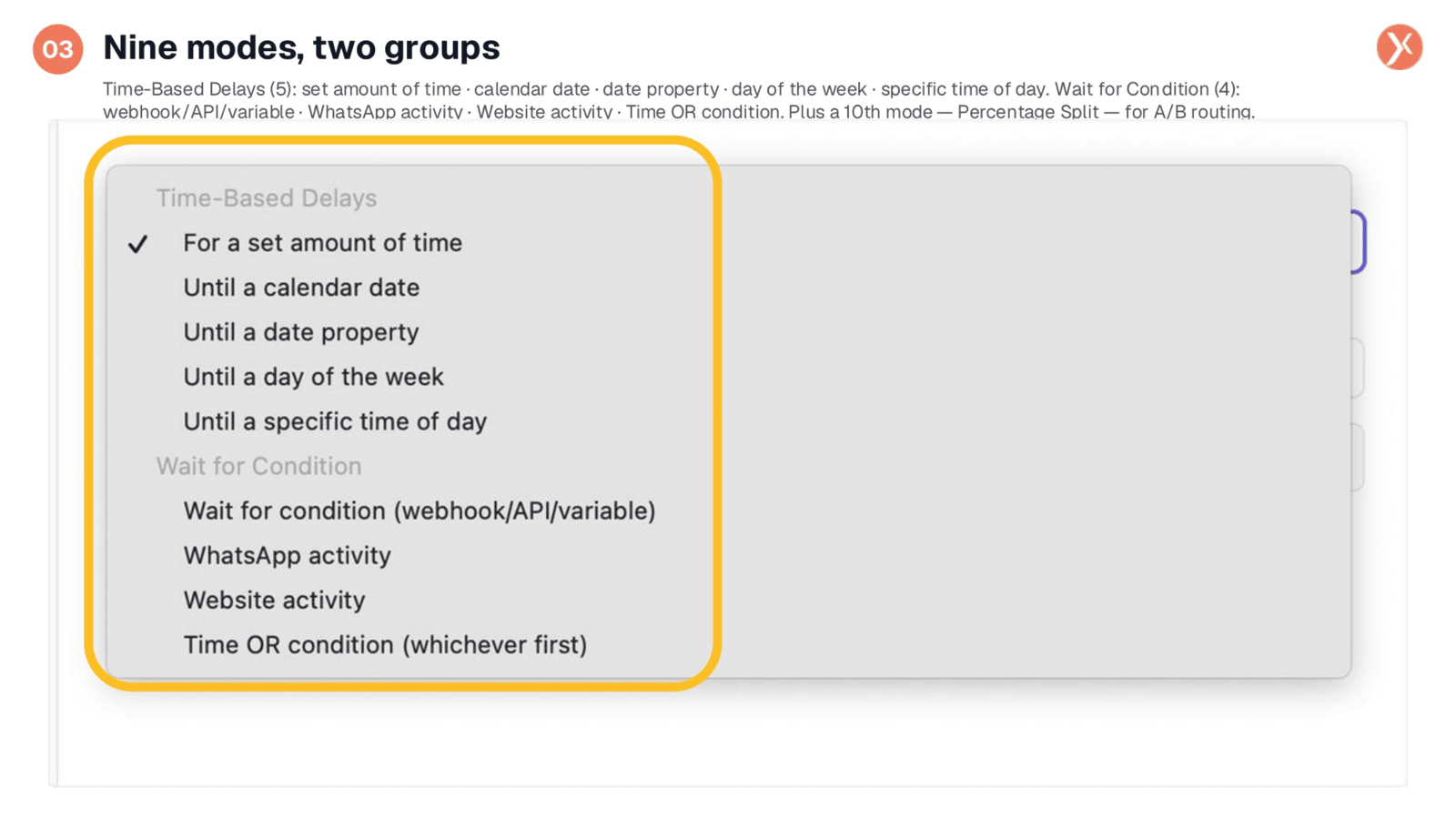
The Delay node offers a total of nine primary modes, organized into two main groups. The "Time-Based Delays" category includes five options for waiting a specific duration, until a calendar date, a date property, a day of the week, or a specific time of day. The "Wait for Condition" group provides four options to pause until a real-world event occurs, such as a webhook firing, WhatsApp activity, or website interaction. Additionally, a tenth mode, "Percentage Split," is available for A/B routing, which we'll briefly touch upon later.
Simple Time-Based Delay
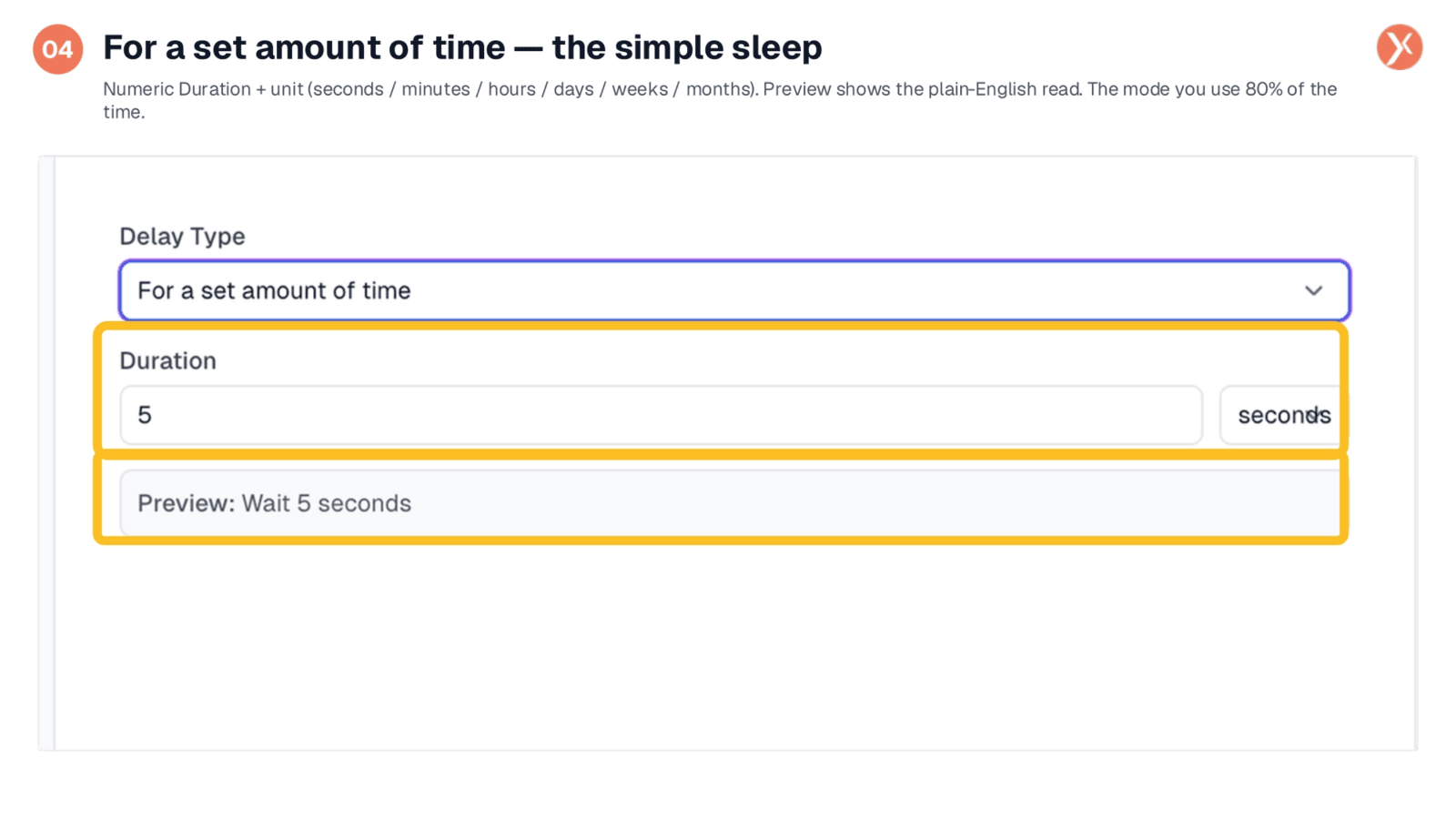
The "For a set amount of time" mode is the default and most frequently used delay type. It allows you to specify a numeric duration and select a unit from seconds, minutes, hours, days, weeks, or months. The preview clearly indicates the configured wait, for example, "Wait 5 seconds." This mode is ideal for straightforward pauses, such as waiting fifteen minutes before retrying an API call, or a day before sending a follow-up email. The workflow pauses efficiently without consuming resources, as the engine schedules its precise wake-up time.
Pausing Until a Specific Date
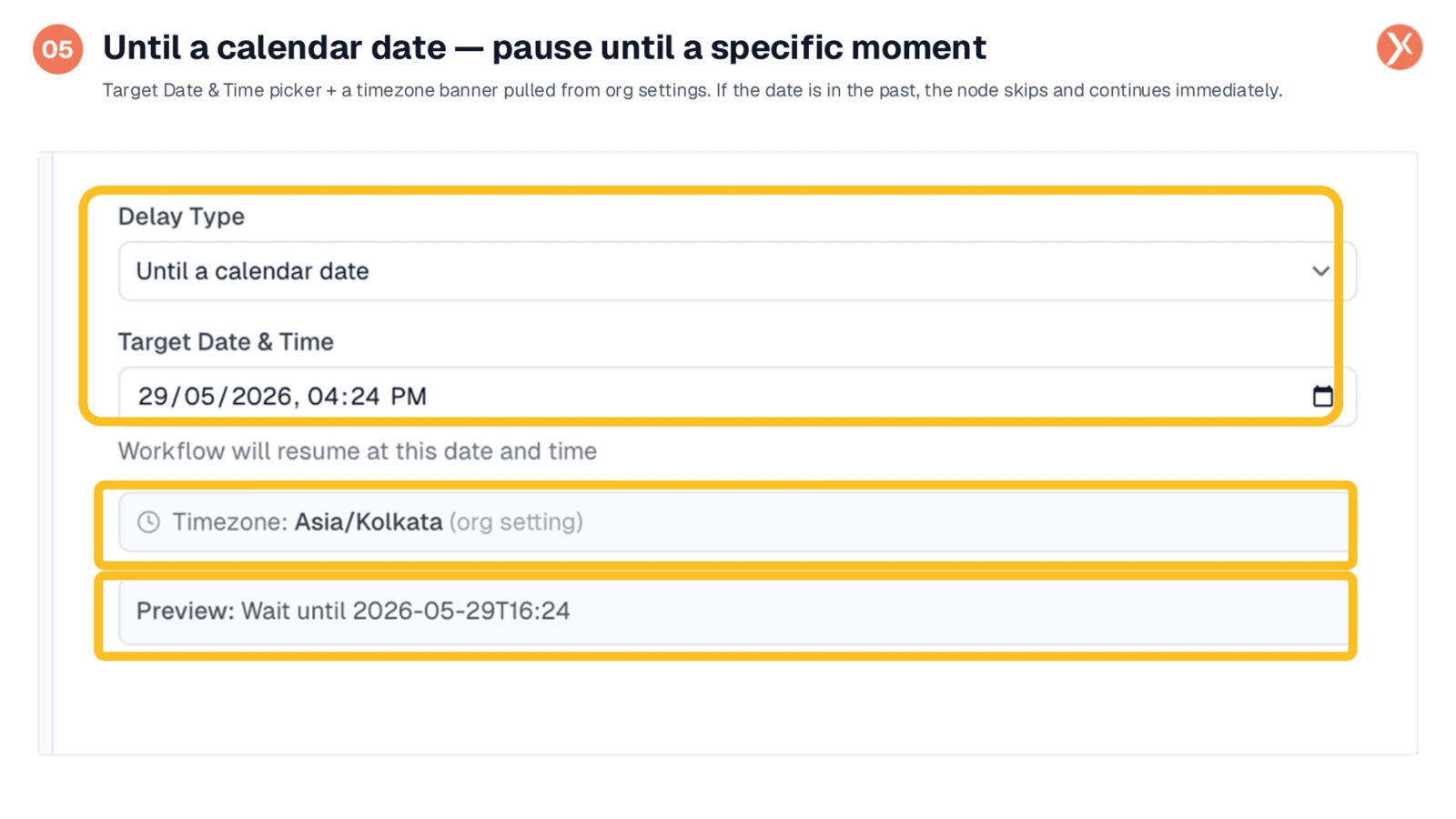
The "Until a calendar date" mode enables you to pause a workflow until an exact date and time. You can select a specific moment, like May 29th, 2026, at 4:24 PM. It's important to note the timezone, which is pulled from your organization's settings, ensuring accuracy. This mode is perfect for hard deadlines, such as sending webinar reminders on the morning of an event or nudges for contract expirations. If the specified date is in the past when the workflow hits this node, it intelligently skips the delay and continues immediately.
Waiting for a Record's Date
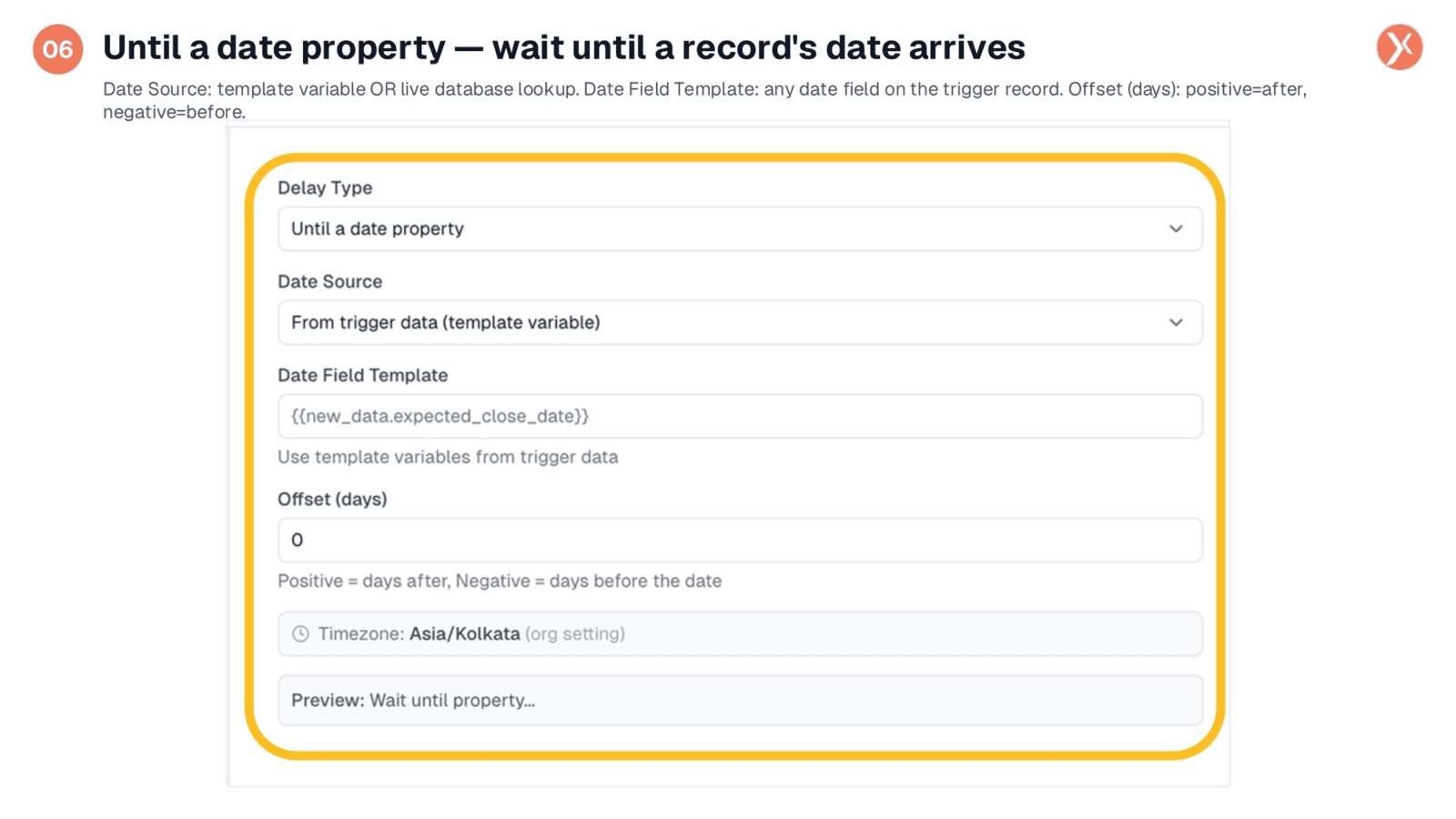
The "Until a date property" mode offers powerful dynamic pausing by leveraging dates from your records. Instead of a fixed date, the workflow waits until a date pulled from a contact, deal, or task that triggered it. You can specify the date source, such as a template variable like expected_close_date from a deal record. An "Offset (days)" feature allows you to trigger actions before or after this date, enabling flows like sending a reminder seven days before a renewal or a follow-up three days after a deal closes.
Pausing to a Specific Day
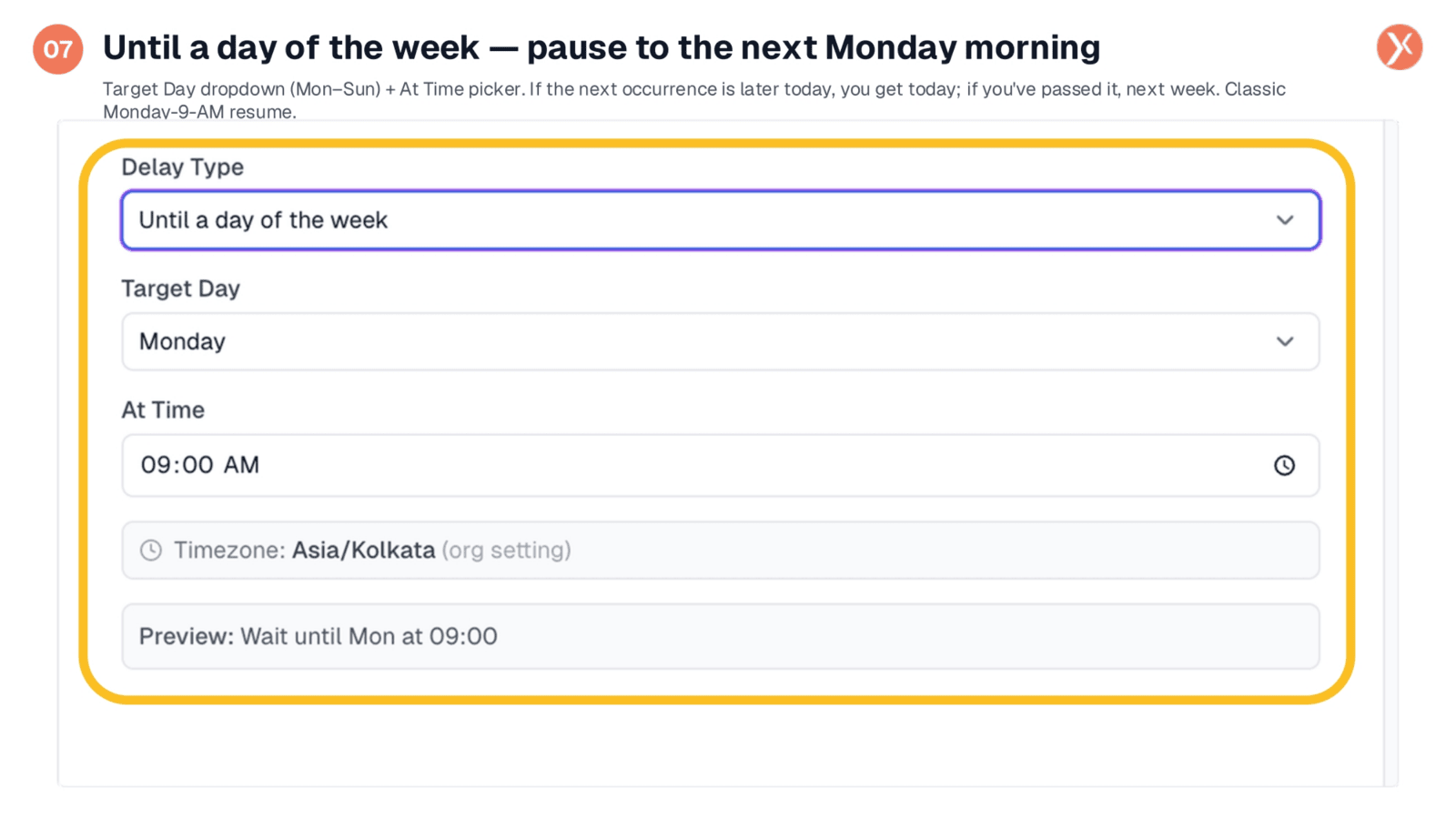
The "Until a day of the week" mode allows you to pause a workflow until the next occurrence of a chosen day and time. For instance, you can configure it to resume on Monday at 9 AM. This is particularly useful for workflows that are batched over the weekend and should only proceed during business hours when human attention is available. If the target day and time have already passed today, the workflow will wait until the same time next week, ensuring timely engagement at the start of a workday.
Pausing Until a Local Time
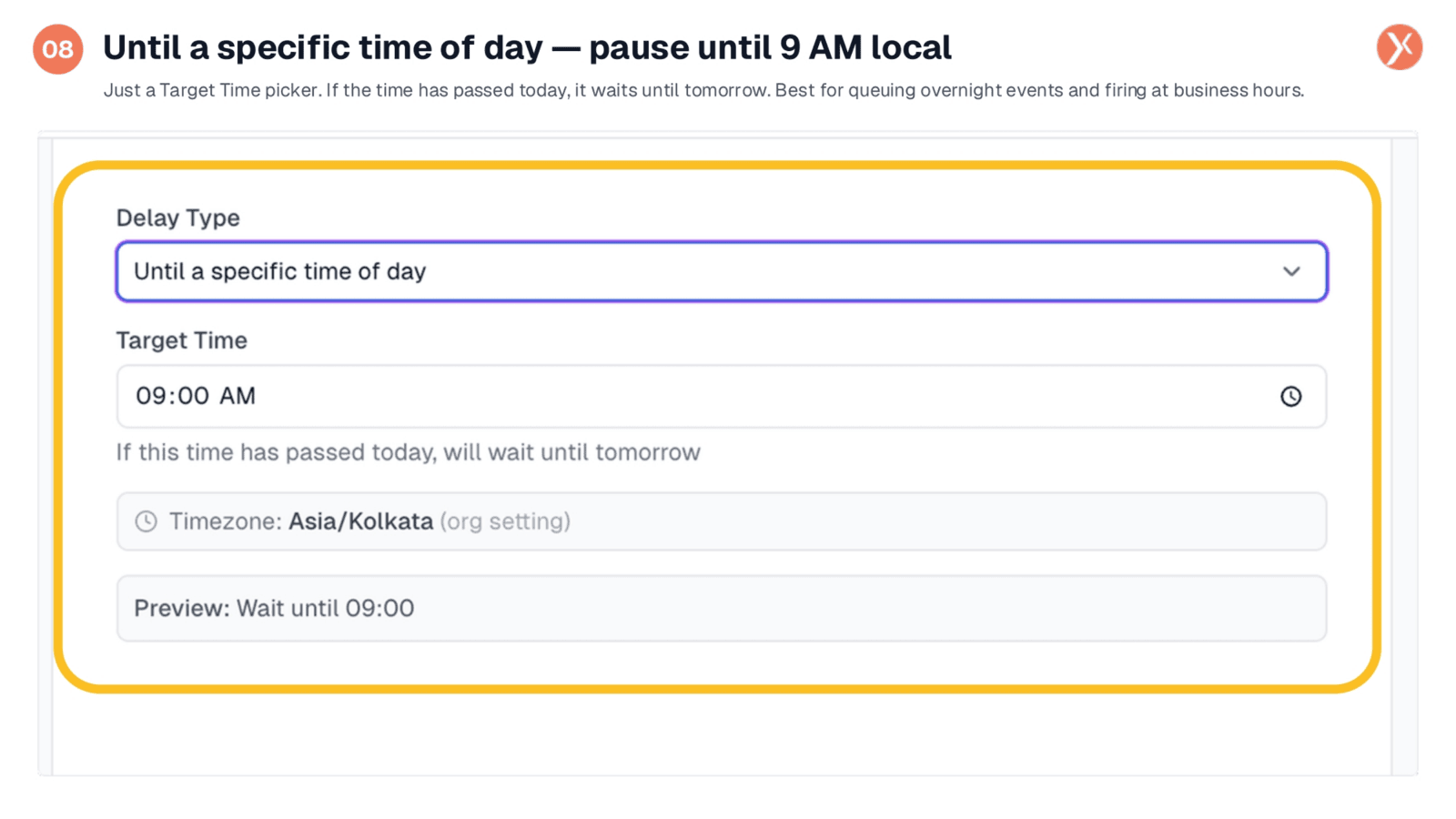
The "Until a specific time of day" mode provides a simple time picker. If the current time is before the target time today, the workflow waits for today's occurrence. If the target time has already passed, it waits until tomorrow. This is highly effective for managing overnight triggers, allowing a batch of events to accumulate and then release simultaneously at a specific business hour, such as 9 AM the following day. This prevents sending communications to contacts at inconvenient times, like 3 AM.
Pausing for Real-World Events
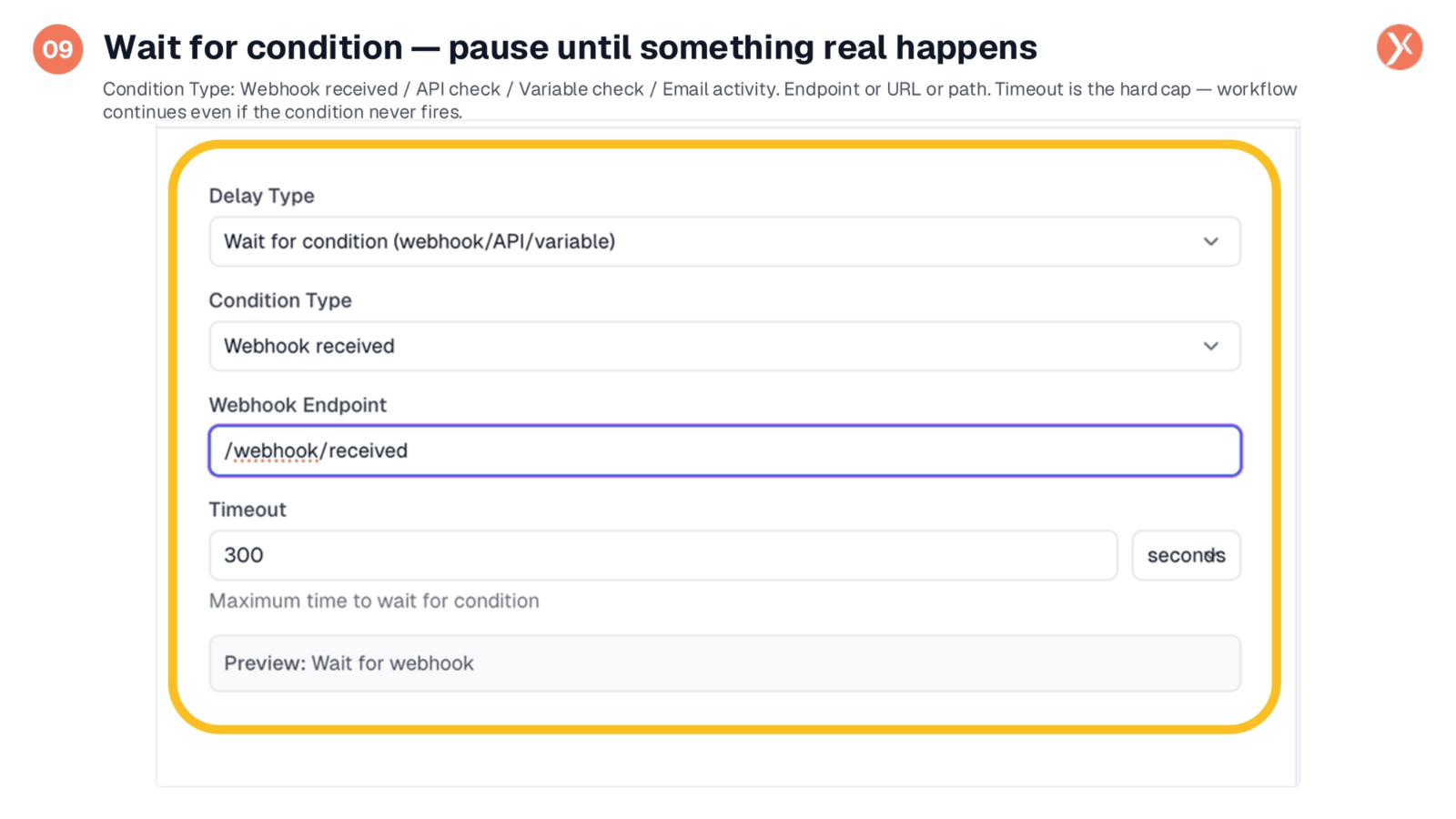
Shifting from time-based waits, the "Wait for condition" mode pauses a workflow until a specific real-world event occurs. This category includes four sub-types: "Webhook received," where the workflow waits for a webhook to hit a designated endpoint; "API check," where Expedify polls a URL for a completed status; "Variable check," which continuously monitors a workflow variable until it becomes true; and "Email activity," pausing until an email is opened, clicked, replied, bounced, or delivered. A crucial "Timeout" acts as a safety net, ensuring the workflow continues even if the condition is never met, with a default of 300 seconds.
Waiting for WhatsApp Engagement
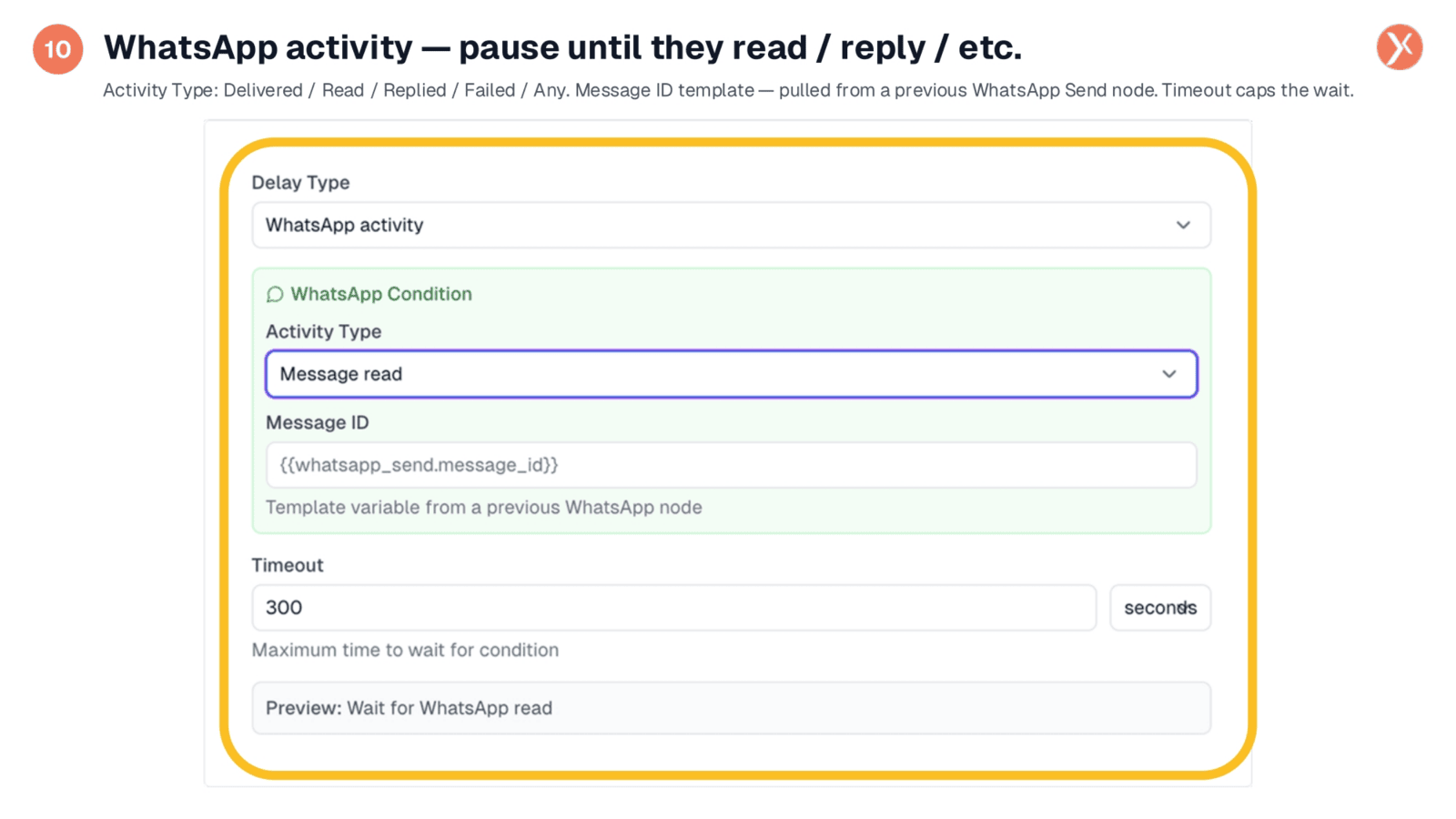
The "WhatsApp activity" mode functions similarly to other condition-based waits but is specifically tied to a WhatsApp message sent earlier in the workflow. You can configure the activity type to listen for events like "Delivered," "Read," "Replied," "Failed," or "Any." The "Message ID" is dynamically pulled from a previous WhatsApp Send node, linking the delay to that specific message. For example, you could send a WhatsApp template, then use this Delay node to wait for a "Message read" with a five-minute timeout. This allows you to branch your workflow: follow up if they read it, or send a different channel if they didn't.
Pausing for Website Interaction
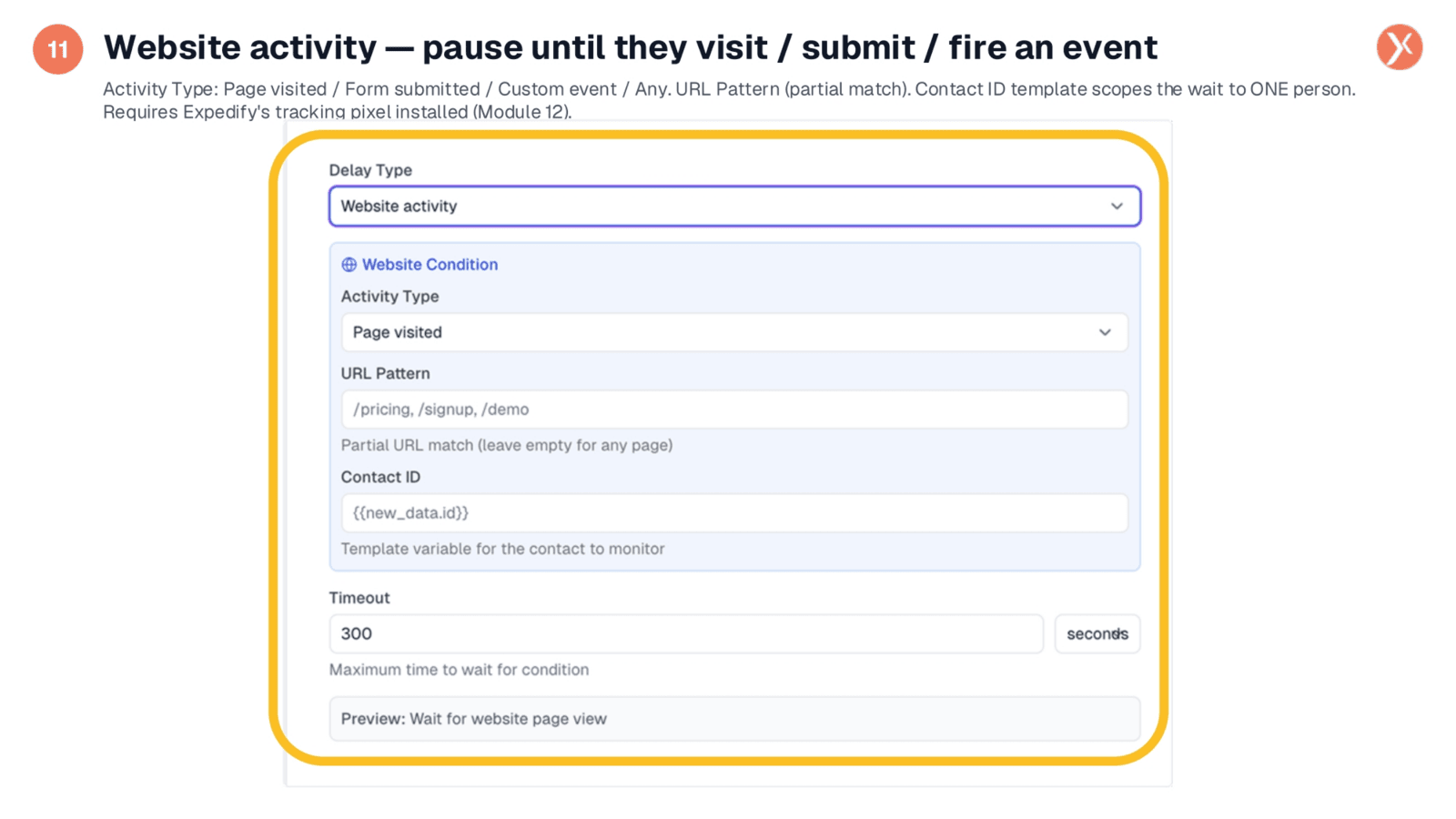
The "Website activity" mode allows you to pause a workflow until a specific contact performs an action on your website. Activity types include "Page visited," "Form submitted," "Custom event," or "Any." You can define a "URL Pattern" for partial matches, such as /pricing, /signup, or /demo, to wait for visits to any of those pages. The "Contact ID" ensures the wait is scoped to one individual, pulled from the trigger record. This feature requires the Expedify tracking pixel to be installed on your site. A powerful use case is a lifecycle nudge: waiting up to seven days for a lead to visit the pricing page, and if they do, automatically alerting a sales representative.
Hybrid Time OR Condition Delay
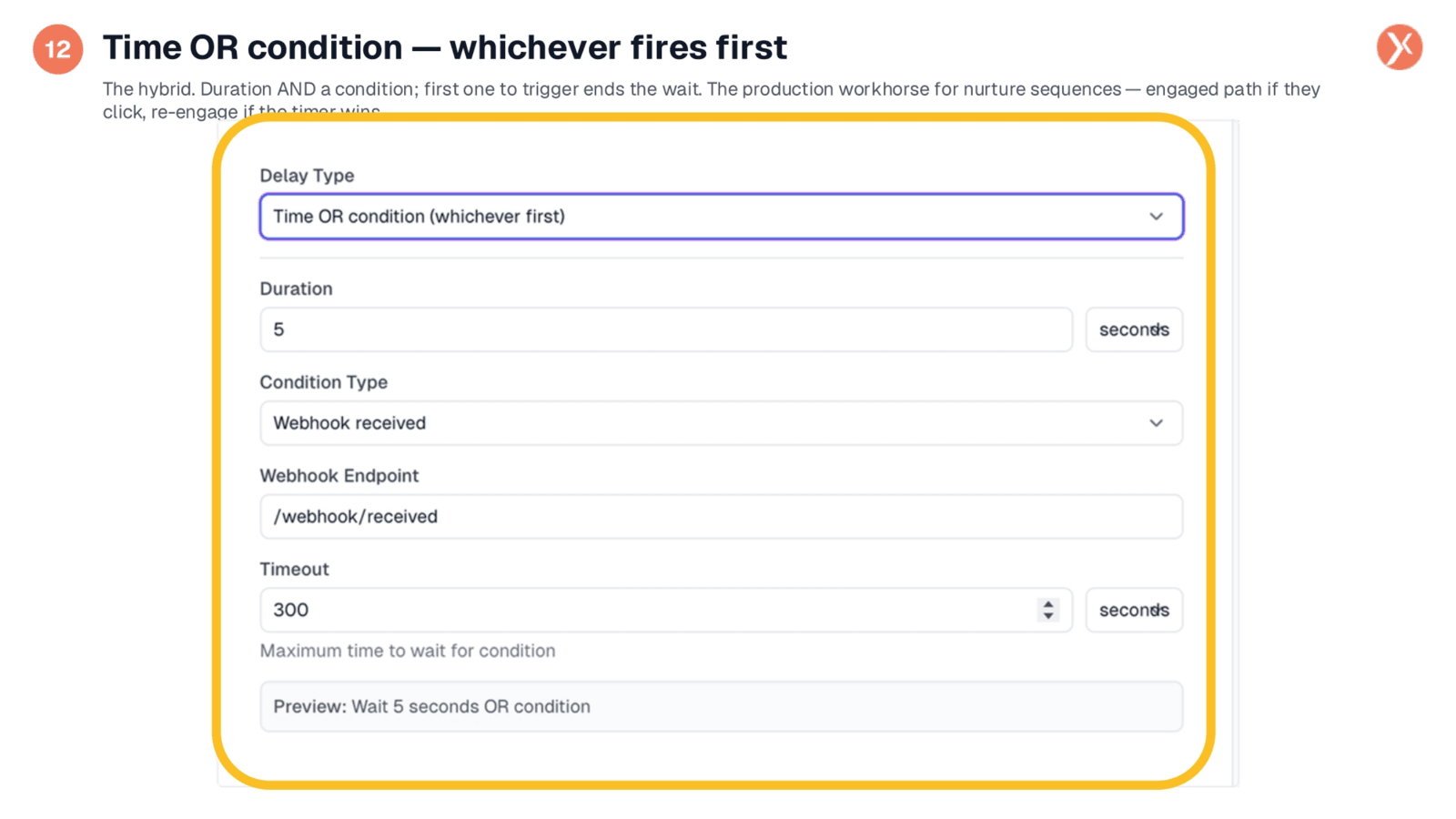
The "Time OR condition" mode is a powerful hybrid, combining both a maximum duration and a specific condition. The workflow ends its wait as soon as either the condition is met or the duration expires, whichever occurs first. This mode is the workhorse for sophisticated nurture sequences. A common application involves sending an email, then using this Delay node to wait three days OR until the contact clicks the email link. If they click on day one, the workflow immediately branches to an engaged path. If three days pass without a click, it branches to a re-engagement path, ensuring timely and relevant follow-ups.
Understanding Delay Node Outputs
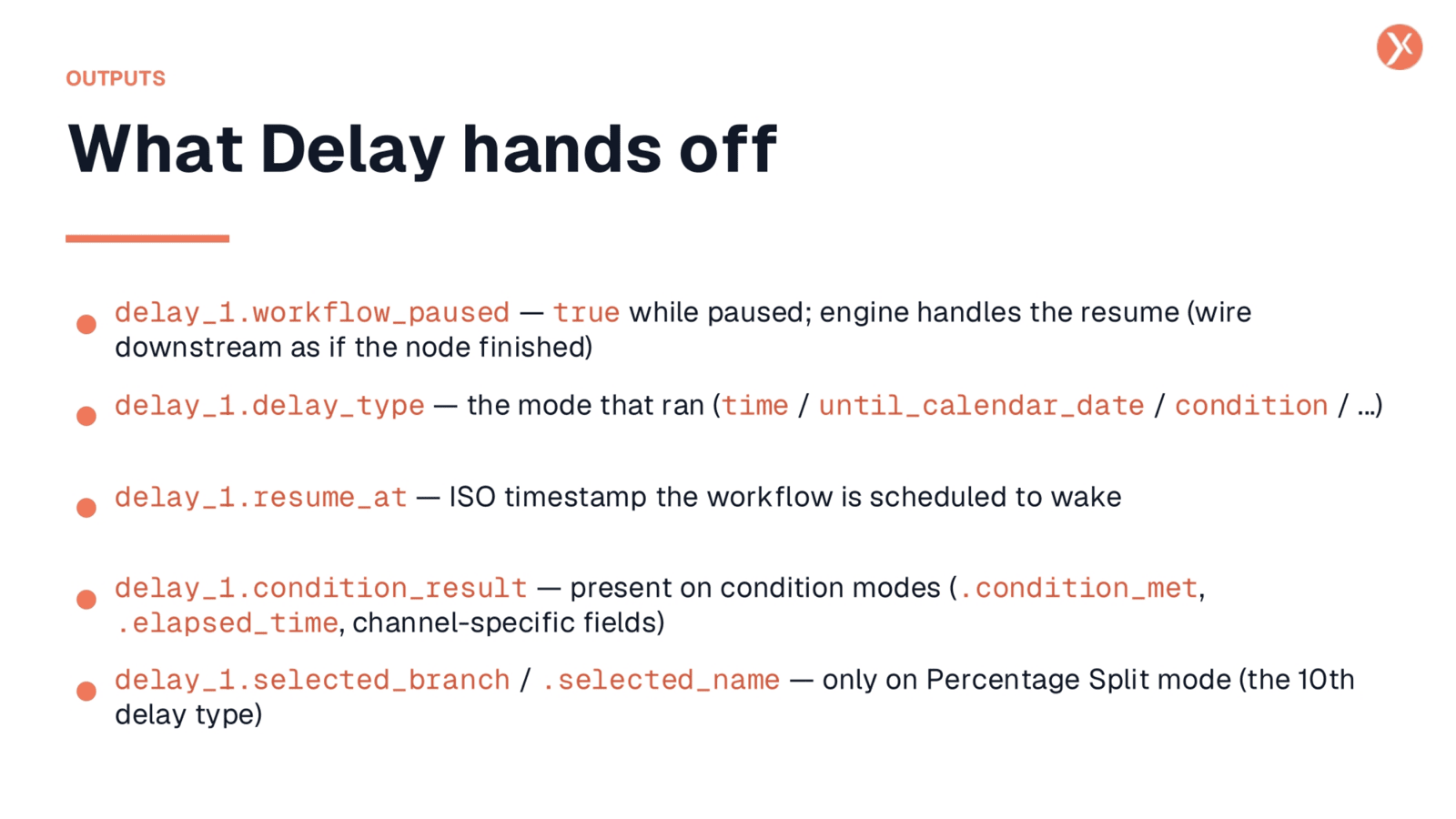
The Delay node provides several useful outputs for downstream workflow logic. delay_1.workflow_paused indicates true while the workflow is awaiting resumption; the engine handles the wake-up automatically. delay_1.delay_type specifies which mode was executed. delay_1.resume_at provides the ISO timestamp when the workflow is scheduled to resume. For condition-based modes, delay_1.condition_result details whether the condition was met or if a timeout occurred, along with elapsed time and channel-specific fields. Additionally, for the "Percentage Split" mode, delay_1.selected_branch and delay_1.selected_name indicate which A/B test branch the workflow took.
Delay Node Recap: Workflow's Pause Button
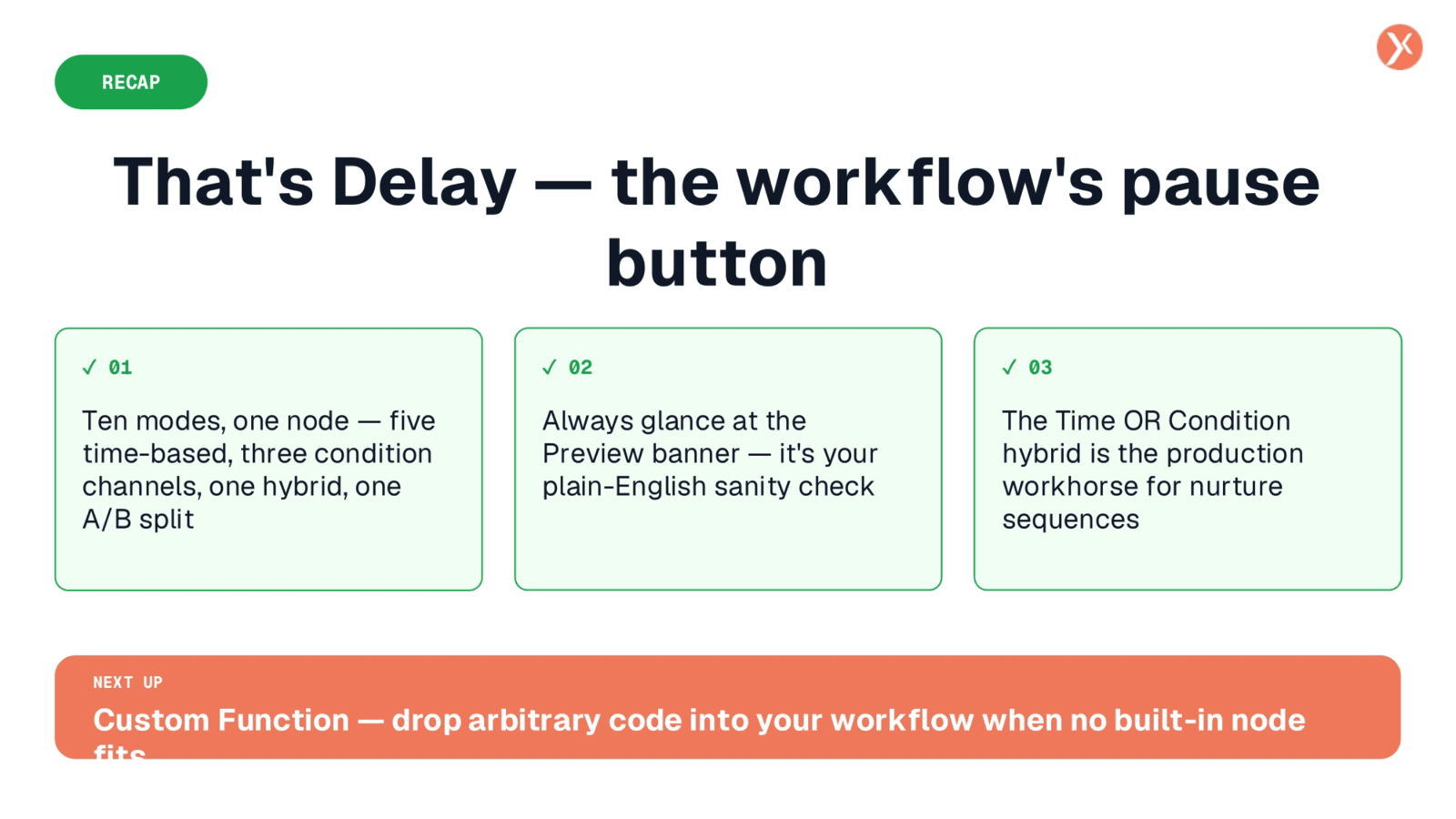
We've explored the Expedify Delay node, a critical tool for precise workflow automation. It offers ten distinct modes, including time-based, condition-driven, and hybrid options. Always check the Preview banner for clarity. The Time OR Condition hybrid is especially valuable for dynamic nurture sequences.