Multi-Condition Router
Today, we'll explore the Multi-Condition Router, a key component for advanced conditional logic. We'll cover its core building blocks: Condition Groups, Output Paths, and how it handles multiple matching paths. This will demonstrate how to effectively fan out your workflows.
Multi-Condition Router Demo Overview
Our demonstration will focus on three essential building blocks of the Multi-Condition Router. First, we'll examine Condition Groups, which allow you to define small, reusable boolean tests. Next, we'll explore Output Paths, each featuring a boolean expression that combines these groups, complete with a priority and a distinct color. Finally, we'll discuss Multiple Path Handling, which determines whether the system fires only the first matching path or fans out to all paths that meet the criteria.
Introducing the Multi-Condition Router Node
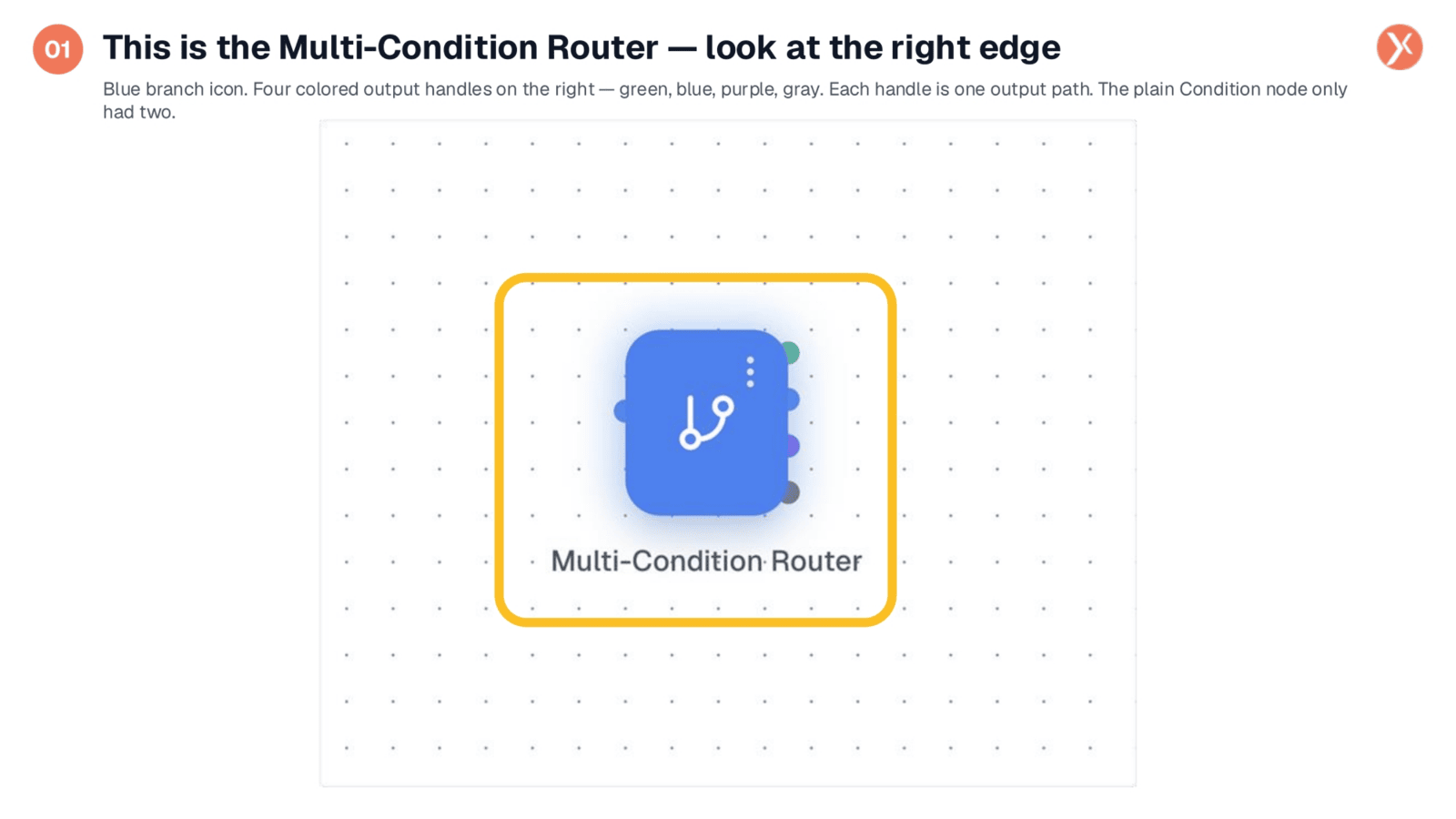
Observe the Multi-Condition Router node on the canvas, distinguished by its blue branch icon. Notice the four colored dots on the right edge: green, blue, purple, and gray. These represent individual output handles, each corresponding to a separate output path. Unlike a standard Condition node with only two handles, this router provides four out-of-the-box, with the flexibility to add more. Each handle directs to a distinct downstream workflow branch, enabling a multi-way fan-out without the need for stacking multiple condition nodes.
Accessing the Router Configuration
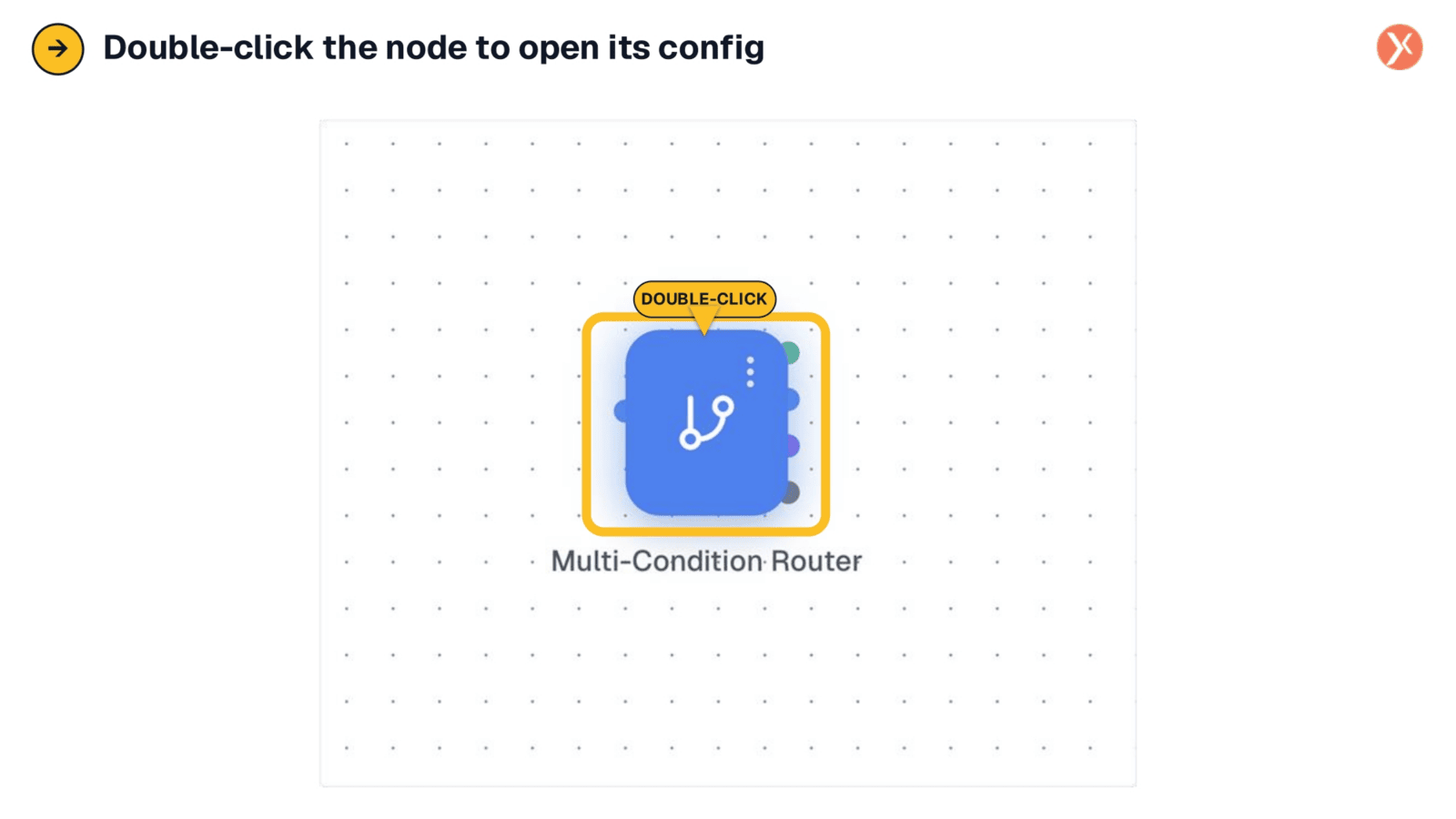
To access the configuration settings for the Multi-Condition Router, simply double-click the node on the canvas. This action will promptly open the Node Configuration Panel, allowing you to customize its behavior and define your routing logic. This straightforward interaction ensures quick and efficient setup of your conditional workflows.
Router Panel: Condition Groups and Execution Settings
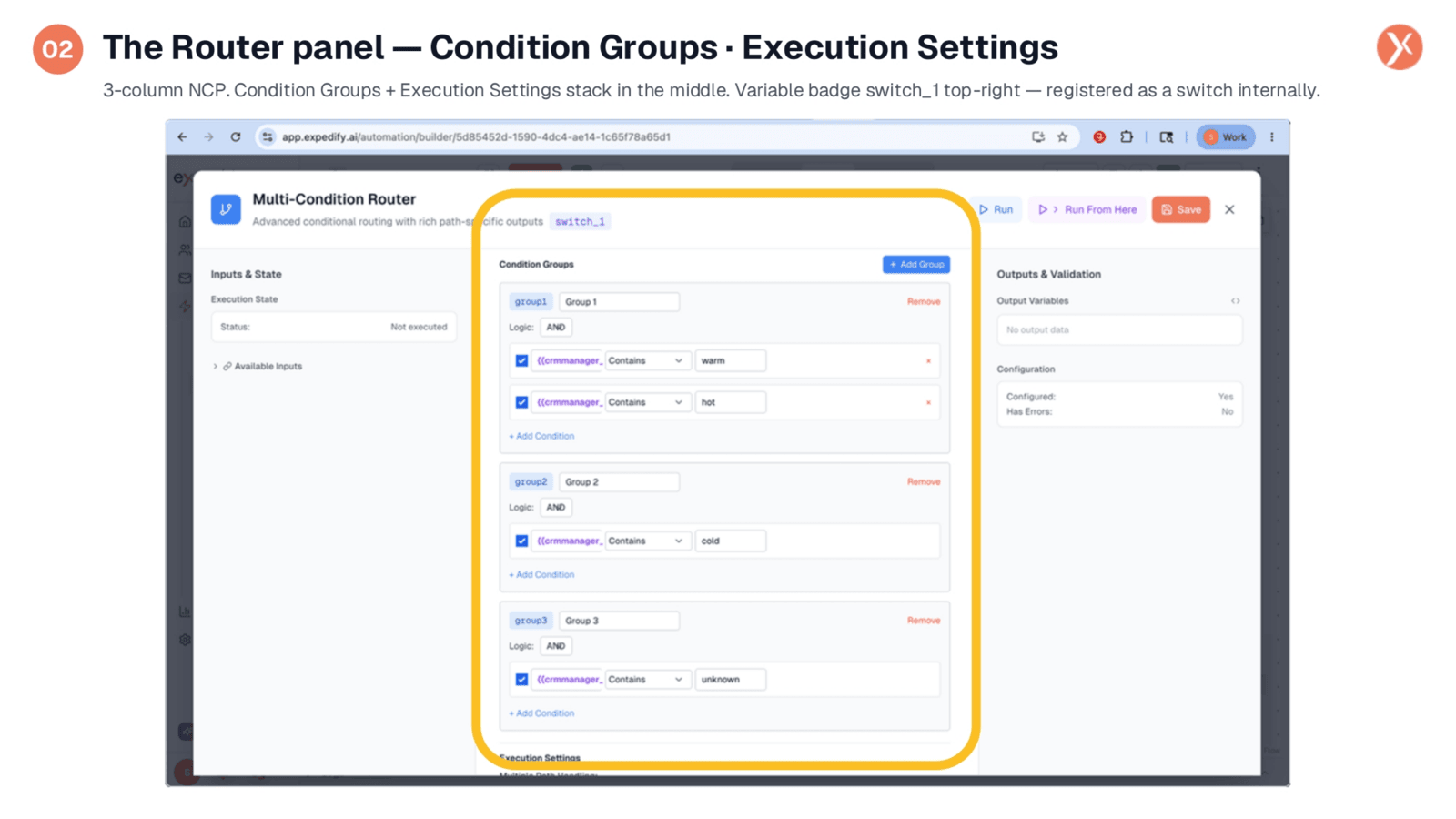
The Node Configuration Panel maintains the familiar three-column layout. At the top, you'll see the variable badge, switch_1, indicating its internal registration as a switch for downstream references. The central column is divided into two key sections: Condition Groups, where you define boolean tests, and Execution Settings, which control how multiple matching paths are handled. An 'Add Group' button is available for creating new condition sets. On the right, the 'Configured / Has Errors' check confirms the current setup, with this example showing a 'Configured: Yes' status.
Defining Condition Groups for Boolean Tests
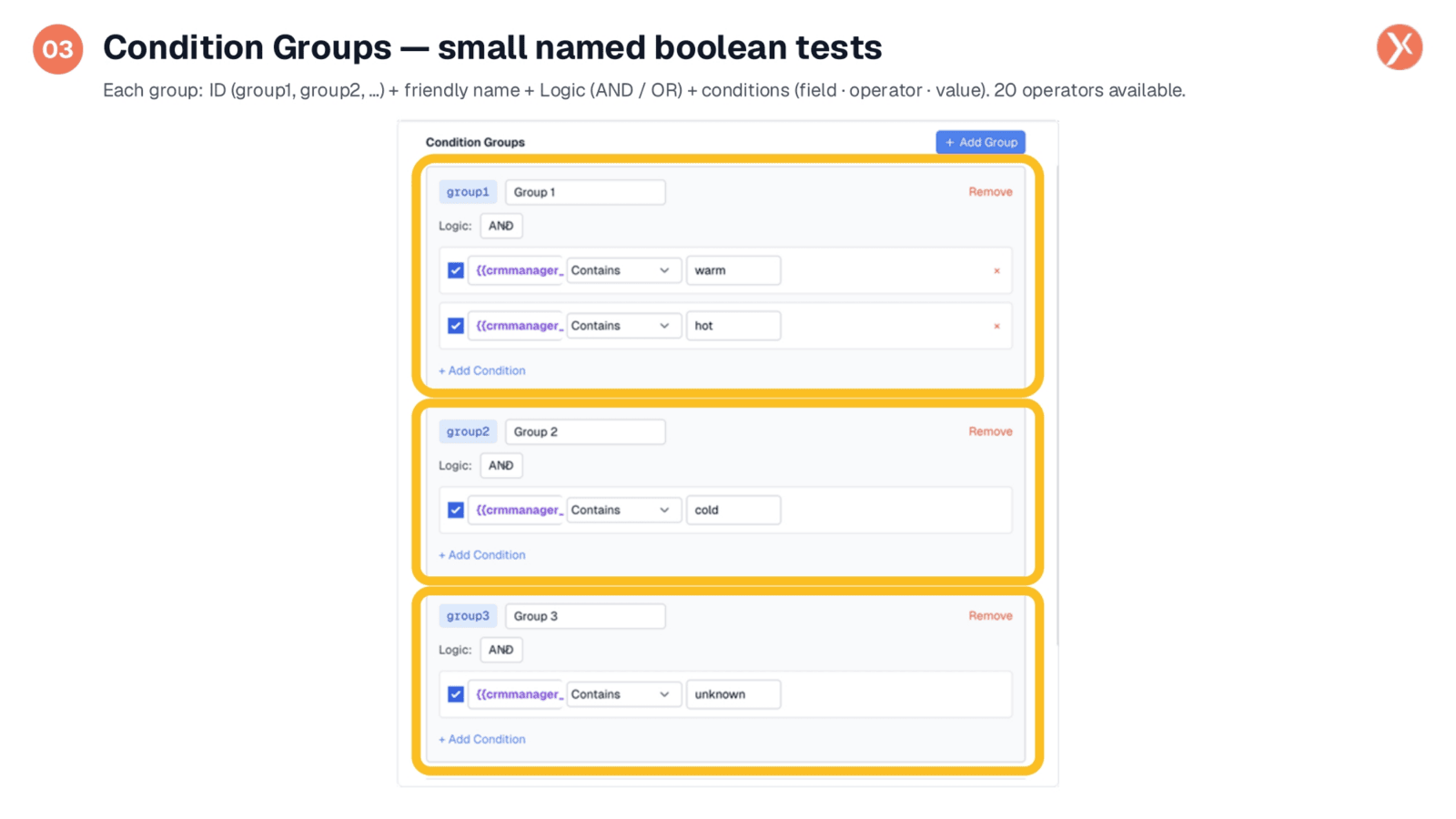
This example showcases three configured condition groups, each serving as a small, reusable boolean test referenced by its unique ID. Group 1 combines two conditions with 'AND' logic, checking if crmmanager_1.lead_status contains both 'warm' and 'hot'. Group 2 simply checks for 'cold', and Group 3 for 'unknown'. You can easily add or remove conditions within each group. The IDs, such as group1, group2, and group3, are crucial for referencing these tests in the Output Paths section. With twenty available operators, including 'equals', 'greater than', and 'date_between', you can construct precise boolean tests for any scenario.
Inserting Variables into Condition Fields
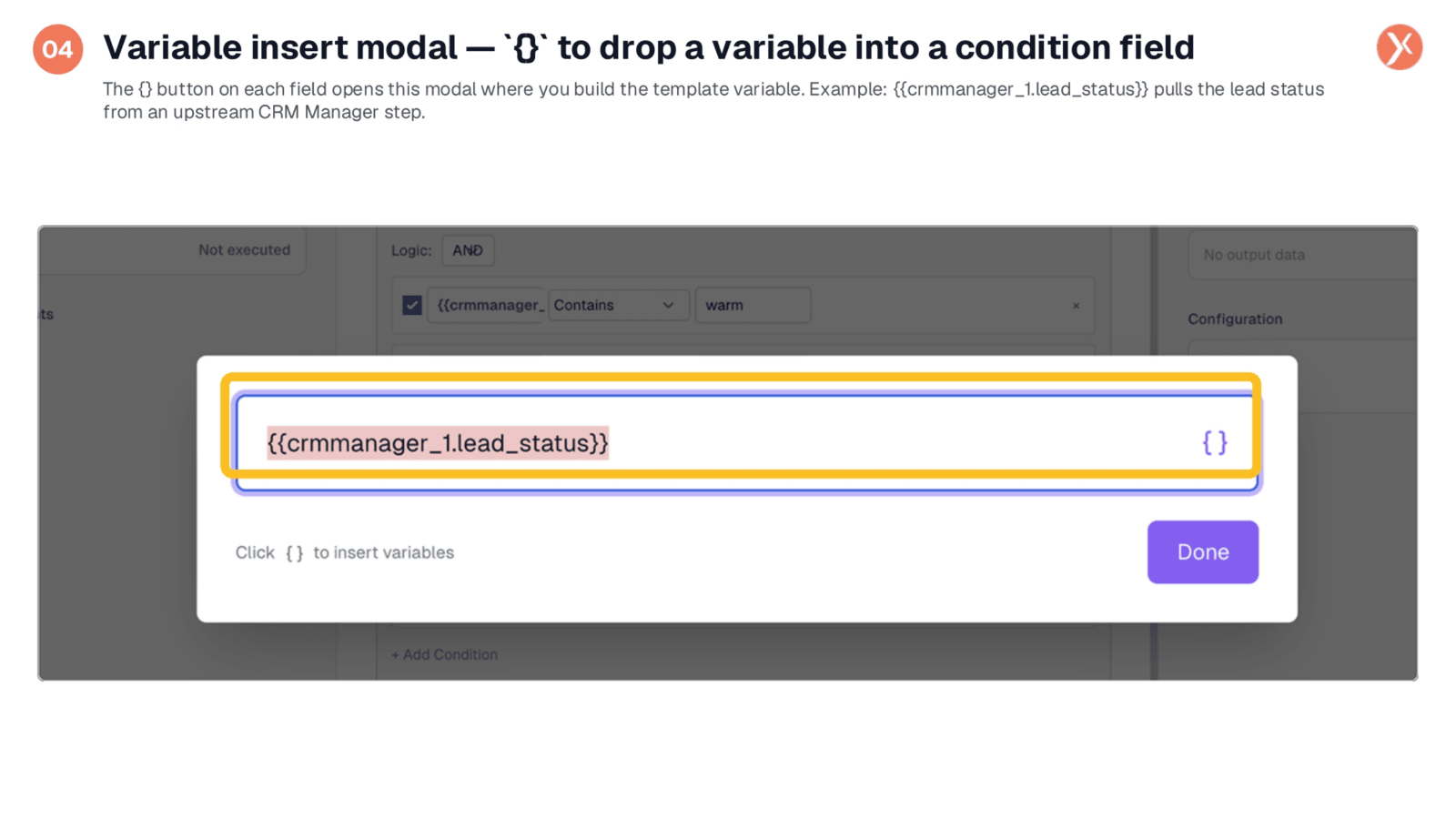
Condition fields are not free text; instead, you use the curly-brace button to open a modal for building template variables. This ensures clean and accurate variable insertion. For instance, entering crmmanager_1.lead_status links the condition to the lead status field from a previous CRM Manager step in the workflow. This method is crucial for preventing silent condition failures due to typos in variable paths. Once configured, selecting 'Done' inserts the variable directly into the condition field, streamlining the process and enhancing reliability.
Multiple Path Handling and Output Paths Preview
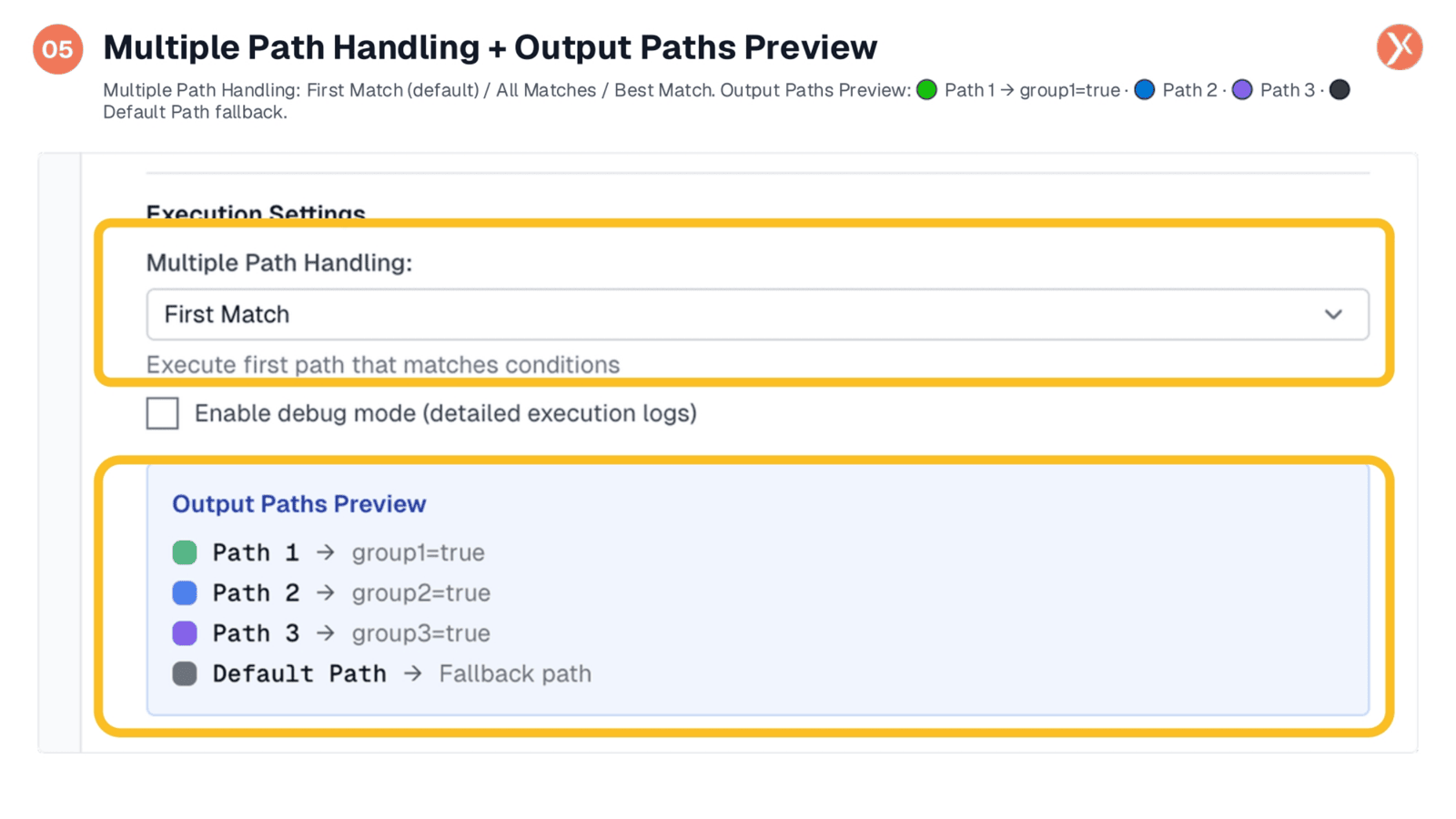
Within the Execution Settings, 'Multiple Path Handling' is a critical control. By default, 'First Match' fires only the highest-priority path that meets the conditions. Alternatively, 'All Matches' allows the workflow to fan out to every matching path simultaneously, ideal for parallel actions. You can also enable 'Debug Mode' for detailed execution logs. The 'Output Paths Preview' card visually confirms your configuration, displaying colored chips that correspond to the output handles on the canvas. This includes Path 1 (green), Path 2 (blue), Path 3 (purple), and a gray 'Default Path' as a fallback, providing clear visibility into your four distinct downstream branches.
Output Paths: The Boolean Expression Editor
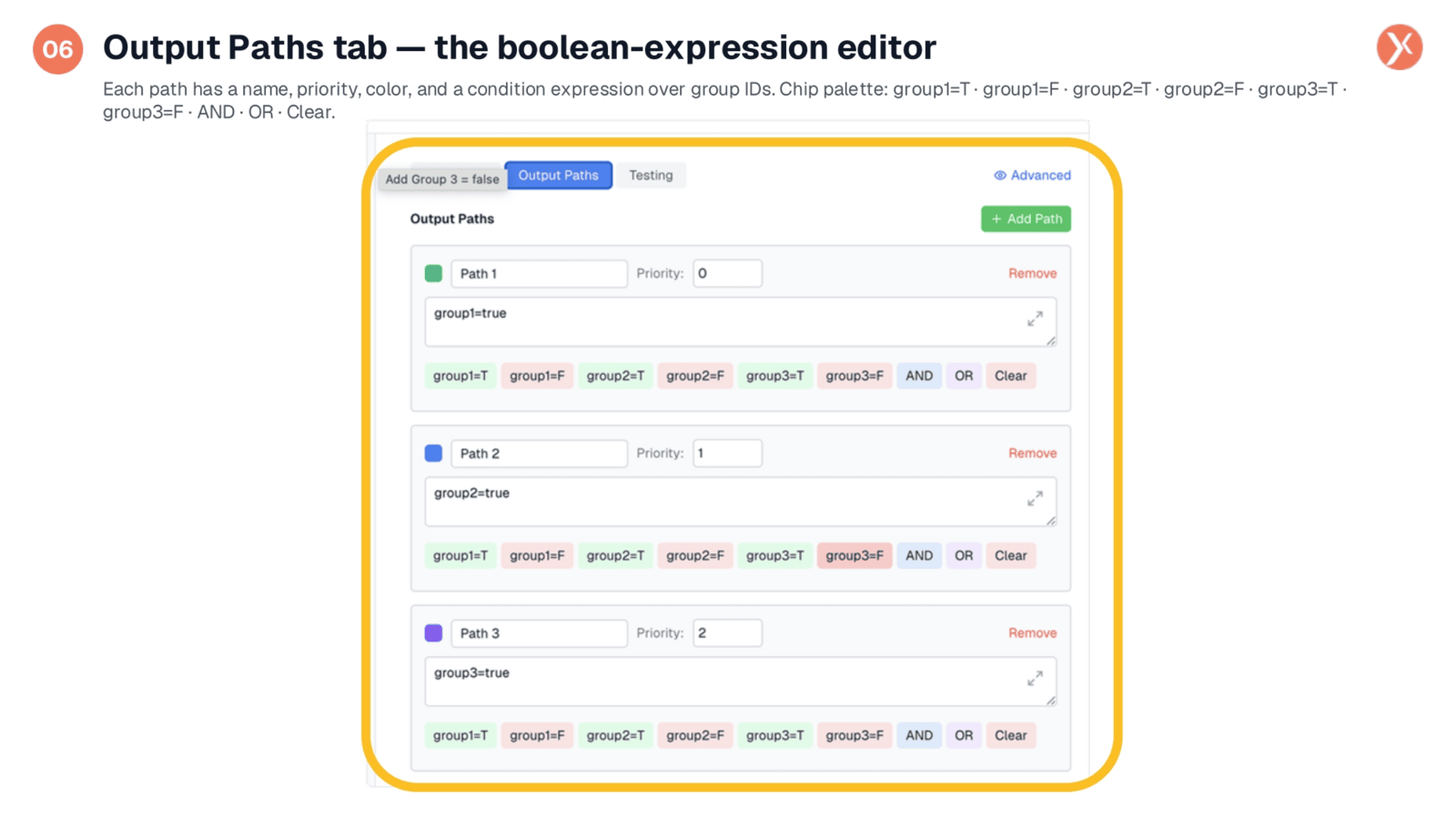
The Output Paths tab reveals a powerful boolean expression editor, where each path is an editable card. For example, Path 1, with priority zero and green, fires when group1 evaluates to true. Paths 2 and 3 follow similar logic for group2 and group3 respectively. Crucially, the expression field supports complex boolean combinations, such as group1 equals true AND group2 equals true, or more intricate nested logic. The chip palette below the box assists in constructing these expressions accurately, minimizing typos. This flexibility, allowing paths to combine groups in any desired manner, truly differentiates Expedify's router from a basic switch.
Multi-Condition Router Outputs
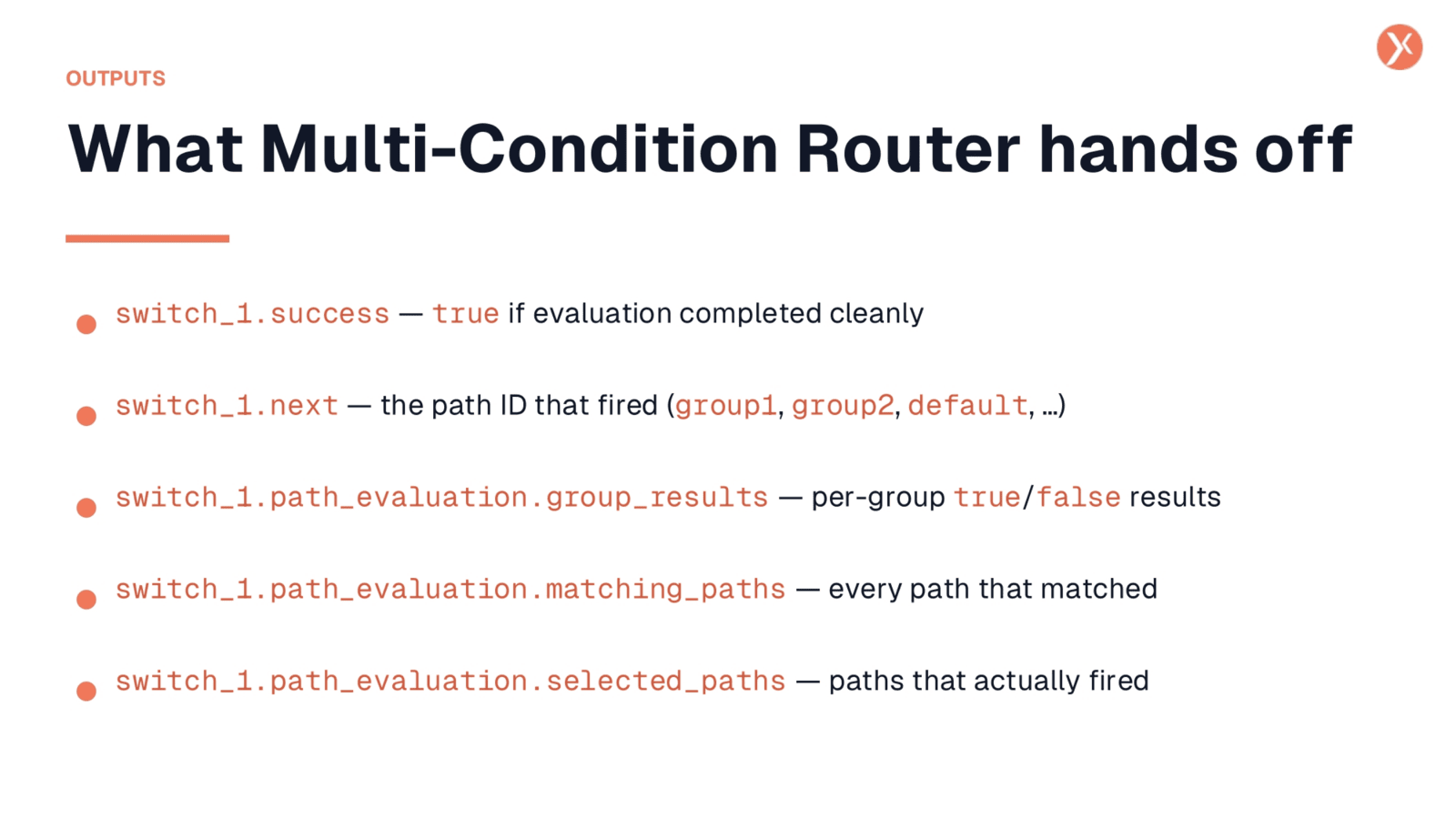
After the router executes, downstream nodes receive several key outputs. switch_1.success indicates if the evaluation completed without errors. switch_1.next provides the path ID used by the workflow coordinator for routing execution. For debugging, switch_1.path_evaluation.group_results offers a dictionary of each group's true/false outcome. switch_1.path_evaluation.matching_paths lists all paths that met their conditions, while switch_1.path_evaluation.selected_paths specifies the paths that actually fired after 'Multiple Path Handling' was applied. Enabling debug mode also provides a comprehensive debug_info block with the full evaluation trace.
Multi-Condition Router Recap
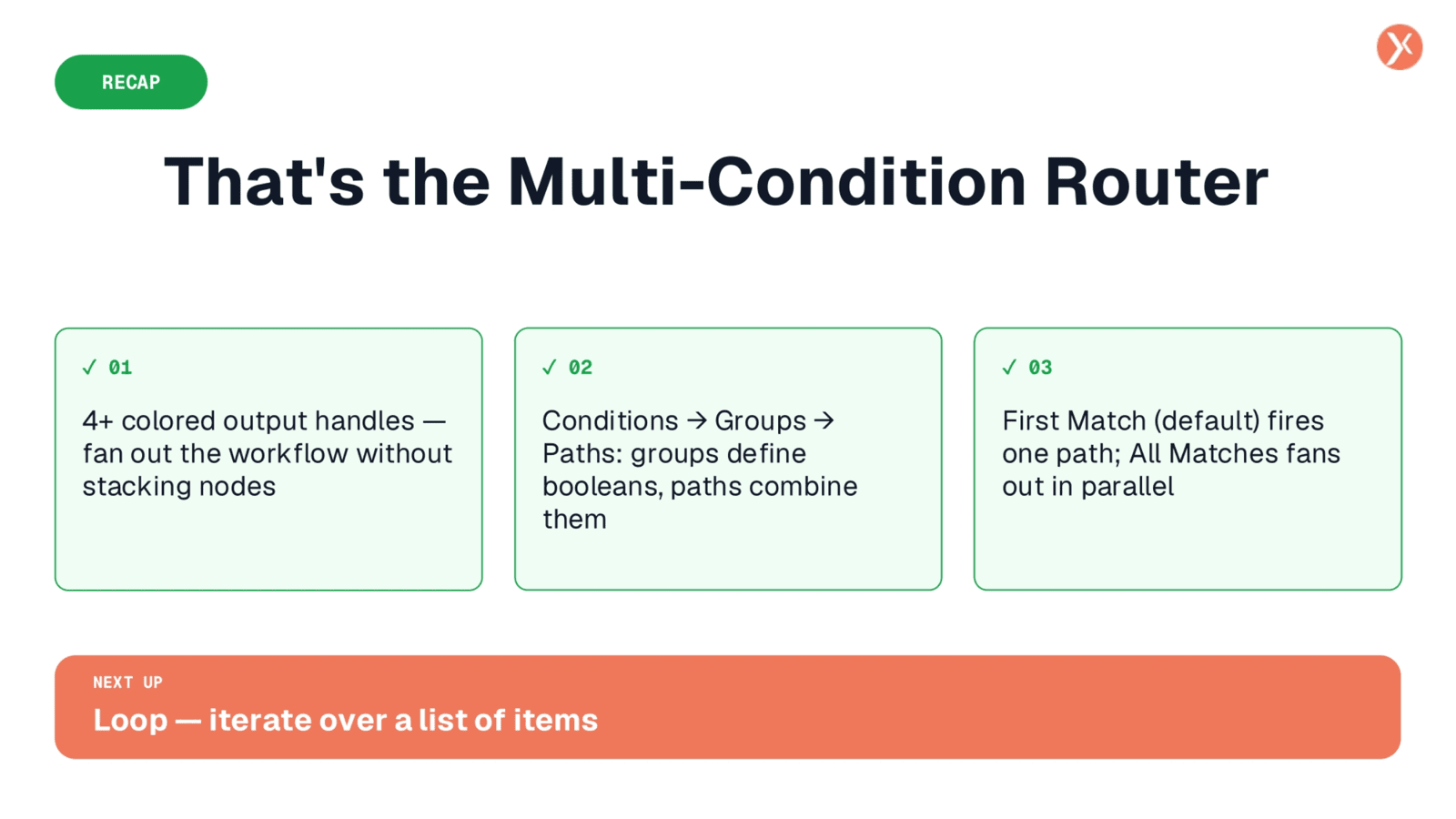
That concludes our overview of the Multi-Condition Router. It provides flexible, multi-path branching using boolean expressions over named condition groups. This powerful tool is ideal for workflows requiring three or more distinct paths based on the same input.