Loop
Today, we'll explore the Expedify Loop node, a powerful tool for automating repetitive tasks across lists of items. We'll cover its configuration, including input arrays and output fields, discuss options for speed and resilience, and examine the key variables available during each iteration. Finally, we'll detail its two distinct output paths: Loop Body and Complete.
Loop Node Overview
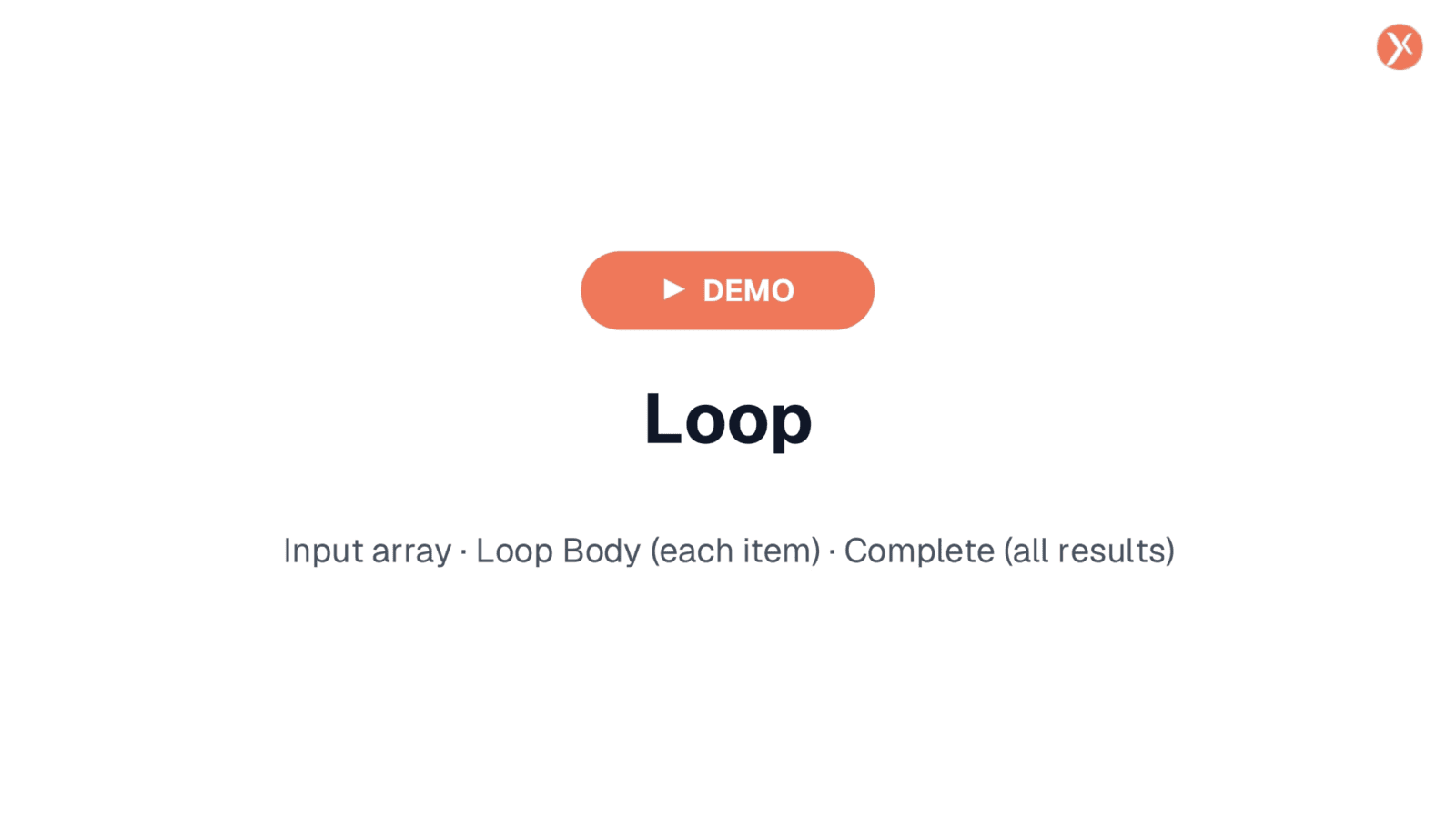
The Loop node is a logic and control node, visually represented by a refresh-circle icon, indicating its iterative nature. It features a single input port on the left, designed to receive an array from sources like a CRM Manager search or a custom function. Uniquely, it provides two distinct output ports on the right, allowing for different actions based on whether an item is being processed or the entire loop has completed. We will delve into these two output paths shortly.
Loop Node Architecture
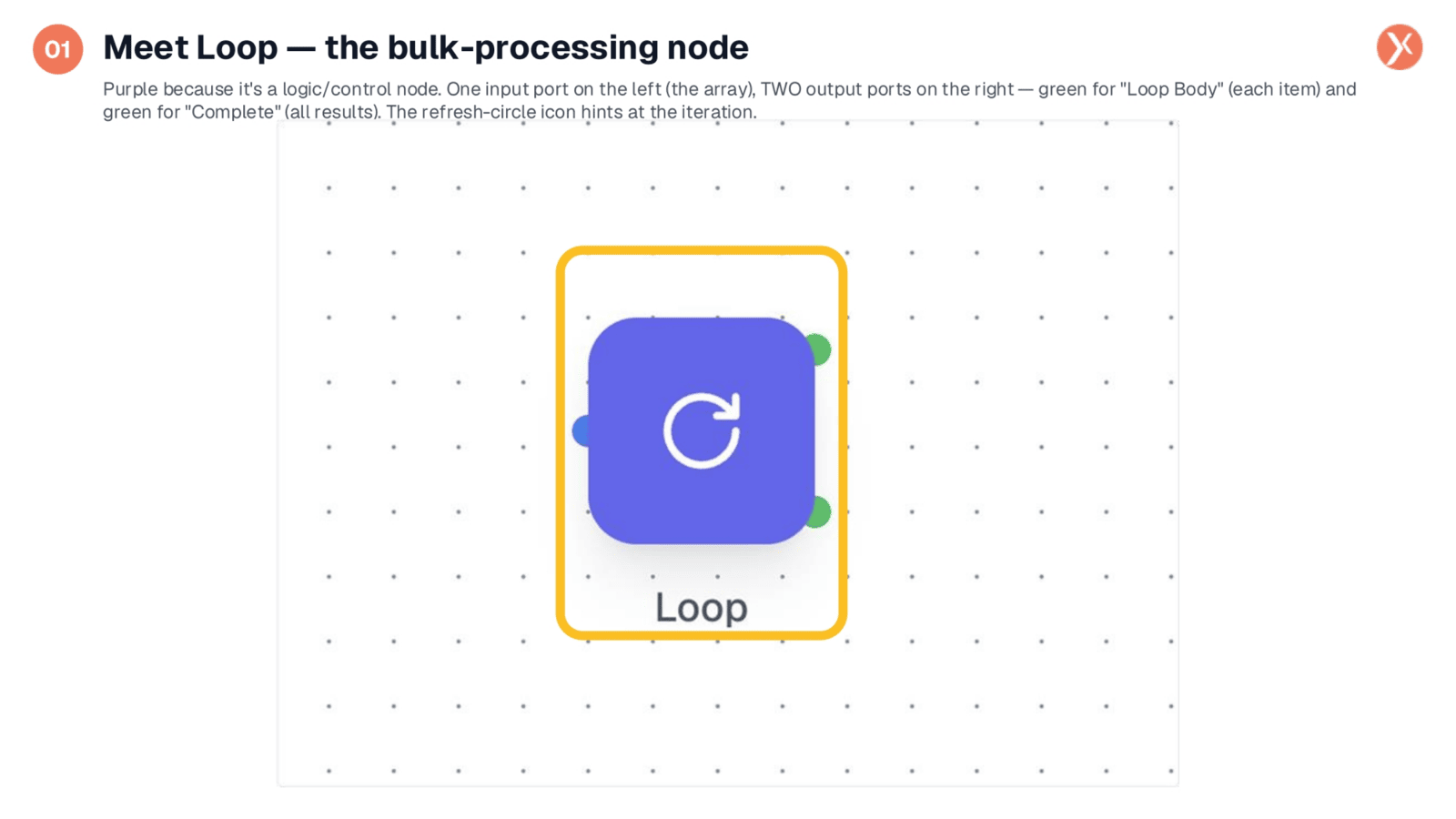
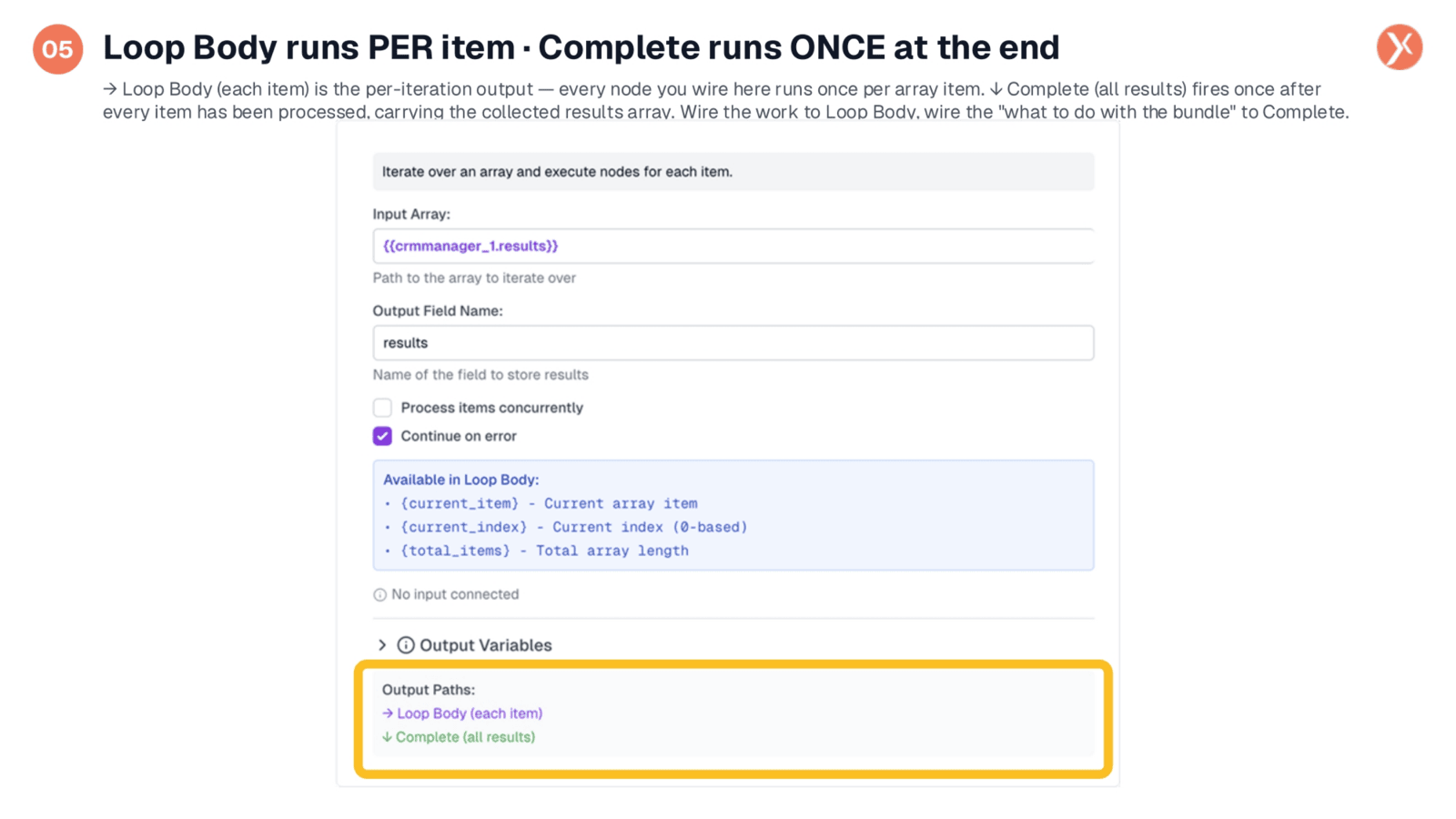
The Loop node's interface is streamlined into a single panel, starting with its unique badge, loop_1, which serves as its variable namespace for downstream operations. A descriptive banner reiterates the node's core function. The central configuration consists of four key fields: Input Array, Output Field Name, and two crucial checkboxes. Additionally, a blue callout highlights the specific variables available for use within the loop body. The node's architecture is completed by its two distinct output paths, Loop Body and Complete, which we will now explore in detail.
Configuring Loop Node Fields
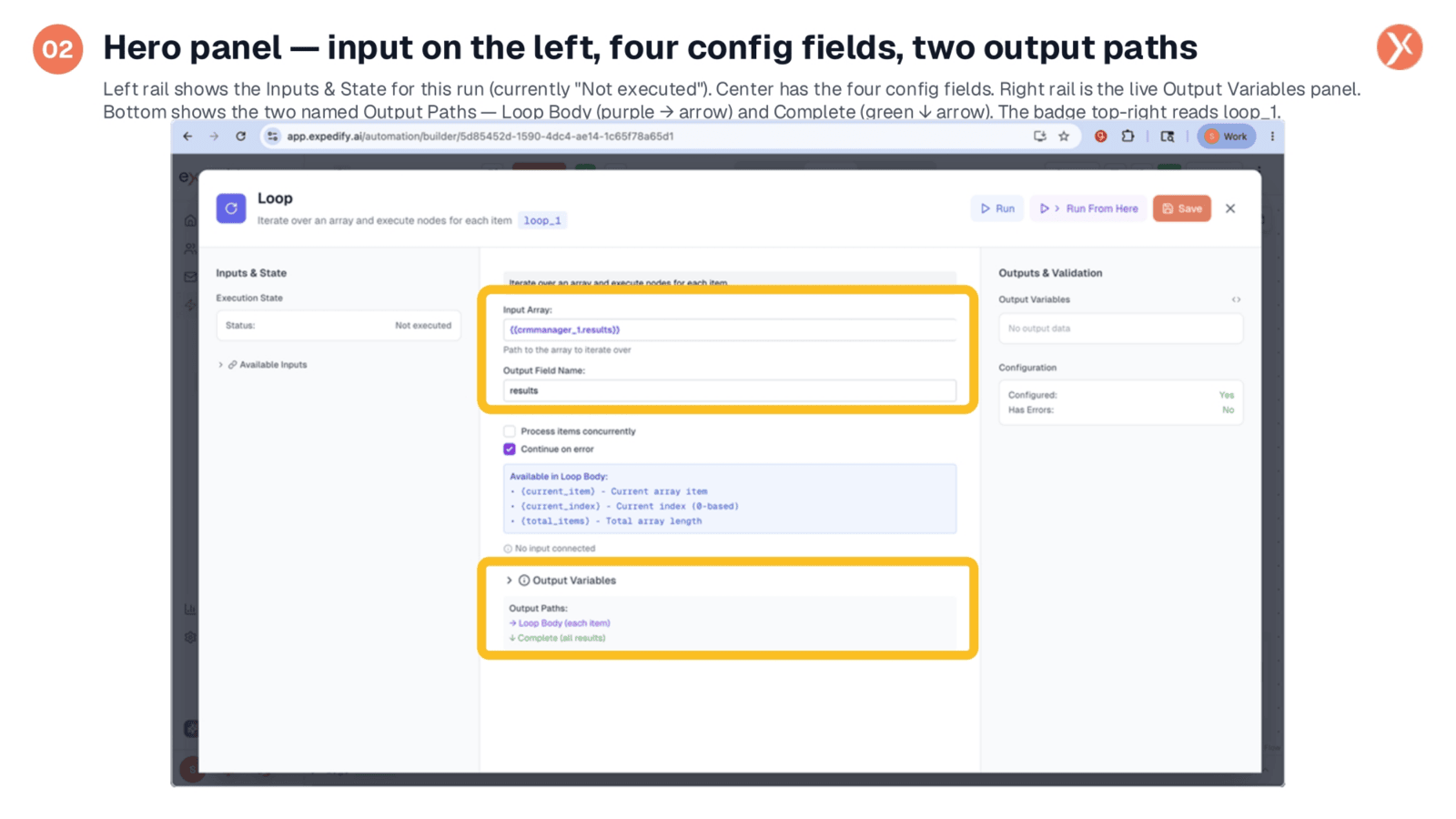
Configuring the Loop node involves setting four essential fields. The Input Array is paramount, directing the node to the specific array for iteration, often a template variable like {{crmmanager_1.results}} from an upstream search. The Output Field Name defines how collected results are labeled upon loop completion, typically defaulting to 'results'. Two checkboxes offer critical control: 'Process items concurrently' can be enabled for speed with independent items, while 'Continue on error', which is on by default, ensures that a single faulty item does not halt the entire bulk process.
Dynamic Variables in Loop Body
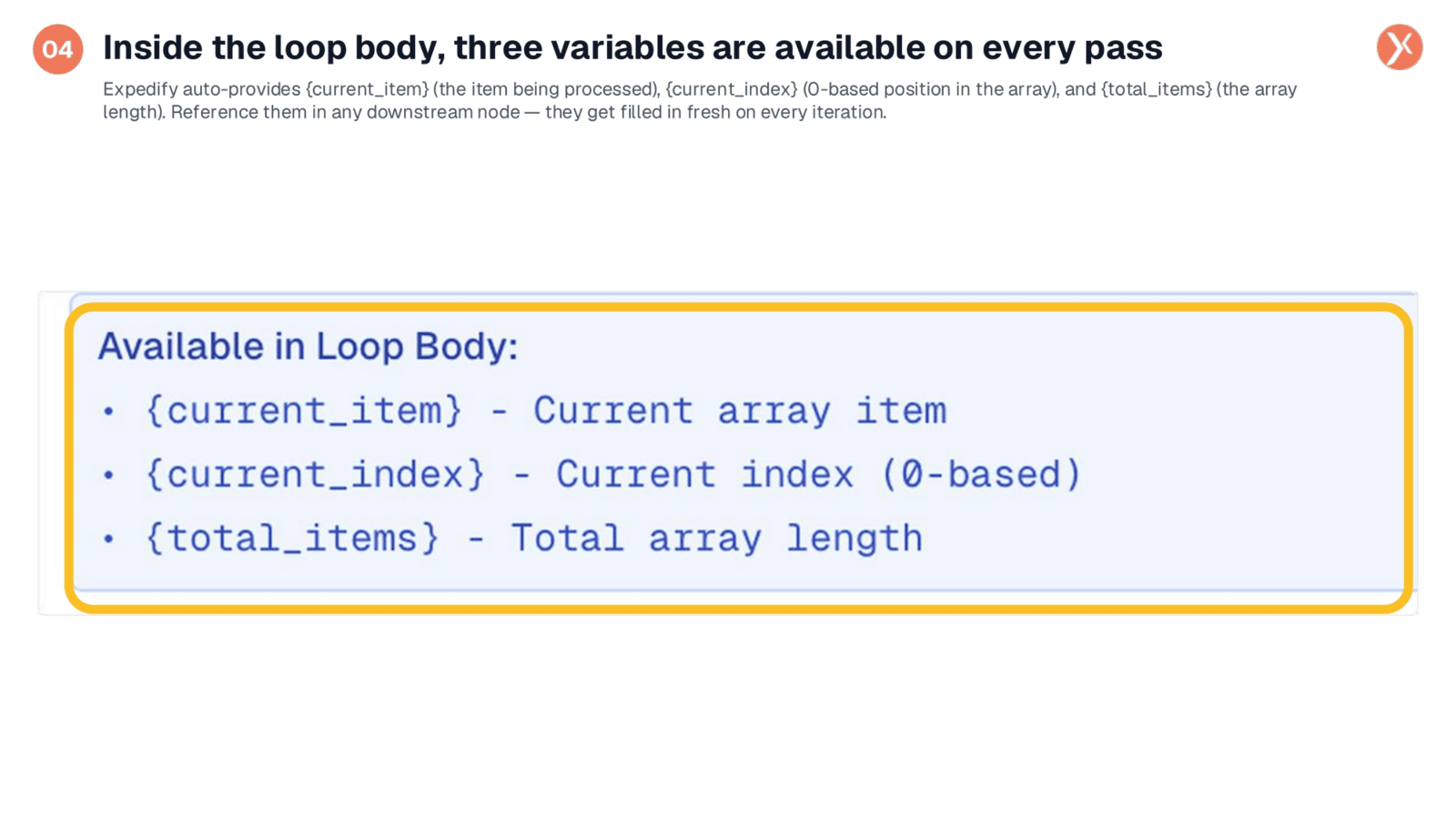
During each iteration, the Loop node automatically provides three dynamic variables for use within your loop-body nodes. current_item represents the specific item being processed in that iteration, such as a contact or a deal. current_index indicates its zero-based position within the array, starting from zero for the first item. total_items provides the overall length of the array, useful for tracking progress or conditional logic. These variables can be referenced using double-curly braces in any downstream node in the loop body, ensuring they are updated with fresh data on every pass.
Loop Body and Complete Paths
The Loop node's core functionality revolves around its two distinct output paths, each serving a unique purpose. The Loop Body path, indicated by a purple right arrow, executes once for every item in the array. Whatever node you wire here, that's the work that runs per item. In contrast, the Complete path, marked by a green down arrow, fires only once after all items have been processed. This path carries the aggregated results and is ideal for actions like sending summary notifications or triggering subsequent workflows.
Understanding Loop Node Outputs
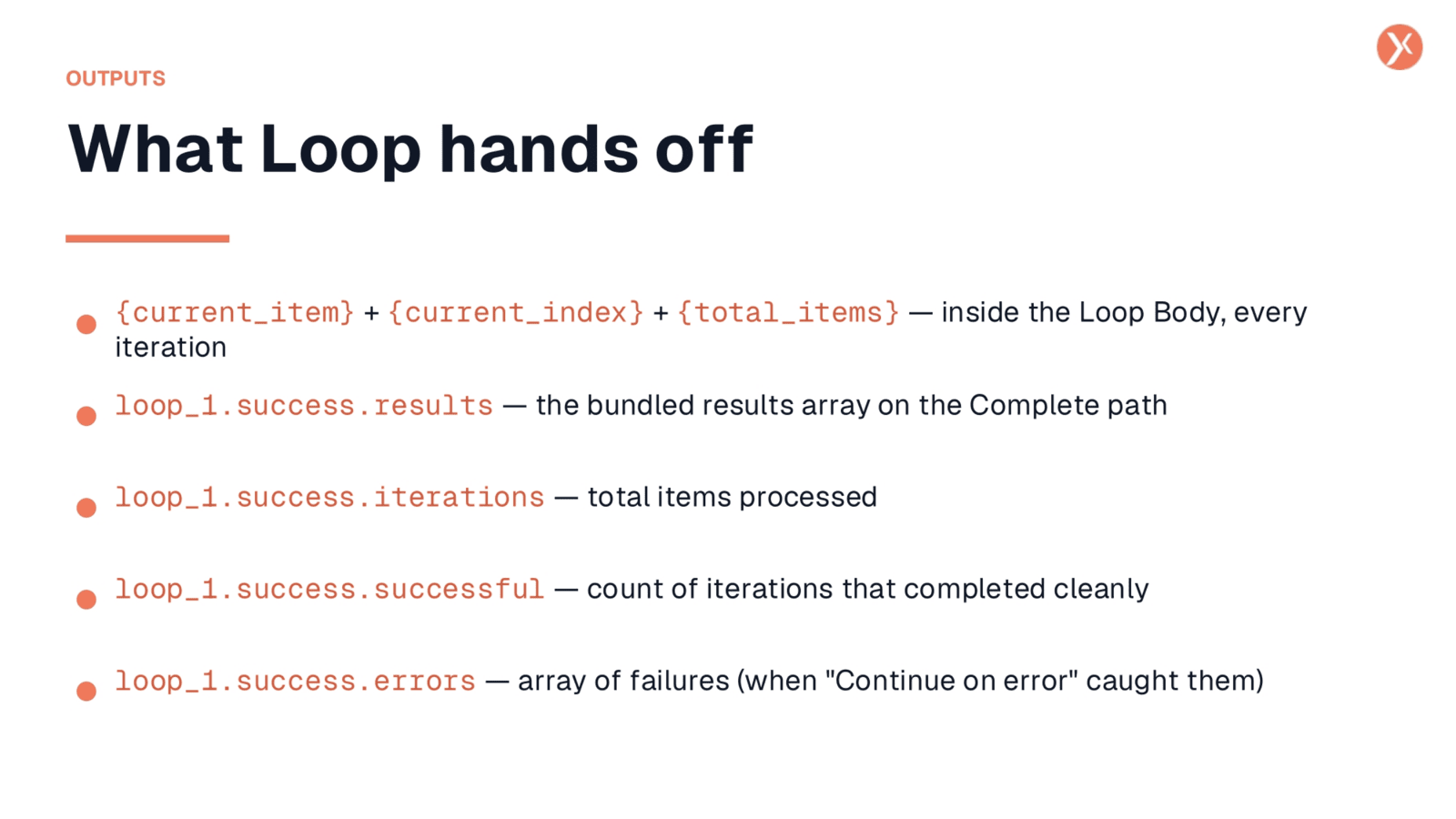
The Loop node provides two distinct types of output, depending on where you are in the workflow. Within the Loop Body path, nodes can directly access current_item, current_index, and total_items for dynamic processing. Once the loop finishes, the Complete path provides a comprehensive bundle of results under the loop_1 namespace. This includes loop_1.success.results, which is the collected array of all iteration outputs, loop_1.success.iterations for the total count, loop_1.success.successful for clean completions, and loop_1.success.errors for any failures caught by the 'Continue on error' setting.
Loop Node Output Summary
To summarize the Loop node's capabilities, it effectively transforms single-record processing into efficient bulk operations. You simply point it to any array, whether from CRM search results or an API, and connect your per-item tasks to the Loop Body output. For actions that occur after all items are processed, use the Complete output. Within the loop body, current_item, current_index, and total_items are readily available. Remember to enable concurrency for speed with independent items and keep 'Continue on error' active to prevent a single issue from halting the entire batch.
Recap: The Loop Node
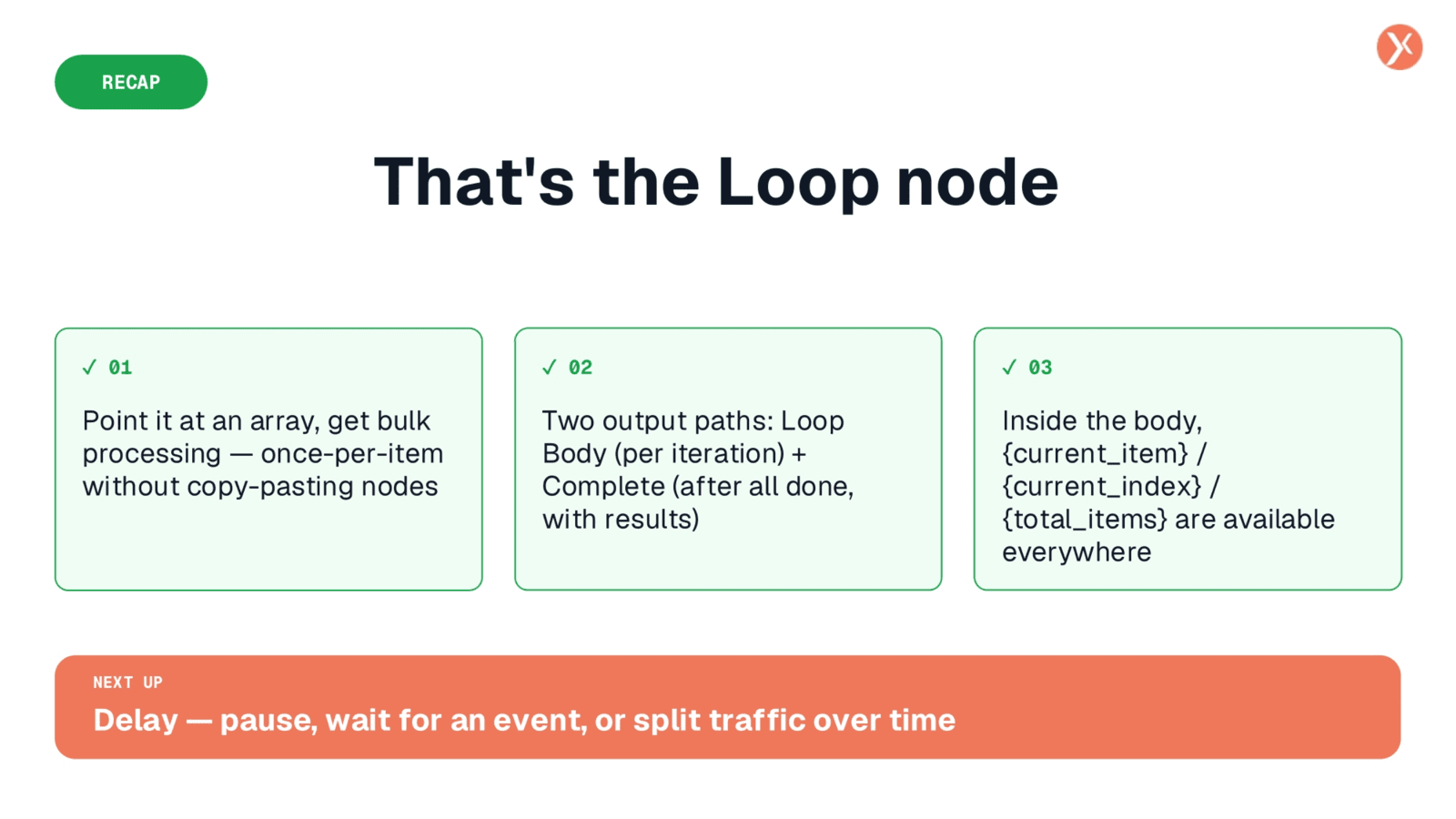
We've covered the Expedify Loop node, a powerful tool for bulk processing arrays efficiently. It provides distinct paths for per-item execution and final results, leveraging dynamic variables for flexible automation. Thank you for joining this session.