Human Approval
Today, we'll walk through the Human Approval node, starting with its core function. We'll then explore its configuration across three tabs: Basic, where you define the reviewer's prompt; Options, for selecting input types like simple approve-reject, custom choices, or free-text replies; and Advanced, which covers timeout settings. Finally, we'll examine the outputs available to downstream nodes after a human decision.
Human Approval Demo Overview
This demonstration will showcase the Human Approval node in action, highlighting its key features. We'll cover how to set up a basic prompt, explore the various input options including simple approval, custom choices, and free-text responses, and configure timeout settings for efficient workflow management.
Meet Human Approval: The Pause Node
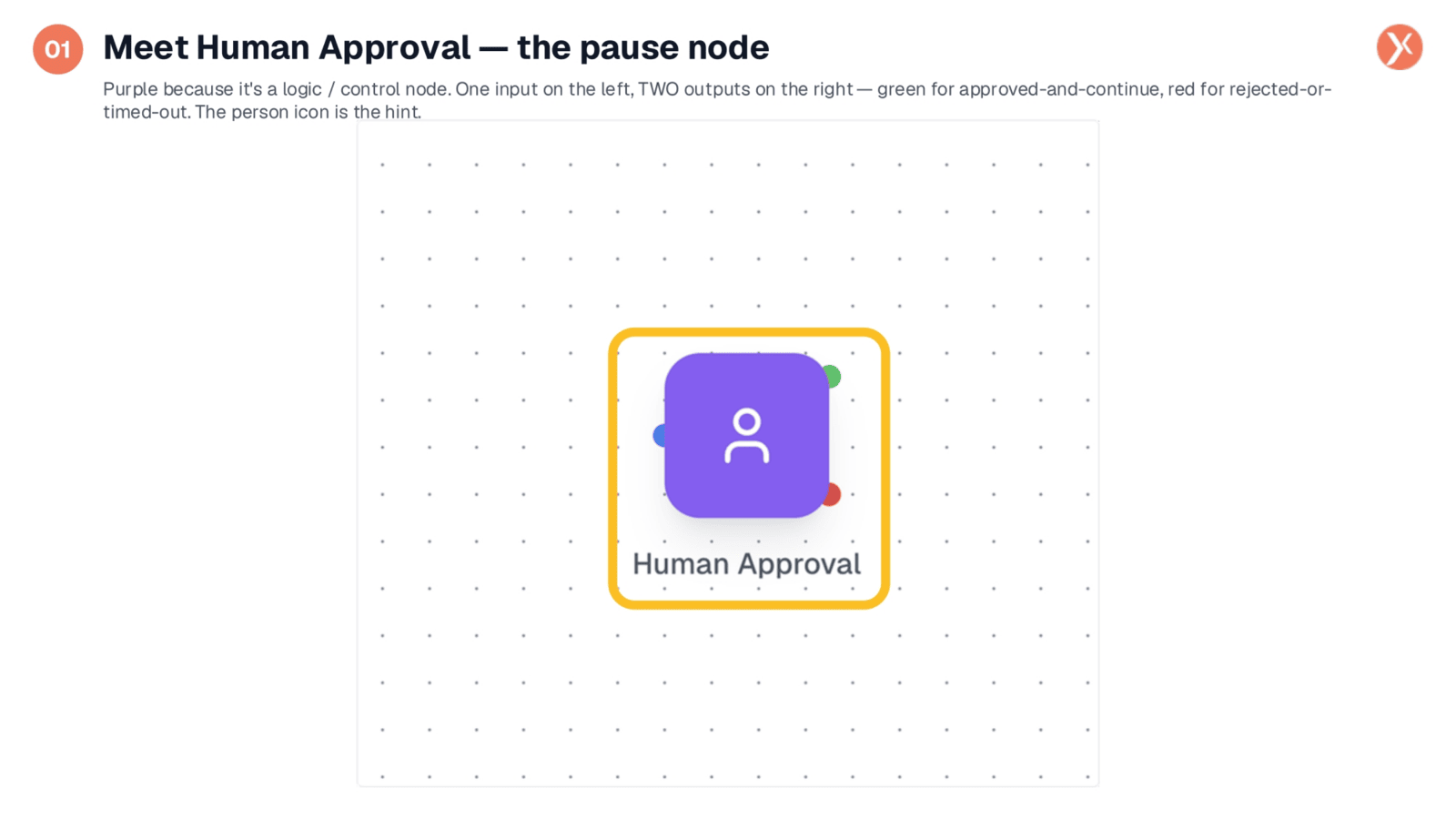
The Human Approval node is a crucial logic and control element, visually represented by its purple color and a person icon, clearly indicating human involvement. It features a single input for upstream data and two distinct outputs: a green path for approved actions and a red path for rejected or timed-out decisions. This design ensures the workflow proceeds appropriately based on human input, providing a clear decision point.
Basic Tab: Defining the Reviewer's Question
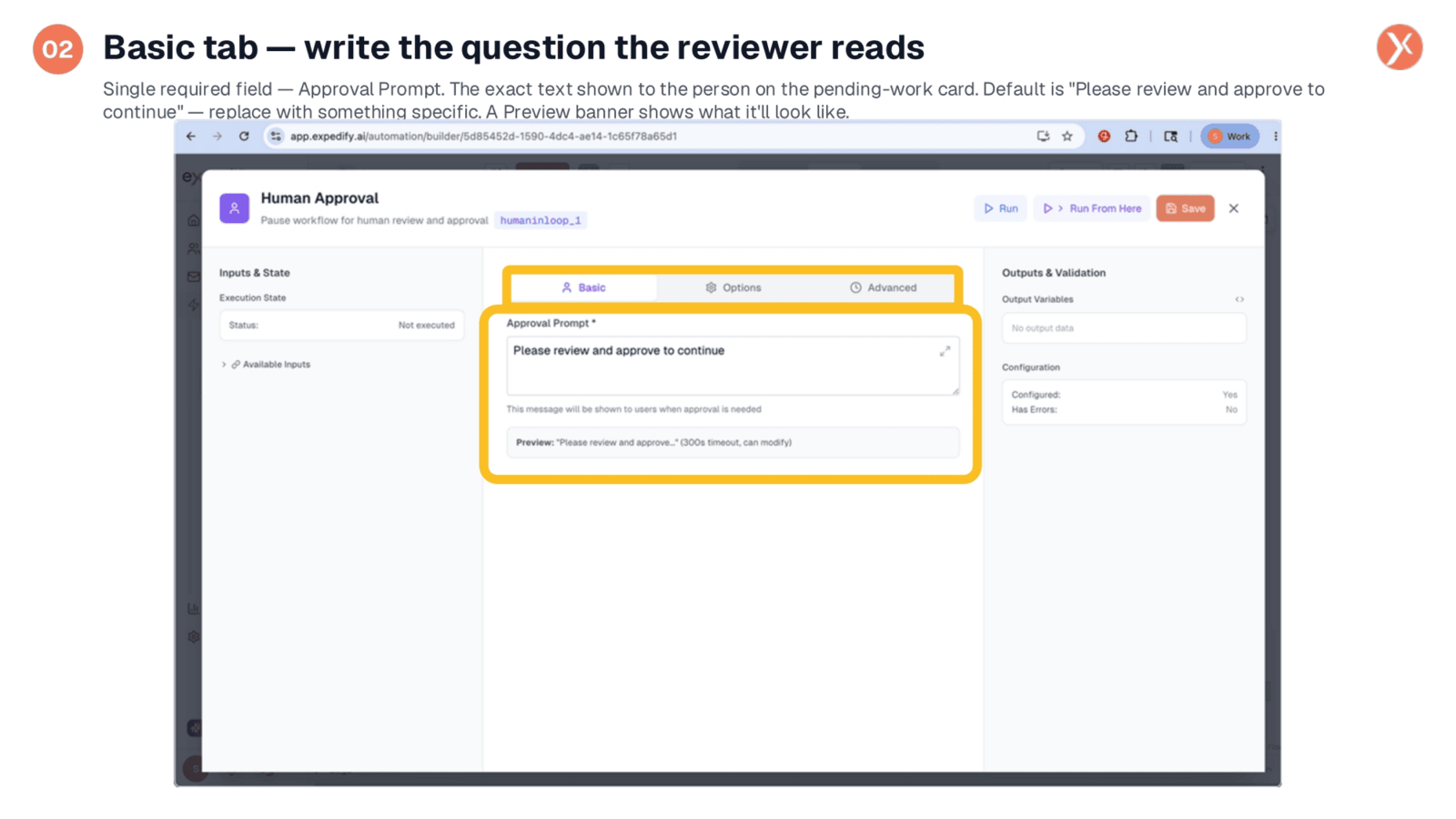
The Basic tab focuses on the Approval Prompt, the essential text displayed to the reviewer on their pending-work card. While a generic default exists, it's highly recommended to customize this prompt for clarity and efficiency. Specific prompts, such as "Review this drafted contract" or "Approve this five-thousand-dollar discount," lead to faster and more informed decisions. A preview banner also shows exactly what the reviewer will see, including any timeout information.
Options Tab: Default Approval Input Type
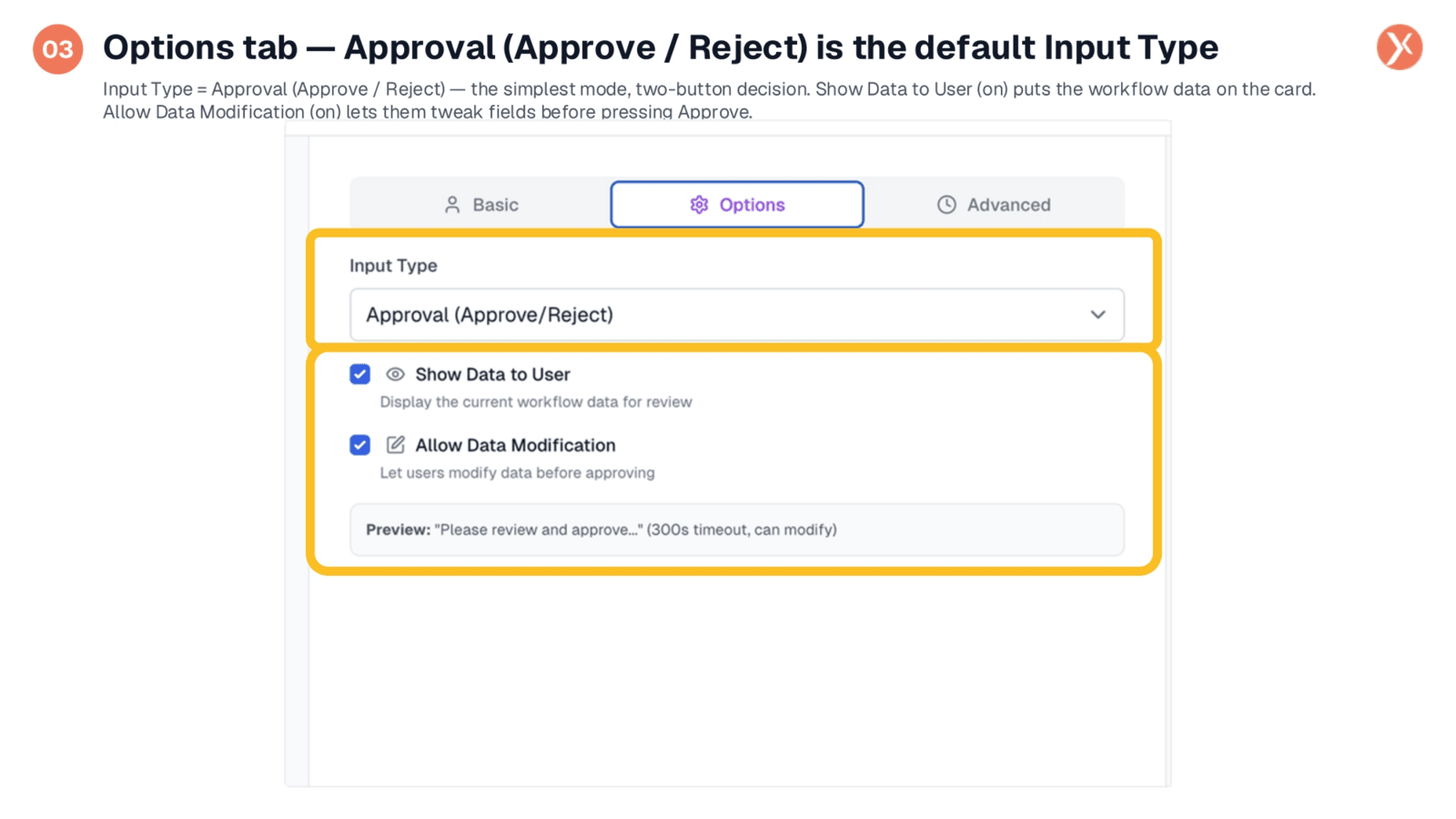
Within the Options tab, the primary choice is the Input Type, determining how reviewers interact. The default is "Approval," offering a straightforward two-button "Approve or Reject" decision. Crucially, enabling "Show Data to User" displays relevant workflow data, like an email body or contact details, directly on the review card. Additionally, "Allow Data Modification" empowers reviewers to edit fields before approving, transforming the process from a simple confirmation into a collaborative step where adjustments can be made.
Custom Options: Defining Your Own Choices
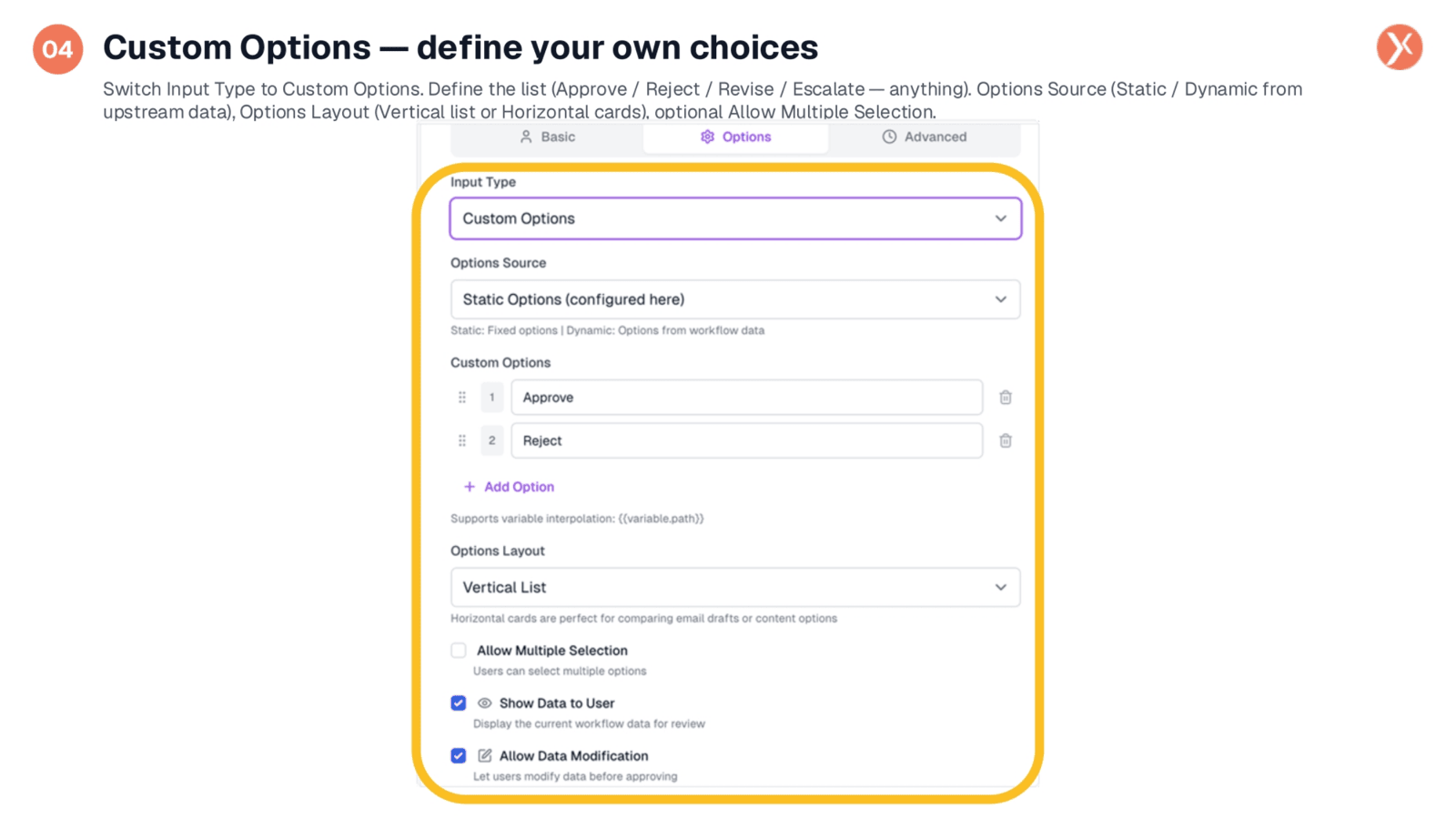
Switching the Input Type to "Custom Options" allows you to define a tailored list of choices for the reviewer. Beyond the default "Approve" and "Reject," you can add options like "Revise" or "Escalate," each creating a unique downstream path. Options can be static, defined directly, or dynamic, pulled from upstream data, ideal for selecting among multiple drafts. You can also choose between vertical list or horizontal card layouts, and enable multiple selections for more complex decisions, offering flexibility beyond a simple yes-or-no.
Free Text Input: Reviewer Response
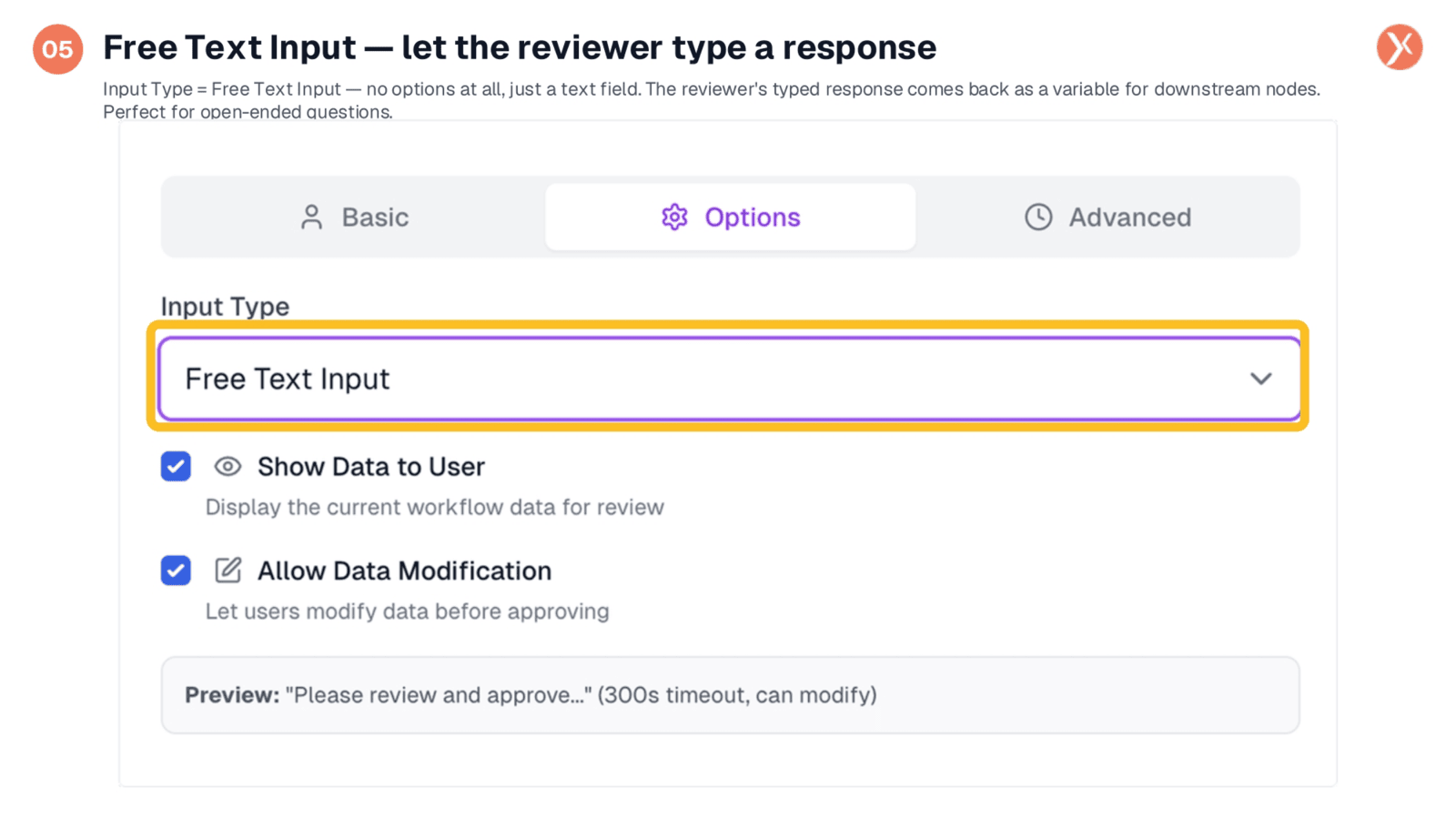
The "Free Text Input" option provides a simple text box, allowing reviewers to type any response without predefined choices. Their input is captured as a variable, accessible to downstream nodes, making it ideal for open-ended questions like "What should the customer's discount be?" or "Write the reply you want sent." This mode fosters collaboration when specific answers cannot be anticipated, and like other input types, "Show Data" and "Allow Modification" settings remain applicable.
Advanced Tab: Timeout and Fallback Path
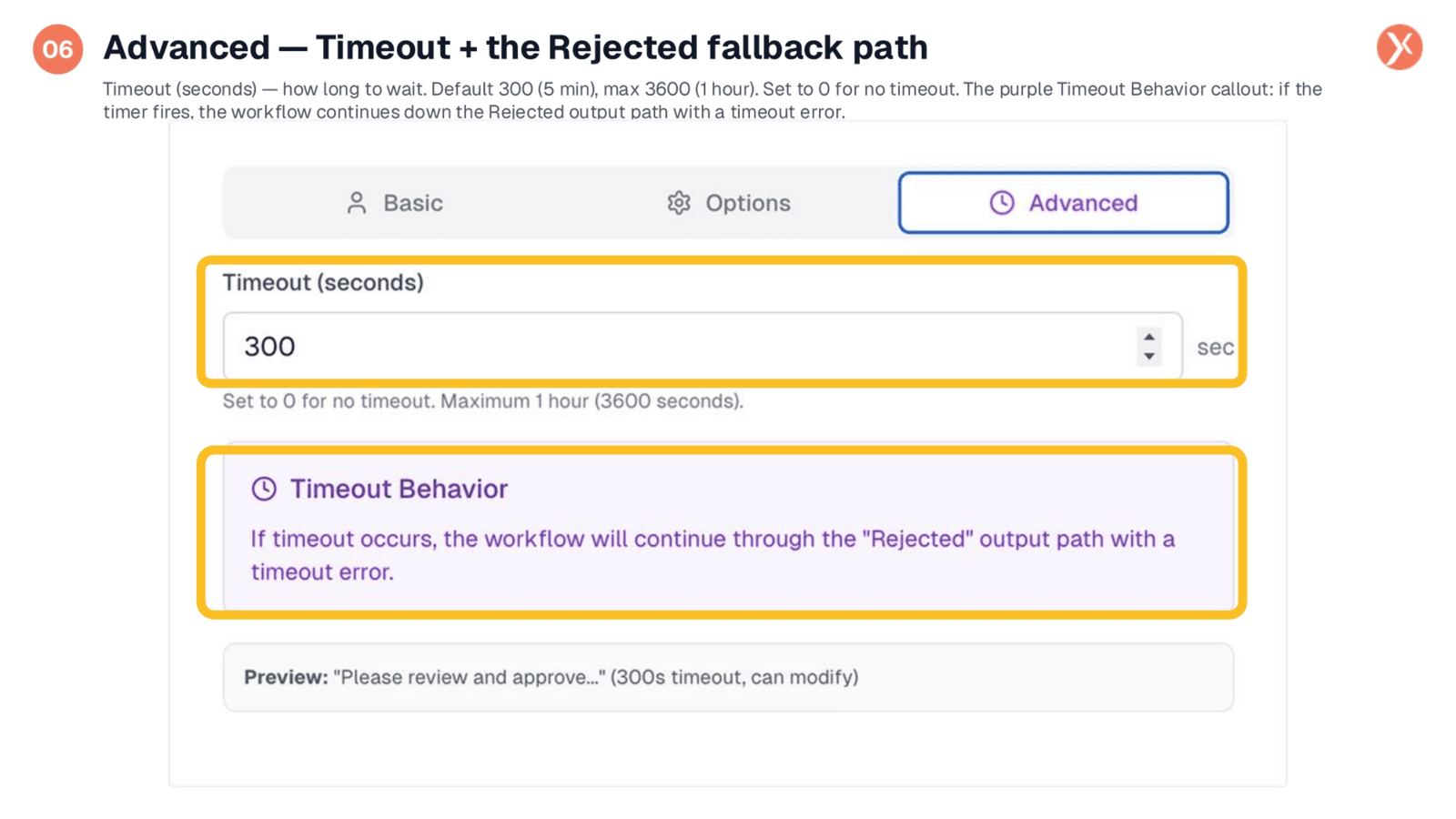
The Advanced tab primarily manages the "Timeout" setting, defining how long the workflow waits for a human response. The default is five minutes, configurable up to an hour, or set to zero for no timeout. Crucially, if a timeout occurs, the workflow automatically proceeds down the "Rejected" output path, accompanied by a timeout error. Therefore, it's vital to configure your Rejected path to effectively handle both explicit rejections and these automated timeouts, often by sending a "not proceeded" notification.
Human Approval Outputs
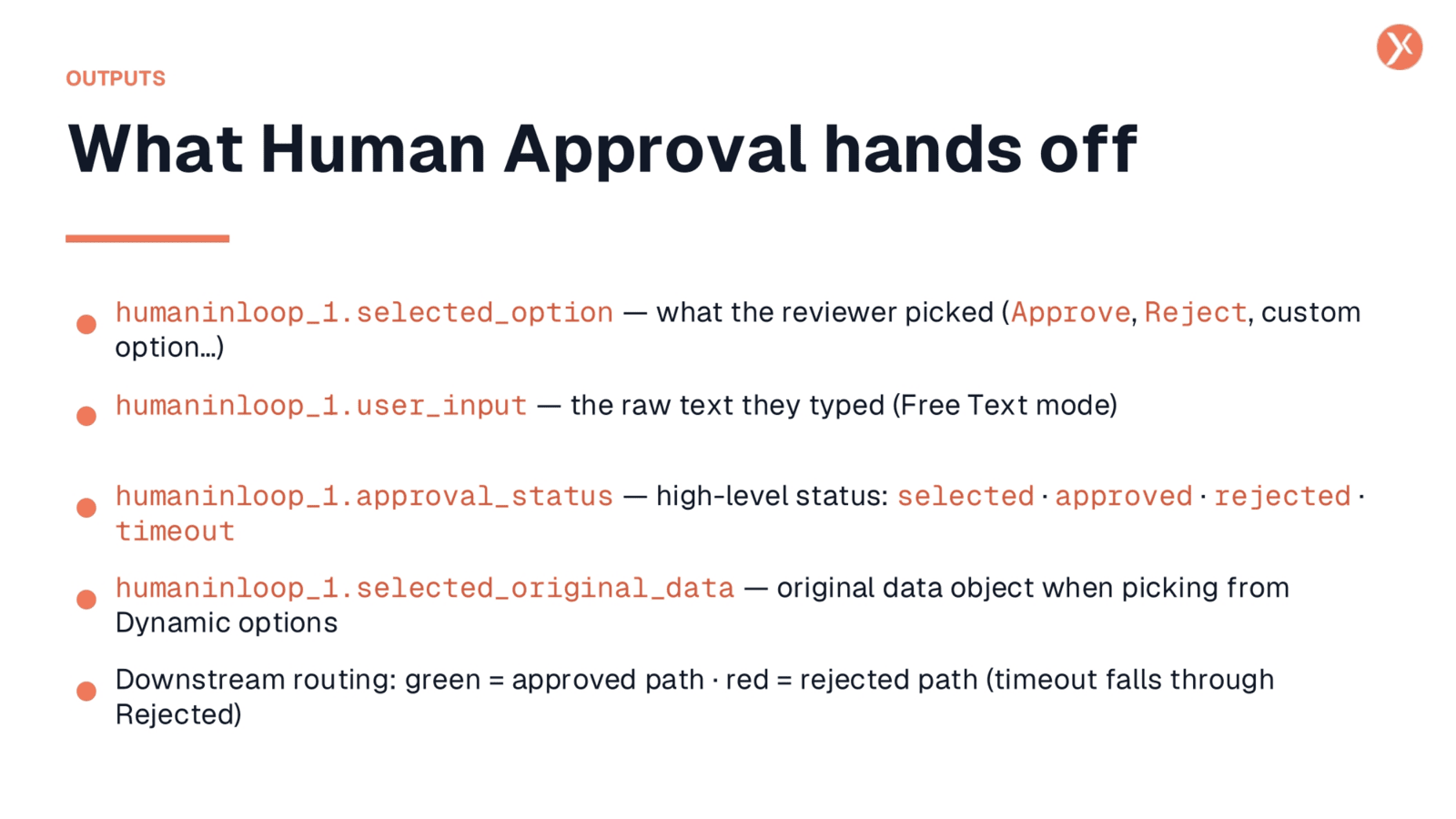
After a human decision, the Human Approval node provides several key outputs for downstream processing. The selected_option variable captures the exact choice made by the reviewer, such as "Approve" or "Revise," enabling precise branching logic. If Free Text mode was used, user_input contains the reviewer's typed response. The approval_status offers a high-level status like "approved" or "timeout," providing a standardized vocabulary for workflow conditions. Additionally, selected_original_data carries the full data object when dynamic options are utilized.
Human Approval Recap
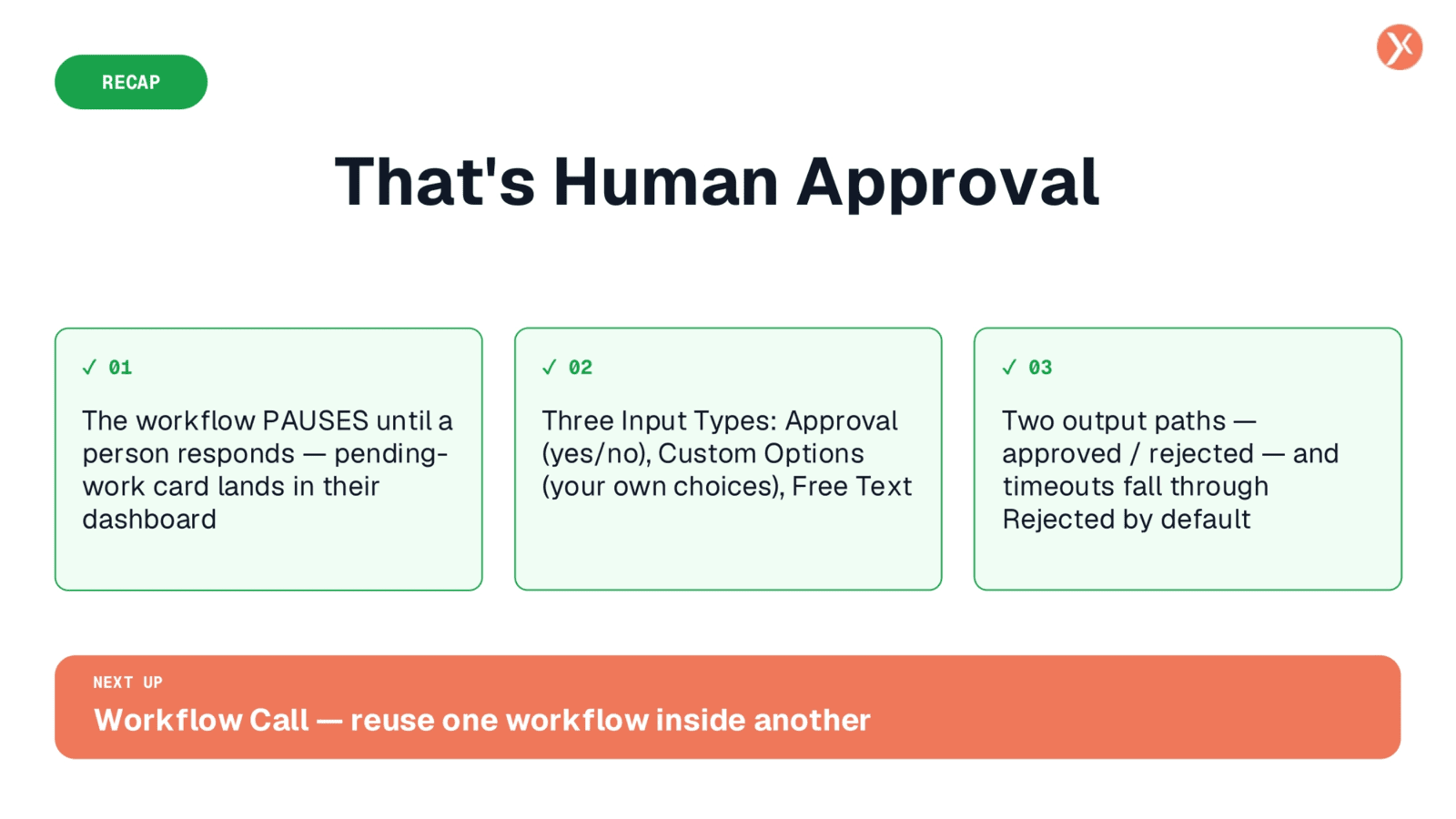
That concludes our look at Human Approval. Remember, it pauses workflows for human input, offers three distinct input types, and routes decisions through approved or rejected paths. This ensures critical human oversight where it's needed most.